You try to log in, but the screen keeps looping or throwing errors, can't login X account means you’re locked out, and sometimes you have no idea why. Maybe you’re seeing “X account login issues” on multiple devices, or “X login not working” after a password reset. The real headache starts when you need urgent access for work, team tasks, or account management, and every workaround fails.
What trips up most people isn’t just a forgotten password. Even with the right credentials, blocked sessions, device mismatches, or security triggers can lock you out. X platforms often flag suspicious logins or reject new locations, so “can’t access X account” can hit even when you follow all the usual steps. Trying the same fix twice rarely works, if you’re stuck, repeating the process usually leads to even longer lockouts or secondary restrictions.
The practical question isn’t just “how do I get back in?”, it’s “how do I avoid getting locked out again?” Short-term fixes handle one login, but if you manage several X accounts, you’ll need safer workflows. That means knowing which resets, device setups, and session checks are reliable, and which ones can trigger more problems. The guide covers each step, including what happens if a solution fails, and how to set up account access that won’t break under pressure.
Start with the most common login failure patterns, here’s what to check first.
What Usually Causes 'Can't Login X Account' Problems?
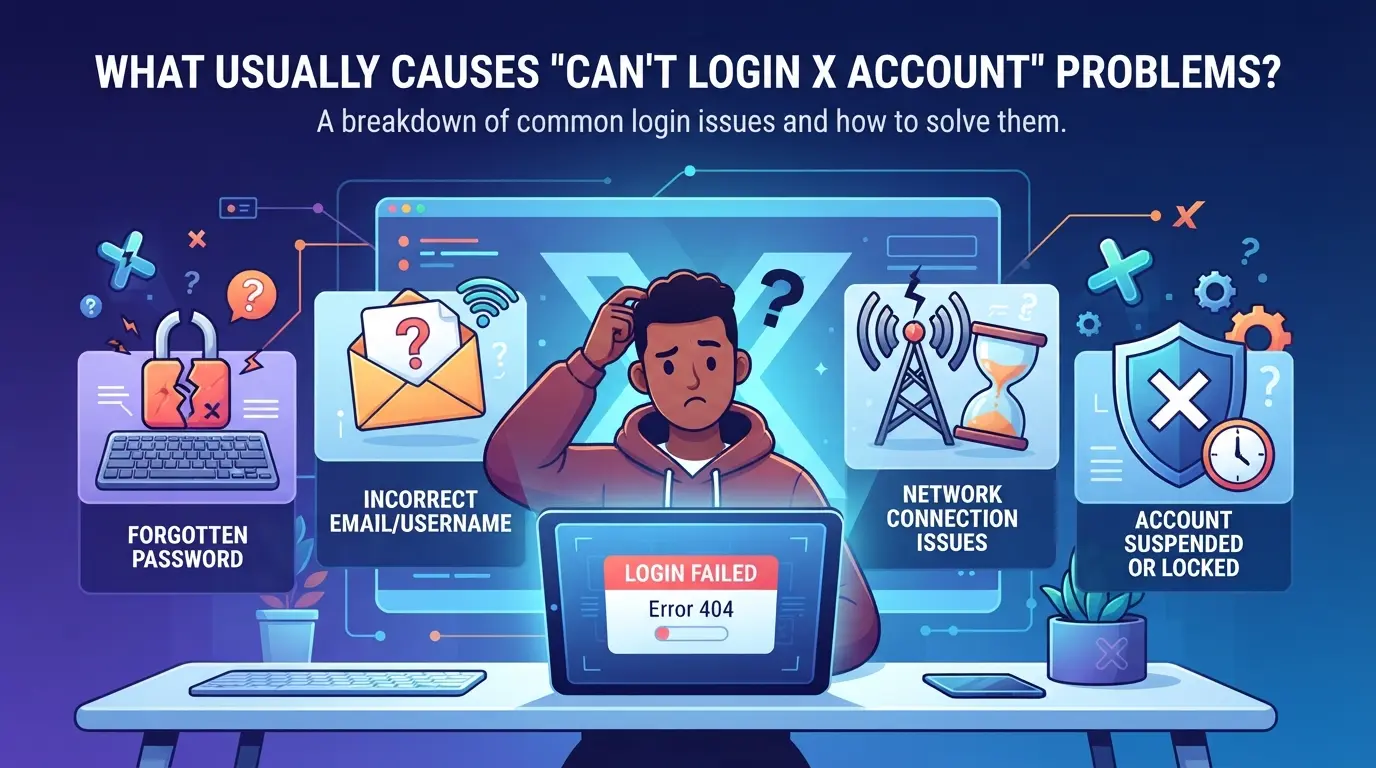
Most login failures come down to a handful of causes: wrong login details, server problems, account restrictions, or something off with your device or network. Figuring out which one hit you is the first step, guessing usually wastes time and locks you out longer.
Incorrect credentials or identifier
Simple mistakes account for a surprising number of login issues. Entering the wrong username, email, or password, even by a single character, will block access. Password resets help, but if you mistype during the reset, you’ll get locked out again.
Platform outages and service disruptions
Sometimes the issue isn’t on your end at all. X’s servers can go down, especially during big updates, regional outages, or DDoS attacks. If you’re seeing repeated “service unavailable” errors or the login page won’t load across different browsers and devices, check X’s official status page or look for reports on Downdetector. If others are reporting a problem at the same time, it’s likely a platform-side outage, nothing you do on your account or device will solve it until X restores service. Keep in mind, scheduled maintenance is often announced a few hours in advance, but sudden disruptions can last anywhere from a few minutes to several hours. Trying to log in repeatedly during an outage can trigger additional restrictions or temporary IP blocks when the service comes back, so it’s smarter to wait for a status update before retrying.
Account restrictions: locked, limited, or compromised
When an account is locked, login attempts usually trigger a warning about suspicious activity or force a password reset. If your session ends without warning, or you see “unusual login location” alerts, the platform may have detected risky behavior or a possible takeover. Accounts flagged for compromise sometimes get recovery emails you didn’t request, if you spot these, change your password and check for new sessions immediately.
Browser, device, or network conflicts
Quick checks for device and network problems:
- Clear browser cookies and cache, stale data can block new sessions for up to 30 days.
- Try a different device or browser, sometimes old app versions or browser extensions block logins.
- Check your IP or location, if you’re signing in from a new country or with an unfamiliar proxy, the platform may treat it as a breach and restrict access.
The next step is figuring out exactly which of these fits your situation. A focused checklist saves time and stops you from making things worse by repeating failed attempts.
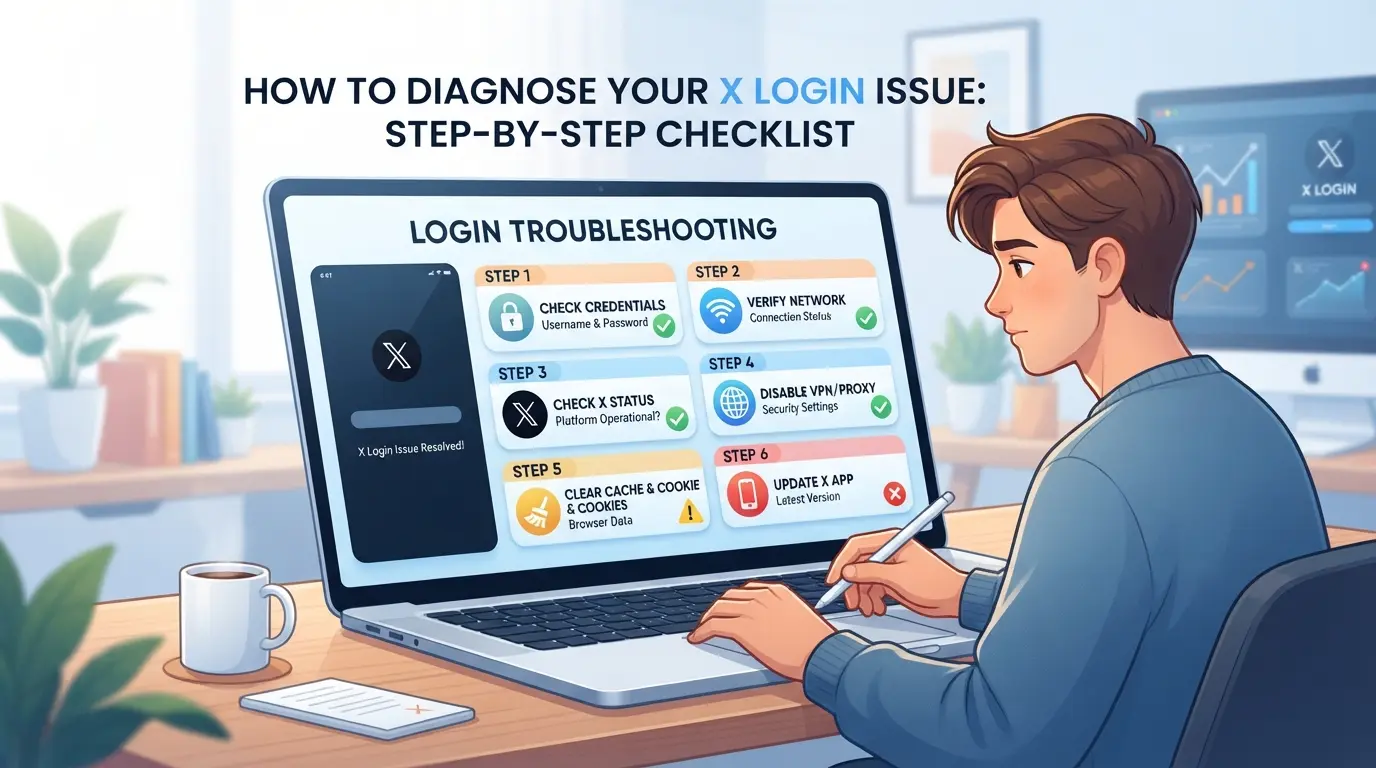
How to Diagnose Your X Login Issue: Step-by-Step Checklist
If you can’t log into X, skip the guesswork, start with this short checklist to avoid wasting time on fixes that won’t work. Most login problems sort into a few patterns. Go down the list until you spot what’s actually blocking access.
Step 1: Confirm platform status and account health
- Open X’s official status page. If you see “degraded performance” or “partial outage,” the problem may be on their end, wait for the all-clear before troubleshooting further.
- Log in from a device where you’re still signed in, if possible. Check the notification center for warnings about suspicious activity, password resets, or new device logins.
- If you’re not receiving notifications, check your email (including spam) for security alerts from X, sometimes lockouts trigger email warnings hours before the login page updates.
- Accounts flagged for policy violations or payment issues may show a banner or a forced “appeal” link instead of the usual login screen.
Step 2: Test login from another device or network
- Try logging in from both a phone and a desktop browser, some sessions only break on one type.
- Switch from Wi-Fi to mobile data, or try a different network. If you suddenly can log in, your IP address or local network is likely flagged.
Step 3: Review error messages and login loops
- Write down the exact error text, “incorrect password” points to credential issues; “unusual activity detected” signals a security block.
- If you get stuck in a login loop (you enter details, but the page reloads or logs you out), you’re probably facing a cookie or session problem. Repeated logouts after entering the right password often mean your session is blocked by the server.
Step 4: Check for browser fingerprint or IP mismatches
- Try a fresh browser profile or private/incognito window, this helps spot browser fingerprint mismatches.
- If you changed your IP or device recently, X may flag the login as risky and block or challenge access.
- Using the same device and network as last successful login usually bypasses these checks, if not, your profile or cookies may be corrupted.
Fixing Common X Login Problems: Practical Solutions for 2026
If you’ve run through the diagnosis checklist and still can’t access your account, use these fixes before you try another device, reset, or support ticket. Each step below targets a real-world failure point, skipping one usually means you’ll miss what actually triggered the lockout.
Resetting your password safely
- Go to the official X login page and click “Forgot password?”, avoid third-party links, since fake reset pages are common in phishing attacks now.
- Enter your email or username and complete any CAPTCHA. If the reset email doesn’t arrive in 5 minutes, check your spam folder and make sure you didn’t mistype anything.
- Set a new password that’s at least 12 characters, mixing letters, numbers, and symbols. Avoid any password you’ve used for X before, X’s system can block repeats and sometimes won’t tell you why.
- Log in with the new password. If you see “incorrect password” right after a reset, wait 10 minutes. Too many fast attempts can trigger a rate limit, making you think the reset failed even when it worked.
Resolving 2FA and authentication code issues
- If your authenticator app code fails, check your phone’s time settings. Authenticator codes rely on your device being synced, if your clock is off by more than 30 seconds, X will reject your login.
- For SMS codes that never arrive, toggle airplane mode or restart the phone. Mobile carriers sometimes delay or block short codes, especially after multiple requests.
- Try backup codes if you saved them. If not, look for a “Can’t access your authentication method?” link, many platforms now offer an alternative verification by email or trusted device.
- If locked out after too many wrong codes, wait an hour before trying again. Repeated errors can trigger a temporary freeze, which looks like your account is blocked but usually clears without support.
Unlocking or recovering a restricted X account
- If you see a “This account is locked” message, find the official appeal or unlock form, never submit info on forms from random links or emails.
- Fill in the form with every detail requested. Leaving fields blank often gets the request auto-rejected.
- If your account was compromised, change your password and review active sessions. Remove anything you don’t recognize, old sessions can let attackers back in, even after a reset.
- Check your email for X’s response. If you haven’t heard back in 48 hours, resubmit the form, weekend requests often get delayed, especially around major platform updates.
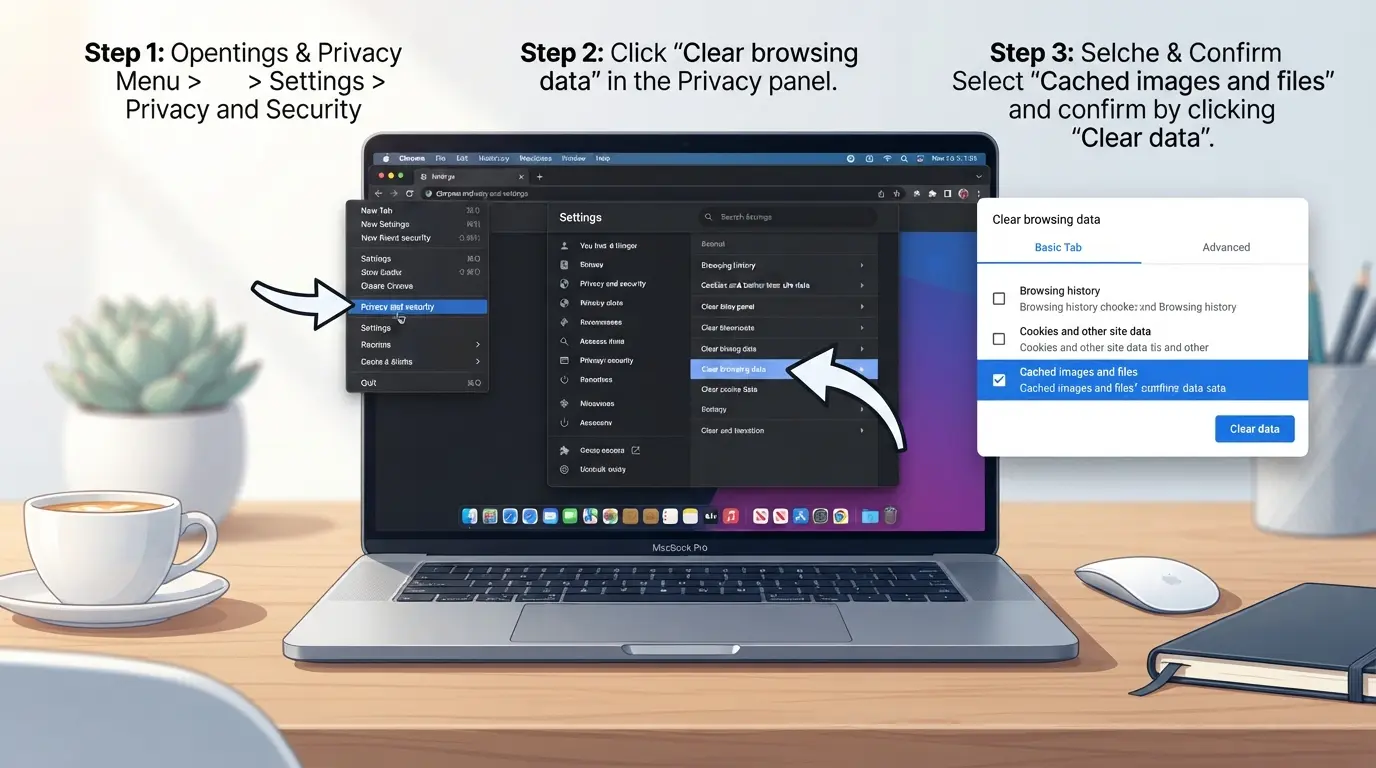
Clearing browser cache and cookies for login reliability
- Open your browser’s settings. In Chrome, go to “More Tools” → “Clear browsing data.” For Safari and Firefox, find “Clear History” or “Clear Recent History.”
- Select “Cookies” and “Cached images/files,” then clear for “All time.” Leaving cookies from past sessions can cause failed logins, especially if X changed its session policy.
- Try logging in again. If it still fails, use a private/incognito window or a different browser, this acts as a ‘clean room’ to rule out local issues.
- If you get in with incognito but not your usual browser, a stuck extension or plugin is likely blocking the login. Disable all add-ons, then re-enable one by one to find the blocker.
If you’re managing more than one X account, these steps only solve the immediate login block. The next section explains why multi-account setups run into even trickier problems, especially with device fingerprints and platform security checks.
Why Managing Multiple X Accounts Can Trigger Login Issues
Switching between several X accounts on one device raises your odds of getting locked out, platforms track more than just passwords. Most “can’t login X account” cases with multi-account setups come from hidden links between sessions, overlapping device fingerprints, or mixed-up permissions that trip security checks.
Browser fingerprint overlap and account linking
Running multiple X accounts in the same browser or user profile means the platform can spot matching fingerprints, device, cookies, fonts, and even hardware details. When two accounts share a fingerprint, platforms often assume they’re linked, and one suspicious login can flag both. The safest move is isolating each account in a separate browser profile.
IP and location conflicts
Using the same IP or suddenly switching locations between accounts can set off platform security.
- What can go wrong: A location mismatch or shared IP can lock all connected accounts in one sweep.
- Safer move: Assign a unique proxy to each account and keep session locations consistent, rotating proxies too quickly or using public Wi-Fi will only make things worse.
Team workflows and permission mistakes
Shared devices or team logins make accidental cross-account activity more likely. One person logging into multiple accounts back-to-back can create a pattern that platforms see as “unusual.” To cut risk, each team member should use their own profile and not pass devices around for quick logins, one slip, and you might end up locked out of every account.
How to Safely Manage Multiple X Accounts with DICloak: Profile Isolation and Proxy Configuration
If you handle several X accounts on one device, login failures often trace back to how browser sessions and network details overlap behind the scenes. Once you hit a “can’t login X account” wall, the short-term fix rarely holds up for the next account in your workflow. The real shift happens when you separate browser profiles and manage connection settings for each X account individually. That’s where teams and operators use DICloak, not to fix a broken login, but to set up a system that avoids the same lockout patterns in the first place.
Creating isolated browser profiles and configuring fingerprints in DICloak
One of the main triggers for recurring X login issues is browser fingerprint overlap: when two or more X accounts share the same browser signals, the platform’s detection routines may respond unpredictably. Operators using DICloak can create a dedicated browser profile for each X account. Each profile stores its own browser profile, including operating system type, User Agent, language, time zone, screen size, WebRTC handling, and a full set of fingerprint signals you can configure directly from the Fingerprint Settings screen. This lets you keep each X account’s session, cookies, and browsing context fully separated. The scope is at the browser profile and session layer; it does not change the X account or platform-side controls. If you skip this isolation, you’ll often see a pattern where login works for one account but suddenly triggers “can’t log into X” for the next, even if all passwords and recovery steps are correct.

Assigning user-provided proxies for each X account profile
Beyond browser signals, network overlap can quietly tie X accounts together, especially if several profiles use the same IP address or geolocation. DICloak gives operators control over proxy settings on a per-profile basis. You can add your own proxy details (host, port, username, password) to any profile, then run a connection test to confirm the exit IP, country, and time zone before opening an account session. This is where teams running many X accounts can assign different network routes as needed, or opt for no proxy if local access is required. Proxy choice, location, and rotation rules stay in your hands; DICloak simply applies your configuration to each browser profile. The product does not supply or recommend proxies, nor does it guarantee that a working proxy will keep every account accessible. What it does is let you store, test, and apply your own network setup per profile, so if a login fails, you know exactly which connection was used, instead of guessing which shared setting caused the problem.

When you combine profile isolation with per-profile proxy control, you build a repeatable workflow for managing X accounts at scale. This sets the stage for reducing future login conflicts, which the next section covers in detail.
Preventing Future X Login Issues: Best Practices for 2026
Avoiding “can’t login X account” headaches starts with changing how you handle each account. Relying on quick fixes usually leads to repeat problems, building safer habits saves time.
Keep browser profiles and account environments separated
Cross-login is the main reason accounts get flagged or locked. Always use a dedicated browser profile for every X account. Mixing sessions, even by mistake, lets platforms spot connections and trigger restrictions.
Use consistent IPs and avoid aggressive proxy rotation
- Stick to one stable proxy per account.
- Don’t swap IPs daily; platforms track changes.
- Check if your proxy provider logs real-time session drops.
Update passwords and enable secure authentication
Change passwords after any lockout or device change. Enable two-factor authentication if you haven’t already, this blocks most unauthorized access.
Monitor account activity for early warning signs
Unusual login attempts are often the first sign of trouble. Catching them early can prevent lockouts.
- Check your login history weekly.
- Set up alerts for new device logins.
- Respond fast if any access looks suspicious, reset credentials immediately.
When to Seek X Support or Professional Help
Most “can’t login X account” problems clear up with self-service steps, but some situations need outside help fast.
Account recovery and locked-out scenarios
- You’ve reset your password, cleared devices, and still can’t get in.
- The system says your account is locked or disabled, with no option to unlock.
- Recovery emails or codes never arrive, even after checking spam and waiting an hour.
Security breaches and compromised accounts
If you spot logins from unknown locations, see password changes you didn’t make, or notice unfamiliar devices connected, it’s not just a normal lockout. Bring in X support or a trusted security pro immediately, delays here can lead to permanent account loss or data theft.
Frequently Asked Questions About can't login X account
Why can't I log into my X account even with the correct password?
If you can't login X account despite using the right password, your account may be restricted or suspended. Check your email for alerts from X. Sometimes, platform outages or maintenance cause login issues. Also, browser extensions, proxys, or outdated browsers can block access, so try logging in after disabling these or using a different browser.
What should I do if I'm stuck in a login loop on X?
A login loop on X often happens if your browser cache is corrupted or cookies are outdated. Clear your cache and cookies, then restart the browser. If the problem remains, try logging in from another device or browser. Sometimes, X flags mismatched fingerprints or IP addresses, which can trigger repeated login requests.
How can I fix 2FA or authentication code problems with my X account?
If your authentication code isn’t working, check that your phone’s clock matches the correct time. Make sure your authenticator app is synced. If you use SMS codes, confirm you have cell service and your number is correct. If you’re locked out, use your backup codes or recovery options provided by X.
Is it safe to manage multiple X accounts on one device?
Managing several X accounts on one device is only safe if you keep each account separate. Use different browser profiles for each account, and, if possible, separate proxies or proxys. This helps prevent cross-account tracking and reduces the risk of accidental logouts or account locks.
Can DICloak help prevent X login issues for social media teams?
Yes, DICloak can help social media teams avoid X login problems by allowing each team member to isolate their profiles and configure separate proxies. This makes managing multiple X accounts safer and reduces conflicts that could cause login errors.
If you’re still unable to access your account after troubleshooting, consider reaching out to official support or looking for secure alternatives to protect your online activity. Exploring privacy tools can help you maintain control over your personal information and reduce future disruptions. Try DICloak For Free
 Web Proxy Tools
 Free Tools
 Cookie Plugin
 UA Generator
 MAC Address Generator
 IP Generator
 IP Address List
 2FA Code Generator
 World Clock
 Anonymous Check
 WebRTC Leak Test
 UUID Generator
 Free Web Proxy Site
 Proxy Checker
 FB Ad Checker
 AI Web Scraping
 Free SMM Tools
 Twitter Shadowban Checker
 Instagram Name Checker
 UTM Generator
 Username Generator
 AI Hashtag Generator
 LinkedIn Headline Generator
 Social Media Image Resizer