You import your Facebook cookies, but the login fails or the platform still asks for verification, this happens way more often than it should. The real frustration is that you did everything right: exported the cookies, imported them into your browser, checked the file format, yet you still face facebook cookies not working after import. Sometimes, imported Facebook cookies not logging in feels like a glitch, but it's usually a sign that something deeper is broken. Cookie import issues can waste your time, lock you out of accounts, or even trigger platform restrictions if you keep retrying.
What trips up most users is thinking that a cookie file alone is enough. In practice, Facebook ties cookies to device fingerprints, browser profiles, and session histories. If you skip matching these details, Facebook cookies fail after import, no matter how careful you are. Even if your cookie file came from a working session, mismatched browser profiles or outdated cookies can make Facebook treat your login as suspicious. The platform may ask for extra verification, throw you into a loop of code requests, or simply block the session.
For operators managing several accounts, the stakes are higher. Every failed import risks account bans, wasted proxy slots, and broken workflows. But there are practical fixes, like syncing browser fingerprints or rebuilding session context, that can solve most cookie import problems. If you want to cut down on login errors, you need to know what causes them and how to repair the workflow, not just swap cookie files.
Next, see which technical gaps cause Facebook cookie imports to fail.
Why Facebook Cookies Often Fail After Import, What’s Really Happening?
Even if you copy cookies from a working session, Facebook often blocks or ignores them after import. This doesn't happen by chance, Facebook’s systems spot gaps between your new setup and the old session, then treat your login as suspicious.
How Facebook Detects Unusual Cookie Use
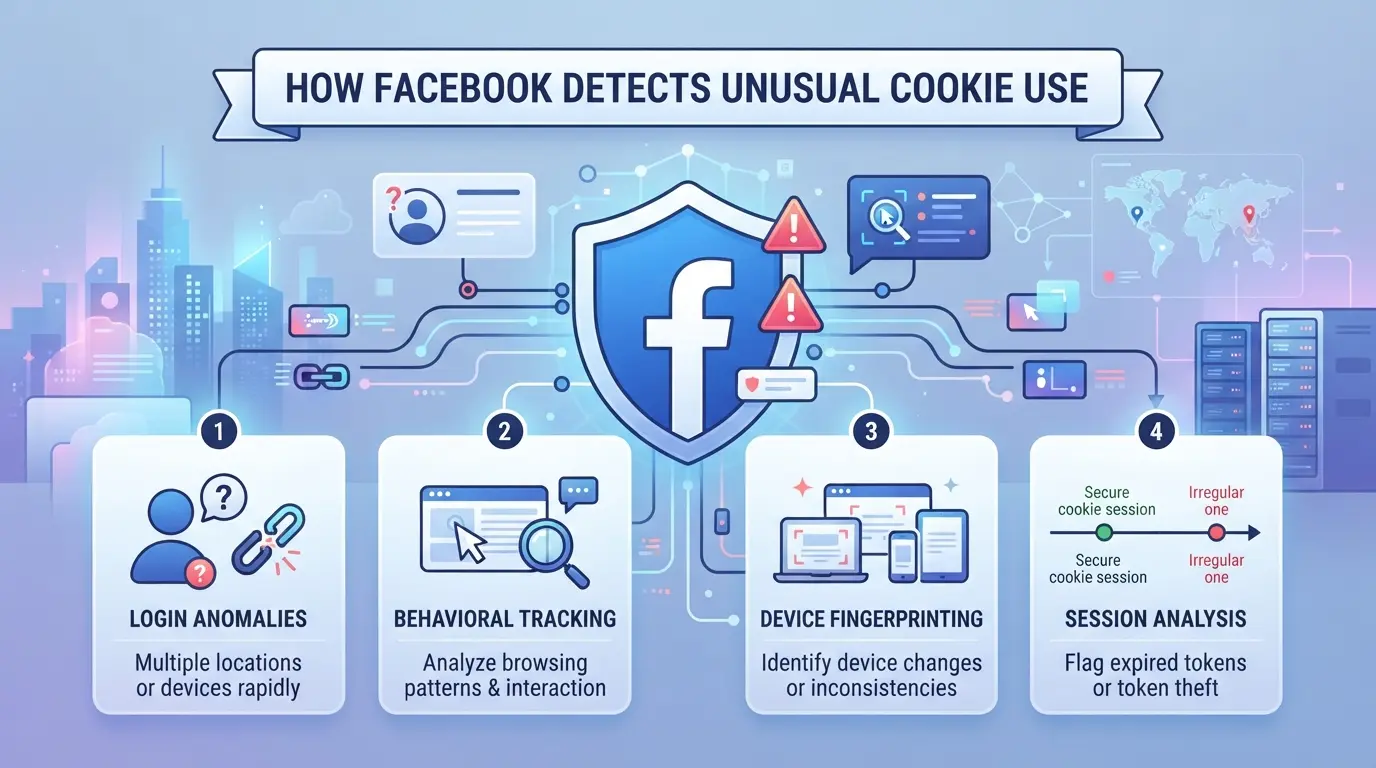
Facebook catches odd cookie imports by tracking device fingerprints and session patterns. If your browser, device, or proxy setup doesn’t match what Facebook expects, their system flags the login. A sudden change in IP address or geolocation also triggers extra checks fast.
Cookie Format and Expiry Issues
Imported cookies break most often because the file is out of date, incomplete, or missing key session tokens. Facebook uses two main cookie types, session cookies (which expire when you log out or after a short period) and persistent cookies (which last longer). If you import only persistent cookies but leave out active session cookies, Facebook may treat the session as invalid right away. For example, dragging a cookie file from an old browser can fail if that session already timed out, or if the file only includes partial data exported by a shortcut tool. Some browser extensions don’t grab the full set, leaving you with cookies that look fine in a file but can’t log you in. It gets worse when the source browser already forced a re-login; you’re copying a dead session. The single biggest technical cause of “facebook cookies not working after import” is missing or expired session data, no amount of re-importing will fix a cookie that Facebook already marked as stale.
Browser Environment and Fingerprint Inconsistencies
- Screen resolution and OS details mismatch between source and import browser
- User agent string changes or missing browser plugins
- Hardware signals (like device memory or touch support) don’t line up
Even small differences, like importing cookies to a browser with a different user agent or missing a font, can push Facebook to demand verification. If you see requests for phone codes or unusual activity warnings, browser fingerprint drift is often the reason.
Before your next import attempt, focus on matching the original session’s environment as closely as possible. The next section breaks down what to check before importing to avoid wasting time and risking extra account verification.
What to Check Before Importing Facebook Cookies, Preventing Common Mistakes
If you want to avoid Facebook cookies not working after import, start with a checklist before you even touch the import button. The most common failures trace back to missing session data, mismatched browser setups, or sudden network shifts, not just bad cookie files. By confirming the right conditions, you’ll cut down on wasted logins and stop simple mistakes from turning into account bans.
Is Your Cookie Dump Complete and Fresh?
A cookie dump missing key entries or session tokens will almost always fail. Even if you have the main session cookie, Facebook expects supporting cookies for device, login status, and user context. If your dump is stale (older than a few hours), the platform may flag it as expired, triggering verification screens or blocking access.
The single most overlooked issue: skipping a full dump often leaves out device and login context, which breaks the session instantly.
Are You Matching the Original Browser Environment?
Mismatch in the browser setup creates red flags for Facebook’s detection engine. You need to check:
- User agent matches the original session (do not use generic settings)
- OS and language settings align with the cookie’s source device
- Screen resolution and timezone are consistent with the original login
Even a small mismatch, like timezone or language, can tip Facebook off, forcing extra verification or session resets.
Is Your Network/IP Consistent With the Cookie’s Origin?
If your IP or location suddenly changes, Facebook may treat the session as suspicious, even if the cookies are valid. You should:
- Use a proxy matching the original IP location
- Avoid importing cookies from mobile to desktop without matching the network type
- Double-check that geolocation is close to the last session’s country or region
If the network jump is too big, expect code requests or instant logout. Make these checks before importing to save yourself from avoidable login headaches.
How to Import Facebook Cookies Correctly in 2026: Step-by-Step
Importing Facebook cookies the right way means matching your source environment, not just pasting files. If you want the highest chance of a working session, you need to handle export, browser setup, and import as a connected process, not three separate chores.
Exporting Cookies Properly From the Source Browser
- Use a proven cookie export tool (like EditThisCookie or Cookie-Editor) and pick the complete JSON export, not just the visible list. Partial exports miss hidden tokens.
- Export cookies from a live, logged-in session, don’t grab them from inactive tabs or background windows. Facebook may issue short-lived tokens.
- Double-check that your export file includes both “www.facebook.com” and “facebook.com” entries. Missing one can break key logins.
If you skip any of these, you may end up with expired or incomplete cookies that Facebook ignores.
Preparing the Target Browser Environment
- Clear all Facebook site data and old cookies in your target browser profile. Leftover data often causes “facebook cookies not working after import” errors.
- Match the browser version, user agent, and hardware fingerprint as closely as possible to the source. Facebook flags major mismatches, if your device changes from Mac to Windows, or Chrome to Firefox, expect instant verification prompts.
- Make sure the proxy (if any) matches the original login IP region. A sudden country switch is a red flag.
The environment must feel like a natural continuation of the previous session, or Facebook will see the login as suspicious.
Importing Cookies and Testing Login
- Use a reliable cookie import extension for your browser. Avoid copy-paste methods, they drop cookie attributes and often break logins.
- After import, open a fresh Facebook tab and go to www.facebook.com. Don’t reload the old tab; it won’t trigger a new session check.
- If you’re asked for code verification or see security prompts, stop. Do not keep submitting codes, this can lock the account. Instead, recheck your browser match and try again with a fresh profile.
Most failures come from mismatched environments, not broken cookies, get the setup right and you’ll see far fewer login errors.
Next, it’s time to understand why Facebook still blocks imported cookies, even when you do everything right. Detection triggers and risk factors are not always obvious.
Why Facebook Still Blocks Imported Cookies, Detection Triggers and Risk Factors
Even if you import cookies perfectly, Facebook can still flag or block your login, usually because something doesn’t match what it expects from that account. Here’s what triggers problems after a seemingly correct import.
Fingerprint Mismatches and Device Anomalies
Browser fingerprint mismatches are a top detection trigger. Facebook checks details like graphics card, screen size, and installed fonts. If your device fingerprint changes between sessions, Facebook may treat your login as high risk and force verification.
IP, Location, and Timezone Red Flags
A sudden shift in IP, country, or timezone almost always draws attention.
- If your imported session logs in from a new city or country, Facebook may ask for a code or lock the account.
- The safer move: always use a proxy that matches the original device’s location and set your system timezone to match the account’s history.
Account Security Policies and Forced Logouts
Sometimes Facebook ends all sessions after a major security update or breach. In these cases, even a flawless cookie import won’t restore access, Facebook invalidates the cookie on its end, forcing a new login or password reset. If this happens, you must pass the platform’s security checks to get back in.
How to Troubleshoot When Facebook Cookies Still Don’t Work After Import
If Facebook still blocks you after importing cookies, even when you followed every step, the problem usually lies in session data, browser mismatch, or expired tokens. You can fix most Facebook cookie import issues by stepping through the process below and spotting where the workflow breaks.
Check Cookie Validity and Expiry
- Open your cookie file with a text editor. Search for “expires” or “expiry” fields, any cookie with a date in the past is dead and won’t restore a session.
- Look for important tokens like “c_user” and “xs.” Missing or empty fields mean the login can’t work, even if the rest looks right.
- If the file only has a few lines, it’s probably incomplete. Real Facebook sessions usually have 10-20+ cookies.
Review Browser and Network Consistency
- Compare the browser fingerprint (User-Agent, OS version, language) you used to export cookies with the one you’re using for import. Even a small mismatch can trigger Facebook’s security checks.
- Test your proxy, switch to a new residential IP that matches the original region. Static datacenter proxies often cause instant checkpoint loops.
- Check timezone and WebRTC settings. If these leak your true location or device, Facebook may block the session before you even reach the login page.
Analyze Facebook’s Error Messages and Logs
- Note the exact error, “Session Expired” means the token is dead; “Please Confirm Your Identity” points to device mismatch; “Suspicious Login Attempt” usually means IP or fingerprint change.
- Try re-importing the cookies in a clean browser profile and watch for any change. If the error stays the same, the cookie data is likely invalid.
- Use browser logs or developer console to see blocked requests or 401/403 codes, these confirm whether the session failed before or after cookie parsing.
When to Abandon and Start Fresh
- If you’ve tried multiple browsers, proxies, and clean imports but still get blocked, the session is unrecoverable, don’t keep retrying.
- Wipe the environment and start with a new Facebook account or fresh cookie export. Reusing bad cookies can trigger account locks across your workflow.
- Document every failed pattern, tracking what went wrong saves time and reduces repeated mistakes on future imports.
Next, see how separating accounts and isolating environments can cut down on cookie import risk.
How to Safely Separate Facebook Accounts and Reduce Cookie Import Risk With DICloak
Teams handling several Facebook accounts often hit the same problem: imported cookies fail because browser profiles, IPs, or team workflows overlap. Even after fixing obvious errors, the session still gets flagged, and login fails. If you’re running multi-account workflows, separating each account at the browser profile, fingerprint, proxy, and permission layer is the only way to cut cross-contamination and reduce cookie import risk.
Isolating Facebook Accounts With Separate Browser Profiles and Fingerprint Settings
Operators can create a dedicated browser profile for each Facebook account in DICloak and configure fingerprint settings, OS, user agent, language, timezone, and screen resolution, to match the original login device. This means every session runs in a separate environment, reducing the mismatch that causes imported cookies to fail. The scope is limited to browser profile setup; it does not change Facebook account status or guarantee cookie acceptance. 
Assigning User-Owned Proxies to Each Profile for Network Consistency
Facebook often flags imported cookies when the IP or location shifts. Operators can assign their own proxy, HTTP, HTTPS, or SOCKS5, to each profile in DICloak and test the exit IP before opening a session. For example, setting a SOCKS5 proxy with the same country as the original login preserves network consistency and lowers the chance of cookie mismatch errors. Proxy choice and quality are up to the operator; DICloak only stores and applies the connection. 
Team Permissions for Assigned Browser Profiles
When several operators handle Facebook accounts, admins can use DICloak to group members and assign permissions so each operator only sees and opens their assigned profiles. This prevents cookie overwrites and cross-profile mistakes, especially with overlapping accounts. The controls apply inside DICloak; they don’t change permissions or access inside Facebook itself. 
If you still see Facebook cookies not working after import, separating workflows at each layer gives you the best shot at a stable session, next, check when cookie import isn’t the right move at all.
When Facebook Cookie Import Is the Wrong Solution, Safer Alternatives for 2026
Jumping to cookie import can backfire, especially if you need stable Facebook access for more than a quick session. If your workflow keeps running into "facebook cookies not working after import," it’s time to consider safer, longer-term options.
Risks of Relying on Cookie Imports for Long-Term Access
| Method |
Main Risk |
What Usually Happens |
| Cookie Import |
Forced verification, lockouts |
Sudden login blocks |
| Native Login or Delegation |
More setup work, but fewer bans |
Smoother access, less risk |
| Profile Management Tool |
Initial prep needed, but stable sessions |
Fewer interruptions |
If you depend on cookies alone, expect more account freezes, especially after device or proxy changes.
When to Use Native Login or Account Delegation Instead
For teams or agencies, using Facebook’s native login or account delegation avoids most cookie import failures. Setup takes longer, but you keep control, and account health is less likely to tank after a workflow change.
Using Profile Management Tools for Ongoing Operations
Profile isolation and automated environment setup reduce the risk of Facebook flagging you as an imposter. These tools handle device, proxy, and fingerprint matching, so you spend less time fixing broken sessions.
If you keep hitting login walls, changing your workflow is safer than re-importing cookies.
Summary: Key Takeaways for Facebook Cookie Import in 2026
Importing Facebook cookies still triggers platform checks, browser fingerprint mismatches and stale session data can block logins even when cookies look valid. The main lesson: matching browser context and fresh session details is more important than copying files. Skip these steps, and you’ll keep seeing “facebook cookies not working after import” warnings.
Checklist: What to Always Do Before and After Import
- Always check that browser profiles and proxies match your original session.
- Monitor Facebook for popups or extra verification, any code loop means the import failed.
- If login breaks, rebuild the session instead of swapping more cookie files.
Frequently Asked Questions About facebook cookies not working after import
Why are my Facebook cookies not working after import even if they are fresh?
Fresh cookies may still fail if your browser fingerprint, IP address, or device environment do not match the original login. Facebook checks things like user-agent, screen resolution, time zone, and IP location. If these details look different, Facebook may block or ignore your imported cookies for security reasons.
Can I use the same Facebook cookies on multiple devices or browsers?
No, using the same cookies on different devices or browsers is risky. Facebook tracks your environment, so a mismatch in hardware, browser type, or settings can trigger security checks. This often results in login failures or account verification prompts. Always keep your environment consistent when using imported cookies.
What tools are best for exporting and importing Facebook cookies in 2026?
Reliable tools for handling Facebook cookie import issues include browser extensions like EditThisCookie, Cookie-Editor, and Cookiebro. These extensions are updated regularly and support manual export/import. Always use the latest browser version and check for extension updates to avoid compatibility problems.
How can I tell if my imported cookies are expired or incomplete?
Check your cookies in your browser’s storage. Look for expiry dates, expired cookies will not work. Also, verify that session tokens, like "c_user" and "xs," are present. Missing or outdated tokens often cause imported Facebook cookies not logging in or failing to keep your session active.
Is it safer to use proxies when importing Facebook cookies?
Proxies can help match the original IP address used with the cookies, reducing the risk of Facebook cookies fail after import. However, proxies do not guarantee success. Facebook also checks device details and browser fingerprints, so using a proxy is just one part of mimicking the original login environment.
If standard troubleshooting hasn’t resolved your cookie issues, consider using advanced tools designed to simplify authentication and cookie management. A specialized solution can save time and ensure smoother access without repeated login interruptions. Try DICloak For Free
 Web Proxy Tools
 Free Tools
 Cookie Plugin
 UA Generator
 MAC Address Generator
 IP Generator
 IP Address List
 2FA Code Generator
 World Clock
 Anonymous Check
 WebRTC Leak Test
 UUID Generator
 Free Web Proxy Site
 Proxy Checker
 FB Ad Checker
 AI Web Scraping
 Free SMM Tools
 Twitter Shadowban Checker
 Instagram Name Checker
 UTM Generator
 Username Generator
 AI Hashtag Generator
 LinkedIn Headline Generator
 Social Media Image Resizer