Video work is no longer limited to one editor. In Wyzowl's 2026 survey, 91% of businesses said they use video as a marketing tool, and 69% of video marketers create social media videos. At the same time, 42% of businesses use external video creators in at least part of their workflow. That means an editor, social media manager, and freelancer may all need to work with the same video tools at different stages.
For small teams using CapCut Pro, that often leads to a practical question: can several people use one subscription without passing the password around? CapCut allows one subscription account to be used on up to five devices at the same time, but five devices do not equal five separate team seats. This guide explains what CapCut allows in 2026, which sharing method fits different team workflows, and how teams can share access when someone really needs the same existing CapCut Pro account.
Why Do Teams Want to Share a CapCut Pro Account?
Teams usually want to share CapCut Pro because several people may touch the same video workflow, while only one or two people use the editor every day. For a small content team, buying full access for every occasional reviewer, manager, or temporary editor can feel unnecessary. The most common reasons are practical:
- A small team has different levels of usage. One editor may work in CapCut every day, while a social media manager only opens projects to adjust captions, replace clips, or prepare a final export.
- Freelancers or contractors only need temporary access. An agency may bring in an editor for one campaign or a short client project. Paying for long-term access can make little sense when the work only lasts a few weeks.
- The team already has an active CapCut workflow. Existing projects, templates, media, and account-based resources may already sit under one account, so moving everyone to a new setup can create extra work.
- Teams want to keep software costs under control. This matters most for small agencies, creator teams, and businesses where several people may need CapCut occasionally but not enough to justify the same plan for everyone.
The key point is that people often search for CapCut account sharing because access needs are uneven, not because every team member needs a full editing seat. That distinction matters when deciding whether to share projects, use CapCut's team features, or give someone access to an existing account.

How Much Does CapCut Pro Cost, and What Are the Account-Sharing Rules in 2026?
CapCut Pro currently costs $19.99 per month or $179.99 per year for individual users, while the Team plan starts at around $24.99 per month. The bigger question for a team is not which plan is cheaper, but whether one individual subscription gives everyone the type of access they actually need. Prices can vary by region, platform, taxes, and promotions.
CapCut Pro vs. CapCut Teams: What Are You Actually Paying For?
CapCut Pro is mainly built around one account using premium editing features across devices. CapCut Teams is built for people who need to work together with their own member access, shared projects, team storage, and role-based permissions.
|
CapCut Pro |
CapCut Teams |
| Main use |
Individual premium editing |
Ongoing team collaboration |
| Account access |
Subscription tied to one CapCut account |
Members join with their own CapCut accounts |
| Multiple devices |
Up to five devices at the same time |
Members access the team through their own accounts |
| Shared work |
Useful across one user's devices |
Shared projects, assets, and cloud storage |
| Roles & permissions |
Not the main purpose |
Team roles and access controls |
| Best fit |
One main user working across devices |
Teams with regular editors or collaborators |
This difference matters in a real content team. If one creator edits on a laptop, desktop, and phone, an individual Pro plan already covers that multi-device workflow. If an agency has several editors who need their own access to shared projects every week, Teams is closer to the way the group actually works. CapCut's current collaboration setup also allows larger teams to add seats and manage members rather than treating everyone as another device on one personal account.
CapCut's terms add another important limit: account login details should be kept confidential and not disclosed to third parties. For a long-term team, that makes native member access more appropriate than passing the same password between employees or contractors.
Does CapCut Pro's Five-Device Limit Mean Five People Can Share It?
No. CapCut Pro allowing up to five devices does not mean one subscription includes five separate team seats. The subscription is tied to the CapCut account, and the device limit describes how many devices that account can use at the same time.
This distinction is easy to miss. A freelance creator might use the same Pro account on a work PC, personal laptop, and phone, which is exactly the kind of multi-device use the limit supports. A five-person marketing team is different: those five people may need separate identities, project access, permissions, and clear ownership of their work.
CapCut Teams handles that second case differently. Accepted team members join through their own CapCut accounts and receive access to the shared team workspace and its available benefits. In other words, devices answer "where can this account be used?" while team seats answer "who has their own access?"
That does not mean every team needs to buy a Teams plan. A manager who only reviews one project, a temporary editor who works for a few days, and a full-time video editor have very different access needs. The next step is to choose a sharing method based on what each person actually needs to do, rather than assuming everyone needs the same CapCut login.
What Are the Best Ways to Share CapCut Pro With a Team?
The best way to share CapCut Pro depends on what your teammate actually needs. Some people need their own team access, some only need a project, while others may need to work inside the same existing CapCut Pro account.
| What your teammate needs |
Better option |
| Regular access to team projects and shared resources |
CapCut Teams |
| Access to edit, review, or approve specific projects |
Project or Space sharing |
| Occasional access to the account login |
Password manager |
| Access to the same existing logged-in CapCut Pro account |
Shared browser Profile |
Method 1: Use CapCut Teams for Long-Term Team Members
CapCut Teams is usually the most practical choice for full-time staff, regular editors, or agency teams that work together every week. Each member can use their own CapCut account while accessing shared projects, team resources, and assigned permissions. For example, a three-person social media team may have one editor producing videos, another creator helping with revisions, and a manager checking the final version. Giving each regular team member their own access keeps the workflow clearer than having everyone use the same personal login.
Method 2: Share Projects or Spaces When People Only Need the Work
Not everyone who works on a video needs access to the whole CapCut Pro account. If someone only needs to edit a project, review a draft, or give feedback, sharing the project or using a Space can be enough.
This is common in agency and content workflows. An editor may handle the timeline, a social media manager may review the final cut, and a client may only need to check the result. In that case, giving all three people the same account login adds access they may never need.
Project sharing also keeps the workflow focused on the content itself. When editing access needs to move from one person to another, the team can hand off the project instead of treating account access as the main collaboration method. If a teammate only needs the project, sharing the project is usually simpler than sharing the entire CapCut account.
Method 3: Use a Password Manager When Someone Only Needs the Login Credential
A password manager can work when a trusted teammate occasionally needs the CapCut login. It avoids copying the password into a team chat, email, or shared document, and it makes credential sharing easier to manage. This method is most useful for simple, occasional access. For example, a small creator team may have one assistant who logs in once in a while to finish an export or make a quick change.
However, a password manager mainly handles the credential itself. If several people repeatedly need to enter the same CapCut workspace, keeping the working session available can be more convenient than passing the login back and forth each time.
Method 4: Use an Antidetect Browser When the Team Needs the Same Existing Account
Sometimes a team does need to work inside the same CapCut Pro account. This may happen when an agency already has active projects and a working setup under one account, or when a temporary editor needs to continue work inside that existing session. In this case, sharing a browser Profile can be more practical than repeatedly sending login details. With an antidetect browser like DICloak, the CapCut account can stay logged in inside one browser Profile, and that Profile can then be shared with the team member who needs to use it.
For example, an agency could keep its CapCut Pro session inside one Profile and give a temporary editor access to that Profile for a client project. The editor works from the same logged-in setup, while the team does not need to send the account password each time someone takes over the work.
The right sharing method depends on what your teammate needs: their own team access, a specific project, the login credential, or the same logged-in CapCut Pro account.
Why Use DICloak to Share a CapCut Pro Account?
When several people need the same existing CapCut Pro account, an antidetect browser like DICloak can make shared access easier to manage. Instead of passing the password around, the team can work through one dedicated browser Profile.
- Keep the CapCut session in one Profile. The account stays logged in inside a dedicated browser Profile, so teammates can return to the same working setup without signing in from scratch each time.
- Share the Profile instead of the password. A temporary editor or contractor can access the existing CapCut session through the shared Profile, which reduces the need to send login credentials through chat or email.
- Control who can access the account. Team permissions let the account owner give Profile access only to the people who need it and remove that access when the project ends.
- Keep the browser setup consistent. Teammates use the same Profile, cookies, and login state instead of opening the account from different browser setups each time.
- Review shared access more easily. Operation logs help the team check Profile-related activity when several editors or contractors use the same CapCut account.
For teams that need account-level access rather than just project sharing, using DICloak can make it easier to share, manage, and hand off the same CapCut Pro browser Profile without repeatedly sharing the password.
How to Share a CapCut Pro Account With DICloak Without Sharing the Password
If your team needs to work inside the same existing CapCut Pro account, you can keep the login session inside a dedicated browser Profile and share that Profile with selected team members. With DICloak, the setup is mainly about creating the Profile once, signing in to CapCut, and then managing who can open it.
Step 1: Download and Install DICloak
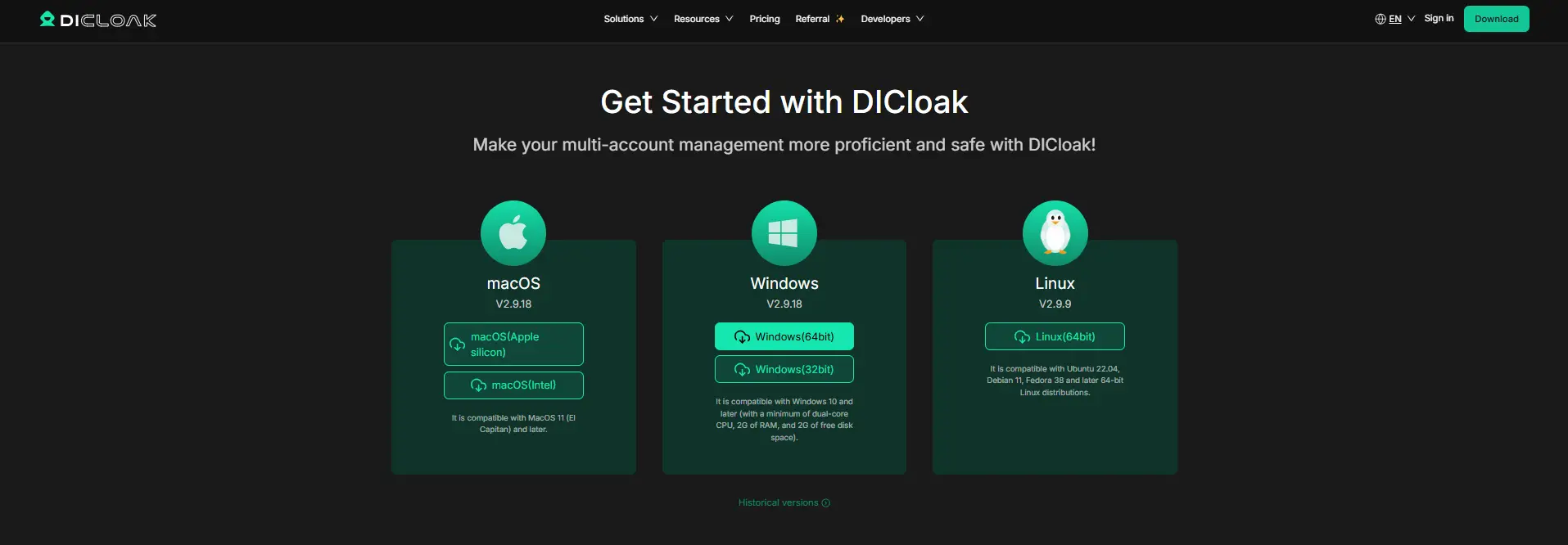
Go to the official DICloak download page, create an account, and install the desktop app. The account owner should handle the initial setup because this person will create the CapCut Profile and manage team access later.
Step 2: Choose a Plan That Supports Team Sharing
Select a DICloak plan based on how many people need access and how many browser Profiles your team manages. For a small content team, the main requirement is support for team members and Profile sharing rather than advanced automation or large-scale profile management.
Step 3: Add a Stable Proxy If Your Workflow Uses One
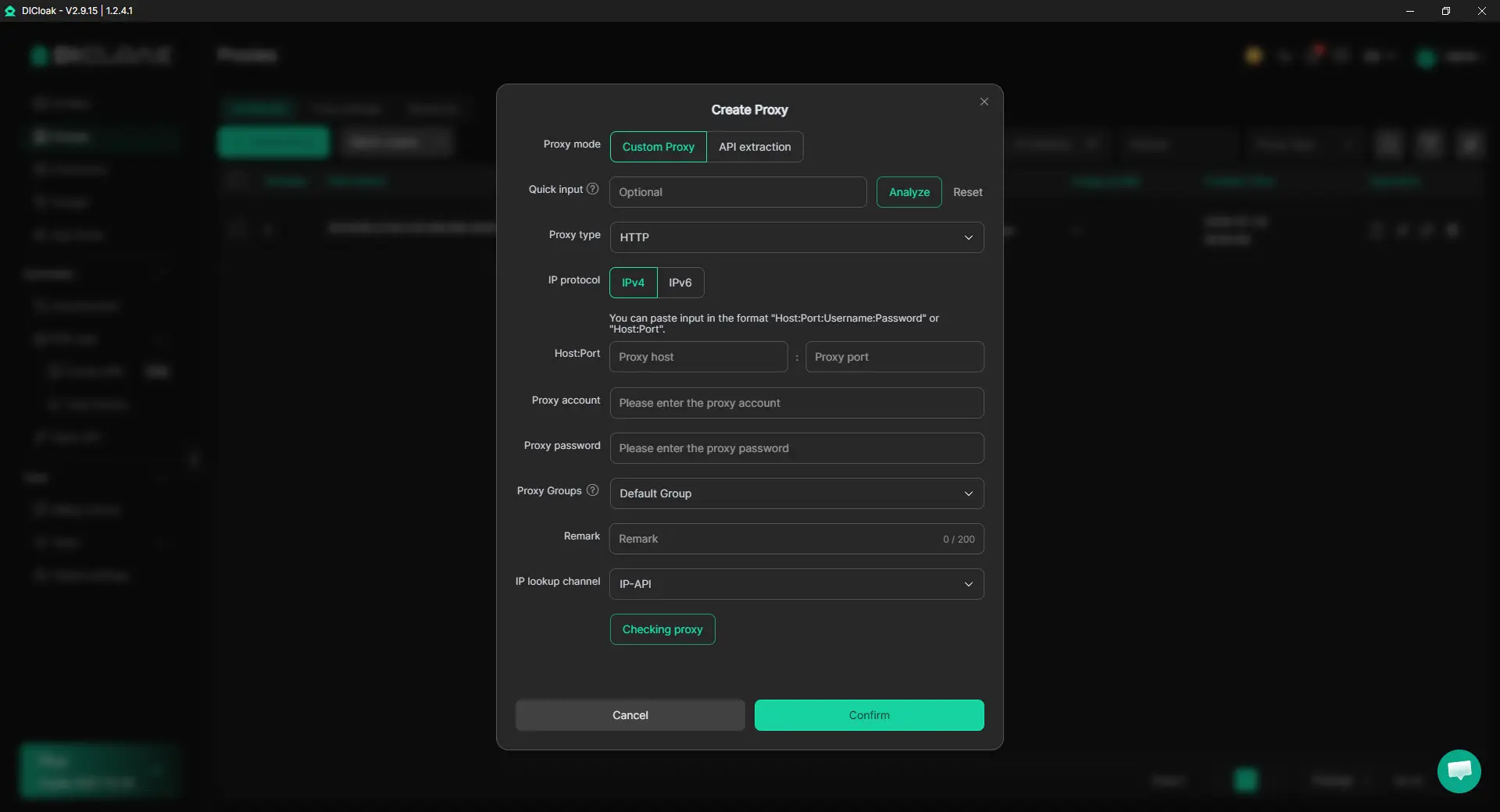
A proxy is optional for this setup. If your team already uses a user-configured proxy for the CapCut Profile, keeping one stable proxy assigned to that Profile can help everyone return to the same browser setup instead of changing the network configuration each time. DICloak does not provide the proxy itself, so teams can add their own proxy connection when needed.
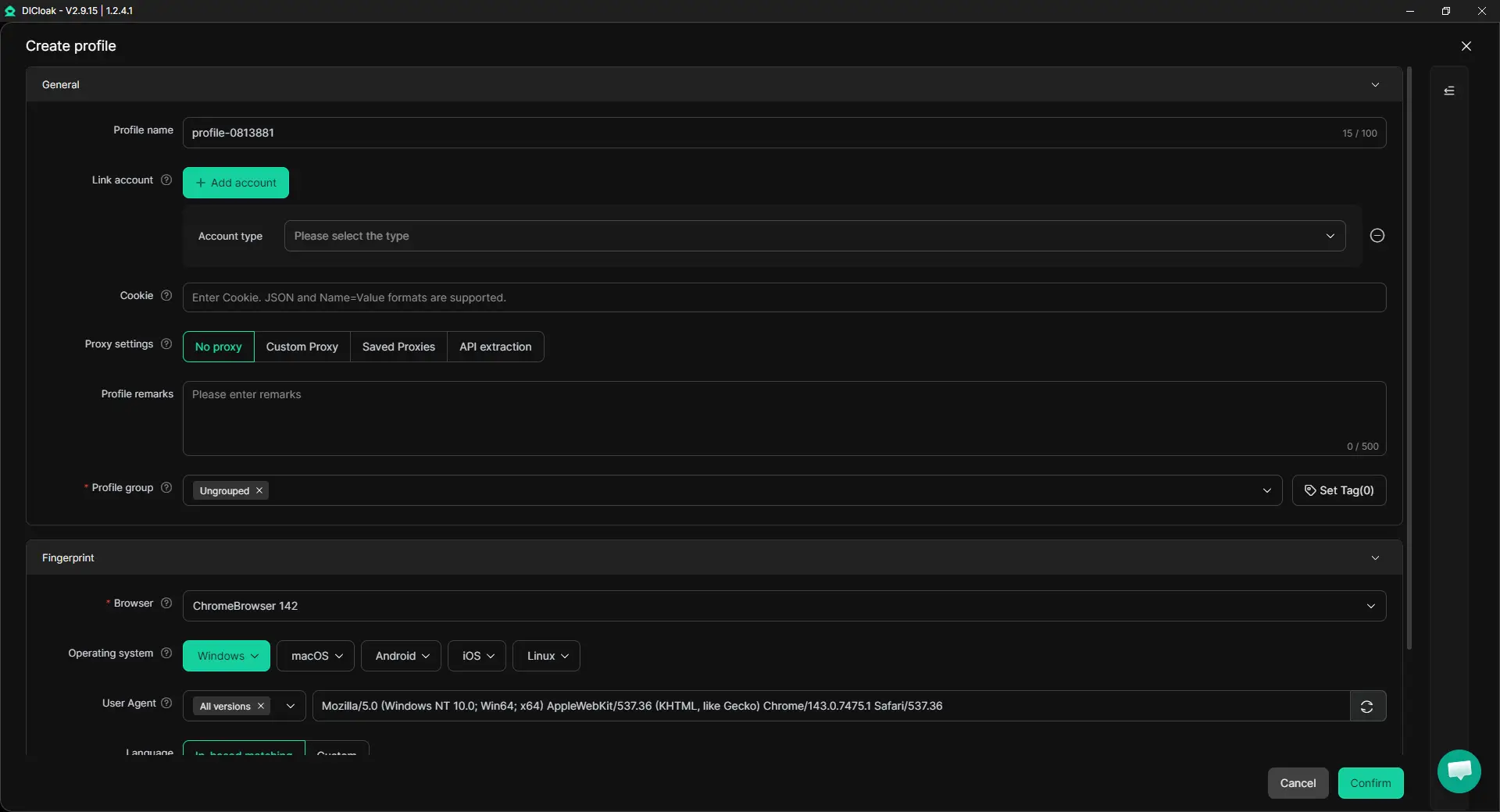
Step 4: Create a Dedicated CapCut Browser Profile
Create a new browser Profile and use it only for the shared CapCut Pro account. This Profile keeps the CapCut cookies, login state, and browser settings together, giving teammates the same working browser setup when they take over the account.
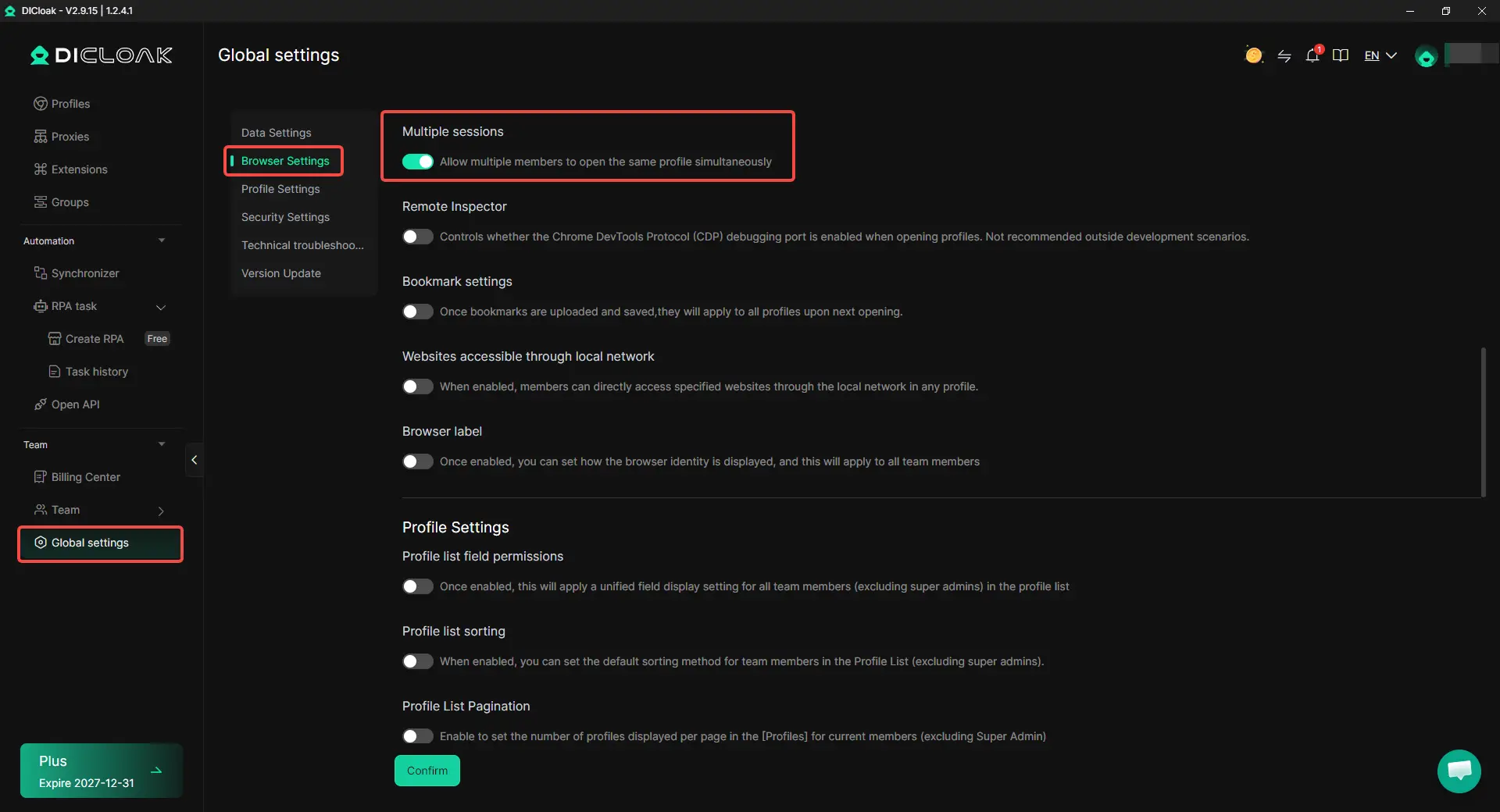
Step 5: Enable Multiple Sessions Only If Your Team Needs Simultaneous Access
If more than one teammate needs to open the same Profile at the same time, enable Multiple sessions in the relevant DICloak settings. If your editors normally take turns, this option is not necessary, and a simple handoff between team members may be easier to manage.
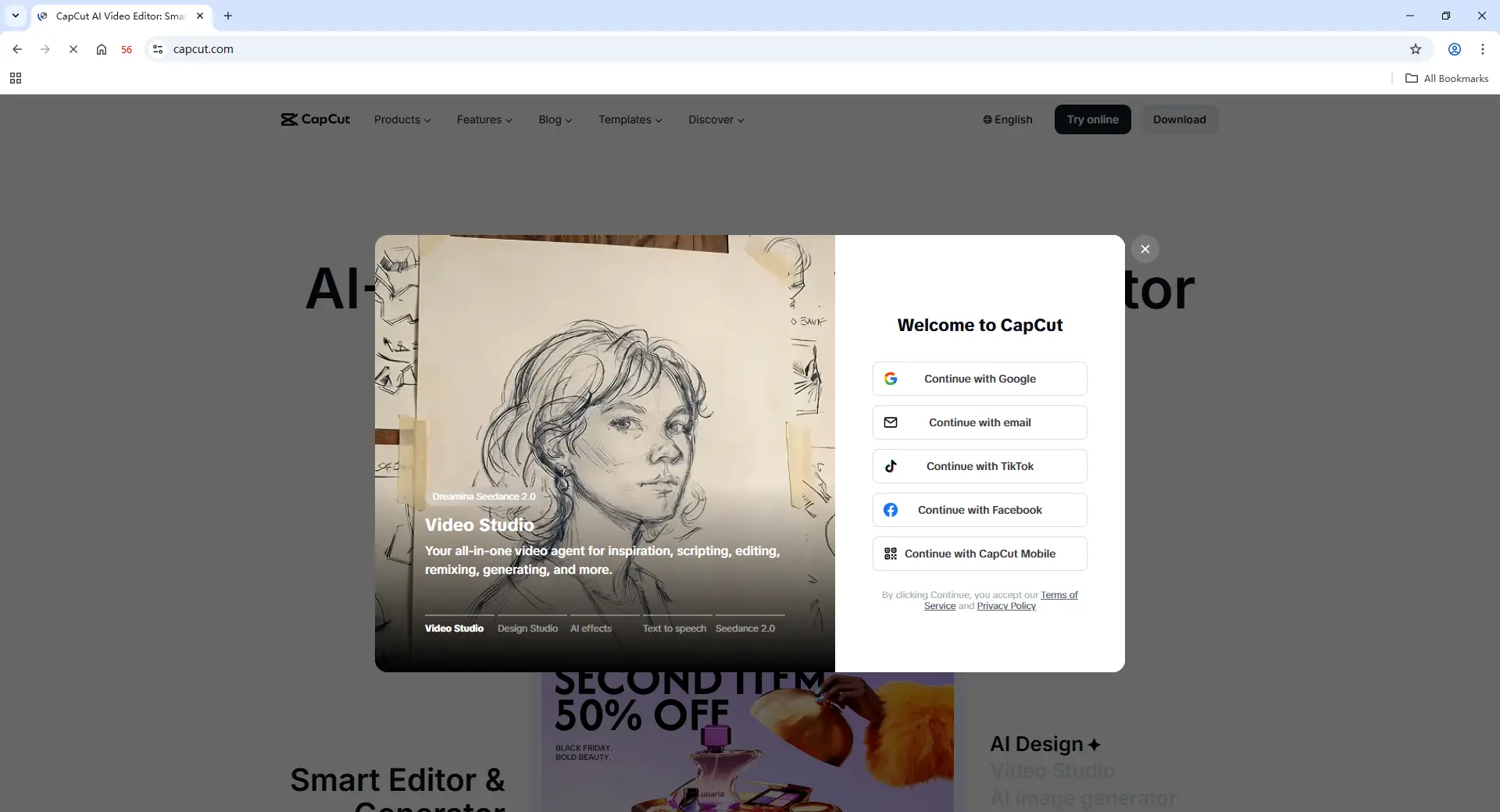
Step 6: Log In to CapCut Pro
Open the new Profile, visit CapCut, and sign in to the CapCut Pro account. Once the login session is saved inside the Profile, teammates who later receive Profile access can work from that existing session instead of asking for the password each time.
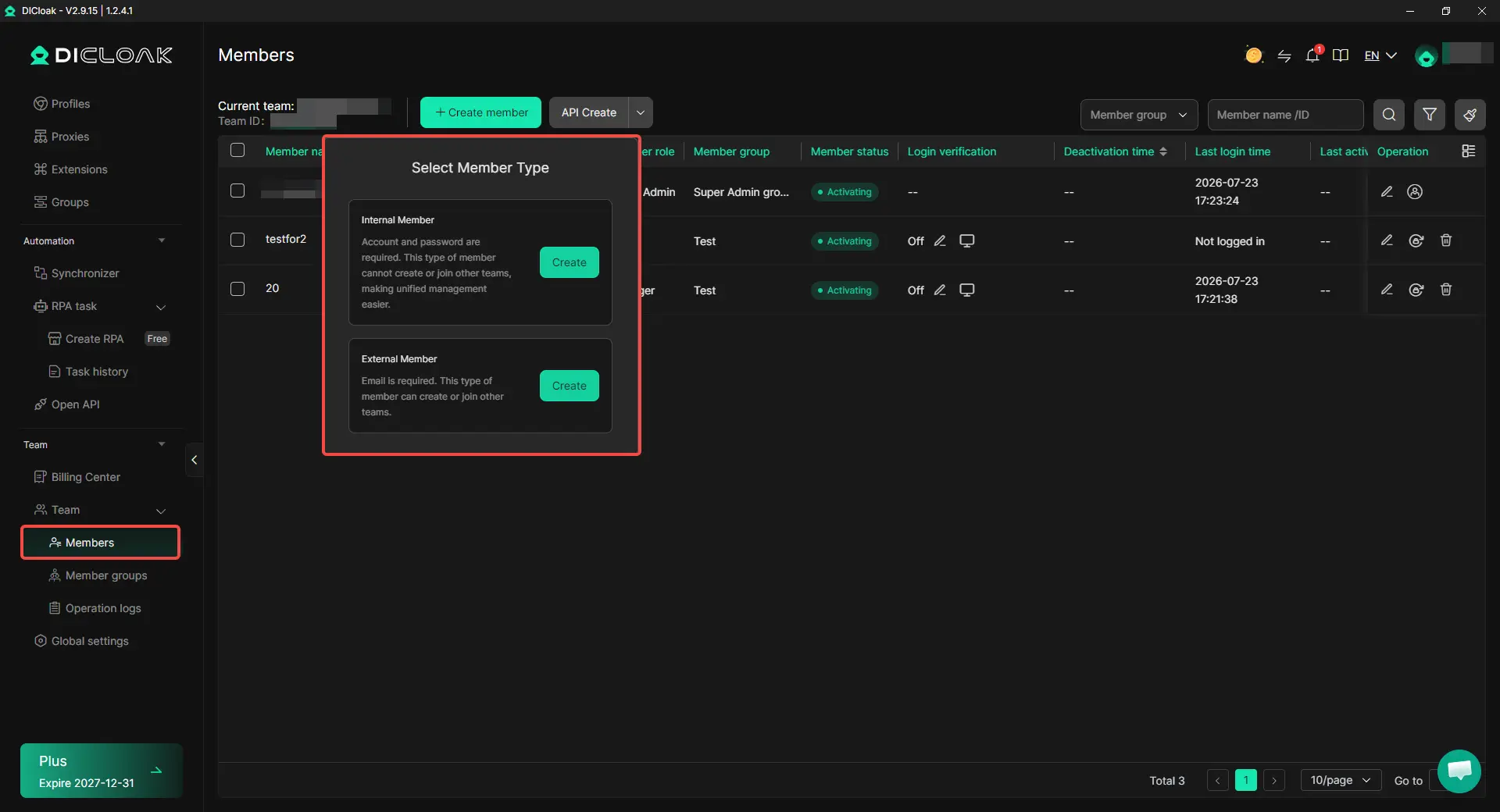
Step 7: Add Team Members and Share the Profile
Create or invite the required team members, then give them access to the CapCut Profile through DICloak's team and Profile-sharing controls. For example, an agency can share the Profile with a temporary video editor while keeping access limited to the people working on that client project.
Step 8: Open the Shared CapCut Profile
After the teammate joins the team and receives Profile access, the shared Profile will appear in their DICloak app. They can launch it from their own computer and continue working from the existing CapCut browser session without repeatedly exchanging the account password.

For a shared CapCut Pro workflow, the most useful setup is one dedicated browser Profile, one existing login session, and clear access for the team members who actually need the account. When the project ends or an editor leaves, Profile access can be removed without changing the workflow for everyone else.
What Should Teams Watch Out for When Sharing CapCut Pro?
Sharing CapCut Pro works best when the team is clear about who needs account access, who only needs a project, and who is responsible for each editing handoff. Most problems come from giving more access than the workflow actually requires or letting several people work without clear ownership.
- Do not treat five devices as five team seats. CapCut Pro can support multiple devices, but that does not mean five people automatically have separate team access. If several regular editors need their own accounts and permissions, CapCut Teams is usually a better fit.
- Avoid unclear editing handoffs. If two editors work on the same project at different times, make sure one person finishes and saves the work before the next person takes over. A clear handoff is more useful than simply letting everyone open the same account.
- Check whether someone really needs the full account. A manager who only reviews a video or a client who only gives feedback may not need account-level access. Project or Space sharing can be simpler for these roles.
- Keep one clear account owner. One person should stay responsible for the subscription, account settings, and team access. This prevents confusion when a freelancer leaves, a project ends, or access needs to change.
- Remove temporary access when the work is finished. Contractors and short-term editors often only need CapCut for one project or campaign. Access should match the length of the work instead of staying open by default.
- Check project sync before switching editors or devices. Premium access and project availability are not the same thing. Before a handoff, confirm that the latest project version is saved and available where the next editor expects to find it.
The goal of CapCut account sharing should not be to give everyone the same login. It should be to give each person only the access they need to complete their part of the video workflow.
Frequently Asked Questions About Sharing a CapCut Pro Account
Can five people use one CapCut Pro account if it supports five devices?
Not exactly. CapCut Pro's five-device allowance refers to how many devices one account can use, not five separate user seats. A creator using CapCut on a phone, laptop, and desktop is different from a five-person team where each editor needs their own identity, project access, and permissions. For regular team members, CapCut Teams is usually a better fit than treating each allowed device as another user.
Can two people work on the same CapCut Pro account at the same time?
Two people may be able to access the same account from different devices, but that does not mean they should edit the same project at the same time. CapCut collaborative projects use editing permissions and handoffs, so teams should make it clear who is editing before another person takes over. If the team only needs to work on the same project, project or Space sharing is usually more practical than sharing the whole account.
Can I share CapCut Pro with a freelancer without giving them my password?
Yes, there are ways to give a freelancer access without simply sending the password through chat or email. If they only need one project, CapCut's project-sharing tools may be enough. If they need the same existing logged-in CapCut account, an antidetect browser like DICloak can be used to share a browser Profile that keeps the current login session, while team permissions help control who can open that Profile.
Will someone using my CapCut Pro account be able to see my other projects?
If someone receives account-level access, they may have access to more of the account than a person invited only to a specific project or Space. This is why teams should first decide whether a teammate really needs the whole CapCut account. For a reviewer, client, or occasional collaborator, sharing only the required project usually gives them enough access without opening the rest of the account workflow.
What happens when a temporary editor no longer needs access to the CapCut Pro account?
Once a freelancer or temporary editor finishes the project, their access should be removed rather than left open. If the team uses a shared browser Profile, access can be reassigned or revoked through team permissions, which is useful for short-term CapCut workflows where people join and leave often. This is one reason an antidetect browser like DICloak can be useful for account sharing: the team can manage access to the Profile without changing the entire workflow for everyone else.
Conclusion
Sharing CapCut Pro with a team is not only about how many devices one account can use. Teams should first decide whether each person needs a full account, a shared project, or temporary access to the same logged-in session. CapCut Teams is usually the better fit for regular collaborators, while project sharing works well when people only need to edit or review specific work. For teams that truly need the same existing CapCut Pro account without repeatedly sending the password, a shared browser Profile can make access easier to manage. The best CapCut sharing setup is the one that matches each person's real access needs instead of giving the same login to everyone.
 Web Proxy Tools
 Free Tools
 Cookie Plugin
 UA Generator
 MAC Address Generator
 IP Generator
 IP Address List
 2FA Code Generator
 World Clock
 Anonymous Check
 WebRTC Leak Test
 UUID Generator
 Free Web Proxy Site
 Proxy Checker
 FB Ad Checker
 AI Web Scraping
 Free SMM Tools
 Twitter Shadowban Checker
 Instagram Name Checker
 UTM Generator
 Username Generator
 AI Hashtag Generator
 LinkedIn Headline Generator
 Social Media Image Resizer