You write a few lines of code, hit Run, and instead of your expected output, you see a blunt message: “SyntaxError.” No details, just a line number or a vague hint. This breaks your flow faster than any logic bug because you can’t even test your idea until the syntax is fixed. Anyone who’s ever coded knows how a tiny typo, a missing bracket, an extra comma, can stall an entire session.
But confusion sets in fast. Is this just a typo, or is something deeper wrong with your logic? Many beginners mix up what is a syntax error with logic errors. Syntax errors stop your code from running at all. Logic errors, by contrast, only show up when your code runs and does something unexpected. Spotting which kind you’re dealing with changes how you approach the fix.
The biggest headache with syntax errors isn’t just that they block progress, but that error messages rarely spell out the real problem. Sometimes the code looks right at first glance, and the actual mistake is on the line above. A clear grasp of syntax error meaning and common syntax error examples makes debugging much less painful, and saves hours lost to tiny mistakes.
So what actually triggers a syntax error, and how can you avoid wasting time chasing the wrong bug? Start with the basics: what a syntax error really is, and why it happens in real projects.
What Is a Syntax Error and Why Does It Matter?
Syntax errors are the roadblocks that stop code from running before it ever gets to the real logic. They happen when the code breaks the language’s rules, so the computer doesn’t even try to execute it. You can spot them by the way everything grinds to a halt, often with a cryptic error message that points you to a line but not always the actual mistake. If you don’t resolve a syntax error, no part of your program will run, no matter how much of it works elsewhere.
The Basic Definition of Syntax Error
A syntax error is not just a typo, it’s a violation of the structure rules set by the programming language. Here’s how to tell if you’re dealing with one:
- The code fails to follow required punctuation, brackets, or keywords (like missing a colon in Python).
- The language checks for proper structure before running any code, mistakes here stop everything.
- Fixing a syntax error is mandatory; the program will not start until the issue is gone.
How Syntax Errors Affect Code Execution
Syntax errors are detected before the computer actually runs your code. This is why you’ll get an error message right at the start, usually pointing to the line where the parser got confused. For example, in Python, leaving out a colon after a function definition triggers a “SyntaxError: invalid syntax” message. Sometimes the mistake isn’t on the line flagged, but just above it, like a missing closing parenthesis causing the parser to misread everything that follows.
The toughest part is that syntax errors block all progress, no code is executed until the problem is fixed, which can turn a simple typo into hours of lost time if you’re not careful. Error messages help, but they often point to symptoms instead of the actual cause. You’ll see phrases like “unexpected token” or “missing bracket,” but unless you know the language’s rules, the fix isn’t obvious. Skipping this step means you’re stuck; even perfect logic can’t run until syntax issues are cleared.
When you run into a syntax error, the fastest way to move forward is to double-check the structure, punctuation, spacing, and required keywords, before debugging any logic. Spotting the real cause early is what saves you from chasing the wrong bug.
Next, it’s worth breaking down exactly what causes syntax errors in different programming languages, because knowing where these mistakes come from makes them much easier to prevent.
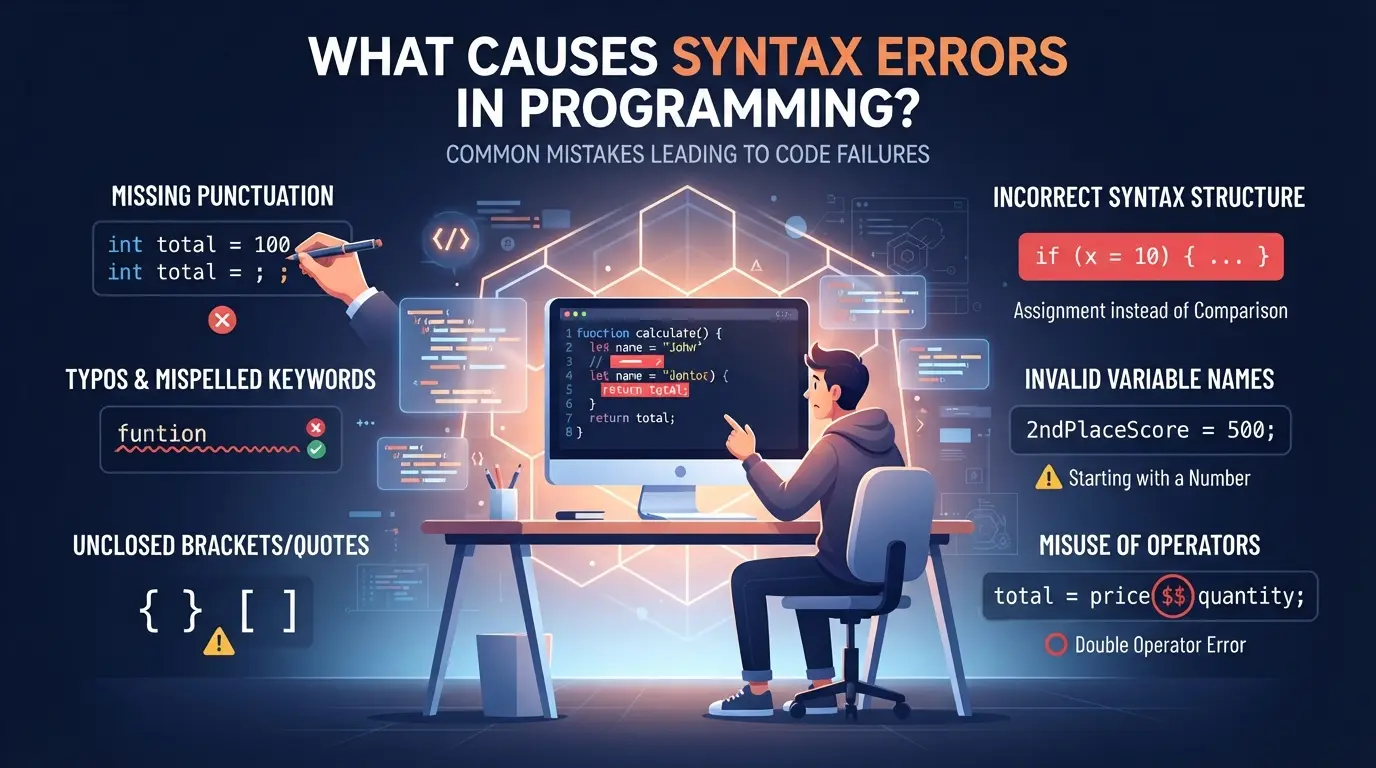
What Causes Syntax Errors in Programming?
Syntax errors happen when code breaks the rules of a programming language. Most cases boil down to missing symbols, wrong keywords, or formatting mistakes. If you keep running into syntax error messages, the real cause is usually hidden in one of these spots, not some deep logic bug.
Missing or Misplaced Characters
Tiny details trip up programmers more than big design flaws. A missing semicolon, unmatched parenthesis, or a stray quote can block the entire build. It’s common to spend an hour chasing a problem, only to find the actual mistake was an extra bracket or a typo in punctuation.
Incorrect Command or Keyword Usage
Using language keywords the wrong way causes errors that look simple but can be tough to track down. Reserved words, like "if," "for," or "while", have strict rules. Misspelling "return" as "retun" or "function" as "funcion" instantly triggers a syntax error, even when the rest of the code is fine. The problem gets worse in languages with strict typing or complex syntax, such as Java or C++. You might use "int" where "const" is required, or put "else" after a malformed "if" block. Compilers rarely tell you exactly where the mistake lives. Instead, they point to the first spot they notice something off, which might be several lines after the real issue. This is why knowing common syntax error examples speeds up debugging: you learn to check for misspelled keywords and misplaced commands before hunting for deeper bugs. The hardest cases are when the code looks almost right, but a single character or keyword is off, and the compiler’s message points you away from the true culprit.
Formatting and Indentation Issues
Whitespace isn’t just cosmetic. In languages like Python, indentation defines code blocks, one bad space means the code won’t run.
- Check for tabs vs. spaces; mixing them breaks block structure.
- Watch out for missing indents after colons in Python.
- Make sure blank lines don’t split statements that must stay together.
If you ignore these, you’ll often see "unexpected indent" or "IndentationError" right away.
The main takeaway: most syntax errors start with simple details, not complex logic. Spotting these patterns makes it easier to recognize the signs, which is the next step in tackling syntax error troubleshooting.
How to Spot Syntax Errors: Signs and Examples
If your code won’t run and the error message seems cryptic, you’re probably looking at a syntax error. The quickest way to spot these is by watching for specific error messages, broken formatting, or red squiggles in your editor, often before you even hit “run.” Here’s what to check.
Typical Syntax Error Messages and What They Mean
Most programming languages spit out a clear message when they hit a syntax problem. Expect phrases like “SyntaxError: invalid syntax” (Python) or “Unexpected token” (JavaScript). The line number points you to the first spot the parser got confused, but the real mistake can be just before that line.
Real-World Syntax Error Examples
You’re editing a simple Python signup script for a web form. You forget the colon in a function:
def create_user(username)
print("User created")
Trying to run this throws: SyntaxError: expected ':'
In JavaScript, a missing bracket can kill the whole script:
function addUser(name, email {
return name + email;
}
The browser console flags: Uncaught SyntaxError: Unexpected token '{'
Both cases block the code from running. The Python interpreter won’t even start; the browser refuses to load the broken script, which can stop your entire signup process. The fastest way to break a workflow is to miss a small symbol like a colon or bracket, especially in production where a typo slips through code review.
How Code Editors and IDEs Highlight Syntax Errors
Modern editors like VS Code or PyCharm put a red underline, squiggle, or popup warning right where your code breaks syntax rules. This catch is instant, but not perfect. Some errors only show up when you run the file, so don’t trust the green checkmark alone. 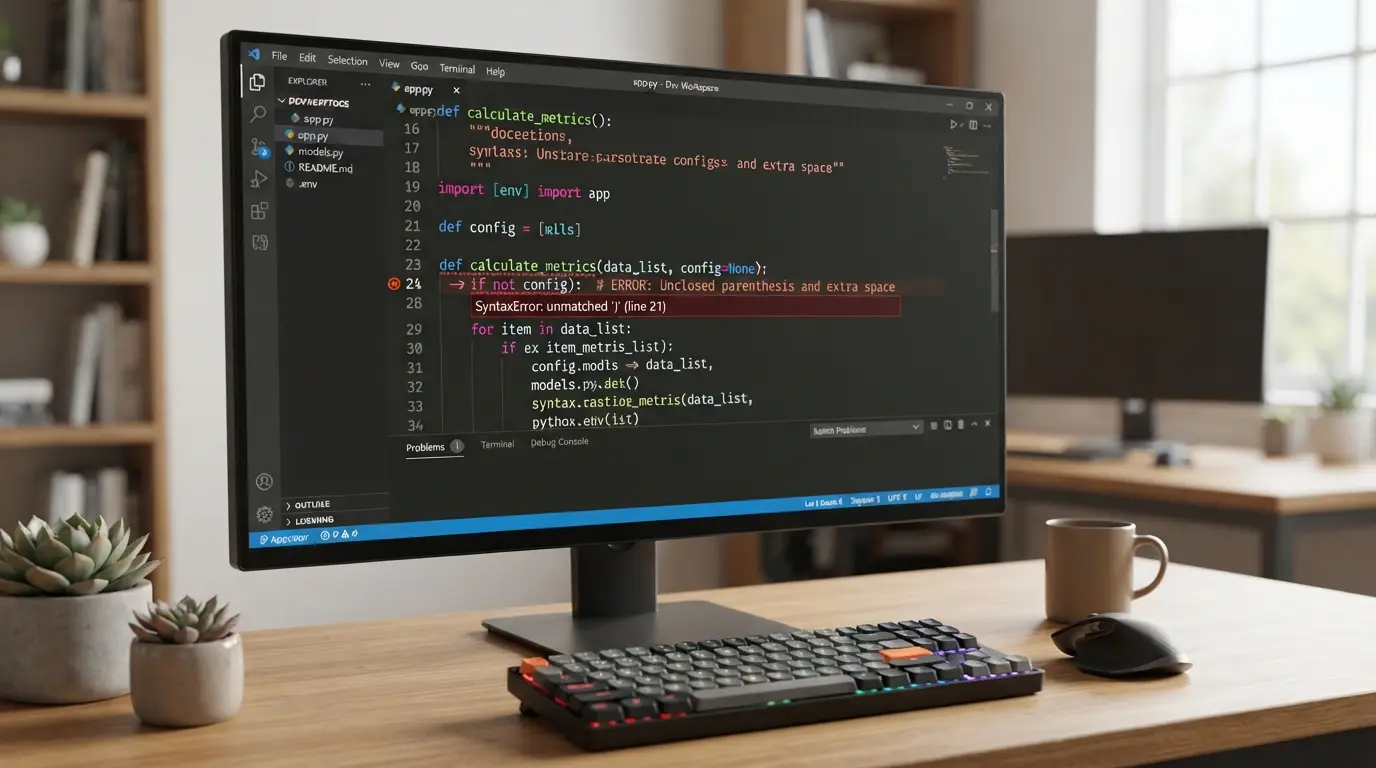
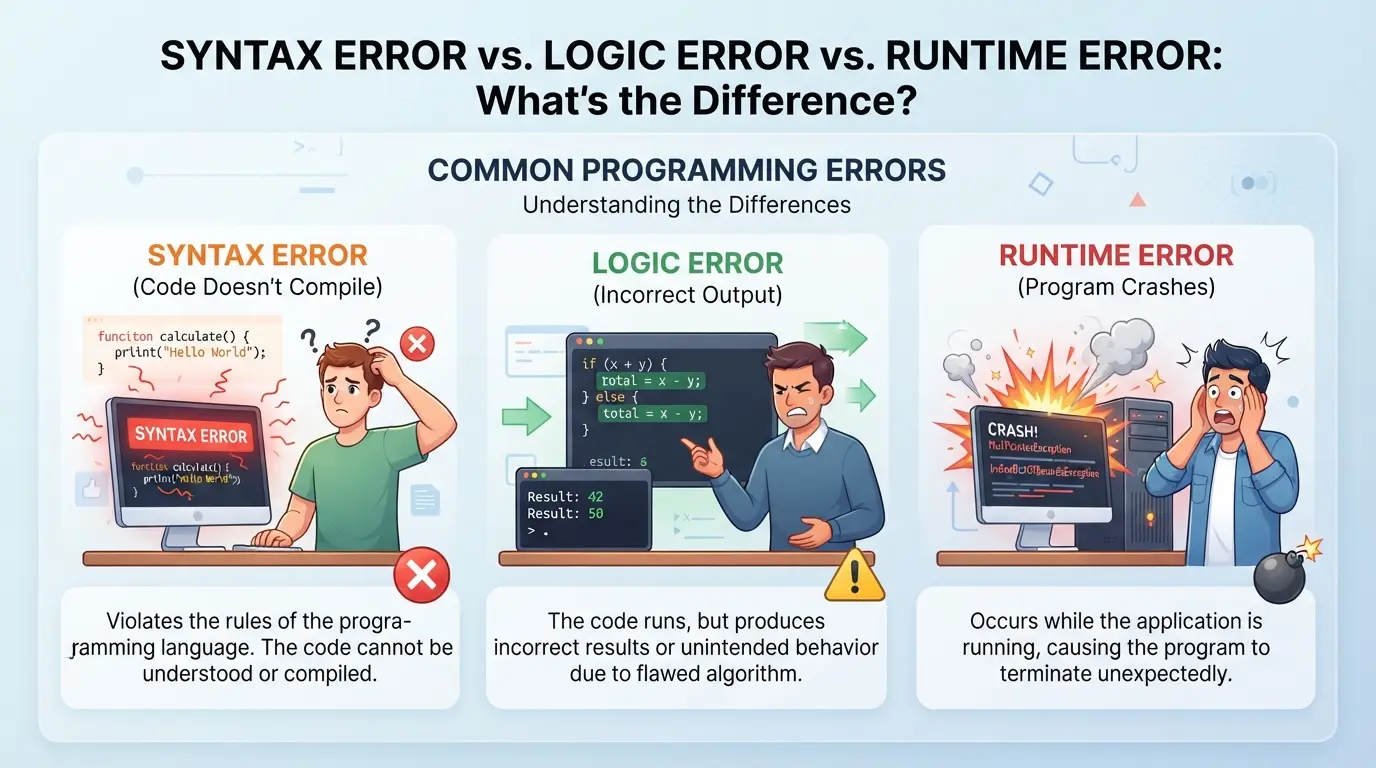
Syntax Error vs. Logic Error vs. Runtime Error: What’s the Difference?
Syntax errors block your code before it even runs, while logic and runtime errors slip through and only show up after execution starts. If you’re chasing a bug, knowing whether it’s a structure mistake or a hidden flaw changes how you debug and where you look first.
Syntax Errors: Structure Problems
A syntax error means the code breaks rules that the language expects. The compiler or interpreter catches it right away, your program won’t start. Common symptoms include red underlines in IDEs, error messages like “unexpected token,” or failure to execute at all. For example, missing a parenthesis or typing prnt instead of print will trigger a syntax error.
| Error Type |
When Detected |
What Happens |
| Syntax Error |
Before code runs |
Code fails to start |
| Logic Error |
While running |
Runs, wrong output |
| Runtime Error |
During execution |
Runs, then crashes |
Spotting syntax errors early saves hours, most bugs caught before execution are structure slip-ups, not logic mistakes.
Logic Errors: Correct Syntax, Wrong Outcome
Logic errors don’t stop the code from running, but the outcome isn’t what you expect. Debugging means checking your reasoning, not just the code’s shape. Think wrong formulas or misplaced conditions.
Runtime Errors: Problems During Execution
Runtime errors happen after the program starts, like dividing by zero or accessing something that doesn’t exist. The code looks fine but breaks when it hits a bad situation.
Quick Comparison Table
Syntax errors are the only kind that block execution entirely. Logic errors lurk in working code, while runtime errors crash things mid-run. Start by checking structure, then move to reasoning and edge cases.
How to Fix Syntax Errors: Step-by-Step Debugging Guide
Fixing syntax errors comes down to working methodically, rushing usually makes things worse. If your code won’t run and you see an error, take these steps in order. This is how experienced developers avoid wasting hours on simple mistakes that hide in plain sight.
Read the Error Message Carefully
- Look for the exact file and line number in the error output. This pinpoints where the parser hit a problem, even if the real issue is nearby.
- Read the message word for word. If it says “unexpected indent” or “missing ;”, it is being literal. Don’t skim; check that part of your code closely.
- If the line looks fine, check the line above. Languages like Python and JavaScript often report the symptom, not the real cause, one line later.
Check for Common Mistakes
- Scan for unclosed brackets, quotes, or parentheses. A missing “)” or “}” is the most frequent reason a parser gets lost.
- Check for typos in keywords or variable names, something as minor as “pritn” instead of “print” will break Python.
- Review indentation and whitespace. In Python, even one extra space can trigger an error. In JavaScript or C, a missing semicolon at the end of a line often does the same.
- Make small edits and rerun the file after each fix. If the error moves or changes, you’re on the right track.
Use Code Editor Tools and Linters
- Turn on syntax highlighting in your code editor. Errors often show up as red squiggles or colored backgrounds.
- Use a linter like ESLint (for JavaScript) or Flake8 (for Python). Linters catch missing brackets, misplaced colons, and other common issues before you even try to run the code.
- Try a formatter (like Prettier) to auto-fix simple problems. If the formatter fails, it usually points you to the exact spot where the syntax is broken.
Test Your Fixes Incrementally
- After fixing one error, run the program again. Don’t try to correct everything at once. New syntax errors can appear as you fix old ones.
- If the same error repeats, double-check for a second hidden mistake, sometimes the real issue is just above or below the flagged line.
- Only move on when the code runs or a new, different error appears. This step-by-step approach prevents confusion from multiple overlapping issues.
Before moving to team-wide practices, get comfortable with this individual workflow, systematic debugging saves time and reduces frustration when syntax errors stack up.
How Teams and Multi-Account Operators Can Avoid Syntax Errors at Scale
For teams running scripts across many accounts, the fastest way to cut down on syntax errors is to enforce shared code standards and automated checks before anything hits production. Most failures at scale come from inconsistent formatting and missed steps between collaborators.
Standardize Code Style and Formatting
Using a common style guide and auto-formatters keeps everyone’s code predictable. Pre-commit hooks catch mistakes before code even gets pushed. Teams that run code formatters and enforce linting rules on every commit save hours chasing hard-to-find syntax error meaning across merged scripts.
Automate Syntax Checking in CI/CD Pipelines
- Add a linter step to every pipeline run
- Block merges when syntax errors are found
- Run syntax checks on all branches, not just main
Document and Share Common Fixes
Clear documentation for common syntax error examples helps new team members avoid repeating mistakes.
- Keep a shared FAQ or fix list
- Review merge requests in pairs
- Update docs with each new error pattern spotted
How to Separate Account Workflows and Network Environments to Reduce Syntax Error Risk with DICloak
Teams juggling multiple platform accounts or scripts often run into accidental syntax errors when a script is launched in the wrong browser profile or with mismatched credentials. The real risk is not just bad code, it’s confusion between environments that triggers errors which waste hours and cause hard-to-trace bugs. For operators who also manage account workflows, keeping browser profiles and network settings distinct is the simplest way to cut down on these mistakes.
Create Separate Browser Profiles for Each Platform Account
Operators can set up a unique browser profile in DICloak for every platform account they handle. By configuring fingerprint settings, like time zone, language, and device signals, each profile stays isolated and matches the intended workflow. This prevents scripts from running with the wrong credentials or settings, a common cause of syntax errors in team environments. The scope stays at browser profile separation; it does not touch the accounts or code themselves.

Assign a User-Provided Proxy to Each Profile
For workflows that need a dedicated network, operators can configure their own proxy for each browser profile. Before launching an account session, test the proxy connection inside DICloak to confirm details like exit IP and region. This step keeps network environments separate and stops accidental overlap that can confuse scripts or account sessions. Operators handle proxy selection and testing per profile, DICloak stores the settings but does not supply proxies.

Keeping account workflows and browser profiles separate is the clearest way to avoid mix-ups that lead to syntax errors, next, watch out for common misconceptions about what actually causes these errors.
Common Mistakes and Misconceptions About Syntax Errors
Missing a real bug because you think every problem is a syntax error is a common trap. One small misunderstanding here can waste hours chasing the wrong issue.
Assuming All Errors Are Syntax Errors
Not every failure means your syntax is wrong. Logic errors or runtime exceptions might show up with similar symptoms. Always check if your code structure is correct before looking for other problems.
Ignoring Error Messages
- Read the full error message, not just the first line.
- Double-check the file and line number given.
- Look for hints about missing brackets or typos.
Copy-Pasting Code Without Checking Syntax
Online snippets often break in real projects. Always check for language mismatches or invisible formatting errors.
- Paste code into your editor to catch hidden characters.
- Match brackets and indentation before running.
- Test small sections before using the whole block.
Frequently Asked Questions About what is a syntax error
What is a syntax error in simple terms?
A syntax error happens when you break the rules of a programming language. Think of it like misspelling a word or forgetting punctuation in a sentence. For example, writing print("Hello" without the closing parenthesis in Python will cause a syntax error. The computer cannot understand the code until you fix it.
Can syntax errors be detected before running code?
Yes, many code editors and development tools can spot syntax errors as you type. Linters highlight mistakes and suggest fixes. Compilers and interpreters also check for syntax errors before running your program. This helps you catch problems early and prevents your code from failing at runtime.
Are syntax errors always easy to fix?
Some syntax errors, like missing a comma or bracket, are easy to spot and fix. Others can be tricky, especially in big programs or with unclear error messages. Sometimes, one small typo makes several lines look wrong. Careful reading and using tools that highlight errors can help solve them faster.
Do all programming languages handle syntax errors the same way?
No, they don’t. Compiled languages like C++ will not create a program if there’s a syntax error, they stop and show an error message. Interpreted languages like Python may point out errors line-by-line as the program runs. The detail and clarity of error messages also vary between languages.
Can a syntax error cause security risks?
A syntax error usually just stops your code from running. It doesn’t lead to security risks because the code never executes. Real security issues often come from logic errors or insecure coding, not from basic syntax mistakes. Syntax errors are more about making sure your code can run at all.
When you encounter issues in your code, reviewing the structure and punctuation can quickly help pinpoint mistakes. Using reliable tools or editors makes it easier to spot and correct these errors before running your program. Try DICloak For Free
 Web Proxy Tools
 Free Tools
 Cookie Plugin
 UA Generator
 MAC Address Generator
 IP Generator
 IP Address List
 2FA Code Generator
 World Clock
 Anonymous Check
 WebRTC Leak Test
 UUID Generator
 Free Web Proxy Site
 Proxy Checker
 FB Ad Checker
 AI Web Scraping
 Free SMM Tools
 Twitter Shadowban Checker
 Instagram Name Checker
 UTM Generator
 Username Generator
 AI Hashtag Generator
 LinkedIn Headline Generator
 Social Media Image Resizer