A common failure happens after a normal browser update: your saved settings reset, a site asks for fresh verification, and your account risk score jumps because the fingerprint changed. That is why picking the most secure browser is less about brand loyalty and more about how stable your setup stays under real use.
Security teams at CISA and browser vendors keep repeating the same pattern: patched software, strict isolation, and safer defaults stop a large share of avoidable attacks. Modern browsers now ship stronger controls like Chrome Site Isolation, Firefox Total Cookie Protection, and Apple Lockdown Mode. The catch is simple: those protections only help when you configure them to match your workflow.
You will see how to compare browser security features without guesswork, which settings reduce account takeover risk fast, and how to keep separate identities clean when you work across multiple logins, including isolated profile tools like DICloak. The right starting point is your threat model, not a popularity list.
Is There Really One Most Secure Browser for Everyone?
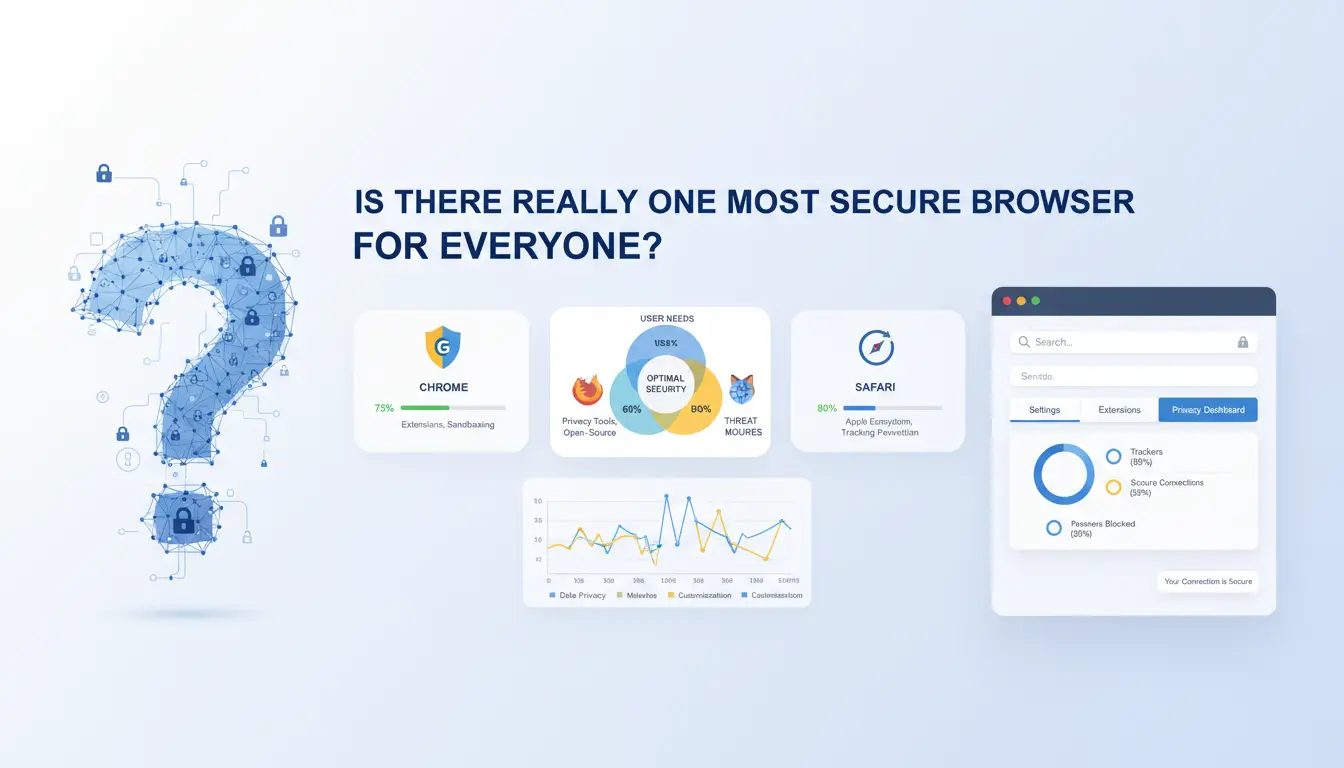
No single app wins for every person. The most secure browser changes with your threat model, device, and daily work. Pick for your real risk, not popularity.
Why 'most secure browser' has different answers for different users
A journalist facing malware and account takeover needs strict isolation and fast patching. A shopper may care more about tracker blocking. A team handling client logins must prevent profile mix-ups and session leaks. Personal browsing, business ops, and research each shift priorities. This is why two careful users can choose different browsers and both be right.
A simple scoring model you can use before picking a browser
Use a quick scorecard before you install anything:
| Check area |
What to verify |
| Security architecture |
Sandboxing, site isolation, memory safety work, auto-update speed |
| Privacy controls |
Tracker blocking, cookie partitioning, fingerprint limits, secure DNS and HTTPS settings |
| Workflow fit |
Profile separation, extension risk controls, team access boundaries |
You can confirm features on official docs like Chrome Site Isolation, Firefox Total Cookie Protection, and Apple Lockdown Mode.
Minimum baseline: what any secure browser choice must include
Require frequent security patches, public release notes, and a clear disclosure path. Keep extensions minimal and from trusted stores like Chrome Web Store policies. If you run multiple identities, you can use DICloak to keep profiles separated and reduce cross-account leakage.
What Security Features Matter Most When Comparing Browsers?
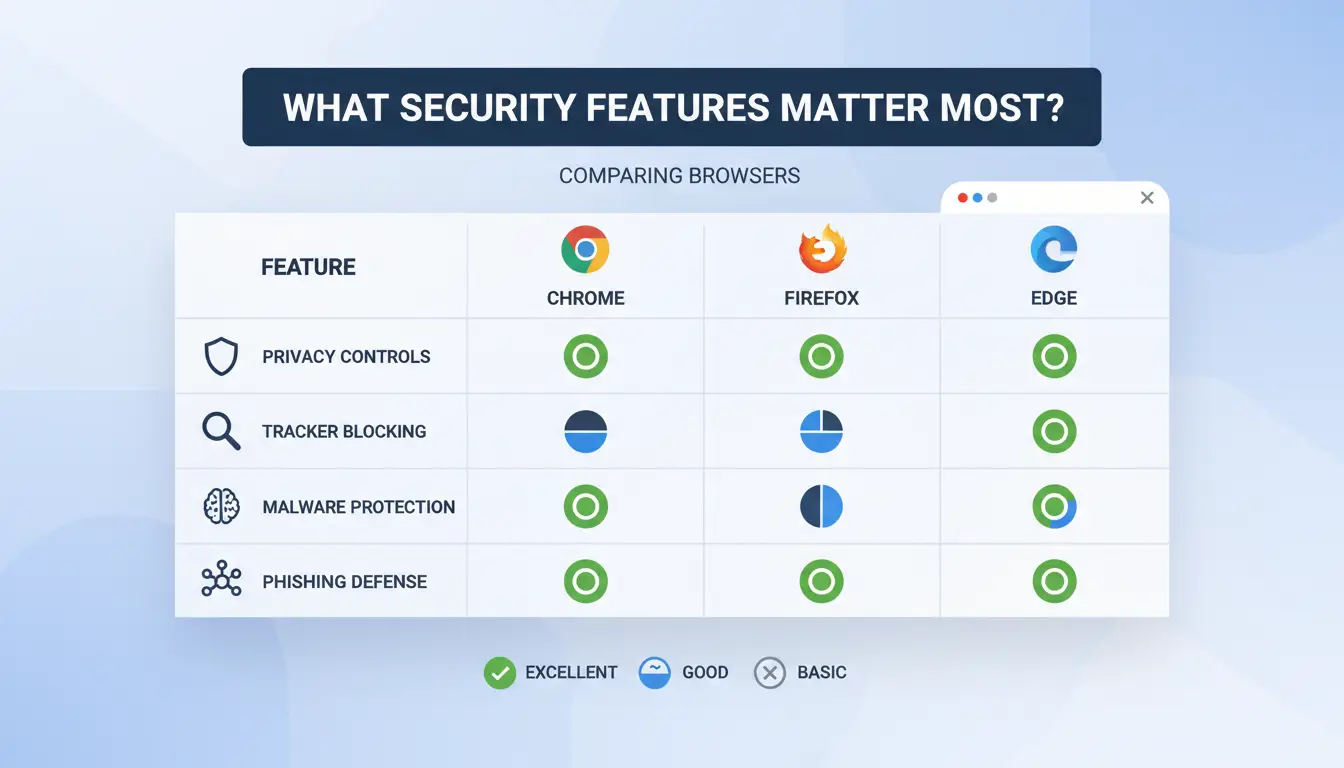
If you are choosing the most secure browser, skip brand claims and score security controls you can verify in settings. Real safety starts with attack containment, not a private mode badge.
Core protections that reduce real attack risk
| Feature to verify |
Why it matters |
Where to check |
| Sandboxing + site/process isolation |
Traps malicious code in one tab, reducing cross-site damage |
Chrome Site Isolation, browser security settings |
| Phishing/malware warnings |
Blocks known malicious pages before credential theft |
Google Safe Browsing status/settings |
| HTTPS-only enforcement |
Prevents downgrade to insecure HTTP |
Browser privacy/security settings |
Data references: Chromium security docs, Google Safe Browsing.
Privacy protections that help prevent tracking and profiling
Check third-party cookie blocking and tracker protection by default, not as add-ons. Firefox Total Cookie Protection is a clear example of partitioned cookies. Review WebRTC IP handling, DNS behavior (system vs secure DNS), and telemetry defaults. A browser can look private while still sharing usage data unless you switch those options off.
Extension and update hygiene as a hidden security factor
Extensions often create more risk than the browser engine. Audit permissions like “Read and change all site data,” then remove anything nonessential. Also check update speed: browsers with fast release cadence patch zero-days sooner, reducing exposure windows. If you handle separate identities, you can use isolated profiles in DICloak to limit cross-account leakage caused by shared sessions or extension bleed.
Which Browsers Are the Most Secure Right Now for Different Needs?
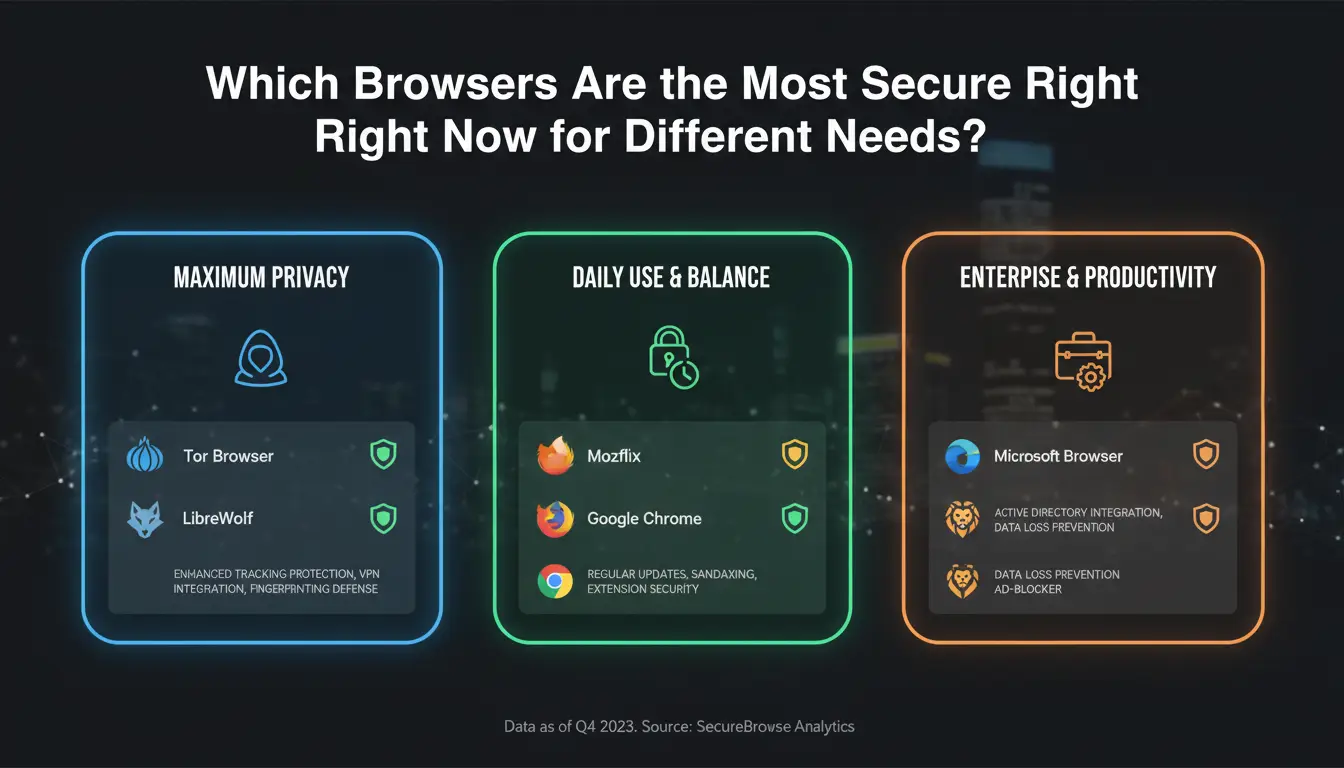
If you are searching for the most secure browser, skip one-size rankings. Match the browser to your risk level and daily tasks.
Best choices for mainstream users who want strong default security
Chrome and Edge (Chromium-based) focus on strong sandboxing and process isolation, including Site Isolation. Firefox adds strong anti-tracking with Total Cookie Protection. For normal work, defaults are often enough if you keep auto-updates on and avoid risky extensions.
| Need |
Good fit |
Security strength |
Compatibility |
Ease of use |
| Daily browsing, work apps |
Chrome, Edge |
High |
Very high |
Easy |
| Daily browsing with stronger tracking limits |
Firefox |
High |
High |
Easy |
Best choices for privacy-heavy users and anti-tracking needs
Firefox with strict tracking protection is a practical start. Safari is also strong on Apple devices and supports Lockdown Mode. Expect some login popups, embedded media, or ad-heavy pages to break. Privacy gains usually come with small compatibility costs.
Best choices for high-anonymity or compartmentalized workflows
Use separate browser profiles per account, separate proxies per profile, and no cross-profile cookie sharing. This matters for multi-login operations and account safety. You can use DICloak to keep profiles isolated, assign team permissions, and track actions with logs. The trade-off is slower setup and more routine checks.
How Can You Make Any Browser More Secure in 15 Minutes?
If you want the most secure browser setup, start with settings, not brand debates. A browser with weak defaults can become safer in minutes when you harden the basics. This checklist works on Chrome, Firefox, Edge, and Safari.
Step 1–3: Lock down core settings first
Turn on auto-updates so security patches install fast. Keep Safe Browsing (or similar phishing protection) on its strict mode. Force HTTPS-only mode so pages load over encrypted connections when available. On shared devices, turn off password autofill and saved payment data. Then audit site permissions: camera, mic, location, notifications, clipboard. Set each to “Ask” unless required.
Step 4–6: Reduce tracking surface and fingerprint leakage
Block third-party cookies and cross-site tracking. Firefox users can verify Total Cookie Protection is active. Clear old site data you no longer need; stale cookies keep sessions alive longer than expected. Check WebRTC settings so your network path is not exposed during calls or app sessions. If account separation needs different IP paths, use trusted proxies and bind each browser profile to one proxy route.
Step 7: Build a safe extension and profile routine
Keep only extensions you actively use. Remove the rest, then review extension permissions monthly. Separate profiles for finance, work, and personal browsing to prevent cookie mixing. If you manage multiple identities, you can use DICloak to keep isolated profiles, proxy bindings, and team access controls in one workflow. This is how you keep a most secure browser posture over time.
What Mistakes Make a Secure Browser Unsafe?
Even the most secure browser fails if daily behavior is weak. Browser hardening like Chrome Site Isolation and Firefox Total Cookie Protection reduces attack surface, but it cannot fix unsafe habits.
Risky habits that cancel browser-level security
Installing random extensions is a common break point. A coupon or AI helper can request “read and change all data,” which gives it access to logins, page content, and session tokens. Keep only needed add-ons, review permissions monthly, and remove anything you do not trust.
Weak password reuse is still a direct path to account takeover. If one site leaks, attackers try the same login elsewhere. Use a password manager and passkeys where supported by FIDO Alliance standards. Treat unexpected login prompts as hostile until verified.
Configuration mistakes that expose identity and activity
Mixing work, personal, and high-risk accounts in one browser profile shares cookies and history across sessions. Separate identities into different profiles with dedicated proxies and no shared extensions. You can use DICloak when you need isolated profile handling across multiple logins.
Public or unmanaged devices create silent risk: saved sessions, keyloggers, and unknown admin access. Use managed devices only, disable password saving, and force sign-out after each session.
Maintenance mistakes that increase long-term risk
Skipping updates leaves known security holes open. Keep auto-update on for browser and extensions. Also review recovery email, phone, and security alerts every month. That routine keeps your most secure browser setup from drifting into weak territory.
How Do You Keep Multi-Account Browser Workflows Secure for Affiliate Marketing?
If you run affiliate logins across networks, the most secure browser setup is not one app, but clean separation plus strict access control. Treat each account as its own risk zone.
Why multi-account affiliate workflows trigger security and detection risks
Linkage usually starts from overlap: same browser fingerprint, mixed cookies, or unstable IP history across sessions. A single mistake can connect accounts that should stay separate. Team work adds another weak point. Shared passwords, unclear edit rights, and silent profile changes make lockouts and policy flags more likely. Browser hardening from Chrome Site Isolation and Firefox Total Cookie Protection helps, but account-level isolation still needs workflow controls.
How DICloak reduces these risks with isolated environments and control layers
You can use DICloak to assign one isolated fingerprint per browser profile and bind an independent proxy to each profile. That cuts cross-account linkage from shared device signals. You can also set role-based permissions, control who can open or edit profiles, and keep operation logs. Those logs create accountability when someone changes settings or runs actions at the wrong time.
A safer operating workflow using DICloak for affiliate teams
Create one profile per affiliate account or traffic source. Bind a dedicated proxy, then save naming rules so handoffs stay clean. Use batch operations and RPA for repeated steps like login checks and scheduled opens. This lowers manual errors and keeps your most secure browser workflow consistent across the team.
Secure Browser vs Private Browser vs Antidetect Browser: What’s the Difference?
What each browser type is designed to do
If you search for the most secure browser, define your goal first. Secure browsers focus on exploit resistance and hardening, like Site Isolation and Lockdown Mode. Private browsers focus on tracking reduction and data minimization, like Total Cookie Protection.
| Type |
Main goal |
Not built for |
| Secure browser |
Device and session safety |
Multi-account identity separation |
| Private browser |
Less tracking |
Team workflow control |
| Antidetect browser |
Isolated browser identities |
General consumer browsing |
When an antidetect browser is the better fit
Private mode does not create stable, separate work environments. In multi-account operations, linked fingerprints or shared IP paths can trigger checks. You can use DICloak to map each account to an isolated profile with its own fingerprint and proxy.
Decision rule to avoid overbuying or under-protecting
Match tool depth to workflow risk. Use secure or private browsers for normal browsing. Use antidetect tools when teams share accounts, need permission controls, operation logs, batch actions, or RPA automation.
How to Choose Your Most Secure Browser: Final Checklist
Your 10-point browser selection checklist
Use this quick scorecard before you commit to a browser.
| Check |
Pass if... |
Why it matters |
| Patch speed |
Security updates land fast |
Slower patches leave known holes open |
| Extension control |
You can block risky add-ons |
Extensions can read page data |
| Anti-tracking |
Built-in tracking and cookie limits exist |
Cuts cross-site profiling |
| Profile isolation |
Separate profiles stay separate |
Reduces account mixups |
Also check six basics: clear security settings, HTTPS warnings, phishing and malware blocking (Google Safe Browsing), sync protection, stable site compatibility, and equal controls across desktop and mobile. Pick the most secure browser for your own threat model, then lock settings before daily use.
30-day review plan to keep your browser secure
Every 30 days: remove unused extensions, clear dead profiles, and verify update status. Every quarter: re-test your setup against workflow changes, compare with Firefox protections, and update your profile isolation process. You can use DICloak if you manage multiple login identities.
Frequently Asked Questions
Is the most secure browser the same on Windows, macOS, and Linux?
No. The most secure browser can change by operating system. Windows uses tools like SmartScreen and Defender. macOS adds Gatekeeper and app sandbox rules. Linux security varies by distro, package source, and patch speed. A browser may be strong on all three, but update timing and OS-level protections can still change your real risk.
Can I use one most secure browser for banking, social media, and work accounts?
You can, but it is safer to split activities. Use separate browser profiles for banking, social, and work. This reduces cookie mixing, session hijack risk, and cross-site tracking. Keep stricter settings in your finance profile, such as blocking third-party cookies and limiting extensions. Isolation lowers damage if one account gets compromised.
Does private or incognito mode make a browser fully secure?
No. Private mode mainly stops local history, cookies, and form data from being saved after you close the window. It does not block malware, phishing pages, ISP visibility, employer network logs, or account tracking once you log in. For better protection, pair private mode with safe browsing filters and careful extension control.
How often should I audit browser extensions for security?
Audit extensions at least once a month. Remove anything you do not use. Check permissions, especially access to “read and change all site data.” Review the last update date and developer reputation. Replace abandoned add-ons with maintained options. Even in the most secure browser, risky extensions can bypass good default protections.
What is the safest way to test a new browser without risking important accounts?
Start with a fresh, non-critical profile and no saved passwords. Install only essential extensions. Turn on strict privacy and security settings first, then browse low-risk sites. Use test logins, not banking or work accounts. After a week or two with stable updates and no odd behavior, migrate sensitive use step by step.
The most secure browser is the one that combines strong built-in protections with your own privacy habits, such as blocking trackers, minimizing extensions, and keeping software updated. If you need a hardened setup for sensitive workflows, prioritize isolation features, anti-fingerprinting controls, and transparent security practices over brand popularity. Try DICloak For Free
 Web Proxy Tools
 Free Tools
 Cookie Plugin
 UA Generator
 MAC Address Generator
 IP Generator
 IP Address List
 2FA Code Generator
 World Clock
 Anonymous Check
 WebRTC Leak Test
 UUID Generator
 Free Web Proxy Site
 Proxy Checker
 FB Ad Checker
 AI Web Scraping
 Free SMM Tools
 Twitter Shadowban Checker
 Instagram Name Checker
 UTM Generator
 Username Generator
 AI Hashtag Generator
 LinkedIn Headline Generator
 Social Media Image Resizer