Getting new Gmail accounts past Google’s filters is trickier than most people expect. If you only log in and start sending, you’ll hit temporary blocks or trigger review prompts, especially on fresh accounts. The real problem isn’t whether you can create a Gmail, but whether that account will survive and stay usable after the first week. Opening too many tabs or sending bulk emails right away is almost guaranteed to trip automated risk checks.
Everyone wants to speed up the process, but rushing Gmail account warmup can backfire. One skipped step, like sending too many messages too soon or ignoring the right login pattern, often leaves you flagged for suspicious activity. Once an account gets flagged, you’ll waste days on appeals or lose access entirely. Even simple mistakes, like using a browser fingerprint that doesn’t match your usual device, can cause Google to restrict your session.
Safe gmail warmup steps are less about technical tricks and more about following a routine that looks like real user activity. That means mixing login times, handling inboxes gradually, and spacing out interactions with contacts. If you skip the warmup, your accounts might get locked before you ever reach your real workflow. The guide below covers how to warm up a gmail account without raising red flags, and what happens if you miss a key step.
Practical Gmail account warmup starts with understanding the limits. Here’s where most operators begin.
Why Warming Up Gmail Accounts Matters in 2026
Sending mail from a new Gmail account without a warmup routine almost always leads to problems, your messages land in spam, or your account gets flagged before you even start real outreach.
How Gmail’s Spam Filters Work Now
Gmail’s filters now flag new accounts even faster. One sudden spike in outgoing mail or a batch of copy-paste messages can trigger a review, especially if the account has no normal user history. Real users behave differently, so any bot-like pattern stands out.
What Happens If You Skip Warmup
Skipping the warmup phase means your account gets tested by Gmail’s automated defenses right away. Common signs include login captchas, “suspicious activity” warnings, or your sent mail getting bounced back. Once Google suspects you, sender reputation drops, and every message you send is likely to hit the spam folder, sometimes even before you see a warning. For example, teams that plug in fresh accounts and send 50+ emails on day one often find all messages land in spam, and the account is limited or disabled by day two. A single failed warmup can sink your deliverability for weeks, even if you fix your behavior later. There’s no fast reset, Google’s risk scoring sticks around, and appeals are slow. In practice, starting slow with inbox activity, a few replies, and spacing out sends makes your account look like a real person, not a bulk sender.
Who Needs to Warm Up Gmail Accounts
- Solo operators sending outreach or cold email
- Agencies onboarding new accounts for campaigns
- Teams managing multiple Gmail addresses for social, support, or marketing
If you plan to send mail at scale, or use new accounts for any client-facing workflow, warmup is not optional.
Safe warmup starts with the basics: device hygiene, a clean browser setup, and planning out your first week of activity. The next section covers what to prepare before starting.
What to Prepare Before Warming Up a Gmail Account
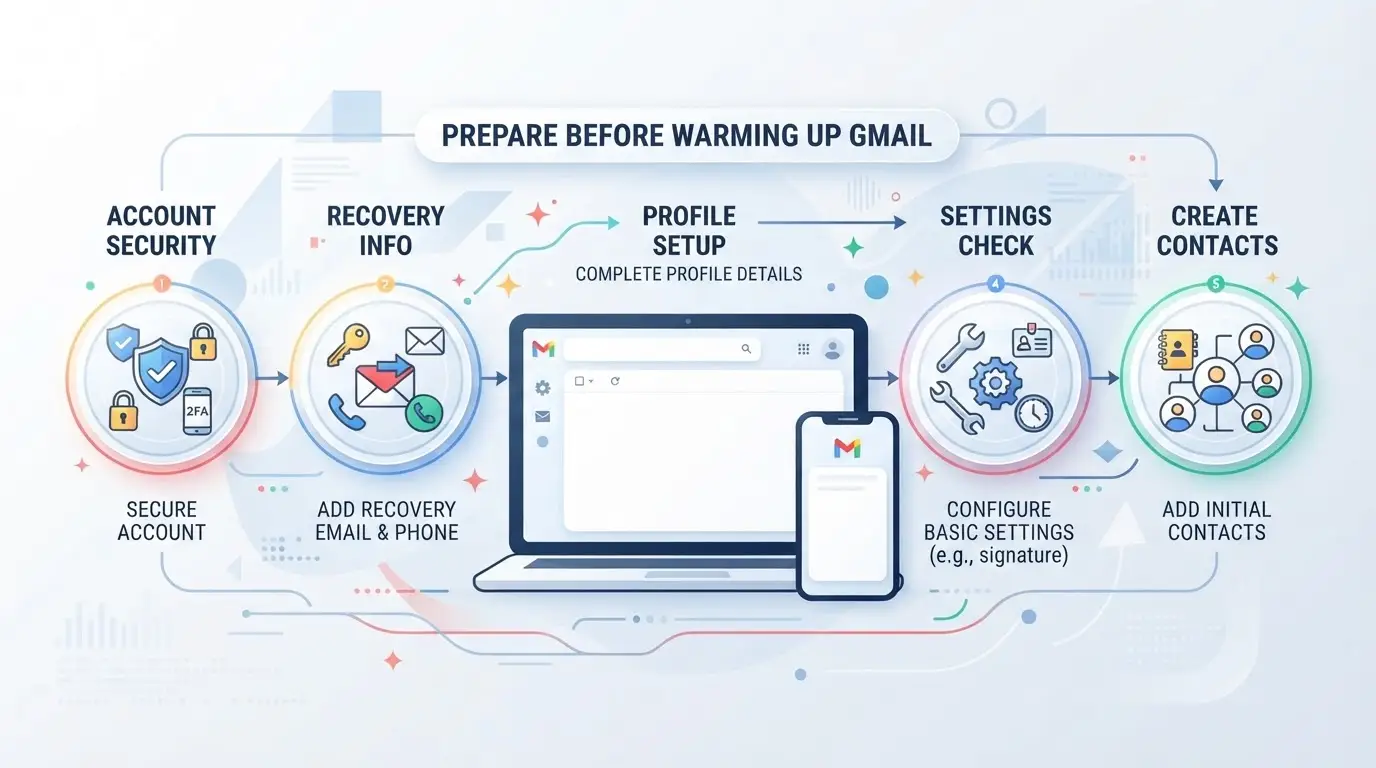
Missing a key setup step before you start can get an account flagged fast. The checklist below covers the basic prep anyone handling gmail account warmup should complete, skip these and you’re likely to hit a wall before even starting.
Verify Account Ownership and Recovery
Add a recovery email and phone so you can get back in if Google locks the account. Complete all profile fields and run through security checks to make sure there are no alerts or missing info. This step matters more than it looks, accounts without verified recovery details get locked at the first sign of odd activity.
Set Up Domain Authentication (SPF, DKIM, DMARC)
- Confirm SPF, DKIM, and DMARC are set for your sending domain.
- Use online DNS tools to check records update correctly.
- Test that outgoing emails pass authentication (not sent to spam).
Choose a Stable Browser Environment
Stick with one device and a fixed IP range during the warmup period. Changing browsers, using new devices, or logging in from distant locations almost always triggers extra verification or even a lock.
Check for Previous Account Abuse or Blacklist
A recycled Gmail account or one used for spam in the past won’t survive warmup, no matter how careful you are. Watch for warning signs before wasting time:
- Check for unexpected folders, old sent mail, or aliases you didn’t set up.
- Search public blacklist databases for the email address.
- Review account security logs for recent, suspicious login attempts.
Getting these steps right means you can focus on choosing a manual or automated warmup method next, instead of scrambling to recover from preventable setbacks.
Manual vs. Automated Gmail Warmup: Which Method Fits Your Workflow?
If you’re deciding between manual and automated Gmail warmup, the real question is scale, how many accounts, how much time, and how much risk you can handle. Manual warmup works for small numbers and hands-on control. Automation fits if you need to process dozens or hundreds without getting bogged down.
Manual Gmail Warmup Steps
Manual warmup means sending real emails, replying to contacts, and slowly increasing activity. You’re in charge of every move, so mistakes are obvious before they snowball.
| Method |
Control |
Risk of Error |
Scalability |
| Manual |
High |
Low |
Low |
| Automated |
Low |
Medium |
High |
Manual steps let you notice odd inbox behavior or login issues right away. If an account suddenly gets flagged, you can step back and adjust before losing access.
Automated Gmail Warmup Tools
Automated tools attempt to mimic normal user activity by scheduling logins, sending staged emails, and interacting with mock contacts. While this can speed up the process, it’s easy to miss subtle warning signs, like delayed message delivery or login prompts that signal Google’s risk checks.
If you run automation on too many accounts at once, Google’s detection systems often spot patterns that don’t match real user routines. That’s when accounts get restricted or flagged.
When to Use Each Method
Solo operators or small teams can handle manual warmup without too much hassle. If you’re scaling outreach or running bulk account setups, automation is the only practical option, but it comes with higher risk and less visibility.
For most workflows, manual warmup is safer, but automation is necessary once you manage more than ten accounts per day. This is where knowing how to warm up a gmail account safely becomes essential for avoiding restrictions.
Step-by-Step Guide: How to Warm Up a Gmail Account Safely
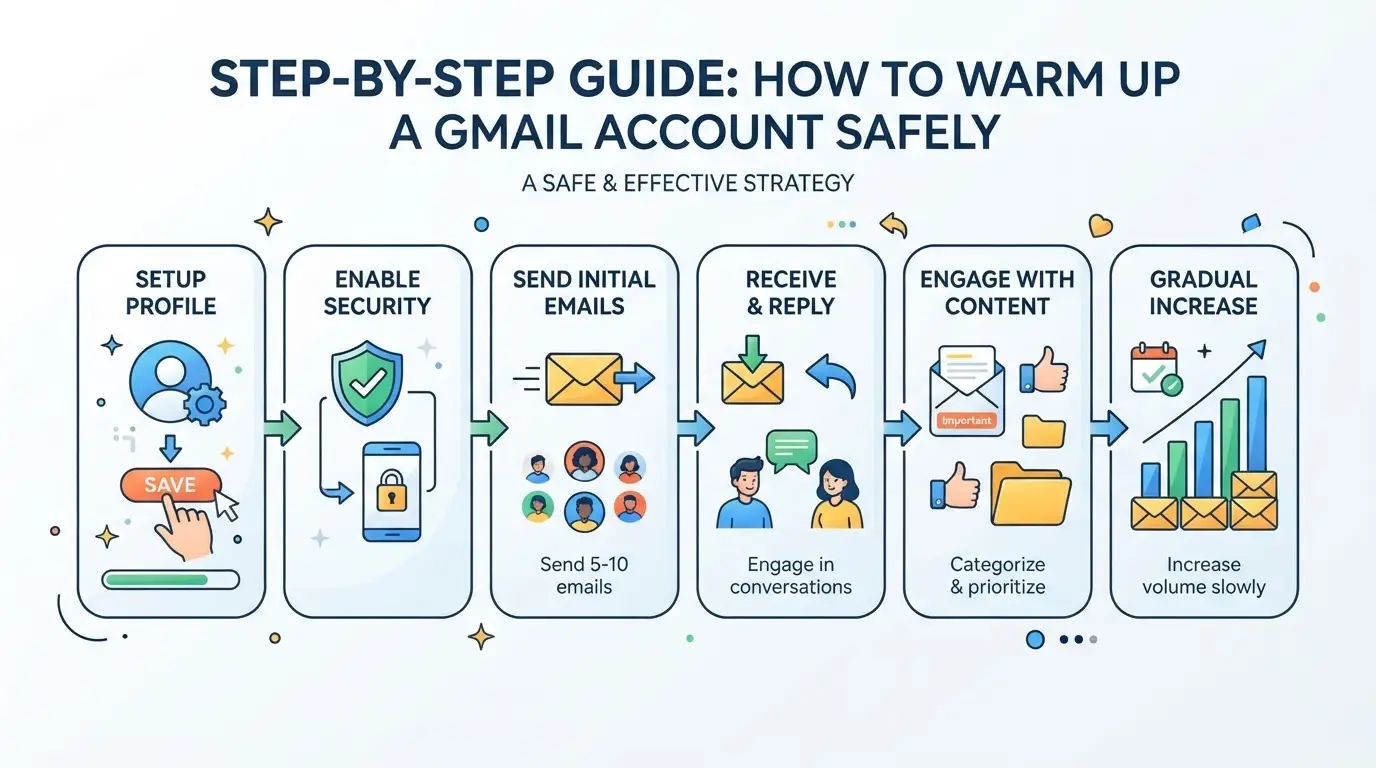
Warming up a Gmail account is about pacing activity so Google sees normal use, not spam. The process takes about three weeks, with daily actions that build up the account’s trust. Skip or rush these steps, and your inbox can land in spam , or get restricted. Here’s a practical schedule operators use to avoid mistakes.
Days 1–7: Start with Low Volume and Real Interactions
- Send 2–3 emails daily to personal or business contacts you know will respond. If replies come in, open them, reply back, and star at least one message.
- Read at least five incoming emails per day , if you don’t have real traffic, subscribe to newsletters and open them.
- Avoid bulk email tools or templates. Any sign of automation triggers Google’s filters this early.
The most common mistake is sending to random addresses or too many at once , this almost always leads to early restriction.
Days 8–14: Gradually Increase Sending and Engagement
- Raise sending to 8–10 emails daily, mixing in replies and simple forwards.
- Start using calendar invites, but only send 1–2 per day.
- If you see delayed replies, stagger your sends, Google watches for unnatural bursts.
Getting eager and doubling volume now can backfire. If you notice any emails landing in spam, pause new outreach and focus on responding to real messages.
Days 15–21: Introduce Outreach and Monitor Placement
- Send 3–5 test cold emails to new contacts, spaced throughout the day.
- Check if your messages land in inbox or spam. Use a secondary account to verify.
- If placement is poor, cut back volume and increase engagement with replies.
If you see bounces or spam placement rising, adjust the schedule. Don’t jump to outreach tools yet.
Days 22+: Transition to Full Sending and Ongoing Maintenance
- Increase volume to your target, but add only 5–10 emails per week, not per day.
- Keep engagement steady, reply, star, and forward messages regularly.
- Monitor placement monthly. If you spot issues, drop back to earlier steps.
Most teams see stable inbox placement after three weeks, but sudden spikes or spam reports mean you need to slow down and rebuild trust.
These steps set up safe gmail account warmup for solo operators. If you’re running multiple accounts, the next section covers how to scale this routine across a team without triggering restrictions.
How to Warm Up Multiple Gmail Accounts Safely as a Team
Scaling gmail account warmup for teams means every mistake gets multiplied, if one account gets flagged, Google starts watching the rest. The safest approach is to treat each inbox as a separate environment, coordinate logins, and react fast to early warning signs.
Assign Separate Environments for Each Account
Shared browsers and devices cause account cross-linking. That means Google can connect accounts and trigger mass restrictions. Here’s how to prevent this:
- Create a unique browser profile or device for every gmail account. Reusing sessions or cookies links accounts together.
- Use isolated environments, never switch between team accounts in the same browser window.
- Keep profile folders and cookies separate. If you mix them up, Google can spot shared fingerprints and IPs.
- Test login from a clean profile first. If you see a “suspicious login” alert, don’t proceed, reset the environment.
Coordinate Team Actions and Schedules
If two operators log in from different locations at the same time, you trigger Google’s warning system. Teams need to act as one unit:
- Set up a shared calendar for warmup actions. If someone logs in too early or too late, the account can get flagged.
- Assign clear roles, one operator per account per day. Avoid overlap.
- Stagger login times. Logging in all accounts at once looks automated and can trigger bulk restrictions.
- Track who’s handling each inbox. If accounts show overlapping activity patterns, split the workflow.
Monitor for Cross-Account Risk and Early Warnings
Red flags show up as login alerts, captchas, or warning emails. Catching these early stops a lockout from spreading across all accounts.
- Check Gmail security logs daily. If you see multiple accounts showing “unusual login” alerts, pause all activity, don’t risk mass bans.
- Respond fast to captchas. If one appears, slow down your workflow and review the last login location.
- Watch for warning emails. If Google flags a session, stop using that environment and rotate credentials.
- Keep a quick-response channel open. If one team member spots an issue, alert everyone before more accounts are affected.
The most common team mistake is rushing logins or mixing environments, once Google links accounts, reversing restrictions is nearly impossible.
Managing Gmail Account Warmup for Social Media Marketing Teams: Using DICloak for Safer Multi-Account Workflows
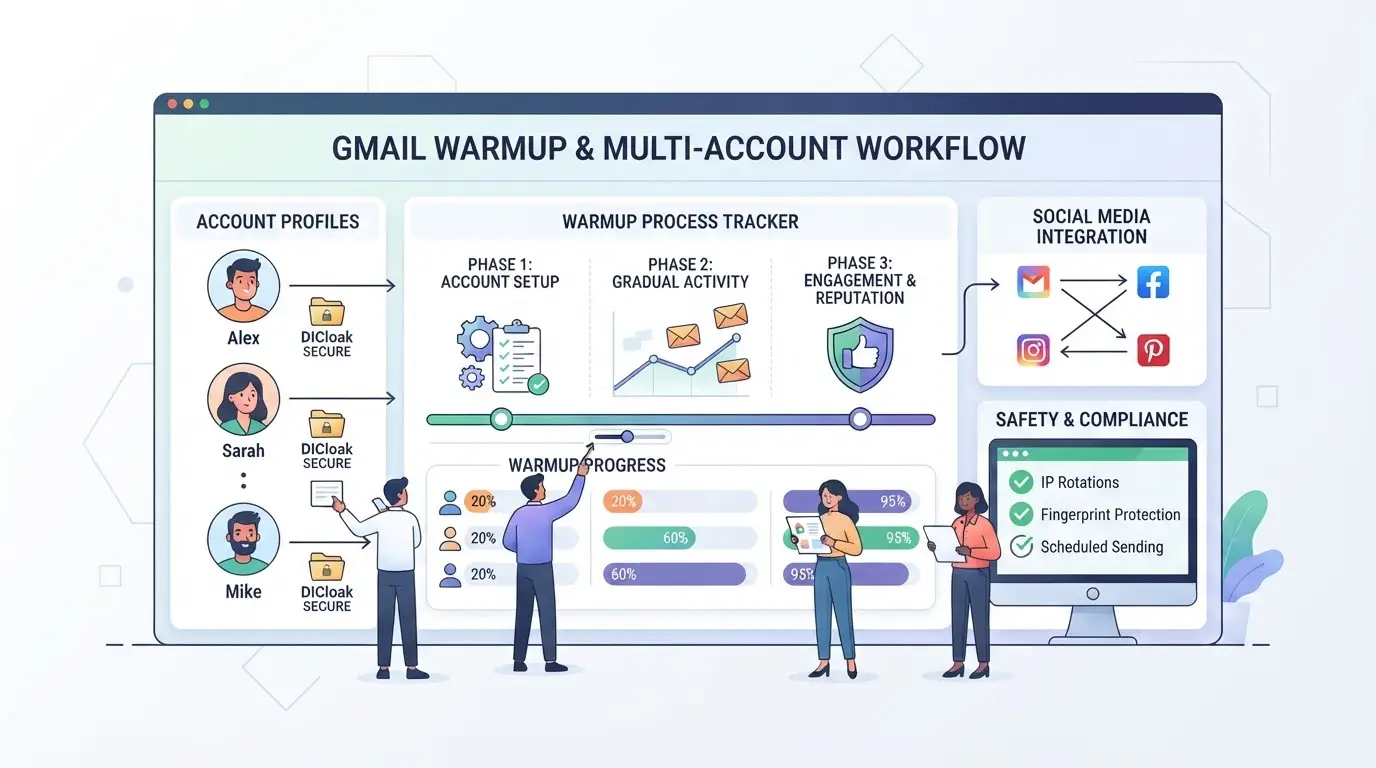
Social media teams running dozens of Gmail accounts can’t afford shortcut mistakes. Keeping every login session isolated is critical, otherwise, Google may flag accounts that share browser history, storage, or device signals. Operators use DICloak to set up dedicated browser profiles, configure network separation, automate repetitive warmup actions, and plug account workflows into team dashboards. The scope is limited to browser-profile access; it does not change Gmail’s internal logic.
Set Up Isolated Browser Profiles and Fingerprint Configuration for Each Gmail Account
Operators start by creating a separate browser profile for every account they plan to warm up. Each profile stores its own login session, cookies, and browser-identification signals. Teams can configure the operating system, user agent, time zone, geolocation, screen resolution, and fingerprint settings per profile, matching common device traits but never promising platform acceptance. This keeps Gmail account warmup workflows compartmentalized and avoids accidental cross-linking between accounts.

Assign User-Owned Proxies to Each Profile for Network Separation
Each browser profile can be connected to a user-provided proxy. Operators enter HTTP, HTTPS, or SOCKS5 proxy details, host, port, username, password, then test connection and check the exit IP. This way, every account session runs on a separate network path. Teams handle proxy sourcing and rotation outside DICloak; the platform only stores and applies the proxy settings.

Automate Repetitive Warmup Actions with DICloak RPA
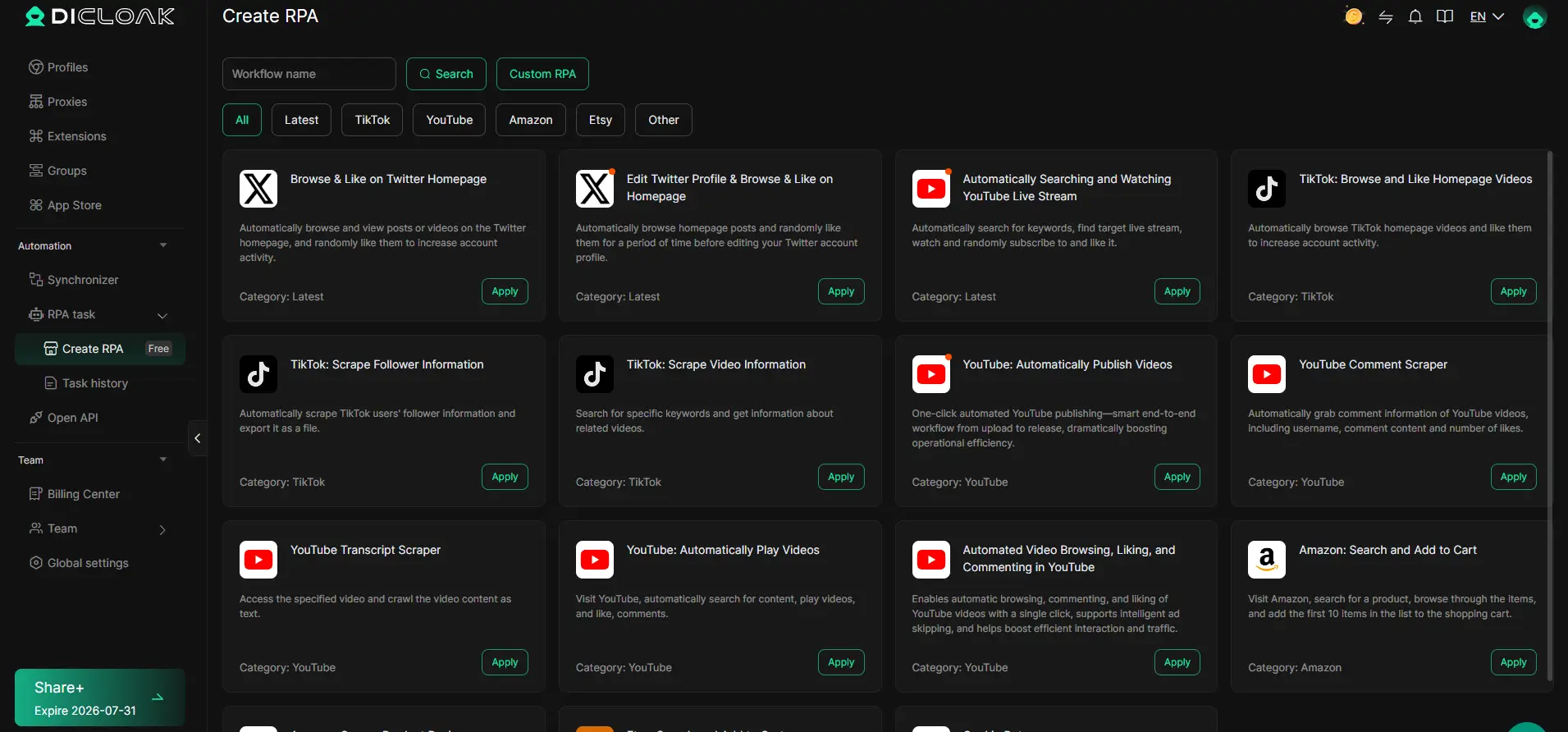
Manual warmup is slow and error-prone when scaling across dozens of accounts. Operators configure repeatable browser tasks in DICloak RPA: for example, sending staged emails, opening inbox messages, or marking items as important. RPA runs across selected profiles, logs execution results, and lets admins review per-profile activity. Standardizing these repetitive warmup actions reduces accidental overlap and missed steps on busy teams.
Integrate DICloak with Team Tools Using Open API
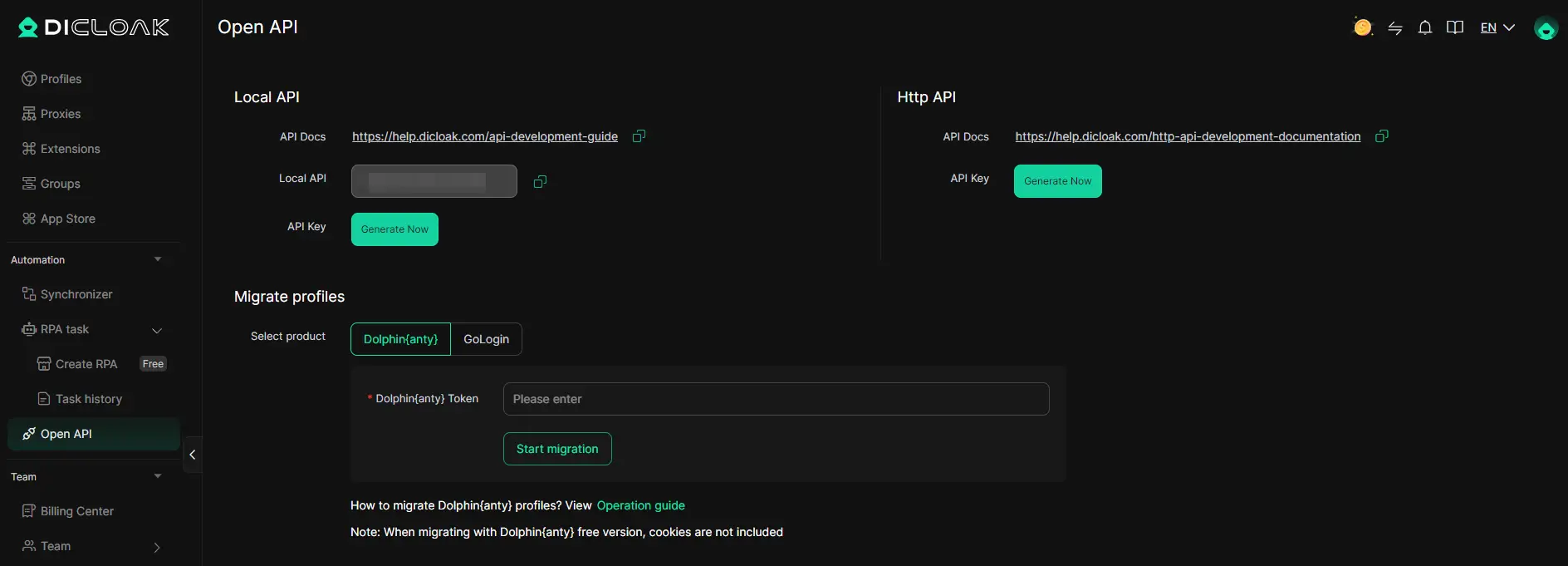
Teams with their own dashboards or workflow tools can connect DICloak profiles and session status through Open API. Admins use HTTP API for remote management or Local API via the desktop client for direct browser control. The API exposes supported operations on browser profiles, proxies, and team members, enabling real-time status tracking and workflow integration without manual data entry.
Getting this workflow right means fewer surprises. Next, the article covers mistakes in Gmail warmup routines that often trigger restrictions.
Common Gmail Warmup Mistakes That Trigger Restrictions
Most restrictions hit because operators ignore the patterns Google actually tracks. If you miss any of these basics, your warmup can stall, or the account gets locked before you ever reach real outreach.
Sending Too Many Emails Too Soon
Blasting out emails right after signup is the fastest way to get a new Gmail account flagged. Google expects a slow ramp: keep it under 10-20 emails per day for the first week, then increase by small amounts. Even one day of high volume early on can trip the anti-spam filter and freeze sending for days.
Using the Same Device or IP for Multiple Accounts
- Check that each Gmail session uses a separate browser profile
- Assign a unique proxy or IP to every account
- Avoid logging into several mailboxes from one device at once
Skipping Real Engagement or Only Sending Outbound
Accounts that only send but never reply, open, or star messages look fake. Gmail’s system expects two-way activity, mix in a few replies, mark messages as read, and star some emails during warmup.
Ignoring Warning Signs or Account Alerts
Account alerts are early warnings, don’t brush them off. If you see login verification or “unusual activity” emails, pause activity and review.
- Stop sending if you get warning banners or alerts
- Change your IP or device if prompted for verification
- Wait 24 hours before trying again if locked out
How to Transition from Gmail Warmup to Full-Scale Outreach
Once you finish warming up your Gmail accounts, moving to full-scale outreach is all about keeping deliverability steady and avoiding sudden spikes that trigger Google’s filters.
Monitor Deliverability and Sender Reputation
- Send test emails to real inboxes, track if they land in “Primary” or “Spam.”
- Watch open and reply rates; sudden drops mean your domain might be flagged.
- Use inbox placement tools if you see a pattern of messages stuck in “Promotions.”
Adjust Sending Volume Gradually
- Increase daily sends by no more than 30% week-to-week.
- Pause ramp-up if bounce rates rise or you get warnings, back off for 48 hours.
Keep Engagement Signals Consistent
- Keep regular replies and forwards, Google looks for ongoing activity.
- Avoid dumping large lists; sudden mass sends often trigger reviews.
Document and Review Team Workflows
- Record each outreach step so you can spot gaps fast.
- Check logs weekly, missing steps often explain unexplained restrictions.
Frequently Asked Questions About warm up gmail accounts
How long does it take to warm up a Gmail account in 2026?
Most Gmail accounts need 2 to 4 weeks for a safe warmup. Start with just 2–5 emails each day. Slowly raise your daily sending volume, especially if you see good replies or engagement. Rushing can trigger Google’s spam filters, so patience is important for a healthy sender reputation.
Can I warm up multiple Gmail accounts from one device safely?
You can warm up several Gmail accounts from one device if you use separate browser profiles and a unique IP address for each account. This helps keep Google from linking them together. Never log into all accounts from the same browser or network, or you risk blocks or restrictions.
What are Gmail’s sending limits during warmup?
For new accounts, send only 2–5 emails per day at first. Gradually increase this over several weeks. While Gmail’s official daily limits are much higher, pushing those limits early can flag your account as suspicious and lead to restrictions or bans.
Is it safe to use automated warmup tools for Gmail?
Automated tools can help with gmail account warmup, but they need careful setup. If you send too many emails or use bad timing, Google can detect the automation. Use tools that mimic real user behavior and avoid big spikes in activity to stay under the radar.
What should I do if my Gmail account gets restricted during warmup?
If Gmail limits your account, stop sending emails right away. Check for any recent actions that might look suspicious, like sending too many messages or using untrusted links. Follow Gmail’s recovery steps and only resume sending after your account is fully restored.
Now is the right time to implement a structured approach to preparing your email accounts for reliable outreach and communication. Consider leveraging specialized tools to simplify the process and protect your sender reputation. Try DICloak For Free
 Web Proxy Tools
 Free Tools
 Cookie Plugin
 UA Generator
 MAC Address Generator
 IP Generator
 IP Address List
 2FA Code Generator
 World Clock
 Anonymous Check
 WebRTC Leak Test
 UUID Generator
 Free Web Proxy Site
 Proxy Checker
 FB Ad Checker
 AI Web Scraping
 Free SMM Tools
 Twitter Shadowban Checker
 Instagram Name Checker
 UTM Generator
 Username Generator
 AI Hashtag Generator
 LinkedIn Headline Generator
 Social Media Image Resizer