Trying to figure out how to verify account in YouTube catches a lot of users off guard. You click around expecting a simple form, but instead get hit with confusing screens, unclear eligibility, or requirements that don’t match what you read last year. Even basic steps like entering your phone number or confirming your channel identity can trip you up, especially if you’re running multiple accounts, using business info, or aiming to unlock features like custom thumbnails and live streaming.
What most people miss is that YouTube changes its verification workflow every few years. If you follow an outdated guide, you risk wasting hours on steps that don’t work, or worse, triggering account locks by submitting mismatched data. Relying on hearsay or random forum advice often leads to dead ends, YouTube’s official process only works if you know exactly which forms, code delivery methods, and account settings apply to your situation.
The practical angle here: you need a YouTube verification guide 2026 that covers the actual screens you’ll see, the order they appear in, and what to do if your request fails. This isn’t just about ticking a box, getting verified is how you access channel tools, avoid feature blocks, and prove your account is legit. If you skip key details like the phone number format or ignore regional restrictions, you’ll end up locked out or stuck in a support loop.
Ready to see the real YouTube account verification steps? Let’s start with the basics.
What You Need Before Verifying Your YouTube Account
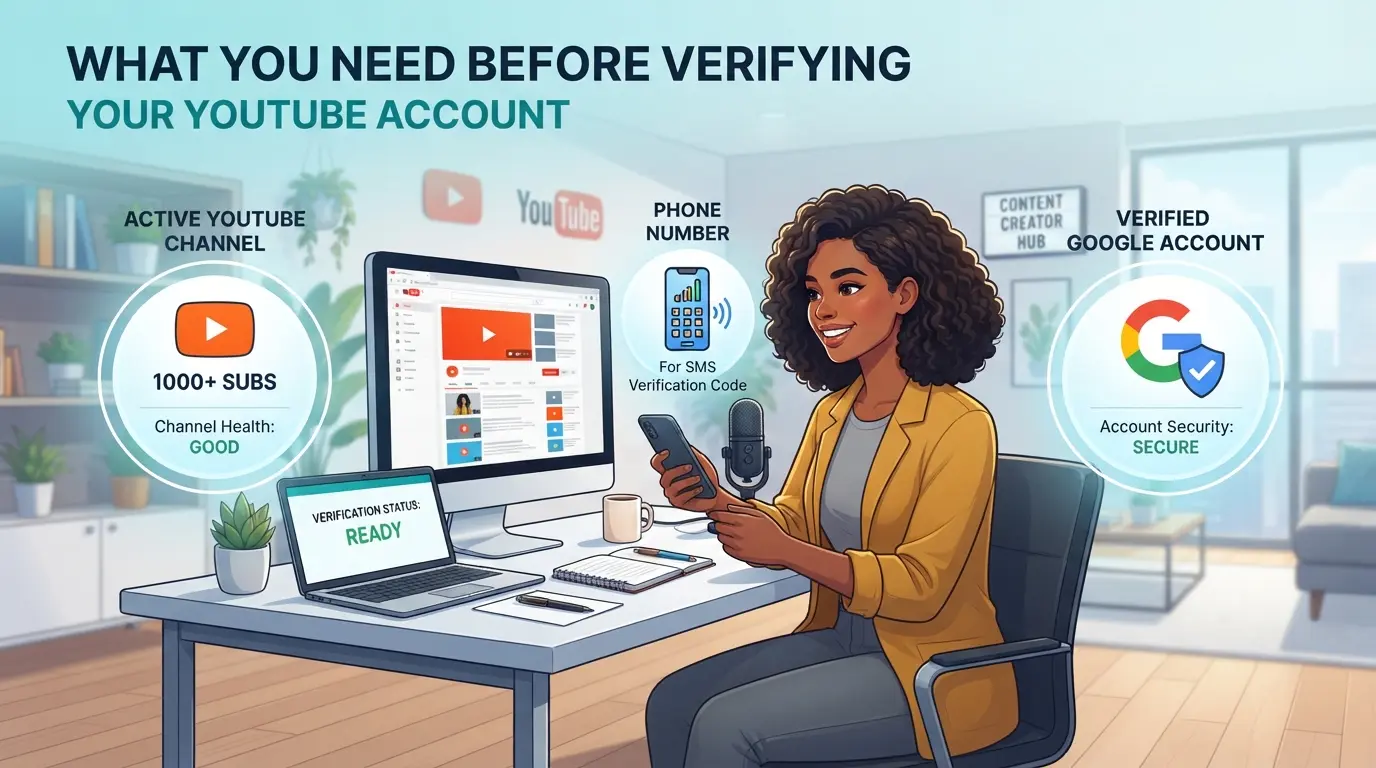
Before you start, you need to check a few details or you’ll hit a wall halfway through. Missing even one requirement means you can’t finish YouTube account verification, no matter how many times you retry the code. Here’s what actually matters.
Eligible Account Types and Restrictions
YouTube lets both personal and brand accounts request verification, but not all accounts pass. The account must be active, not suspended, and at least 30 days old. If your channel is set up as a Brand Account, you need to access it from the owner’s Google profile, managers won’t see the verification option. Age restrictions block users under 13 in most countries, and some regions (like Vietnam or South Korea) apply extra ID checks. If your Google account uses business registration or educational domains, the process may route through admin review. Skip this step and you’ll hit a “Verification is not available” message instead of the code form.
Required Contact Information
If your contact info is missing or stale, you won’t get the code at all. Run through this checklist before starting:
- Confirm a mobile number is linked (VoIP or recycled numbers often fail)
- Use an email you can access right now (not just an old recovery address)
- Check that two-step verification is active or off, don’t leave it half-set
Browser and Device Setup
Trying to verify on a work computer or a shared device often triggers security flags. Even private browsing can block the SMS or call pop-up. Take 30 seconds to check these:
- Use a browser with cookies and JavaScript enabled (no strict privacy extensions)
- Log in from your usual device or location (to avoid “suspicious activity” blocks)
- Make sure your phone can receive international SMS or voice calls, some carriers block Google’s codes
If you skip these steps, you’ll either get stuck at the code screen or see a “This phone number cannot be used for verification” error. Fixing device or number issues mid-process often means waiting 24 hours before you can try again.
Once you’ve cleared these checks, you’re ready for the actual YouTube account verification steps.
Step-by-Step: How to Verify Your YouTube Account in 2026
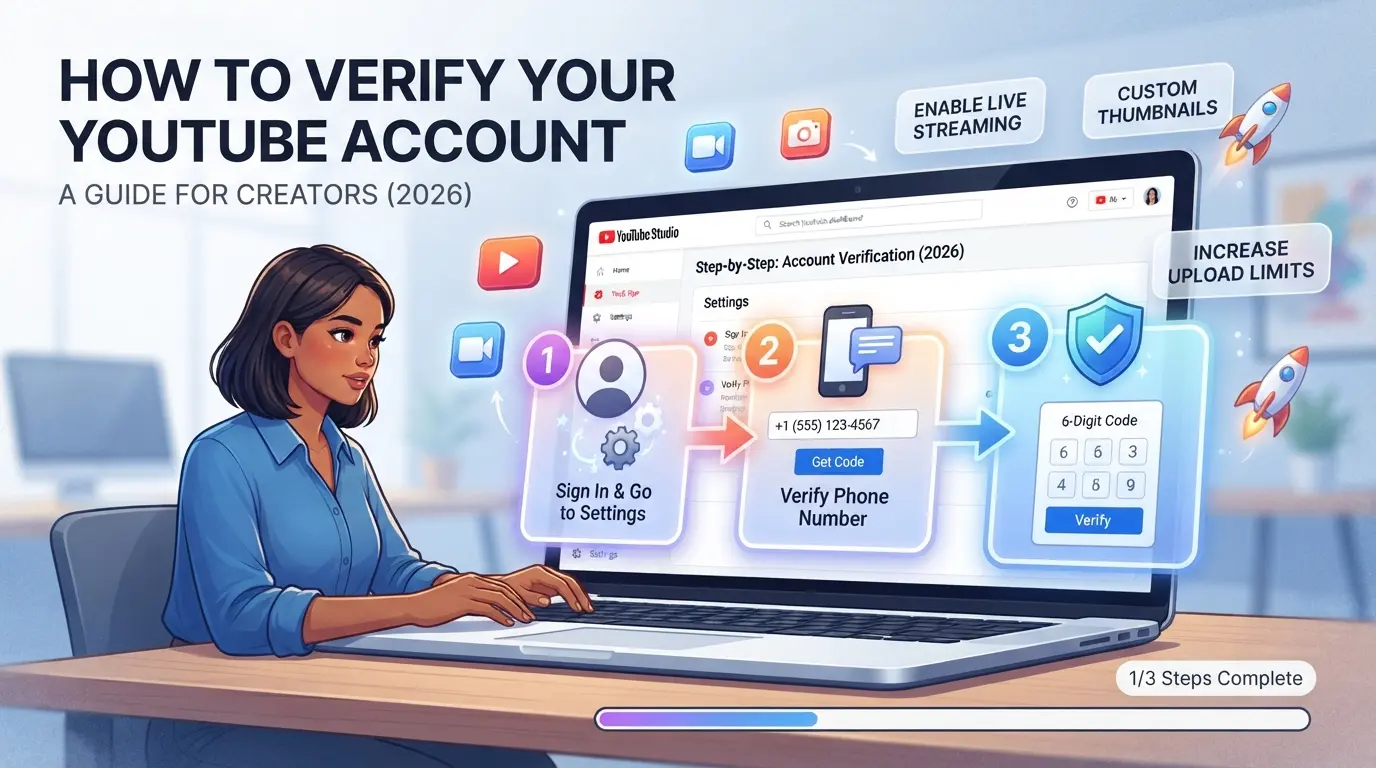
Getting verified on YouTube means you unlock channel features, avoid upload limits, and prove your account is real. Here’s the exact process, screen by screen, so you don’t waste time or get stuck.
Accessing the YouTube Verification Page
- Log into your YouTube account and click your profile icon (top right).
- Go to “Settings,” then find “Account.”
- Click “Channel Status and Features”, you’ll see “Verify” next to your channel.
- Tap “Verify” to start. If the option isn’t visible, your channel may not meet basic requirements. Double-check your Google account age and country setting.
Submitting Your Phone Number
- On the verification screen, pick your country and enter your phone number.
- Choose “SMS” for speed, most users get the code within 30 seconds. “Voice call” works if you have SMS issues, but it’s slower and not supported in all regions.
- Make sure your number fits the local format. If you get “invalid number” or “not supported,” try removing country code or extra zeros. Using a virtual number often fails, stick to a real SIM if possible.
Entering the Verification Code
- Wait for the code, SMS is usually instant, voice call can take up to 2 minutes.
- Enter the exact digits. Typing the wrong code three times triggers a lockout, wait one hour before retrying.
- Didn’t get the code? Check spam folders, toggle airplane mode, or restart your phone. If still stuck, use a different number.
Confirming Successful Verification
- After entering the code, you’ll see a green check and “Verified” under Channel Status.
- Test new features: try uploading a video over 15 minutes or adding custom thumbnails. If these don’t work, refresh the page, sometimes the verification takes up to 5 minutes to update.
- See “Verification failed”? This points to a phone mismatch, banned number, or a blocked region. Try with a new number or review your Google account details.
The hardest part isn’t finding the “Verify” button, it’s getting the code delivered and accepted. Using a real SIM and checking your country format usually solves the most stubborn verification failures. If you hit errors here, you’re not alone, next up, you’ll see why these mistakes cause so many accounts to fail.
Why Some YouTube Accounts Fail Verification: Common Risks and Mistakes
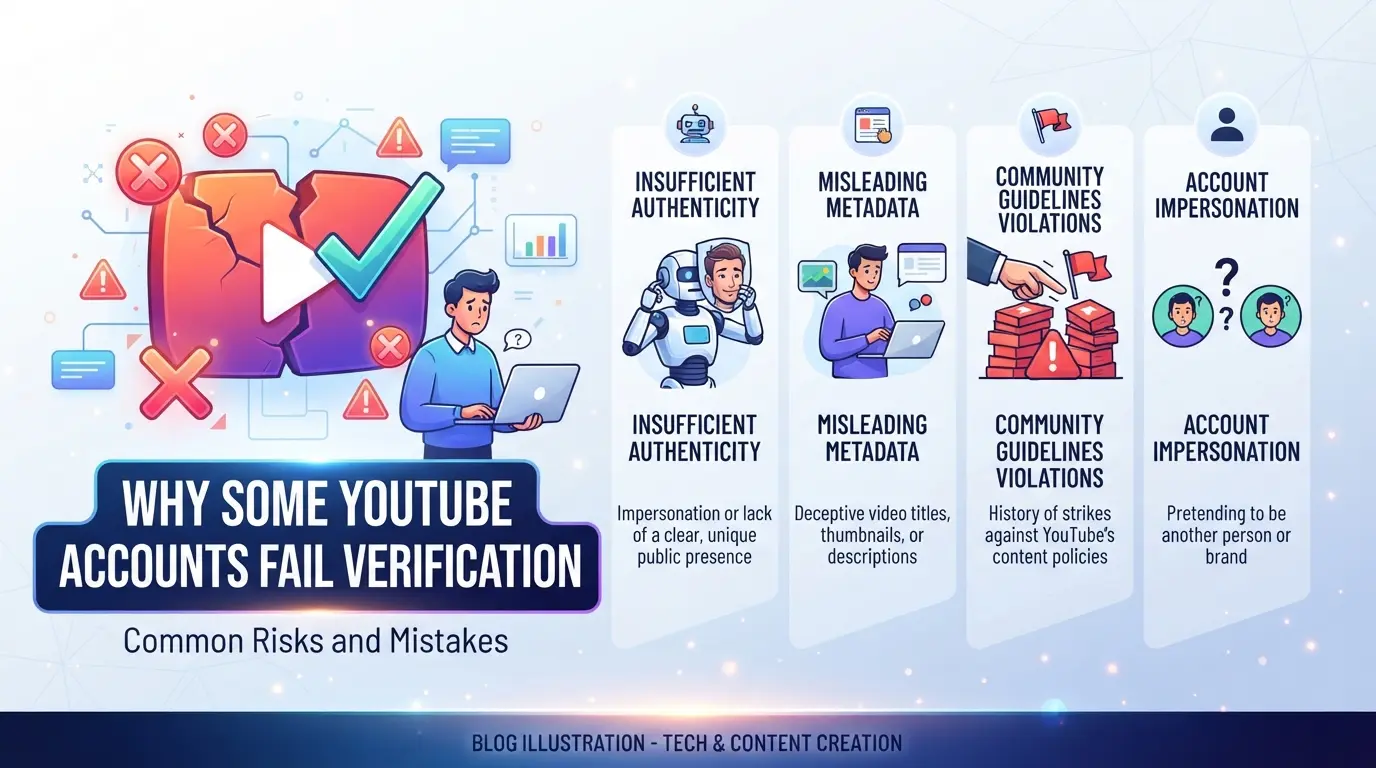
Even when you follow the right steps, YouTube may reject your verification request for reasons that aren’t obvious on the surface. The main problems usually come down to the phone number, your device/browser, or what’s in your account history.
Invalid or Reused Phone Numbers
YouTube blocks numbers that have already verified other accounts or come from risky regions. If you try to use a recycled number, the code may not arrive, or you’ll get a “number already used” error. Always pick a clean, carrier-issued number that hasn’t been linked to any other Google accounts.
Browser and Device Inconsistencies
Changing browsers or devices during verification often triggers extra checks or outright blocks.
- If your browser fingerprint or device info doesn’t match your account’s usual login pattern, YouTube may flag the attempt as suspicious and stop the process.
- Start and finish verification on the same browser and device to reduce the risk of errors.
Suspicious Activity and Account History
Accounts with frequent logins from new locations, incomplete profiles, or recent policy strikes are more likely to fail. Before you start, check that your basic info is filled out and there are no open violations, cleaning this up first can make the process much smoother.
After you get past these pitfalls, you’ll notice your channel unlocks new tools and features.
What Changes After You Verify Your YouTube Account?
Once your YouTube account is verified, you unlock features that are blocked for unverified users, this is not just a formality. The upgrade gives you practical tools for growing your channel and managing uploads more efficiently.
Uploading Longer Videos
Before verification, uploads are limited to 15 minutes per video. After verifying, you can upload videos longer than an hour, but large files may fail if your internet connection drops mid-upload. If you hit an error, restart the upload from the original file, YouTube doesn’t resume partial uploads.
Custom Thumbnails and Live Streaming
Custom thumbnails become available right after verification. You can replace auto-generated images with your own, which helps your videos stand out. Live streaming also unlocks, but you must enable it in your channel settings and wait up to 24 hours for activation, this delay catches most new users off guard.
Access to Advanced Channel Features
- You’re eligible for monetization review
- Community posts and polls unlock
- Channel branding options expand (custom URLs, channel art)
Having these tools means you’re set up for channel growth and audience interaction. If you skip verification, you lose out on these advantages.
How Social Media Marketers and Teams Can Manage Multiple Verified YouTube Accounts More Safely
Managing several verified YouTube accounts isn’t just about following the official “how to verify account in youtube” steps, it’s about not connecting the dots for YouTube’s system. Teams and agencies often run into platform flags when their accounts show up as linked or controlled from the same devices and IP ranges, so the real risk isn’t bot detection but account ties.
Why Multiple Account Management Gets Risky
YouTube looks for patterns, shared IP addresses, identical device fingerprints, or even regular logins from the same browser session. Accounts that seem independent but always move together get flagged for possible abuse. If two accounts get locked at once, that’s a clear sign the setup wasn’t isolated enough.
Best Practices for Account Isolation
The safest move is to keep each YouTube account in a truly separate browser profile, with its own unique device fingerprint and a dedicated proxy IP that stays consistent. This means no sharing browsers, no logging into multiple accounts from the same machine, and no rotating proxies across accounts. One common failure: a team logs into ten accounts from one laptop, then wonders why all the channels get flagged during a policy sweep. Isolation isn’t just for show, YouTube’s backend tracks cookies, fonts, timezone, and tiny browser quirks. If even one element matches across accounts, the platform can link them. So, the strongest defense is total separation at the browser and network layer, any shortcut here usually leads to mass lockouts or forced re-verification.
Team Collaboration and Access Control
- Assign clear roles, limit who can access which account to cut cross-contamination.
- Use operation logs, track every login and sensitive change, so you can spot patterns before YouTube does.
- Rotate permissions, never let one person hold all recovery info for every account.
Teams that skip access control usually get caught out when a single compromised device exposes every login. If you don’t track who accessed what, it’s almost impossible to trace a lockout or appeal a ban. The less overlap in devices and access, the lower your risk.
The next section explains how profile isolation and proxy setup actually work in practice, this is where most teams make or break their multi-account safety.
Using DICloak to Manage Multiple YouTube Accounts: Profile Isolation and Proxy Configuration Explained
Once a team has locked down the basics of safe multi-account workflows, the next hurdle is keeping each verified YouTube account truly separate, especially during daily login, content upload, and handoff between operators. Many teams run into issues when browser storage or network signals leak across sessions, which can lead to unexpected verification checks or even lockouts. DICloak gives operators direct control over browser profile isolation and proxy assignment, making it possible to organize dozens of YouTube accounts without cross-contamination at the browser or network layer. The boundary here: you’re managing the access environment, not the platform’s internal verification or recovery objects.
Setting Up Isolated Browser Profiles and Fingerprint Configuration in DICloak
Operators who manage multiple YouTube accounts need to avoid shared browser storage, cookies, and cached data. The practical approach is to create a separate DICloak browser profile for each account, each profile has its own sandboxed storage and can be configured with distinct browser identification signals. These signals include the reported operating system, User Agent, time zone, screen resolution, and more. For example, a social media team might assign one operator to verify a new YouTube channel and use a fresh DICloak profile with fingerprint settings tailored for that account’s expected region and device type. The scope here is limited to browser profile and fingerprint configuration; it does not affect YouTube’s review process or guarantee account acceptance.

Configuring Proxies for Each YouTube Account Profile in DICloak
Teams often need to keep network connections for each YouTube account separate, especially if accounts target different countries or manage region-specific content. Operators can assign their own proxy to each DICloak profile by entering custom proxy details (host, port, username, password) or selecting a saved proxy from their library. The built-in proxy check tests connectivity and shows the exit IP and region before any session starts, so issues crop up before a login attempt. For example, if an operator sets up three profiles for three different YouTube accounts, each can use a specific proxy tested right inside DICloak’s profile settings. This step only handles the browser’s connection route; it does not prescribe which proxies to use or guarantee platform behavior.

Teams who set up profiles and proxies this way have a clearer view of where session problems are coming from, making later troubleshooting much faster.
Troubleshooting YouTube Verification Problems: Practical Solutions for 2026
If your YouTube account verification fails, don’t retry blindly, most errors repeat because the cause isn’t fixed. Use this checklist to avoid getting locked out or wasting time on support.
Phone Number Not Accepted
Numbers already linked to multiple channels, unsupported carriers, or virtual services trigger instant rejection. Pick a real SIM card from a major provider in your country. If your first number fails, try a different carrier, using numbers tied to online SMS sites or reused for other Google accounts almost always blocks progress.
Verification Code Not Received
- Check SMS and email spam folders, codes sometimes land there.
- Wait 2 minutes before requesting a new code (rapid re-tries can cause lockouts).
- Try a different phone number if codes never arrive after two attempts.
Account Flagged for Suspicious Activity
YouTube blocks verification if your browser or device setup looks suspicious.
- Clear cookies and sign in with a clean browser.
- Use the same device and region as your normal login.
- If blocked twice, use the YouTube Help Center to escalate.
Expert Tips for Smooth YouTube Account Verification and Long-Term Account Safety
Verified YouTube accounts stay safe when you set things up right from the start, most issues come from mismatched details or ignored warnings, not the process itself.
Preparing Consistent Account Information
Use the same phone, recovery email, and device during your YouTube verification steps. Don’t switch SIM cards or clear device history mid-process. If your contact info or IP changes right before verifying, you’re much more likely to trigger a review.
Maintaining a Clean Browser Environment
- Clear cookies and cache before starting verification.
- Use a separate browser profile for each account.
- Never log into two accounts in the same browser tab.
Monitoring Account Activity and Security
Keep an eye on login alerts and new device notifications. If YouTube emails you about an unknown login, change your password right away.
- Review recent activity weekly.
- Update passwords after any suspicious event.
- Remove unused recovery emails promptly.
Frequently Asked Questions About how to verify account in youtube
Can I verify multiple YouTube accounts with the same phone number?
YouTube lets you use one phone number to verify up to two YouTube accounts per year. If you try to verify more, you’ll get an error. To avoid problems, use a different, unique phone number for each new account you want to verify. This helps keep your accounts secure and follow YouTube’s rules.
What happens if my YouTube verification fails?
If your YouTube verification fails, check that your phone number is active and can receive texts or calls. Make sure you’re using the same browser and device you started with. Clear your cache or try another browser if issues persist. If you still can’t verify, reach out to YouTube support for help.
Is YouTube account verification required for monetization?
Yes, verifying your YouTube account is required before you can apply for monetization or access features like custom thumbnails and livestreaming. Without verification, you can’t earn money from your channel or unlock most advanced features. Start by following the how to verify account in youtube steps in your channel settings.
Can I verify a YouTube account from any country?
Most countries support YouTube verification, but some regions may have restrictions. If you don’t see your country listed when entering your phone number, check YouTube’s current policy or help pages for updates. Using a local, valid phone number will help the process go smoothly.
How do I keep my verified YouTube account safe from bans?
To protect your verified YouTube account, always use the same login info and avoid changing your details too often. Use a unique browser profile for each account, and do not engage in spammy or suspicious activities. Following YouTube’s rules helps prevent accidental bans or security issues.
Once your account is verified, you can unlock extra features and start building a more professional presence on the platform. If you run into any issues during the process, consider exploring additional tools to improve your security and privacy online. Try DICloak For Free
 Web Proxy Tools
 Free Tools
 Cookie Plugin
 UA Generator
 MAC Address Generator
 IP Generator
 IP Address List
 2FA Code Generator
 World Clock
 Anonymous Check
 WebRTC Leak Test
 UUID Generator
 Free Web Proxy Site
 Proxy Checker
 FB Ad Checker
 AI Web Scraping
 Free SMM Tools
 Twitter Shadowban Checker
 Instagram Name Checker
 UTM Generator
 Username Generator
 AI Hashtag Generator
 LinkedIn Headline Generator
 Social Media Image Resizer