How to Switch Between Multiple Instagram Accounts Without Logging Out
Now that you know why repeated logins are not ideal, the next step is to use Instagram's own account switcher. This is the simplest answer to how to switch between multiple Instagram accounts without logging out when you only manage a few profiles on the same phone. You first add each account to the Instagram app. After that, you can move between them without typing the username and password every time.
The process works on both iPhone and Android. However, Instagram changes its menus from time to time, and Meta also rolls out some account settings in stages. This means your screen may not look exactly like another person's screen, even if both apps are up to date. The names may change, but the basic process stays the same: add the account first, then choose it from your account switcher.
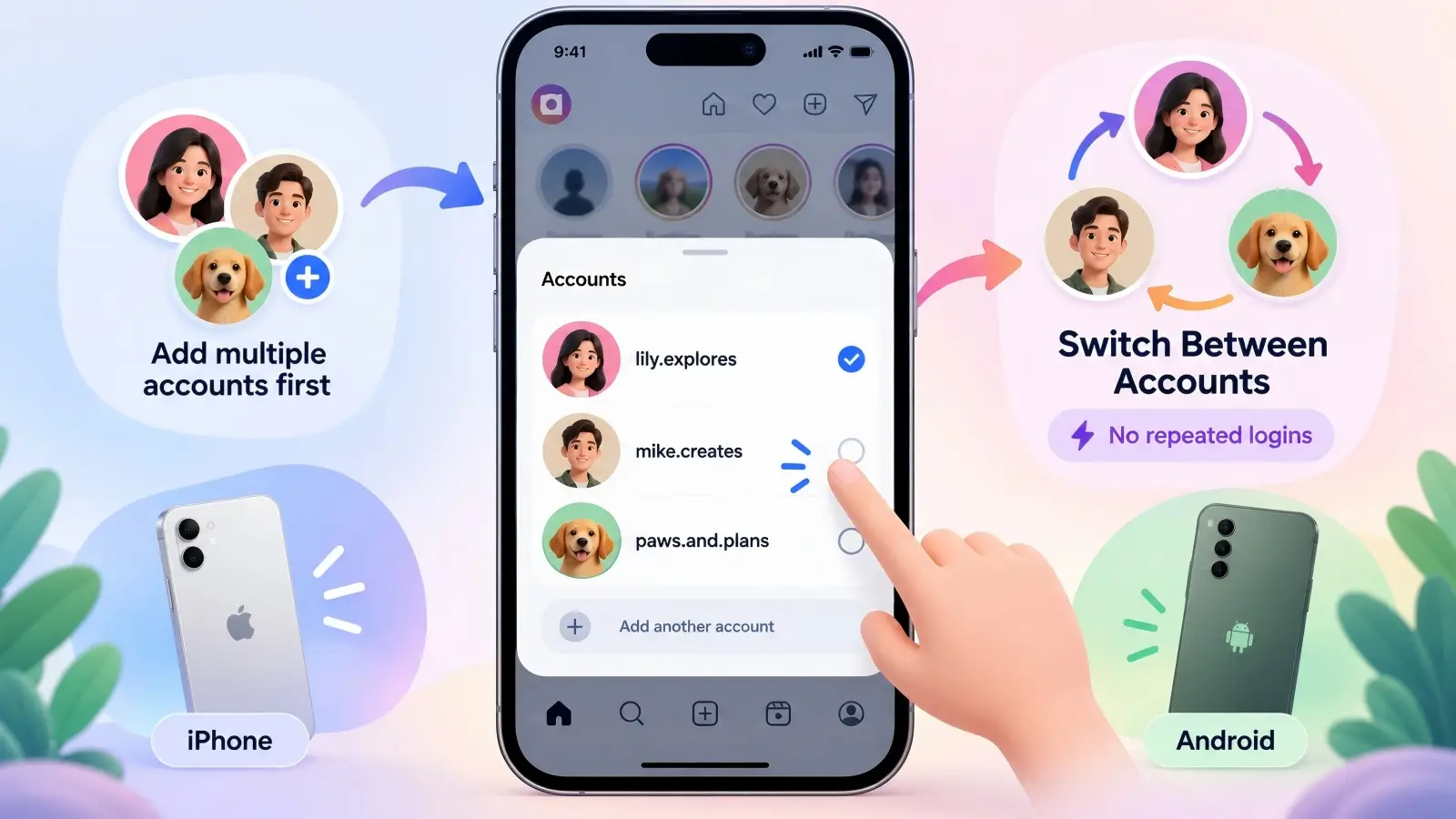
Step 1: Add Multiple Instagram Accounts to Your Instagram App
Before you can switch Instagram accounts without logging out, each account needs to be added to the app. Start by opening Instagram and going to your profile. Tap the menu in the upper-right corner and look for Add account near the login section. You may also be able to open the account switcher from your profile and choose Add Instagram account. Then select the option to log in to an existing account and enter that account's login details. Current Instagram guidance confirms that login information for more than one Instagram account can be stored on the same device.
A quicker path may also appear on some versions of the app. Press and hold your profile picture in the bottom-right corner to open the account menu, then choose Add account. If you already own the second Instagram profile, choose the option for an existing account rather than creating a new one. Instagram may ask for a verification code if the account uses two-factor authentication or if it needs to confirm the login.
For example, suppose Maya has a personal Instagram profile and a business profile for her bakery. She is already logged in to her personal account. Instead of logging out, she adds the bakery account once and completes the login check. From then on, both profiles are available through the Instagram account switcher, so she does not need to repeat the full login process every morning.
Step 2: Toggle Between Instagram Profiles in One Click
Once the accounts have been added, switching becomes much faster. Go to your Instagram profile and tap your username or account name near the top of the screen. Instagram should show the profiles currently available on that device. Tap the account you want to use, and Instagram will open that profile without requiring you to log out of the first one. Recent guides that checked Instagram's current workflow against Meta documentation describe the same basic process.
On many versions of the mobile app, you can also press and hold your profile picture in the bottom-right corner. This opens a quick account switch menu. Choose another profile from the list, and Instagram changes the active account. This shortcut is useful if you move between two profiles many times during the day.
Always check which profile is active before you post, comment, or send a message. For example, a social media manager may have a personal profile and three client profiles added to the same app. The account switcher saves time, but Instagram still shows only one active profile at a time. Checking the username and profile picture before publishing can prevent a client post from being uploaded to the wrong account.
How to Remove Saved Instagram Accounts From the Switch Menu
At some point, you may stop using one of the Instagram accounts on your phone. Perhaps a client contract has ended, or you no longer need a temporary project account. In this case, you can remove the account from the device without deleting the Instagram account itself. This is important because removing saved login information is not the same as deleting or deactivating the account. Instagram's current help guidance makes this distinction clear.
If the account is still actively available in your switcher, first switch to that profile. Open your profile menu, scroll to the login options, and choose Log out [username]. Be careful not to choose an option that logs out every account if you want the other profiles to remain available. Once you sign that account out, it should no longer work as an active profile in your normal switch workflow.
Sometimes the username can still appear on Instagram's login screen because its login information remains saved on the device. In that case, go to the Instagram login screen, tap Options, choose Remove profiles from this device, and tap Remove beside the profile you no longer want saved. This only removes the stored login information from that phone. It does not delete the Instagram profile, its followers, posts, messages, or data.
Common Issues: Instagram Account Switch Not Working & Fixes
The Instagram account switch feature usually works without much setup, but problems can happen. You may tap your username and find that the second account is missing. Instagram may also ask you to log in again, fail to load the selected profile, or show an account that you thought you had already removed. The right fix depends on what is actually causing the problem, so it is better to check a few simple things before changing account settings.
Try these fixes in order:
- Check whether the account was actually added. If the account does not appear in the switcher, open Add account and sign in to it again. A saved username on the login screen does not always mean that the account is active in your current switcher.
- Update the Instagram app. An older app version may not match Instagram's current account menus or features. Install the latest version available from the App Store or Google Play, then reopen Instagram.
- Close and reopen Instagram. A temporary app problem can stop the account menu from loading correctly. Restarting the app is often worth trying before changing passwords or removing accounts.
- Check your internet connection. Instagram needs to load the selected profile from its servers. If switching produces a blank page or endless loading screen, test your Wi-Fi or mobile connection before assuming the account itself has a problem.
- Log in to the missing account again. If Instagram asks for a password or security check, complete the login normally. If you no longer know the password, use Instagram's password recovery process rather than repeatedly trying incorrect passwords.
- Report a technical problem if the switcher still fails. If several accounts work but one valid account cannot be added or opened, the problem may be specific to Instagram or that account. Instagram provides an in-app option for reporting technical problems, which is more useful than repeatedly removing and reinstalling accounts when the issue continues.
For example, imagine Daniel can switch between his personal account and two store accounts, but one store suddenly disappears from the list. The first thing to check is whether that profile is still added to the app. If it is missing, adding it again is more direct than logging out of every other account. If Instagram rejects the login, Daniel should then check the password, verification request, or account status instead of treating it as a problem with the whole account switcher.
These checks also help separate an Instagram account switch not working problem from a normal login problem. If every added account is missing, the app or local login state may be the issue. If only one account fails while the others work, the issue is more likely tied to that profile or its login details. Knowing the difference can save you from changing settings that were already working.
Limitations of Instagram’s Native Multi-Account Switching Feature
Instagram's built-in account switcher works well when one person manages a small group of accounts. As explained above, you can add several profiles and move between them without signing out each time. For a creator with a personal account and a business account, this may be all that is needed. However, the same setup can become harder to manage when an agency, company, or larger team is responsible for many Instagram profiles.
The key issue is that the native switcher was mainly built for convenient account access. It is not a full team management system. So, while it solves the basic question of how to switch between multiple Instagram accounts without logging out, it does not provide the same level of workspace separation, access control, and team tracking that larger organizations may need.
Risk of Account Linking for Business & Agency Users
It is important to be careful with the term "account linking." Simply adding several Instagram accounts to the native switcher does not mean Instagram automatically merges them into one account. It also does not mean that a problem with one profile will automatically cause another profile to be restricted. There is no good reason to make that kind of claim.
However, several accounts used inside the same app are still being accessed from the same device environment. Meta's privacy information explains that its services collect device and network information, such as device characteristics, identifiers, IP addresses, and information from cookies or similar technologies. This is normal for a large online platform, but it means the native switcher should not be confused with separate device or browser profiles.
Accounts Center creates another important distinction. If users choose to place Instagram, Facebook, or other supported Meta accounts in the same Accounts Center, Meta says it can use information across those accounts to provide connected and more personalized experiences. Accounts Center can also support features such as logging in across accounts. Adding several accounts to the same Accounts Center is optional, so this is not the same thing as simply using Instagram's normal account switcher.
For a personal user, this difference may not matter much. For an agency, it can matter more. Imagine an employee manages a fashion brand, a fitness brand, and a local restaurant from one phone. The account switcher makes the work fast, but all three accounts are still being handled inside the same Instagram app and device environment. If the agency wants each client's daily workspace to remain clearly separate, Instagram's native switcher does not create that separation by itself.
Restrictions on the Number of Accounts You Can Add
The native Instagram method also has a practical account limit. Meta's current help information states that users can have up to 10 Instagram accounts logged in at once. This is worth noting because many older Instagram guides still say the limit is five accounts. That information can now be outdated.
Ten accounts are more than enough for many individual users. A small shop owner may have one personal account, one main store profile, and one account for a second brand. Even a freelancer with four or five clients may be able to work within the native limit. In these cases, learning how to switch between multiple Instagram accounts without logging out can remove a lot of unnecessary login work.
The limit becomes more noticeable for agencies. Suppose an agency manages 25 client Instagram accounts. Even if Instagram allows 10 accounts to remain logged in at the same time, the agency cannot place all 25 into one simple native switching setup. Staff may need several devices, different login groups, or another account management workflow. This also increases the chance of someone forgetting which accounts are stored on which device.
The number of accounts is therefore not a major problem for most personal users. It is mainly a scaling issue. The more brands, clients, and staff members involved, the less useful a simple account list becomes as the main way to organize daily work.
No Granular Permission Control for Team Members
The normal Instagram account switcher also does not include per-member permission settings. If you give a team member the username and password and they log directly into an account, the switcher itself cannot decide that this person may answer messages but cannot publish a Reel. It also cannot make another person "view only" while allowing a manager to change more important settings. Everyone using the same direct login is working through that account's normal authenticated access.
For example, imagine a brand has three team members. Anna creates posts, Ben answers customer messages, and Chris checks campaign results. If all three use the same Instagram login through the normal account switcher, the switcher does not create three different roles for them. This can give people more account access than their daily job actually requires.
However, this does not mean Instagram has no permission tools at all. Instagram now offers Shared Access for eligible accounts. Meta's current help pages show that account owners can invite other people without giving them the account password, and some permissions can be managed separately. For example, Meta documents controls for Story access, and Shared Access is designed so invited people can help manage an account under the owner's control.
Businesses also have another option through Meta Business Suite. Meta allows businesses to assign assets, including Instagram accounts, to people and give them permissions based on the work they need to do. This is much more suitable than handing every employee the same Instagram password. Still, it is a separate business access system rather than a feature of the basic Instagram profile switcher.
Lack of Operation Logs to Track Team Activity
A similar limitation applies to team activity records. The normal account switcher tells Instagram which account is active, but it is not designed to show a company which employee performed every action. If several people use the same username and password, a manager may know that something changed on the Instagram account without having a clear native switcher record showing which staff member made the change.
Consider an agency where three people can open the same client account. One afternoon, a draft is changed, a message is answered, and a Story is published. If everyone is using the same direct login, the account switcher itself does not work like a business audit log that clearly assigns each action to Employee A, B, or C. This can make internal reviews harder when several people work on the same profile.
Again, there is an important 2026 exception. Instagram's separate Shared Access feature now includes account activity. Meta's official help information says account owners can view Shared Access activity and check activity linked to people who were given access. This makes Shared Access more useful for small teams than the basic switcher alone.
The difference is important. Instagram's native account switcher is still useful for quickly moving between your own profiles. Shared Access and Meta's business tools are designed for a different problem: letting other people help manage an account. For an individual user, the normal switcher may be enough. For an agency handling many clients and team members, account switching is only one part of a much larger management workflow.
Best Practices to Avoid Instagram Account Restrictions When Managing Multiple Profiles
Knowing how to switch between multiple Instagram accounts without logging out can save a lot of time. However, fast switching is only one part of good account management. If you manage several business or client profiles, you also need a clear way to keep sessions organized, protect account access, and avoid behavior that may look like spam or misuse.
It is also important to separate facts from common online claims. Instagram does not publish a rule saying that switching between accounts a certain number of times will cause a restriction. There is also no public "safe switching limit" that users need to follow. Account restrictions are more closely tied to policy violations, suspicious access, spam, unauthorized automation, and other activity that goes against Meta's rules. Meta's Community Standards apply across Instagram and other Meta services.
Keep Separate Browser Environments for Each Instagram Account
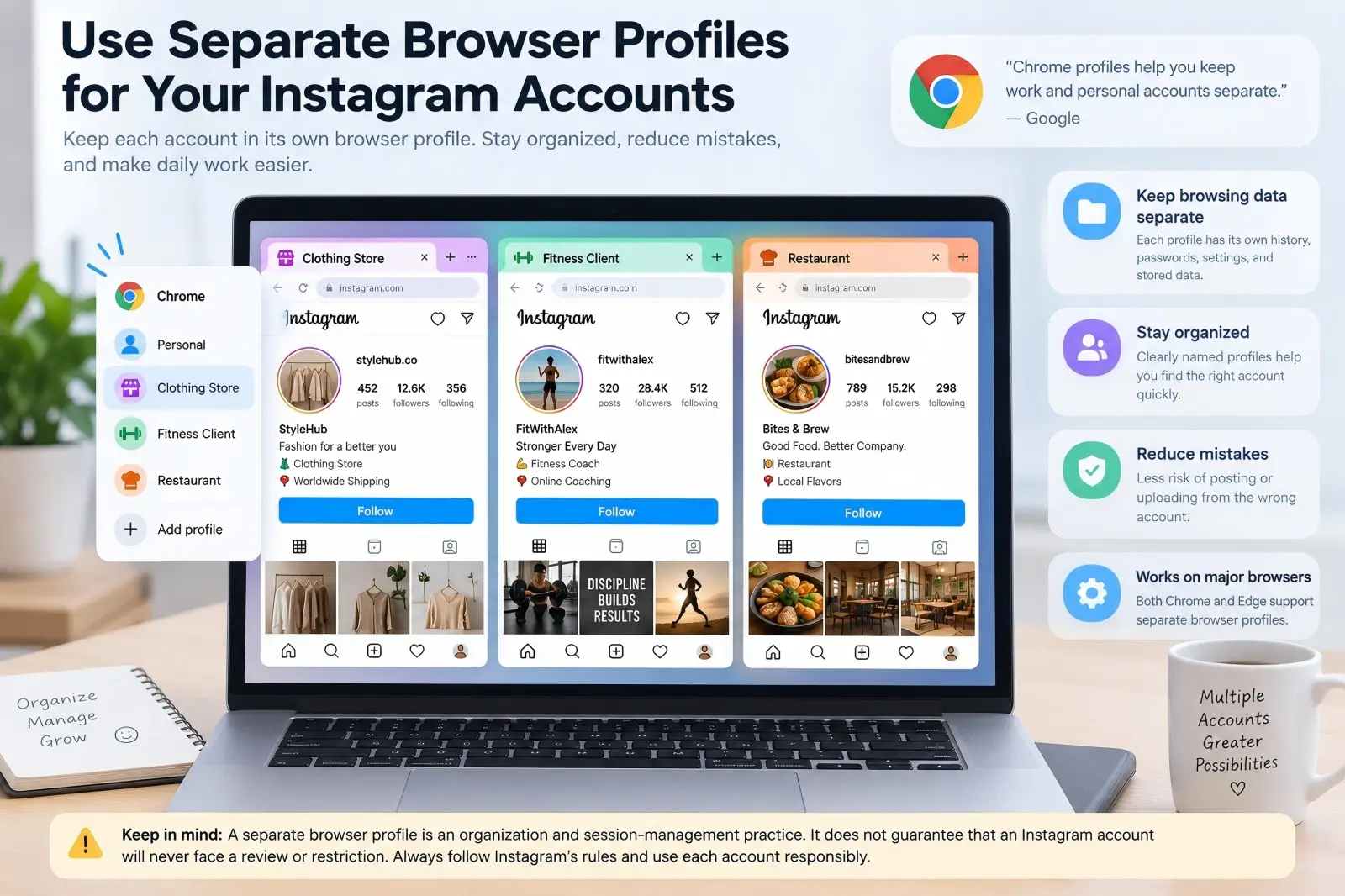
If you manage Instagram on a desktop browser, using a separate browser profile for each important account can make daily work easier. A browser profile keeps its own browsing information, such as history, passwords, settings, and other stored data. Google, for example, recommends Chrome profiles when users want to keep work and personal accounts separate.
This is useful because browser sessions often depend on stored login data. Imagine an agency manager who handles Instagram accounts for a clothing store, a fitness coach, and a restaurant. If all three accounts are opened inside the same browser profile, it is easier to lose track of which login is active. With three clearly named browser profiles, the manager can open "Clothing Store," "Fitness Client," or "Restaurant" and return to the correct work session.
Separate browser profiles can also reduce accidental mistakes. A team member is less likely to upload a client's photo from the wrong Instagram account when each client has a dedicated workspace. The same idea can help keep saved passwords, bookmarks, and browser settings organized. Microsoft Edge and Chrome both support separate browser profiles for this type of account separation.
However, a separate browser profile should not be treated as a way to bypass Instagram's security systems. It does not guarantee that an Instagram account will never face a review or restriction. It is mainly an organization and session-management practice. Users still need to follow Instagram's rules and use each account for a legitimate purpose.
Avoid Rapid, Frequent Account Toggling
Instagram's native switcher is made for moving between accounts, so normal switching is not something users need to fear. If you check your personal profile, move to your business profile, and later switch to a client account, that is normal use. Instagram has not published a rule saying that this kind of account switching is forbidden.
The bigger concern is what happens around the switching. For example, a user who moves through many accounts and then sends large numbers of comments, follows, messages, or other actions in a very short period may create activity that looks less natural. Meta has specific standards against spam and deceptive activity, and it uses automated systems to detect policy violations.
A better approach is to work in a normal human workflow. Suppose a social media manager has six client accounts. Instead of opening every account within a few minutes and repeating the same comment or follow action, the manager can finish real work for one client before moving to the next. They might reply to customer messages, review comments, publish approved content, and then switch accounts when that task is complete.
You should also avoid treating third-party automation as a shortcut for unlimited activity. Instagram's Terms of Use prohibit unauthorized automated access and automated collection of information without Meta's permission. The terms also prohibit attempts to interfere with the normal operation of the service. Normal account switching is different from running tools that automate large amounts of unauthorized activity.
Follow Instagram's Terms of Service for Multiple Accounts
Managing several Instagram profiles is not a problem by itself. Instagram provides its own multi-account feature, which clearly shows that the platform expects many users to have more than one profile. The important part is how those accounts are created and used. Each account should have a legitimate purpose, and its activity should follow Instagram's Terms of Use and Community Standards.
For example, a marketing agency may manage Instagram accounts for ten real clients. Switching between those accounts to publish approved posts, respond to messages, and check comments is very different from creating large numbers of fake accounts for spam. Instagram's rules prohibit unlawful, misleading, fraudulent, and unauthorized activity. They also restrict unauthorized automated account creation or data collection.
Teams should also protect login access. Avoid passing Instagram passwords around casually when Instagram Shared Access or Meta's business permission tools can handle the task instead. Use two-factor authentication where possible, and review login activity when something looks unusual. Meta currently lets Instagram users review recent login activity under Accounts Center > Password and security > Where you're logged in.
Consider a simple example. A store owner notices a login from a device they do not recognize after several employees have used the same password. Instead of assuming Instagram is blocking the account because it has multiple profiles, the owner should first review active login sessions, remove access that is no longer needed, and update the password if necessary. Good access control is often more useful than trying to guess an unpublished Instagram "switching limit."
The safest practical rule is simple: use Instagram's account switcher for normal account access, keep workspaces clear when managing many profiles, and avoid spam, unauthorized automation, or other activity that breaks Meta's rules. That gives users a much more reliable way to manage multiple Instagram accounts than trying to copy unofficial limits or "anti-ban" tricks found online.
Instagram's native switcher is often enough if you only use two or three personal accounts. But the workflow can become harder when you manage many business profiles, client accounts, or different marketing projects. At that point, the problem is no longer only how to switch between multiple Instagram accounts without logging out. You may also need to keep login sessions organized, separate client workspaces, and reduce repetitive work.
For this type of workflow, an antidetect browser such as DICloak can be another option. Instead of keeping every Instagram login inside one normal browser space, you can create a dedicated browser Profile for each account. You can also use automation and research tools when they fit your work. These features do not guarantee that an Instagram account will avoid verification or restrictions, so Meta's rules still need to be followed.
Isolate Accounts with Customizable Browser Fingerprint Settings
You can create a separate DICloak browser Profile for each Instagram account you manage. Every profile comes with fully customizable browser fingerprint parameters: operating system, User-Agent, language, time zone, geolocation, screen resolution, font list, WebRTC, Canvas and more. Each Profile stores independent browser cache, cookies, fingerprint rules and optional dedicated proxy. You can enable IP-based matching for language, timezone and geolocation settings to align fingerprint information with the proxy IP address. DICloak treats each Profile as a fully isolated browser profile, preventing cross-contamination of account data during daily operations.
For example, an agency may manage Instagram accounts for a clothing brand, a restaurant, and a fitness coach. The team creates an individual named Profile for each client, configuring unique fingerprint properties for every profile instead of logging into all accounts within a single browser session. When a manager needs to access the restaurant Instagram account, they simply launch its dedicated profile and resume its independent browser session. This organized workflow minimizes operational errors like accidentally opening the wrong client workspace.
You can assign a separate proxy to each profile if your business requires isolated network connections. However, proxy usage is optional and cannot be used to circumvent Instagram’s platform policies. DICloak documentation states that profiles without proxies will use your local device IP address. The core advantage is that every Instagram account gets a clean, separate browser fingerprint environment, eliminating the need to repeatedly log in and log out within a shared browser.

Frequently Asked Questions About Switching Instagram Accounts Without Logging Out
1. How do I switch between multiple Instagram accounts without logging out?
Add your accounts to the Instagram app first. Then tap your username or account menu and choose the profile you want to use. This is the easiest way to switch between multiple Instagram accounts without logging out.
2. How many Instagram accounts can I stay logged into at once?
Instagram currently allows users to stay logged into multiple accounts on the same device. The exact limit can change as Instagram updates its features, so check the latest Meta guidance if you manage many profiles.
3. Why can't I switch between my Instagram accounts?
The account may not be added correctly, your Instagram app may be outdated, or the login session may have expired. Try updating the app, reopening Instagram, and adding the missing account again.
4. Can I switch Instagram accounts on a computer without logging out?
Yes. You can switch between added Instagram accounts on the web, or use separate browser profiles for clearer account separation. This can be useful if you manage several business or client accounts.
5. Is it safe to manage multiple Instagram accounts on one device?
Instagram supports multiple accounts, so managing more than one profile is normal. However, you should follow Instagram's rules, protect login details, and avoid spam or unauthorized automation when switching between multiple Instagram accounts without logging out.
Conclusion
Learning how to switch between multiple Instagram accounts without logging out can make daily account management much easier. Instagram's built-in account switcher is a good choice for users who manage a few personal, creator, or business profiles. It lets you move between added accounts without entering your login details every time. For most individual users, this simple setup may be enough.
As the number of accounts grows, the workflow can become more complex. Agencies and teams may need clearer browser separation, better access control, and tools for repetitive work. In these cases, separate browser profiles or an antidetect browser like DICloak can be considered as part of a more organized workflow. No matter which method you use, keep account access secure, avoid spam or unauthorized automation, and follow Instagram's current rules when managing multiple profiles.
 Web Proxy Tools
 Free Tools
 Cookie Plugin
 UA Generator
 MAC Address Generator
 IP Generator
 IP Address List
 2FA Code Generator
 World Clock
 Anonymous Check
 WebRTC Leak Test
 UUID Generator
 Free Web Proxy Site
 Proxy Checker
 FB Ad Checker
 AI Web Scraping
 Free SMM Tools
 Twitter Shadowban Checker
 Instagram Name Checker
 UTM Generator
 Username Generator
 AI Hashtag Generator
 LinkedIn Headline Generator
 Social Media Image Resizer