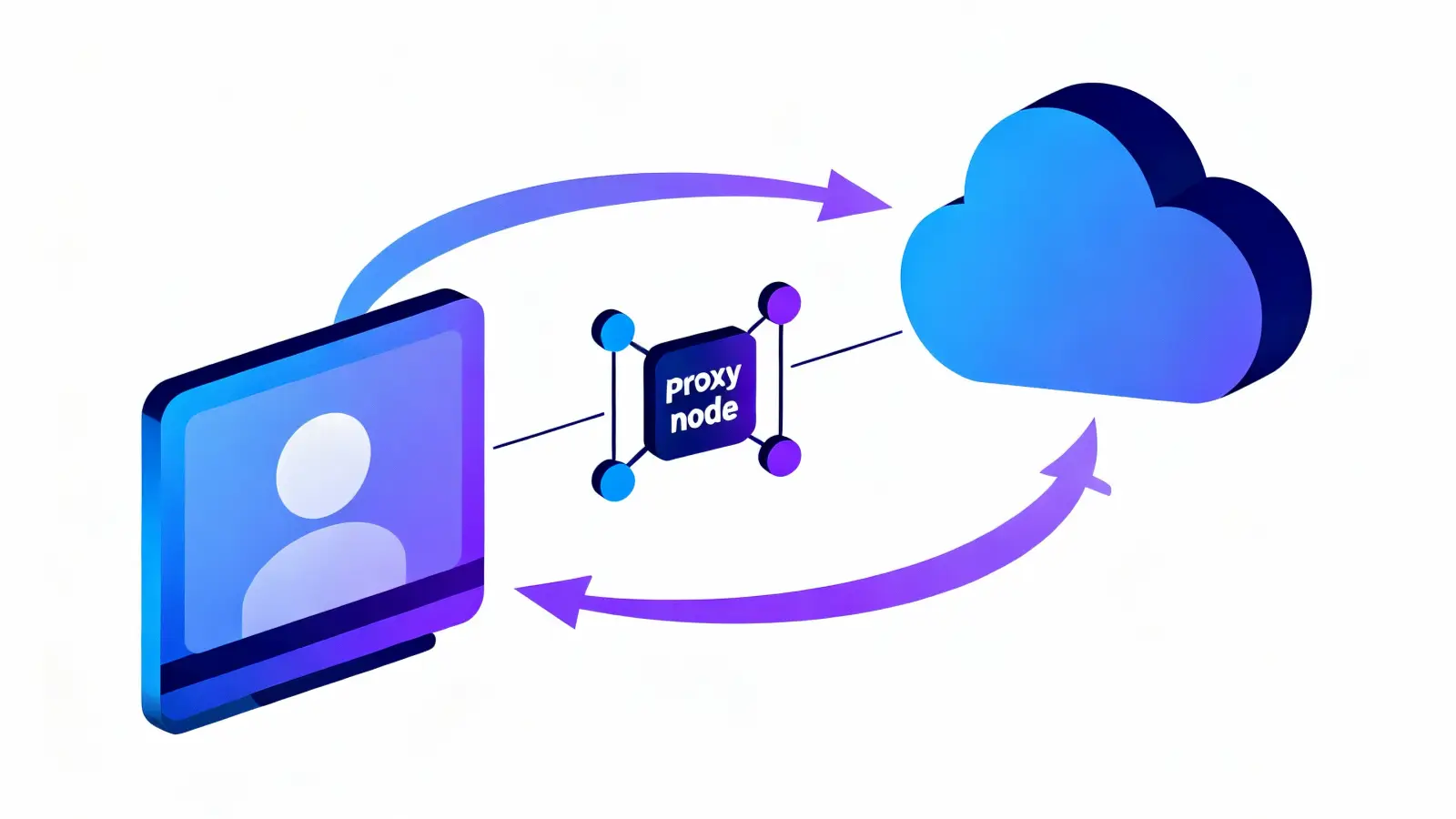
What is a Proxy?
A proxy acts as an intermediary between your device and the internet. When you use a proxy, your requests go through the proxy server first. This means that the websites you visit will see the proxy's IP address instead of your own. This can help you maintain privacy and access content that might be restricted in your region.
Benefits of Using a Proxy
Using a proxy has several benefits. First, it can enhance your anonymity online. By masking your IP address, you can browse the web without revealing your identity. Second, proxies can help you bypass geo-restrictions. This means you can access content that might be blocked in your country. Lastly, proxies can improve your security by acting as a barrier against potential threats.
Common Uses of Proxies
Proxies are commonly used for various purposes. Some people use them to access blocked websites at school or work. Others use proxies to scrape data from websites without getting banned. Additionally, gamers often use proxies to reduce latency and improve their gaming experience. Lastly, businesses use proxies to monitor employee internet usage and protect sensitive data.
| Use Case |
Description |
| Access Blocked Websites |
Bypass restrictions at schools or workplaces. |
| Data Scraping |
Collect data from websites without being blocked. |
| Gaming |
Reduce latency and improve performance. |
| Business Monitoring |
Track employee internet usage and secure data. |
How to Proxify Your Entire Operating System
Have you ever wondered how to enhance your online privacy while using applications like Discord? Setting up a proxy can help you bypass geographical restrictions and increase your anonymity. In this guide, we will explore how to set up a proxy for your entire operating system, making it easier to use Discord securely.
Accessing Proxy Settings
To begin, click on the Start menu and select Settings. From there, choose Network & Internet. In the window that appears, look for the Proxy option. Here, you will find the settings to configure your proxy.
Entering Proxy Details
Once you have accessed the Proxy settings, toggle the option to Use a proxy server to On. This will activate the fields where you can enter your proxy details. Input the IP address and Port of your proxy. After entering the details, click Save.
If you are using a personal proxy, a prompt will appear asking for your login and password. Enter this information to complete the setup. Now, your entire operating system is configured to use the proxy, allowing you to work with Discord safely.
| Step |
Action |
| 1 |
Click Start and select Settings |
| 2 |
Choose Network & Internet |
| 3 |
Access Proxy settings |
| 4 |
Toggle Use a proxy server to On |
| 5 |
Enter IP and Port of your proxy |
| 6 |
Click Save |
- Bypassing geographical restrictions
- Increasing online anonymity
- Enhancing security while using Discord
How to Use Proxifier to Set a Proxy for Discord
Have you ever wondered how to enhance your online privacy while using Discord? Setting up a proxy can help you bypass geographical restrictions and keep your identity safe. In this guide, we will explore how to use Proxifier to set a proxy specifically for Discord.
Launching Proxifier
To begin, you need to launch the Proxifier application. This tool allows you to manage your proxy settings easily. Once you have it open, navigate to the top menu and select the 'Profile' option. From there, click on 'Proxy Servers' to set up your proxy.
Adding a Proxy Rule for Discord
Next, you will need to add a proxy rule specifically for Discord. Click on 'Proxification Rules' in the same 'Profile' menu. Then, click 'Add' to create a new rule. In the window that appears, name your rule something like 'Discord Proxy'. In the 'Application' section, browse your computer to find the Discord executable file (Discord.exe). Finally, in the 'Action' field, select the proxy you previously set up. Click 'OK' to save your settings.
Now, whenever you use Discord, it will automatically route through the proxy you configured. This setup not only enhances your privacy but also helps in accessing Discord from restricted locations.
| Step |
Action |
| 1 |
Launch Proxifier |
| 2 |
Select 'Profile' > 'Proxy Servers' |
| 3 |
Add a new proxy rule for Discord |
| 4 |
Select Discord executable |
| 5 |
Choose the proxy and save |
In conclusion, using Proxifier to set a proxy for Discord is a straightforward process that can significantly enhance your online experience. Don't hesitate to try it out!
 Web Proxy Tools
 Free Tools
 Cookie Plugin
 UA Generator
 MAC Address Generator
 IP Generator
 IP Address List
 2FA Code Generator
 World Clock
 Anonymous Check
 WebRTC Leak Test
 UUID Generator
 Free Web Proxy Site
 Proxy Checker
 FB Ad Checker
 AI Web Scraping
 Free SMM Tools
 Twitter Shadowban Checker
 Instagram Name Checker
 UTM Generator
 Username Generator
 AI Hashtag Generator
 LinkedIn Headline Generator
 Social Media Image Resizer