Getting past Google’s account registration page isn’t as simple as filling out a form. Most users hit friction when trying to register google account, either their phone number gets flagged, they run into verification loops, or Google blocks the sign up after a few tries. If you’re trying to create google account for a new project, a team, or to replace a restricted account, these problems usually pop up right after you enter basic info.
What catches people off guard is how fast Google changes its sign up checks. Last year’s tricks for sign up for google account, like using disposable numbers or skipping recovery email, now trigger extra verification or outright bans. Even switching devices or IP addresses can backfire, especially if Google sees the environment as risky. The usual “open new google account” approach isn’t reliable anymore.
What actually works is knowing the difference between a normal registration and one Google treats as suspicious. If you skip setting up recovery details, use a recycled phone number, or rush the registration, you’ll often see a warning or get asked for a second verification. That’s where most people stall out. The guide below walks through the practical steps, points out common traps, and covers real fixes that matter if you need a working account, not just a form submission.
Start by seeing what Google checks first, and why skipping basic details can cause problems.
What You Need Before Registering a Google Account in 2026
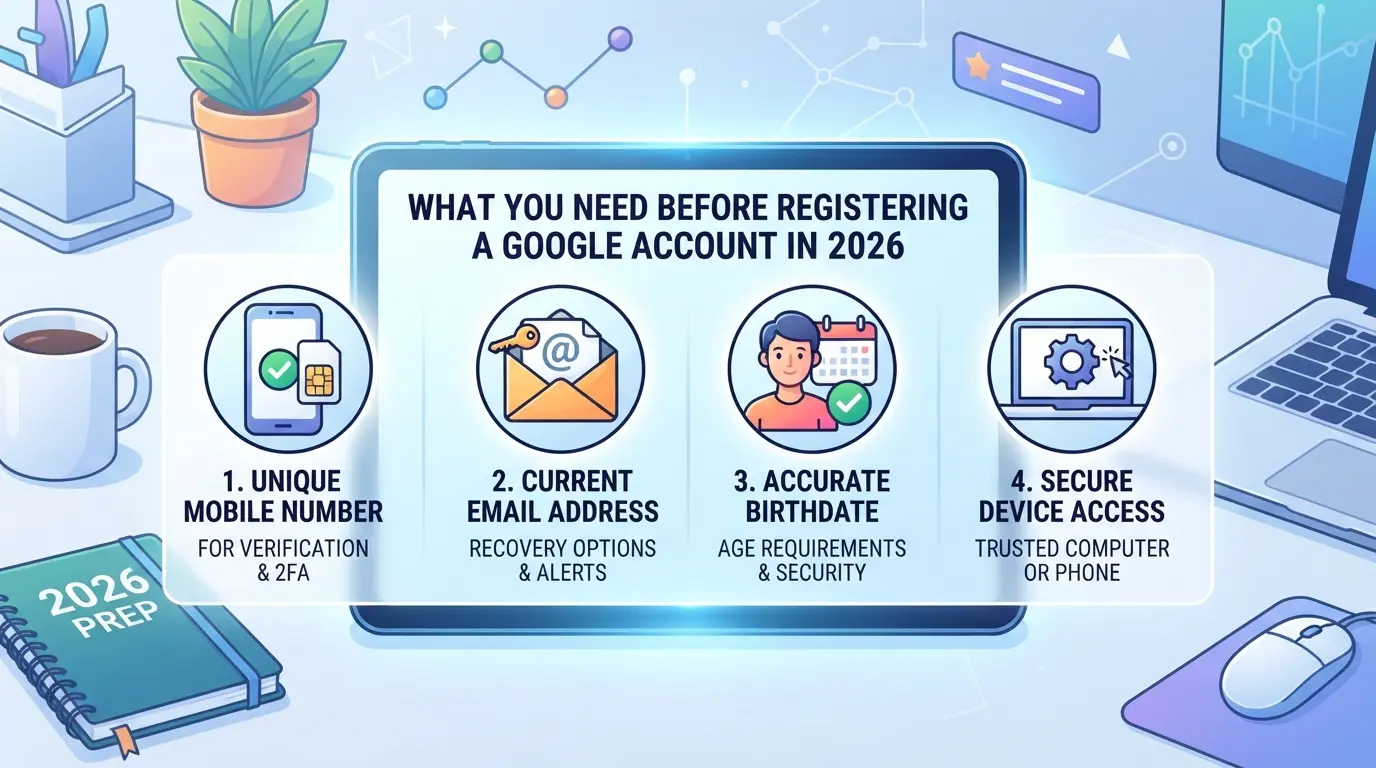
If you want your new Google account to work without triggering extra checks, you need more than just a phone or email. The days of skipping recovery info or using recycled numbers are gone, Google flags risky setups right at signup. Below is a quick checklist for what actually counts in 2026 and where most people trip up.
Valid Email or Phone Number: What Counts in 2026?
Google blocks numbers from VoIP services and most virtual SIM apps. Only real, carrier-issued phone numbers pass SMS verification. If you use a recycled email from another Google account, registration will fail or prompt for backup details. Disposable email services also trigger instant bans.
Device and Browser Requirements for Account Creation
- Check your device runs Android 10+, iOS 13+, or Windows 10/11.
- Use Chrome, Firefox, or Safari, avoid outdated browsers like Internet Explorer.
- Disable browser extensions that block cookies or scripts before starting.
Network and Proxy Considerations: What Google Checks
Google tracks IP reputation and location. Registering from a high-risk IP, like public Wi-Fi, shared proxies, or IPs tied to bulk signups, can lead to instant restrictions or extra verification. If your network has been flagged before, even a clean device might get stuck at the signup screen.
Personal Information: What Details Are Required?
Google requires a name and birthdate that look real. Using fake names or birthdays under 13 years old will block registration. Optional fields (gender, recovery email) are safe to skip, but recovery info helps avoid lockouts.
- Enter a name that matches normal patterns, avoid random strings or nicknames.
- Set your birthdate to 14 years or older; underage accounts rarely get approved.
- Add a recovery email or phone if you want to reset your password later.
Missing any one of these can stall the process or trigger a security check you can't pass. If you’re set on a smooth signup, double-check these before you start, most failed registrations happen because people rush and skip the basics.
Ready to begin? The next section breaks down each step so you don’t get stuck mid-registration.
Step-by-Step: How to Register a Google Account on Desktop and Mobile
Getting a valid Google account in 2026 means following each step closely, skipping even one detail often triggers extra checks or blocks. Here’s exactly how to handle both desktop and mobile registration, what’s changed, and what to watch out for.
Desktop Registration: Full Walkthrough
- Go to Google’s Create Account page. Using private browsing can trip risk signals; stick to a normal browser window.
- Enter your name, pick a new username, and set a strong password. If you reuse old details or a recycled phone number, Google may flag it.
- Add a recovery email and phone number. Leaving either blank increases the chance you’ll get stuck in future login or verification loops.
- Complete the captcha and click “Next.” If you see a red warning instead of a confirmation, double-check your device and IP, Google blocks mismatched environments.
Mobile Registration: What’s Different?
- Open the Google app or Chrome and tap “Add account.” Using the app triggers fewer device checks than starting from a browser, but both work.
- Fill in your personal info and password. On mobile, Google sometimes asks for device unlock (face or fingerprint) as a security step.
- Verify your phone number. If SMS doesn’t arrive within 1 minute, switch to call verification, waiting longer often leads to lockouts.
Phone Verification and Recovery Setup
- Enter your phone number for verification. In 2026, recycled numbers see instant rejection, using a fresh, unused number is key.
- Get the six-digit code via SMS or call. Enter it promptly; codes expire in 5 minutes, and late entries can block your registration.
- Add a recovery email right away. If you skip, recovery becomes much harder later, Google now requires both for certain account actions.
- Set up security questions if prompted. This step isn’t always required, but missing it means weaker protection and higher risk of lockout.
Each step builds on the last; missing any detail can trigger extra reviews or verification stalls. Next, you’ll want to know why registrations fail, those edge cases are where most people lose their new account.
Why Google Account Registrations Fail: Common Mistakes and Risk Signals
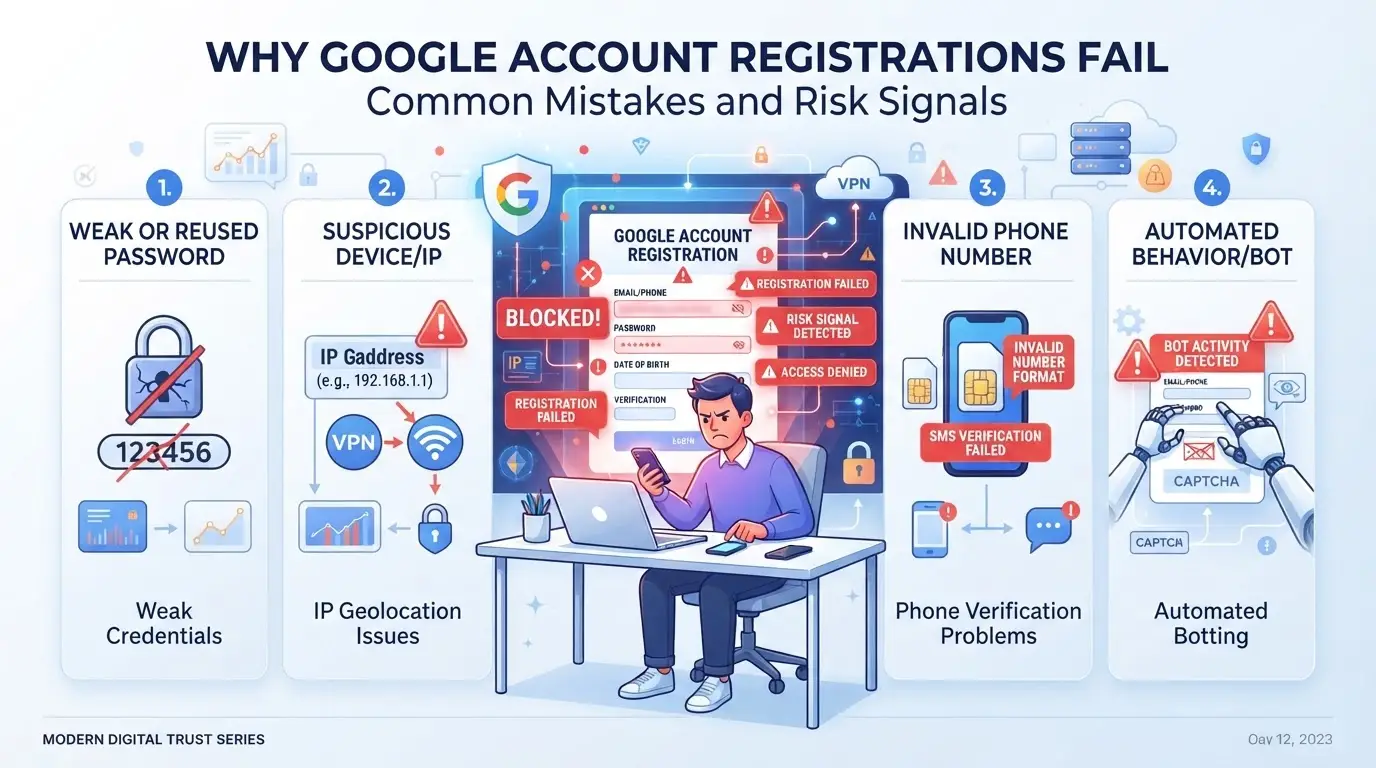
Most failed attempts to create a Google account come down to two things: Google’s automated checks flagging risk, or users skipping details that don’t seem important in the moment. The biggest sources of trouble are reused phone numbers, mismatched info, and device patterns that don’t look human.
Suspicious IP or Device Patterns
Google spots risky signups by checking IP reputation, device history, and browser fingerprints. If you switch proxies too often or use an environment already linked to flagged accounts, expect to hit a wall fast. One new device from a datacenter IP can trigger a CAPTCHA or an instant block.
Invalid or Recycled Phone Numbers
Trying to sign up with a phone number that’s been used for other Google accounts is asking for friction. Google limits the number of times a single phone number can be used, usually 4-5 accounts max. Some regions and carriers get flagged more often, so a cheap online SIM or virtual number from a high-abuse country can mean instant rejection. For example, if you enter a Russian or Indonesian number that’s been recycled on multiple accounts, you’ll often get the “This number cannot be used” error before finishing registration. When that happens, swapping to a clean, local carrier number is usually the only fix.
Incomplete or Inconsistent Personal Information
Autofill mistakes trip up more people than you’d think. Filling in a name that doesn’t match your recovery email, or picking a birthdate that doesn’t look real (like January 1, 2000 for every new account), can push your signup into manual review. One mismatched field is usually enough to stall things, especially if Google spots a pattern across accounts.
Automated Behavior and Bot Triggers
- Submitting forms too quickly, less than 5 seconds per page is a red flag
- Failing the reCAPTCHA challenge on the first try
- Using copy-paste or browser automation for personal info fields
These all point to non-human behavior and often lead to a blocked or flagged registration.
If you hit any of these failure points, fixing the root cause first is faster than retrying in the same session. The next section explains what changes when you try to open multiple accounts at once.
How to Register Multiple Google Accounts Without Getting Flagged
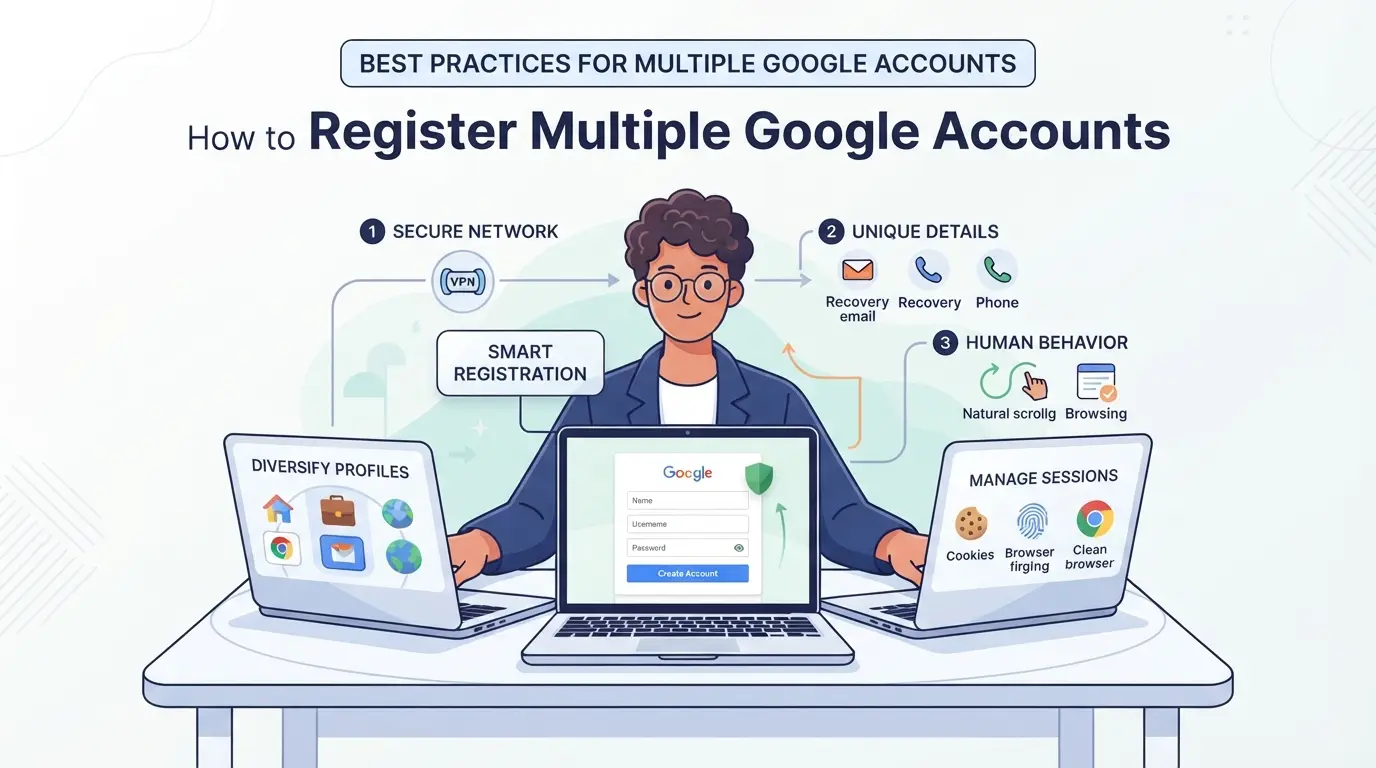
Most people trip up when they try to create several Google accounts in a row, Google’s risk systems flag these patterns fast. To avoid bans, you need to act like a real person, not a bot or bulk operator. Below are focused steps that actually work in 2026.
Varying Device and Network Signals
- Use a different device or browser for each new account, Google tracks device fingerprints and will block repeated setups from the same machine.
- Switch browser profiles instead of reusing the same one. Profiles save hidden data, so reusing them links your accounts.
- Change your IP address for every registration. If you use the same IP twice, Google often asks for extra verification.
- Watch for errors, if you see a “suspicious activity” warning, stop. Reset your device and network before registering again.
Using Proxies for Safer Account Creation
- Pick a trusted proxy provider. Cheap proxies lead to blocked accounts because Google sees them as risky.
- Assign a unique proxy to each account. Sharing proxies links your accounts together and raises the chance of bans.
- Test each proxy before registration, if Google’s signup page fails to load, the proxy is already flagged.
- Avoid public proxies. They’re often blacklisted and cause instant restrictions.
Managing Cookies and Browser Profiles
- Start each registration in a clean browser profile. Cross-account cookies connect your accounts and trigger Google’s risk checks.
- Delete all cookies and cache before creating a new account. Old session data can make Google think you’re running a farm.
- Use isolated browser profiles. Tools like Chrome’s “People” feature separate profiles easily.
- If you slip and use the same profile, don’t keep going, flagged accounts can cascade restrictions to new ones.
Timing and Behavior: Mimicking Real Users
- Space out registrations by at least 20 minutes. Bulk signups within short windows almost always get flagged.
- Type details manually, copy-pasting triggers Google’s bot detection.
- Add real recovery info during signup. Skipping it makes Google suspicious and can lead to instant restrictions.
- After registration, perform a normal activity like checking email or adjusting settings. Accounts that sit idle look fake.
If you get flagged anyway, pause and review your device, proxy, and browser setup before trying again. The next section covers how teams handle large-scale account workflows safely.
How Social Media Teams Use DICloak to Register and Manage Multiple Google Accounts Safely
Manual multi-account workflows break down fast when a team needs to register Google accounts for marketing or client access. Shared browser sessions, reused fingerprints, and mixed IPs can all trip platform alarms. DICloak fits here, not by handling the Google registration itself, but by letting operators create isolated browser profiles, assign proxies, and automate routine steps. That turns a risky, manual process into something teams can scale and audit.
Isolated Browser Profiles and Fingerprint Configuration for Each Google Account
Operators start by creating a separate DICloak browser profile for each Google account they plan to use. Each profile stores its own session, cookies, and browser settings, nothing overlaps. Fingerprint signals like OS, user agent, time zone, and screen size can be set to match the intended user or region. This separation is what lets teams avoid session bleed and keep account actions contained. The scope here is limited to browser-profile management, DICloak doesn’t touch Google’s own account controls.

User-Provided Proxy Configuration for Assigned Profiles
To keep network activity clean, operators assign a user-owned proxy to each DICloak profile. They enter the proxy details, test the connection, and check the detected exit IP and region before any account action. If a proxy fails or returns a mismatched location, the operator can swap it out without affecting other profiles. Each proxy is configured by the operator; DICloak never supplies or sells proxies, and the platform outcome depends on the operator’s setup.

Automating and Integrating Workflows with DICloak Open API
Manual processes don’t scale well for teams handling dozens of Google accounts. On supported plans, teams can use DICloak Open API, via HTTP API or Local API, to create and control browser profiles from their own scripts. This lets them tie into Playwright or Puppeteer to automate registration or login steps, reducing errors and making the process repeatable. API support and endpoint details vary by plan and integration.
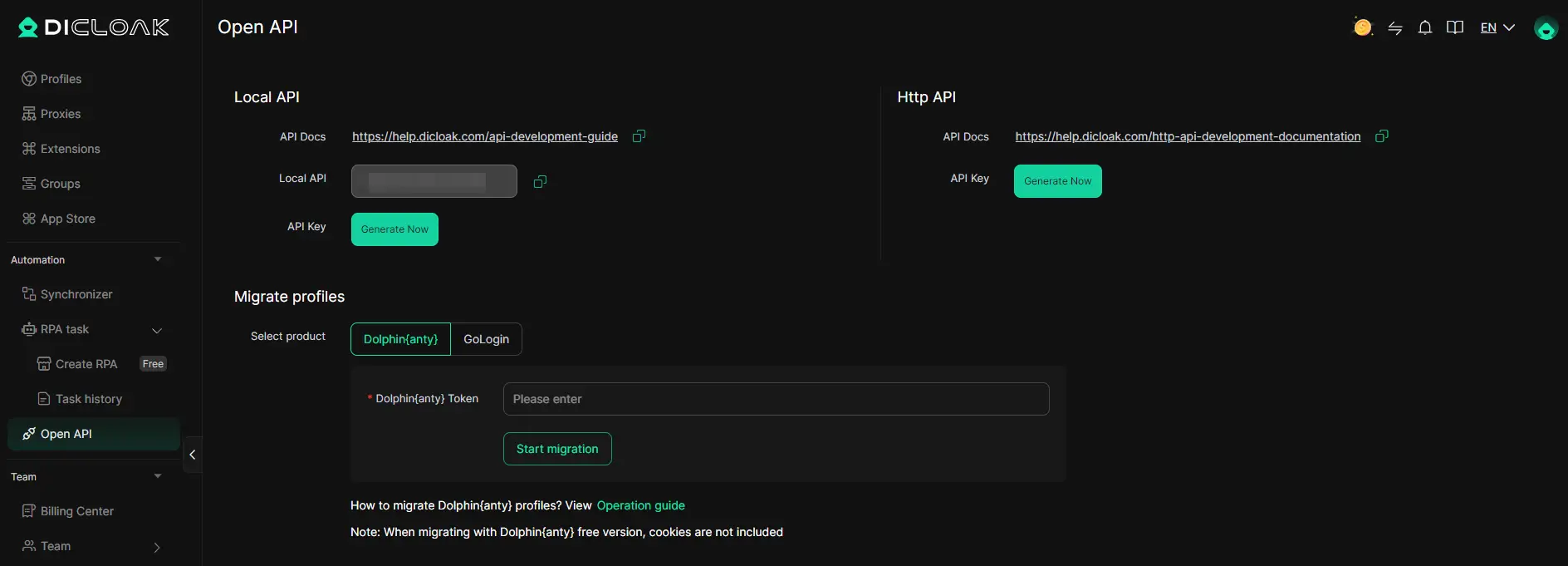
This setup bridges the gap between risky manual steps and a process teams can refine before moving on to secure each new Google account.
What to Do After Registering: First Steps for Securing and Personalizing Your Google Account
Registering a new Google account doesn’t mean it’s ready to use, skipping basic setup leaves your account exposed and limits access to Google services.
Enable Two-Factor Authentication
Set up two-factor authentication right away using Google Authenticator or prompt-based device verification. The fastest way to lock down your account is to link 2FA during the first login, waiting until later often means you’ll forget or miss the window.
Review and Update Recovery Options
- Add a backup email that you control.
- Link your main phone for quick recovery.
- Double-check that recovery info is current, not reused from old accounts.
Personalize Account Settings and Privacy Controls
Adjust privacy settings so your data stays private, and turn off ad personalization if you want fewer tracking prompts.
Organize Your Inbox and Google Services
Set up Gmail folders for sorting, link Drive and Calendar, and build filters for spam.
- Create custom inbox folders.
- Connect other Google apps.
- Set up basic filters for unwanted mail.
When Google Accounts Get Restricted or Banned: Warning Signs and What to Do
After you register google account, the real risk starts if Google flags your activity, restriction or bans can hit suddenly, even when everything looked normal.
Common Triggers for Restrictions or Bans
Repeated login from new devices, skipped recovery setup, or running bulk accounts from one IP are top triggers. If Google sees automation or suspicious patterns, you’ll often lose access right away. The only fix is to keep each account’s environment stable and unique.
Early Warning Signs to Watch For
If you hit a login loop or get asked to verify repeatedly, Google’s system already sees a risk.
- You might face forced phone verification, or your account goes straight to limited mode.
- Spotting these early, before you get locked out, means you can pause and check for unusual activity or unexpected device logins in your account settings.
How to Appeal or Recover a Restricted Account
When locked out, use the “Trouble signing in?” link and follow Google’s appeal steps. If you submit wrong info or rush the process, your request often gets rejected. For accounts tied to business or team workflows, a rejected appeal can mean permanent loss of data.
Comparing Google Account Registration Methods: Manual, Automated, and Team Workflows
If you’re weighing how to create multiple Google accounts, the real difference comes down to speed versus risk. Manual sign-up is the safest, but slow. Automation can pump out accounts fast, yet faces heavy detection. Team workflows help share access, but add coordination headaches.
Manual Registration: Best for Individuals
Manual registration gives full control and keeps risk low, but handling more than a few accounts gets tedious fast. Here’s how it stacks up:
| Method |
Control |
Scale |
Restriction Risk |
| Manual |
High |
Low |
Low |
| Automated |
Low |
High |
High |
| Team |
Medium |
Medium |
Medium |
If you need just one or two accounts for personal use, manual is the way to go, Google rarely flags hand-made profiles unless you skip recovery info or rush details.
Automated Tools: Speed vs Risk
Automated tools make it possible to generate dozens or hundreds of accounts in minutes, but Google’s detection systems catch patterns fast. Most accounts created this way get flagged or require extra verification before they’re usable.
Team Workflows: Collaboration and Control
Teams usually split registration duties so no one person holds all the keys. This spreads risk and allows for role separation, but it also means tracking who did what becomes critical. If your team doesn’t log each step, you’ll struggle to fix issues when Google asks for recovery proof.
Frequently Asked Questions About register google account
Can I register a Google account without a phone number in 2026?
Currently, Google often asks for a phone number during sign up to verify your identity and prevent spam. Sometimes you can skip this step, but Google’s security checks are getting stricter. If you try to register google account without a phone, use a trusted device and network. Still, you might need to provide a number later for account recovery.
Is it safe to use a proxy when creating a Google account?
Using a proxy can hide your IP address, but Google may block accounts created through suspicious proxies. Cheap or unknown proxies increase risk. If you must use a proxy, pick a reputable provider and use residential IPs. Still, making accounts this way can trigger extra verification steps or even account bans.
How many Google accounts can I register with the same device or IP?
Google doesn’t publish a strict limit, but frequent sign ups from one device or IP can lead to blocks or linking accounts together. To open new google accounts safely, clear cookies, use fresh browsers, and avoid creating more than a few accounts per day on the same IP.
What should I do if my Google account registration keeps failing?
First, check your internet connection and device settings. Clear your browser cache and cookies. Make sure you’re entering all information correctly and using a valid email address. If you still can’t sign up for google account, try a different device or network. Sometimes, switching browsers helps.
Can I use automation tools to register Google accounts for my team?
Automation tools can speed up signups, but Google’s systems detect and block automated registrations. This can result in bans or require extra verification. Instead, have each team member create google accounts manually using genuine information. This keeps accounts safer and reduces the risk of losing access.
After setting up your new account, consider enabling additional security features such as two-step verification to keep your information safe. Take a moment to explore the various tools and services now available to you, from email to cloud storage, to increase the benefits of your account. Try DICloak For Free
 Web Proxy Tools
 Free Tools
 Cookie Plugin
 UA Generator
 MAC Address Generator
 IP Generator
 IP Address List
 2FA Code Generator
 World Clock
 Anonymous Check
 WebRTC Leak Test
 UUID Generator
 Free Web Proxy Site
 Proxy Checker
 FB Ad Checker
 AI Web Scraping
 Free SMM Tools
 Twitter Shadowban Checker
 Instagram Name Checker
 UTM Generator
 Username Generator
 AI Hashtag Generator
 LinkedIn Headline Generator
 Social Media Image Resizer