YouTube logging you out mid-task, especially when juggling multiple accounts or devices, is more than just a small nuisance, it can break workflow, disrupt uploads, or even trigger security checks. If you’re managing channels, switching profiles, or using browser tools, the question of how to keep youtube sessions logged in comes up fast. The usual advice, “just check ‘Stay signed in’”, misses the real challenges: browser settings, cookie conflicts, or aggressive device security often force logouts no matter how careful you are.
It’s easy to think this is only about your browser or device. But session persistence on YouTube depends on a mix of factors: your login habits, how your browser handles cookies, and whether you’re using privacy tools or account managers. A single missed setting can mean finding yourself re-verifying every day, or even getting locked out after a device change.
The practical side is knowing which changes actually work. Sometimes, keeping YouTube logged in across sessions is as simple as adjusting a cookie setting. Other times, it’s about making sure your automation, proxies, or browser profiles don’t trip YouTube’s risk detection. Miss the right step, and you’ll spend more time re-logging than watching or managing content.
To get real session stability, you need to start by nailing the basics, then check for the easy-to-miss risks that can break your login behind the scenes. Here’s where most users get it right.
Why YouTube Sessions Log Out Unexpectedly
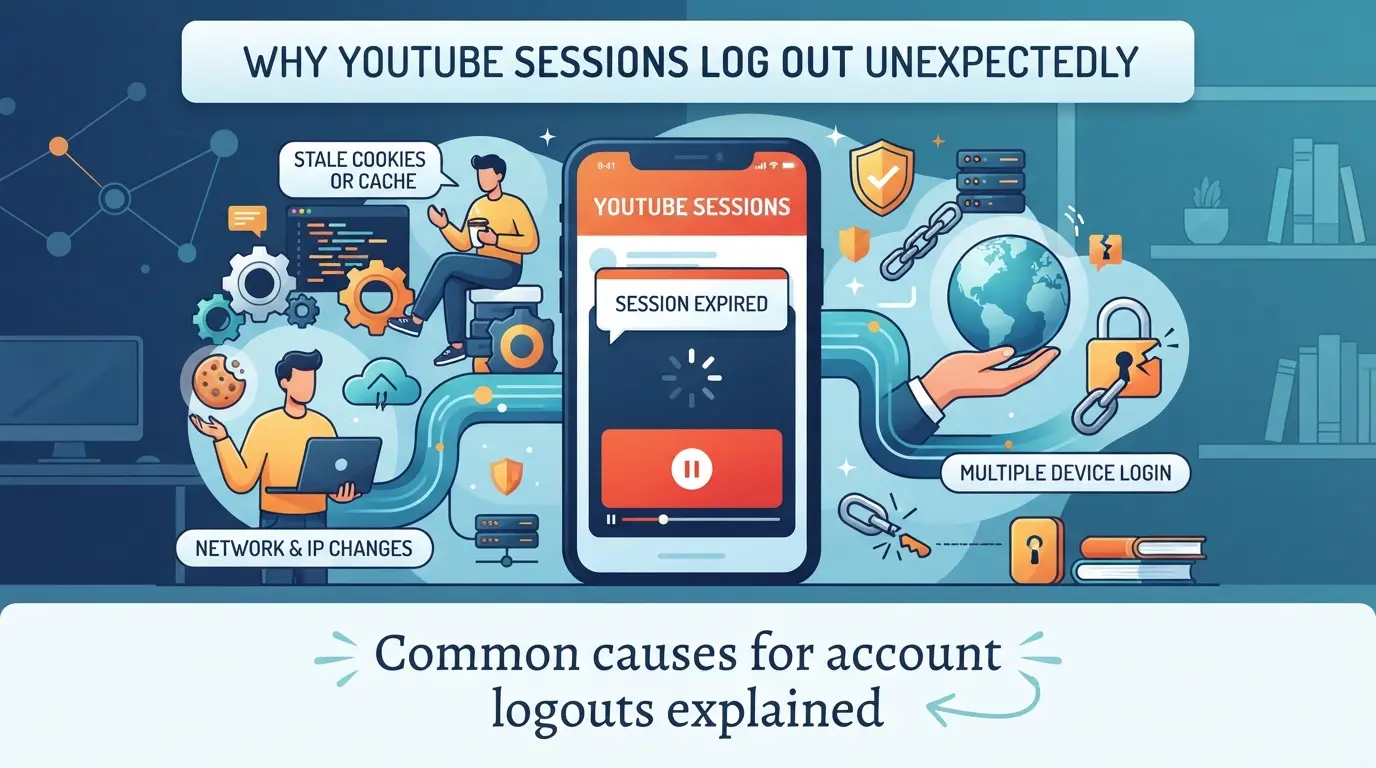
Most users lose their YouTube session because of small technical triggers, expired cookies, browser resets, or Google flagging suspicious activity. The real cause is nearly always one of three things: browser-cookie problems, account security checks, or platform timeout. Knowing which applies to you is how you stop the cycle of daily re-logins.
Browser and Cookie Issues
Cookie expiration is the main culprit for random logouts. YouTube stores session details in browser cookies, and if those expire or get cleared, your login drops instantly. Cache clearing can remove session tokens, if you wipe your browser data, expect to log in again, even if you didn't touch the actual cookies.
Account Security Triggers
Google’s security system watches for unusual logins and device changes. If you switch between devices, use different browsers, or set up new proxies, Google may tag this as suspicious and force a logout. For example, logging in on your laptop, then switching to your phone in another city, can trigger a session reset. Sometimes it’s not about the device but the IP, if your IP changes rapidly, Google might think your account is compromised. Automation tools or browser profile managers can also cause logouts if they don’t properly mimic a normal session. The risk is higher if you’re managing multiple accounts. When Google suspects a risk, you’ll see a forced re-verification or a warning, often without any clear explanation. You can minimize this by sticking to one device and using a consistent browser profile, but if you need flexibility, expect more frequent security triggers.
Session Timeout and Platform Policy
Check these before blaming your setup:
- YouTube sessions time out after 24-48 hours of inactivity, even if cookies are untouched.
- Policy shifts in 2026 mean stricter device checks, logging in from unfamiliar hardware can trigger immediate logout.
- Google updates session rules without warning; sometimes a new login requirement appears overnight, catching even careful users.
If you’re struggling to keep your session logged in, start by checking these technical triggers and platform changes. Next, get clear on what you can control before adjusting settings or workflows.
What to Check Before Trying to Keep Your YouTube Session Logged In
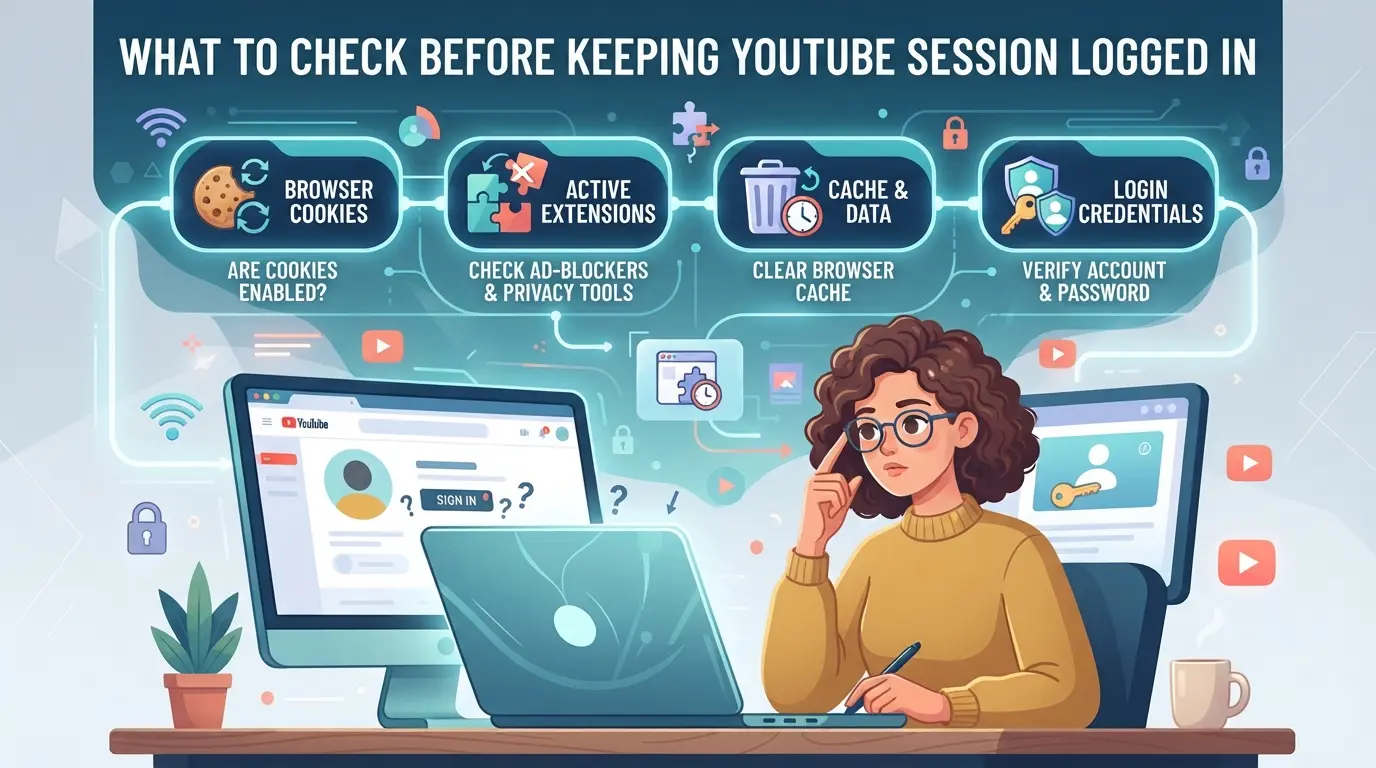
The single best way to avoid wasted effort is to catch device, browser, or account settings that quietly break session persistence. Before you try new tools or tweaks, run through these checks, most failed logins trace back to missing one of these basics.
Device and Browser Consistency
Switching devices or running a mismatched browser version is the fastest route to forced YouTube logouts. Stick to one device for regular access, and check that your browser is up to date, YouTube often pushes session changes that only work reliably on current versions. If you swap between a laptop and phone, expect to re-verify your login at least once a week.
Account Security Settings
- Confirm two-factor authentication is set up and stable, YouTube sometimes logs you out after 2FA changes.
- Review your account’s recent device activity for unknown logins.
- Update recovery email and phone before testing session persistence.
Cookie and Session Management
Clearing cookies or using private browsing will almost always break your YouTube session. Chrome’s "Clear data on exit" setting, for example, deletes session cookies unless you whitelist YouTube, this leads to daily re-logins, no matter what else you try.
- Turn off auto-delete for cookies in your browser settings.
- Avoid opening YouTube in Incognito or private mode.
- Check for browser extensions that clean cookies or block trackers.
Missing even one of these often forces YouTube to re-authenticate you, no matter how careful you are elsewhere. Ticking off this list makes the next steps much more likely to stick.
Step-by-Step: How to Keep Your YouTube Session Logged In Safely
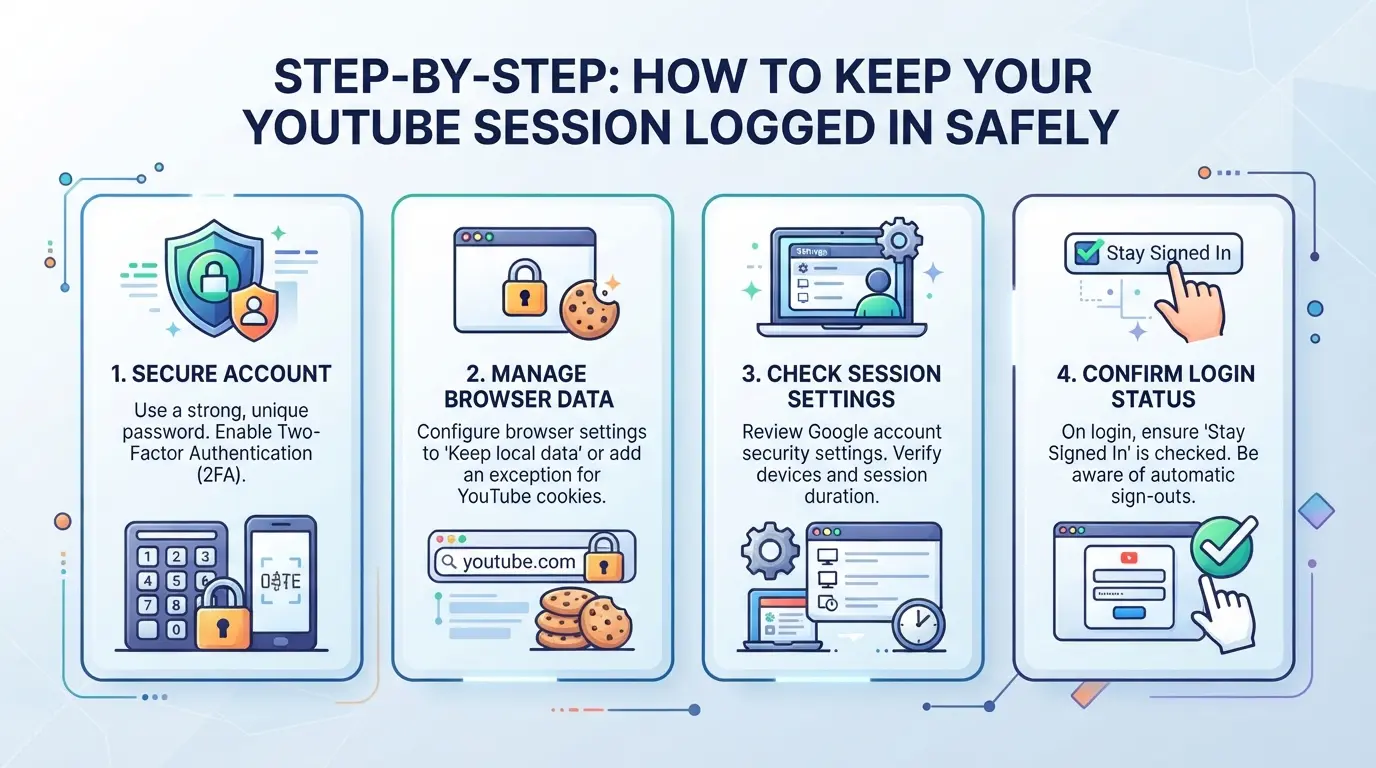
You want a YouTube login that actually sticks, no random logouts or endless re-verifications. The steps below cover exactly what you need to do and what to watch out for if you want to keep your session active without breaking security or tripping Google’s warning systems.
Set Up Browser for Session Persistence
- Open your browser settings and turn off any feature that deletes cookies on close. This is the single step most users skip, but it’s what keeps your Google session alive between reboots.
- Avoid incognito or private mode. Those modes wipe all session data by design, so any login will vanish as soon as you close the tab.
- Check for privacy extensions or cleaning add-ons that auto-clear cookies. Even a single misconfigured extension can sign you out after every browser restart.
- If you use browser profiles, always use the same one for YouTube. Mixing profiles means your session data won’t transfer, forcing new logins.
Maintain Consistent Device and Network
- Stick to the same physical device when possible. Switching from your laptop to your phone often triggers a security check, especially if the devices don’t share browser cookies.
- Keep your IP address steady. Frequent IP or region changes, such as switching proxies every login, tell Google something weird is happening, leading to forced logouts or even account holds.
- Don’t use public Wi-Fi for logins. These networks can rotate exit IPs or fail to maintain a stable session, making it much harder for YouTube to trust your connection.
Monitor Account Security Alerts
- Watch for security emails or phone notifications from Google. If you get a “suspicious activity” alert, don’t ignore it, follow the prompt and verify your device.
- When you see a login challenge (like a captcha or SMS code), complete it right away. Delaying can lock your session or even flag your account for review.
- If you’re logged out suddenly, check your Google account’s “Recent Activity” page to spot any unauthorized attempts that might be forcing a kick.
Next, it’s worth seeing which mistakes trip up even careful users, sometimes one overlooked action can undo all your work to stay logged in.
Common Mistakes That Cause YouTube Sessions to Log Out
Small tweaks or habits can break session persistence on YouTube. If you keep logging out, the problem usually traces back to device handling, browser settings, or network changes, here’s where users trip up.
Using Multiple Devices Without Session Isolation
Switching between laptops, tablets, or phones under one Google account often triggers unexpected logouts. Google links sessions to device fingerprints; if you jump between devices without isolating each session, you’ll see forced re-verification or logout prompts.
Browser Extensions and Privacy Tools
Extensions that auto-clear cookies or privacy add-ons that block session storage will break your login, even if you follow every other step.
- If your browser wipes cookies at shutdown, you lose session persistence, next login needs full authentication.
- Use privacy tools cautiously; disabling or whitelisting YouTube’s cookies is safer for preventing session loss.
Frequent IP or Location Changes
Repeated changes in your IP address, especially through proxies or shifting networks, make Google suspicious. This leads to account re-verification or session termination. Keep your login on a stable network for better YouTube session persistence, or expect to verify your identity after every major location change.
How Teams and Multi-Account Users Can Keep YouTube Sessions Logged In More Safely
Teams managing several YouTube accounts hit unique problems, shared logins, session overlap, and IP conflicts all raise logout risk. If you just swap accounts on the same device, YouTube’s system will catch on quickly. The real fix is dialing in session isolation and proxy setup so each account acts like a separate user.
Proxy Configuration for Account Separation
Assign each YouTube account a distinct proxy IP. This means every session runs on its own network path, cutting the chance of account mix-ups. If two accounts share an IP, even briefly, YouTube can flag the activity, force re-logins, or even trigger security checks. The safest workflow is mapping one IP per account and checking logs for any overlap.
Why Session Isolation Matters for Multiple Accounts
Stacking several YouTube sessions in one browser profile looks efficient, but it’s a shortcut that backfires. YouTube tracks cookies, local storage, and device fingerprints, so when two accounts share a single browser profile, their session data starts to blend. That’s when risk spikes: a single logout wipes every account, or worse, triggers a security lockout for all profiles. Teams that build separate browser profiles for each account can avoid this. For example, a social media manager who runs ten channels should never let those sessions touch the same cookie jar. If even one session leaks, you’ll spend the next week re-verifying every login.
Team Collaboration and Permission Controls
- Set up role-based access, only let trusted team members open or edit account profiles.
- Review session logs weekly to spot accidental cross-login or profile sharing.
- Limit device changes; each account should stay tied to a known machine unless you’re ready for extra verification.
The more accounts you handle, the easier it is to slip and lose session stability. Tighter permission controls mean fewer “who logged out my account?” surprises during campaign launches.
Getting session persistence right is more than just keeping YouTube logged in, it’s about preventing the kind of silent errors that eat hours of work. Next, it’s time to look at advanced tools that simplify this for teams.
Managing YouTube Account Sessions with DICloak: Advanced Workflow for Social Media Teams
For social media teams juggling multiple YouTube accounts, keeping sessions stable goes beyond just “stay logged in” tricks. The real challenge is separating browser profiles, network connections, and team access, so each account holds its session without cross-talk or accidental logout. That’s where DICloak comes in: operators can set up isolated browser profiles, assign proxies, and manage team permissions for cleaner handoffs and fewer login headaches. The scope covers browser-profile workflows; it doesn’t control YouTube’s platform rules or session timers.
Setting Up Isolated Browser Profiles and Fingerprint Configuration
Operators start by creating a dedicated browser profile for every YouTube account they manage. Each profile stores its own login state, cookies, and settings, so sessions don’t overlap or leak across accounts. DICloak lets you configure which operating system, User Agent, language, time zone, screen size, or WebRTC setting the profile reports. For teams, this means every account runs in its own environment, cutting down on accidental session resets. The profile isolation and fingerprint controls stay at the browser layer, users still manage YouTube accounts inside those profiles, and platform decisions aren’t guaranteed by any setting.

Configuring Proxies for Each Profile
Session persistence often fails when network signals change unexpectedly. Operators can add their own proxy, HTTP, HTTPS, or SOCKS5, to each DICloak profile and test the connection before opening a session. This step matters most when accounts need consistent network locations or when the team’s work shifts between offices. You can choose No Proxy for local connections, set up Custom Proxy details, or select from Saved Proxies in Proxy Management. The proxy settings apply only to the browser profile; DICloak doesn’t sell proxies or promise platform outcomes. A quick connection test shows the exit IP and time zone, helping you spot mismatches before a login attempt.

Team Collaboration and Permission Management
Accidental session drops often happen when too many people have broad access. Admins can divide team members into groups, assign which browser profiles each group can use, and restrict who sees or edits profile details. Regular members might only open assigned profiles, no changes or view of sensitive fields. This limits mistakes, like someone closing the wrong session or changing proxy settings for another account. Permission controls are strictly inside DICloak; they don’t affect YouTube account permissions or content management.

Teams who organize their browser profiles, proxy connections, and access rights this way are less likely to face repeated logouts or session confusion. But even with the best setup, persistent sessions aren’t always the answer, sometimes, account resets are part of a safer workflow.
When Persistent YouTube Sessions Are Not the Right Solution
Keeping YouTube logged in isn’t always safe, some setups put your account at risk or break company rules. Here’s where holding a session can cause more trouble than convenience.
Security and Privacy Risks
Staying logged in on a shared device means anyone can open YouTube and access your account. If someone else uses your machine, they could see private videos, change settings, or even delete content. To lower risk, log out after each session or use profiles that separate accounts.
Compliance and Organizational Policies
Some organizations require session expiration to protect sensitive data and prevent leaks. Ignoring these rules can trigger audits or get your account restricted.
- Auto-expiring sessions can block unauthorized access but force frequent logins.
- The safer move is to use session managers that enforce company logout times and limit who can view account content.
If your goal is to prevent YouTube logout for personal use, check if your device and browser are fully under your control. On work machines or in team settings, persistent logins often violate policy, losing convenience is better than losing control.
Quick Reference Table: YouTube Session Persistence Risks and Solutions
Most session issues come down to a few repeat problems. Here’s a side-by-side look at what causes YouTube logouts and how to prevent them, especially if you’re managing accounts or switching devices.
Session Risk vs Solution Table
| Session Risk |
Solution Tip |
| Cookie expiration |
Use persistent browser setup |
| Device or IP switching |
Keep accounts in isolated profiles |
| Automated logins / scripts |
Match user agent and timing to real activity |
| Shared devices or teams |
Assign unique browser profiles per user |
Most users lose session stability by mixing profiles or skipping cookie persistence, focus here before troubleshooting complicated errors. If you’re still getting logged out after covering these basics, the issue often points to changes in browser fingerprint or network setup.
Frequently Asked Questions About how to keep youtube sessions logged in
How can I keep my YouTube session logged in across multiple devices?
To keep your YouTube session logged in on different devices, use the same Google account on each one. Sessions are isolated, logging out on one device doesn’t log you out everywhere. For best results, avoid using shared profiles or guest modes, since these can erase or separate your YouTube login information between sessions.
Does using a proxy help prevent YouTube logout?
A proxy only changes your IP address but does not keep your YouTube session logged in. Session persistence depends on cookies and your browser, not your network path. Proxies can even cause logouts if YouTube detects unusual activity or location changes, so they are not a reliable solution for session stability.
Why does YouTube log me out after clearing cookies?
YouTube uses cookies and browser storage to remember your login status. If you clear cookies, YouTube loses this information and logs you out for security. To prevent this, avoid deleting cookies for YouTube or use settings that keep cookies from being removed automatically.
Is it safe to stay logged in to YouTube on a shared computer?
Staying logged in on a shared computer is not safe. Others can access your account, watch history, or even change settings. Always log out or use an incognito window on public or shared devices to protect your privacy and personal information.
Can DICloak guarantee my YouTube accounts stay logged in?
DICloak cannot guarantee your YouTube accounts will always stay logged in. Issues like browser updates, cookie deletion, or device resets can still cause logout. DICloak’s workflow has boundaries and cannot override YouTube’s authentication or security processes.
Now that you know how to maintain uninterrupted access to your account, you can decide which method fits your browsing habits best. Consider using protective tools or browser features to simplify your experience and reduce the risk of session disruptions. Try DICloak For Free
 Web Proxy Tools
 Free Tools
 Cookie Plugin
 UA Generator
 MAC Address Generator
 IP Generator
 IP Address List
 2FA Code Generator
 World Clock
 Anonymous Check
 WebRTC Leak Test
 UUID Generator
 Free Web Proxy Site
 Proxy Checker
 FB Ad Checker
 AI Web Scraping
 Free SMM Tools
 Twitter Shadowban Checker
 Instagram Name Checker
 UTM Generator
 Username Generator
 AI Hashtag Generator
 LinkedIn Headline Generator
 Social Media Image Resizer