If you use Claude for real work, hitting a limit can come at the worst time. You may be halfway through checking a client report, reviewing code, or turning meeting notes into a clear brief. Then Claude tells you to come back later.
That is why many people search for how to get unlimited Claude usage. The honest answer is simple: there is no free personal plan with unlimited access and no limits at all. Claude usage limits depend on your plan and how you use the service. Long chats, large files, research tools, and more demanding models can use your available capacity faster.
Still, you do not need to chase risky shortcuts. There are official Claude options that can give you more Claude capacity, along with simple ways to make your current usage last longer. This guide explains what affects your limit, which official options fit different workloads, and how to avoid using up capacity on work that could be handled with one clear prompt.
The Truth About “Unlimited” Claude Usage
It is easy to see why people look for unlimited Claude usage. A limit message can stop a useful task at the worst time. But before looking for more capacity, it helps to understand what “unlimited” really means inside Claude.
There is no free personal option that removes every usage control. Claude usage limits are part of how Anthropic manages access across its plans. The amount you can use is not always a fixed number of prompts. It can change based on the task, the tools you use, and how much information Claude needs to process.
Does Claude Offer Unlimited Usage for Free?
No. The Claude free usage limit is session-based. Anthropic says the free plan resets every five hours, while the number of messages can also change with demand. So two people may not get the exact same number of messages from the same plan.
For example, a student who asks Claude to explain five short math questions may use very little capacity. A marketer who uploads a large report, asks for competitor research, and requests several revisions in one chat may hit the limit much sooner. The difference is not only how many messages they send. It is also how much work each message asks Claude to do.
Paid plans can offer more capacity, but they still have Claude usage limits. They are better described as higher-usage options, not unlimited access with no rules or reset periods.
Usage Limits vs. Context Window Limits
A Claude session limit and a Claude context window are not the same thing.
A session limit is about how much plan capacity you have available during a period of time. A context window is the amount of information Claude can handle in one conversation at once. That includes your earlier messages, Claude’s replies, files, links, and instructions.
Think of a context window like a desk. A larger desk holds more papers, but it does not give you unlimited working hours. In the same way, a long chat can hold more context, but it can still use your available capacity faster.
What Makes You Hit a Limit Faster?
Some tasks are simply heavier than others. Long prompts, large file attachments, long conversations, web search, Research, model choice, and higher effort settings can all use more capacity.
Imagine you are editing a 2,000-word article. One clear prompt with the full draft and a short list of goals is usually efficient. But uploading the same document several times, asking vague follow-up questions, and keeping unrelated work in one long chat can create extra work for Claude.
The goal is not to use Claude less. It is to use it with a clearer plan, so your available capacity goes toward work that matters.
Get More Claude Capacity Through Official Options
Because heavy tasks can drain your allowance fast, the practical way to increase Claude usage limit is to choose an official option that matches your workload. That is safer and more predictable than looking for a workaround.
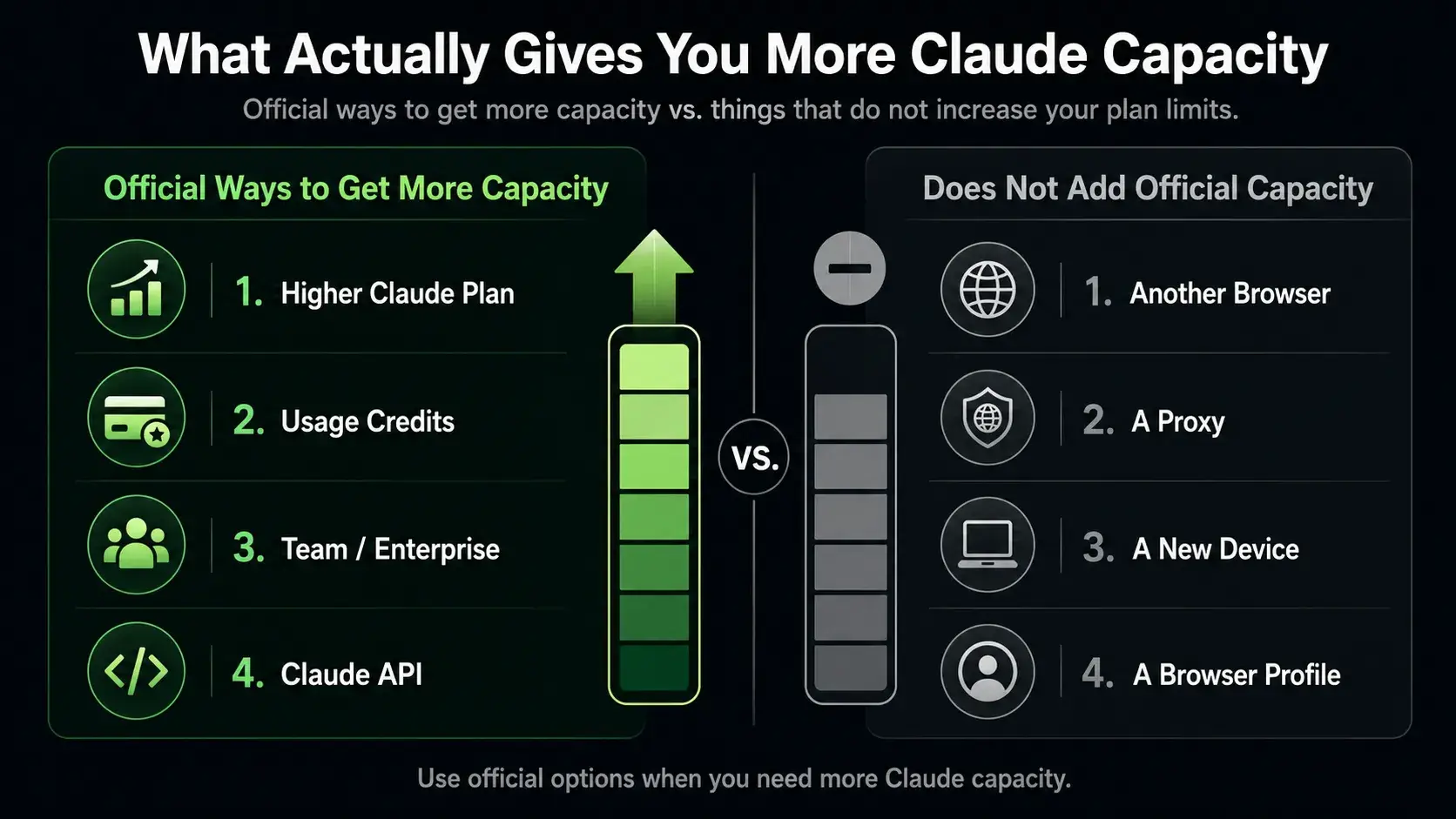
Choose Between Free, Pro, Max 5x, and Max 20x
Claude plans suit different use patterns. The Free plan is for occasional questions, simple rewrites, and light testing.
Pro is usually the first paid step for regular users. It can suit people who write, research, study, or check smaller code changes each week. But if you keep reaching limits during normal work, it may be time to compare Claude Pro vs Max.
Claude Max 5x gives five times the Pro capacity per session. It fits frequent users who work with files, research, writing, or coding most weeks. Claude Max 20x gives 20 times the Pro capacity per session. It is for people who use Claude for large parts of their day. Neither option means unlimited Claude usage, but both can reduce interruptions for heavier workloads.
For example, a freelancer who needs a few code reviews each week may be well served by Pro. A developer who works through a large codebase every day may need Max 5x first. Max 20x makes more sense when high use is a daily pattern, not a one-off busy week.
Enable Usage Credits After You Hit Your Plan Limit
A higher subscription is not always the best value. Sometimes you only need extra capacity near a deadline. Claude usage credits let eligible paid users continue after they reach their included limits, using pay-as-you-go pricing.
Imagine a content lead who normally uses Pro for weekly briefs. At month-end, they may need to review several long client drafts in one afternoon. Usage credits can cover that burst without paying for a higher plan all month.
Enable credits in Settings > Usage on the Claude web app. Set a monthly spending cap first. Usage alerts and auto-reload can help you avoid an unexpected charge. Start small, then adjust after you see your real usage.
When Team, Enterprise, or the API Is a Better Fit
A Claude Team plan is for a group with ongoing shared work. It gives each member their own access and organization controls. It is not a way for one person to create extra personal capacity.
Claude Enterprise is for larger companies that need more detailed controls over access, spending, and company data. It is a business solution, not simply a larger individual plan.
Claude API usage is different from chat usage in the Claude app. The API is for businesses that want Claude inside an app or repeatable process. For example, a support team might use it to summarize approved tickets, while a store could use it to sort product information. API costs are based on what you use, so it can fit a programmatic task better than a chat subscription.
Before changing plans, check your current workflow too. The next section covers small changes that can make the Claude capacity you already pay for last longer.
Make Your Included Claude Usage Last Longer
Choosing the right plan gives you more room, but it is only half the answer. Good Claude usage limit best practices help you finish more work before a reset. The goal is to give Claude the right context once, then keep each task focused.
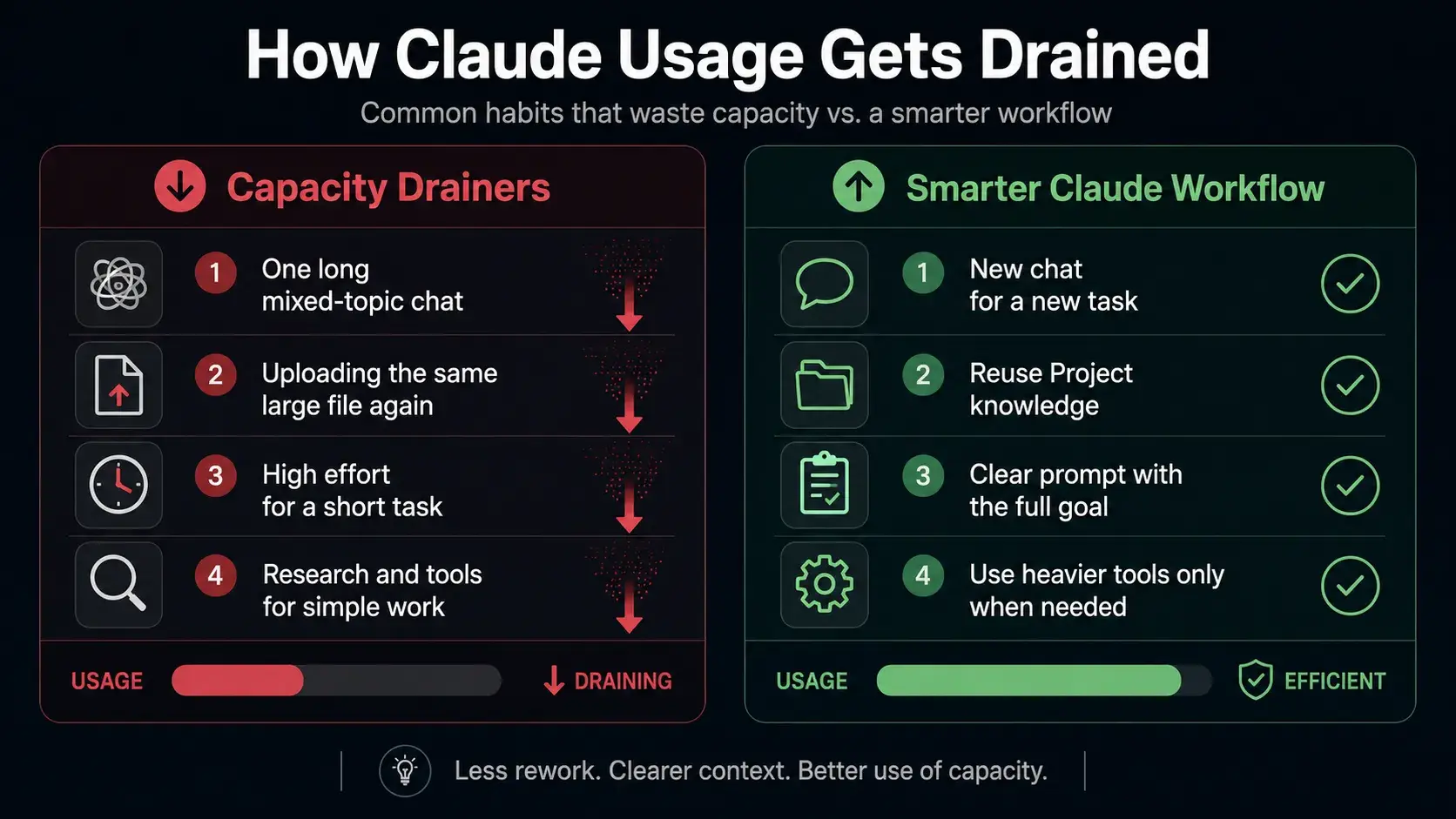
Start a New Chat When the Topic Changes
Keep one chat while you are doing the same job. Claude can use the context already there. But start a new chat when the topic changes.
Do not use one thread to plan a campaign, edit a customer email, troubleshoot code, and compare competitors. Claude must review unrelated material before answering. A fresh chat gives you cleaner answers and leaves more room for the task in front of you.
Before sending a prompt, state the goal, audience, format, and key limits together. Rather than sending five follow-ups, include “make it shorter,” “use a friendlier tone,” and “add an example” in the first request. This improves Claude prompt efficiency and cuts extra back-and-forth.
Use Projects for Files You Reuse Often
Claude Projects create focused workspaces with their own chats and knowledge bases. They are useful when you return to the same materials often.
For example, a weekly newsletter Project can hold the brand guide, product notes, approved examples, and audience rules. Reusing Project knowledge is more efficient than uploading the same documents in unrelated chats. Anthropic says Project content is cached, so only new or uncached parts count toward your limits when reused.
Keep Projects lean. Add files Claude needs regularly, then remove outdated drafts and duplicates. This makes it easier to direct the work and helps avoid vague requests such as “use the file from last time.”
Lower Effort and Turn Off Tools You Do Not Need
Where the option is available, a higher Claude effort level can produce a deeper answer, but it uses more tokens and can bring you to a limit sooner. Save high effort for hard debugging, detailed analysis, or high-stakes decisions.
For routine work, choose the lightest setting that still gives a useful result. A subject-line rewrite, short summary, or grammar check rarely needs extended reasoning. The same applies to Claude tools usage. Turn off non-critical web search, Research, and connectors when a direct prompt and the text in front of you are enough.
Match the tool to the job. Use heavier features only when they add clear value. For smaller tasks, keep the request direct. This is a practical way to save Claude usage without lowering quality.
Monitor Claude Usage Before Your Work Stops
Using Claude more efficiently helps, but you also need to know when your available capacity is getting low. Checking your usage early is much better than finding out during a deadline. A quick look at your Claude usage dashboard can help you decide whether to start a heavy task now, wait for a reset, or use credits.
Check Session and Weekly Limits in Settings > Usage
Paid users can check Claude usage limits in Settings > Usage. The page shows progress bars for your current five-hour session and weekly limits. It also shows how much time is left before the current session resets.
Make this a habit before starting larger work. For example, do not wait until Friday afternoon to upload several reports and ask Claude for a full analysis. Check your remaining capacity earlier in the day. If your session bar is nearly full, handle a smaller task first or plan the larger job after your reset.
This matters even more if you use Claude Code. Claude and Claude Code can share the same plan limits, so a long coding session may leave less room for writing or research in the Claude app.
Set a Usage Credit Budget and Alerts
Usage credits can keep paid users working after an included limit is reached. But they should have a clear budget.
In Settings > Usage, you can set a monthly spending limit, review current spending, and turn on usage alerts. Some users also choose auto-reload, which adds funds when their balance falls below a chosen amount.
Start with a small limit. For example, a solo writer may set a low monthly cap for deadline weeks. That gives them extra room when needed without turning every long chat into an unexpected cost.
Plan Heavy Tasks Around Your Reset Window
Not every job needs the same amount of Claude capacity. Save your heavier work for a time when you have enough room to finish it.
A heavy task could include reviewing a long contract, working through a large codebase, or comparing many uploaded documents. A lighter task might be a short email rewrite or a quick outline.
If you know a reset is close, use the remaining session for light work. Then begin the larger task after the reset. This simple habit helps you avoid stopping halfway through a project and makes your Claude usage feel more reliable.
Manage Long Claude Projects Without Wasting Context
Monitoring your usage helps you avoid a surprise limit. But for larger projects, you also need to manage what Claude sees in each chat. A long conversation can become crowded with old drafts, repeated instructions, and files that no longer matter. Keeping the Claude context window focused helps Claude give clearer answers and makes your work easier to continue.
Why You Cannot Manually Increase Claude’s Context Window
You cannot open a setting and make the Claude context window unlimited. For most paid Claude plans, the context window is fixed at 200K tokens. Some Enterprise models support a larger window.
Think of the context window as Claude’s working desk. It holds your prompts, Claude’s replies, uploaded files, and other information from the chat. A bigger desk can hold more material, but it does not mean every old document should stay on it.
For example, do not keep six rounds of rejected copy, old client notes, and a new campaign brief in one chat. Start a fresh chat with the approved brief, the latest draft, and one clear goal. Claude will have less noise to sort through.
How Automatic Context Management Works
For paid users with code execution enabled, Claude can manage long conversations automatically. As a chat approaches its limit, Claude summarizes earlier messages to create room for new work. Your full chat history remains saved, even when earlier parts are summarized.
This feature is useful, but it is not a reason to let every chat grow forever. Long chats that trigger automatic context management can use more of your available usage limit. If a project shifts from planning to editing, or from research to final review, start a new conversation and carry over only the key decisions.
Keep Project Instructions and Files Lean
Claude Projects are useful for ongoing work because they keep related chats, instructions, and files together. Use a Project for one client, one product launch, or one writing series.
Keep only the materials Claude needs often. For a product launch, that may include the current messaging guide, approved product facts, and the latest campaign brief. Remove duplicate files and old versions when they are no longer useful.
If a Project has a large knowledge base, Claude can use retrieval to load relevant content instead of pulling everything into each chat at once. That helps you manage long Claude projects without wasting context. The best setup is not the biggest workspace. It is the cleanest one.
Do Multiple Accounts, Proxies, or Browser Profiles Increase Claude Usage?
Keeping long projects organized can help your existing capacity last longer. But it does not change the limit attached to your Claude plan. This is where many users get confused when they search for a Claude usage limit bypass.
A proxy, a separate browser profile, or a different device may change how you open Claude. It does not add official Claude capacity to your plan.
Why They Do Not Create Official Claude Capacity
Claude usage limits are tied to your plan and the work done through Claude. Anthropic counts usage across Claude surfaces, including claude.ai, Claude Code, and Claude Desktop.
A browser profile can keep cookies, tabs, and saved logins separate on your computer. A proxy can change the route of your internet connection. Neither one changes your plan allowance, your session reset, or the amount of usage included with your subscription.
For example, opening the same Pro account in another browser will not give that account a second five-hour budget. It is still the same account with the same plan capacity.
Why Account Rotation Creates Policy and Security Risks
Using multiple Claude accounts simply to rotate around limits is not an official way to get more usage. It can also create practical problems. You may lose track of which account holds a project, upload a client file to the wrong workspace, or pay for several subscriptions without a clear reason.
Anthropic’s Consumer Terms say you may not share account login information or make your account available to someone else. The terms also prohibit bypassing Anthropic’s systems or protective measures. That means account rotation should not be treated as a safe capacity strategy.
Better Options When You Need More Capacity
Use the option that matches the real need. If you hit a limit only during deadline weeks, usage credits may be enough. If limits interrupt normal work every week, a higher Claude plan may be the better fit.
For a real team, use an approved Team or Enterprise setup instead of sharing one personal login. For software, batch work, or repeatable business tasks, consider Claude API usage.
The reliable path is simple: use one authorized account or organization correctly, then add official capacity when your workload truly needs it.
When Claude Limits Start Affecting Multi-Project Workflows
Keeping different Claude projects organized is often the real challenge.It is not about increasing usage limits, but about keeping work from different clients and tasks clearly separated.
DICloak helps keep those workspaces separate instead of mixing their cookies, bookmarks, browser data, and work links in one browser.
Keep Each Authorized Claude Workspace in Its Own Profile
Each DICloak Profile has its own browser configuration, cache, cookies, local browser data, bookmarks, and fingerprint settings. This gives every approved workspace its own separate browser profile.
For example, you may use one Profile for your personal Claude account, one for Client A’s approved Claude Team workspace, and one for Client B’s research project. Each Profile can keep the links, browser data, and work tools related to that task in one place.
This is easier than signing out of one Claude workspace, clearing browser data, and signing into another account every time your task changes. You open the Profile that belongs to the work you need to do.
The benefit is better account isolation and cleaner daily work. It does not change Claude plan limits, usage credits, or permissions inside Claude.
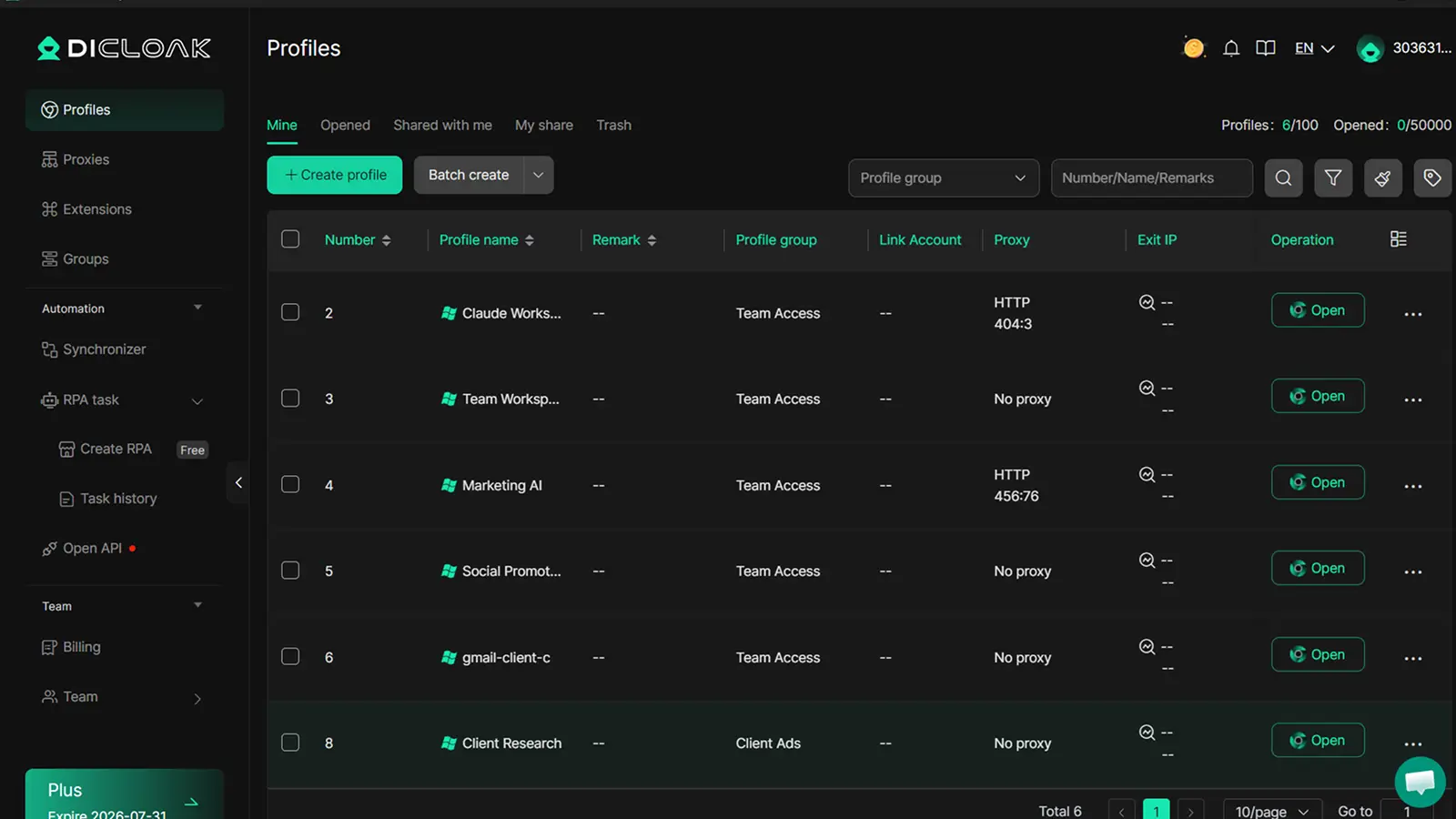
Control Which Team Members Can Open Each Profile
Multiple Claude workspaces can also create an access problem for agencies and small teams. Not every member should see every client Profile.
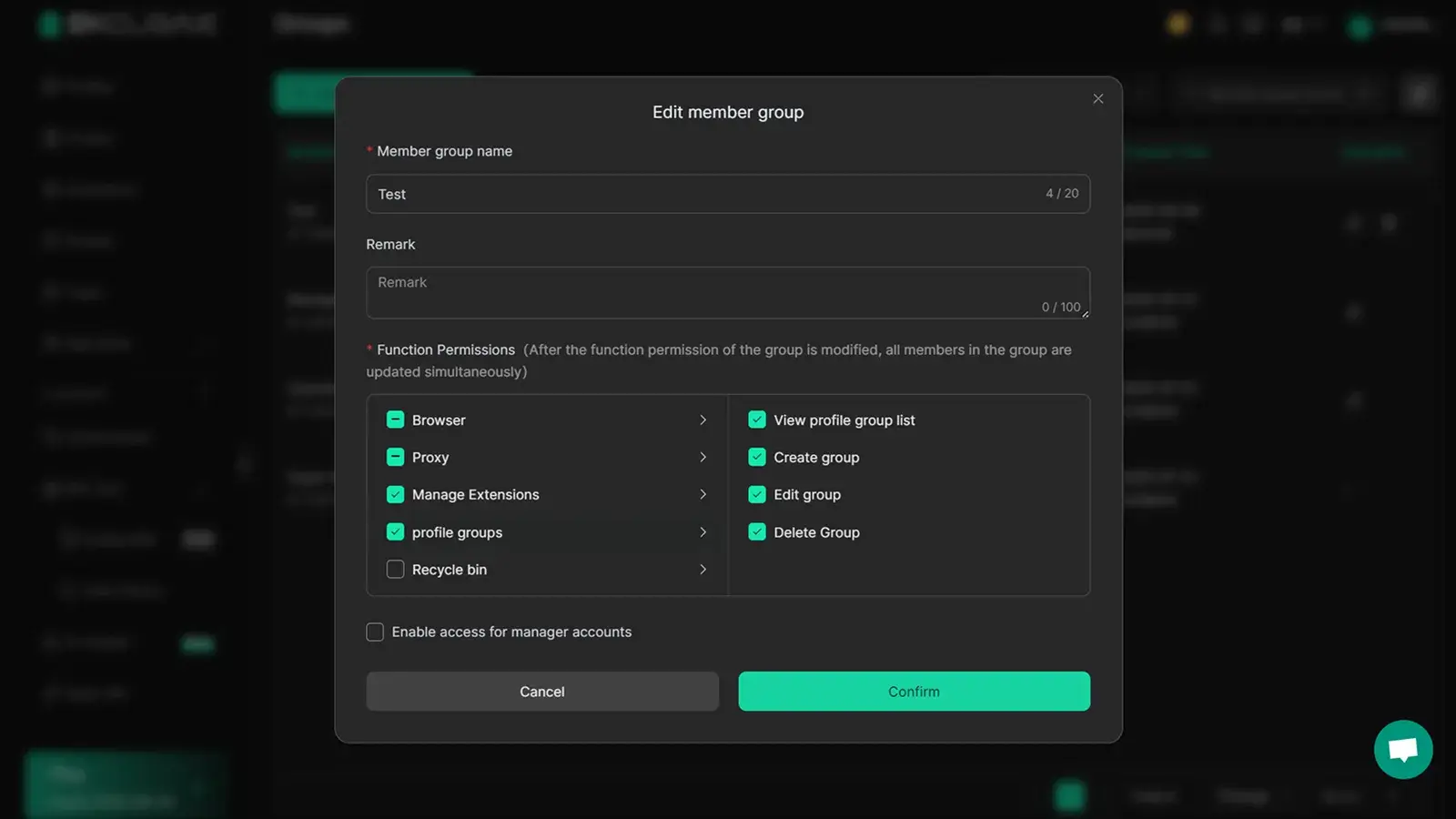
With DICloak, admins can assign permissions and give members access to selected browser Profiles or Profile Groups. For example, a writer may only need the Profile for Client A’s content workspace. A project manager may need access to Client B’s reporting and email tools instead.
This gives each person a clearer workspace and helps keep unrelated client environments out of view. It also reduces the chance of opening the wrong Claude workspace, Drive folder, CMS dashboard, or client inbox during a busy day.
Common Mistakes That Drain Claude Capacity
A clean browser workspace helps your team stay on the right client project. But Claude usage can still disappear quickly when the work inside each project is not planned well. Most Claude usage limit mistakes are small habits that repeat all week.
Re-Uploading the Same Files in Every Chat
It is easy to upload the same brief, brand guide, or report whenever you start a new task. But large files add more information for Claude to process each time.
For example, a content team may upload a 40-page product guide for every blog outline, email draft, and social post. A better option is to keep the current guide in one Project, then create focused chats for each task. This keeps the source material available without turning every request into a full document review.
Before uploading, ask one question: does Claude need the whole file, or only two pages? Sending the most relevant section can reduce Claude token usage and lead to a more direct answer.
Using High Effort for Simple Tasks
Higher effort can be useful for hard problems. It can help with complex code, detailed analysis, or a difficult decision. But it is often unnecessary for simple work.
A short grammar check does not need the same level of reasoning as a technical audit. Neither does a request such as, “Turn these three notes into a friendly follow-up email.” Using more effort than the task needs is one reason Claude may hit a limit fast.
Match the setting to the job. Save deeper reasoning for work where it clearly improves the result.
Treating Session Resets as a Long-Term Strategy
A session reset can help when you have reached a temporary limit. It is not a full plan for ongoing heavy use.
For instance, waiting five hours may be fine after one unusually busy afternoon. It becomes a problem when a writer, developer, or researcher must stop several times every week. That pattern usually means the task needs better planning, a more suitable Claude plan, usage credits, or a different setup such as the API.
Do not build important work around waiting for a reset. Track the pattern for a few weeks, then choose the official option that fits your real workload.
Frequently Asked Questions About How to Get Unlimited Claude Usage
How to get unlimited Claude usage?
There is no official free plan that gives you unlimited Claude usage with no limits at all. The practical answer is to choose the right official option for your workload. You can use a higher plan, enable usage credits when available, or use the API for programmatic work. You can also make your existing usage last longer by using shorter, clearer prompts and keeping large projects organized.
Why do I hit my Claude usage limit so fast?
Claude usage is not based only on message count. Long prompts, large files, long conversations, web search, Research, higher effort settings, and more demanding models can use capacity faster. For example, asking Claude to review a long report with several attachments will usually use more capacity than asking it to rewrite a short email. Check your usage page before starting heavy work.
What should I do when I reach my Claude limit?
First, check when your session resets. Free usage is session-based, while paid plans may also include weekly limits. Paid users may be able to continue with usage credits after reaching their included limit. If you hit limits only during deadline weeks, credits may be enough. If it happens during normal work every week, a higher plan may be a better fit.
Does Claude Max give unlimited usage?
No. Claude Max gives higher usage capacity than Pro, but it does not remove all usage limits. Max 5x and Max 20x are designed for frequent and heavy users who need more room for writing, research, coding, or file-based work. Before upgrading, look at how often you hit limits and whether your work is heavy enough to justify the higher plan.
Can multiple accounts, proxies, or browser profiles increase Claude usage?
No. Multiple accounts, proxies, browser profiles, or different devices do not increase the official Claude capacity attached to a plan. A browser profile can help organize your own approved workspaces, but it does not create a new Claude allowance. Use official plans, usage credits, Team or Enterprise access, or the API when you need more capacity.
Managing Claude work is easier when each client project has its own browser workspace. With DICloak, you can keep client tools, links, and sessions organized in one place. Try DICloak for free.
 Web Proxy Tools
 Free Tools
 Cookie Plugin
 UA Generator
 MAC Address Generator
 IP Generator
 IP Address List
 2FA Code Generator
 World Clock
 Anonymous Check
 WebRTC Leak Test
 UUID Generator
 Free Web Proxy Site
 Proxy Checker
 FB Ad Checker
 AI Web Scraping
 Free SMM Tools
 Twitter Shadowban Checker
 Instagram Name Checker
 UTM Generator
 Username Generator
 AI Hashtag Generator
 LinkedIn Headline Generator
 Social Media Image Resizer