Facing the trust wallet something went wrong error can turn a routine crypto transaction into a headache. The app might freeze when you try to swap tokens, send funds, or even just log in. Sometimes the error is vague, no code, no clear reason, leaving you stuck with a broken wallet and no clue what’s really happening. Worse, retrying the same action often triggers the same failure, and resetting your phone or reinstalling Trust Wallet rarely fixes it.
Most guides point you to basic steps like clearing cache or updating the app, but that misses the real fix for these persistent trust wallet errors. The root issue is usually tied to network conditions, device fingerprints, or corrupted session data. If you only check app updates and ignore these underlying triggers, you’re likely to see the error pop up again, sometimes right after a successful transaction, sometimes after hours of normal use.
What gets overlooked is how Trust Wallet’s backend checks for unusual device activity, proxy mismatches, and session changes. If your IP shifts mid-session, or if your device fingerprint doesn’t match what the app expects, you can get locked out or see “something went wrong” with no warning. That’s why it’s not enough to just restart your app or phone. The real fix requires you to target the session and device conditions directly, not just cosmetic troubleshooting.
Here’s how to clear every type of trust wallet error and avoid being stuck in repeat failure.
What Causes 'Something Went Wrong' Errors in Trust Wallet?
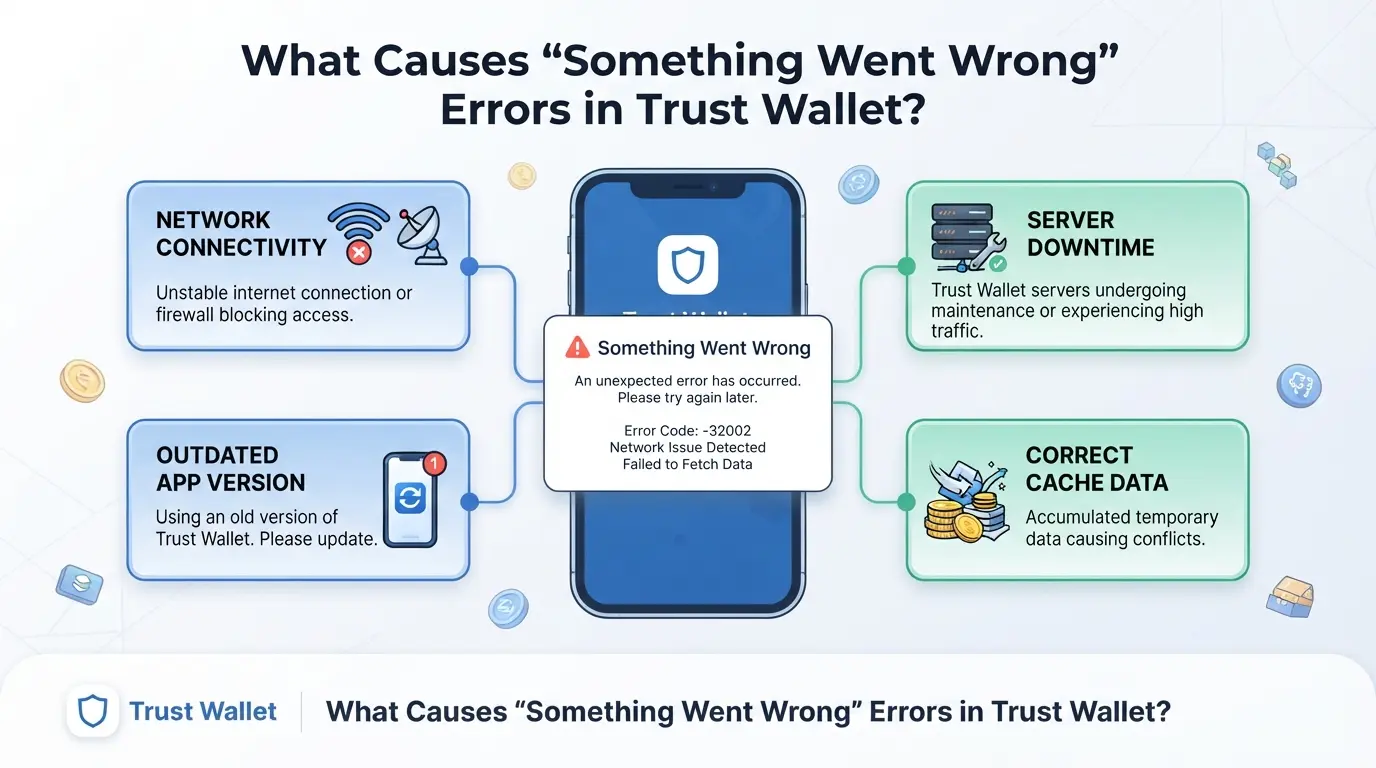
Most users see "Something Went Wrong" in Trust Wallet when the app can't complete a key action, like loading balances, sending tokens, or connecting to a blockchain node. This usually means the wallet can't reach the server, doesn't trust the device, or gets blocked by network conditions. If you’re only rebooting your phone and not checking these triggers, you’re missing the real reason behind the error.
Network and Connectivity Problems
If your internet connection drops or changes while Trust Wallet is active, the app can lose sync and throw an error instead of updating your balance. A session interrupted by proxy or firewall rules often gives the exact same message, even if the app looks fine at first.
App and Device Issues
Trust Wallet needs both the app and the device OS to stay compatible with the latest blockchain protocols. If your app version is outdated, you might see errors as soon as you try to connect or sign a transaction. The same applies if your phone’s operating system is behind, especially after a major update from Trust Wallet or when the app starts requiring newer security features. One real-world example: an Android user with Trust Wallet v6.0 installed on Android 10 saw “Something Went Wrong” every time they tried to load the main wallet screen, but the error disappeared after updating to Android 12 and the latest app version. Skipping updates can break wallet functions, but rushing updates without checking OS compatibility can also cause new problems. If you switch devices or restore from a backup, Trust Wallet checks if the fingerprint matches its records. Any mismatch can trigger this error, even if your seed phrase is correct. That’s why errors often pop up right after a device change, not just during normal use. The hardest part is catching silent device mismatches, if you see a blank screen or frozen balances, it’s usually a fingerprint issue, not a network problem.
Blockchain and Server Outages
- If a blockchain node goes offline, Trust Wallet can’t pull data and throws a generic error.
- When token contracts are paused or moved, the wallet may fail to load those assets.
- Always check the official Trust Wallet status page or search "blockchain node down" before assuming the issue is local.
If none of these triggers show up in your checks, start looking for session or cache problems, those commonly cause errors that survive app restarts. Next up: how to spot the right signals before jumping into fixes.
What Should You Check Before Trying to Fix Trust Wallet Errors?
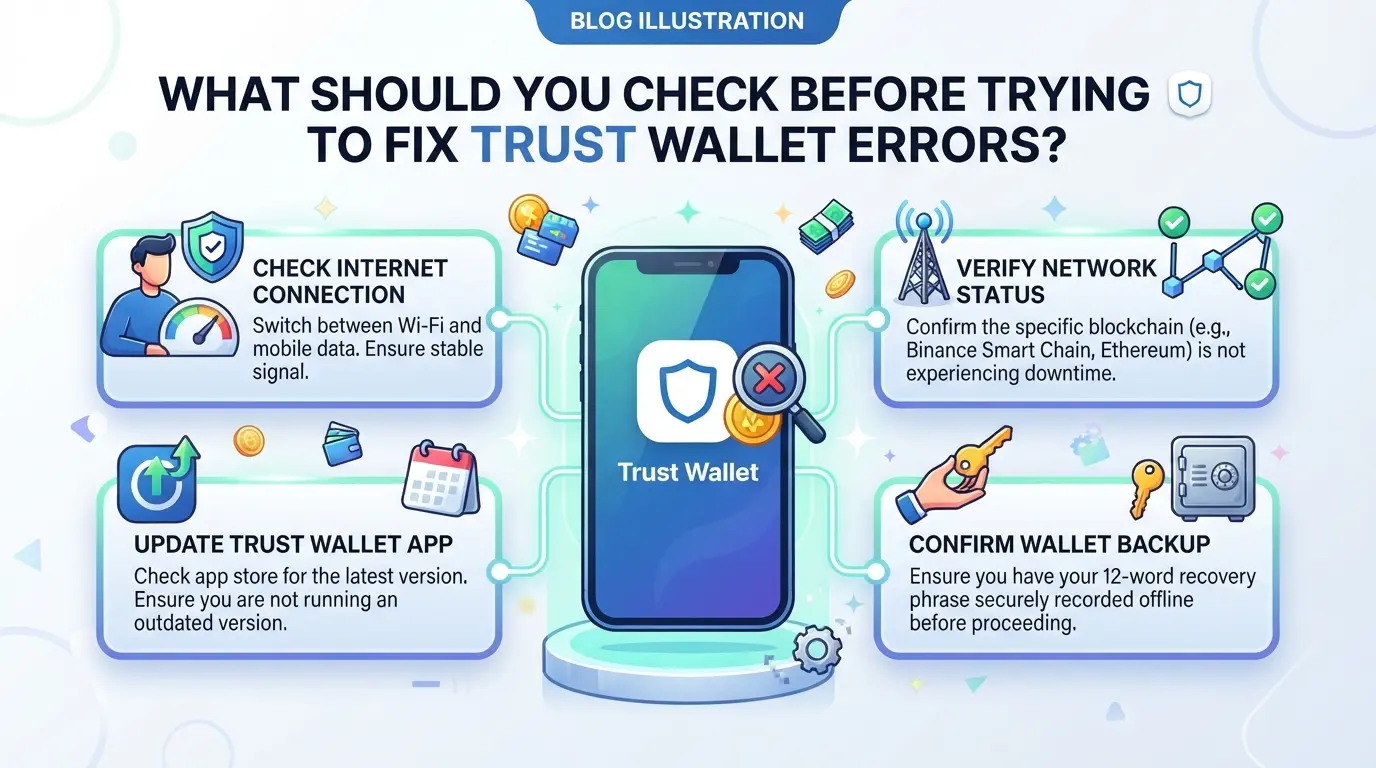
Jumping straight into “trust wallet something went wrong” fixes is risky, if you miss a key check, you can make the problem worse or even lose your funds. Before you do anything, run through these checks to rule out issues that could turn a simple error into a disaster.
Backup and Recovery Precautions
If you haven’t backed up your wallet’s seed phrase, stop troubleshooting now. Losing access mid-fix means you can’t recover your assets. Double-check your backup is correct by restoring the wallet in read-only mode or on a second device you trust. Never skip this step, even if you feel confident, one wrong tap can lock you out for good.
Account and Transaction Status
Before changing anything, check if your account or a transaction is already stuck.
- Look for pending or failed transactions in your activity tab, don’t retry if one still shows as pending.
- Confirm that your most recent token transfers are reflected on a blockchain explorer (like BSCScan or Etherscan).
- Scan your wallet address for any unexpected outgoing transactions or suspicious contract approvals.
This checklist helps you avoid double-spending, repeated errors, or missing signs of a compromised account.
Security and Device Hygiene
A wallet error can be a symptom of device trouble, not just a Trust Wallet bug. Malware, rooted devices, or hidden profiles can break wallet functions without warning. Here’s what to check:
- Run a full malware scan with a trusted tool, avoid “quick” scans, as mobile malware often hides in system folders.
- Confirm your device is not rooted (Android) or jailbroken (iOS); most wallet apps flag these as unsafe and may block critical actions.
- Log out of other accounts and session profiles on the device, browser or app sessions can leak data or trigger backend security checks.
If you skip these checks and start resetting, you risk restoring your wallet onto a compromised device, which hands your seed phrase straight to an attacker. This kind of mistake means even a successful fix won’t keep your assets safe.
Once you’ve worked through these basics, you’re ready to move on to actual fixes. If anything feels off during these checks, pause and investigate before making changes. The next section will walk through step-by-step solutions for clearing common Trust Wallet errors.
How to Fix 'Something Went Wrong' in Trust Wallet: Step-by-Step Solutions
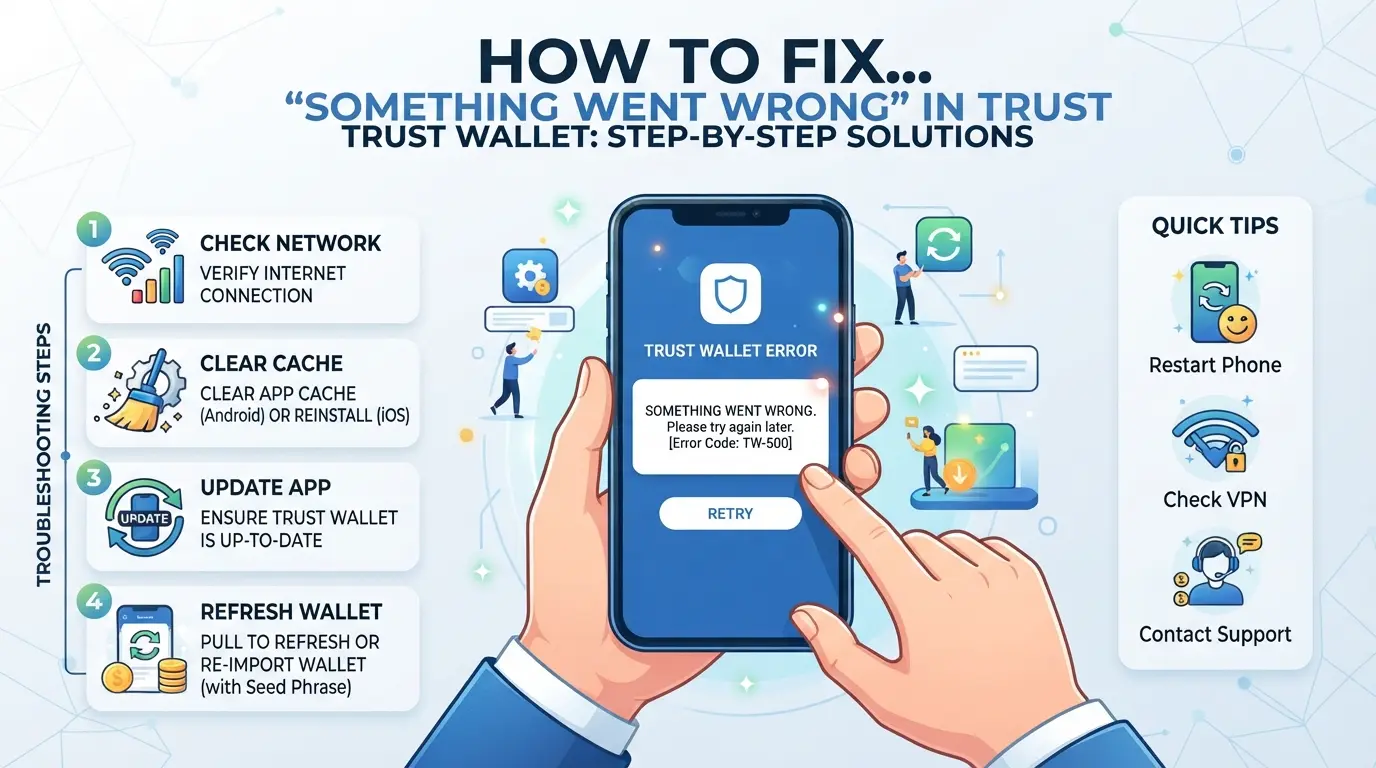
If you’re getting the “Something Went Wrong” message in Trust Wallet, you need more than a basic refresh, real fixes target the app’s session, network, and local data. Here’s the exact process that works for most error cases.
Restart and Update Trust Wallet
- Force close Trust Wallet from your app switcher. Don’t just swipe away, make sure the process fully stops to clear any session glitches.
- Restart your phone. This clears temporary memory and resets device state. If you skip this, background processes can still interfere.
- Open your app store (Google Play or Apple App Store). Search “Trust Wallet” and check for an update. If an update is available, install it. Skipping this step means you might miss a backend fix that quietly rolled out, especially after network-wide outages.
- Launch Trust Wallet and see if the error repeats. If you still see the error right away, move to network troubleshooting.
Check and Reset Network Settings
- Switch from Wi-Fi to mobile data (or the reverse). Trust Wallet may reject requests from unstable or flagged IPs, switching networks resets your session routing.
- Disable any proxies or custom DNS. If you’re running through a proxy, the app may not trust your connection. Turn off all third-party network tools, then try again.
- Toggle Airplane Mode on and off to force a full network stack reset. It sounds minor, but this often flushes stale routing data that the app flags as suspicious.
- Test on a different network (public Wi-Fi, another SIM). If the error goes away, your original network setup is likely the cause.
Clear Cache and Reinstall the App
- Go to your device settings > Apps > Trust Wallet and tap “Clear Cache.” This wipes temporary files that could be causing the issue. If you only clear data, you risk losing your local wallet access, always have your recovery phrase saved offline before this step.
- Uninstall Trust Wallet completely. Do not skip your backup: if you haven’t written down your 12-word recovery phrase, stop now and do it first.
- Reinstall Trust Wallet from the official app store. Avoid third-party APKs, these often carry malware or old code that can cause errors.
- Restore your wallet using your recovery phrase. If the error is gone, one of your local files was likely corrupted. Still seeing the error? It may be tied to account-level or backend issues.
If you’ve completed these steps and errors persist, it’s time to look at whether your device or wallet is flagged at a deeper level, which is where the next section picks up.
When Trust Wallet Errors Signal Bigger Risks: What to Watch Out For
Sometimes “something went wrong” is more than a glitch. If you notice this error after fixing the basics, you need to check for signs that your wallet or device is actually at risk.
Signs of Account Compromise
If your balance drops or you spot transactions you don’t remember, that’s a clear red flag. Log out immediately, then reset your wallet and check recovery phrases on a secure device.
Phishing and Scam Risks
Fake “trust wallet something went wrong” popups or messages can trick you into sharing sensitive info.
- Clicking support links from error popups might send you to fake sites that steal your seed phrase.
- Safer move: Only use the official Trust Wallet app and website; never trust direct links from popups or DMs.
Device Security Threats
Malware on your phone can cause random errors and let attackers control your wallet. Even a single risky app or outdated OS can trigger issues that look like normal trust wallet errors but are meant to hide real attacks. If you suspect a problem, switch to a clean device and scan for malware before logging in again.
When the usual fixes don’t work or new errors appear after you clean up, it’s time to review every device and entry point. The next section explains how multi-wallet users can lower these risks in daily use.
How Multi-Wallet Users Can Reduce Error Risks and Operate More Safely with DICloak
If you’re running multiple wallets for crypto, airdrops, or farming, the risk of session overlap and browser fingerprint confusion goes up fast. Many “trust wallet something went wrong” errors get triggered not by the wallet itself, but by mismatched device signals or shared storage across accounts. When operators handle several platform accounts, separating browser profiles and customizing network signals is what keeps error rates lower, especially in team setups.
Isolate Each Wallet with Separate Browser Profiles and Fingerprint Settings
A key move for anyone managing more than one wallet is to build a clean environment for each account. Operators can create a unique DICloak browser profile per wallet, then set up fingerprint signals like operating system, language, timezone, and interface details. This separation keeps session data, cookies, and local storage from crossing between accounts, a mistake that often leads to errors or unexpected lockouts. When the fingerprint for one wallet doesn’t match the session history, platforms may flag activity or trigger warning screens. The scope here covers browser profiles; it won’t change anything inside Trust Wallet itself.

Configure User-Owned Proxies for Each Profile
Assigning a proxy to every profile makes the network signals distinct. Operators enter their own proxy details in each profile’s settings and use the built-in checker to confirm connectivity and see the detected exit IP, country, and timezone. This approach limits accidental linkage between wallet sessions and stops network overlap from causing repeat errors, especially when platforms check for sudden IP changes. The setup is flexible: you decide which proxy to use, and you can pick “No Proxy” for local connections or custom proxy modes for external routing. DICloak does not supply proxies, so responsibility for proxy quality and compliance stays with the user.

Synchronize Actions Across Multiple Wallet Profiles
Manual setup across multiple wallets is slow and prone to mistakes. The DICloak Window Synchronizer lets operators select a master browser window and mirror supported actions, like clicks, keyboard input, and scrolling, to other open wallet profiles. This live mirroring keeps setup consistent and cuts down on errors from missing steps or mismatched entries. Unlike batch automation, synchronizer actions are operator-controlled and visible in real time, which means you can spot problems as they happen and correct them before they cascade. This feature is available on supported plans where interactive team setup is needed.
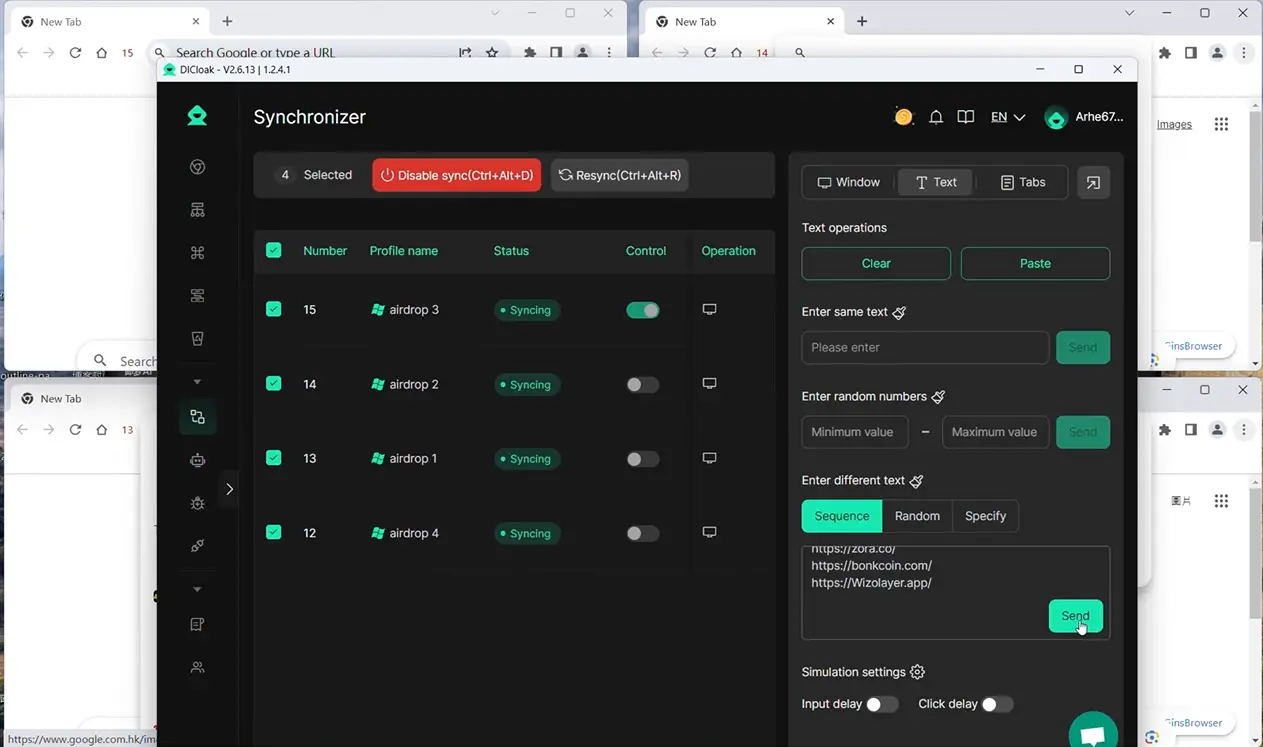
With session isolation, custom fingerprint and proxy setup, and synchronized actions, operators can prevent most accidental crossovers that trigger trust wallet errors. Next up: practical best practices to avoid repeating the same mistakes.
How to Avoid Repeating Trust Wallet Errors: Best Practices for 2026
Trust wallet errors often come back when you skip device basics or reuse risky habits, small steps now save you hours of troubleshooting later.
Keep Apps and Devices Updated
Update both your Trust Wallet app and your phone’s operating system every month. Outdated apps or OS versions are the main reason behind “trust wallet something went wrong” errors after new blockchain upgrades.
Monitor Security and Account Activity
- Set alerts for all wallet logins and big transactions.
- Review your transaction log weekly for anything you don’t recognize.
- Scan for new devices or locations in your connected accounts.
Use Separate Environments for Each Wallet
Mixing wallets or accounts in one browser or app session often causes session conflicts and triggers error screens. Always use a fresh environment per wallet.
- Open each wallet in a dedicated browser profile or device.
- Clear cache and cookies before switching wallets.
- Avoid logging into multiple wallets from the same IP or device fingerprint in a single session.
When to Contact Trust Wallet Support or Seek Community Help
If you keep seeing “trust wallet something went wrong” after trying every fix, it’s time to escalate. Most users only need support when the error blocks access, suggests account compromise, or refuses to clear after full troubleshooting.
Identifying Issues That Need Official Support
- Error persists after app update, device reboot, and session reset
- Wallet access lost or suspected hack
- Security verification or recovery fails repeatedly
How to Safely Use Community Forums
Stick to official Trust Wallet forums or Reddit, never share recovery phrases, private keys, or full wallet addresses in public. If you post error details, strip out anything that could link back to your account. Most scams target users desperate for quick fixes, so treat direct messages and “support” offers with caution.
Frequently Asked Questions About trust wallet something went wrong
Why does Trust Wallet show 'Something Went Wrong' after a transaction?
Trust Wallet may show the "Something Went Wrong" message after a transaction for several reasons. Common causes include poor internet connection, heavy blockchain network traffic, or app bugs. Sometimes, the transaction is delayed on the blockchain, not lost. Always check your transaction status on a blockchain explorer and ensure your app is updated.
Can I lose my funds if I try to fix Trust Wallet errors incorrectly?
Yes, you can lose your funds if you try to fix Trust Wallet errors the wrong way. Deleting your wallet without a backup or entering your recovery phrase on unsafe sites can cause permanent loss. Always write down your recovery phrase, double-check any changes, and use only the official Trust Wallet app.
How do I know if the error is from Trust Wallet or the blockchain?
To figure out if the problem is with Trust Wallet or the blockchain, check the status of the network you’re using. Visit the blockchain’s official status page or use a block explorer. Also, check if others are reporting the same issue on Trust Wallet’s social channels or help forums. Update your app if needed.
Is it safe to use proxies with Trust Wallet?
Using proxies with Trust Wallet can help protect your privacy, but you must set them up correctly. Wrong settings can block access to the blockchain or cause errors. Always use trusted proxy services and check local laws before using them. Never share your recovery phrase while connected through a proxy.
What should I do if Trust Wallet errors keep happening?
If Trust Wallet errors keep happening, start basic troubleshooting: restart your device, update the app, and clear cache. Scan for malware to ensure your phone is safe. If errors still show up, contact Trust Wallet support with details. Don’t reinstall the app unless you have your recovery phrase saved safely.
If persistent errors disrupt your wallet experience, considering alternative tools can offer a fresh start and greater reliability. Testing a new solution may help you regain control over your digital assets and restore confidence in your transactions. Try DICloak For Free
 Web Proxy Tools
 Free Tools
 Cookie Plugin
 UA Generator
 MAC Address Generator
 IP Generator
 IP Address List
 2FA Code Generator
 World Clock
 Anonymous Check
 WebRTC Leak Test
 UUID Generator
 Free Web Proxy Site
 Proxy Checker
 FB Ad Checker
 AI Web Scraping
 Free SMM Tools
 Twitter Shadowban Checker
 Instagram Name Checker
 UTM Generator
 Username Generator
 AI Hashtag Generator
 LinkedIn Headline Generator
 Social Media Image Resizer