A Google Account is a key part of daily life online. It lets you use Gmail, YouTube, Google Drive, and many other services with one login. For most people, creating an account is simple. But many users still ask the same question: how to create Google account without phone number in 2026.
There are many real reasons for this. Some users do not have a phone number. Others care about privacy or want to keep their accounts separate. While Google sometimes asks for phone verification, it is still possible in certain cases to complete the sign-up process without adding a number.
This guide explains how to create Google account without phone number step by step. You will learn what to expect during signup, how to handle common problems, and how to keep your account safe after creation. All steps are based on real user experience and Google’s current rules, so you can make informed choices and avoid unnecessary issues.
Importance of Having a Google Account in 2026
A Google Account is more than “just Gmail.” It is the key that lets you use many Google services with one login. For example, with one of your google accounts, you can use Gmail, YouTube, Google Drive, Calendar, and Google Play.
A Google Account also makes daily tasks easier. You can save files in Drive, back up contacts, sync bookmarks, and keep your settings across devices. When you do a google account sign in on a new phone or laptop, your data can show up right away, so you do not need to start from zero.
That said, the account is also a security “front door.” If you lose access, you can lose emails, files, and even app purchases. This is why Google offers security tools and recovery options, like Security Checkup and recovery settings.
So when you learn create google account steps, it is also smart to learn how to keep it safe from day one.
Reasons for Creating a Google Account Without a Phone Number
Many people search for how to create google account without phone number for normal, valid reasons. Some people do not have a phone number. Others do not want to share it unless it is truly needed.
Here are common reasons, with clear examples:
1. You do not have a phone number right now
Case: A teenager has a Wi-Fi tablet but no SIM card. They still need a Google Account for school apps and email. In this case, creating a google account without a phone number can be a practical need, not a “trick.”
2. You want more privacy and less personal data linked together
Some users prefer to keep their phone number private. They may worry about spam texts or data sharing. They want to use Gmail and Drive, but they do not want their number connected to the account unless it helps with security.
3. You are setting up a separate account for a specific purpose
Case: A small business owner wants one account only for a YouTube channel and another for customer support. They do not want every account tied to the same phone number. They search: can i create a google account without a phone number because they want cleaner separation.
How to Create Google Account Without Phone Number? (Step-by-Step Guide)
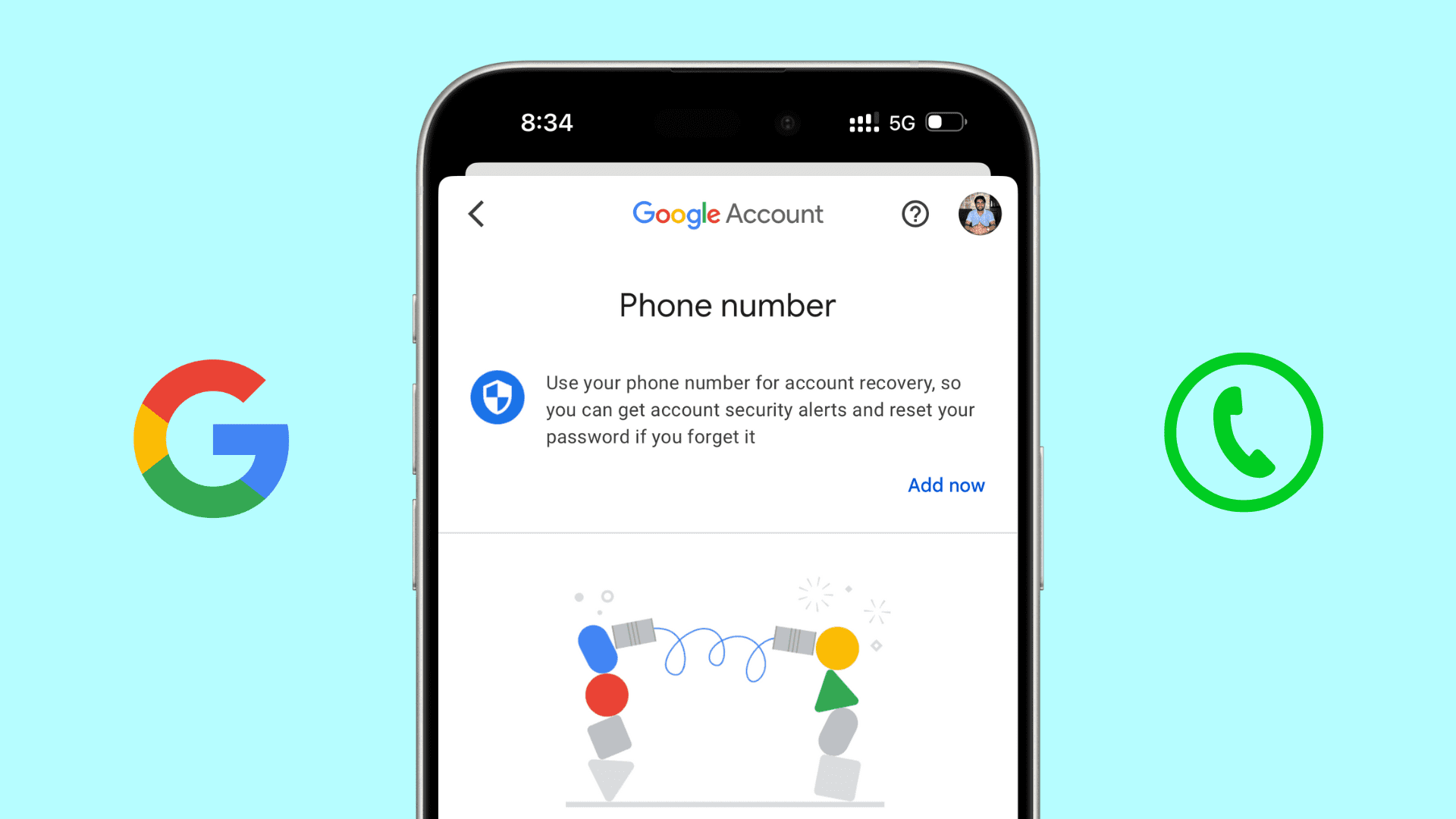
This section shows you how to create google account without phone number. In many cases, Google lets you skip the phone field on the sign-up page. But sometimes the phone step may still show up for security checks.
Accessing the Google Sign-Up Page
First, open your web browser and go to the Google account sign in page. This is where you start the process to create google account.
To get here:
1. In the browser, type “accounts.google.com” and press Enter.
2. If you are already signed in with another account, click your photo or initial in the top right and choose Sign out.
3. You will see a button that says Create account. Click it.
4. Choose For my personal use or the option that fits your need.
Once you click Create account, you will go to a page with empty fields. This is where you begin creating a Google account without a phone number.
Filling in Required Information
On the sign-up page, Google asks for some basic information. This helps set up your new account properly before you choose how to verify it.
Entering Your Name and Desired Email Address
You will see boxes labeled First name and Last name. Type your name exactly how you want it to appear. Next, you must pick a username. This will be your Gmail address (example: yourname@gmail.com). If another person already has the name you want, Google will suggest similar choices.
Example: Sarah wants her email to be sarahwrites@gmail.com, but someone already has that name. Google suggests sarahwrites123@gmail.com. She chooses this and moves on.
If you already have a different email address (like Yahoo or Outlook), you can use it here instead of creating a new Gmail address. Choose Use my current email address and enter it.
Creating a Strong Password
After the email name, Google asks for a password. A strong password helps protect your new account. Use at least 8 characters with letters and numbers. Try to avoid simple words like “password” or “12345678.”
Pro Tip: Write your password down somewhere safe. If you forget it later, you will need your recovery options to sign back in. This links to your google accounts security later.
Once you finish this part, click Next to continue.
Skipping the Phone Number Field
Now comes the part many people worry about most: the phone number step. In many cases, Google shows the phone field but also gives a Skip or Skip for now button. If you see that button, click it to continue without a phone.
At this point, you are doing exactly what users ask when they search can i create a google account without a phone number—you are moving forward without entering a phone number. This step may look slightly different on phones, tablets, and computers, but the idea is the same.
Remember: Google’s system decides whether to show a phone requirement based on many things like your device, browser history, previous accounts, and region. Even if you don’t see the phone request now, you might see it later when you try to sign in again.
Alternative Verification Methods
If the phone prompt does appear and you really do not want to enter a phone number, Google often offers other ways to prove you are a real person. These include things like using another email or answering security questions.
- Using an Existing Email Address
Before the phone step, Google may ask for a recovery email. This is a second email you already own. If you enter this, Google can send a code to that email to confirm it belongs to you. Many people choose this instead of a phone.
Example: Mark has an old Yahoo email. When Google asks for a way to verify his account, he enters his Yahoo address. Google sends a six-digit code to that address. Mark checks his Yahoo inbox, gets the code, and types it into the Google page. Now his new Google account is confirmed without a phone.
- Verification Through Security Questions
Sometimes, Google may offer security questions you have set up on another account, or match details like birthday and recovery email. This is less common, but it does happen as a backup way to confirm your identity without a phone number.
Tip: Make sure your recovery email is one you can access right away. If you don’t open that inbox, you might miss the verification code and get stuck.
Once you complete these steps, you should see a screen that says your new Google account is ready. Now you can use that email to google account sign in and access Gmail, YouTube, Drive, and more.

Device-Specific Instructions for Creating a Google Account Without Phone Number
Now that you know the basic steps for how to create Google account without phone number, this section shows you exact steps on different devices. These steps help you avoid the phone field if it is optional. In many cases, Google will let you skip the phone number — especially when the sign-up process feels “normal” to Google’s security checks.
Creating an Account on Desktop
Creating a Google Account on a computer is one of the most common ways to create google account without a phone number. Most people use a full web browser for this, like Chrome, Firefox, or Edge.
1. Open your browser and go to the Google account sign in page.
2. Click Create account and choose For my personal use.
3. Fill in your name, birthday, and choose your new Gmail address.
4. Create a strong password and click Next.
5. When you reach the screen asking for a phone number, look for a Skip button.
If you see Skip, click it to continue without a phone.
If you don’t see Skip, try starting in Incognito mode and repeat the steps. Many users report success when using private browsing for this reason.
Creating an Account on Android Devices
If you use an Android phone or tablet, you can set up a Google account through the device settings. This method often lets you create Google account without phone number because it uses the built-in account manager and can show a Skip option more clearly.
Here’s how:
1. On Android, open the Settings app.
2. Scroll to Accounts or Passwords & accounts.
3. Tap Add account and choose Google.
4. Tap Create account — For my personal use.
5. Enter your name, birthday, and preferred email.
6. Create a strong password and tap Next.
7. When asked for a phone number, you may see Skip.
- Tap Skip (if available) to continue without a phone.
8. Follow the next steps, including agreeing to Google’s terms.
Creating an Account on iOS Devices
You can also create Google account without phone number on Apple devices like iPhone and iPad. The process is similar to Android but uses the iOS system settings or the Gmail app.
Method 1: Using iOS Settings
1. Open the Settings app on your iPhone or iPad.
2. Scroll to Mail or Accounts & Passwords.
3. Tap Add Account and choose Google.
4. Tap Create account and select For my personal use.
5. Enter your name, birth date, and choose your email.
6. Create a strong password.
7. When the screen asks for your phone number, look for Skip — tap it if it appears.
8. Complete the rest of the steps to finish your new Google account.
Method 2: Using the Gmail App
1. Download the Gmail app from the App Store.
2. Open the app and tap Add another account.
3. Choose Google and then Create account.
4. Fill in your info and look for Skip at the phone number step.
Different devices may show the phone number step in slightly different ways, but the basic idea is the same: if you see Skip or a similar link, you can continue without a phone number. Many users find that trying on another device or method (browser vs. app vs. settings) makes it easier to finish creating a google account without a phone number.
Common Challenges and Solutions When Creating a Google Account
After following the device-specific instructions above, many users can finish the process smoothly. Still, some people run into problems. This section explains the most common issues when learning how to create google account without phone number, and how real users solve them in daily situations.
Dealing with Google’s Phone Verification Prompt
One of the biggest concerns is Google’s phone verification screen. You may reach a point where Google asks for a phone number and does not clearly show a Skip option. This often leads users to ask again: can I create a google account without a phone number?
The honest answer is: sometimes yes, sometimes no. Google decides this based on risk signals. These include your device, network, and past sign-up activity.
Real example:
David tried to create google account on his office computer. The network was shared by many people. Google showed a phone verification screen with no skip button. When David tried again later from his home Wi-Fi, the phone field became optional, and he completed creating a google account without a phone number.
This does not mean you did anything wrong. It only means Google’s system wanted extra proof at that moment.
Workarounds for Bypassing Phone Verification
These are practical, low-risk steps many normal users take. They do not guarantee success, but they often help.
1) Change the environment
Try a different device or network. Home Wi-Fi is usually better than public Wi-Fi. A personal laptop often works better than a shared computer.
2) Slow down and try later
If you try many times in a short period, Google may block sign-ups. Waiting several hours or a full day can reset this signal.
3) Use a recovery email early
When Google sees a real recovery email, it may reduce the need for phone verification. This also helps you recover your account later.
4) Accept phone verification if required
In some cases, Google will not allow you to move forward without a phone number. If the account is important, adding a number once may be the safest option. You can still manage privacy settings later inside your google accounts security page.
These steps help many users who search how to create google account without phone number, but it is important to understand the limits. Google controls the final decision.
Troubleshooting Common Issues
Even after account creation, some users face small problems when they try to sign in or finish setup. Here are common issues and clear solutions.
Problem 1: “Something went wrong” error
This usually happens because of network issues or repeated attempts.
Fix: Close the browser. Clear cookies or open a new private window. Then try again later.
Problem 2: Cannot sign in after creation
You may enter the wrong password or forget it.
Fix: Use the recovery email you added during setup. This helps restore access during google account sign in.
Problem 3: Account locked soon after creation
This can happen if Google sees unusual activity right after signup.
Fix: Complete Google’s security checks and confirm your recovery email. Avoid signing in from many devices at once.
Problem 4: Confusion between multiple accounts
Many users manage more than one account.
Fix: Write down which email is used for which purpose. This helps keep personal and work google accounts separate.
Learning how to create google account without phone number is not only about skipping a field. It is also about understanding Google’s security logic and knowing how to respond when something goes wrong.
The Power of Antidetect Browser in Reducing Google Phone Verification Prompts
An antidetect browser like DICloak can help you create a cleaner, more consistent setup. This may reduce extra security prompts in some situations. But it cannot guarantee that Google will never ask for phone verification. Google may require a phone number at any time based on its risk checks.
What Is an Antidetect Browser?
An antidetect browser is a browser designed to manage separate browsing “profiles.” Each profile can have its own cookies, local storage, and device fingerprint settings. The goal is to keep accounts from being linked together by accident.
Security researchers explain it like this: many platforms watch your “browser fingerprint” (device signals, browser signals, behavior signals) to spot suspicious logins or automation. Antidetect browsers try to change or control these signals.
In simple terms:
- A normal browser is like one identity.
- An antidetect browser is like many separate identities, each in its own container.
This is also why some users think an antidetect browser might help with creating a google account without a phone number: they want a clean profile that looks stable and normal.
Why Choose DICloak Antidetect Browser for Your Business?
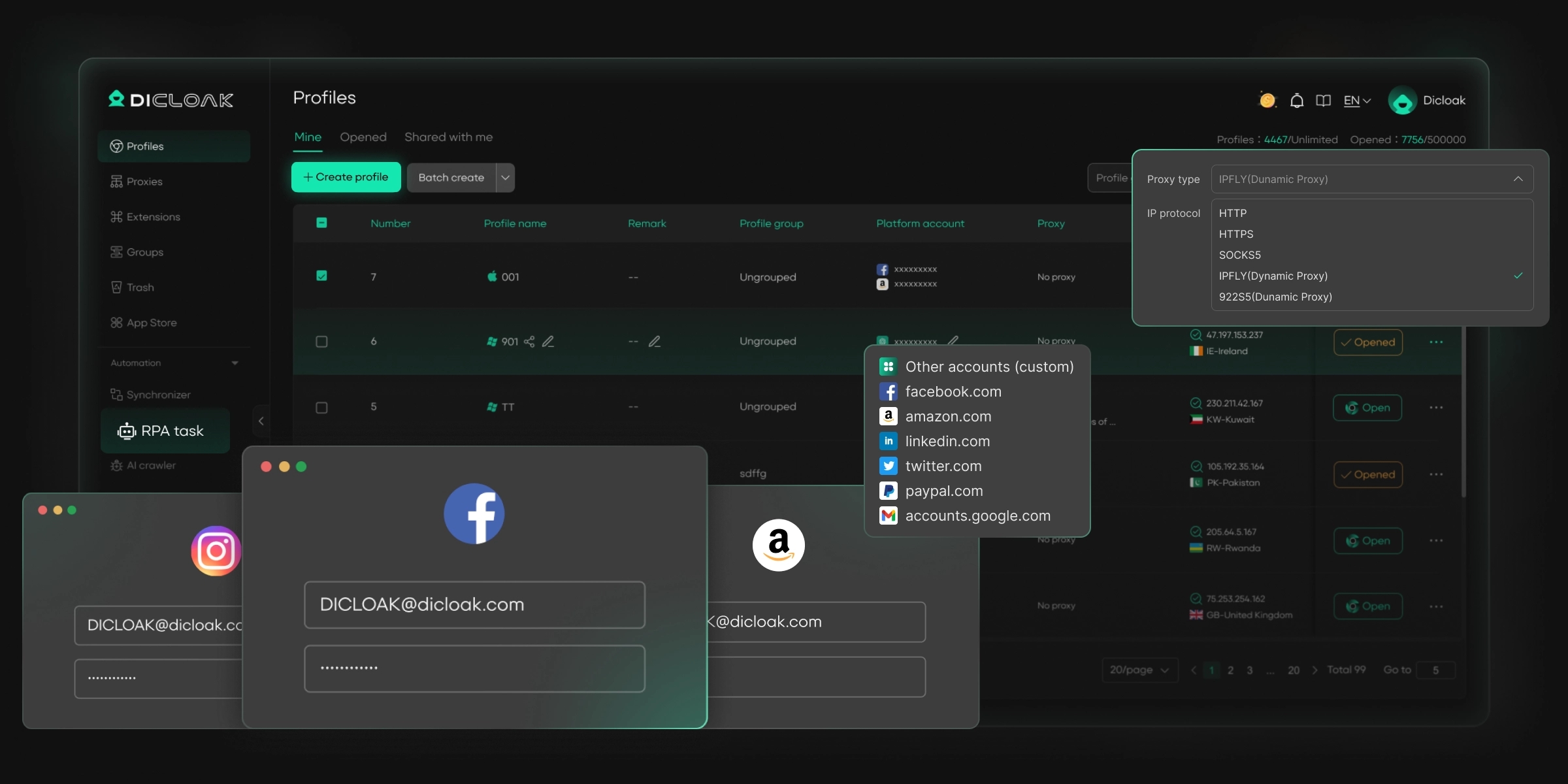
⚡The DICloak Antidetect Browser has become a global favorite for its unparalleled ability to efficiently and securely manage multiple accounts. Designed for professionals in social media management and more, DICloak offers powerful features like RPA automation, bulk operations, and synchronizer. Additionally, it allows you to customize fingerprints and integrate proxies for each profile, ensuring top-level security and operational efficiency. It’s the ultimate tool for seamless, secure, and scalable operations.
What Makes DICloak Stand Out?
✅ Manage 1,000+ Accounts on One Device: Stop wasting money on extra hardware! DICloak allows you to manage multiple accounts on a single device, cutting costs and boosting efficiency.
✅ Guaranteed Account Safety, No Ban Risks: Every account gets its own isolated browser profile with custom fingerprints and IPs, drastically reducing the risk of bans. Your accounts, your control!
✅ Flexible Proxy Configuration for Maximum Performance: Seamlessly integrate with all major proxy protocols (HTTP/HTTPS, SOCKS5) and manage your proxy pool with bulk operations. No more struggling with IP management—DICloak has you covered.
✅ Streamlined Team Collaboration for Better Results: Easily manage your team with advanced tools like profile sharing, permission settings, data isolation, and operation logs. Your team works smarter, not harder.
✅ Automate the Grind with RPA: DICloak's built-in RPA saves you hours of manual work. Automate repetitive tasks, streamline workflows, and focus on what really matters—growing your business.
✅ Powerful Bulk Tools to Scale Your Operations: Create, import, and launch multiple browser profiles in one click. DICloak makes scaling your business as easy as it gets.
✅ Compatible with All Major Operating Systems: Based on the Chrome core, DICloak supports simulating Windows, Mac, iOS, Android, and Linux operating systems. No matter what platform you need, DICloak has you covered.
🔗 Ready to Get Started?
Visit the DICloak website to explore more details and choose the plan that’s right for you. Start for free today and experience the power of secure, efficient, and scalable multi-account management!
FAQs About How to Create Google Account Without Phone Number
1. How to create Google account without phone number in 2026?
To create a Google account without phone number, go to the official Google sign-up page and follow the normal steps. In some cases, Google shows a Skip option on the phone number screen. If you see this option, you can continue without entering a phone number. Keep in mind that Google may still ask for phone verification in certain situations for security reasons.
2. Can I really create a Google account without a phone number?
Yes, in many cases, you can create a Google account without a phone number, especially if Google does not detect unusual activity during signup. However, Google does not guarantee this option for every user. The phone number step may become mandatory depending on your device, network, or sign-up behavior.
3. Why does Google sometimes require a phone number during account creation?
Google may require a phone number to protect users and prevent spam or abuse. If Google’s system detects higher risk, it may ask for phone verification even if you are trying creating a Google account without a phone number. This is a normal security measure and does not mean you did something wrong.
4. Is it safe to create a Google account without a phone number?
Yes, it can be safe to create a Google account without phone number, as long as you add other recovery options. Google strongly recommends adding a recovery email and using strong passwords. Without a phone number, account recovery may be harder, so setting up security options is very important.
5. Can I use a fake phone number to create a Google account without a real phone?
No. Using a fake or temporary phone number is not recommended. It may violate Google’s terms and can lead to account suspension or loss of access. If your goal is how to create google account without phone number, the safest approach is to follow Google’s official signup process and only skip the phone field when it is optional.
Conclusion
Learning how to create Google account without phone number in 2026 is possible, but it requires a clear understanding of Google’s rules and security checks. Many users can complete the sign-up process without adding a phone number when the option is available. Others may be asked to verify with a phone for safety reasons. This is normal and part of Google’s effort to protect its platform.
If your goal is creating a Google account without a phone number, the best approach is to follow the official sign-up steps, use a stable device and network, and add a recovery email for account protection. Tools like DICloak antidetect browser can help create a cleaner and more consistent login environment, but they do not guarantee that phone verification will never appear.
In the end, the safest way to create Google account without phone number is to stay within Google’s guidelines, avoid risky shortcuts, and focus on long-term account security. A well-set-up account is easier to access, safer to manage, and less likely to face problems in the future.
 Web Proxy Tools
 Free Tools
 Cookie Plugin
 UA Generator
 MAC Address Generator
 IP Generator
 IP Address List
 2FA Code Generator
 World Clock
 Anonymous Check
 WebRTC Leak Test
 UUID Generator
 Free Web Proxy Site
 Proxy Checker
 FB Ad Checker
 AI Web Scraping
 Free SMM Tools
 Twitter Shadowban Checker
 Instagram Name Checker
 UTM Generator
 Username Generator
 AI Hashtag Generator
 LinkedIn Headline Generator
 Social Media Image Resizer