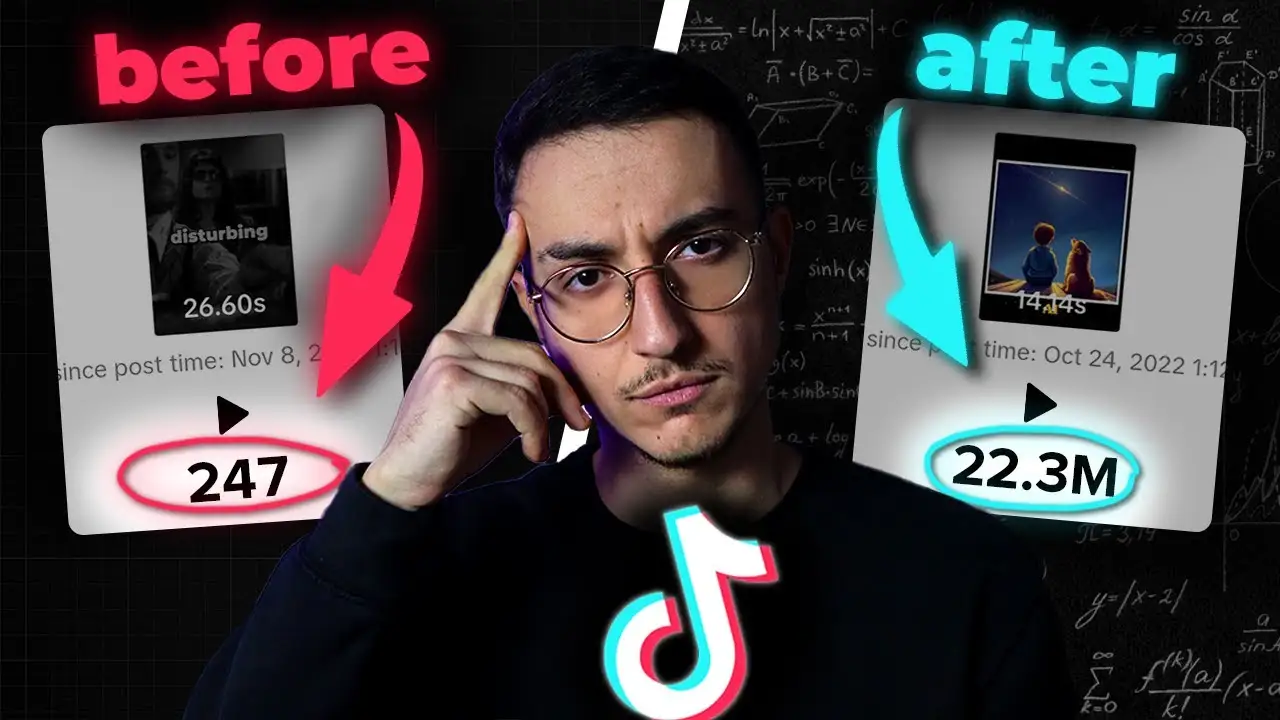
You are preparing an Instagram carousel and want to know how many pictures can fit in one post. The answer is simple: one carousel can currently include up to 20 photos or videos in total. So, if you are asking how many pics can you post on ig, the current maximum is 20 media items.
Some users may still see a 10-item selection limit because their app, account interface, or session is not showing the latest option correctly. This guide explains the current limit, how to build a multi-photo post, why the selection may stop at 10, what can be changed after publishing, and how to choose the right number of slides.
How Many Pictures Can You Post on Instagram at Once?
The current maximum is 20 media items in one carousel. You can use photos, videos, or a mix of both.
What Is the Current Instagram Carousel Limit?
The current Instagram carousel limit is up to 20 photos and videos in total. Photos and videos share the same limit, so the post cannot contain 20 of each.
You can also publish fewer items. A carousel may contain only two, five, or ten slides if that is all the post needs. Instagram previously limited carousels to 10 items, which is why older articles may give a different answer to how many pictures can you post on Instagram.
Can Every Instagram Account Post Up to 20 Photos?
The 20-item maximum is Instagram’s current general carousel limit. However, some accounts or app sessions may still show a selection screen that stops at 10 items.
Instagram does not publish separate carousel limits for personal, Creator, and Business accounts. A 10-item screen is more likely to be an interface or app issue than a confirmed permanent limit for that account.
Can You Mix Photos and Videos in One Carousel?
Yes. Photos and videos can appear together in the same carousel, and each file counts as one media item.
For example, you could include 12 photos and 8 videos. Before publishing, check that the media appears in the correct order and that every slide supports the same topic or story.
Now that the limit is clear, the next step is learning how to select, arrange, and review multiple photos before posting.
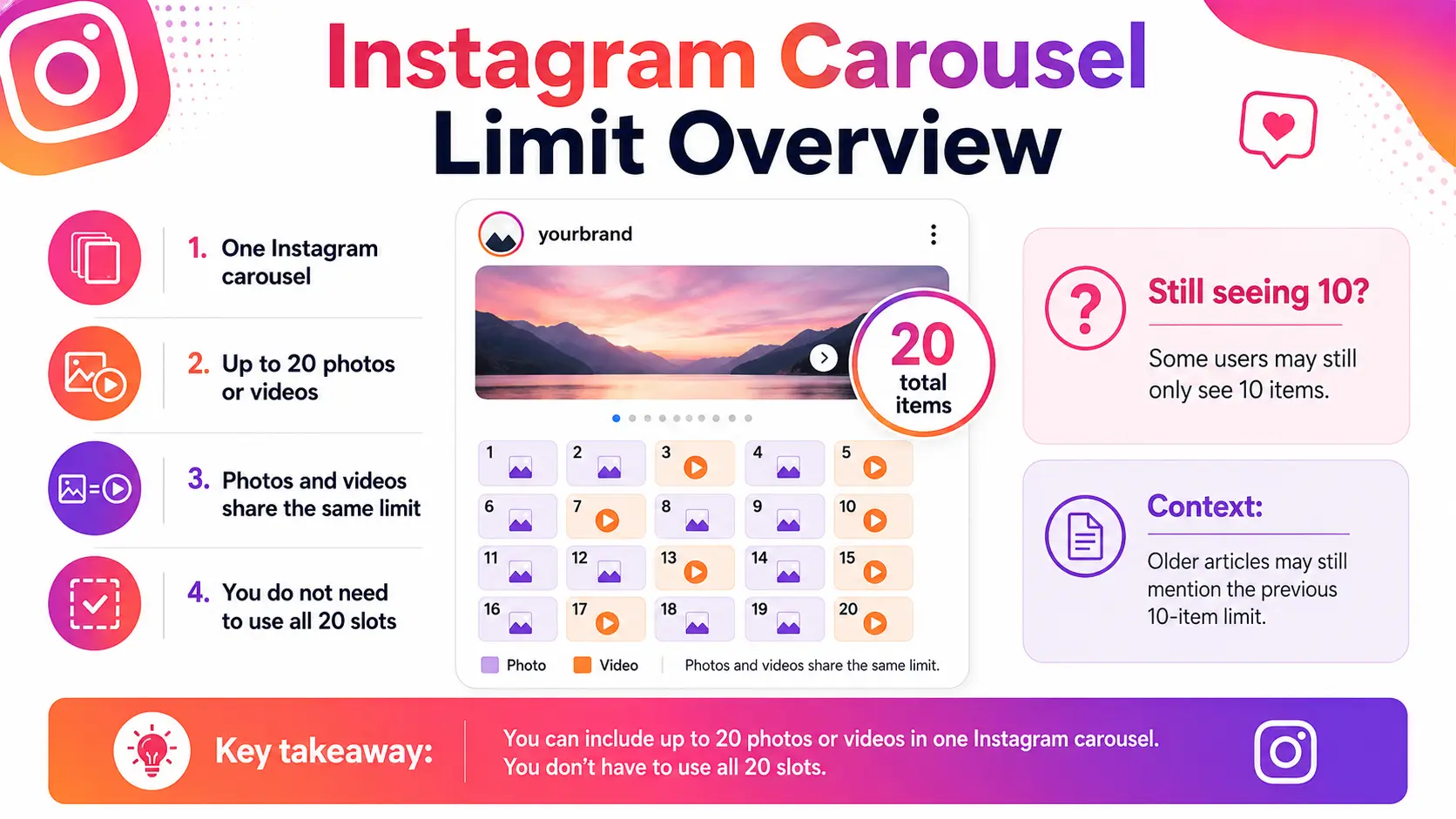
How to Post Multiple Photos on Instagram
To create a carousel, choose several photos or videos while preparing a new feed post. The process for how to post multiple photos on Instagram is simple, but you should review the order and crop before sharing.
How to Create an Instagram Carousel Post
Button names may vary slightly between iOS, Android, and app versions.
- Start a new feed post. Open Instagram, tap the Create button, and choose Post.
- Open your device library. Tap Select Multiple or the overlapping-squares icon.
- Choose the media in order. Tap each photo or video in the sequence you want. The numbers on selected items show their carousel order.
- Review the crop. Open each item and make sure important details remain visible.
- Apply necessary edits. Adjust filters, brightness, color, or other settings where needed.
- Add post details. Write the caption and add tags, a location, alt text, and any other options available to your account.
- Review and share. Confirm the account, media order, crop, caption, and tags before publishing.
How to Arrange Photos Before Publishing
The first slide should make the topic clear. It might show the main result, product, location, comparison, or idea.
Arrange the next slides in a logical order. Tutorials should follow each step. Before-and-after posts should make the change easy to understand. Product collections should group related items, while event or travel posts can follow a timeline. Remove images that repeat the same point.
Use the final slide for a conclusion, summary, result, or next action. Swipe through the full carousel before sharing because the slide order cannot normally be rearranged after publication.
What Image Sizes Work Best for Instagram Carousels?
Upload images at a width of at least 1080 pixels. Common carousel sizes include:
- Landscape: 1080 × 566 pixels
- Square: 1080 × 1080 pixels
- Portrait at 4:5: 1080 × 1350 pixels
- Portrait at 3:4: 1080 × 1440 pixels
Using consistent dimensions can create a smoother viewing experience. It also makes the carousel feel more organized as people move between slides.
Preview every image before publishing. Keep text, faces, logos, and product details away from the outer edges in case the app adjusts the crop. When images use different shapes, check each slide separately instead of assuming one crop will fit the full carousel.
Even after following these steps, some users may still find that Instagram stops their selection at 10 items. The next section explains the most likely reasons.
Why Can’t I Post More Than 10 Photos on Instagram?
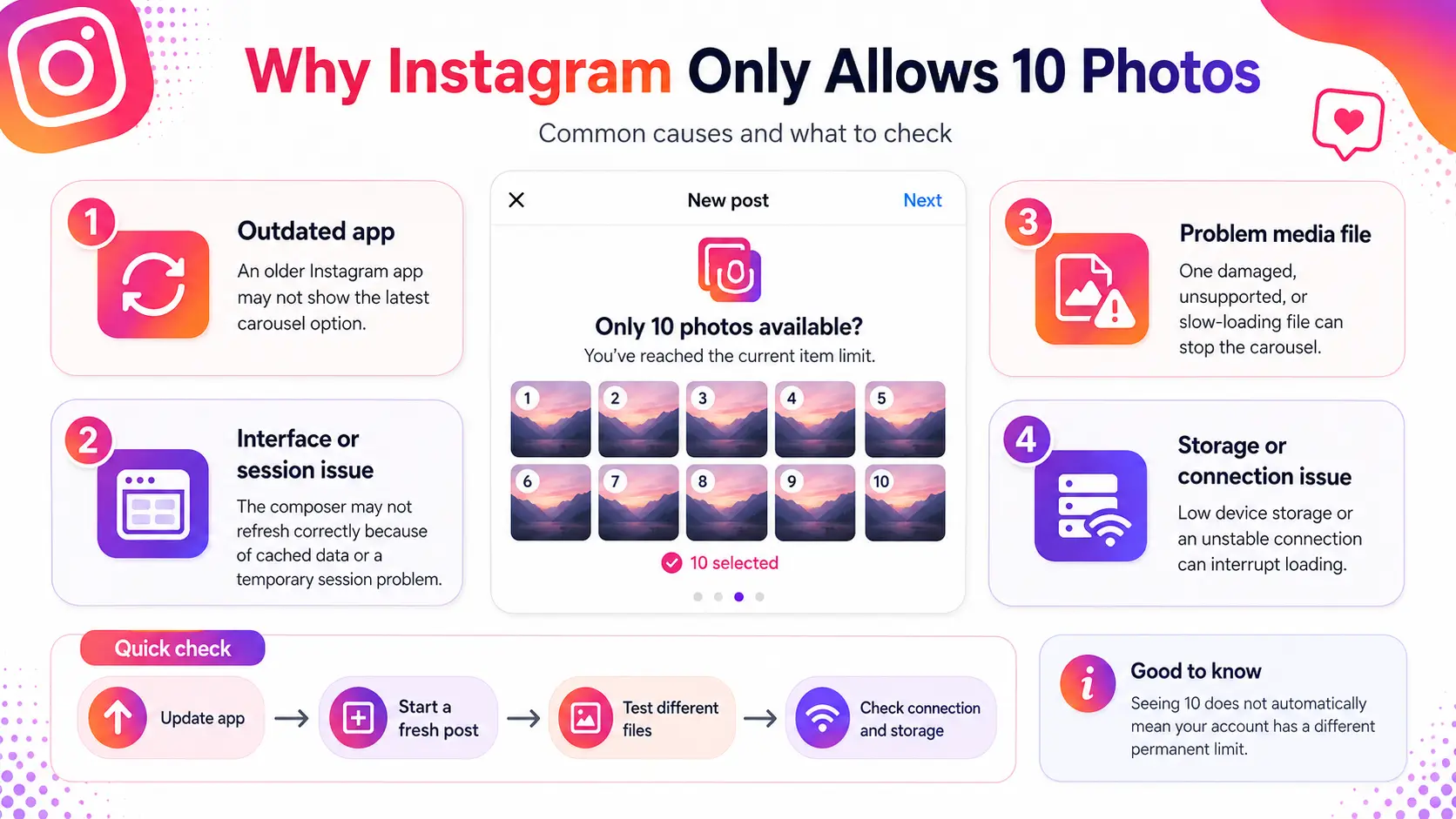
Instagram’s current carousel option supports more than 10 items, but the app may still stop at 10 when the interface, session, or selected media is not working correctly. If you are asking why can’t I post more than 10 photos on Instagram, this does not prove that your account has a permanent limit.
Your Instagram App Is Out of Date
An older Instagram version may not show the current carousel interface correctly. App versions may also differ across devices, even when the same account is being used.
Open the Apple App Store or Google Play Store and check for an Instagram update. After installing it, fully close the app, reopen it, and create a fresh post instead of using an older draft. Updating is a useful first step, but it may not fix every interface problem immediately.
The 20-Photo Feature Has Not Loaded Correctly
The post composer may be showing an older or incomplete interface because the app or account session has not refreshed. Cached data or a temporary Instagram service issue may also affect what appears.
These are possible causes, not official account rules. Instagram does not publish separate carousel limits based on account type, age, region, IP address, proxy, or browser fingerprint. Changing those details is not a confirmed way to unlock more slots.
One or More Photos Cannot Be Uploaded
A single media file can sometimes interrupt the carousel. The file may be damaged, too large, unsupported, or poorly processed. A video may also fail during preparation.
Low device storage, limited memory, or an unstable internet connection can cause the composer to freeze or stop loading more items.
Test a fresh carousel with a group of simple photos. If it works, add the original files back in smaller groups. This can help you find the item causing the problem without changing unrelated account settings.
How to Fix Instagram When It Only Allows 10 Photos
No single fix works for every account. Save your caption, edits, and draft details before deleting a draft or reinstalling the app.
- Update and restart Instagram. Install any available update, then fully close and reopen the app.
- Create a fresh carousel. Do not continue using the affected draft.
- Test different media. Choose another group of photos or videos to see whether one file is causing the issue.
- Check the connection and storage. Switch between Wi-Fi and mobile data, and make sure the phone has enough free space.
- Clear the cache or reinstall Instagram. Save important draft details first because reinstalling may remove local drafts.
- Try another supported device or report the issue. Test the same account on another device. If the problem remains, use Instagram’s Report a Problem option.
What Can You Change After Publishing an Instagram Carousel?
You can edit several post details and make limited changes to the carousel media after publishing.However, you still cannot add new photos or videos to the existing carousel.
Can You Add More Photos After Posting?
No. Instagram does not let you add new photos or videos after a carousel is published. You can share the missing image in another post or Story. You can also recreate the carousel if the full sequence must stay together, but deleting and recreating the carousel means losing the original post’s likes, comments, shares, and post history.
Can You Delete One Photo From a Carousel?
Yes. Instagram lets you remove an individual photo or video from a published carousel in the mobile app. Open the post, tap the three-dot menu, choose Edit, find the item, and use the delete control. This removes the selected item while keeping the rest of the carousel live.
Can You Reorder Carousel Photos After Publishing?
Yes. Open the published carousel, tap the three-dot menu, choose Edit, then long-press a photo or video and move it to a new position. This option may depend on having the latest Instagram app interface, so update the app if the reordering controls do not appear.
Can You Edit the Caption, Tags, or Location?
Yes. You can generally edit the caption, tagged accounts, location, and alt text after publishing. Open the post menu and choose Edit to access the available fields. These changes update the post details, but they do not replace or change the original photos and videos.
Editing provides some flexibility, but planning still matters. The maximum number of available slots is not always the best number to use.
How Many Photos Should You Include in an Instagram Carousel?
The maximum number of available slides is not always the ideal number to use. Include only the photos or videos needed to explain the idea clearly and completely.
When a Longer Carousel Makes Sense
A longer carousel works well when every slide adds new information. You might use more slides for a step-by-step tutorial, a product collection, an event or travel recap, an educational breakdown, or a before-and-after story. Each image should move the topic forward. Do not add extra slides only to make the post look longer.
When Fewer Photos Work Better
A shorter carousel is often better for a simple or focused idea. This may include one product highlight, a short comparison, a basic announcement, or a small set of strong images. Repetitive or weak slides can make the message less clear. Use fewer items when the idea can be explained without extra detail.
How to Organize a Carousel That Keeps People Swiping
Start with a clear first slide that shows the main topic, result, or question. Arrange the next slides in a logical order so the viewer can follow the idea without confusion.
Keep text short and easy to read. Make sure every slide adds a useful detail, example, step, or visual. End with a conclusion, final result, summary, or clear next action.
When teams manage several authorized Instagram accounts, repeating similar preparation and review work can become harder to organize.
How to Manage Instagram Carousel Workflows Across Multiple Accounts With DICloak
Preparing carousel posts for several authorized Instagram accounts can become messy. You may need to manage different login sessions, client materials, regional captions, tags, and campaign pages at the same time. With DICloak, you can give each Instagram account its own browser workspace, then use separate browser profiles, the multi-window Synchronizer, and RPA workflows to organize repeated tasks.
Build a Separate Workspace for Each Instagram Account
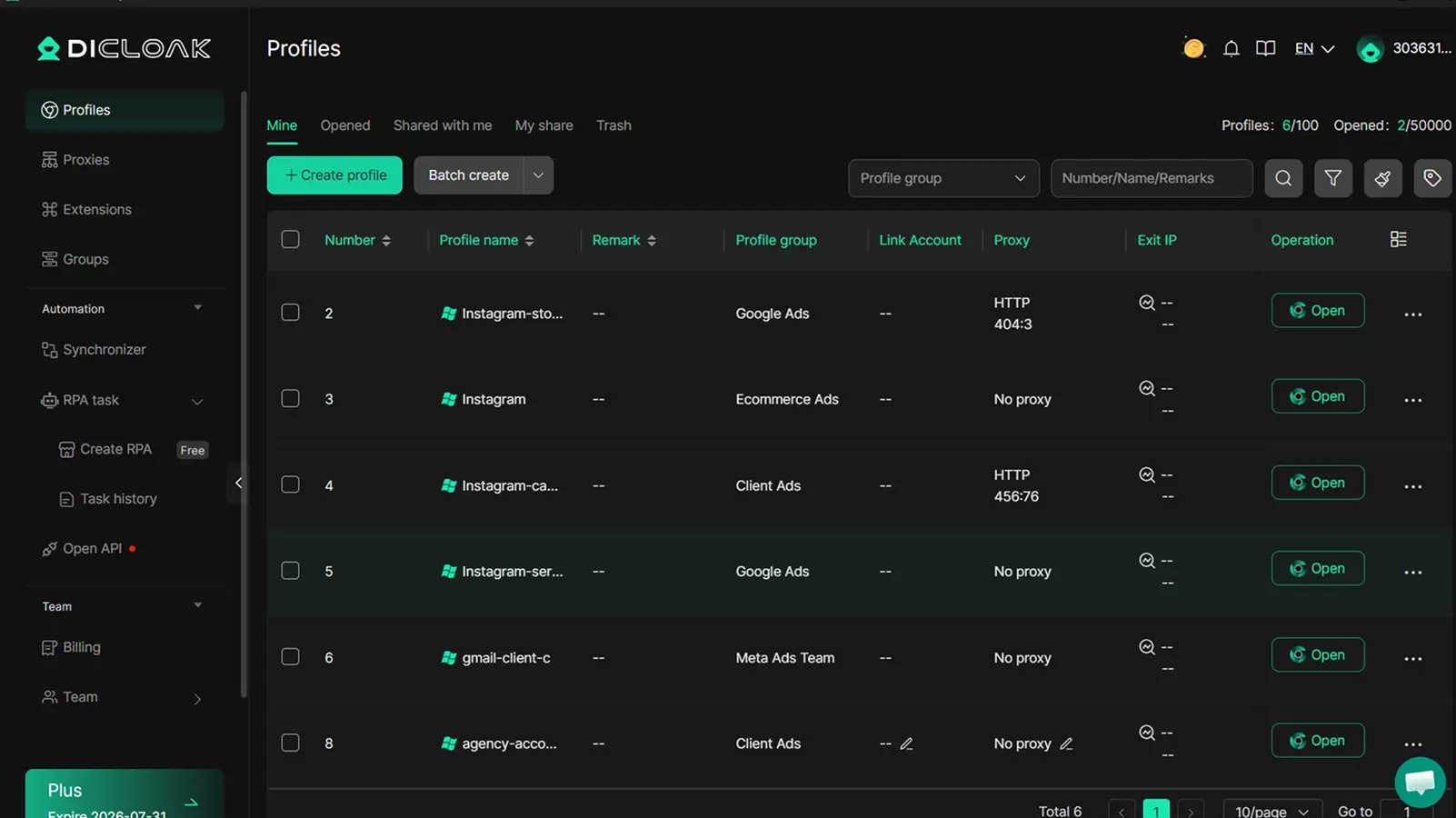
With DICloak, you can create one browser profile for each Instagram account. Every profile stores its own cookies, browser storage, login session, and account state.
This means you can stay signed in to several Instagram accounts without repeatedly switching accounts inside one shared browser. You can also name and group profiles by client, brand, campaign, country, or assigned team member.
When you open a profile, you return to the correct Instagram account with its saved session and working pages. This makes it easier to keep carousel images, captions, tags, and campaign notes connected to the right account.
For example, an agency managing five client accounts can create five separate profiles. Each client gets its own login session, campaign workspace, and assigned team member. The team opens the correct profile whenever it prepares, reviews, or publishes that client’s carousel.
Repeat Common Actions With the Synchronizer
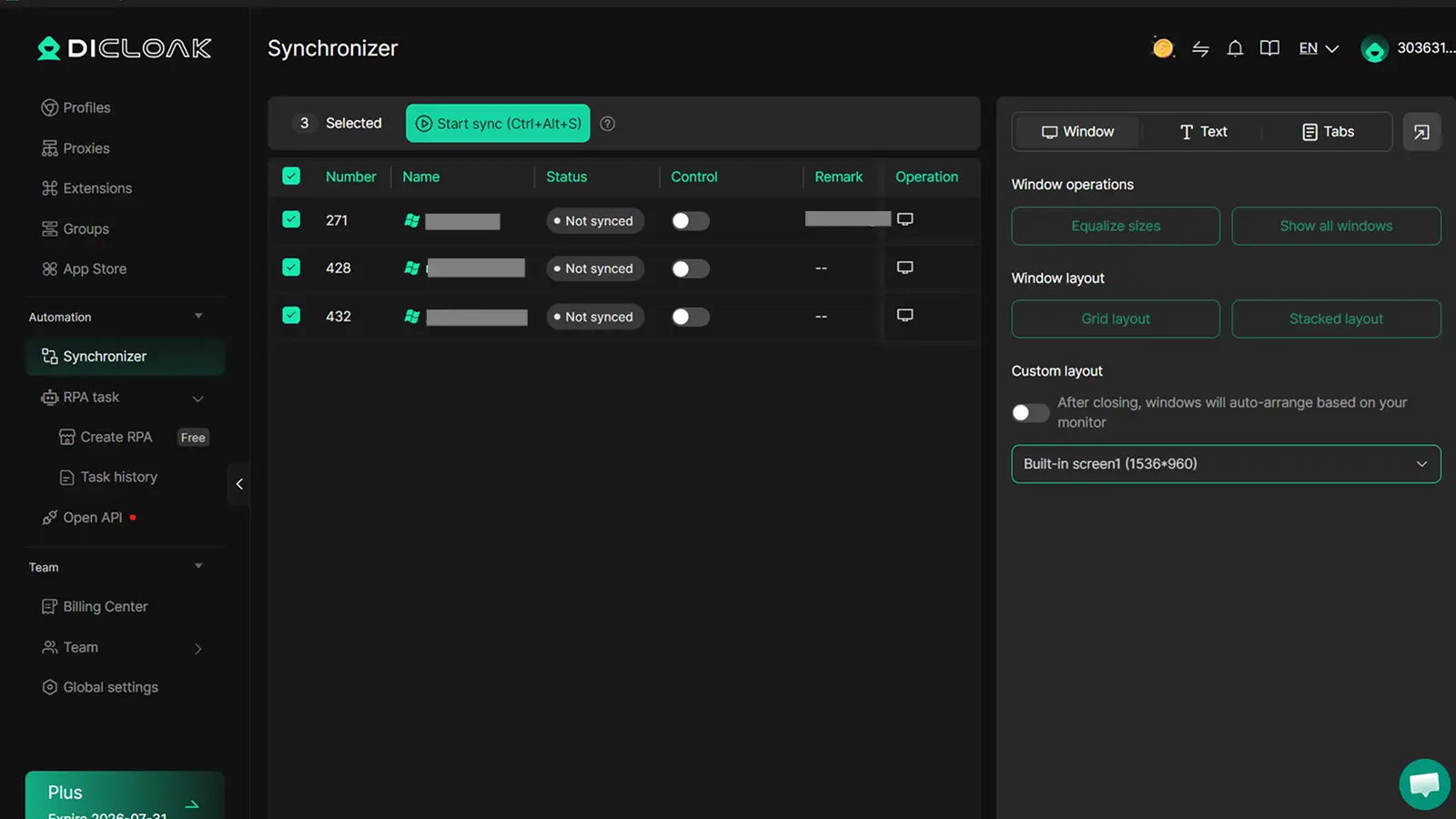
Using the Synchronizer, you can open several Instagram profiles in separate windows and connect selected windows to one main window. Supported actions such as clicks, scrolling, page navigation, tab actions, and text input can then be repeated across those connected windows.
This helps when several accounts follow a similar campaign preparation process. Instead of opening the same pages and repeating the same browser steps one account at a time, you can move through shared parts of the workflow together.
For example, a social media team preparing one campaign for several regional Instagram accounts can use the Synchronizer for shared navigation and setup steps. The team can then enter different captions, tags, campaign details, or local text for each market.
Before completing the post, you can review every open workspace and confirm the account, media, caption, tags, and regional details.
Automate Repeatable Processes With RPA
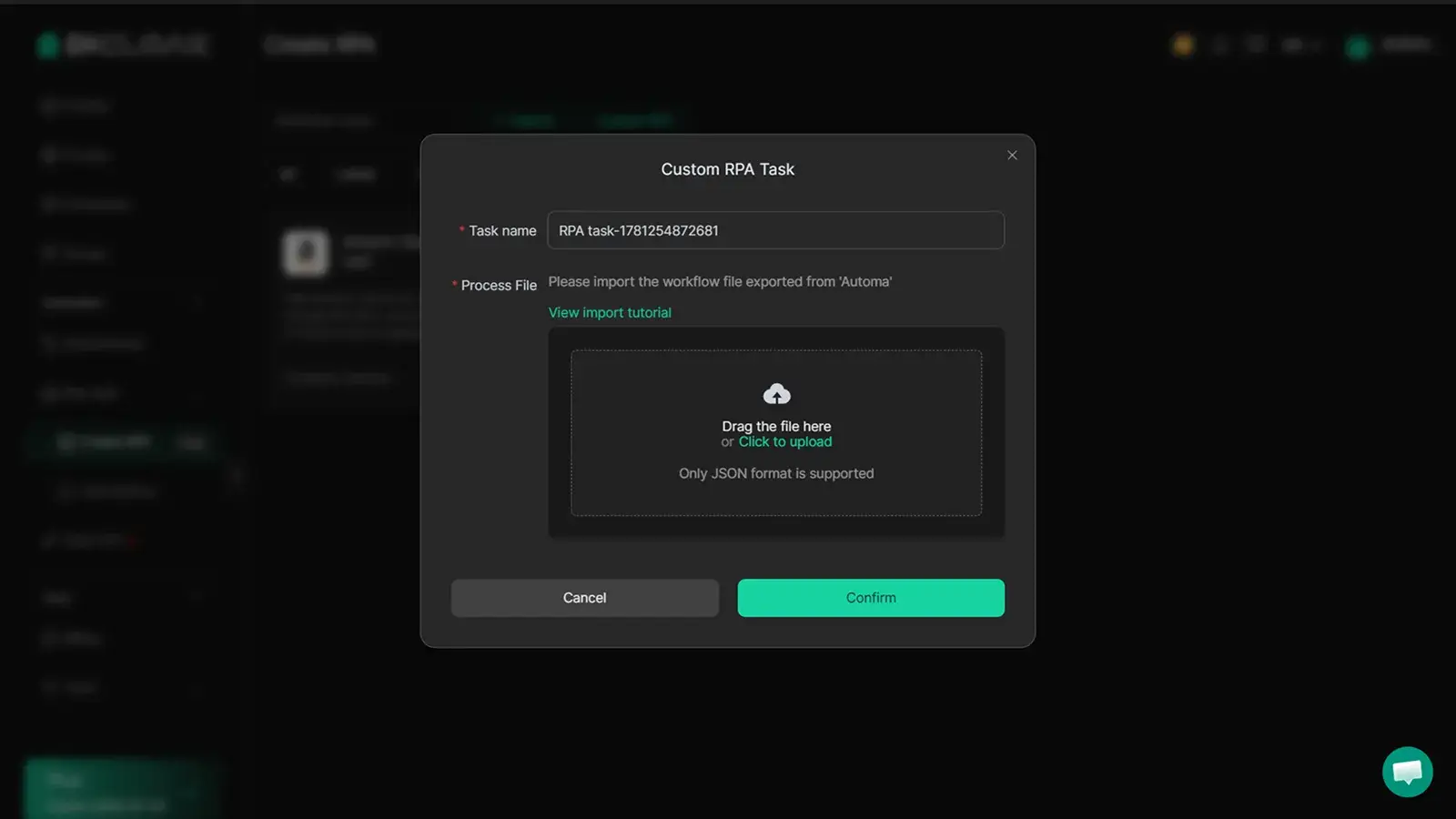
With RPA, you can define a sequence of browser actions and run it when the same process needs to be repeated across many profiles. A workflow may open assigned pages, move through routine navigation steps, prepare account workspaces, or complete other repeated browser actions.
This can reduce manual work in processes your team performs often. You can also build custom workflows for different content and account-management needs, then test and adjust them as your Instagram process changes.
FAQs about how many pics can you post on ig
Can You Post More Than 20 Photos on Instagram?
No. A normal single carousel cannot contain more than Instagram’s current maximum. To share more content, divide it into another carousel, publish a separate post, or add the remaining photos to several Story frames.
Why Can I Still Only Post 10 Photos on Instagram?
Your app or carousel interface may not be showing the current option correctly. An outdated app, a temporary session issue, or a problem media file may be involved. Update Instagram and test a fresh post with different files.
How Many Photos Can You Add to an Instagram Story?
You can publish several photos as separate Story frames or combine multiple photos in one frame with Layout or photo stickers. Instagram does not clearly publish one universal daily photo limit for Stories, and Story frames are separate from carousel slides.
How Many Photos Can You Send in an Instagram DM?
You can select and send multiple photos or videos from your device library in a chat. The available number and selection interface may vary by app version or device. DM attachments use separate chat controls and do not follow feed carousel limits.
Is There a Daily Limit on Instagram Photo Posts?
Instagram does not publish one fixed universal daily limit for normal photo posts. Very frequent or repeated actions may still lead to temporary controls, but exact thresholds are not public. Focus on a normal, consistent posting schedule instead of testing unknown limits.
Choosing the right number of carousel photos is only one part of managing Instagram content. When you handle several accounts, keeping each client, brand, or regional workflow organized matters just as much.
You can use DICloak to run each account in a separate browser profile, keep cookies and login sessions separate, repeat common browser actions with the Synchronizer, and use RPA for repeatable carousel preparation and review workflows.Try DICloak for Free.
 Web Proxy Tools
 Free Tools
 Cookie Plugin
 UA Generator
 MAC Address Generator
 IP Generator
 IP Address List
 2FA Code Generator
 World Clock
 Anonymous Check
 WebRTC Leak Test
 UUID Generator
 Free Web Proxy Site
 Proxy Checker
 FB Ad Checker
 AI Web Scraping
 Free SMM Tools
 Twitter Shadowban Checker
 Instagram Name Checker
 UTM Generator
 Username Generator
 AI Hashtag Generator
 LinkedIn Headline Generator
 Social Media Image Resizer