Many websites are blocked at school, at work, or on public Wi-Fi. This can be frustrating, especially when you need access for study, research, or daily use. If you are wondering how can I bypass blocked sites, the good news is that there are several simple methods you can try in 2026. Some work for basic network blocks, while others are better for more advanced restrictions.
Access Blocked Sites with Proxy Servers
If you are asking, “how can i bypass blocked sites,” a proxy server is often one of the first tools people try. A proxy works as a middle step between your device and the website. The site sees the proxy’s IP address instead of your own. This can help with simple school, office, or region-based blocks, but it does not fix every kind of restriction. HTTP and HTTPS proxies are common for normal web browsing, while SOCKS5 is more flexible and can work with more kinds of traffic.
Types of proxy servers and their uses
The most common types for regular users are HTTP, HTTPS, and SOCKS5 proxies. HTTP proxies are mainly for basic web traffic. HTTPS proxies are better for secure websites because they support encrypted connections. SOCKS5 proxies are more flexible. They can work with many apps, not just web pages, which is why people often use them for apps, messaging tools, and some streaming or network tasks. In a simple case, a traveler might use an HTTPS or SOCKS5 proxy to open a news site that is blocked in the hotel network but still available in another region.
How to configure a proxy server for browsing
Setting up a proxy is usually simple. In Firefox, you can open Settings, go to Network Settings, and choose manual proxy configuration or an automatic proxy configuration URL. Then you enter the proxy address and port from your provider. In Chrome, the browser usually opens your computer’s proxy settings, so the change is often made at the system level instead of inside Chrome itself. A real example is someone on a restricted office Wi-Fi network adding a proxy address in Firefox to test whether a blocked reference site will load through a different IP path.
Limitations of proxy servers for unblocking sites
Proxies help in some cases, but they have clear limits. They may fail when a network uses deeper filtering, DNS controls, account-level blocking, or advanced traffic inspection. They also do not always protect privacy as much as users expect. Some proxies only handle certain traffic types, and not every setup works across every app or website. Cloudflare’s own documentation also shows that proxying has technical limits, since only certain record types and web traffic setups can be proxied in some environments. So, a proxy may open one blocked site but fail on another. That is why users should treat proxies as one method, not a guaranteed fix.
Try Browser Extensions for Unblocking
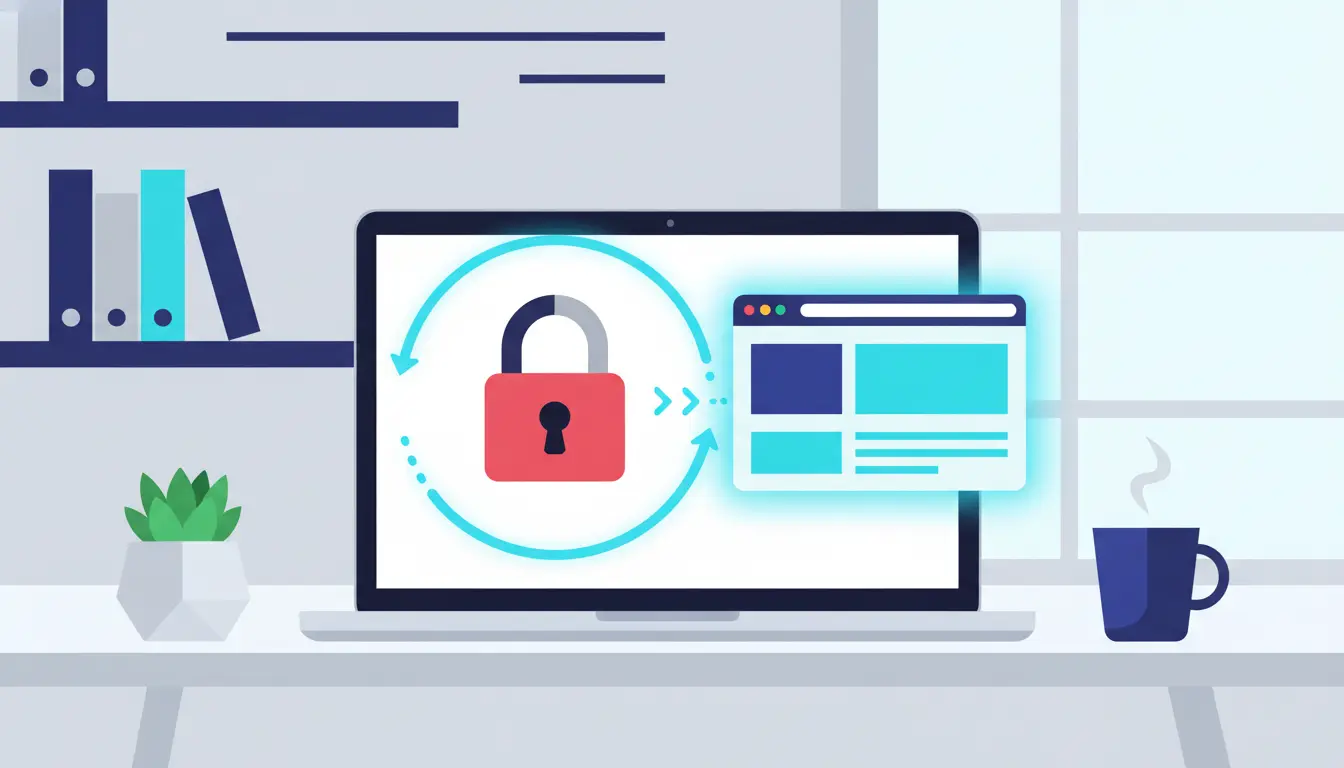
Proxy servers can help, but they are not always easy for beginners to set up. That is why many users turn to browser extensions next. If you are still asking how can i bypass blocked sites, an extension may feel like the faster option. Most of these tools work by sending your browser traffic through a proxy or VPN network. This can help with simple blocks on school, work, or public Wi-Fi networks. Still, the result depends on the site, the browser, and the quality of the extension.
Popular browser extensions for bypassing restrictions
Many users look for VPN or proxy extensions in the Chrome Web Store or Firefox Add-ons site. These tools are popular because they are simple. You add the extension, pick a server or location, and try opening the blocked page again. For example, a student trying to read a news site on a restricted Wi-Fi network may test a proxy or VPN extension first because it takes less time than changing system settings. Still, the extension itself matters. Some are built for speed, while others focus more on privacy or basic browsing access. Official browser stores show many of these tools are still actively listed in 2026.
How to install and use unblocking extensions
The setup is usually simple. Open your browser’s extension store, search for a proxy or VPN extension, and click Add to Chrome or Add to Firefox. After installation, the extension icon appears near the top of the browser. You then open it, sign in if needed, choose a server, and turn it on. In Firefox, you can also review an extension’s permissions from the Extensions area after it is installed. This is useful because some tools ask for more access than most users expect. A good habit is to test the blocked site after the extension is on, then turn the extension off when you no longer need it.
Security concerns with browser extensions
This is the part many users skip, but it matters most. Mozilla warns that bad extensions can put your privacy and security at risk. Firefox also explains that some permission requests may allow an extension to access data across websites. Chrome’s developer documentation also shows that permissions are a major part of extension safety and should be understood before use. In simple terms, an unblocking extension might help you open a blocked site, but it may also collect browsing data if you install the wrong one. That is why users should check reviews, requested permissions, publisher details, and store reputation before trusting any extension with their traffic.
Access Sites via Their IP Address
If proxy servers and browser extensions do not work, some users try opening a site by its IP address. This may help when the block is tied to the domain name, not the server itself. If you are still asking how can i bypass blocked sites, this is a quick method to test. But it does not work well for many modern sites, because most now rely on domain-based settings, secure certificates, and HTTPS routing.
How to find a website's IP address
The easiest way is to use nslookup in Command Prompt or Terminal. You type nslookup example.com, and the system returns the IP address linked to that domain. This is still a standard DNS troubleshooting method in Microsoft’s documentation. For a basic example, if a school network blocks a news domain by name, a user may look up the domain’s IP first to see whether the server is still reachable directly. That does not mean the site will load, but it gives you something to test.
Entering the IP address directly in your browser
Once you have the IP address, you can paste it into the browser’s address bar just like a normal web address. In rare cases, the page may open. This tends to work better with simple sites or direct server pages that are not heavily tied to a hostname. A small company dashboard, test page, or older site may still respond when opened by IP alone. For someone trying to reach a blocked internal page or a basic public web page, this is a fast test that takes only a few seconds. Microsoft’s DNS troubleshooting examples show direct use of name-to-IP lookups as a normal way to test access paths.
When this method works and when it doesn’t
This method only works in limited cases. It may help when the block is based on DNS or domain filtering, but it often fails on modern websites. Many sites host several domains on one IP address, so the server needs the domain name to know which site to show. Cloudflare explains that SNI is used in the TLS handshake so the client can state the domain name it wants. Without that, the connection may fail or show the wrong site. SSL and certificate checks can also break when the IP address does not match the site’s certificate. In simple terms, entering an IP address may open a very basic site, but it usually will not work for large modern services, shopping sites, or platforms that rely on HTTPS, shared hosting, or CDN protection.
Utilize Google Translate or Web Archives
Google Translate can sometimes open a web page through its translation feature, and web archives can show saved copies of older pages. So if you still ask how can i bypass blocked sites, these are easy methods to test. They are simple, but they only work in limited cases.
How Google Translate can act as a proxy
Google Translate can load and translate web pages, which is why some users use it to view a blocked page through the translation interface instead of opening the site directly. A simple example is when a user cannot open a foreign-language article on a restricted network but can still access the translated version through Google’s page translation flow. Chrome and Google support documents still show web page translation as a live feature in 2026.
Accessing blocked content through web archives
If the live site will not open, a web archive may still have an older copy. The Internet Archive’s Wayback Machine lets users search saved versions of websites by URL and date. This is useful when a page is removed, changed, or blocked on the live web. For example, a user may fail to open a news article directly but still read an earlier saved copy in the archive. Internet Archive says its collection includes hundreds of billions of archived web pages.
Limitations of these alternative methods
These methods are helpful, but they are not full fixes. Google Translate may not load every page, and it is meant for translation, not secure unblocking. Web archives also do not show everything. Some pages were never saved, and some saved versions are old or incomplete. So this method is best for reading basic content, not for logging in, using live tools, or opening dynamic pages.
Modify DNS Settings to Bypass Restrictions
If the last few methods do not work, changing your DNS settings is another simple option to test. DNS is the system that turns a site name into an IP address. Sometimes a site is blocked at the DNS level, so switching to a public DNS service may help you reach it. This will not bypass every block, but it can work against some local network filters. Google Public DNS, Cloudflare 1.1.1.1, and Quad9 all provide public DNS options, and Google and Cloudflare both support encrypted DNS as well.
What are DNS settings and why modify them?
DNS settings tell your device which DNS server to ask when it looks up a website. If your school, office, or ISP uses DNS-based filtering, changing these settings may help with simple restrictions. For example, a page may fail because the network blocks the domain lookup, not because the whole server is unreachable. In that case, switching to another DNS resolver can sometimes fix the problem. Still, this method only helps with some types of blocks.
Steps to change DNS settings on your device
The steps are usually short. On Windows, you open your network adapter settings, choose IPv4, and enter a new preferred and alternate DNS server. On Android, you can use the Private DNS option and enter a provider hostname like one.one.one.one. On iPhone or iPad, you can open Wi-Fi settings, choose your network, and change DNS from Automatic to Manual. A simple real-world case is a user on public Wi-Fi changing DNS to test whether a blocked news or forum site will load again.
Recommended DNS services for bypassing blocks
Three common choices are Cloudflare 1.1.1.1, Google Public DNS, and Quad9. Cloudflare uses 1.1.1.1 and 1.0.0.1. Google Public DNS uses 8.8.8.8 and 8.8.4.4. Quad9 uses 9.9.9.9 and 149.112.112.112. These services are easy to set up, widely used, and free for normal users. Quad9 and Cloudflare also offer security-focused options, while Google and Cloudflare support encrypted DNS connections.
DICloak: Advanced Techniques for Bypassing Blocks
For simple cases, tools like proxies, extensions, or DNS changes may be enough. But on work computers, blocks are often more advanced. They may involve browser fingerprints, session tracking, and repeated activity patterns. That is where DICloak becomes more useful, because it gives users more control over browser identity, profile isolation, and proxy setup.
Why Use DICloak Antidetect Browser to Unblocked Websites on Work Computer
To understand why DICloak is effective for users searching how to bypass blocked sites at work, it helps to look at how modern blocks work.
Most corporate systems no longer rely only on IP rules. They also analyze browser fingerprints, session patterns, and repeated behavior. DICloak addresses these issues directly.
- Complete Browser Profile Isolation: Each DICloak profile runs in its own isolated profile. Cookies, cache, and sessions never mix. This prevents cross-session tracking, a common reason for access blocks.
- Realistic and Consistent Digital Fingerprints: DICloak assigns each profile a full, consistent device fingerprint. This helps the browser appear as a normal, real user instead of a repeated or automated session.
- Proxy Configuration and IP Control: Each browser profile allows separate proxy configuration. This makes it possible for different profiles to access websites through different network paths without overlap.
- Built for Long-Term, Stable Access: Unlike quick tricks, DICloak is designed for repeated, daily use. This makes it suitable for marketers, remote teams, and professionals working with restricted platforms.
How to Set Up DICloak in 3 Steps
Setting up DICloak is simple and does not require deep technical skills.
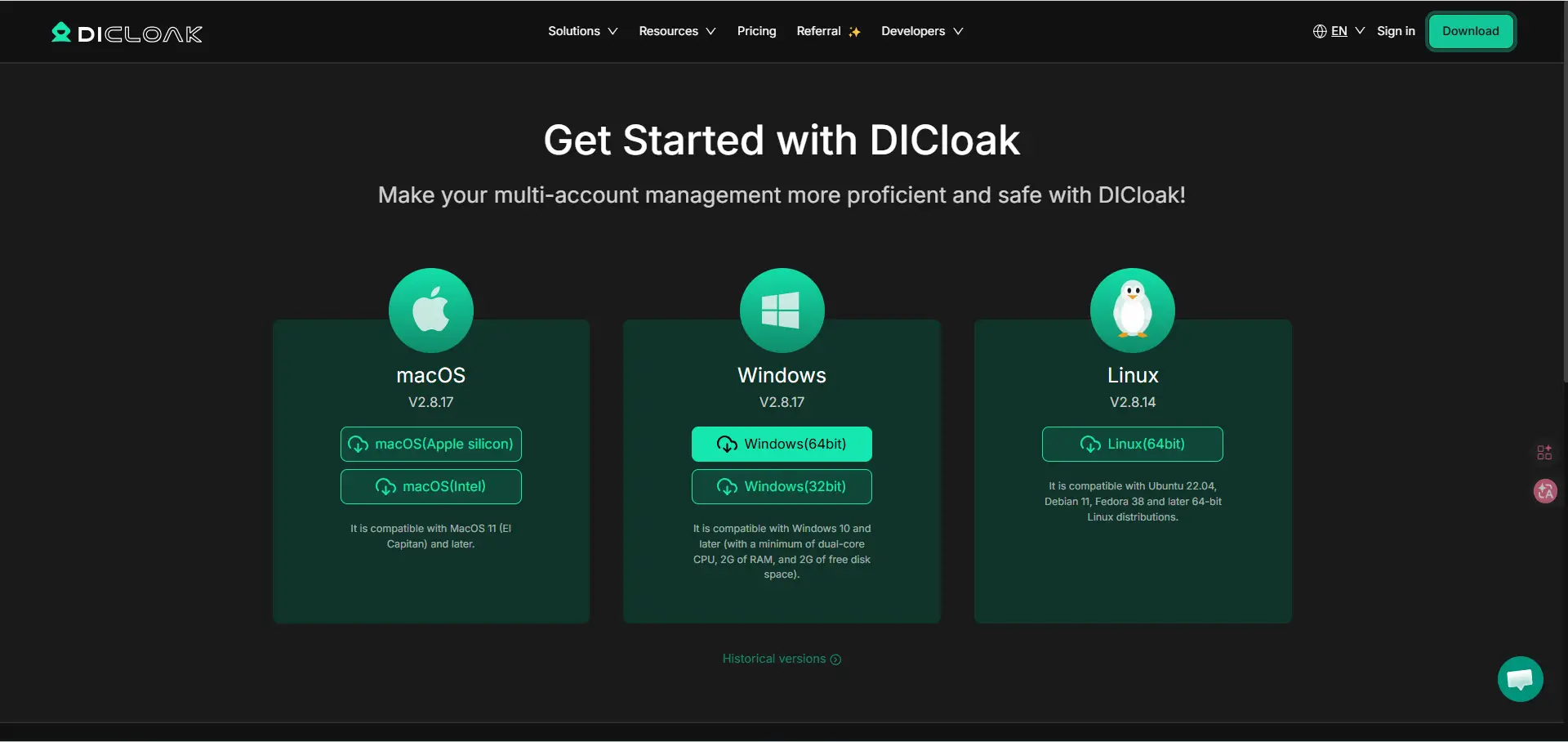
Step 1: Download and Install DICloak
Download the application and complete the installation on your computer.
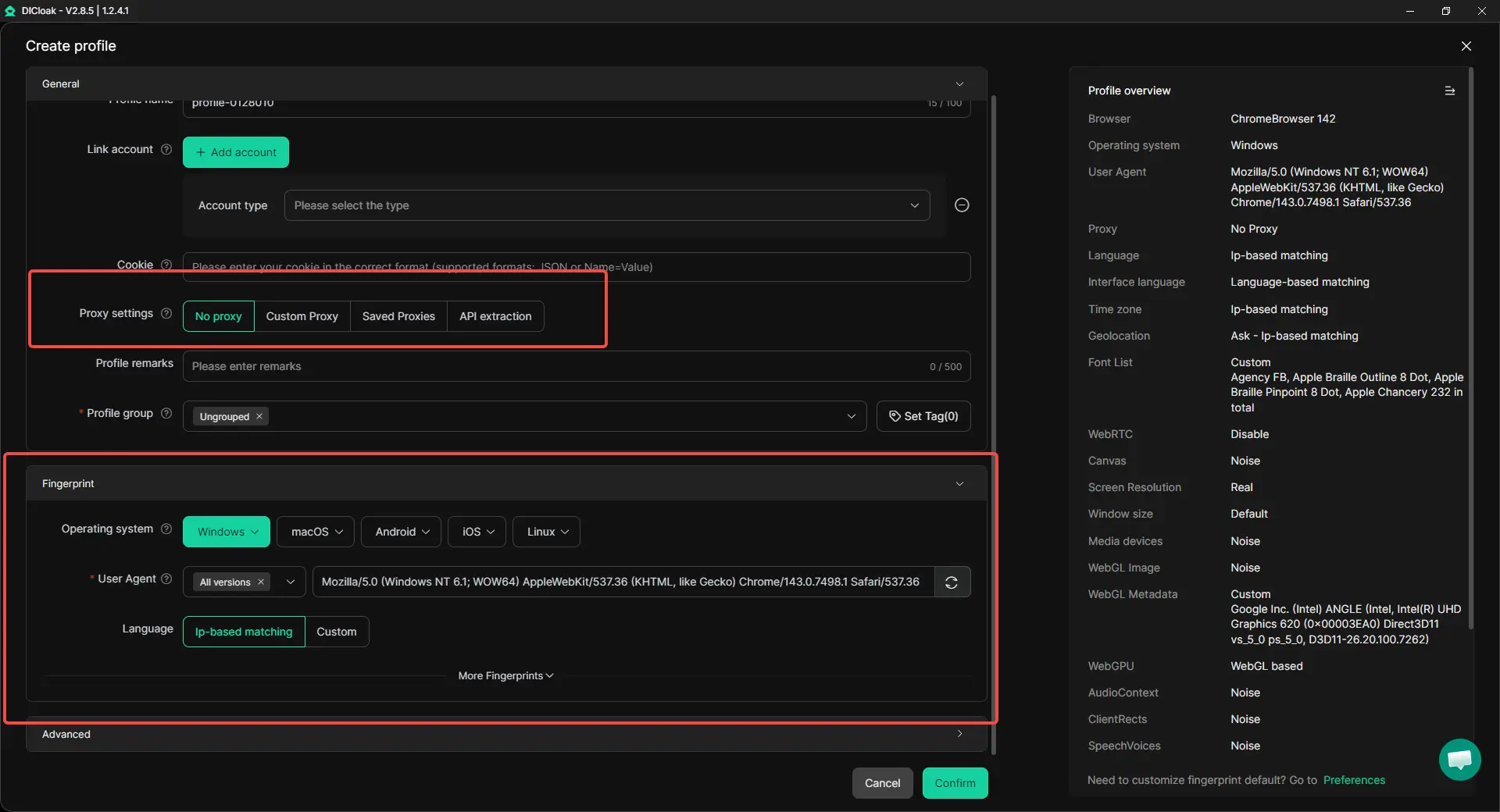
Step 2: Create a New Browser Profile
Open DICloak and create a new profile. The system generates a unique fingerprint automatically. You can assign a proxy if needed.
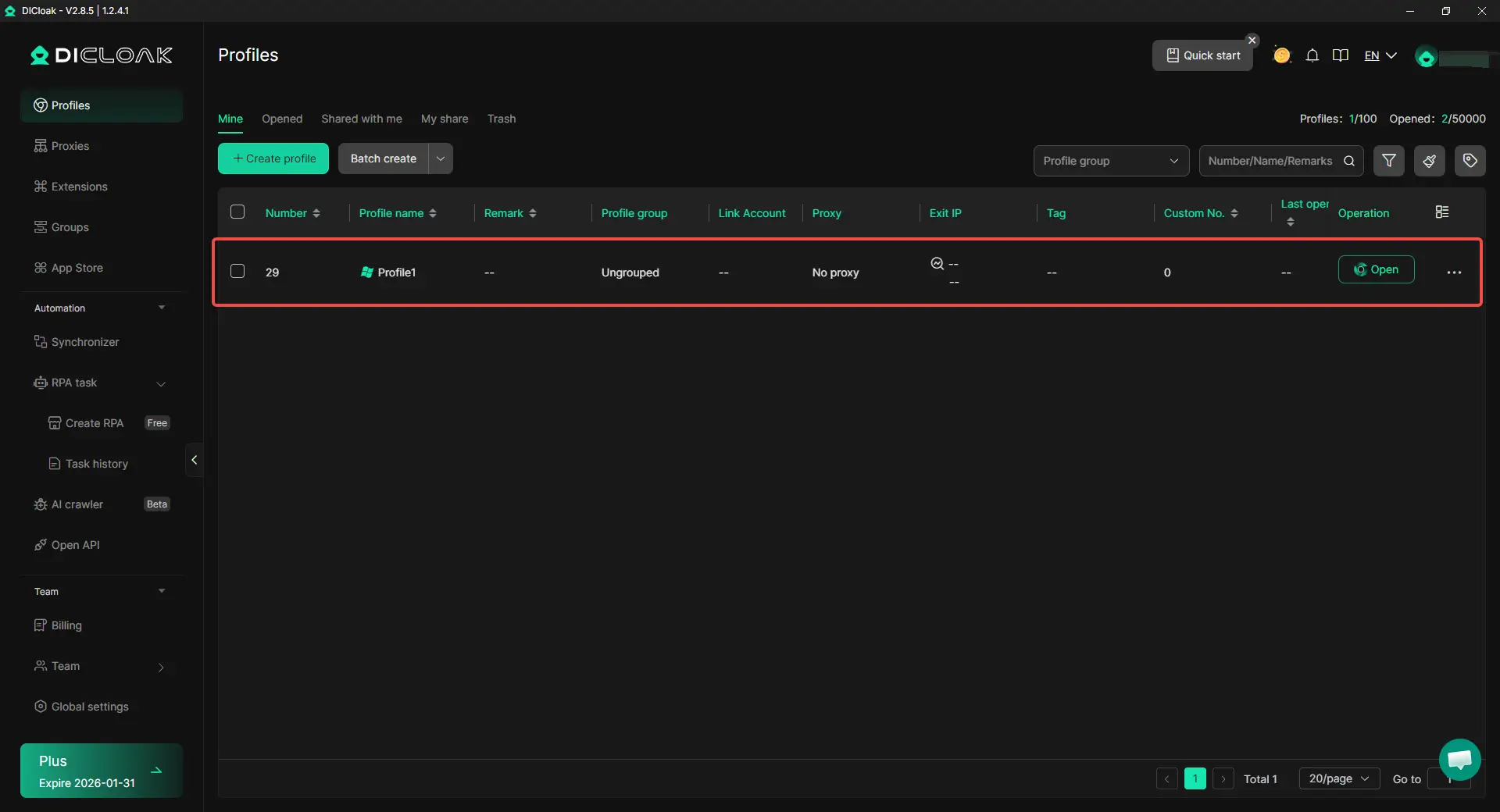
Step 3: Open the Profile and Access the Website
Launch the profile. A new isolated browser window opens. You can now access the blocked site within this clean environment.
FAQs About How Can I Bypass Blocked Sites
Is it legal to bypass blocked sites?
It depends on where you are, what site you are trying to access, and why the site is blocked. Some blocks come from schools, offices, or local network rules. Others come from local laws or government rules. So the safest approach is to check your local law and the network policy before you try to bypass anything. EFF notes that countries block online content for many different reasons, which is one reason the legal risk is not the same everywhere.
Can I bypass blocked sites on my smartphone?
Yes, in many cases you can. On Android, users can change Private DNS settings in the network menu. On phones, users may also try a browser extension, a VPN app, or a different DNS service, depending on the type of block. This works best for simple DNS or network-level restrictions, not every kind of content block. Google’s support pages still show Private DNS settings as a built-in option on Android.
How do I unblock sites at school or work?
Start with the safest and simplest options. Try a different DNS service, a browser extension from an official store, or a trusted VPN if your network rules allow it. But remember that school and work networks often have their own policies, and some also use stronger filtering that basic tools will not bypass. If you install an extension, check its permissions first, because Mozilla warns that some extensions can expose sensitive browsing data.
What’s the safest method to access restricted content?
There is no single method that is always the safest. In general, a trusted VPN or a well-known DNS service is usually safer than random free proxy sites or unknown browser extensions. The main rule is simple: avoid tools that ask for too many permissions, hide who runs them, or have poor reviews. Mozilla explicitly warns that bad extensions can put your privacy and security at risk.
Why are some sites blocked in the first place?
Sites get blocked for many reasons. A school may block games or social media to reduce distraction. A company may block certain sites for security or policy reasons. In other cases, websites are blocked because of local law, licensing limits, censorship, or age-based access rules. EFF explains that content blocking often reflects national laws, public policy, or local cultural rules, which is why blocked sites are not all blocked for the same reason.
Conclusion
There is no single method that works for every blocked site. Some users may get results with a proxy, a browser extension, or a DNS change. Others may need more advanced tools for harder cases. The key is to choose a method that fits your situation, understand its limits, and always pay attention to safety, privacy, and local rules.
 Web Proxy Tools
 Free Tools
 Cookie Plugin
 UA Generator
 MAC Address Generator
 IP Generator
 IP Address List
 2FA Code Generator
 World Clock
 Anonymous Check
 WebRTC Leak Test
 UUID Generator
 Free Web Proxy Site
 Proxy Checker
 FB Ad Checker
 AI Web Scraping
 Free SMM Tools
 Twitter Shadowban Checker
 Instagram Name Checker
 UTM Generator
 Username Generator
 AI Hashtag Generator
 LinkedIn Headline Generator
 Social Media Image Resizer