Choosing between two AI video tools can stall a project before it even starts. If you’re comparing Higgsfield vs Runway, you’re not just chasing the latest features, you’re trying to avoid workflow headaches, clunky exports, or hitting a paywall right as a client deadline looms. What’s supposed to make content creation faster often ends up slowing you down if the platform doesn’t actually fit how you work.
But the flashy demos and update lists don’t tell you where each tool falls short, or which one quietly shaves hours off a real editing session. With so many “AI-powered” claims, it’s easy to miss the real dealbreakers. Licensing, rendering speed, and even user permissions can wreck a plan if you only spot the limits after you’ve started.
The real difference with a Higgsfield vs Runway comparison comes out in the details: which tool handles batch jobs without crashing, which one locks you into its template library, and where you’ll run into surprise charges. Skipping past the hype, you want to know where these platforms break down for teams, or what’s easiest to set up for a solo creator. If you’ve been burned by hidden quotas or awkward asset management, these are the details that matter.
Start with the real-world tradeoffs that separate Higgsfield and Runway for teams and solo users.
What Should You Check Before Choosing Higgsfield or Runway?
If you want to avoid wasted hours and surprise fees, lock in these checks before committing to either platform. The biggest mistakes usually come from missing a hard limit, like being locked out mid-project, or finding out you can’t export assets the way your team needs. The most practical step is to test your workflow with a free account and push every feature you actually use, not just the demo.
Platform Compatibility and Access
Check which devices and browsers each tool supports, some creators run into issues if they need mobile editing but the platform is desktop-only. Both Higgsfield and Runway require account registration, but Runway often needs extra authentication for team features. If you use Chrome or Safari, test with your main browser before building a workflow.
Workflow Integration and Team Use
- Confirm if you can invite collaborators or if you’re limited to solo projects.
- Test the API or export options, batch exporting is a common bottleneck.
- Check if templates or assets are locked to paid plans, not just basic accounts.
Security, Privacy, and Account Sharing Risks
Teams sometimes share accounts to save money, but this can trigger restrictions or bans. Both platforms monitor for multiple logins, and flagged sessions can mean locked projects or deleted assets.
- Review the official policy on shared access, Runway flags simultaneous logins from different countries.
- Test session control: log in from two devices and see if you get kicked or flagged.
- Check if asset recovery is possible after an account lock; losing a team project mid-edit is common if permissions aren’t set up right.
Missing any of these steps can mean scrambling for support after a failed export or a locked account, most creators find out the hard way when a deadline hits. Before diving into features, start with these checks; the next section will show real differences in output quality that only appear after you’ve pushed the tools under real pressure.
Why Output Quality Differs: Higgsfield vs Runway in Real Use
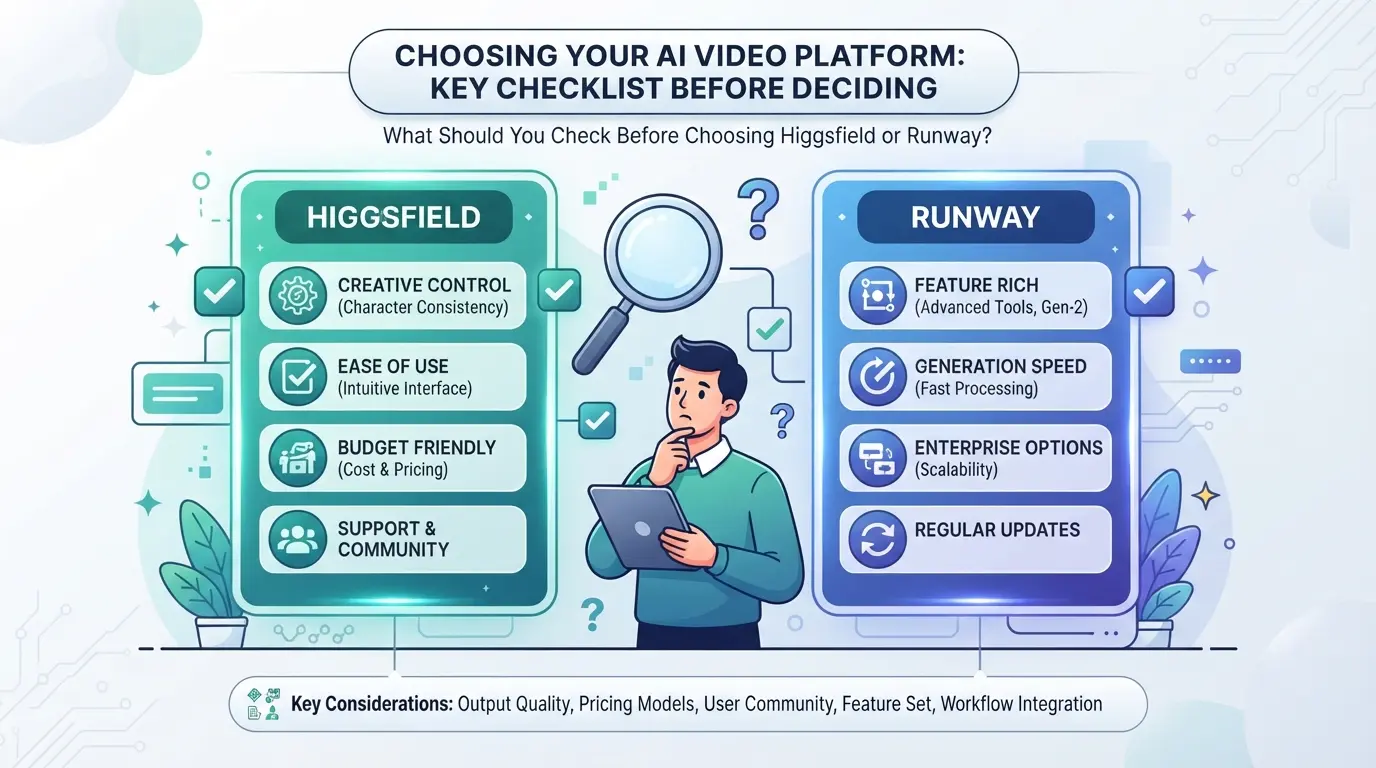
Most creators notice the gap between Higgsfield and Runway only after running real projects side by side. The main reason for different results: each tool uses a different AI model and workflow for motion, face generation, and scene control. These details decide if your finished video feels smooth, fake, or just plain stuck. If you’ve tried both, you’ve probably hit unique problems, like stuttered movement or faces that lose detail frame by frame. The table below sorts out the core differences that show up in actual output, not just in demo reels.
Motion and Scene Realism
| Feature |
Higgsfield |
Runway |
| Motion Smoothness |
Often fluid in simple scenes; can create jump cuts or “warping” in busy shots |
Generally smoother transitions; some ghosting on fast objects |
| Scene Consistency |
Good with static backgrounds, struggles with dynamic environments |
Stronger at tracking background changes, but can blur fine details |
| Error Artifacts |
“Melting” limbs and visible frame misalignments in fast action |
Repeated faces or hands; rare “drift” in camera movements |
If you push either platform with crowded, fast-moving scenes, Higgsfield is more likely to break realism with warped objects, while Runway tends to hide errors by blending or blurring, which can flatten detail.
Face, Gesture, and Multi-Character Handling
Runway handles group scenes better than Higgsfield, especially where several faces or hands cross paths. Higgsfield sometimes doubles faces or loses hand shapes when more than two people interact, frustrating if you rely on social-style or interview content.
Cinematic Effects and Camera Control
Runway gives creators more direct control over camera moves, slow-motion, and zooms. Higgsfield’s presets limit custom angles and transitions, so edits feel less cinematic unless you stick to their templates. For creators who need complex shots, this usually tips the balance toward Runway.
If you only check sample reels, you’ll miss where these differences break real workflows, like batch jobs for interviews or branded content with group scenes. These small flaws add up and can mean extra hours of manual fixes, especially when scaling up production.
Next, you’ll want clear numbers: how do pricing and plan limits affect these real-world tradeoffs? That’s where hidden costs show up, and where many teams realize which platform fits their budget.
How Pricing and Plans Actually Work for Higgsfield and Runway
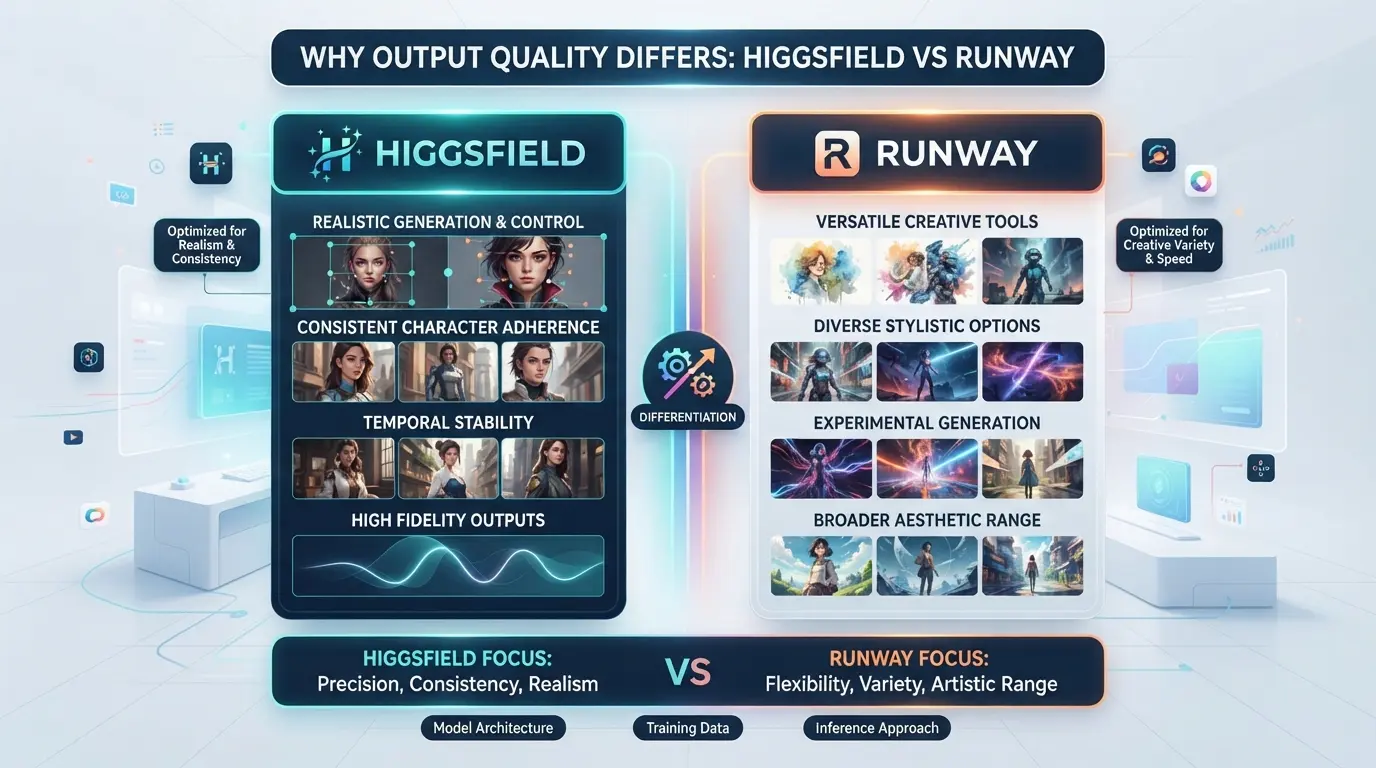
If you only check headline prices, it’s easy to miss the real cost drivers , most creators run into limits or fees once they start exporting or scaling up. The main budget decision boils down to which plan gets you the features you need, and how fast you’ll hit quota walls.
Subscription Tiers and Feature Unlocks
The pricing for each platform centers on unlocks: free plans look attractive, but paid tiers gate essential features.
| Platform |
Free Plan |
Paid Plan (Entry) |
Key Feature Unlocks |
| Higgsfield |
Limited exports |
$20/month (Starter) |
Batch video, higher resolutions |
| Runway |
Limited exports |
$15/month (Standard) |
Advanced editing, unlimited jobs |
Most users skip the free plan after a week , batch output and high-res exports are locked until you upgrade.
Usage Limits and Overages
Both platforms cap video generation and exports. Higgsfield starts throttling after 10 exports per month; Runway limits you to 720p video until you pay. Extra usage triggers pay-per-export charges that stack up fast for teams.
Team, API, and Collaboration Costs
If you need team access or API integration, budget jumps sharply. Higgsfield charges for every extra seat beyond two; Runway bills API calls separately and restricts multi-user features to its Pro tier. Hidden fees show up when you try to scale workflows or automate exports.
Most creators trip up on usage caps, but teams hit the hardest when they add seats or API calls. The next section covers the workflow risks that catch both solo users and teams off guard.
When Creators Run Into Workflow Risks: Common Mistakes and Red Flags
Account limits usually hit when you use too many devices, automate uploads, or run batch jobs that spike usage. Most platforms flag accounts for rapid asset creation, login from changing IPs, or sudden permission changes. If an account gets restricted, you’ll lose access for at least 24 hours , sometimes longer if flagged during a platform update. Always set up a single device environment before scaling to a team, or you risk getting locked out mid-project.
Account Restrictions and Ban Triggers
Higgsfield and Runway both monitor login location and asset activity. Sharing passwords or switching browsers can trigger bans, especially if multiple users log in from different regions. Avoid using scripts or bulk uploads unless you’ve confirmed platform limits in writing. If you get a warning, stop all activity for 12 hours , don’t try to “test” if the block is real.
Sharing Accounts Across Devices or Members
- Confirm all team devices use the same browser version.
- Keep a log of login times and IPs for each session.
- Assign one person to handle password changes after every new collaborator joins or leaves.
Data Privacy and Credential Exposure
Sharing credentials exposes project files and billing data. Even copying browser cookies can leak asset access.
- Set up temporary passwords for each share.
- Use encrypted chat for sending credentials.
- Delete old session tokens after every workflow change.
How Teams Can Share Platform Accounts More Safely with DICloak
After seeing how easy it is for a team’s workflow to break down, whether from session mismatches, accidental credential leaks, or messy handoffs, most creative teams want a way to share platform accounts without exposing everything or risking confusion. For those running group projects on platforms like Higgsfield or Runway, browser-profile tools like DICloak fill the gap between platform controls and real-world team access. Here’s how teams that share platform accounts can keep session environments consistent, reduce credential exposure, and tighten access control with DICloak.
Keep Shared Account Sessions Consistent with Unified IP and Fingerprint
When multiple team members need to use the same platform account for AI video work, the top risk is session inconsistency, different device fingerprints, IP addresses, or browsers can cause unexpected logouts or trigger extra verification. The practical move is for an administrator to create one DICloak browser profile per shared account, configure its fingerprint and a user-owned proxy, and share this profile with only the right people. As long as every authorized member opens that exact shared profile (with its set proxy and fingerprint), they interact with the platform through the same browser profile. This sharply reduces the friction and mismatch that often happens when members set up sessions on their own devices. The key detail is that this only works if everyone uses the same shared profile and proxy, separate profiles don’t carry over these settings, and platforms can still flag activity for other reasons. The scope is limited to browser-profile consistency; it doesn’t override platform rules or supply a proxy. 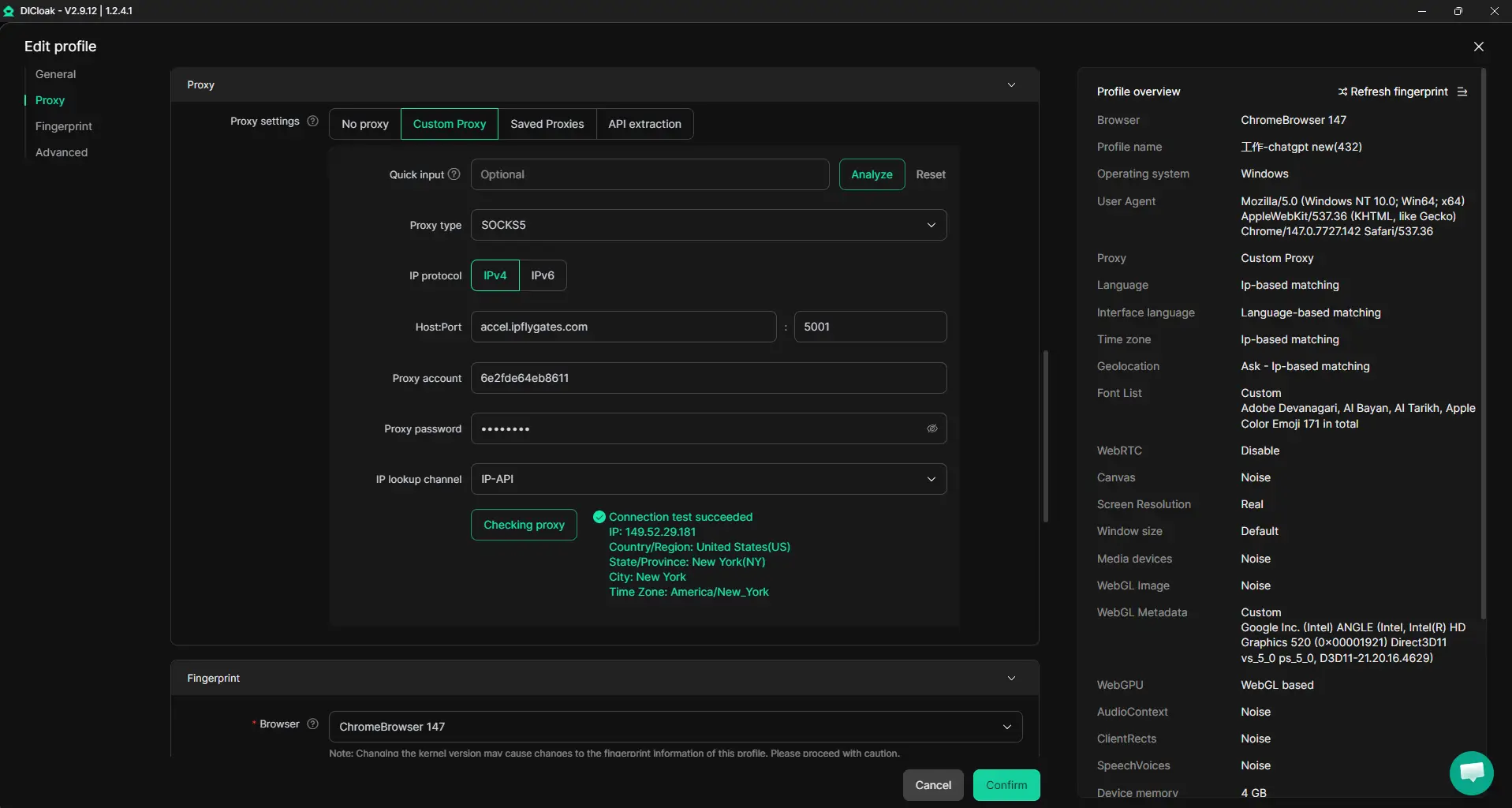
Browser-Profile Access Controls for Shared Account Workflows
Even with shared sessions, teams face leaks and internal risk if passwords, cookies, or sensitive pages are too easily accessed. Admins can set DICloak’s security controls to block password saving prompts, encrypt cookies (with Share+), and hide or lock down critical pages inside the browser profile before sharing it out. For example, the admin can block developer tools so members can’t inspect or lift session data, and restrict access to extension pages that could reveal account information. This setup means members can work on tasks without the risk of copying out passwords or accidentally exposing cookies, but it doesn’t lock down the actual platform account, only the browser-profile layer is affected. The higher the team churn or the more sensitive the account, the more these controls matter in day-to-day use. 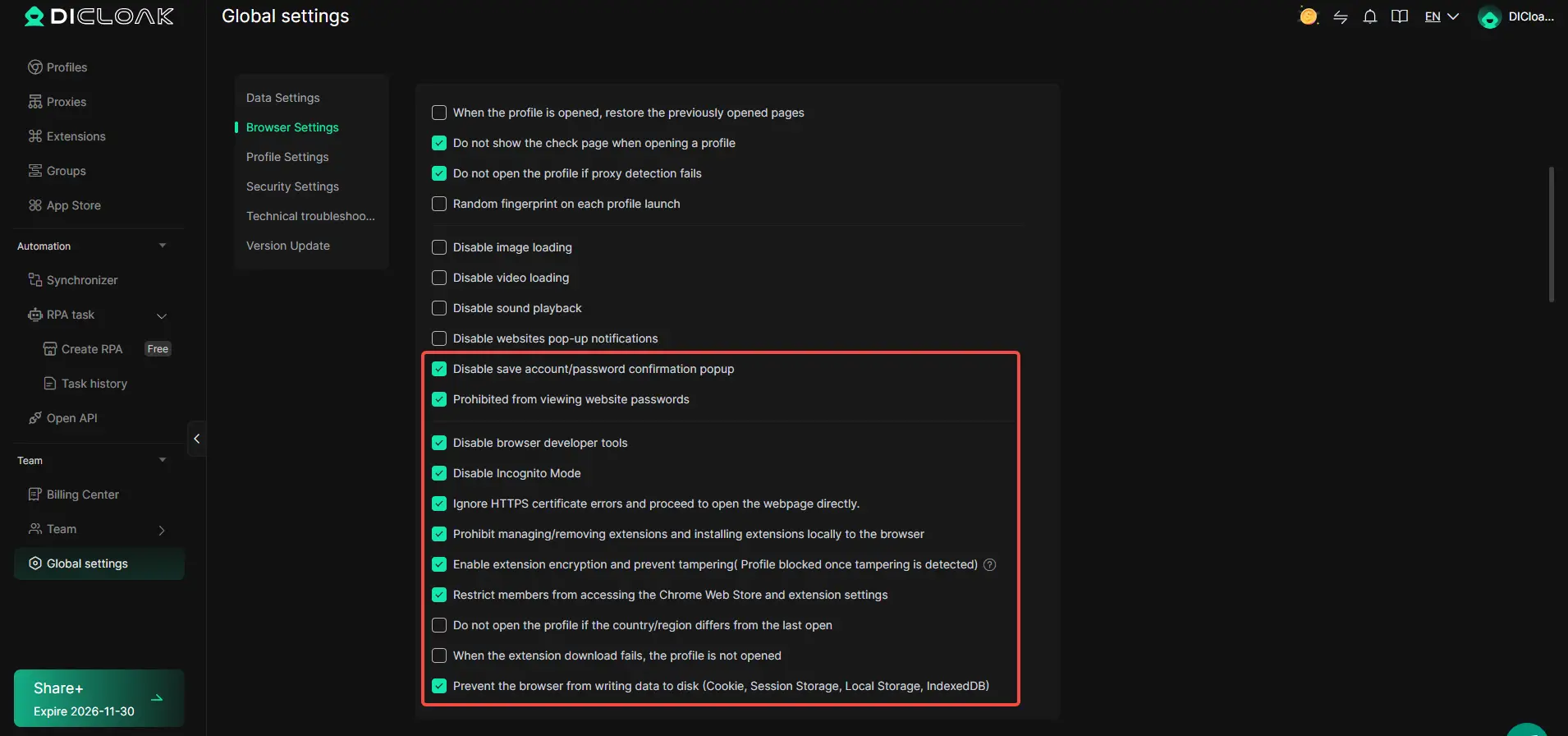
Set Team Permissions for Least-Privilege Access
Problems often start when too many people have wider access than their role demands. In DICloak, admins can set up member groups, assign only the necessary browser profiles to each group, and hide fields or actions that aren’t needed for a given role. This means a part-time editor might see only the profile list and open profiles, while a lead can manage settings. Keeping permissions tight lowers the risk of accidental changes or data viewing. These controls apply only inside DICloak itself, platform-level permissions still need to be managed where the account lives. 
With these steps in place, teams have a practical base for secure account sharing. The next choice is which platform, Higgsfield or Runway, actually fits your workflow once account management is handled.
Which Platform Fits Your Workflow: Higgsfield or Runway?
If you want the right fit, don’t just count features, look at how each platform matches your daily process and team setup. The real split isn’t about which tool is “better”, but about which one actually helps you finish projects faster and with fewer headaches.
Best for Solo Creators and Small Teams
The main difference comes down to speed and learning curve. Here’s how the platforms stack up for individuals or small teams:
| Feature |
Higgsfield |
Runway |
| Onboarding time |
Fast, simple UI, few steps |
Moderate, more options |
| Batch video workflows |
Basic |
Advanced (timeline, layers) |
| Asset library |
Limited |
Large, with templates |
| Cost control |
Predictable, flat pricing |
Quota-based, hidden add-ons |
If you want to get started quickly or hate digging through menus, Higgsfield’s no-nonsense setup saves time. Runway’s asset library helps if you need lots of ready-made content, but you’ll need to watch for extra charges if you go over included quotas.
Best for Agencies and Large Teams
Runway fits agencies that need workflow controls, role-based access, and deeper integrations. Higgsfield works for teams that prefer fewer moving parts and don’t need heavy automation. For large-scale batch processing or client-facing projects, Runway’s collaboration tools give more control.
When to Combine Both Platforms
Some teams use Higgsfield for quick edits or preview drafts, then hand off to Runway for high-volume rendering or complex effects. If your projects shift between solo work and group review, mixing both tools covers more ground without locking you in.
Step-by-Step Checklist: Making the Switch or Running Both Platforms
Switching from Higgsfield to Runway, or running both side by side, comes down to careful account setup, permissions, and a real test of your workflow. Here’s how to avoid the biggest headaches and get real work done faster.
Preparing Accounts and Profiles
- Create your new account on the second platform with a unique email, using the same email across both can trigger sync issues or forced logouts.
- Download and backup all existing project files before migration. Some assets won’t transfer cleanly; missing files are the most common migration failure.
- Manually import key assets (templates, media) one batch at a time. If something doesn't render right, check for format mismatches, GIFs and layered PSDs often break.
Managing Team Access and Permissions
- Set up separate team member invites on each platform. Re-using old invite links can result in lost permissions.
- Assign roles (admin, editor, viewer) directly, most permission errors come from default settings, not user mistakes.
- Confirm all invited members can log in and see the right projects. If someone can’t access shared folders, force a logout and re-invite, platforms sometimes cache old access.
Testing Output and Workflow Integration
- Render the same sample video on both tools. Differences in export speed or color profile often show up here first.
- Run a live collaboration session. If edits lag or don’t sync in real time, check browser compatibility and clear local cache.
- Review final assets for watermarking or resolution drops, missing these flags can waste billable hours on rework.
Migrating in small, testable batches exposes workflow blockers before you risk your main projects.
Frequently Asked Questions About Higgsfield vs Runway
Is it safe to share Higgsfield or Runway accounts across my team?
Sharing accounts with teammates can put your projects at risk. Both platforms track user actions and may flag unusual activity, which could lead to account restrictions. Instead, use built-in team or workspace features when possible. Tools like DICloak can help manage credentials securely and reduce the risk of exposing sensitive login details.
Can I use both Higgsfield and Runway in the same creative project?
Yes, you can use both tools in a hybrid workflow. For example, you might generate AI video clips with Higgsfield and finish editing with Runway’s tools. However, moving files between platforms may require converting formats or adjusting settings, since Runway vs Higgsfield AI video tools often use different file requirements.
What happens if my account gets restricted or banned?
Accounts may be restricted for reasons like policy violations, excessive API calls, or flagged content. If you lose access, contact support with details and supporting evidence. Most platforms allow appeals and may restore your account after review, especially if the restriction was triggered by an error or automation.
How do I migrate my workflow from Higgsfield to Runway?
Start by exporting your projects from Higgsfield in standard formats like MP4 or PNG. Then, import these files into Runway. Check for compatibility issues, such as supported resolutions or codecs. You may need to reconfigure project settings or re-apply certain edits, since Higgsfield and Runway differences can affect workflow migration.
Are there hidden costs or overage fees for video generation?
Both platforms use tiered pricing, often based on video minutes, resolution, or feature use. Going over your plan’s limits can trigger extra charges. Before subscribing, read the pricing details carefully and watch for limits on exports, storage, or advanced features to avoid unexpected fees.
Consider which platform aligns best with your creative workflow and project requirements, then sign up for a trial or demo to experience the features firsthand. Taking the time to test both tools can help you make an informed choice that fits your needs.Try DICloak For Free
 Web Proxy Tools
 Free Tools
 Cookie Plugin
 UA Generator
 MAC Address Generator
 IP Generator
 IP Address List
 2FA Code Generator
 World Clock
 Anonymous Check
 WebRTC Leak Test
 UUID Generator
 Free Web Proxy Site
 Proxy Checker
 FB Ad Checker
 AI Web Scraping
 Free SMM Tools
 Twitter Shadowban Checker
 Instagram Name Checker
 UTM Generator
 Username Generator
 AI Hashtag Generator
 LinkedIn Headline Generator
 Social Media Image Resizer