AI tools are already part of everyday work for many teams. McKinsey's 2025 global survey found that 88% of respondents said their organizations regularly use AI in at least one business function, while Perplexity says it now answers more than 150 million questions each week worldwide. As tools like Perplexity become part of research, content, and marketing workflows, one practical question comes up fast: does every person on the team really need their own paid access?
That question gets harder when a researcher uses Perplexity every day, an editor only needs it twice a week, and a freelancer needs access for one short project. Buying a separate seat for everyone can feel wasteful, but passing one login around also creates issues with verification, privacy, and account control. So, can you share a Perplexity account with your team without sharing passwords? There are several ways to handle it, and the best option depends on what your team actually needs to share. This guide compares Perplexity's own team features, password managers, remote desktop access, and antidetect browsers to show what works best in different situations.
What Is Perplexity AI, and Why Do Teams Want to Share It?
Perplexity AI is an AI-powered research and answer tool that helps users search the web, compare sources, and turn research into clear answers. Teams often use it for market research, competitor checks, content planning, client research, and other tasks where finding reliable information quickly matters. The reason teams want to share Perplexity is usually practical: not everyone needs it at the same level. A researcher may use it every day, while an editor, account manager, or freelancer may only need access for one project.
This creates a common problem for small agencies and marketing teams. Buying separate access for every occasional user can feel wasteful, but passing one personal login around the team creates a different set of problems. For example, a freelancer may only need to continue research that another teammate already started, while a manager may only need to review the result. In many teams, the real need is not to share one Perplexity account with everyone, but to give each person the right level of access for the work they actually need to do.
That difference matters because “sharing Perplexity” can mean several things: sharing finished research, working together on the same research, giving regular users their own access, or letting someone temporarily use an existing account. These situations should not be treated as the same problem. Before choosing a sharing method, teams need to know what Perplexity plans support and where its account-sharing rules set limits.
How Much Does Perplexity Cost, and What Are Its Account-Sharing Rules?
Perplexity offers individual plans for personal use and Enterprise plans for teams. For small teams, the cost can add up quickly when several people need access, especially if some members only use Perplexity from time to time.
Perplexity Pro vs Enterprise: What Does a Team Actually Pay For?
Perplexity Pro costs $20 per month, while Perplexity Max costs $200 per month. For teams, Enterprise Pro is listed at $34 per month per seat when billed annually, and Enterprise Max at $271 per month per seat when billed annually.
| Plan |
Price |
Best for |
| Perplexity Pro |
$20/month |
One regular user |
| Perplexity Max |
$200/month |
One heavy user |
| Enterprise Pro |
$34/month per seat, billed annually |
Teams that need separate managed users |
| Enterprise Max |
$271/month per seat, billed annually |
Teams with heavier research needs |
Enterprise plans give each member their own managed access and add team-level controls such as user permissions and SSO. That makes sense when several employees use Perplexity every day. But for a small agency where only one or two people are heavy users and others need occasional access, paying for a permanent seat for everyone may be harder to justify. The main cost question is not simply Pro versus Enterprise. It is whether every team member needs their own Perplexity seat or only occasional access to the tool.
Perplexity personal accounts are intended for individual use, and its account guidance advises against sharing them because of privacy and security concerns. Teams should keep this policy in mind when considering a shared Pro account.
There is also no traditional Perplexity password in many cases. Users may sign in with Google, Apple, an email link, or a one-time code, so direct sharing can involve more than simply sending a password to a teammate. For teams that still need shared access, the practical next step is to compare the available options and see which one fits the workflow best.
What Are the Best Ways to Share Perplexity With a Team?
There are four practical ways to share Perplexity with a team: use Perplexity's own collaboration features, share credentials through a password manager, give access through a remote desktop, or use an antidetect browser to share a logged-in browser Profile. The right method depends on whether your teammate needs the research itself, regular personal access, or temporary access to the same Perplexity account.
| Method |
Best for |
What the teammate gets |
Main trade-off |
| Perplexity's official features |
Research sharing and regular team collaboration |
Session, Project, or their own Enterprise access |
May not provide access to the same personal account |
| Password manager |
Simple credential sharing |
Stored login credentials |
Still depends on the account's sign-in flow |
| Remote desktop |
Occasional access to one logged-in computer |
Control of a remote browser session |
Less convenient for regular or simultaneous work |
| Antidetect browser |
Controlled access to an existing logged-in account |
Access to a shared browser Profile |
Still subject to Perplexity's account-sharing policy |
1. Use Perplexity's Official Sharing and Team Features
Perplexity's own features are the best starting point when your team needs to share research rather than one personal login. A completed Session can be shared by link, while Projects let several people work with shared Sessions, files, and research context. Non-Enterprise Projects currently support up to five contributors, while Enterprise adds broader organization-level access and permission controls.
This works well for a content team where a researcher gathers sources and an editor only needs to review the findings, or for several marketers working on the same competitor research. If teammates can complete their work through Sessions, Projects, or their own Enterprise access, there is usually little reason to give them the same personal account.
2. Use a Password Manager for Shared Login Credentials
A password manager can be useful when several trusted people need the same reusable login and the main goal is to avoid sending credentials through chat or email. It keeps the credential in one managed place and makes it easier to update access later.
The limitation is that it still solves credential delivery, not account sharing itself. It does not separate research history or account settings, and it may be less useful when the sign-in process needs approval or verification from the account owner. For a small trusted team this may be enough, but it becomes less practical when temporary workers or frequent handoffs are involved.
3. Use a Remote Desktop for One Shared Perplexity Session
Remote desktop access keeps the Perplexity login on one computer instead of giving the login directly to every teammate. A team member connects to that machine, opens the existing browser session, and works from there, which can suit occasional access to an office PC or cloud computer.
The trade-off is convenient. The host machine must remain available, remote controls can feel slower than working in a local browser, and one shared desktop becomes awkward when several people need access around the same time. Remote desktop is more useful as an occasional access method than as a smooth daily workflow for a team.
4. Use an Antidetect Browser to Share Perplexity Without Sharing Login Credentials
An antidetect browser is more relevant when a teammate needs the existing logged-in Perplexity account, but the owner does not want to hand over the login credentials. Instead of passing the account login from person to person, the owner can keep Perplexity signed in inside a browser Profile and give selected team members access to that Profile.
For example, an agency may have a freelancer helping with an existing client research workflow for two weeks. Using an antidetect browser like DICloak, the team can share the required Profile, assign access through team permissions, and review Profile-sharing or operation records instead of giving the freelancer broader access than the task requires.
Why Use DICloak to Share an Existing Perplexity Account?
An antidetect browser is useful when several people need the same logged-in Perplexity account, but the owner does not want to keep sharing login codes or account credentials. With DICloak, the login stays inside one browser Profile while selected members access that Profile when needed.
- Share the Profile, not the credentials. Members can use the logged-in Perplexity Profile without repeatedly asking for Google, Apple, or email verification.
- Control who gets access. Team permissions let admins share the Profile only with selected members and remove access when the work ends.
- Protect sensitive account data. Permissions can limit access to saved passwords and other browser controls.
- Allow simultaneous use when needed. Multiple sessions can be enabled if several members need the same Profile at the same time.
For teams that need one existing Perplexity account, Profile sharing gives more control than simply passing login credentials around.
How to Share a Perplexity Account With DICloak Without Sharing Login Credentials
When your team needs to use the same existing Perplexity account, a dedicated browser Profile can keep the login in one place. With DICloak, you can share that Profile with selected teammates instead of repeatedly sending login details or verification codes.
1. Set Up Your DICloak Team and Choose a Plan
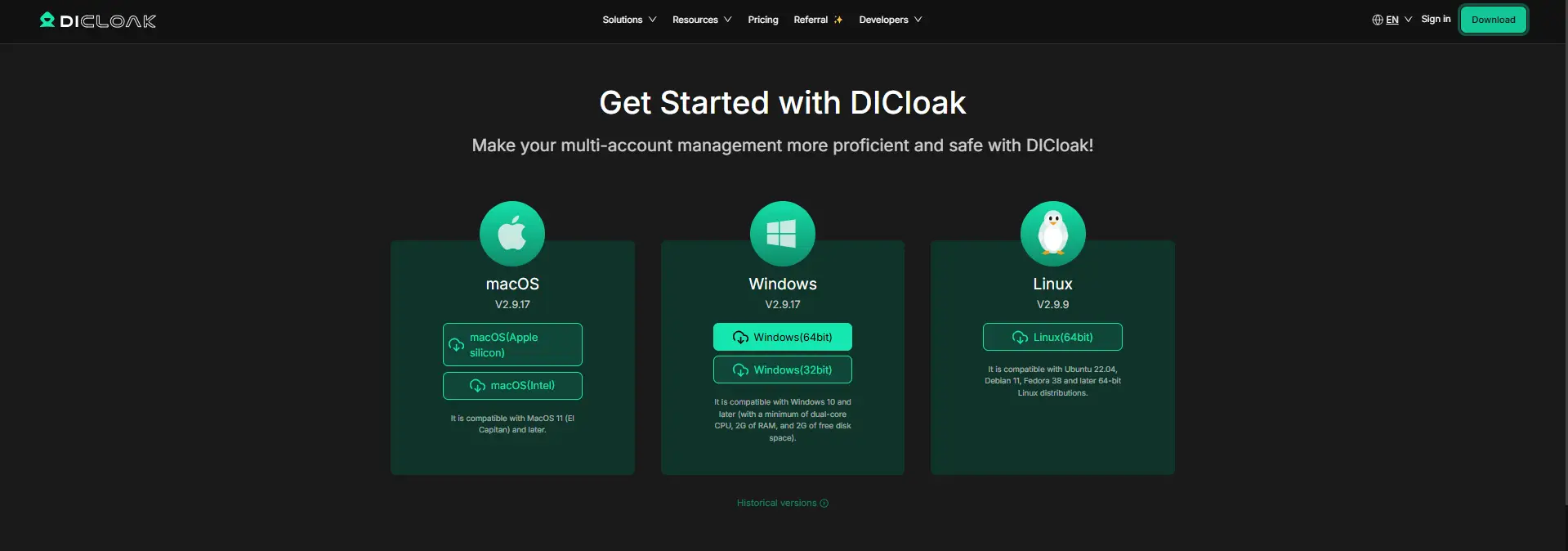
Install DICloak, create your team, and give each teammate their own member account. Choose a plan based on the number of team members and Profiles you need to share.
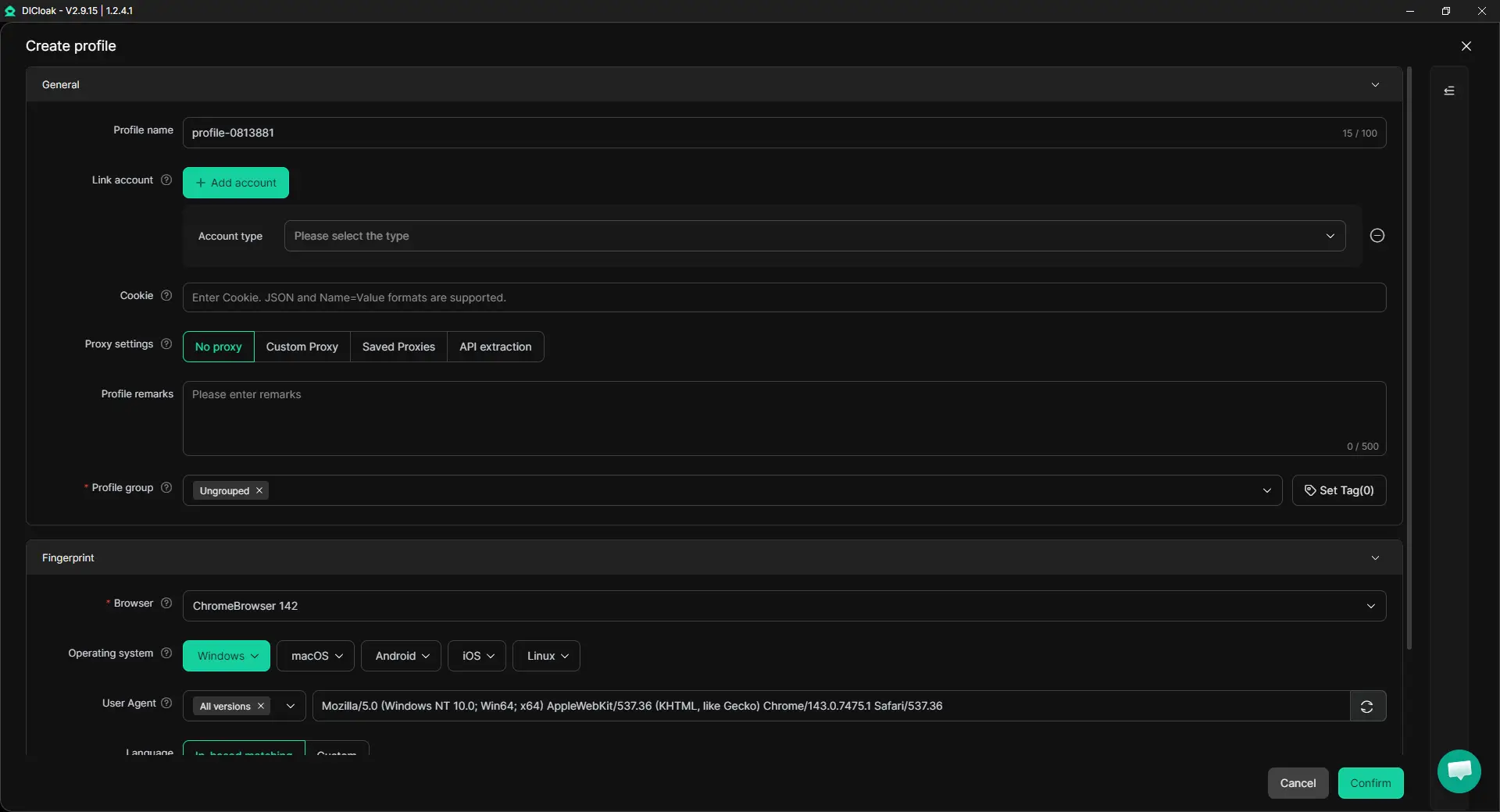
2. Create a Dedicated Perplexity Profile
Create a separate Profile for Perplexity, such as Perplexity – Research Team. Configure the Profile settings, including fingerprint settings and a user-configured proxy if your workflow requires a specific network setup.
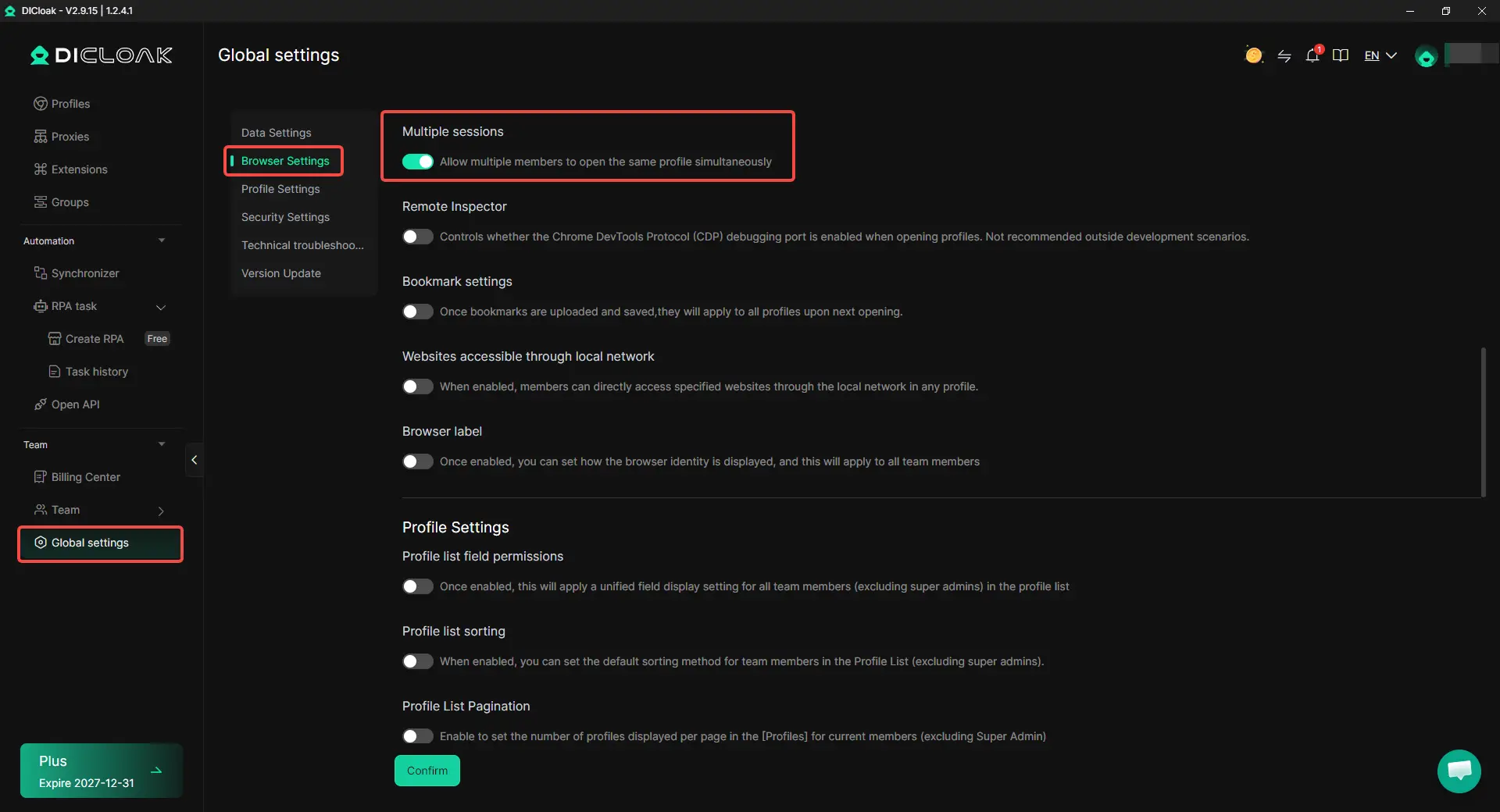
3. Enable Multiple Sessions If Concurrent Access Is Needed
Turn on Multiple sessions if several teammates need to use the same Perplexity Profile at the same time. If the team normally takes turns, you can leave this setting off.
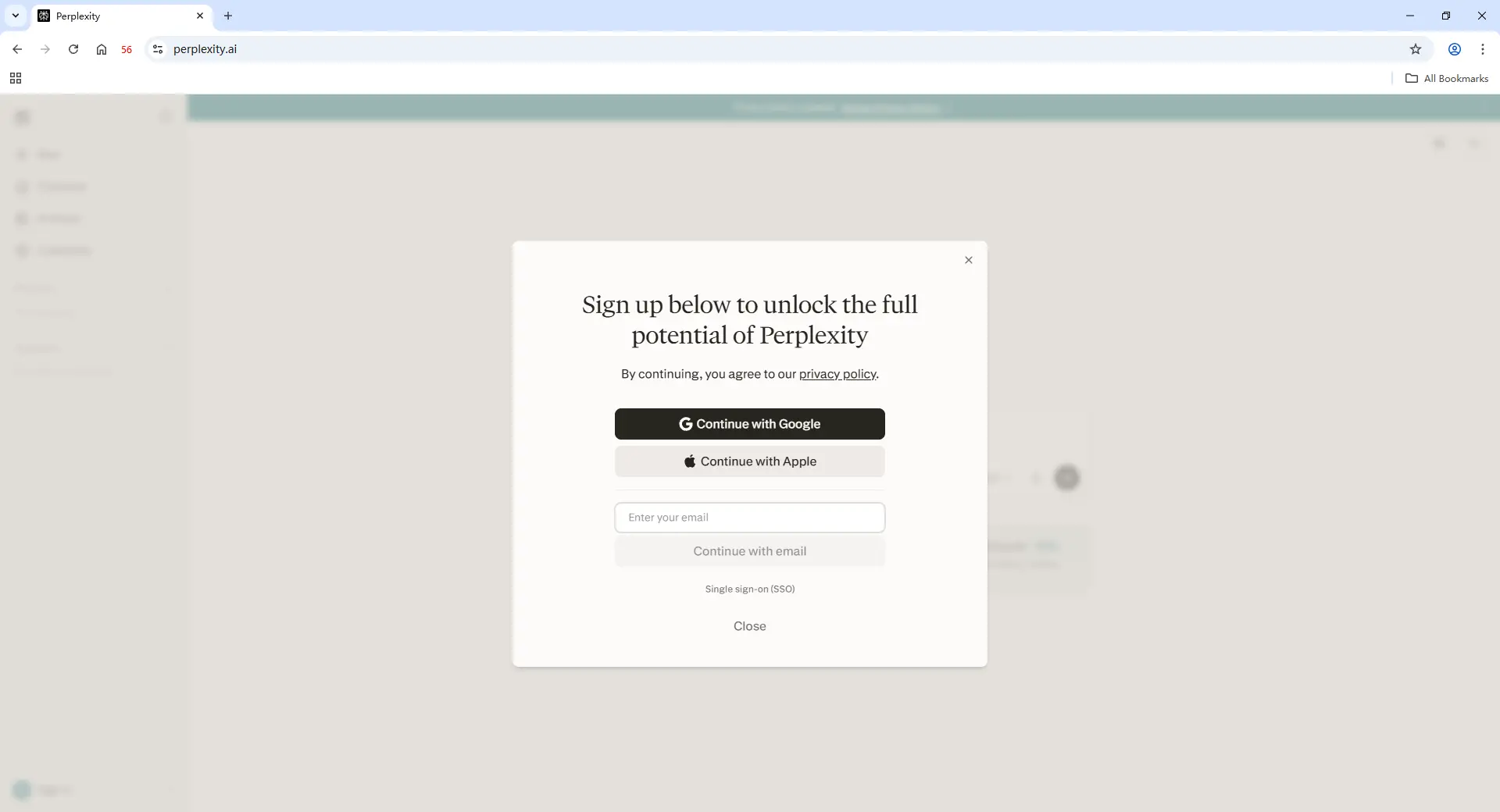
4. Log In to Perplexity
Open the Profile and sign in to Perplexity using the account owner's normal login method. Once the session is saved in the Profile, assigned teammates can reopen it without receiving the owner's login credentials.
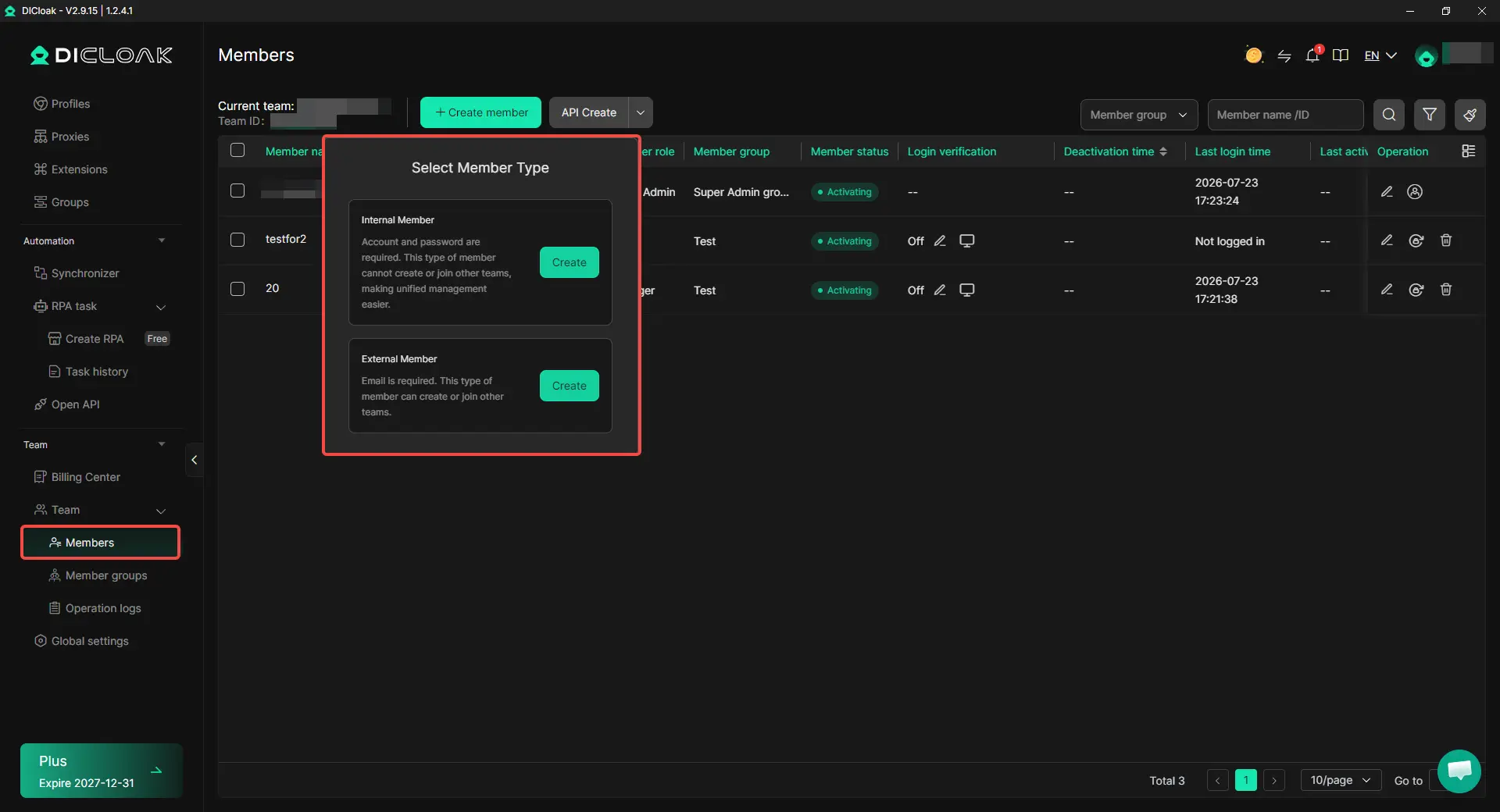
5. Share the Profile With Selected Team Members
Use Profile sharing and team permissions to choose who can access the Perplexity Profile. You can also hide saved passwords and limit access to sensitive browser areas when needed.
6. Manage Access and Review Activity
Remove Profile access when a teammate or contractor no longer needs the account. Operation Logs can help admins review shared Profile activity and manage access across the team.
The key advantage is that the Perplexity login stays inside one managed Profile instead of being passed from person to person. This makes shared access easier to control.
Frequently Asked Questions About Sharing a Perplexity Account
Can two people use the same Perplexity Pro account?
Two people may be able to access the same Perplexity Pro account, but a personal Pro account is intended for individual use and Perplexity advises against account sharing. If two teammates only need to work with the same research, sharing a Session or using a Project is usually the cleaner option. If they specifically need the same existing account, the team should also consider how login access, research history, usage limits, and account permissions will be managed.
Can I share Perplexity without sharing my Google or Apple login?
Yes, depending on what the other person actually needs. You can share a Perplexity Session or collaborate through a Project without giving anyone access to your Google or Apple account. If a teammate needs an already logged-in Perplexity account, an antidetect browser like DICloak can keep the session inside a shared browser Profile so the owner does not need to hand over the underlying login credentials.
Does sharing a Perplexity Project give teammates access to my whole account?
No. A Perplexity Project is meant for shared research and collaboration, not full access to the owner's personal account. This makes Projects a better fit when teammates need the same files, research context, or ongoing work but do not need the owner's full Perplexity history and account settings. For many small research teams, this can remove the need to share one Pro login at all.
Is Perplexity Enterprise better than sharing one Pro account?
Perplexity Enterprise is usually the better fit when several employees use Perplexity regularly and need their own managed access. Each user gets a separate seat, while admins gain organization-level controls instead of having several people depend on one personal account. Sharing an existing Pro account may still be considered for occasional or temporary workflows, but it should not be treated as a direct replacement for Enterprise access.
How should I remove Perplexity access when a freelancer or contractor leaves?
Remove access as soon as the project ends instead of leaving a shared login or session available. With an antidetect browser like DICloak, an admin can revoke the member's access to the shared Perplexity Profile without giving them the account credentials in the first place, while operation logs can help review activity in a shared workflow. This makes offboarding easier than changing credentials every time a temporary team member leaves.
Conclusion
Sharing a Perplexity account with a team is not just about passing around login details. Perplexity's own Sessions, Projects, and Enterprise plans are better fits when teammates only need shared research, collaboration, or regular individual access. For teams that still need to work from the same existing account, password managers, remote desktops, and antidetect browsers offer different ways to manage access, each with its own limits.
The best way to share Perplexity in 2026 is to match the method to the level of access your team actually needs. If shared access to one logged-in account is necessary, an antidetect browser like DICloak can keep the session inside a shared browser Profile, control which members can access it, and remove that access when the work ends, without repeatedly handing over the account owner's login credentials.
 Web Proxy Tools
 Free Tools
 Cookie Plugin
 UA Generator
 MAC Address Generator
 IP Generator
 IP Address List
 2FA Code Generator
 World Clock
 Anonymous Check
 WebRTC Leak Test
 UUID Generator
 Free Web Proxy Site
 Proxy Checker
 FB Ad Checker
 AI Web Scraping
 Free SMM Tools
 Twitter Shadowban Checker
 Instagram Name Checker
 UTM Generator
 Username Generator
 AI Hashtag Generator
 LinkedIn Headline Generator
 Social Media Image Resizer