Getting locked out when you can't login Amazon seller account is more than a small headache, it can freeze your entire business. Orders pile up, buyers keep sending messages, and you have no way to respond. The login screen doesn’t care if you’re dealing with Amazon seller account login issues for the first time or you’ve already spent hours trying to reset your password.
Most sellers jump straight into password resets or start worrying their account is banned. But the real problem usually comes down to a mix of forgotten credentials, two-factor hiccups, or session timeouts that look just like hard blocks. On busy sales days, one wrong move can cost you more than just time.
The usual fixes don’t always work. Sometimes you clear cookies, switch browsers, or even try a different device, but the same Amazon Seller Central can't sign in error keeps coming back. Other times, you get a security prompt that refuses your code, and you’re stuck in a loop. If you handle multiple stores or use shared devices, logging in gets even trickier.
You don’t have to keep guessing. Here’s how to break down the real cause and get back into your seller account without more wasted attempts.
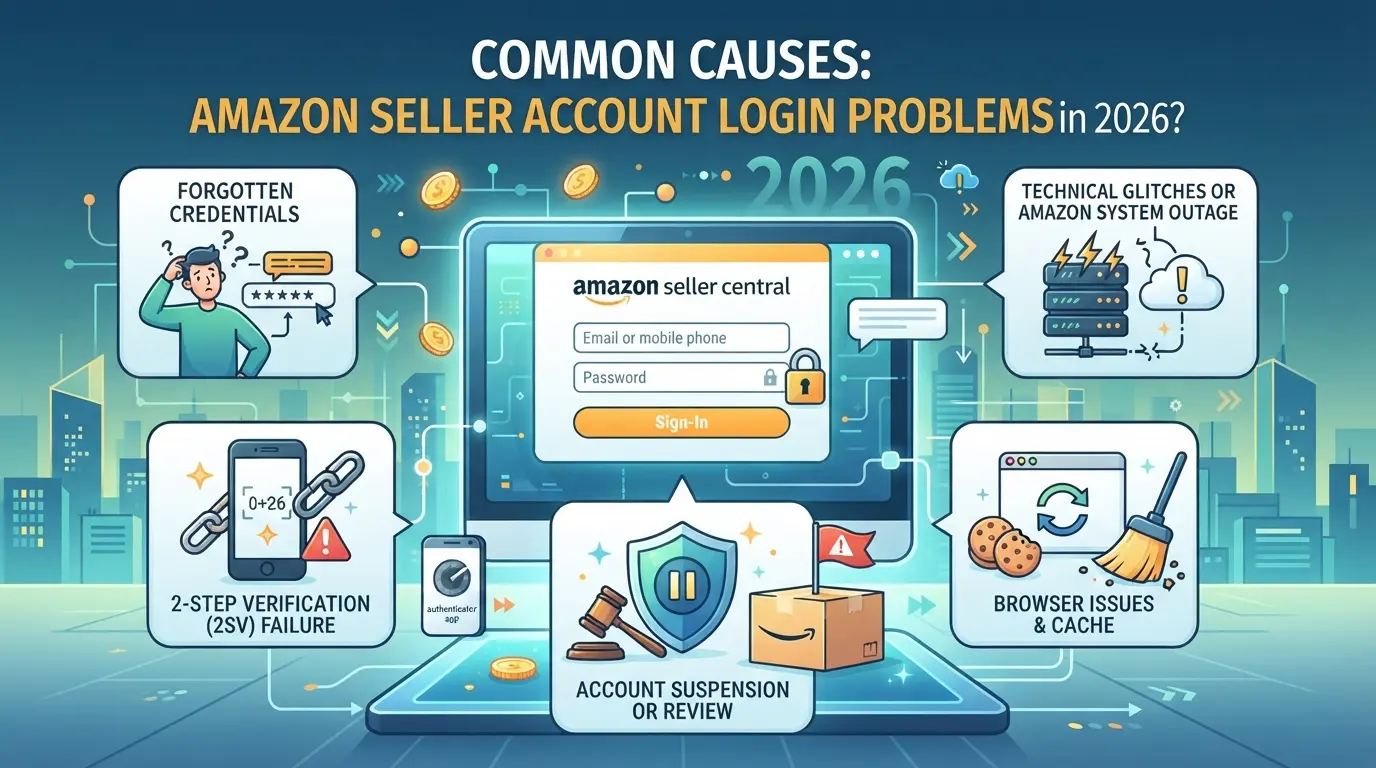
What Usually Causes Amazon Seller Account Login Problems in 2026?
Most login failures come from one of three places: credentials and verification, account restrictions, or network changes. If you keep hitting errors, targeting the actual cause is what saves time, guesswork just leads to more lockouts.
Password and Two-Step Verification Issues
Forgotten passwords and expired credentials still top the list. In 2026, Amazon's login flow forces more frequent password updates and tighter two-step checks. If your authenticator app is out of sync or your SMS code doesn't arrive within 60 seconds, the login page will reject you, sometimes with no clear error.
Account Suspension or Restriction
Suspensions and restrictions are the most confusing login blockers. Amazon now flags accounts after even minor compliance hiccups. A single listing violation, late shipment, or spike in returns can trigger a security hold. When that happens, you won’t get a normal login error. Instead, the site either loops you through verification steps that never finish, or flashes a generic “account not found” page. The real problem is that Amazon rarely tells you why the account is restricted up front. For example, if your seller account is under review for suspected counterfeit goods, the login form might seem broken, but it’s really just locking you out until you complete an appeal. Trying to sign in repeatedly only adds to your frustration and may flag your device for more checks. Blindly retrying logins during a restriction often makes the queue longer and gets your IP flagged, so pause and check for policy emails before another attempt.
Network, Device, or Location Changes
Login issues spike when you change devices or networks. Here’s what to check:
- Did you switch to a new computer or phone? Amazon’s device fingerprint mismatch often triggers security prompts.
- Are you logging in from a new IP address or public Wi-Fi? Unexpected location changes can block access or prompt for extra verification.
- Is your team logging in from multiple countries? Remote logins trigger Amazon’s anti-fraud alerts, sometimes leading to temporary holds.
Getting locked out usually means one of these three root causes. If you know which one matches your situation, you skip wasted resets and false fixes. Next, you need a clear checklist to diagnose the exact trigger, so you don’t repeat the same failed steps.
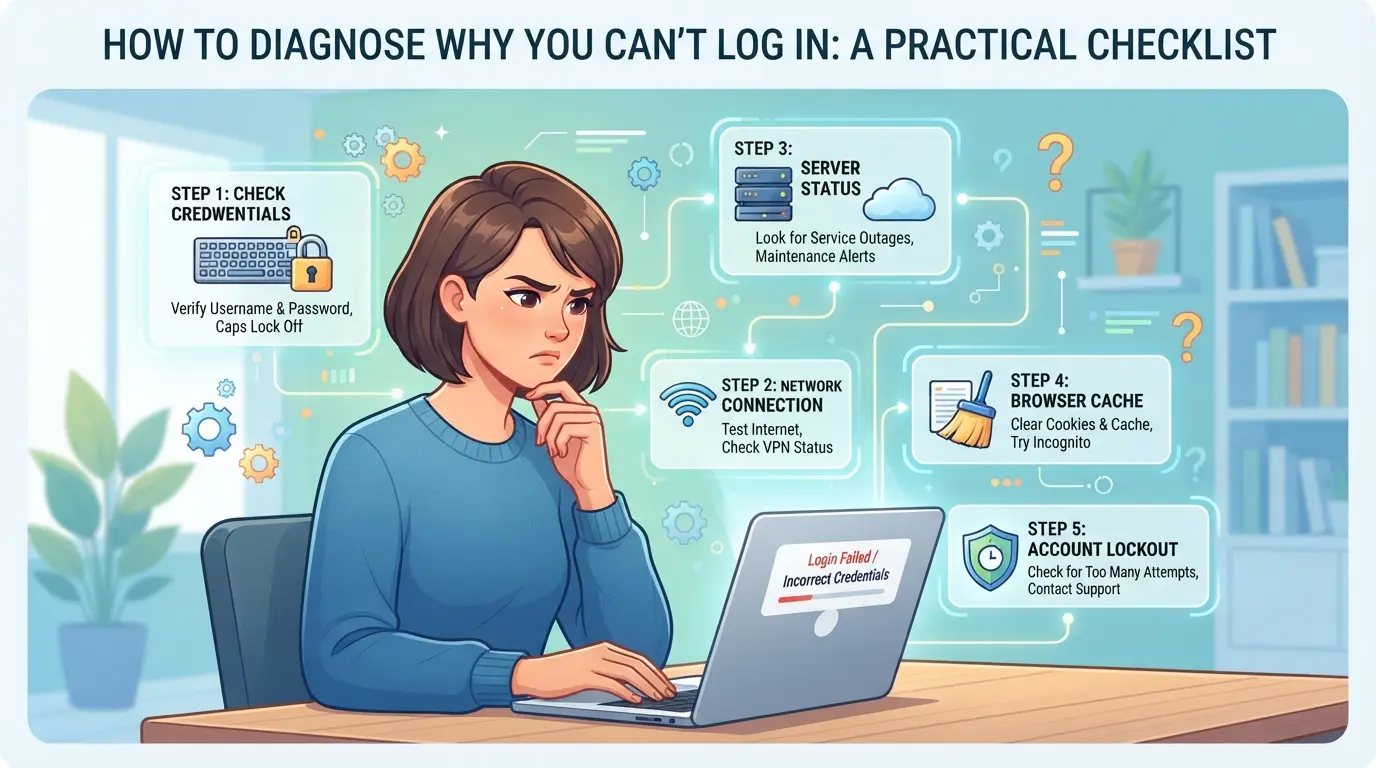
How to Diagnose Why You Can't Log In: A Practical Checklist
If you’re stuck and can’t log in to your Amazon seller account, don’t just keep retrying your password. The fastest way to fix the problem is to walk through a focused checklist, find the exact failure point, and you’ll know which fix to try next. Guesswork wastes time and can lock you out for longer.
Check for Error Messages and Account Notifications
The message on Amazon’s login page isn’t just generic, those few words give you your main clue. If you see “incorrect password,” it’s about credentials. If you get a warning about unusual activity or need to enter a code, that points to security. Click the “Need help?” or “Trouble signing in?” links to review recent alerts. Inside your Seller Central dashboard, check the top banner and notification bell for any warnings or requests, Amazon often flags issues there before sending email.
Test with Different Devices and Networks
- Try logging in from your phone’s mobile data instead of Wi-Fi.
- Switch to another browser with all extensions disabled.
- Use a device that hasn’t accessed your account before.
If you get through on a different device or network, your original setup is likely blocked or flagged. This rules out an actual account ban.
Review Account Security Settings and Recent Changes
If you or anyone on your team changed the password, updated two-step verification, or added a new recovery email, you could be locked out until you confirm those changes. Check with all team members, one person updating security can trigger a forced logout for everyone.
Check for Policy or Compliance Notices
A login block right after a compliance email usually means you need to act on that notice first. Don’t ignore messages about account health, new verification requests, or KYC (Know Your Customer) checks, Amazon can lock logins for missing documents.
- Search your inbox and spam for “Amazon Seller Central” notices in the past 48 hours.
- Look for subject lines like “Account Under Review,” “Action Required,” or “Seller Identity Verification.”
- Read the email body, sometimes the action is hidden in a link at the bottom.
If you’re only seeing generic errors with no clear warning, the issue is probably with your device, network, or credentials, not an Amazon ban.
Once you’ve pinned down the actual blocker, you’re ready to try targeted fixes instead of random resets. Next, you’ll see which immediate steps actually unlock access, and which ones just waste another login attempt.
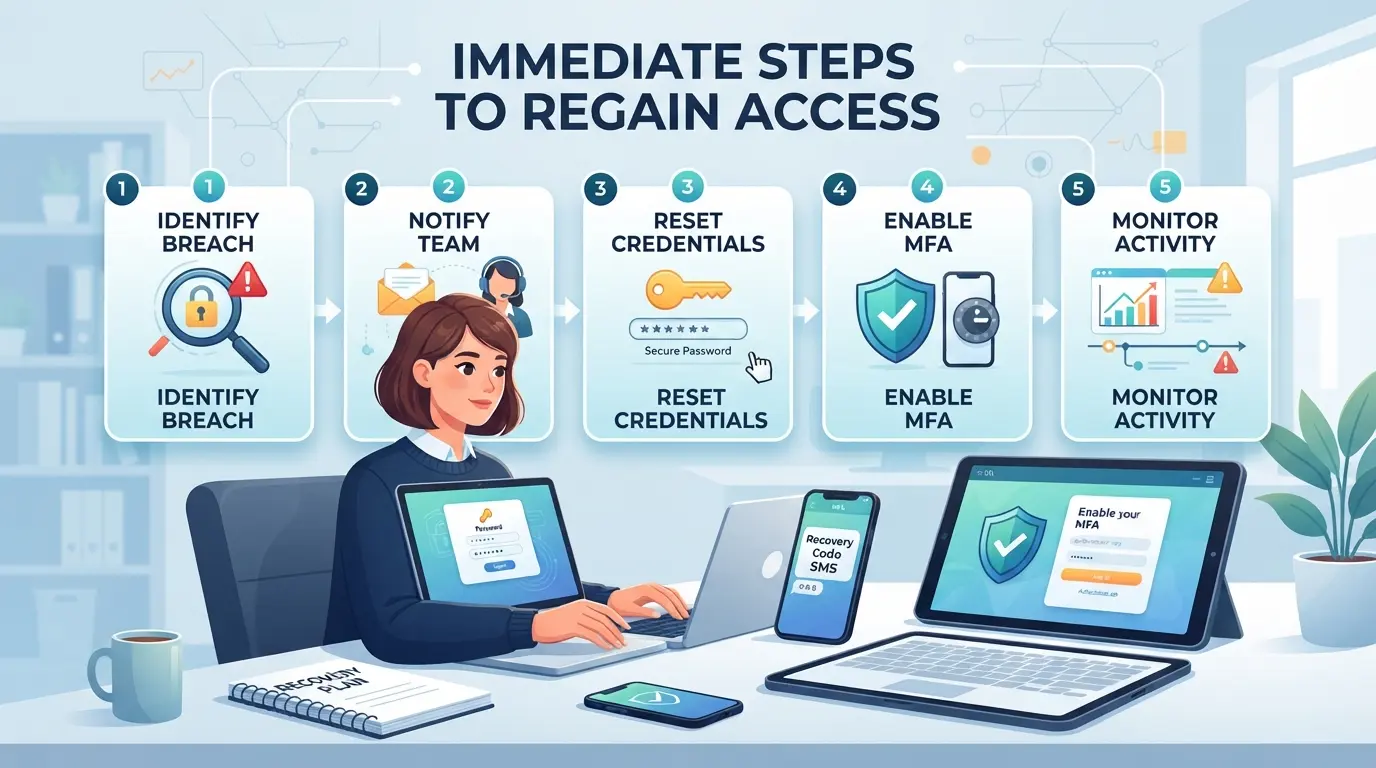
What to Do First: Immediate Steps to Regain Access
When you can't log in to your Amazon seller account, you want to act fast, every failed attempt can lock you out longer or trigger extra security checks. Skip random retries and follow these steps to get back in safely.
Reset Your Password and Verify Your Identity
- Click “Forgot your password?” on the Amazon Seller Central login page. Enter your registered email or phone.
- Check all inboxes (email, SMS, authenticator app) for the verification code. If nothing arrives in 2 minutes, resend once.
- If you still don't get a code, check if your authenticator app or device is offline or has the wrong time set, Amazon blocks codes if the clock is off by more than 30 seconds.
- Enter the code and reset your password. If you see a “verification failed” or “account not found” message, your account may be flagged, skip to support steps.
Try a Different Device, Browser, or Network
- Clear cache and cookies in your browser, old session data can block new logins for up to 24 hours.
- Switch to a device or browser you haven’t used with this account recently. If you always use Chrome, try Firefox or Safari.
- Move to a new network if possible. Sometimes, Amazon blocks logins from flagged IP addresses or public Wi-Fi.
- If you still see “cannot sign in” errors, don’t keep trying, too many failed logins can trigger a security review.
Contact Amazon Seller Support with Key Details
- Go to the Amazon Seller Central help page using a different account or as a guest.
- Give your account email, the error message you see, the device/browser used, and the last successful login time.
- Attach screenshots if possible. Mention if you’re stuck at password reset, 2FA, or get a specific error code.
- If you get no reply in 48 hours, use the “urgent” subject line or escalate by phone, chat support is fastest during 9–11 am UTC.
If you still can’t access your seller account after these steps, the problem may be bigger, like a suspension or security flag. That’s where you need to look next.
When Login Issues Signal a Bigger Problem: Account Suspension, Verification, or Security Flags
Sometimes, login trouble isn’t just a forgotten password, Amazon may have flagged your account for policy, payment, or risk reasons. If you get a notice about account suspension, or see “account on hold” after repeated sign-in attempts, standard fixes won’t help. That’s the point where you need to stop normal troubleshooting and check your email for official suspension alerts.
How Amazon Flags and Suspends Seller Accounts
Amazon triggers holds or suspensions for missed payments, policy violations, or activity that looks risky, like sudden changes in login location. If your dashboard shows “account under review” or you get an email from Amazon about a suspension, you’re locked out until they finish their review.
What to Do If Your Account Is Under Review
Pushing more login attempts after a review notice can make things worse.
- If you upload the wrong document or miss a deadline, Amazon may extend or tighten the restriction.
- The safer move is to review all requests from Amazon, gather the exact documents they ask for, and reply clearly, don’t send generic appeals or extra info they didn’t request.
How to Avoid Making the Situation Worse
Trying to brute-force access, switching devices nonstop, or sharing login details can flag your account for even deeper checks. If you keep retrying with wrong info, Amazon may lock you out longer or even freeze linked accounts. Stay patient and use only the official recovery or appeal process.
How Teams and Multiple Users Can Avoid Login Problems on Amazon Seller Accounts
Teams often run into Amazon seller account login issues when people share credentials or switch devices without warning. The real fix is not a new password, it's using Amazon's official team access setup and keeping your device and location footprint stable.
Why Shared Logins and Device Changes Trigger Problems
Amazon’s system spots odd access patterns fast. If two people log in from different cities or a browser pops up on a new device, the account can get flagged for review. Sharing the same password or letting people sign in from home is a shortcut to getting locked out.
Best Practices for Team Access Management
The only safe way for teams to share access is through Amazon Seller Central’s official user invitation system. Each team member should have their own login under your seller account, with clear roles set, never use the main owner’s credentials for routine work. This not only lets you track who does what but cuts the chance of a sudden lockout when Amazon’s system sees multiple people on one account. If you must work across locations, always tell the team before a new device logs in, Amazon might prompt for extra verification, and someone needs to be ready with the code. Teams that skip these steps often find themselves in a loop: someone can’t log in, resets the password, triggers a security alert, and then the whole account gets stuck in review. The setup takes a few extra minutes, but using official user invitations is the single best way to keep your access stable.
How to Document and Audit Team Access
- Keep a list of who has user access and what role each person has.
- Note every time a device or location changes, especially if someone travels.
- Save screenshots or emails of access change confirmations for at least six months.
This basic record makes it much easier to respond if Amazon contacts you about “unusual login activity” or asks for proof of team structure.
If your team already tracks access and still runs into Amazon Seller Central can't sign in errors, the next step is to look at how browser setup and network patterns can trip Amazon’s detection system. That’s where profile isolation and proxies come in, but only after you’ve locked down team roles and device rules.
Using DICloak to Structure Amazon Seller Account Access for Teams
When e-commerce teams run into repeated Amazon seller login problems, especially after trying the usual fixes, it’s often because multiple accounts, devices, and operators share the same browser profile or network. Setting up true separation is what prevents session confusion, profile mix-ups, and location mismatches that trip Amazon’s security checks. Here’s how teams use DICloak’s browser profile, proxy, and permission tools to keep multi-account workflows organized and avoid common traps.
Set Up Separate Browser Profiles with Custom Fingerprints for Each Seller Account
Operators can create a dedicated browser profile in DICloak for each Amazon seller account their team manages. Each profile stores its own browser profile, including customizable device signals like operating system, language, time zone, and screen settings. This means sessions for different Amazon accounts never mix or overwrite cookies, and each account workflow matches expected technical details without overlap. The scope is limited to browser-profile access; it does not change anything inside Amazon Seller Central.

Configure a User-Owned Proxy for Each Profile
For every DICloak profile, users can add and test their own proxy connection, such as a residential or business proxy, to match the expected account location. This helps keep network signals consistent with the account’s history and cuts down on access issues that come from IP changes or mismatched regions. Operators are responsible for proxy selection and must check connectivity before login to avoid dead links or incorrect locations.

Control Team Access with Permissions and Profile Groups
Admins set up member groups and assign each group access to only the browser profiles they need. With DICloak’s permission controls, regular team members see just the profiles and actions they’re allowed, reducing confusion and the risk of someone logging into the wrong account from the wrong environment. These controls apply only inside DICloak and do not change Amazon’s account-side permissions.

This setup gives teams a clear, repeatable way to handle multiple Amazon seller accounts without mixing signals or exposing accounts to accidental risk.
How to Prevent Future Amazon Seller Account Login Problems
Fixing a login issue once doesn’t mean you’re safe next time. Here’s how you can avoid getting locked out of your Amazon seller account down the line.
Keep Security Information Up to Date
Change your password every 90 days and update your recovery email or phone if anyone on your team leaves. Remove old devices from your account access list, leaving unused devices increases the risk of confusion and lockouts.
Document All Account Changes and Team Access
- Log every password or recovery info change, including who made it.
- Keep a simple spreadsheet of all authorized users.
- Record each device added or removed.
Review Amazon Policy Updates Regularly
Amazon changes access and compliance rules often, and missing a notice can block your login.
- Check the official Seller Central Policy Updates monthly.
- Set alerts for new security requirements.
- Review Amazon’s help docs after each major update.
Frequently Asked Questions About can't login Amazon seller account
Can I recover my Amazon seller account if I lost access to my email and phone?
Yes, you can still recover your Amazon seller account. Go to the login page and choose “Need help?” or “Trouble accessing your account?” Follow the prompts for account recovery. If you can’t verify your identity, contact Amazon Seller Support directly and provide documentation such as government ID, business license, or bank statement to prove ownership.
Why does Amazon keep asking for verification codes even after I log in successfully?
Amazon uses two-step verification to protect your account. If you log in from a new device, web browser, or unfamiliar location, Amazon may ask for verification codes again. Clearing browser cookies or using incognito mode also triggers extra checks. This helps prevent unauthorized access to your seller account.
Is it safe to let a VA or agency log in to my Amazon seller account from another country?
Allowing virtual assistants or agencies to access your account from outside your country can trigger security alerts or even temporary locks. To reduce risk, use Amazon’s user permissions to give limited access. Make sure VAs use secure connections and notify Amazon in advance if possible to avoid account flags.
How long does it take for Amazon to resolve a login or suspension issue?
Resolution time for Amazon seller account login issues or suspensions can vary. Simple login problems may be fixed in a few hours to one day. Account suspensions can take several days or even weeks, depending on the reason and how quickly you respond to Amazon’s requests for information.
What should I do if my account was hacked and I can't log in?
Act fast if you suspect your Amazon seller account was hacked. Immediately contact Amazon Seller Support using the “Account compromised” option. Provide identity verification and proof of account ownership. Change all related passwords and check linked email accounts for suspicious activity. Monitor your account for unauthorized changes once access is restored.
If standard troubleshooting steps are not resolving your access issues, consider exploring tools that improve account security and privacy. Taking proactive measures can help avoid future disruptions and protect your business. Try DICloak For Free
 Web Proxy Tools
 Free Tools
 Cookie Plugin
 UA Generator
 MAC Address Generator
 IP Generator
 IP Address List
 2FA Code Generator
 World Clock
 Anonymous Check
 WebRTC Leak Test
 UUID Generator
 Free Web Proxy Site
 Proxy Checker
 FB Ad Checker
 AI Web Scraping
 Free SMM Tools
 Twitter Shadowban Checker
 Instagram Name Checker
 UTM Generator
 Username Generator
 AI Hashtag Generator
 LinkedIn Headline Generator
 Social Media Image Resizer