Teams running Facebook Ads with multiple accounts often hit a wall: Meta’s system will flag or restrict you if it sees bot-like patterns or repeated logins. Reports on Reddit’s r/FacebookAds show account locks spiked after users tried to automate ad uploads by linking AI tools like Claude. If you’re searching for how claude connect to meta ads actually works, and how to avoid instant bans, you’re not alone. The process isn’t as simple as pasting an API key; Meta’s anti-automation rules are strict, and every new connection can trigger extra verification. Even small details, like running Claude with Facebook Ads on the same device or IP, can get all linked accounts flagged.
Most guides skip the hard parts: what breaks automation, which risks matter for multi-account setups, and how to keep each Claude Meta Ads integration from getting accounts restricted. That’s where this guide goes deeper. You’ll learn exactly how to connect Claude to Meta Ads step by step, what tripwires cause bans, and how a safer setup, using isolated browser profiles and proxies, lets you run Claude with Facebook Ads at scale. If you want smooth automation, fewer account headaches, and a workflow you can actually trust, here’s what practical teams are doing now.
What Should You Know Before Connecting Claude to Meta Ads?
Connecting Claude to Meta Ads sounds straightforward, but the reality is more demanding. Meta’s systems look for signs of automation and account sharing. If you skip key requirements or miss hidden risks, your accounts can get flagged, restricted, or banned, sometimes before you even run your first campaign. Teams running Claude with Facebook Ads at scale face extra hurdles, especially if they manage multiple business accounts or need to automate reporting, creative, or budget changes.
What Claude and Meta Ads Integration Actually Enables
Claude Meta Ads integration lets you automate tasks that would take hours by hand. You can fetch campaign performance, update budgets, create new ads, and generate reports. Some users also use Claude to analyze creative results or spot trends faster. But Meta Ads limits what third-party tools can do: you won’t get full access to billing, account ownership changes, or advanced targeting. Data privacy is strict, Claude only sees what your API permissions allow.
For example, connecting Claude to Meta Ads usually covers campaign stats, ad creation, and simple edits. Sensitive actions like changing business manager settings or handling payment info aren’t possible. Always check Meta’s API documentation for updated access rules. If you want safer automation across multiple accounts, you’ll need separate browser profiles and proxies for each account.
What You Need to Prepare First
Before you start, make sure you have a Meta Business account, not just a personal profile. You’ll need admin permissions to connect Claude to Meta Ads. If you run several accounts, each needs its own setup. Claude itself requires a valid API key and the right tier; some features only unlock with paid plans. Check Claude’s documentation for version requirements and limits.
If you manage multiple Facebook Ads accounts, prepare separate device environments and unique proxies. This reduces risk from fingerprinting and IP checks. Teams often use tools like DICloak to set up independent browser profiles, so each Claude Meta Ads integration stays isolated and less likely to trigger Meta’s anti-automation flags.
Why Do Some Claude-Meta Ads Connections Fail or Get Restricted?
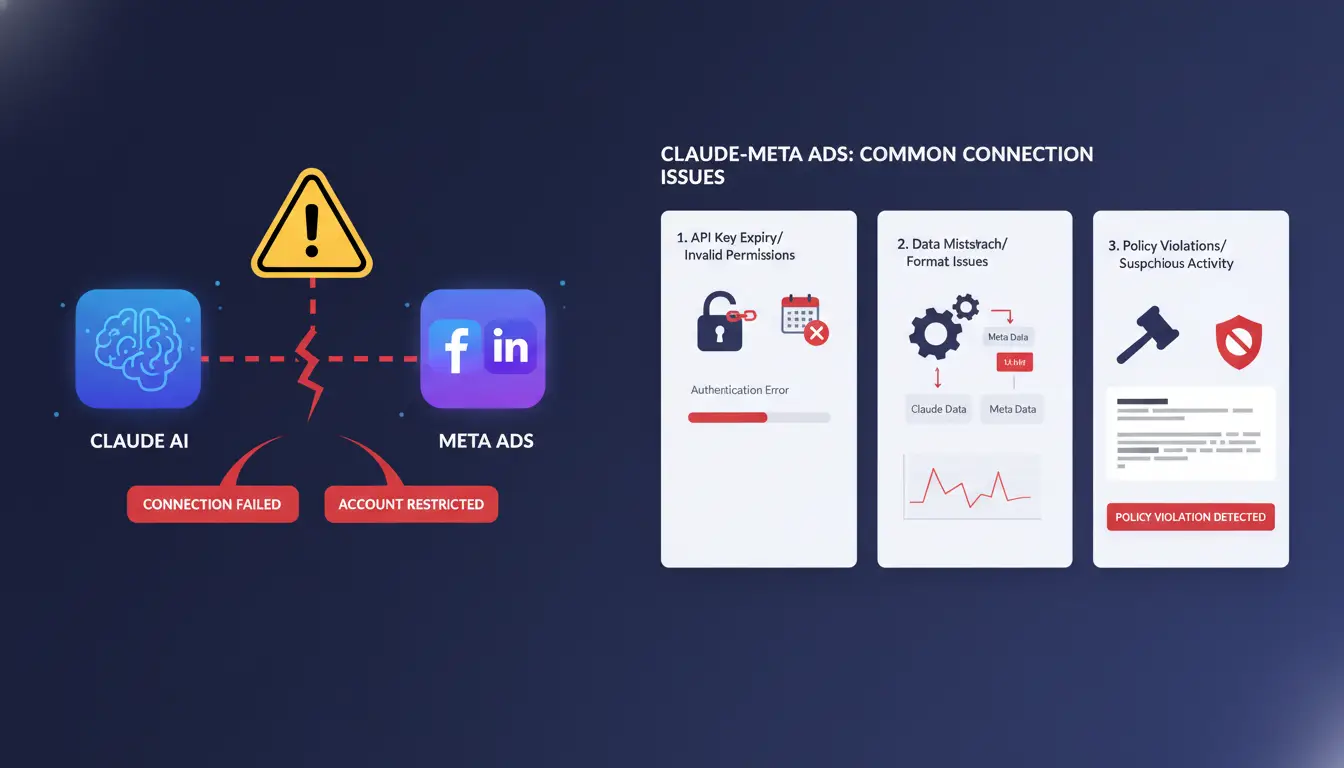
Trying to connect Claude to Meta Ads often sounds simple, but problems start fast. Even when the API key is correct, many users hit strange errors or see accounts flagged. The big issue? Meta’s systems flag anything that looks like automation, account sharing, or suspicious patterns, sometimes within minutes. Here’s what really causes issues and how to avoid them.
Common Triggers for Connection Issues
The most common reason Claude Meta Ads integration fails is a mismatch between what Meta expects and what your setup shows. For example, running Claude with Facebook Ads from a new location or device, especially with different IPs, raises red flags. If you switch between home internet, mobile, and a proxy without a clear pattern, Meta’s systems notice.
Suspicious login or API behavior trips up many users. Fast, repeated logins or running scripts that mimic real clicks can get accounts restricted. Logging in from two countries within hours is another classic trigger. Meta’s official documentation warns that too many “unusual activity” signals can freeze both the Claude connection and the ad account.
Meta Ads Security Policies You Need to Know
Meta’s security approach centers on strong account identity. Two-factor authentication (2FA) is now mandatory for most business accounts. If you try to connect Claude to Meta Ads without 2FA enabled, the integration will probably fail. Business verification is also required for new ad accounts and almost any API-based setup. Recent policy changes mean that any third-party tool, including Claude, must be listed as an allowed integration. Even small mismatches in business info or address may cause blocks. See more details in Meta’s security center.
How to Reduce Ban and Restriction Risk
Consistent account hygiene matters most. Use the same device and IP for every Claude Meta Ads integration session. Set up 2FA, complete all business verifications, and never share logins outside your team. For multi-account setups, use isolated browser profiles and proxies so each account looks unique, tools like DICloak help teams keep environments separate and reduce cross-account risk. Skipping these steps almost always leads to restrictions or bans.
How to Connect Claude to Meta Ads: Step-by-Step Tutorial
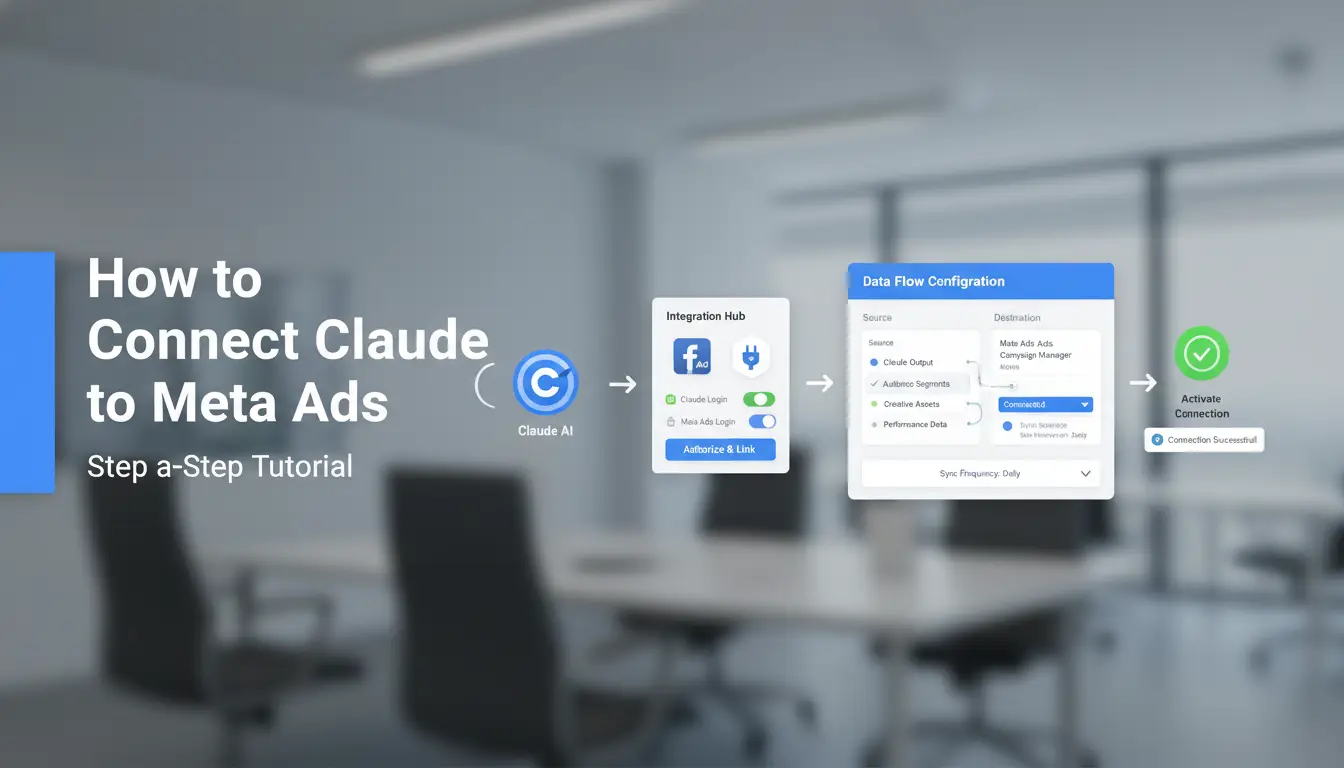
Connecting Claude to Meta Ads is more than clicking a few buttons. The real challenge is keeping Meta’s systems from flagging your automation, especially if you run Claude with Facebook Ads across multiple accounts or devices. Here’s a clear, practical walkthrough for a safe Claude Meta Ads integration, what to do, where mistakes happen, and how to avoid common tripwires.
Step 1: Set Up Meta Ads MCP or Connector
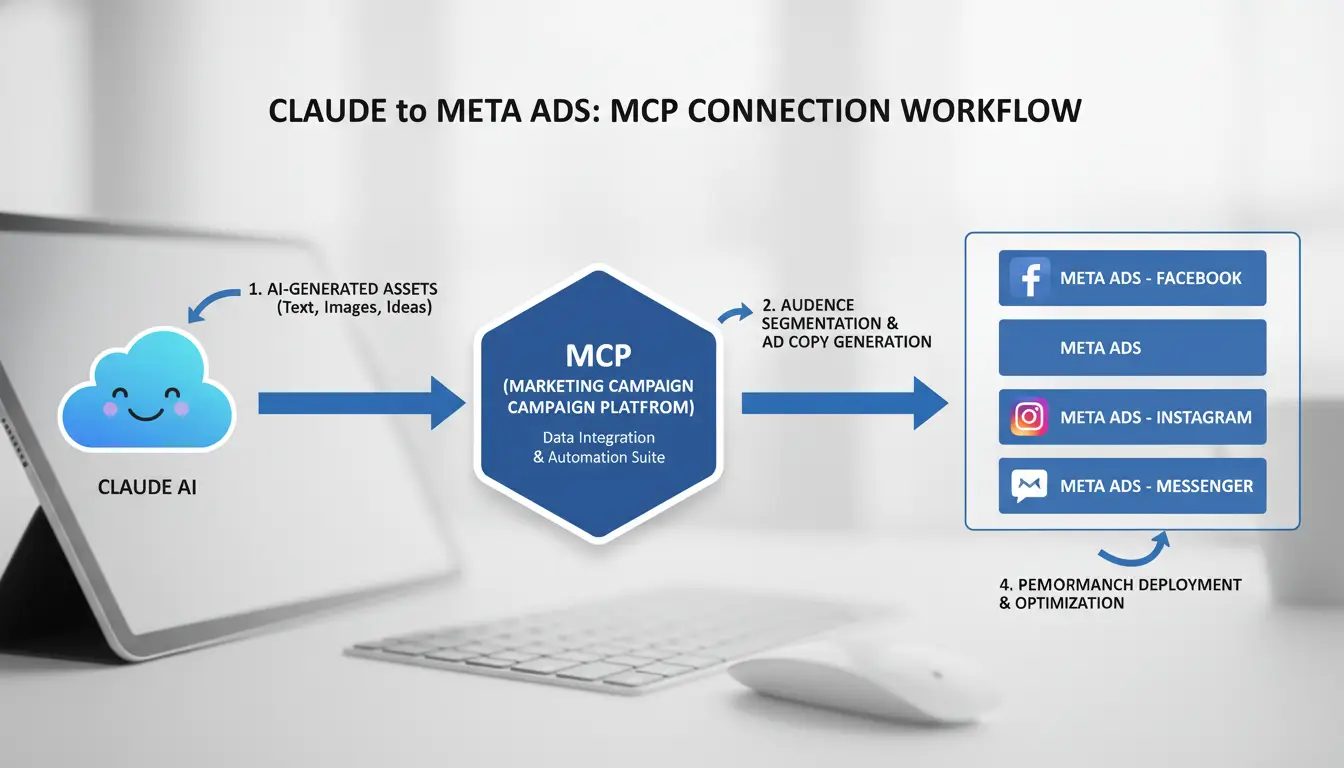
Start by deciding how you want to connect Claude to Meta Ads. Most teams use Meta’s official Marketing API through the Meta Control Panel (MCP), but you can also try the CLI or trusted third-party connectors if you need extra flexibility. You’ll find the official MCP and its docs on the Meta for Developers site. For the safest setup, use MCP, since it offers direct permission handling and avoids most unsupported workarounds.
Step 2: Authorize and Link Your Meta Ads Account
Once your connector is ready, you need to link your Meta Ads account. Meta uses OAuth permissions, which means you’ll log in, grant access, and confirm any scopes Claude needs. For teams, make sure all accounts use multi-factor authentication, Meta’s system flags accounts that skip this step. If you’re running Claude with Facebook Ads on several profiles, only log in from devices and proxies that match your usual locations. Mixing IPs or devices is the fastest way to trigger extra checks.
Step 3: Connect Claude and Run Your First Query
With permissions in place, add the connector in Claude. Inside Claude, go to integrations, select Meta Ads, and paste your API token or connector details. Test your setup with a simple prompt, like pulling yesterday’s ad spend or generating a report. If the query runs without errors, you’ve got a working Claude Meta Ads integration. The most common failure happens when account permissions don’t match the connector’s scope. Always double-check that your Claude account and Meta Ads account are linked to the same business manager for smooth access.
What Can You Actually Do Once Claude Is Connected to Meta Ads?
Connecting Claude to Meta Ads opens up clear, practical workflows that save time and cut manual effort. Teams get more than just basic automation, they can run custom reports, spot trends, and build repeatable processes with less risk of error.
Automated Reporting and Campaign Analysis
Once you set up Claude Meta Ads integration, you can ask for daily or weekly ad performance reports, no more downloading CSVs by hand. Need to review which ads spent the most or which campaigns underperformed? Just prompt Claude for a summary, and it pulls key numbers right from Meta Ads. If you manage Google Ads or TikTok at the same time, Claude can compare results across platforms, showing which channel delivered the lowest cost per lead.
Creative Prompt Ideas for Agencies and Marketers
Agencies often run many Meta Ads accounts. Claude with Facebook Ads lets you prompt, “Show all campaigns where cost per result was above $10 last week,” or “Estimate pipeline impact if budget is cut 20%.” For client reporting, you can automate summaries by account, making it easy to share results without manual tracking. The real power is using Claude to answer specific client or manager questions on the fly.
Workflow Automation and Advanced Use Cases
With Claude connect to meta ads, you can build prompts that check for rejected ads, flag high-spend days, or list optimization ideas based on recent changes. Over time, these prompt templates turn into reusable workflows, making complex reporting as simple as sending one message.
How to Manage Multiple Meta Ads Accounts Safely After Integration
Running several Meta Ads accounts with Claude adds real risk if you don’t isolate every step. Meta’s systems connect IPs, browser fingerprints, and account history the moment you link Claude to Meta Ads or run Claude with Facebook Ads on the same device. Even one slip, like logging two accounts in the same browser, can trigger a chain of restrictions. Here’s how teams keep stacks of accounts safe while scaling Claude Meta Ads integration.
Why Multi-Account Management Gets Risky
Meta ties accounts together through data most people miss: shared device fingerprints, cookies, reused IP addresses, and even browser plugins. If you connect Claude to Meta Ads for two clients from the same laptop, Meta can detect the overlap. That’s how one flagged account can get others banned. Teams often run into trouble after switching proxies too fast or letting one user handle every login. Even copying cookies or exporting session data the wrong way can link accounts.
Best Practices for Isolating Accounts
You want every Meta Ads account and Claude integration running in its own “bubble.” That means a unique proxy, a separate browser profile, and never reusing cookies across accounts. Tools like DICloak let you build isolated browser profiles for each Claude Meta Ads integration. Each user gets a locked-down profile, with a fixed IP set by a clean proxy. This setup blocks device fingerprint leaks and stops Meta from seeing connections between accounts. Scaling up? Batch-create profiles and assign them with clear labels, so you don’t mix things up.
How Teams Can Collaborate Without Triggering Bans
Teamwork adds risk unless you control who touches what. Use permission settings so each member only manages assigned accounts. DICloak’s team collaboration features let you share browser profiles without exposing passwords or recovery info. Keep an audit log so you can trace every login, IP change, and session handoff, if something goes wrong, you’ll spot it fast. The real edge comes from clear separation and tracking, not just tech tricks.
How DICloak Makes Multi-Account Claude-Meta Ads Management Safer and More Efficient
Running Claude with Facebook Ads on several Meta accounts gets risky fast, one mistake with browser fingerprints or proxies, and Meta can link accounts or flag your Claude Meta Ads integration. You need a way to isolate each account, automate routine work, and let your team collaborate without tripping Meta’s security.
How DICloak’s Isolated Profiles and Proxy Support Reduce Ban Risk
You can use DICloak to give each Meta Ads account its own browser fingerprint and dedicated proxy. This means when you connect Claude to Meta Ads, Meta can't link accounts through device or IP overlap. Bulk profile switching tools make it simple to manage dozens of Claude with Facebook Ads sessions without mixing fingerprints.
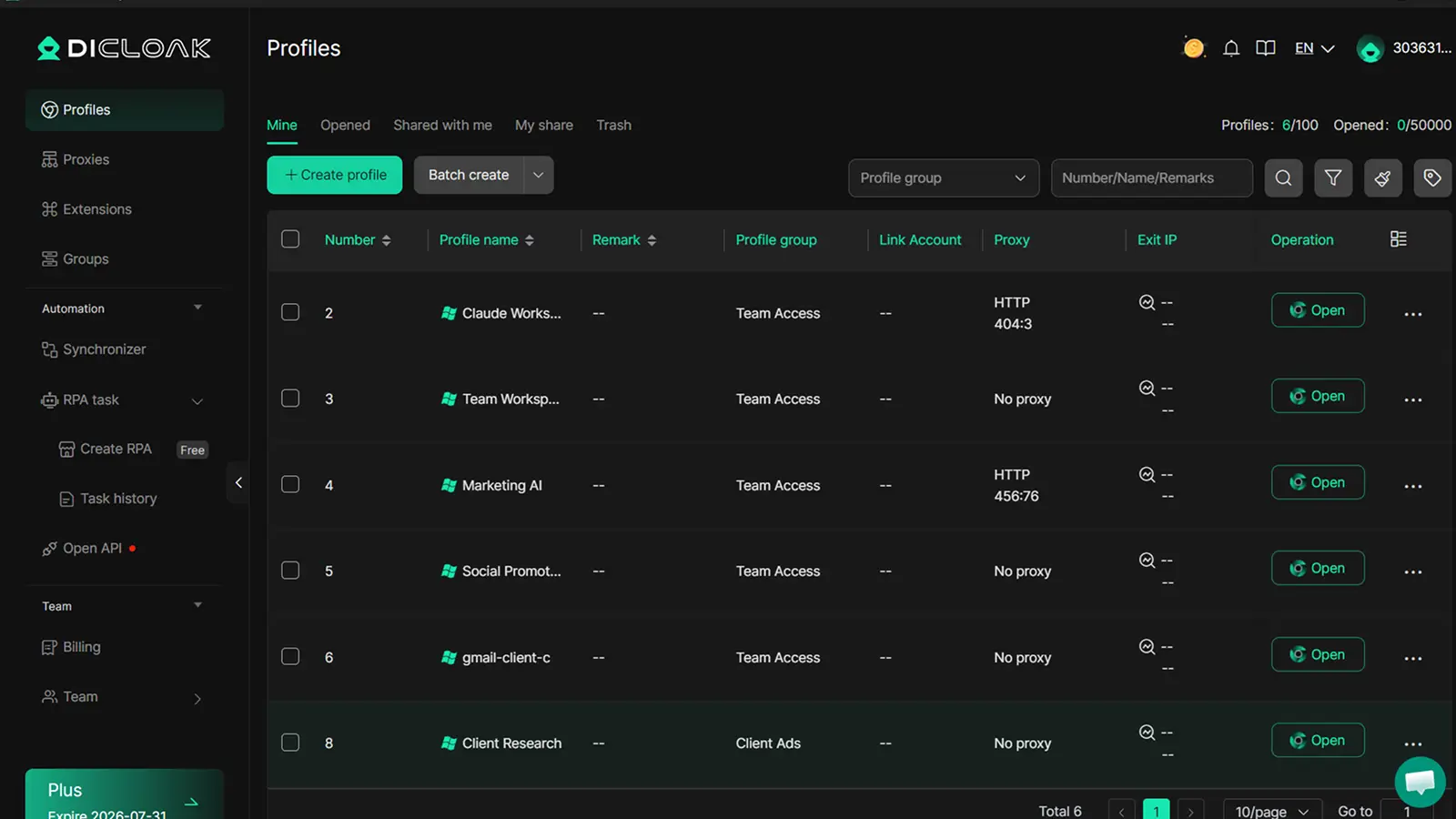
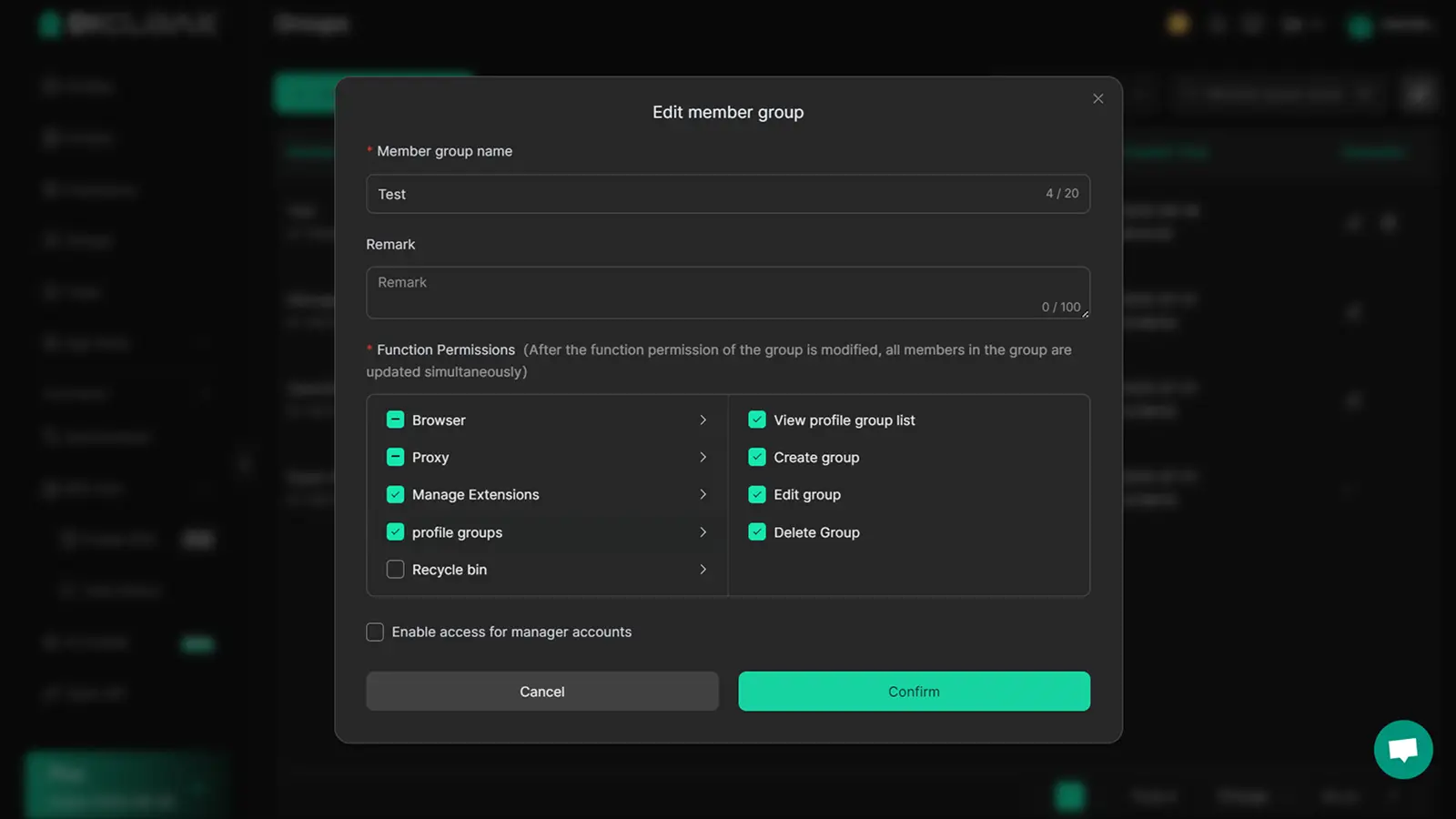
Team Collaboration: Securely Share and Manage Meta Ads Accounts
With DICloak, agencies can set custom permissions for each shared profile. Team members only access what they need. Operation logs track who did what, helping spot risky actions before they spread across accounts.
Scaling Up: RPA and Bulk Tools for Agencies and Power Users
DICloak supports bulk actions and RPA automation, so you can run daily tasks on all Claude Meta Ads integrations at once. Cloud sync keeps everything up to date, even across devices.
Troubleshooting: What to Do If Your Claude-Meta Ads Connection Isn’t Working
Connecting Claude to Meta Ads can break for a few obvious, and a few hidden, reasons. If your Claude Meta Ads integration stops working, don’t just retry; each failed attempt can trigger more account restrictions. Here’s how to get past the most common blocks and keep your Facebook Ads workflow running.
Diagnosing Connection and Authentication Errors
Most users hit trouble with OAuth failures. Sometimes you’ll see “permission denied” or “login expired” errors. These usually mean Meta flagged the login as risky, often because you logged in from an unfamiliar device, or tried to connect Claude to Meta Ads from a shared IP. Check if your Meta Ads account has two-factor authentication enabled, or if you recently changed passwords. If API calls start failing with rate limit messages, verify you’re not running bulk automation outside allowed quotas. For reference, Meta’s API rate limits are strict, exceeding them can lock your account fast.
Fixing Account Restrictions and Suspensions
If Meta Ads restricts your account, don’t rush to reconnect Claude. Start the appeal process right away through Meta Business Help Center. Make sure you use the same device and IP as your usual workflow, switching environments mid-appeal often resets verification. After restoring access, clear old sessions and create a fresh Claude Meta Ads integration using isolated browser profiles and proxies. This lowers the risk of repeat bans. Teams running Claude with Facebook Ads at scale often use tools like DICloak to separate environments and manage proxy setups.
When to Seek Support or Use Alternative Methods
If you keep hitting errors after appeals, contact Meta Ads support or Claude’s help channels directly. Sometimes you’ll need to switch connectors, try a different integration platform or run Claude in a clean browser profile. For stubborn lockouts, look for updates on Meta Ads status or the Claude API docs.
The most critical fix: Always isolate each Claude Meta Ads integration with separate browser profiles and proxies, this prevents cross-account bans.
When Is It Better to Use Organic Growth or Manual Management Instead?
Automation isn't always the safest route for every team or campaign. There are real cases where direct Claude connect to Meta Ads setups actually create more problems than they solve. Understanding when to step back from full integration means fewer bans, less account loss, and smoother scaling for smaller advertisers.
Risks of Over-Automation and Over-Integration
Most tools promise to save time, but tight Claude Meta Ads integration can backfire. Meta tracks patterns across devices, IP addresses, browser fingerprints, and even timing of logins. If you automate too much, like running bulk actions or linking many accounts to the same Claude session, the system starts to notice. That’s when bans and unexpected restrictions hit.
A second risk is data exposure. Linking Claude with Facebook Ads at scale means more access points for sensitive info. If a script or bot gets compromised, attackers might grab ad budgets, billing info, or even personal profiles. Small mistakes, like forgetting to rotate proxies or mixing up browser profiles, become costly. The real win is balancing speed with control, sometimes slower, manual steps are much safer.
When Manual Management or Organic Growth Is the Better Fit
Manual management works best for personal brands or small teams running under five ad accounts. You get full control over every step, each login, content change, and payment update. For these cases, the risk of bans from automation outweighs any time saved.
Organic growth means building up trust with Meta over weeks or months, not forcing instant results. For new accounts or when warming up a new business manager, direct Claude with Facebook Ads integration can draw unwanted attention. Instead, use manual posting, ad review, and slow spend increases. This avoids tripwires that automation often triggers.
If your use case is simple, like running ads for one store or testing a few creatives, manual is often the safest path. Only shift to automated Claude Meta Ads integration when volume and complexity demand it, and you have the right setup with isolated profiles and proxies.
Frequently Asked Questions
Is it safe to connect Claude to Meta Ads from different locations or devices?
When you connect Claude to Meta Ads from new IP addresses or devices, Meta may notice the changes. This can trigger security checks or restrictions. To minimize detection, use the same device and IP whenever possible. If you must switch, use a trusted proxy and keep session details consistent. Avoid frequent changes to reduce risk.
Can I use Claude with multiple Meta Ads accounts at the same time?
Running Claude with several Meta Ads accounts requires careful isolation. Use separate browser profiles, proxies, and logins for each account. Never mix cookies or session data. Switching accounts quickly or from the same device can cause Meta to flag activity. Keep Claude connect to Meta Ads sessions separate and avoid overlapping usage.
What should I do if my Meta Ads account gets restricted after connecting to Claude?
If your account is restricted after Claude Meta Ads integration, start an appeal with Meta support right away. Review their policy guidelines to fix any issues. Remove unauthorized connections and wait for the review process. To prevent future blocks, always use official Claude connectors and follow Meta’s security recommendations.
Are there any costs or limits to connecting Claude to Meta Ads?
Some Claude connect to Meta Ads tools are free, but advanced features may require a paid plan. Meta Ads API itself has rate limits and usage caps. Check your Claude subscription for integration support. Heavy usage or multiple accounts might need higher-tier plans. Free connectors can have limits on requests and features.
How do I keep my Meta Ads data private when using Claude?
To protect your Meta Ads data during Claude Meta Ads integration, always use secure connectors and enable privacy controls. Make sure Claude only accesses needed data. Avoid sharing sensitive info with third-party apps. Review data permissions regularly and limit access to trusted users. Use encrypted connections for extra safety.
Connecting Claude to Meta Ads simplifys campaign management, enabling smarter automation and data-driven optimization. By integrating advanced AI with Meta's advertising tools, marketers can achieve more effective targeting and improved performance. Try DICloak For Free
 Web Proxy Tools
 Free Tools
 Cookie Plugin
 UA Generator
 MAC Address Generator
 IP Generator
 IP Address List
 2FA Code Generator
 World Clock
 Anonymous Check
 WebRTC Leak Test
 UUID Generator
 Free Web Proxy Site
 Proxy Checker
 FB Ad Checker
 AI Web Scraping
 Free SMM Tools
 Twitter Shadowban Checker
 Instagram Name Checker
 UTM Generator
 Username Generator
 AI Hashtag Generator
 LinkedIn Headline Generator
 Social Media Image Resizer