Hitting a message limit in ChatGPT can feel confusing and frustrating, especially when you are in the middle of important work. Many users see the warning you've reached our limits of messages. please try again later and assume something is broken or wrong with their account. In reality, this message is part of how ChatGPT manages heavy usage and protects system stability. Understanding why this limit appears is the first step to avoiding it and keeping your workflow smooth.
How ChatGPT message limits work in simple terms
ChatGPT applies message limits to protect system stability and prevent abuse. The system does not only look at how long you stay online. It tracks how many messages you send, how fast you send them, and which model you are using. More advanced models reach limits faster than basic ones.
A long work session with many small edits can hit limits faster than expected.
Example: You ask ChatGPT to polish a paragraph. Then you ask for a shorter version. Then you change tone. Each step counts as a new message. After many quick requests, the system pauses your access and shows you've reached our limits of messages. please try again later.

The main types of ChatGPT usage limits
ChatGPT usually applies limits in three ways. The exact numbers can change, but the logic stays the same.
1.Hour limit
- Free users: Send up to 25-40 messages per hour (number may vary by region and user)
- Plus users: Send up to 80-100 messages per hour
- Team/Enterprise users: about 100-150 messages per hour
2.Day limit
- Free users: Approximately 150-200 messages per 24-hour cycle
- Plus users: Approximately 500-600 messages per 24-hour period
- Team/Enterprise users: About 800-1000 messages every 24 hours
3.Model-specific limitations
- GPT-4o: Even Plus users have stricter limits, about 40 messages per 3 hours
- GPT-3.5: Relatively lenient limits, but still subject to the above hour and day limits
These limits may vary based on location, system load, account history, and usage behavior.
Five common reasons message limits appear
- Sending many messages too quickly: Rapid back-to-back prompts are the most common trigger.
- Repeating small edits instead of one clear request: Frequent minor changes add up fast.
- Multiple people using one account: Shared usage combines requests and reaches limits sooner.
- Unusual usage patterns: Automated or abnormal request behavior may trigger stricter controls.
- Accounts with prior restrictions: Past policy issues can lower tolerance for heavy use.
Understanding different message limit warnings
ChatGPT uses slightly different warnings depending on the situation.
- “you've reached our limits of messages. please try again later” A general limit has been reached. Waiting usually resolves it.
- “You’ve reached the message limit per hour” Too many messages were sent in a short time.
- “You’ve reached the daily message limit” The account has used all allowed messages for the day.
- Model-specific limit messages These appear when advanced tools reach their own caps, even if overall usage seems low.
- Simple way to tell the difference: Slow usage over many hours often leads to daily limits. Fast usage in minutes often triggers short-term limits.
Once you understand these patterns, the warning becomes easier to predict and manage, instead of feeling sudden or confusing.
Practical Ways to Break ChatGPT Message Limits and Keep Working
Now that you understand why you've reached our limits of messages. please try again later appears, the next step is solving it. Some fixes work right away. Others help you avoid the problem long term. Below are six proven solutions, starting from the simplest response to more stable, long-term options.

1. Let the limit reset naturally (works for everyone)
The easiest solution is to wait. Most message limits are temporary. When you see you've reached our limits of messages. please try again later, it usually means the system needs time to reset your usage window.
For short-time limits, the wait can be as short as 30–60 minutes. For daily limits, it may take several hours.
Example: You hit the limit after a long writing session. Instead of retrying every few minutes, you step away. When you return later, ChatGPT works again without issues.
This method costs nothing, but it is not ideal if you are under pressure or working on deadlines.
2. Upgrade to ChatGPT Plus for higher limits
Upgrading to ChatGPT Plus is the most direct official solution. Plus users get higher hourly and daily message limits, especially when using advanced models.
This does not remove limits completely, but it reduces how often you see you've reached our limits of messages. please try again later.
Example: A content writer who edits articles daily often hits limits on a free plan. After upgrading, the same workload fits within the higher caps, and interruptions happen far less often.
This option works best for solo professionals who rely on ChatGPT every day.
3. Change how you use ChatGPT to avoid triggers
Many users hit limits because of how they send messages, not how much work they do.
Simple habit changes can help:
- Combine edits into one clear prompt
- Avoid sending many short follow-up messages
- Plan requests before typing
Example: Instead of asking for five small changes in five messages, you ask for all changes in one message. This single step can cut message usage in half and reduce how often you've reached our limits of messages. please try again later.
This approach costs nothing and works well for writing, SEO, and research tasks.
4. Use multiple accounts to spread usage pressure
Some advanced users split their workload across more than one account. This spreads message usage and lowers the chance of hitting limits on a single account.
This method must follow platform rules and is usually used by freelancers or users with separate personal and work tasks.
Example: You use one account for research and another for writing. Each account stays within its own limits, and work continues smoothly.
This is not ideal for everyone, but it can help users with heavy, structured workflows.
5. Use the OpenAI API for flexible usage
For users who need consistent, large-scale access, the OpenAI API is a strong option. API usage is based on credits, not fixed chat message limits.
This means you are less likely to see you've reached our limits of messages. please try again later when running long or repeated tasks.
Example: A developer processes large text files through the API instead of the chat interface. The workflow runs without sudden pauses, as long as credits are available.
This option is best for technical users or automated tasks.
6. Choose a Team or Enterprise plan for collaboration
If multiple people need access, Team or Enterprise plans are the most stable choice. These plans offer higher shared limits, better management tools, and smoother collaboration.
They are designed for businesses, agencies, and teams that rely on ChatGPT daily.
Example: A marketing team shares one workspace instead of one login. Each member works independently, and message limits are far less disruptive.
For teams, this is often the most reliable long-term solution.
Seeing you've reached our limits of messages, please try again later does not mean you are stuck. With the right approach—whether waiting, upgrading, adjusting habits, or choosing the right plan—you can keep your work moving and reduce interruptions over time.
For most users, Team or Enterprise plans are simply too expensive. At the same time, directly sharing one ChatGPT account comes with clear risks, such as sudden logouts, security alerts, or account restrictions. In this situation, using an antidetect browser becomes a practical middle ground. It allows multiple users to access the same account in isolated environments, reducing conflict and detection risks while keeping costs under control.
How DICloak Enables Safe Chatgpt Account Sharing
DICloak offers several key features that make it possible for multiple people to use the same account safely and at the same time.
• Simultaneous Access: DICloak’s "Multi-open mode" allows multiple team members to use the same ChatGPT account simultaneously without logging each other out.
• Consistent IP Address: By configuring a static residential proxy in the browser profile, all logins can appear to come from a single, stable location. Think of your IP address like a key to your house. If you use the same key every day, your security system knows it's you. But if ten different keys from all over the world suddenly start working, the system will lock everything down. A static proxy ensures everyone on your team uses the same "key," so OpenAI never gets suspicious.
• Synced Login Status: The "Data Sync" feature saves the login session information. Once the primary user logs in, other members can access the account without needing to re-enter the password.
• Secure Team Management: You can create separate member accounts within DICloak and grant them access only to the specific ChatGPT profile, keeping your other online accounts private and secure.
Step-by-Step Guide to a Secure ChatGPT Account Share with DICloak
Setting up a shared ChatGPT account with DICloak is a straightforward process that doesn't require technical expertise.
1.Download and Install DICloak
Visit the official DICloak website, register for an account, and download and install the application on your computer.

2. Choose the Right Plan
To share profiles with your team, you should subscribe to DICloak. The choice depends on your team size. The Base Plan is a good starting point for smaller teams, while the Share+ Plan is recommended for larger teams needing unlimited member access.
3. Step 3: Set Up a Static Residential Proxy (Recommended)
While not mandatory, using a single static residential proxy is highly recommended. This provides a stable, fixed IP address for your shared profile, which prevents ChatGPT's security systems from being flagged by logins from different locations. This greatly reduces the risk of forced logouts or other security issues. DICloak does not sell proxies but partners with several third-party providers.
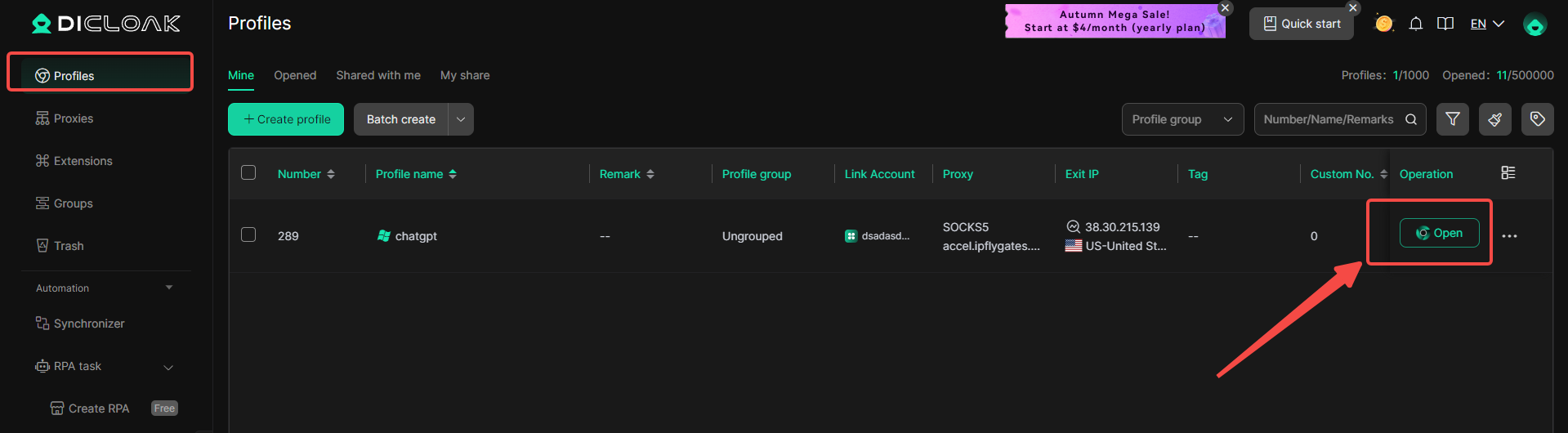
4. Create a New Browser Profile
Inside the DICloak application, create a new browser profile. This profile will serve as the dedicated, secure borwser profile for your shared ChatGPT account.

5.Enable Multi-open Mode
You shoud Go to [Global Settings], find the [Multi-open mode] option, and select [Allow].This feature allows multiple people access the same Chatgpt account at the same time.

6. Log In to ChatGPT
Launch the browser profile you just created. It will open a new browser window. Navigate to the official ChatGPT website and log in with your account credentials.

7. Share the Profile with Your Team
Return to the DICloak main screen. Use the team feature to create members to invite your friends to your DICloak Team.

8. Access the Shared Account
Once your teammate accepts the invite, the shared profile will appear in their DICloak application. They can launch it from their own computer and will be automatically logged into the same ChatGPT session.
How to Check and Manage Your Message Limits
Keeping track of your usage helps you avoid sudden blocks and stay productive. ChatGPT provides a simple way to view how many messages you have used and how much capacity remains.
For Free users: Open ChatGPT and click your profile icon in the lower-left corner. From there, choose My Plan. In the usage area, you can see how many messages you have sent during the current time period and whether you are close to the limit.
For Plus users: Go to the same My Plan page from your profile menu. Plus accounts show more detailed usage data, including how often each model is used. Pay close attention to advanced models, such as GPT-4o, which usually have their own counter that resets within a shorter time window.
Checking this panel regularly helps you plan your work better and reduces the chance of seeing message limit warnings at critical moments.
ChatGPT Message Limit FAQs
Is ChatGPT’s message limit permanent?
No. Message limits are temporary. They are based on time windows, such as hourly or daily limits. Once that window ends, your access resets on its own. However, if an account hits limits very often, the system may apply stricter controls more quickly in the future.
Why do message limits differ between users?
ChatGPT does not use one fixed rule for everyone. Limits adjust based on several factors, including how old the account is, past usage behavior, current system demand, and the type of subscription. This is why two Plus users can have slightly different experiences.
Is slow response or sudden errors linked to message limits?
Sometimes, but not always. Slowness or errors often happen during peak hours, such as busy work times. In these periods, the system may slow down or pause certain requests even if you have not reached a clear message limit. This usually reflects high server load rather than a direct restriction on your account.
Conclusion
ChatGPT message limits can be annoying, especially when you've reached our limits of messages. please try again later interrupts your work. These limits are not random. They exist to control heavy usage and keep the system stable. For most users, simple actions like waiting, improving usage habits, or upgrading plans can help. However, when team plans are too expensive and direct account sharing is risky, using an antidetect browser offers a practical middle solution. With the right setup, message limits become easier to manage, allowing you to keep working with fewer interruptions and better control over your workflow.
 Web Proxy Tools
 Free Tools
 Cookie Plugin
 UA Generator
 MAC Address Generator
 IP Generator
 IP Address List
 2FA Code Generator
 World Clock
 Anonymous Check
 WebRTC Leak Test
 UUID Generator
 Free Web Proxy Site
 Proxy Checker
 FB Ad Checker
 AI Web Scraping
 Free SMM Tools
 Twitter Shadowban Checker
 Instagram Name Checker
 UTM Generator
 Username Generator
 AI Hashtag Generator
 LinkedIn Headline Generator
 Social Media Image Resizer