You log in to your YouTube account from what you think is a clean new browser profile, only to get hit with a restriction notice, flagged login, or a locked account prompt. It’s not just a minor warning. For many, the platform blocks uploads, disables comments, or even asks for extra verification. It feels random, but the pattern is clear: youtube account restricted after login from a new browser profile is a real headache, especially when you’re handling multiple accounts or switching devices.
Changing browsers or profiles might seem like a harmless move, but YouTube’s system tracks much more than just the login location. If the browser fingerprint, device signals, or cookie history don’t line up with what Google expects, the risk of getting your YouTube account locked after new browser login jumps sharply. Sometimes the restriction kicks in after a single session; other times, the account gets flagged quietly and you only notice when uploads start failing.
The tricky part is, most users don’t realize how many invisible signals YouTube checks beyond IP or password. Device ID, user agent, time zone, and even subtle graphics or font differences can trigger the platform’s security process. If you skip these details, especially when running multiple accounts or managing profiles for a team, you’re much more likely to see login restriction from different browser setups and wonder why your workflow keeps stalling.
So if you want to stop the cycle and fix those restrictions for good, here’s what you need to check first.
Why YouTube Restricts Accounts After Login From a New Browser Profile
If your YouTube account got restricted right after logging in from a new browser profile, the main reason is that YouTube’s backend saw signals that didn’t match your past usage. This isn’t just about the IP, device fingerprints, time zone, and system settings all play a role. When enough of these signals change at once, the platform triggers security mechanisms.
How YouTube Detects Unusual Login Environments
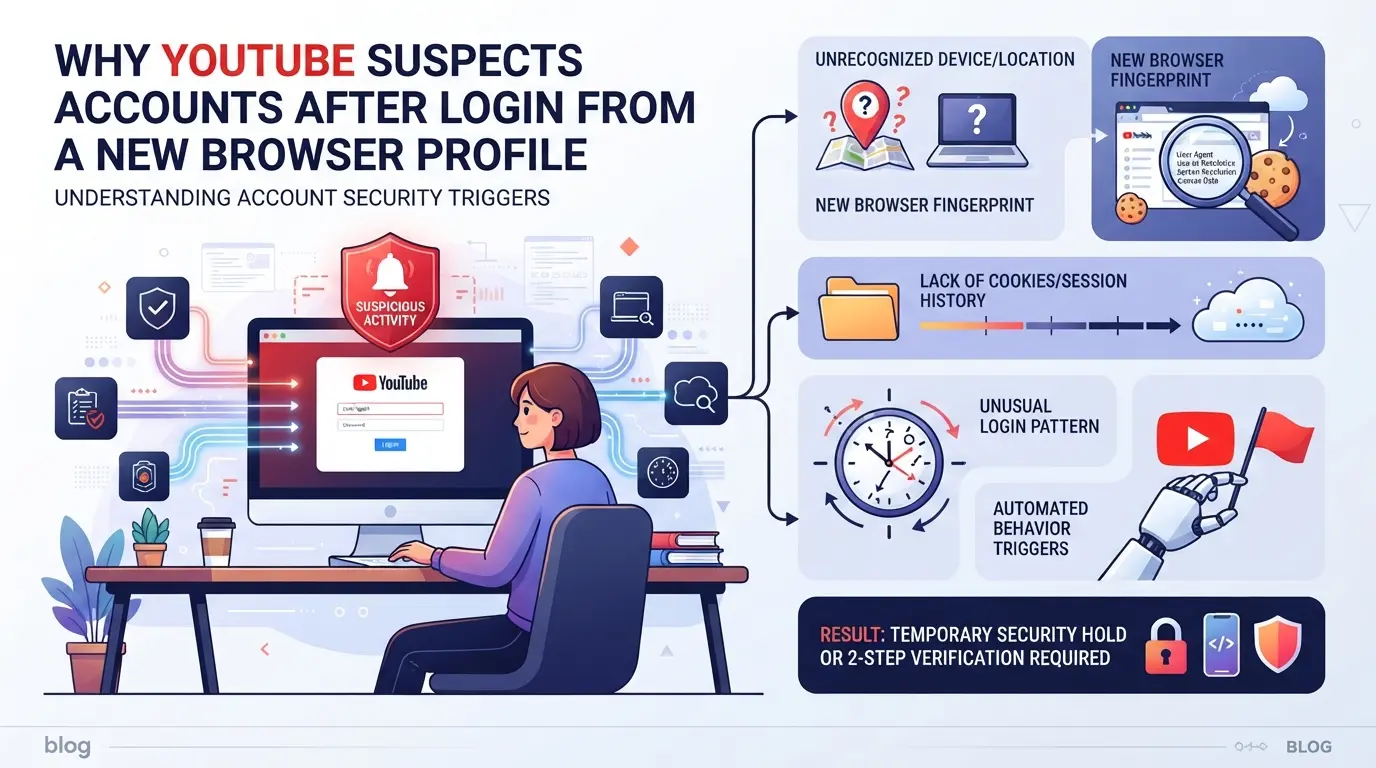
YouTube tracks browser fingerprints and device patterns, not just passwords or cookies. When you sign in from a browser with a different user agent, operating system, or graphics environment, the system sees this as a new device. If your IP or geolocation also changes, the account gets flagged for review.
What Triggers a Restriction: Key Risk Signals
The restriction usually kicks in when several changes stack up, like a new browser version, a different time zone, or a location that doesn’t match your usual logins. For example, if you usually log in from a Windows desktop in Chicago, but suddenly access from what looks like a fresh Mac in Southeast Asia, YouTube’s systems will spot the mismatch. It’s not just “one change and you’re out”, but when multiple signals flip at once, the risk spikes. This can catch even careful users: if you clone a browser profile but forget to align the time zone or proxy location, or if your new browser’s font list doesn’t match the last device, you might trigger a lockout. Most restrictions happen when you combine a new profile with a login from an unusual network or device, not just from using a new browser alone. If you get a restriction, it often starts with a prompt for extra verification, but can escalate to a full lock or upload bans if you retry with more mismatched signals.
Why Social Media Teams and Power Users Are More Vulnerable
- Frequent switching between many accounts triggers more environment changes than personal use.
- Shared devices or profiles among team members create inconsistent fingerprints and locations.
- Batch logins from new setups (or new browser profiles) raise red flags, especially if the team works across regions.
Once an account is flagged, every new login gets more scrutiny. If several team members log in from different machines or proxies, it can look like a takeover attempt.
Understanding these triggers sets the stage for what actually happens during a YouTube account restriction, what you see, what’s locked, and what options you have next.
What Actually Happens When Your YouTube Account Is Restricted
When YouTube flags your account after a login from a new browser profile, you’ll see changes right away, some features go missing, or you’re asked to verify yourself before you can do anything else. This isn’t just a minor warning; it blocks uploads, comments, or even access until you clear the restriction.
Types of YouTube Account Restrictions
Most restrictions fall into two camps: temporary holds (like identity checks or phone verification) and feature blocks (such as losing the ability to comment, upload, or monetize videos). Sometimes your entire channel gets locked, other times you just lose access to key features for days or weeks.
How Restrictions Are Communicated: Warnings, Emails, and Pop-Ups
YouTube almost always displays an in-app banner or pop-up the moment a restriction hits. Expect wording like, “We’ve detected unusual activity, verify your account,” or “This feature is temporarily unavailable.” You’ll often get an email too, but not always, especially if the restriction is triggered by device signals rather than a flagged password. For example, login from a new browser profile might show a red banner above your dashboard, while uploads fail with a “feature disabled” tooltip. If you miss these pop-ups, check the email tied to your Google account for more details, but don’t count on timely notifications. The most reliable sign is a sudden block on normal actions, if basic features vanish or you’re asked for verification, you’re already under restriction.
How Long Do Restrictions Last?
- Temporary holds last until you finish the verification or wait out a cooldown, which can be anywhere from a few hours to several days.
- Some feature blocks (like upload or comment bans) are set for 7–30 days, depending on the severity and account history.
- Permanent actions (like channel termination) only occur after repeated or severe violations, these are rare from a single profile change, but do happen if suspicious patterns continue.
If you notice any core feature is missing after a new login, assume the clock has already started on your restriction window, waiting rarely fixes it without taking action.
Next, you’ll want to know what steps to check before logging into YouTube from a new browser profile, so you avoid getting flagged again.
What to Check Before Logging Into YouTube From a New Browser Profile
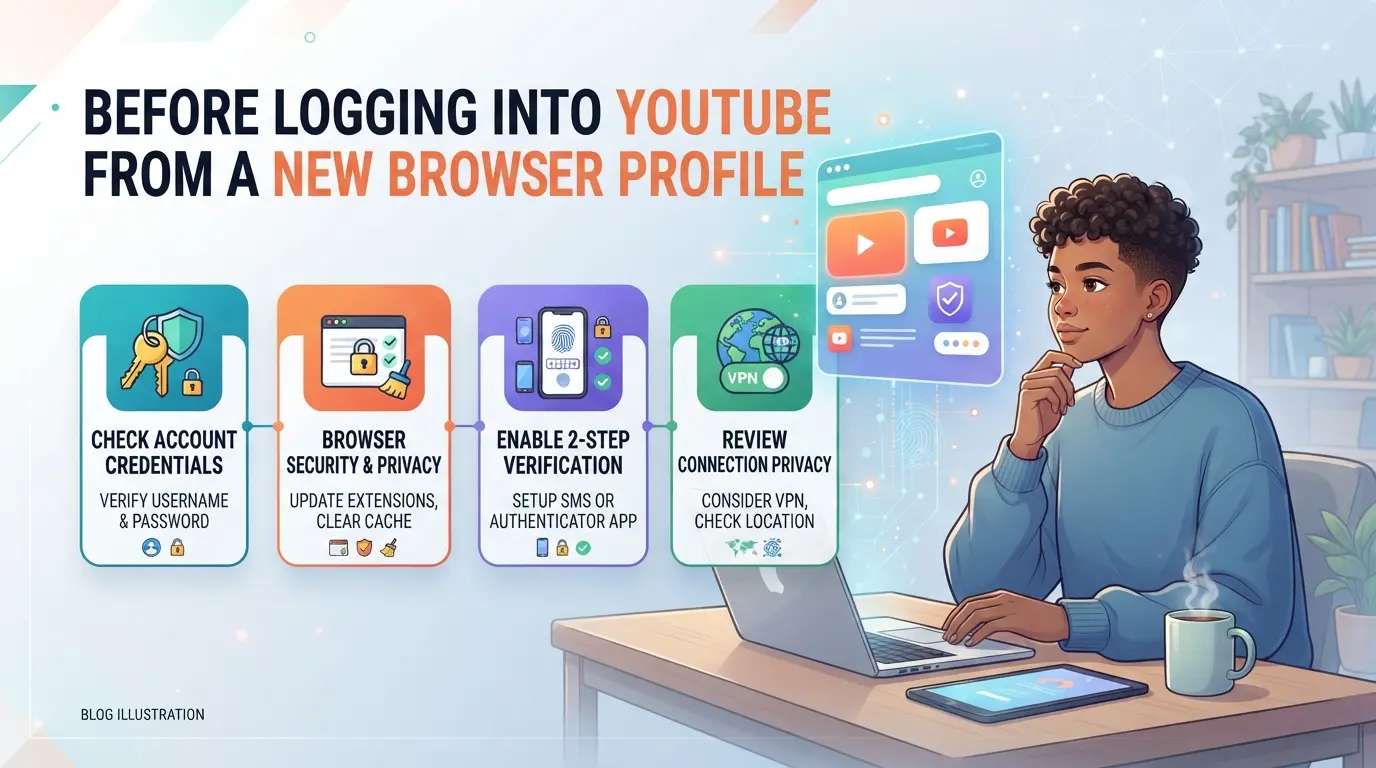
If you want to avoid getting your YouTube account locked or flagged after a new browser login, you need to match your device setup as closely as possible to what YouTube expects. Most restrictions come from visible changes in your browser’s fingerprint, location, or session data, not just your password or IP.
Consistency in Browser Fingerprint and Device Settings
Check that your browser profile sends the same user agent string, language, and operating system as before. Even small changes, like switching from Windows to Mac, or changing your interface language, can tip off YouTube’s automated systems. Avoid sudden shifts in screen resolution or hardware details. If you last logged in from a laptop, don’t jump to a phone-sized environment now.
IP Address and Location: What Matters Most
- Use a stable IP address that matches your recent login history.
- Avoid logging in from a country or region you haven’t used before.
- Double-check your time zone matches your IP location, mismatches often trigger security checks.
Cookie and Session Data: Why They Matter
If you can, import your old cookies and session data into the new browser profile. Starting from a blank state, no cookies, no history, looks suspicious and often triggers extra verification steps. Missing session data can lead straight to a YouTube login restriction from different browser setups.
Red Flags That Usually Trigger Immediate Restrictions
Logging into several new profiles back-to-back, or mixing personal and business accounts in one session, raises alarms. YouTube’s systems watch for rapid changes and cross-account logins.
- Don’t log into more than one new browser profile for the same account within a short window.
- Never mix unrelated YouTube accounts on the same profile or device.
- Watch for sudden requests for phone or email verification, these are early signs you’ve tripped a flag.
The most common mistake is moving too fast: change too much at once, and you’ll almost always get stopped. If your account does get restricted after a new login, you’ll need to act quickly, next, see how to recover access without risking a permanent lock.
How to Recover a YouTube Account Restricted After Logging in From a New Browser Profile
When your YouTube account is restricted after logging in from a new browser profile, move quickly, delay can make recovery harder. Start by reading Google's message closely, then work through verification or appeals. If you skip a step, you risk a longer lock or even a permanent ban.
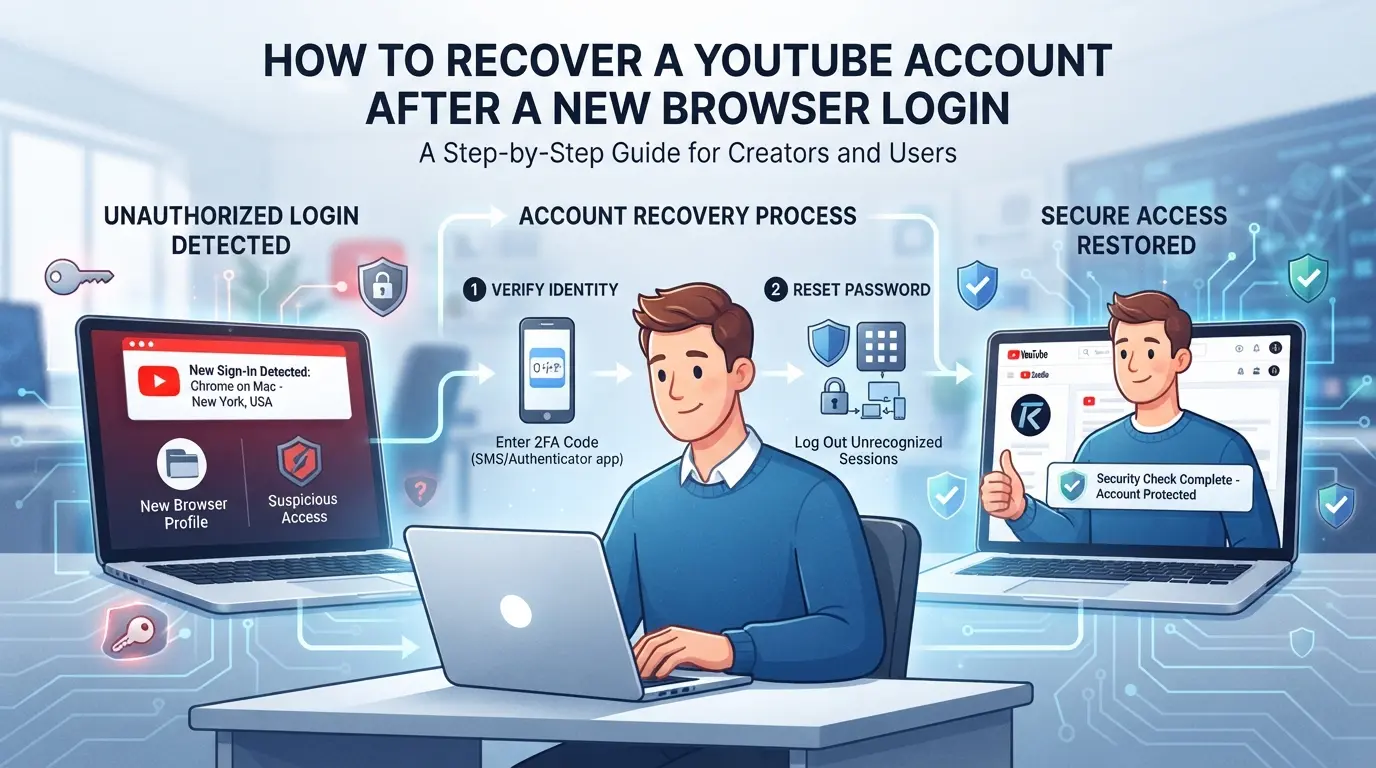
Step 1: Review the Restriction Notice and Account Email
- Open the restriction banner or email from Google, look for the exact reason (suspicious login, "unusual activity," or a security check).
- Check for specific action buttons like "Verify," "Appeal," or "Start Recovery."
- Read the instructions twice. If you miss a deadline or required document, you may lose your appeal option.
Step 2: Complete Any Required Verification
- Click any "Verify" or "Confirm it's you" prompt. Google may ask for a code sent to your phone or email.
- Use the device and location you normally use. Logging in from a different place can cause more checks or block recovery.
- If you hit a wall (e.g., no access to recovery phone), use Google’s “Can’t access?” flow, but expect extra security questions.
Step 3: Submit an Appeal If Eligible
- If the restriction notice offers an "Appeal" link, click it. Write a short, direct message explaining the new browser profile and confirm you own the account.
- Attach any requested ID or proof (e.g., device screenshots showing ownership).
- Stay factual, blaming "system error" or using a template usually gets auto-rejected.
Step 4: Secure Your Account and Review Security Settings
- Once access returns, change your password, pick something you haven’t used before.
- Turn on two-factor authentication (2FA) in your Google account settings.
- Remove unknown devices from your security tab. If you see logins from places you don’t recognize, act fast, re-secure everything before using YouTube again.
If the lockout happened right after switching profiles, chances are something in your device setup or login method triggered Google’s security. That’s the main cause teams miss, and it’s covered in detail next.
Common Mistakes That Lead to YouTube Account Restrictions When Using New Browser Profiles
Most people see their YouTube account restricted after login from a new browser profile because of overlooked session signals, not just IP or password mismatches. Here’s where things usually go wrong, and how to avoid repeating the same mistakes.
Using Public or Shared Devices Without Proper Isolation
Logging in from a shared or public computer opens you up to browser data leaks. If browser profiles aren’t truly separated, cookies and fingerprint signals can cross over, causing YouTube to connect your session with someone else’s history and raise a flag.
Mixing Multiple Accounts in One Browser Profile
Trying to run several YouTube accounts inside one browser profile is a shortcut that often backfires.
- YouTube can spot when cookies, device fingerprints, or login patterns overlap, which often leads to locks or manual reviews.
- Instead, give each account its own isolated environment and unique browser signals before logging in, or you risk all accounts being flagged together.
Rapid Switching Between Profiles or Devices
Switching between different browser profiles or devices too quickly is a classic trigger for YouTube’s automated checks. If you log in to multiple accounts from different locations or setups within minutes, the system may block access to prevent suspected fraud. Give each session time to settle, wait at least an hour between major environment changes.
Ready to break the cycle? The next step is learning how social media teams keep YouTube accounts safer with profile isolation and proxy configuration.
Managing Multiple YouTube Accounts With DICloak: Profile Isolation and Proxy Configuration
Teams juggling several YouTube accounts often hit the same wall, accounts get restricted after login from a new browser profile, especially when the login signals don’t match past sessions. The real fix isn’t just avoiding mistakes; it’s setting up each account to run in its own consistent browser profile and network exit. For teams that need scalable, repeatable workflows, DICloak offers two controls that cover this ground.
Using Isolated Browser Profiles and Fingerprint Configuration for Each YouTube Account
Operators can create a new browser profile in DICloak for every YouTube account they manage. Each profile stores its own device, language, time zone, and other browser signals, so sessions never overlap or contaminate each other. For example, a social media agency assigns a dedicated DICloak profile per YouTube account and adjusts the fingerprint settings to keep the reported environment close to what YouTube expects. The scope is limited to browser-profile access; it does not change YouTube’s internal account logic.

User-Provided Proxy Configuration for Assigned Profiles
Logging in from a new IP or region is a common reason for YouTube to flag or restrict accounts. Operators can configure their own proxy for each DICloak profile, making the account login appear from its usual country or city. In practice, a team matches the proxy settings to the account’s past login regions and uses DICloak’s built-in connectivity check to verify the exit IP. Operators are responsible for proxy selection and testing; DICloak only stores the settings.

This workflow helps teams reduce the mismatch signals that usually trigger restrictions. Next, it’s worth knowing when to avoid logging in from a new browser profile entirely.
When to Avoid Logging Into YouTube From a New Browser Profile (and What to Do Instead)
Jumping into YouTube from a fresh browser profile isn’t always safe, some situations turn a simple login into a fast track for restrictions or account locks.
High-Risk Scenarios: What to Watch Out For
If you just changed your password or are logging in while traveling, hold off on using a new browser profile. YouTube’s system can flag these changes as suspicious and temporarily lock you out.
Safer Alternatives to Reduce Account Restriction Risk
Changing device, country, or security settings all at once can trigger an account lock.
- Logging in from a new profile right after updating security info often results in a YouTube account restricted after login from a new browser profile.
- Stick to your usual device and browser whenever possible, and introduce changes one at a time, wait at least 24 hours between major changes.
If you must use a new profile, start by testing with a low-risk or backup Google account. If that works, move to your main account only after confirming there were no login warnings or verification prompts. This small delay can save you days of recovery work and prevent sudden upload or comment blocks.
Frequently Asked Questions About youtube account restricted after login from a new browser profile
Can I avoid YouTube restrictions by using a proxy with a new browser profile?
Using a proxy can help match the location of your old logins, but YouTube checks more than just your IP. It also looks at your browser fingerprint, cookies, and device settings. If these don’t match your usual pattern, you may still get a youtube account restricted after login from a new browser profile warning.
How many YouTube accounts can I safely manage from one device?
You can manage several YouTube accounts if each one uses a separate browser profile with unique cookies and consistent settings. However, the more accounts you use on one device, the higher the risk of YouTube linking them together and flagging or restricting access.
Will clearing cookies or using incognito mode prevent account restrictions?
No, clearing cookies or using incognito mode does not reliably prevent your YouTube account from being locked after new browser login. YouTube uses other signals like device fingerprint, IP address, and login behavior. Incognito mode alone does not fully hide you from YouTube’s checks.
What should I do if my appeal to YouTube is denied?
First, carefully review the reason for denial. Make sure your login methods and device settings look normal and not suspicious. Wait a few days before trying again, since repeated attempts can make things worse. If the issue continues, contact YouTube support with clear details and proof of ownership.
Is it safe to log in to YouTube from different browsers on the same computer?
Logging in from different browsers can be safe only if each browser is fully isolated with its own profile, cookies, and no shared data. If browsers share files, plugins, or settings, YouTube may link your accounts and trigger a login restriction from different browser warning or even block access.
If your access is restricted after signing in from a new browser profile, consider securing your account with updated credentials and enabling two-factor authentication for added protection. Alternatively, using a privacy-focused browser or tool can help avoid triggering unnecessary security checks in the future. Try DICloak For Free
 Web Proxy Tools
 Free Tools
 Cookie Plugin
 UA Generator
 MAC Address Generator
 IP Generator
 IP Address List
 2FA Code Generator
 World Clock
 Anonymous Check
 WebRTC Leak Test
 UUID Generator
 Free Web Proxy Site
 Proxy Checker
 FB Ad Checker
 AI Web Scraping
 Free SMM Tools
 Twitter Shadowban Checker
 Instagram Name Checker
 UTM Generator
 Username Generator
 AI Hashtag Generator
 LinkedIn Headline Generator
 Social Media Image Resizer