You have internet access, but YouTube will not open, a video will not start, or the player keeps loading. If you are asking why is my YouTube not working, the cause may be a YouTube outage, an unstable connection, a browser conflict, a mobile app problem, a playback restriction, or an issue tied to your Google account or login session.
The phrase YouTube videos not playing can describe several different failures. This guide helps you identify whether the problem comes from the platform, network, browser, app, video, or account. It then gives the most relevant fix for that cause. It also explains how teams can keep authorized YouTube sessions separate when several accounts share the same workflow.
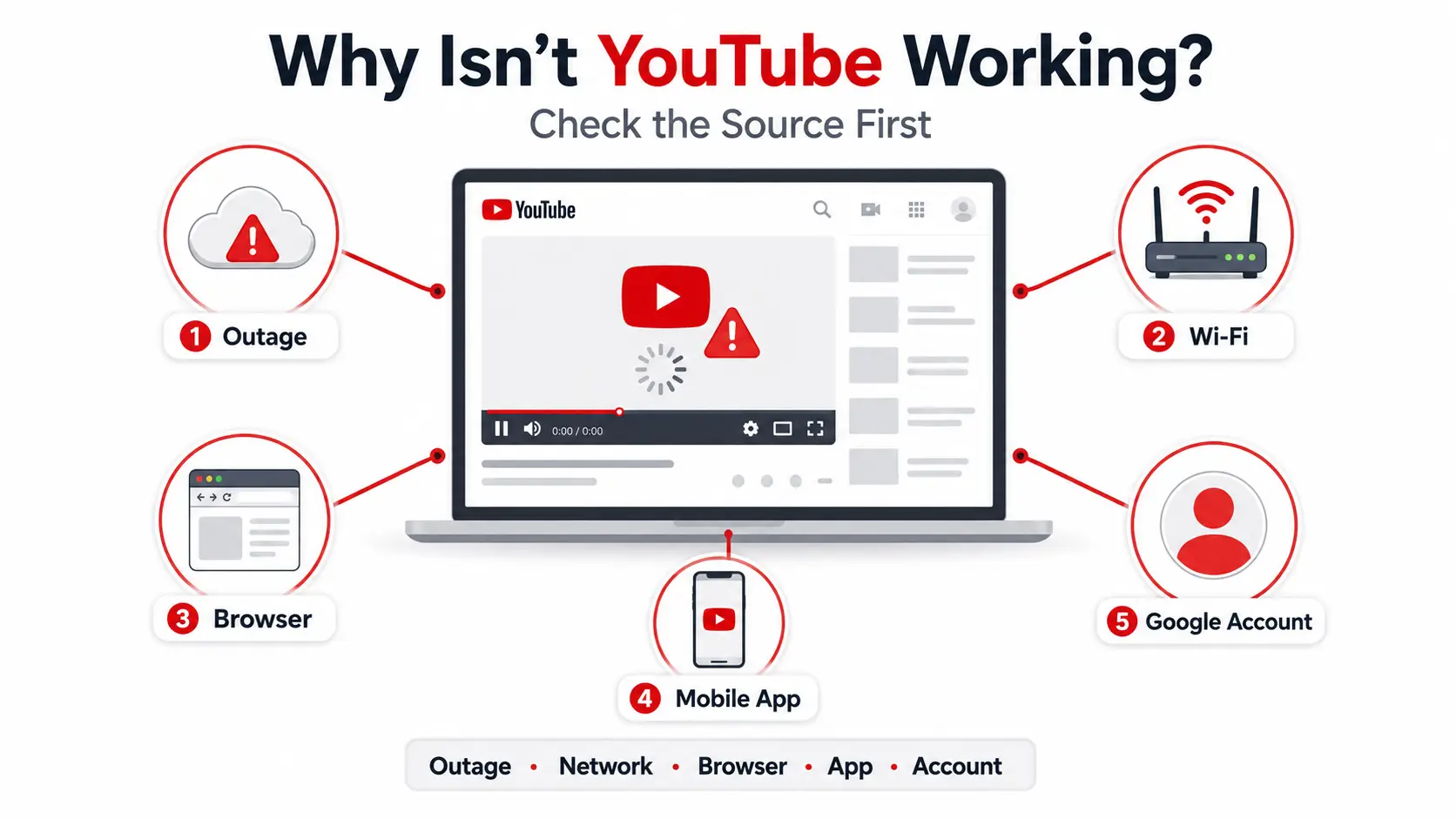
Find Out Why YouTube Is Not Working
To answer why is my YouTube not working, compare one condition at a time. Check whether the failure follows the device, network, browser session, or Google account before changing settings.
| Symptom |
Most likely cause |
First test |
| YouTube fails on every device and network |
Wider outage |
Check current status reports |
| YouTube works on mobile data but not Wi-Fi |
Wi-Fi, router, DNS, or network rule |
Compare both connections on one device |
| YouTube works in Incognito only |
Cookies, site data, extensions, or settings |
Test likely extensions |
| YouTube works while signed out |
Account setting or saved session |
Compare signed-out and signed-in use |
| Only one video is unavailable |
Video or access restriction |
Open another public video |
| The mobile app crashes |
App data, storage, update, or OS issue |
Restart the app and check updates |
Use four quick comparisons when YouTube not working affects one setup:
- Another device: A different result points to the original device or app.
- Another network: A different result points to Wi-Fi or its network settings.
- Incognito or another browser: Success points to the normal browser session.
- Signed-out mode or another account: Success points to the account or saved session.
People searching for how to fix YouTube often change several settings together. Avoid this. Use each result to choose the right section when YouTube not loading affects one device or session.
Is YouTube Down or Is the Problem on Your Side?
If YouTube fails across several devices, networks, and accounts, the platform may have a wider problem. If the issue stays tied to one setup, the cause is more likely local.
How to Check Whether YouTube Is Down
When asking is YouTube down, look for matching evidence instead of relying on one complaint.
First, review the Known Issues area in the YouTube Help Community and recent updates from @TeamYouTube. These official channels may confirm an active incident, name affected features, or report that service has returned.
Next, check one reliable outage-reporting service such as Downdetector. These services collect user reports and show whether the current volume is above its normal level. A sharp rise can support the possibility of a YouTube outage, but it is not final proof because local network and device problems may also appear in the data.
Compare the timing, location, and symptoms of the reports. A wider issue becomes more likely when many recent users describe the same failure at about the same time.
Signs of a Wider YouTube Outage
When people report YouTube not working today, look for a broad pattern. The homepage, search, and player may fail together across different devices, connections, and Google accounts. Reports may also cluster in one region.
A global outage affects users across several countries or large areas. A regional outage affects a smaller location or certain network routes. A local issue remains tied to one device, browser, app, connection, or account.
Other Google services may still work normally. A YouTube-specific incident does not have to affect Gmail, Search, or every Google product.
During a confirmed outage, reinstalling the app or clearing browser data will not repair the service. Wait for YouTube to restore it and check the official updates again later. If current reports look normal, continue with the network and browser checks below.
Why YouTube Won’t Load on Wi-Fi or in Your Browser
If there is no wider outage, find out whether the problem follows the Wi-Fi network or the browser. Basic pages may still open when a connection is unstable for video. If another network works, focus on Wi-Fi. If Incognito works, focus on the normal browser session.
YouTube Works on Mobile Data but Not Wi-Fi
If YouTube works on mobile data but not Wi-Fi, the problem is more likely tied to the Wi-Fi network, router, DNS, or network rules than to the YouTube app.
Use this order:
- Compare Wi-Fi and mobile data on the same device.
- Restart the router, then reconnect.
- Forget the Wi-Fi network and join it again.
- Move closer to the router.
- Pause downloads, backups, updates, and other streams.
- Check another Wi-Fi network if one is available.
- Review recent custom DNS, firewall, parental control, or network-filter changes.
- Check whether a managed or public network limits streaming.
If every device fails on the same Wi-Fi, focus on that network. If another Wi-Fi works, the original one is likely responsible. Improvement near the router points to weak signal or interference. Failure only on a managed network may reflect administrator rules.
Connected to Wi-Fi does not always mean stable internet access. YouTube not loading on Wi-Fi may occur even while simple pages still open. YouTube says no internet connection can mean the device reached the router without stable internet access. The query YouTube not working but internet is fine often points to latency, packet loss, or interference. YouTube not working even though I have internet can also result from short drops.
A fast speed test does not rule out these problems. Lower video quality only as a connection test. Do not enter random DNS addresses, expect a proxy to improve playback, or disable security tools permanently.
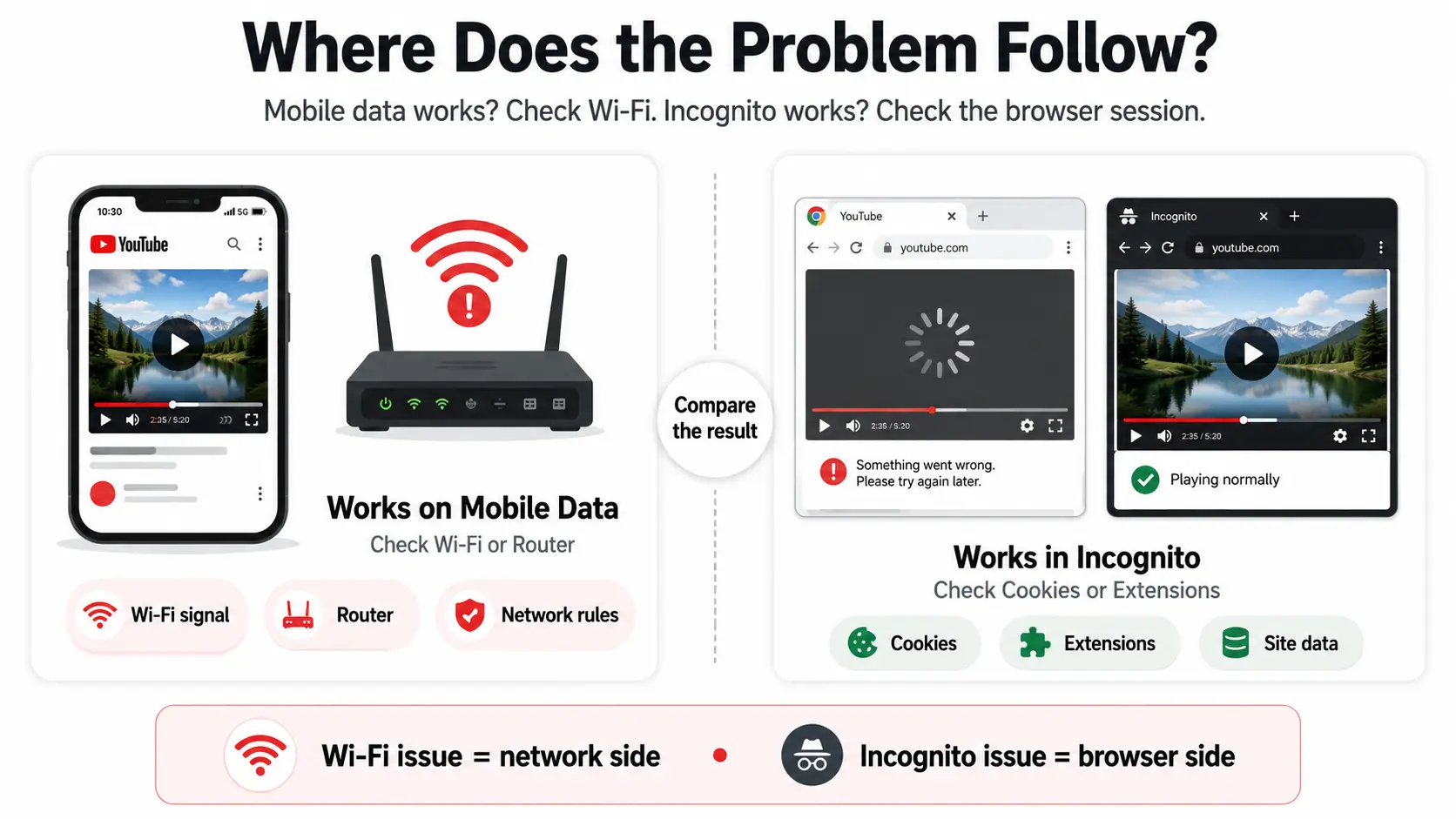
YouTube Works in Incognito but Not Normally
If YouTube works in Incognito, the problem is usually tied to cookies, cached site data, extensions, or settings used in the normal browser window.
Incognito starts a separate temporary session. It may not use the same saved cookies, and many extensions stay off unless you allowed them in private mode. It does not remove every browser setting.
When YouTube not working in browser affects only the normal window:
- Temporarily disable likely extensions.
- Reload YouTube.
- Clear YouTube- and Google-specific site data.
- Restart the browser.
- Enable extensions again one at a time.
Start with ad blockers, privacy or security tools, script blockers, video download extensions, and tools that change page content. Test each one before removing it.
To clear site-specific data, use the browser’s privacy or site-data controls and remove only the stored data for YouTube and Google. You may need to sign in again. This is more targeted than deleting all cookies and history when YouTube videos not playing in browser is the only problem.
YouTube Shows a Black Screen or Keeps Loading
A YouTube black screen or endless loading often points to browser rendering, outdated software, blocked JavaScript, limited memory, or a graphics setting.
Reload the page, close unused tabs and heavy programs, and update the browser. Then test another supported browser once. If the second browser works, focus on the original one. This is useful when checking YouTube not working on Chrome.
Confirm that JavaScript is enabled because YouTube uses it for the player and page controls. If JavaScript is blocked by the browser or an extension, the page may open while the player fails.
Next, test the opposite hardware acceleration setting. Change it once, restart the browser, and compare the result. Hardware acceleration helps some systems but can conflict with certain graphics drivers on others. If the change fixes YouTube stuck loading, browser and graphics compatibility may be involved.
Install relevant browser, system, or graphics-driver updates if the problem remains. If YouTube works in a desktop browser but fails in the mobile app, continue with the platform-specific app steps.
YouTube App Problems on Android and iPhone
Mobile app failures often come from an outdated app, temporary or damaged data, low storage, missing network permission, an older operating system, or a stalled process. When the YouTube app not working issue appears, start with closing the app, restarting the device, and checking updates. Clear app data or reinstall only after simpler steps fail.
Fix YouTube Not Working on Android
If you searched for YouTube not working on Android, restart the app and device before clearing stored data.
- Force close YouTube and reopen it.
- Restart the Android phone or tablet.
- Update YouTube through Google Play.
- Install available Android updates.
- Check available storage.
- Confirm that YouTube can use Wi-Fi and mobile data.
- Clear the YouTube app cache.
- Clear app storage or app data only if earlier steps fail.
- Reinstall or restore the app when supported.
The early steps can clear a frozen process or resolve an app and system compatibility problem. Low storage can block temporary files or updates, so remove only unneeded content.
If the YouTube app says offline, compare Wi-Fi and mobile data. If every app has the same problem, return to the network section. If only YouTube is affected, continue with the app checks.
Clearing cache removes temporary files without fully resetting the app. Clearing app data performs a deeper reset and may remove local settings, offline downloads, and the current login session. You may need to sign in again. Menu names differ across Samsung, Pixel, Motorola, Xiaomi, and other Android devices, so use the app or storage controls available on your phone.
On devices where YouTube is preinstalled, restoring the app may mean removing updates and then installing the current version again. Neither cache clearing nor reinstalling is a guaranteed fix.
Fix YouTube Not Working on iPhone or iPad
If you searched for YouTube not working on iPhone, close the app, restart the device, and install available updates before removing YouTube.
- Close and reopen YouTube.
- Restart the iPhone or iPad.
- Update YouTube through the App Store.
- Install available iOS or iPadOS updates.
- Confirm that YouTube can use cellular data.
- Check available storage.
- Offload YouTube when storage is limited.
- Delete and reinstall it if a fuller reset is needed.
These steps address frozen processes, old software, and cellular permission problems.
Offloading and deleting are different. Offloading removes the app itself while keeping its documents and data. It can free space without performing a full reset. Deleting removes the app and its local data more completely, which is more useful when damaged stored data may be involved.
After deleting the app, you may need to sign in again and download offline videos again. iPhone and iPad do not provide a universal Clear Cache button for the YouTube app. Safari website data is separate from YouTube app data, so clearing Safari history is not an app fix.
When the YouTube App Keeps Crashing
If the YouTube app keeps crashing, identify whether it fails at launch, when any video starts, or only during one video.
A crash every time the app opens is more likely tied to the app, device memory, storage, or operating system. A crash during one video may be content-specific. If the issue began after an update, compatibility may be involved, but timing alone does not prove the update caused it.
Close heavy apps, confirm that storage and software are current, then test another public video. If the crash continues, use the Android cache step or the iPhone and iPad offload step above. Reinstall only after less disruptive options fail.
If the app opens normally but a video will not start, keeps buffering, or shows an error, use the playback pattern to narrow the cause.
What YouTube Playback Errors Can Tell You
A YouTube playback error describes the visible symptom, not always the exact cause. Check whether one video or every video fails, whether signing out changes the result, and whether the problem follows the browser, device, connection, or Google account.
“Something Went Wrong” or “Playback Error”
A “Something Went Wrong” message may come from a temporary session problem, unstable connection, browser conflict, app issue, incorrect device time, or account-specific setting. People searching for YouTube something went wrong should use a short comparison order:
- Reload the page or reopen the app.
- Check another public video.
- Test while signed out.
- Compare another connection.
- Use another browser or device.
- Confirm the device date and time.
If another video works, the first video may have its own availability problem. If all videos fail only on one connection, return to the network section. If another browser works, use the browser section. If signed-out playback works, the account or saved login session may be involved.
If every device, connection, browser, and account fails, review the outage section. Do not treat a general error as proof of a suspension.
Videos Won’t Start, Keep Buffering, or Say “Unavailable”
A YouTube video not playing can describe three different patterns.
A video that never starts often points to a connection, browser, app, or session problem. A video that starts and pauses repeatedly is more likely affected by unstable bandwidth, packet loss, background traffic, or limited device resources. Temporarily lower the quality, pause heavy background activity, and check whether the problem affects high resolutions, live streams, or every video.
If lower quality works, the connection or device may not be sustaining the higher data rate. If closing heavy apps helps, memory or processing limits may be involved. YouTube keeps buffering does not always mean the internet plan is too slow; short drops and interference can cause the same result.
A YouTube video unavailable message is different. The player may work, but the content cannot be accessed because:
- The uploader deleted it, made it private, or limited it to approved viewers.
- The video is still processing or has been removed.
- Age, Restricted Mode, Family Link, or account settings limit access.
- Regional or copyright rules block the content.
- A school, workplace, or Workspace administrator restricts it.
- The signed-in account does not have permission.
Read the exact message, open another public video, and check the relevant account or administrator settings. Ask the uploader whether the video remains public when appropriate.
Clearing cache cannot restore a deleted video. Reinstalling YouTube cannot make private content public. Local changes cannot remove uploader, age, regional, copyright, or administrator restrictions.
YouTube Works While Signed Out or on Another Account
If YouTube works while signed out, the platform and connection are probably available, but the Google account, saved session, or account settings may be involved.
Compare the affected account with another permitted account, then test the same account on another device. If only one account fails across several devices, focus on its settings or restrictions. If every account fails in one browser, return to the browser-session checks. If the affected account works elsewhere, the original device or saved session is more likely involved.
Reports of YouTube not working on one account may relate to Restricted Mode, age or birthday information, Family Link, Google Workspace or school rules, a security check, damaged session data, or another account-specific setting. The phrase YouTube not working after signing in points toward the same group of causes.
When YouTube works on one device but not another, compare the browser, app version, device policies, and saved session rather than assuming a platform outage. Do not assume the account is banned or suspended unless YouTube clearly displays that status.
A personal user may only need to correct one setting or reset one affected session. Creators, agencies, and teams handling several authorized accounts face a different problem: keeping every login in one browser can make session conflicts and account-specific errors harder to isolate.
Managing Multiple YouTube Accounts Without Session Conflicts
This section is for creators, agencies, and teams that manage multiple YouTube accounts with permission from the owners. Using one normal browser for every Google account can mix cookies, login states, and account data inside the same workflow.
With DICloak, you can instead separate authorized sessions and control which team members can access each account.
Keep Each YouTube Account in Its Own Browser Profile
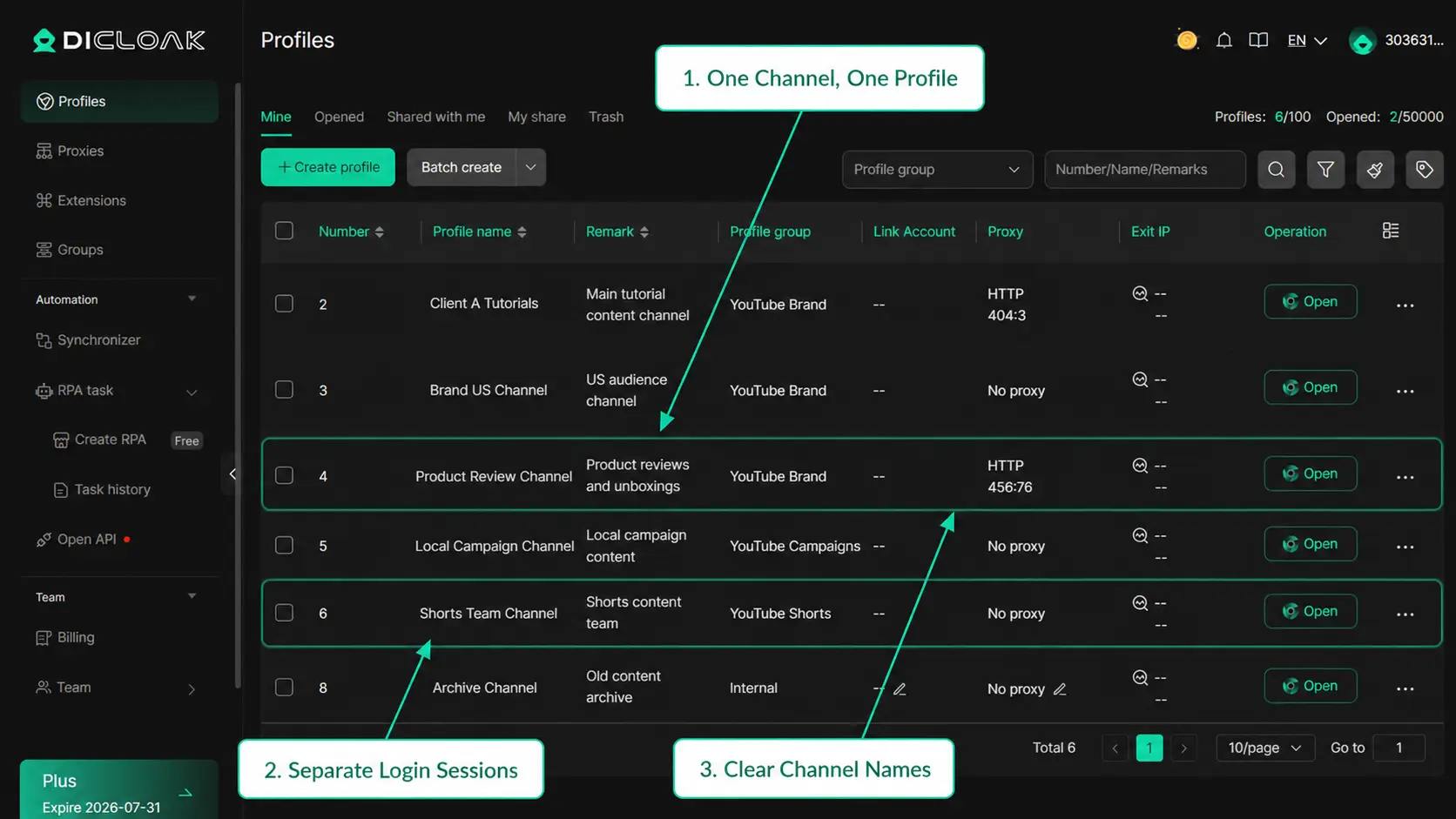
When you manage multiple YouTube channels, assigning one browser Profile to each Google account keeps its cookies, login session, browser data, and account state separate.
Separate browser profiles for YouTube accounts help prevent routine session confusion. You can:
- Create one Profile for each Google or YouTube account.
- Name it by channel, client, brand, region, or owner.
- Return to the same Profile whenever you work on that account.
- Keep its saved login state inside that Profile.
- Clear or test one Profile without resetting unrelated sessions.
For example, an agency can name Profiles “Client A Tutorials” and “Brand US Channel.” The name helps the operator confirm the correct channel before uploading or editing content.
If one account needs troubleshooting, you can work inside its Profile without resetting the saved sessions for every other channel.
Give Team Members Access to the Right YouTube Profile
Clear YouTube account management for teams means each person should access only the channel Profiles they are responsible for.
Using DICloak, you can assign a Profile to the right member, limit access by role, and keep unrelated Profiles unavailable. Assigned members can continue from the existing Profile session instead of signing in again through separate browsers.
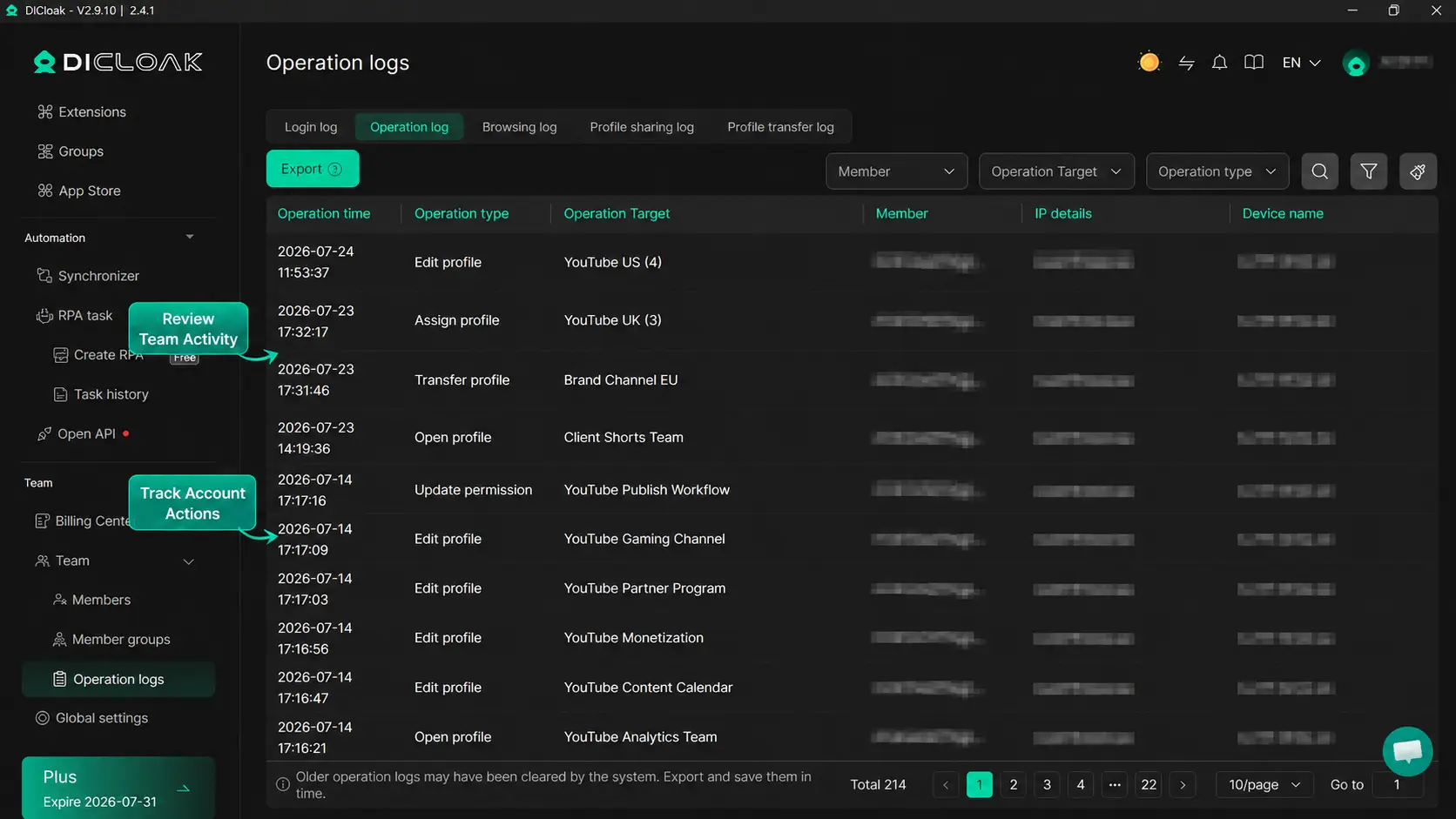
You can also review activity through operation logs and remove Profile access when a person changes roles or leaves a project. For example, an editor can receive only the client channels they update, while a manager can access the Profiles they supervise.
This creates clearer channel ownership, reduces password-sharing steps, and makes onboarding and handoffs easier. It also helps you remove access promptly when a project ends without changing every other member’s workspace. These controls do not override YouTube’s terms, account permissions, or security checks.
FAQ about why is my youtube not working
Why Is YouTube Buffering Even With Fast Internet?
Fast download speed does not guarantee stable video playback. Packet loss, high latency, Wi-Fi interference, short drops, background traffic, or limited device resources may still cause buffering. If it happens only at high resolution, review the network and device-performance guidance.
Why Does YouTube Work on Mobile Data but Not Wi-Fi?
The issue is more likely tied to the Wi-Fi network than the app. Router trouble, weak signal, DNS settings, filtering, managed-network rules, or heavy network use may be involved. Use the Wi-Fi section to identify which condition changes the result.
Why Does YouTube Work in Incognito but Not Normally?
The normal browser session may contain conflicting site data, an extension, or a browser setting. Incognito uses a separate temporary session, and many extensions stay off unless allowed. Start with the browser-session section rather than clearing all browser data.
Why Does YouTube Stop Working After I Sign In?
The problem may follow the Google account or saved login session. Restricted Mode, age information, Family Link, Workspace rules, a security check, or damaged session data may be involved. Review the account section without assuming a suspension.
Why Are Only Some YouTube Videos Unavailable?
The issue is usually tied to those videos. They may be deleted, private, limited to approved viewers, age-restricted, region-blocked, copyright-limited, or restricted by an administrator. Clearing cache or reinstalling YouTube cannot make deleted or private content available.
Before changing several settings, identify whether the YouTube problem comes from an outage, network, browser, app, or account. For creators or teams managing multiple authorized YouTube accounts, separate browser Profiles can keep sessions organized and make account access clearer during daily work.Try DICloak for Free.
 Web Proxy Tools
 Free Tools
 Cookie Plugin
 UA Generator
 MAC Address Generator
 IP Generator
 IP Address List
 2FA Code Generator
 World Clock
 Anonymous Check
 WebRTC Leak Test
 UUID Generator
 Free Web Proxy Site
 Proxy Checker
 FB Ad Checker
 AI Web Scraping
 Free SMM Tools
 Twitter Shadowban Checker
 Instagram Name Checker
 UTM Generator
 Username Generator
 AI Hashtag Generator
 LinkedIn Headline Generator
 Social Media Image Resizer