Why Is Instagram Login Not Working with Proxy?
A proxy changes the path between your browser and Instagram. It can also change the IP address and location that websites see.
Instagram says connection information such as an IP address can be used as a location signal. It also lets users review recent login devices and locations.
That is why the proxy itself is a good place to start.
Proxy IP Location Does Not Match the Expected Region
Check where the proxy IP actually appears to be located. Do not rely only on the country shown by the proxy provider.
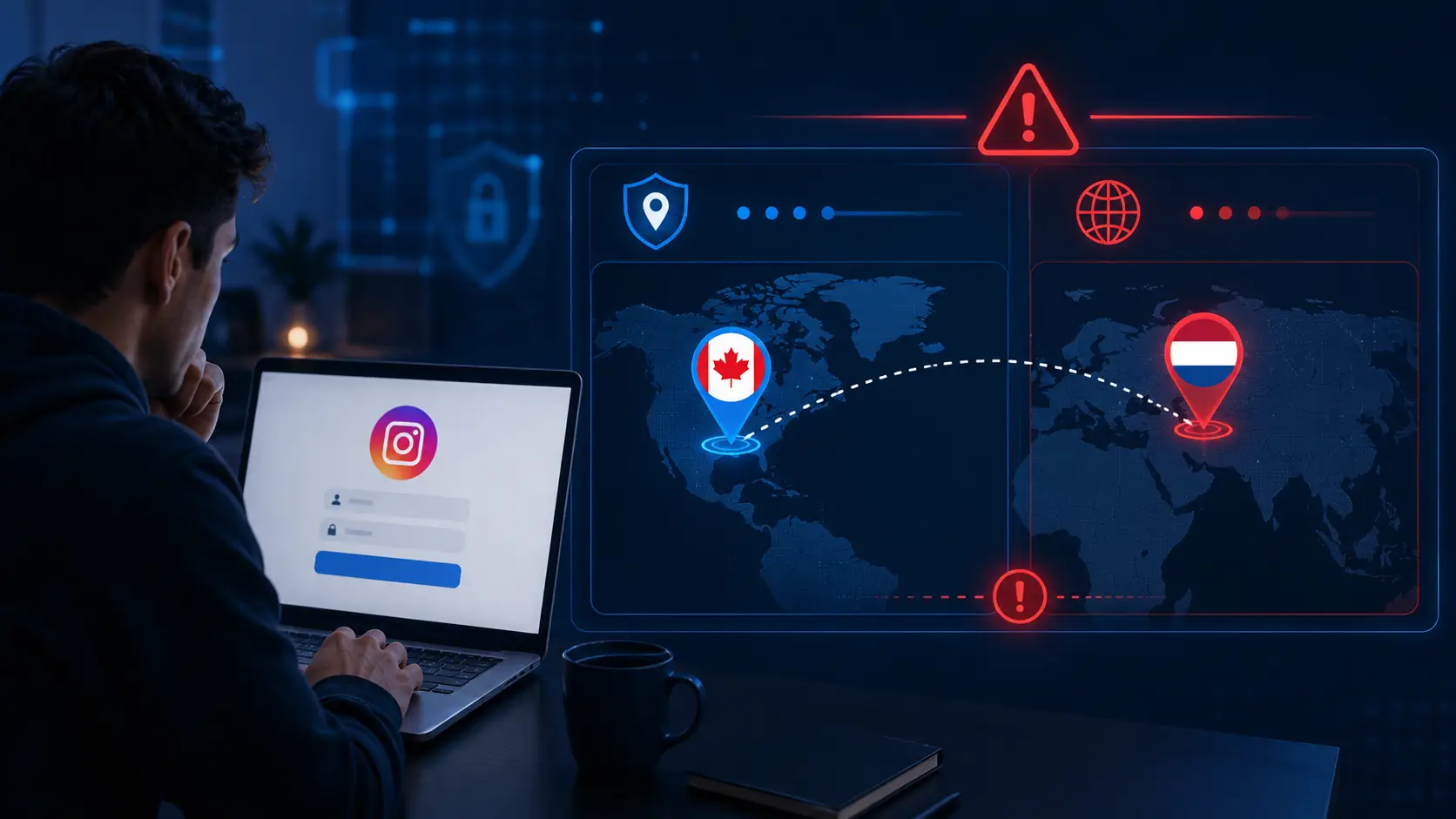
For example, you may buy a Canadian proxy but find that an IP checker maps it to the Netherlands. If you expected a Canadian connection, the setup already does not match your plan.
IP geolocation is also not perfect. Cloudflare notes that factors such as proxies and network structure can affect accuracy, and it provides a process for correcting wrongly mapped IP addresses.
So a location mismatch does not prove Instagram blocked the proxy. It means you should verify the real IP location before troubleshooting the account.
The Proxy Connection Is Slow or Unstable
A proxy can connect and still perform badly.
Instagram may load at first, but the login request can fail if the connection has high latency, packet loss, or frequent drops. Cloudflare measures latency, jitter, packet loss, upload, and download performance when evaluating network quality.
A simple test is to browse several other websites through the same proxy.
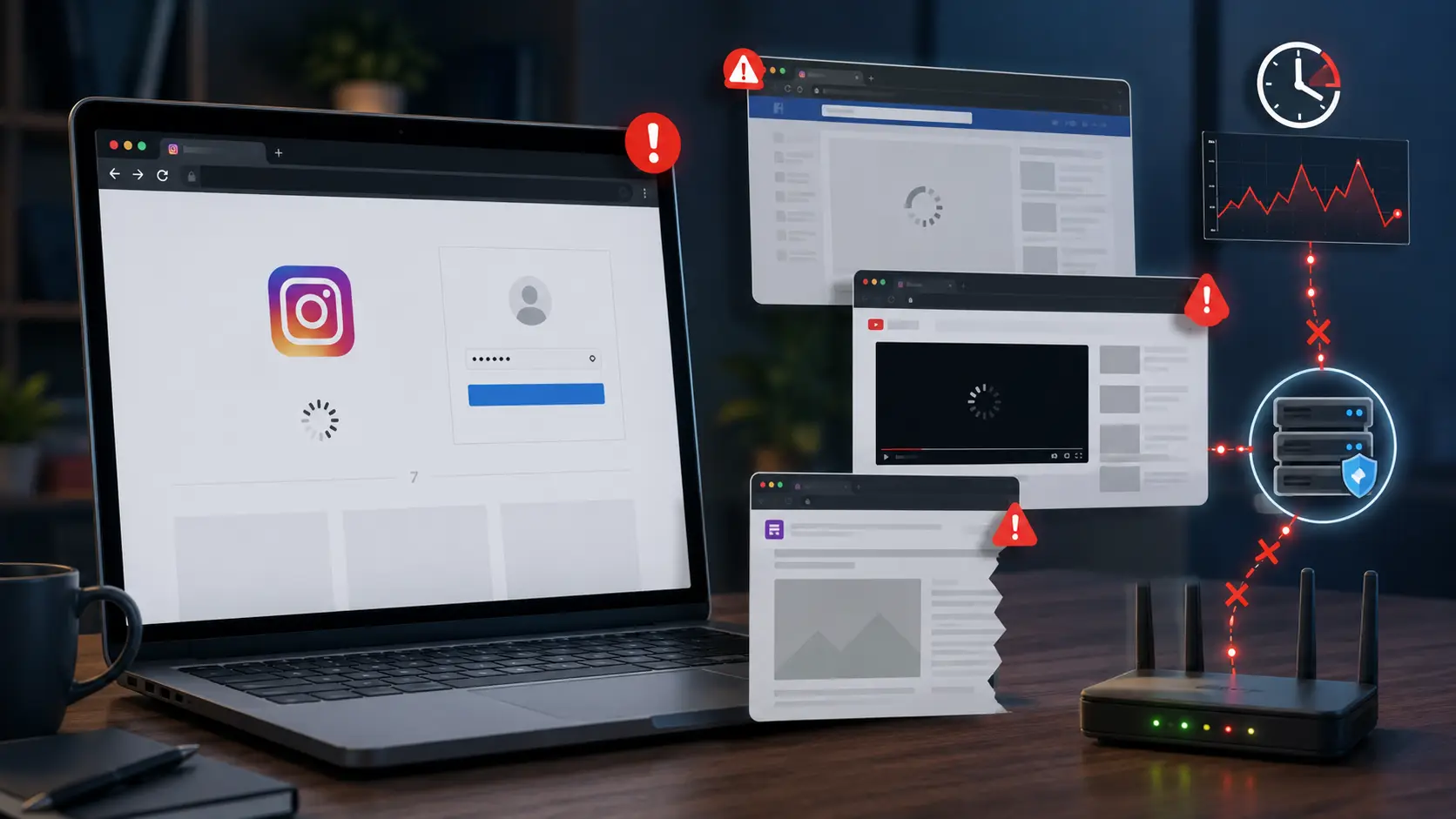
If pages often freeze, load halfway, or return connection errors, fix the network problem first. An unstable proxy can make an Instagram proxy login problem look like an account problem.
The Proxy IP or Authentication Details Have Problems
Some login problems are caused by a simple proxy configuration error.
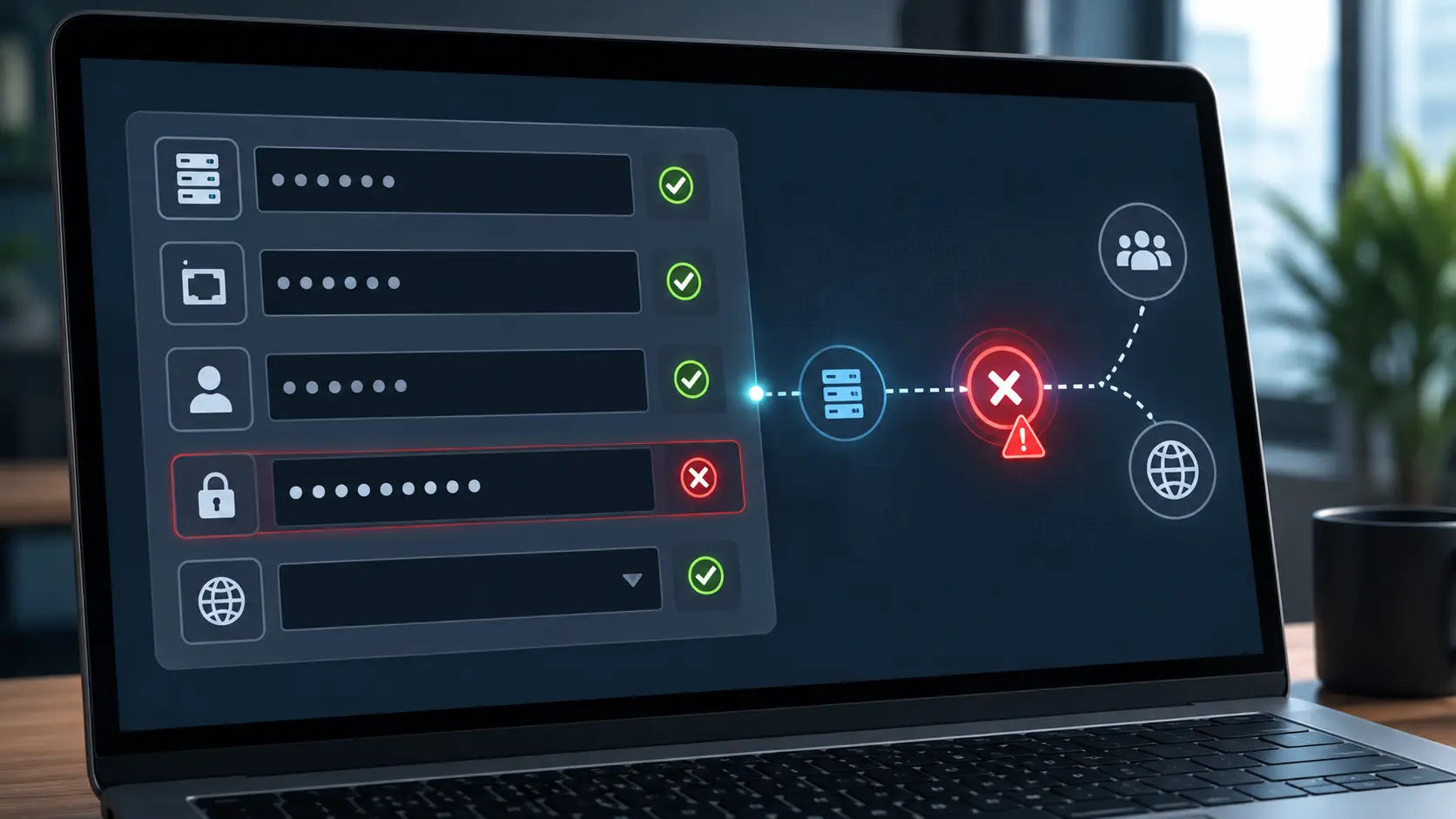
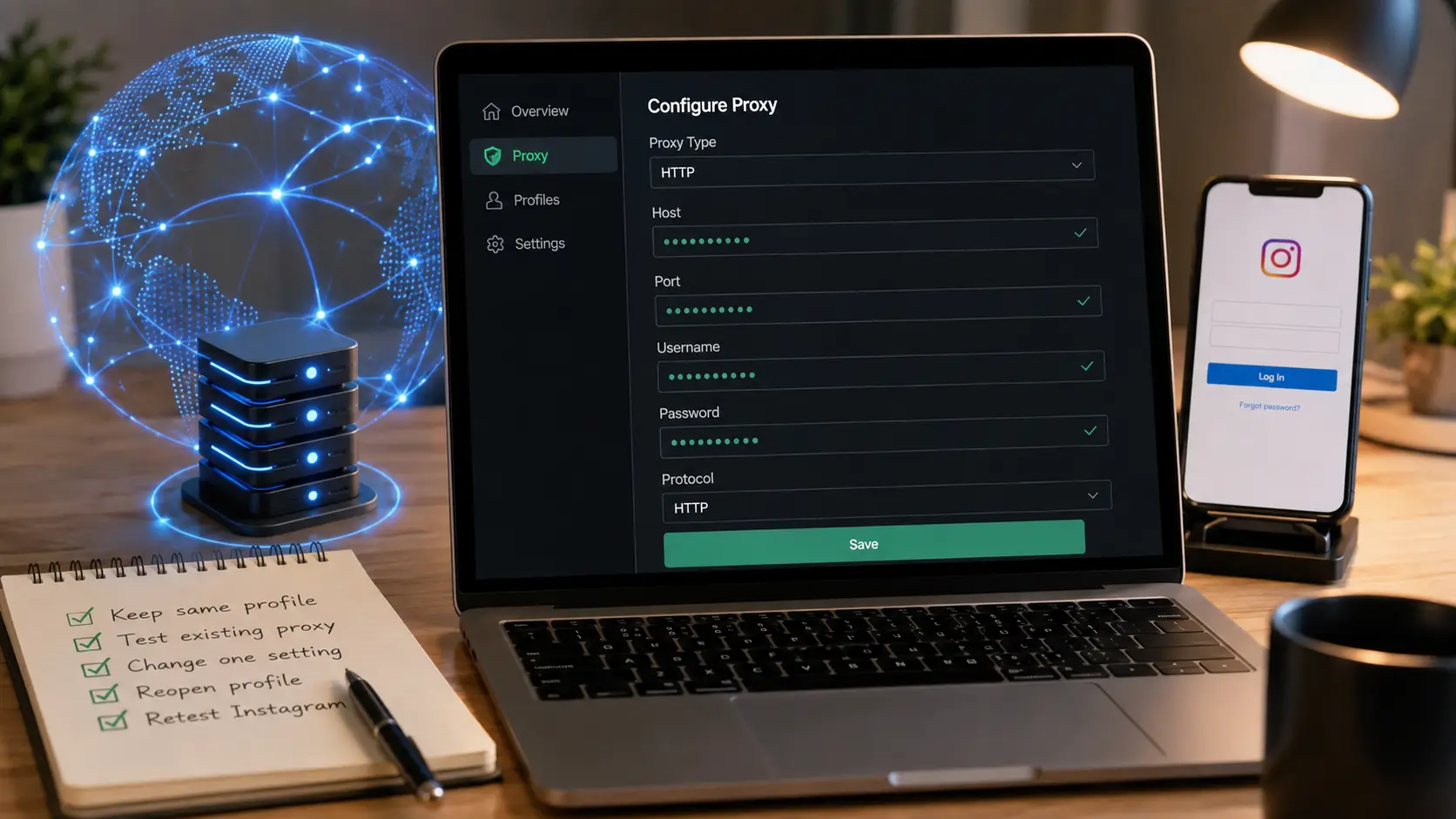
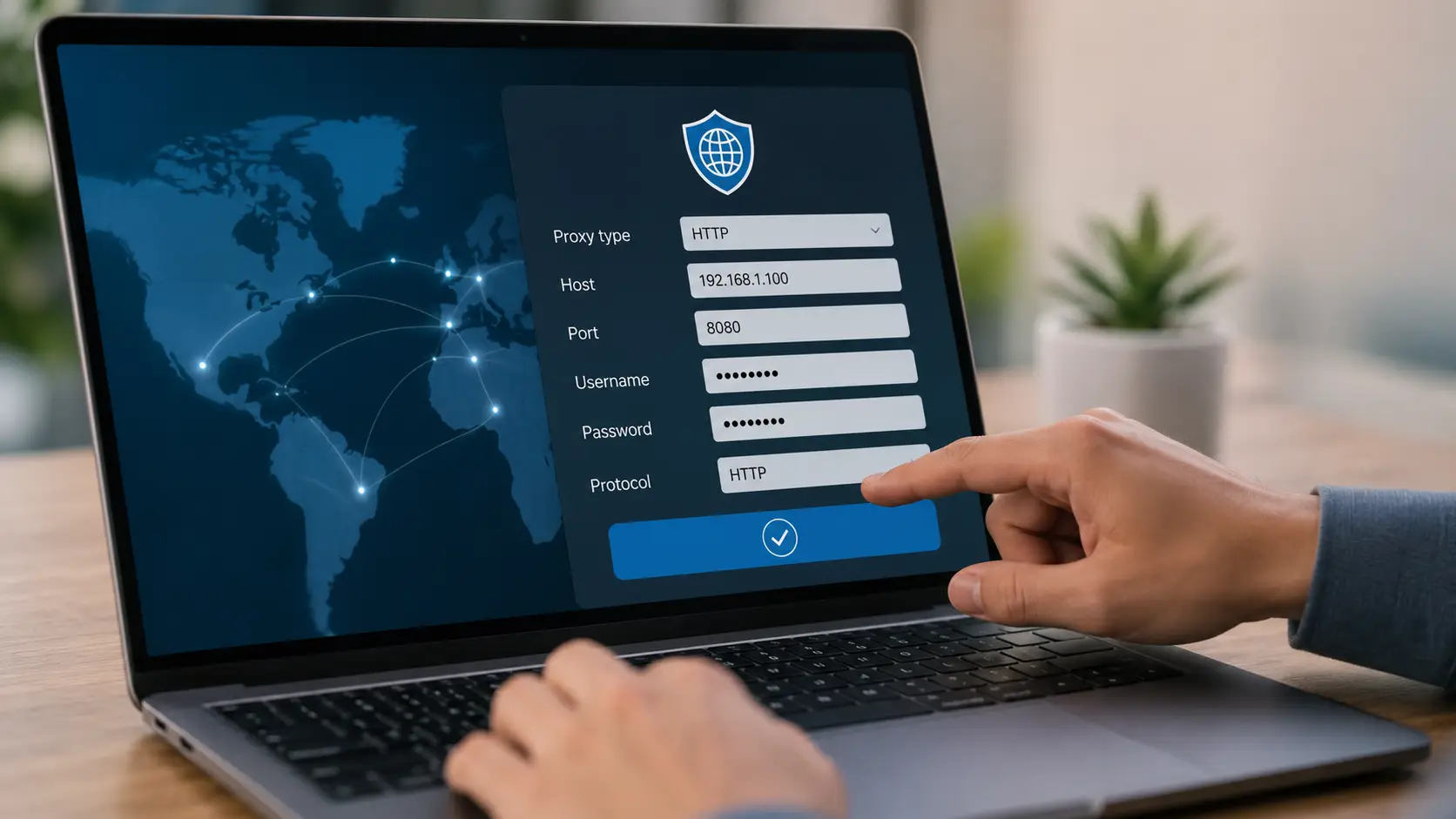
Check the host, port, username, password, and proxy protocol. One wrong field can stop the connection before Instagram is even reached.
For HTTP proxies, the standard defines a 407 Proxy Authentication Required response when the proxy needs valid client authentication.
For example, if your provider gives you:
host:port:username:password
make sure each value goes into the correct field. Also confirm whether the proxy uses HTTP, HTTPS, or SOCKS5.
If other websites also fail through the proxy, the problem is probably wider than Instagram.
How to Check If the Proxy Is Causing the Instagram Login Problem
Once you know the likely causes, test them in a fixed order.
The goal is to change only one variable at a time. Keep the Instagram account and browser setup the same while you compare the proxy connection with a trusted connection.
Test Instagram Without the Proxy
First, disable the proxy and try the same Instagram account again.
If Instagram works immediately on your normal home, office, or mobile connection, that is a strong sign that you should inspect the proxy path first.
For example:
- With proxy: login keeps loading.
- Without proxy: the same account logs in normally.
This does not tell you exactly what is wrong with the proxy. But it narrows the problem.
If Instagram still fails without the proxy, stop treating it only as an Instagram proxy not working issue. The account or browser session may also need attention.

Check the Proxy IP, Location, and Connection Quality
Turn the proxy back on and check the public IP first.
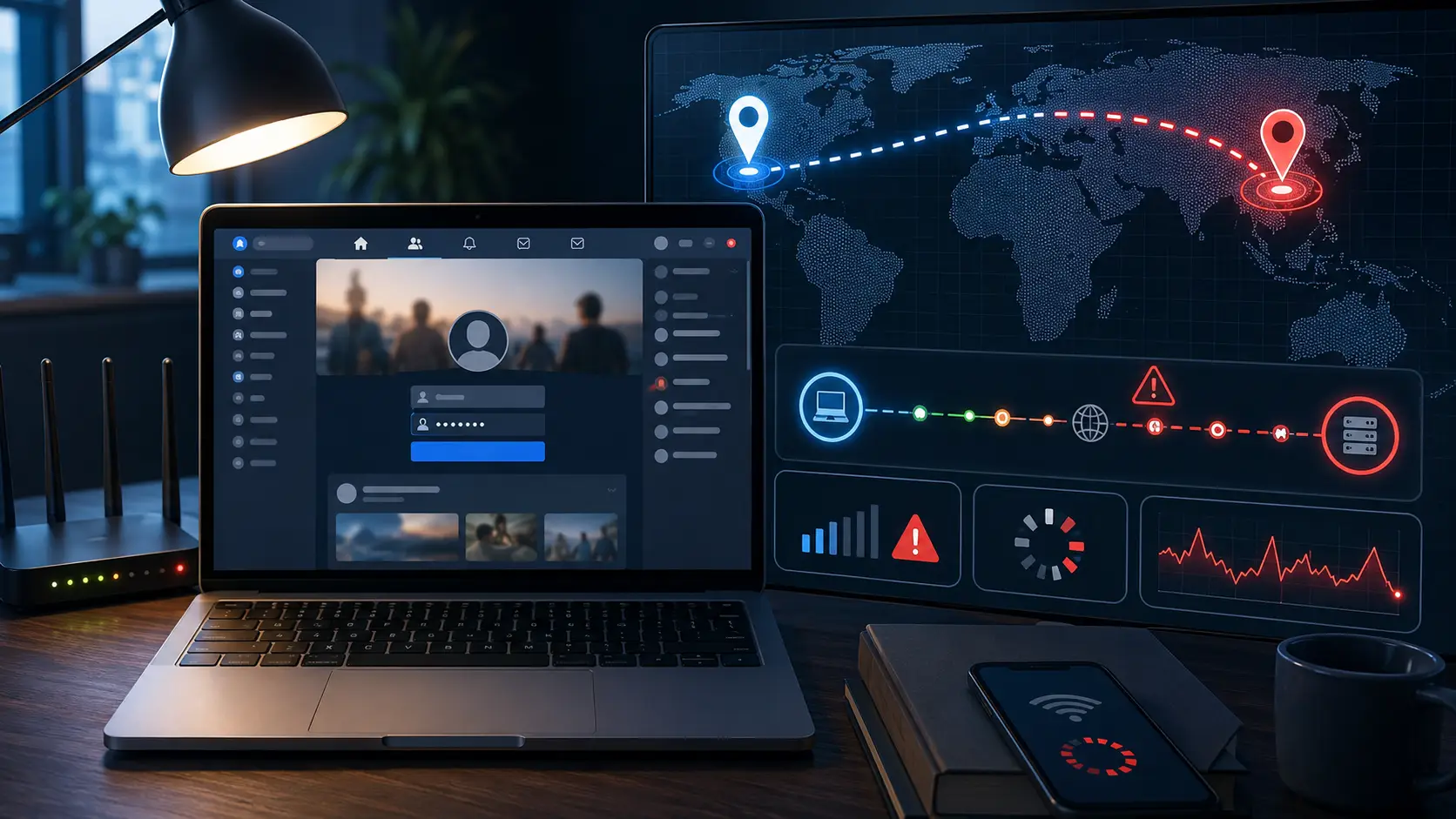
Confirm that the browser is showing the proxy IP rather than your normal IP. Then check its country or region.
Instagram states that IP-based connection information can be used when determining location.
Next, browse several websites. Look for slow pages, timeouts, or repeated reloads.
You do not need a perfect speed score. You need a connection that stays usable during the whole login process.
If several websites fail at the same time, troubleshoot the proxy before changing Instagram settings.
Verify the Proxy Host, Port, Username, Password, and Protocol
If the connection looks stable, compare every proxy field with the information from your provider.
Check:
- Host
- Port
- Username
- Password
- Proxy protocol
A common mistake is using the right credentials in the wrong fields. Another is entering a SOCKS5 proxy as HTTP.
If you see a proxy authentication prompt or a 407 error, check the credentials first. The HTTP standard specifically uses 407 when proxy authentication is required.
Only move on after the proxy itself connects correctly.
How to Fix Instagram Login Not Working with Proxy
Once you have found the weak point, fix that part instead of rebuilding the whole setup.
A useful rule is simple: keep the account stable and change only the failed component.
Use a Stable Proxy and Correct Configuration
If the current proxy drops connections or shows the wrong setup, repair or replace it first.
Then enter the correct host, port, credentials, and protocol.
Do not switch through several proxies during one troubleshooting session. If one proxy works, keep it while you test the Instagram login again.
A stable result gives you a useful baseline. Constant IP changes only add more variables.
Test a Clean Instagram Browser Session
Sometimes the proxy is working, but an old browser session still returns to the same failed page.
In that case, test a clean Instagram session once. Meta provides options to clear cookies and cache in its in-app browser, showing that stored browser data can be removed when troubleshooting browser state.
For example, an Instagram login may first fail while using a broken proxy. After you fix the proxy, the old browser session may still behave strangely.
A clean session helps you compare the result.
Do not clear all browser data after every error. If a working session is already stable, keep it.
Keep the Same Proxy and Browser Profile During Testing
Avoid changing the proxy and browser Profile together.
Suppose Instagram fails in Profile A with Proxy A. You then change to Profile B, Proxy B, and clear all cookies. The login works, but you no longer know what fixed it.
A better process is:
- Keep the same Profile.
- Test the existing proxy.
- Change only the failed setting.
- Open the same Profile again.
- Retest Instagram.
This makes the cause much easier to identify.
What to Do If Instagram Still Does Not Work with the Proxy
Sometimes all basic proxy checks pass, but Instagram still does not work.
At this point, use two comparison tests instead of changing random settings.
Test a Different Proxy
Keep the same Instagram account and browser Profile, but test another known-working proxy.
For example:
Proxy A: other sites work, but Instagram login fails.
Proxy B: same Profile and account, but Instagram works.
This suggests the difference is connected to Proxy A, although the test alone does not prove the exact cause.
If Proxy A also starts failing on other websites, contact the proxy provider or replace it.
Compare It With a Trusted Direct Connection
Finally, remove the proxy again and test Instagram on a trusted connection.
If Instagram works without the proxy but fails again when the proxy is restored, the proxy path remains the stronger suspect.
If Instagram fails in both cases, move to normal account troubleshooting.
Instagram provides Login Activity tools for reviewing current sessions and login locations. Accounts that cannot be accessed may also need Instagram's normal recovery process.
This keeps proxy troubleshooting separate from account recovery.
Enhance Instagram Proxy Login with DICloak
For one Instagram account, manual troubleshooting is manageable. With many accounts, it becomes much easier to mix proxies, cookies, and browser sessions.
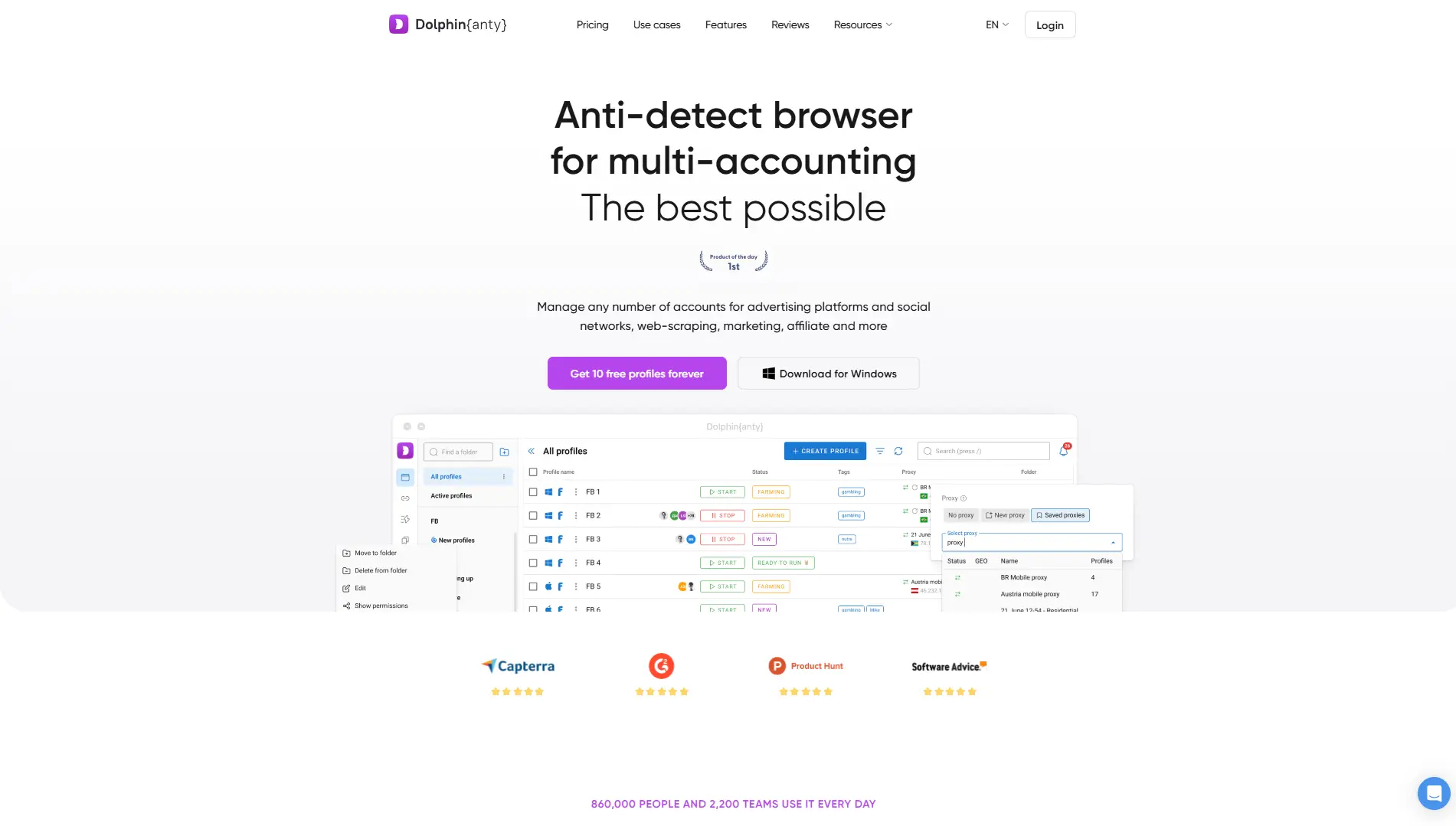
DICloak Antidetect Browser helps organize these parts through separate browser Profiles. Each Profile can have its own proxy and browser configuration, making multi-account workflows easier to track. DICloak's documentation confirms that Profiles support proxy and fingerprint settings.
Secure Multi-Account Management for Instagram
Instead of opening several Instagram accounts in the same browser space, you can keep each one in its own Profile.
For example:
- Profile A → Instagram A → Proxy A
- Profile B → Instagram B → Proxy B
- Profile C → Instagram C → Proxy C
DICloak supports independent browser Profiles and lets users assign proxies to them. Its proxy check can also show connection status, IP address, country or region, and time zone.
If Account B develops an Instagram login not working with proxy problem, you already know which Profile and proxy to inspect.

Automate Repetitive Instagram Tasks Safely
Once the account and proxy setup are stable, repetitive browser work can take time when many Profiles are involved.
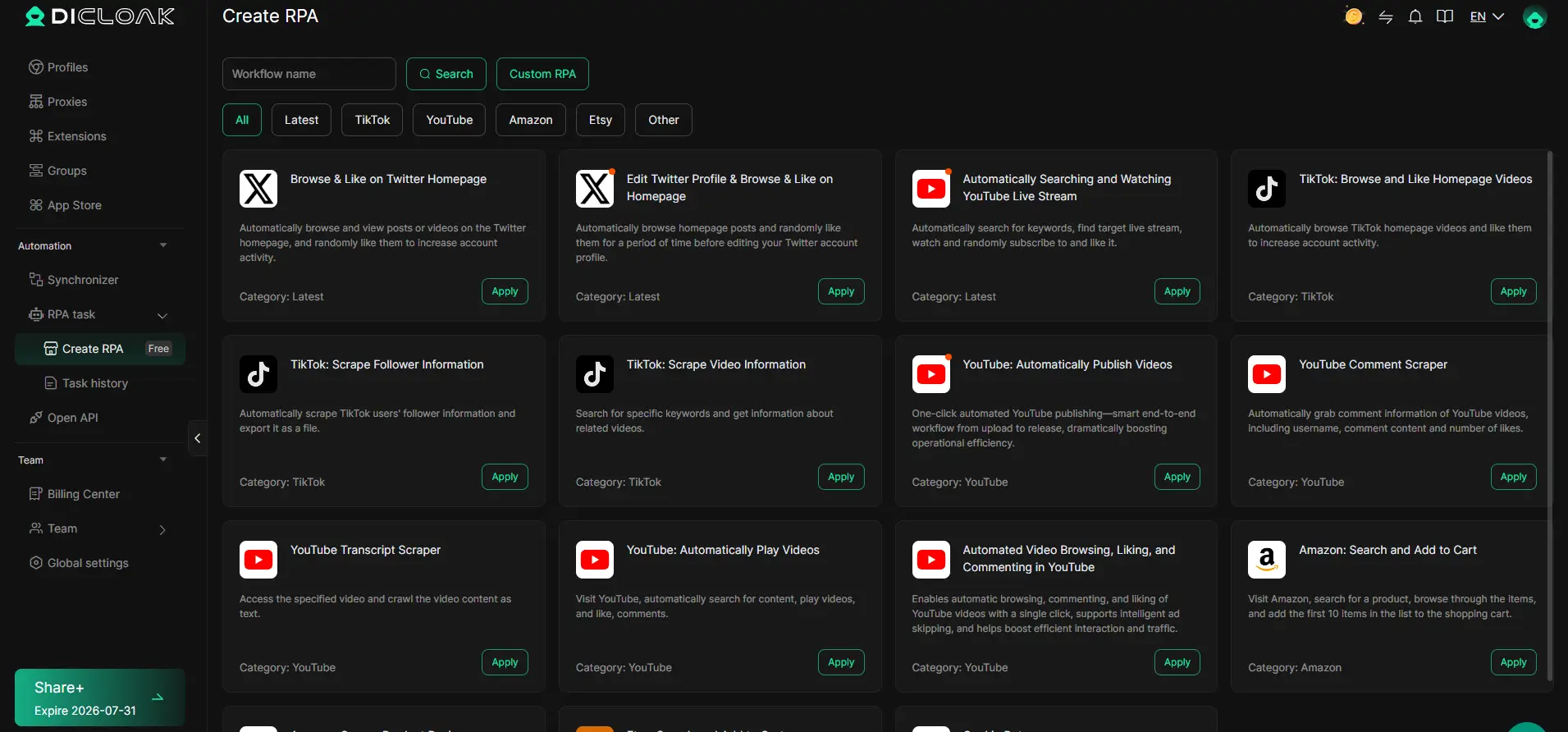
DICloak includes RPA tools and a Multi-Window Synchronizer for repeated browser workflows. The Synchronizer can apply selected actions across multiple browser Profiles.
The important part is timing.
Do not automate a Profile while you are still diagnosing a broken login. First make sure the proxy, account, and session work normally. Then use automation only for workflows that fit your normal account-management process and platform rules.
Maintain Unique Account Fingerprints with DICloak
A proxy controls the network connection, while a browser Profile also contains browser-side settings.
DICloak lets individual Profiles use their own fingerprint and proxy configuration. Browser fingerprint information can include signals such as browser version, operating system, screen resolution, language, and time zone.
For troubleshooting, consistency matters more than constant changes.
If Instagram Account A already works inside Profile A with Proxy A, keep that setup as your baseline. If something fails later, check what actually changed rather than randomizing the whole Profile.
DICloak does not guarantee that Instagram will accept every login. Its practical value here is keeping the Profile, proxy, cookies, session, and browser settings easier to organize.

FAQs About Instagram Login Issues with Proxy
Can Instagram permanently ban accounts using proxies?
Using a proxy does not automatically mean an Instagram account will be permanently banned. Instagram's public Terms focus on rule violations such as unauthorized access or collection of information rather than stating that proxy use alone causes an automatic ban.
If your Instagram login is not working with proxy, first check the proxy and Login Activity before assuming the account has been banned.
Why does Instagram say my IP address is suspicious?
Instagram can use IP-based connection information as a location signal and can show recent login locations and devices.
A sudden change from your normal location to a very different proxy location can therefore be worth checking.
Verify the proxy IP, region, and stability before changing account settings.
Are residential proxies better for Instagram?
Not always.
Instagram does not publish a rule saying residential proxies are always better for login. A residential proxy can still be slow, incorrectly located, expired, or badly configured.
When an Instagram login is not working with proxy, connection stability and correct setup matter more than the proxy label alone.
How often should I change my proxy for Instagram?
There is no useful fixed schedule for changing an Instagram proxy.
During troubleshooting, changing it too often can make the problem harder to identify. Keep a working proxy stable unless there is a clear reason to replace it, such as repeated connection failures or incorrect location data.
A consistent setup makes comparison much easier.
Can using a proxy improve my Instagram performance?
A proxy is not a general Instagram performance booster.
It adds another network path between your browser and the internet. If that path is slow or unstable, Instagram may actually perform worse.
A proxy is more useful when you specifically need a different network setup or want to keep separate account connections organized. If Instagram login is not working with proxy, test the proxy first rather than expecting it to improve speed automatically.
 Web Proxy Tools
 Free Tools
 Cookie Plugin
 UA Generator
 MAC Address Generator
 IP Generator
 IP Address List
 2FA Code Generator
 World Clock
 Anonymous Check
 WebRTC Leak Test
 UUID Generator
 Free Web Proxy Site
 Proxy Checker
 FB Ad Checker
 AI Web Scraping
 Free SMM Tools
 Twitter Shadowban Checker
 Instagram Name Checker
 UTM Generator
 Username Generator
 AI Hashtag Generator
 LinkedIn Headline Generator
 Social Media Image Resizer