You log in to Facebook using a proxy, but the platform insists you’re in the wrong city, or even the wrong country. That “facebook detects wrong location with proxy” headache isn’t just an annoying popup; it can mean account restrictions, failed ad reviews, or sudden demands for extra verification. Most guides say to switch proxies or clear cookies, but location errors often keep coming back.
What catches people off guard is how Facebook cross-checks location from several signals. Even if your proxy IP is clean and your browser looks normal, a location mismatch can still show up if your device fingerprint, timezone, or browser language don’t match the proxy’s claimed location. This isn’t just a random bug, Facebook’s system is built to spot the smallest clue that something doesn’t add up.
Fixing a facebook location mismatch proxy problem takes more than just picking a “local” IP. You need to know what Facebook checks, which signals matter most, and what actually triggers a facebook proxy location error. Skip these details, and you risk “suspicious activity” flags, even if your actual usage is legit.
The real work starts with understanding how Facebook connects the dots. Here’s where most setups break down.
Why Facebook Detects the Wrong Location Even When a Proxy Is Used
Even with a local proxy, Facebook can spot a location mismatch if your other signals don’t line up. The platform checks more than just your IP, so a “clean” proxy is never the full answer. This is why you can see facebook detects wrong location with proxy issues even when you’ve set everything up by the book.
How Facebook Determines User Location
- Checks the IP address you connect from and matches it against known geographic blocks.
- Reads your device’s geolocation settings and compares your browser’s timezone or language to your claimed IP location.
- Looks for technical clues in your browser fingerprint, like system fonts, WebRTC leaks, or OS version, which can reveal your real region even if your IP says otherwise.
Common Causes of Location Mismatch
The main reason Facebook flags the wrong location is a mismatch between your proxy IP and the rest of your device’s signals. Say your proxy is set to Paris, but your computer’s timezone is still set for New York. Even if your IP shows France, your browser fingerprint and system clock point to the US. That kind of conflict is a red flag, Facebook’s system is built to catch these details. Sometimes, browser plugins or old cookies leak info that doesn’t match the proxy. In practice, switching the proxy alone often isn’t enough. If your device’s hardware, browser profile, or even Wi-Fi data sends mixed signals, Facebook can spot it. A common failure mode is when users rely on residential proxies but forget to sync their browser’s language or timezone, making the setup look suspicious. If this happens, Facebook might prompt for extra verification, lock the session, or show you security warnings right after login. That’s why just changing your IP rarely fixes location errors long-term.
If you want to dig deeper into how these signals work together, the next step is to see what else Facebook checks besides your IP. That’s where a lot of proxy setups fall short.
What Signals Facebook Uses Beyond IP to Detect Location
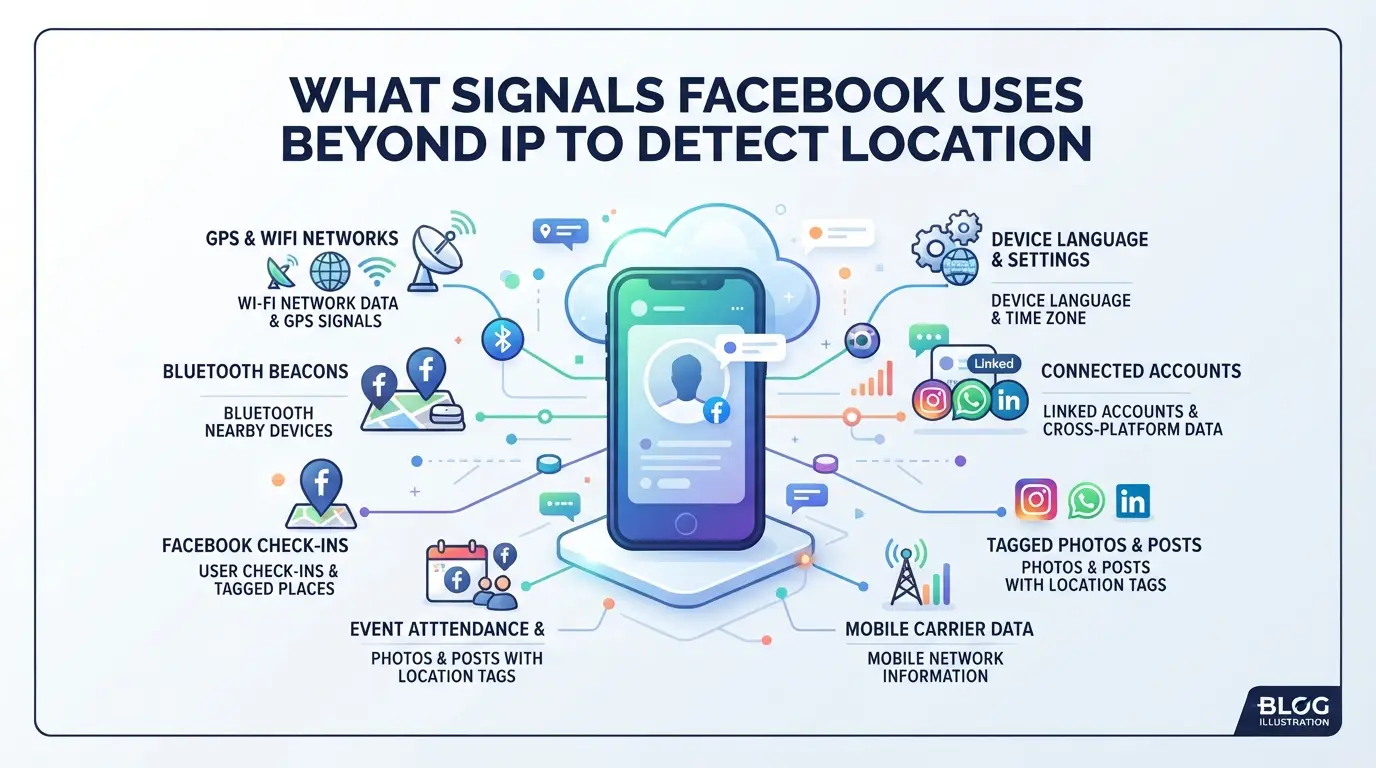
Facebook doesn’t just check your IP to figure out where you are. It collects a mix of browser, device, and account history signals, so even when your proxy matches your target country, the system can still spot a mismatch if the rest of your setup leaks clues.
Device Geolocation APIs
Browsers now prompt for geolocation access, which pulls data from GPS chips on mobile or Wi-Fi signals on desktops. If you deny permission, Facebook may still infer your rough area from nearby Wi-Fi networks. Granting access but showing a location far from your proxy can trigger a mismatch warning.
Browser Fingerprint Components
A typical facebook proxy location error comes from browser fingerprints that don’t line up with the proxy’s country. Key signals include time zone, language, screen size, installed fonts, and even subtle details like canvas or WebGL rendering quirks. For example, if your proxy is in Chicago but your browser time zone is still set to Eastern Europe, Facebook will flag this as suspicious. WebRTC leaks can expose your true IP address even if your proxy is otherwise clean. Canvas and WebGL fingerprinting check how your device renders graphics, if those don’t match the types of devices common in your proxy’s region, that’s another red flag. The fastest way Facebook spots location inconsistency is when just one of these signals points somewhere else, even if every other layer looks right. It’s not about perfection, but about not leaving obvious mismatches that the system can cross-reference. Most failed setups miss the timezone or forget to change the browser’s language to match the proxy region, which is a dead giveaway.
Account and Session History
- Facebook tracks login locations over time, logging in from two distant places within minutes can trigger 2FA or lockdown.
- Old cookies and cached data may expose prior sessions from your real location, making new proxy attempts look suspicious.
- The device ID or session tokens can tie your current login to a past location, even if you changed IPs and browser fingerprints.
Even small mismatches in these areas can be enough to make Facebook think you’re not really where your proxy says you are. Understanding which signals matter most is the first step to diagnosing why Facebook detects the wrong location with proxy setups. Next, you’ll need to check which of your signals are actually leaking and how to spot the real cause of an error.
How to Diagnose Facebook Location Errors When Using a Proxy
If facebook detects wrong location with proxy, you need a step-by-step check to find which clue is leaking your real location. Guesswork rarely fixes these issues, one overlooked setting can keep triggering the same error, even if your proxy works elsewhere.
Step 1: Check Your Proxy Exit IP and Location
- Open an IP-check tool (like ipinfo.io or whatismyipaddress.com) while connected to your proxy.
- Confirm the country and city match your target Facebook location. A mismatch here means your proxy isn’t what you think.
- Refresh the page at least twice, some proxies rotate IPs or fail during reconnects.
- Note any “unknown” or “datacenter” tags beside the IP. Facebook often flags these as high-risk.
Step 2: Test Device Geolocation Settings
- Visit a site like browserleaks.com/geo and trigger the geolocation prompt.
- Approve once, then check if the map location matches your proxy. On mobile, location may default to device GPS, not the proxy.
Step 3: Review Browser Fingerprint Consistency
- Check your browser timezone, if you’re using a Paris IP but your browser shows US time, Facebook will spot it fast.
- Change browser language to match your proxy’s location.
- Test for leaks using WebRTC and Canvas checks; leaks here will give away your real region.
Step 4: Clear Cookies and Cached Data
Old session data can override new proxy settings and keep sending the old location to Facebook.
- Fully clear cookies, local storage, and cache before logging in.
- Restart the browser. If the wrong location still appears, repeat the steps above, something is still leaking.
Common Mistakes That Cause Facebook Location Detection to Fail
Even with a proxy set up, small configuration errors can make Facebook detect the wrong location. The usual mistake is overlooking how browser, device, and session signals stack up, one mismatch can trigger a “wrong location” flag.
Mixing Proxy and Device Location
Leaving device geolocation on while using a proxy is the classic slip. Facebook reads both IP and device location, so if you run a proxy from Germany but your phone’s GPS shows China, you’re flagged in seconds. Mobile devices are trickier, turn off location services or Facebook will ignore the proxy.
Inconsistent Browser Fingerprint Signals
Mismatch between browser settings and proxy location is a common tripwire. WebRTC leaks expose your real IP even with a proxy, and timezone or language settings that don’t match the proxy tip off Facebook’s system.
- If timezone says “UTC+8” but the proxy is US-based, Facebook sees a red flag.
- Set browser language, timezone, and disable WebRTC so all signals line up with the proxy.
Reusing Accounts or Profiles Without Clearing Data
Old cookies and session history create profile contamination. If you reuse a browser profile or account without clearing leftover data, Facebook spots the inconsistency and marks it as “suspicious activity.” Always start with a clean profile before connecting through a new proxy.
How to Reduce Facebook Location Detection Risk When Managing Multiple Accounts
You can avoid most facebook proxy location errors by keeping each account’s footprint completely separate, matching every fingerprint signal to your proxy, and making sure no session data leaks between profiles. The difference between a flagged account and a smooth login usually comes down to tiny details that stack up across sessions.
Separate Browser Profiles for Each Account
- Create a dedicated browser profile for every Facebook account you run. This stops login cookies, cache, and fingerprint data from mixing across accounts.
- Never share a profile between accounts, even once. Cross-contamination is the main reason two accounts get flagged together.
- Use different directories or containers for profiles. Keeping them on the same browser without true separation is a common weak point.
Consistent Fingerprint and Proxy Configuration
- Pick a proxy whose IP matches your chosen location, then set your browser fingerprint (timezone, language, system locale) to line up with that location. If you use a German IP but your profile says US English and Pacific Time, Facebook will spot the mismatch.
- Adjust your operating system clock and browser language to fit the proxy’s country. Even a one-hour timezone slip can trigger a review.
- Check your WebRTC and geolocation settings, they leak real device data if left at default.
- If you automate, don’t sync tabs across accounts. Facebook can see if several accounts connect from identical hardware and software setups at the same time.
Regular Cookie and Session Data Management
- Clear cookies, local storage, and cache for each profile before running a new session. Leftover data is a dead giveaway that accounts share a device.
- Use automation or cleaning tools to wipe session data at logout, not just browser history. Manual deletion misses hidden storage.
- Schedule a full browser profile reset every few weeks. Long-lived profiles collect clutter that can cross-link accounts.
If you skip these steps, you might see Facebook block logins, send repeated “suspicious activity” warnings, or force phone verification. The biggest mistake is assuming “new proxy, new IP” means you’re safe. True risk reduction comes from treating each account as a totally isolated user, right down to the browser, OS, and data trail.
Tight workflow discipline is the baseline. Next, you’ll see what it looks like to bring all these controls together in a real browser profile management tool.
Configuring Browser Profiles and Proxies for Facebook Accounts in DICloak
After working through the earlier steps to avoid location mismatches on Facebook, the next real challenge for teams comes down to browser profile control. Even with the right proxy, “facebook detects wrong location with proxy” is a common headache, usually because browser signals don’t match the network setup. Operators running more than one Facebook account need a way to keep each login separate, with signals that line up with the assigned proxy. DICloak’s profile isolation and per-profile proxy settings are built for exactly this scenario. The focus here is on setting up isolated browser profiles and matching signals, not promising platform safety, but reducing the chance of a mismatch caused by profile mixing or inconsistent session data.
Creating Isolated Browser Profiles and Configuring Fingerprint Settings
Operators can set up a new browser profile in DICloak for every Facebook account, keeping sessions, cookies, and browser storage fully separate. Each profile’s fingerprint can be adjusted, operating system, time zone, browser language, WebRTC, Canvas, and more, so that the signals match the intended proxy location. This is the main line of defense against accidental signal crossover, which often triggers Facebook to flag a session as coming from the wrong place. The real advantage is that a team can assign platform logins to distinct browser profiles, making it far less likely that activity from one account bleeds into another through fingerprint artifacts. The scope stays at the browser profile level, this setup does not touch Facebook’s internal checks or change how the platform reviews or restricts accounts.

Setting Up User-Provided Proxy for Each Profile
Once profiles are isolated, the next step is to assign a user-provided proxy to each one inside DICloak. Operators enter their own proxy details, host, port, username, password, and run a built-in connectivity test to confirm the exit IP, country, and time zone. This is where mistakes show up quickly: if the proxy’s region doesn’t match the fingerprint or the proxy is unstable, Facebook will often spot the inconsistency. By testing each proxy on the spot and keeping proxy settings tied to a single profile, teams can avoid the typical slip-ups that cause facebook location mismatch proxy problems. Responsibility for proxy quality and legal use stays with the operator, DICloak’s job is just to store and apply these settings per profile.

Getting these two layers right, browser profile isolation plus matched proxy and fingerprint signals, reduces the risk of Facebook flagging location errors. But some edge cases are out of reach for any tool, which the next section covers.
When Facebook Location Errors Are Unavoidable: Limits and Alternative Strategies
Platform-Side Restrictions and Detection Methods
Facebook’s detection algorithms keep evolving. Even with matched proxy IP and browser settings, device fingerprints or timezone leaks can trigger a facebook proxy location error, there’s no way to hide every signal.
Alternative Workflows and Risk Reduction
When facebook detects wrong location with proxy despite careful setup, you’ll need to segment accounts by risk. Run critical accounts on local devices to avoid mismatches. Less important accounts can stay on proxies, but expect some flags. Trying to force every account through a proxy often backfires, accept limits and choose workflows based on account value.
When to Accept Location Mismatch and Focus on Account Safety
- Monitor for new “suspicious activity” alerts
- Check login and recovery logs weekly
- Prioritize clean device handover over location spoofing
Frequently Asked Questions About facebook detects wrong location with proxy
Why does Facebook detect the wrong location when I use a proxy?
Facebook detects the wrong location with proxy because it checks more than just your IP address. It uses device geolocation data, browser fingerprint signals, and your session history. Even if your proxy shows a different country, your phone’s GPS, Wi-Fi networks, or previous login locations can give away your real location.
Can changing my proxy fix Facebook's location mismatch?
Changing your proxy can help fix facebook location mismatch proxy, but it isn’t always enough. Facebook looks at browser settings, cookies, and device signals. You need to clear old cookies, use a matching browser fingerprint, and make your device’s signals line up with your proxy’s location for better results.
How do I stop Facebook from seeing my real location?
To avoid facebook wrong location detected, turn off device geolocation, like GPS and location services. Use privacy settings in your browser, clear cookies before logging in, and keep your browser fingerprint consistent. Don’t let Facebook access your Wi-Fi or Bluetooth location data if you want to hide your real spot.
Managing multiple accounts is safer if you use separate browser profiles for each account and keep fingerprint signals consistent. Still, risks remain because Facebook tracks login patterns and device information. If signals overlap, Facebook may link your accounts, so stay careful with browser and device setups.
Does DICloak guarantee Facebook won't detect my real location?
No tool can fully guarantee Facebook won’t detect your real location. DICloak helps isolate profiles and configure signals, but facebook proxy location error detection changes often. Facebook updates its tracking methods, so even advanced tools may not block all checks. Always stay aware of new platform detection tactics.
If you’re encountering inaccurate location detection while using a proxy, evaluating the reliability and privacy features of your current solution is crucial. Upgrading to a specialized tool designed for secure and consistent access can help minimize disruptions and ensure your browsing experience remains smooth. Try DICloak For Free
 Web Proxy Tools
 Free Tools
 Cookie Plugin
 UA Generator
 MAC Address Generator
 IP Generator
 IP Address List
 2FA Code Generator
 World Clock
 Anonymous Check
 WebRTC Leak Test
 UUID Generator
 Free Web Proxy Site
 Proxy Checker
 FB Ad Checker
 AI Web Scraping
 Free SMM Tools
 Twitter Shadowban Checker
 Instagram Name Checker
 UTM Generator
 Username Generator
 AI Hashtag Generator
 LinkedIn Headline Generator
 Social Media Image Resizer