Every time you clear cookies, switch accounts, or change your IP, you expect to start fresh. But the platform still knows it’s you, or at least, it’s acting like it does. That’s the frustration with the persistent browser fingerprint: no matter what you tweak, sites keep tracking your device as if it left a permanent mark.
It feels unfair. You swap browsers, you use incognito mode, you even reset your device. Yet browser fingerprinting persistence means the system keeps linking sessions together. Even after covering your tracks, persistent fingerprint detection can match you by subtle device details.
The sticking point is that a browser fingerprint isn’t just one thing. It’s a mix of signals, screen size, fonts, time zone, graphics card quirks, and more. Change one, the rest remain. Change too many, and you look even more suspicious. Most tools only wipe surface-level identifiers. The underlying profile sticks around because the real fingerprint is built from dozens of pieces that rarely change in sync.
So where does that leave you if you want to break this chain? Here’s what makes a persistent browser fingerprint so hard to avoid.
What Is a Persistent Browser Fingerprint and Why Does It Matter?
A persistent browser fingerprint is the trail your browser leaves that keeps linking sessions together, even after you clear cookies or switch profiles. The reason users care is simple, this fingerprint can tag your activity across accounts, devices, and even fresh browser installs. Once a site matches your unique combination of signals, you’re rarely a stranger again.
How Persistent Fingerprints Differ from Temporary Ones
Most people expect a browser reset to wipe their tracks, but some fingerprint signals stick around no matter what you do. Here’s where persistence comes in:
- Screen resolution and color depth often stay the same after a restart or reinstall.
- Installed fonts and language preferences don’t change unless you manually reconfigure your system.
- Hardware details like GPU model, CPU cores, or battery capacity rarely shift, making them anchors for your fingerprint.
Temporary signals, such as session cookies or browsing history, are easy to clear, but persistent fingerprinting relies on what’s baked into your device and OS.
Why Websites Rely on Persistent Fingerprints
Websites use persistent fingerprint detection to spot fraud, link accounts, and track visitors for advertising. The risk isn’t just theoretical, sites run scripts to collect dozens of signals, piecing together a profile that survives browser restarts or incognito sessions. For example, a social platform may flag a new sign-in if your IP changes but still recognize your hardware and software setup. If you make too many changes at once, you stand out even more: a fresh device with the same rare font list, identical screen settings, and a matching time zone is a red flag for automated systems.
The real problem is that persistent fingerprints don’t rely on any single signal, sites combine multiple stable details to keep matching you, even if you switch browsers or wipe your data. If you only change your IP address but leave the rest of your setup untouched, most platforms still link your sessions. But if you try to scramble everything, you risk triggering suspicion and restrictions.
This tradeoff means breaking fingerprint persistence isn’t just about hiding; it’s about knowing which signals matter most and how they interact. Failure looks like getting flagged for “unusual activity,” locked out of accounts, or seeing targeted ads follow you from one session to the next. Users who ignore these risks often find themselves banned or tracked anyway.
Next, it’s worth seeing which browser signals make fingerprints stick between sessions, and why they’re so hard to reset.
Which Browser Signals Make Fingerprints Persist Across Sessions?
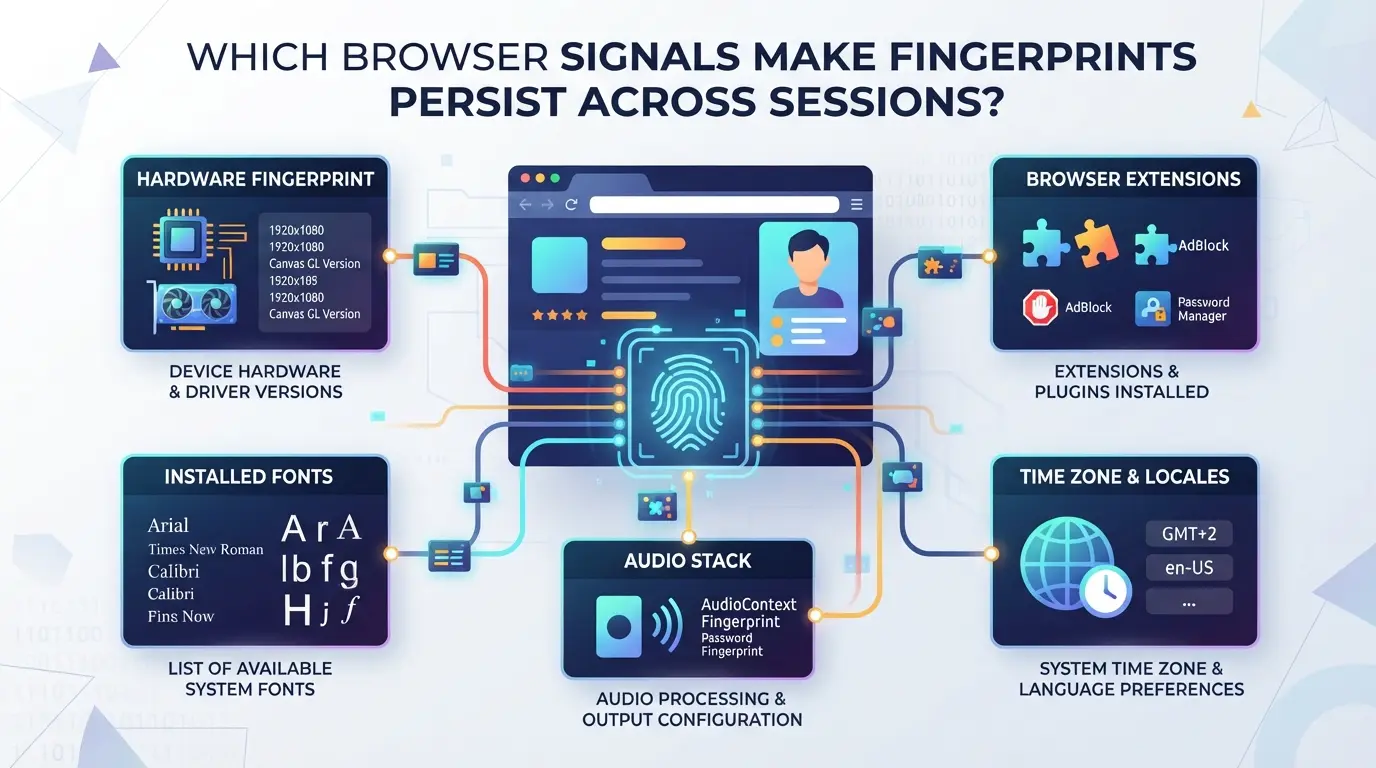
Most browser fingerprint tracking sticks because certain signals barely change from session to session. Even if you reset cookies or switch accounts, small details, like how your graphics card draws a canvas image or the list of installed system fonts, often remain the same. These are the signals that make a persistent browser fingerprint so stubborn.
Canvas, WebGL, and AudioContext: Hard-to-Change Signals
These signals come from how your device draws images or plays audio in the browser. Since they use hardware features and software drivers, the results are highly unique and tricky to spoof. Most fingerprinting scripts rely on their stability.
User Agent, Fonts, and Screen Resolution: The Basics
Basic fingerprints start with your browser type, version, operating system, and screen size. It’s easy to change a User Agent string or resize your window. But here’s where it gets tricky, if your font list or screen resolution doesn’t match your claimed device, or you pick rare settings, the mismatch can actually make you stand out more. For example, changing your User Agent to look like a Mac but keeping only Windows system fonts is a giveaway. Even minor details, like a slightly off screen resolution, often stick around across sessions and give you away if you try to rotate too much at once. The hard part isn’t changing one signal, it’s making sure all the basics match up in a way that looks natural.
Cookies, Local Storage, and IndexedDB: Data That Sticks
- Clearing cookies wipes login sessions, but fingerprinting scripts can use Local Storage or IndexedDB to store tracking IDs that survive a normal cookie clear.
- “Supercookies” may hide unique IDs in browser storage, which standard privacy tools often miss.
- If your browser profile is reused, leftover data in these storage areas can bridge old and new sessions, making fingerprinting persistence almost automatic.
The catch: even if you remove cookies, old storage can re-identify you the next time you connect.
When these signals line up across sessions, platforms can tie together your activity, even if you try to start fresh. The next section will break down how this persistence leads to privacy leaks and real-world account risk.
Why Persistent Fingerprints Increase Privacy and Account Risks in 2026

Tracking keeps getting smarter. Platforms now use fingerprinting to tie together your activity, even if you switch devices or wipe cookies. The real problem isn’t just what you change, it’s the details you leave behind. Once a fingerprint sticks, breaking the link becomes much harder than most expect.
Tracking Across Devices and Sessions
Fingerprinting doesn’t stop at session boundaries. Sites collect font lists, audio signatures, and graphics quirks. Even if you log out, a matching fingerprint can follow you between browsers or devices. Cross-device tracking works because rare combinations, like unusual screen resolutions paired with certain fonts, show up across sessions, making it possible to connect activity from different accounts or hardware.
How Platforms Use Fingerprints to Link Accounts
Platforms treat a stable fingerprint as a clue that multiple accounts might belong to one person. For example, if two accounts share the same hardware traits, language settings, and time zone, even after switching proxies, systems flag them for review. This gets risky in affiliate marketing, social media, and e-commerce. Operators often think rotating proxies or clearing cookies is enough, but persistent fingerprint detection links the accounts behind the scenes. Once flagged, platforms may restrict access, force extra verification, or remove all linked accounts. The tradeoff is clear: strong fingerprint persistence means safer tracking for platforms, but much higher risk for operators who want separation. If you miss these signals, even careful operational routines can fall apart, one slip can mean losing dozens of accounts in a single sweep.
When a Persistent Fingerprint Triggers Account Restrictions
- Multiple accounts with matching device fingerprints often get flagged for restriction or review.
- Sudden fingerprint changes (like swapping hardware or browser versions) can trigger suspicion and lockouts.
- Known patterns, such as recycled screen resolutions or reused font lists, lead to bans on social, e-commerce, and affiliate sites.
The toughest part? Many account bans trace back to fingerprint signals operators didn’t even know were being logged. That’s why managing browser fingerprints needs more than quick fixes, mistakes stick, and platforms rarely give second chances.
Reading this, you start to see that the risks aren’t just technical, they’re operational. Next, it’s worth breaking down the common mistakes that make browser fingerprints persist even after you try to change them.
What Common Mistakes Make Your Browser Fingerprint Stick?
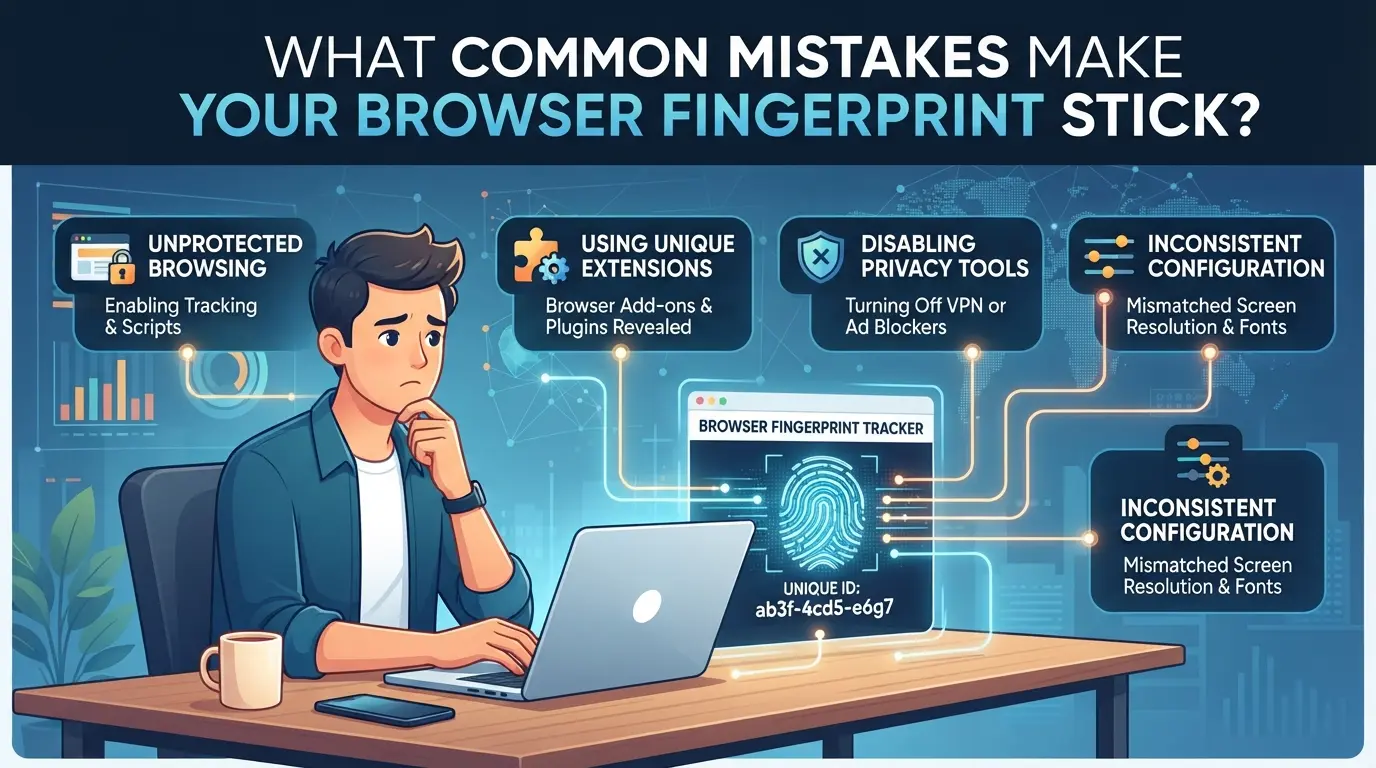
Most people trip up by reusing the same browser setup, skipping deep fingerprint checks, or ignoring hidden storage. These mistakes let browser fingerprint tracking stick around and keep linking your sessions, even after you think you’ve made big changes.
Reusing the Same Browser Profile Across Accounts
Profile reuse ties accounts together because most browsers keep dozens of signals locked to the same environment. If you log in to multiple accounts with the same profile, even after clearing cookies, platforms can match you by hardware, graphics, and plugin data. Switching profiles is the single most effective way to break fingerprint persistence.
Failing to Change Key Fingerprint Signals
Failing to update core signals leaves your setup easy to match. Check these:
- Change screen resolution and window size for each profile
- Pick a new User Agent, not just the default
- Set a unique time zone and language combination
Using the Same Proxy or IP for Multiple Profiles
IP reuse is a dead giveaway. Running different accounts through the same proxy or local IP lets platforms connect your sessions, even if the browser looks different. Assign a unique proxy to every profile.
Neglecting Local Storage and IndexedDB Cleanup
Browser storage holds sticky identifiers that survive cookie clears. If you don’t wipe these, fingerprinting tools can still link your activity.
- Clear local storage and IndexedDB before switching accounts
- Use built-in browser tools or scripts to automate cleanup
- Double-check for leftover session data with a fingerprint test
How Operators Can Separate Browser Fingerprints and Network Signals with DICloak
If you’ve fixed the obvious fingerprint leaks and still see platforms connecting your sessions, you’re likely hitting the limit of DIY browser tweaks. For operators or teams who need to manage multiple platform accounts, especially in social media, e-commerce, or affiliate marketing, the right move is to break out of a single browser profile. This is where a dedicated antidetect browser workflow comes in. Instead of trying to patch over persistent browser fingerprint signals, operators can use DICloak to set up fully separated browser profiles and network connections for each account workflow. The result is a cleaner split between browser identities and network signals, making it harder for fingerprint tracking to link sessions together. The following workflow shows where DICloak fits and where its boundaries are.
Creating Isolated Browser Profiles and Configuring Fingerprint Signals
Operators handling more than one platform account can create a separate browser profile in DICloak for each workflow, each profile stores its own browser profile, cache, and fingerprint settings. Instead of risking overlap with reused device details, operators can set the reported OS, User Agent, time zone, and fingerprint signals like Canvas and WebGL for each profile. This separation is not just surface-level; it means every account session runs in an environment with its own storage and reported device traits. The practical win: changing browser signals at the profile level is the only way to avoid leaving a persistent browser fingerprint across accounts. The scope is limited to browser-profile access; it does not change platform account status or outcomes.

User-Provided Proxy Configuration for Assigned Profiles
Sometimes, browser separation isn’t enough if every profile uses the same network connection. Operators can assign a custom proxy to each profile in DICloak, entering proxy details manually or choosing from saved proxies. Before starting a session, operators can test the proxy to confirm the exit IP and location match their workflow needs. This lets teams keep browser fingerprints and network signals separate for each account, reducing the chance that session linkage happens at the IP level. Proxy quality, source, and compliance are up to the operator. DICloak does not supply or sell proxies; it simply applies operator-provided settings per profile.

This split workflow sets up the right foundation, next, you’ll want to check if your new profiles really break fingerprint persistence.
Step-by-Step: How to Check If Your Browser Fingerprint Is Still Persistent
Testing if your setup leaves a persistent browser fingerprint takes just a few minutes. You don’t need special tools, just a repeatable workflow and a sharp eye for what doesn’t change.
Using Online Fingerprint Checkers
- Open a fingerprint checker like BrowserLeaks or CreepJS.
- Record the results, copy the full fingerprint hash and note details like canvas hash, WebGL vendor, and font list.
- Close your browser or switch to a new profile. Run the checker again.
- If the hash or main signals match, your fingerprint is sticking, something stayed the same.
Comparing Results Across Profiles and Sessions
- Open the same site in a second browser profile or after clearing all cookies.
- Compare the key signals: fingerprint hash, canvas fingerprint, device memory, real IP, and language settings.
- If most signals are identical, you’re seeing browser fingerprinting persistence, only true changes in these values break the link.
- If a few signals change but the hash stays the same, the checker may not count those as significant.
Common Signs Your Fingerprint Is Not Changing
- The fingerprint hash is identical between sessions, even after a device restart.
- Canvas or WebGL outputs repeat exactly, this usually means hardware or driver details are being reused.
- Time zone, language, or plugin lists match across profiles.
- If you see matching results, don’t assume you’re safe, persistent fingerprint detection often survives simple resets. Go deeper by changing hardware- and OS-level settings, not just browser-level options.
When Is a Proxy or Profile Change Not Enough to Break Persistence?
Changing your proxy or browser profile often only touches the surface. Even with a new IP, sites can still connect your sessions by matching system signals that rarely change together.
Fingerprint Signals That Survive Proxy Changes
IP swaps won’t reset device memory, hardware details, or graphics quirks. Platforms spot repeat visitors by piecing together signals like canvas noise, WebGL, and font lists. If these match, your accounts get linked, no matter how often you refresh your proxy.
Profile Isolation Mistakes That Lead to Persistence
Missing one signal can keep the link alive.
- If you clone a profile but forget to change hardware concurrency or screen size, trackers may still fingerprint you.
- Starting from scratch, setting every fingerprint detail, not just the big ones, is safer than editing an existing profile.
When to Consider Advanced Fingerprint Management
If you keep getting flagged despite changing profiles and proxies, it’s a sign your setup isn’t unique enough. At this point, you need deeper tools or workflow changes, otherwise, browser fingerprint tracking will keep catching up.
Frequently Asked Questions About persistent browser fingerprint
Can I completely remove a persistent browser fingerprint?
Fully removing a persistent browser fingerprint is difficult. Websites use dozens of signals, like device type, fonts, and plugins, to track you. You can reduce persistence by blocking scripts, disabling plugins, and regularly clearing cookies. Using privacy-focused browsers and extensions helps, but some fingerprinting signals will still leak through.
Does using incognito mode prevent persistent fingerprinting?
Incognito mode only deletes your session data, like cookies and history. Browser fingerprinting persistence relies on things like screen size, language, and hardware details, which incognito mode does not change. This means websites can still recognize your browser fingerprint even when you use private browsing.
Are proxies enough to hide my browser fingerprint?
Proxies only mask your IP address. They do not change browser fingerprint tracking signals like your device settings or installed fonts. Websites can still match your browser’s unique profile, so using proxies alone will not prevent persistent fingerprint detection.
How often should I change browser profiles to avoid detection?
Switching profiles often can help limit tracking. For strong separation, use a different profile for each activity, like work and personal tasks. Change profiles every few days or week if you want extra privacy. Mixing profiles increases the risk of linking your activity through browser fingerprinting.
Is browser fingerprinting legal in 2026?
Browser fingerprinting is legal in most countries, but regulations are getting stricter. Laws like the GDPR and CCPA require websites to tell users about tracking and ask for consent. Some regions may limit fingerprinting methods, but it is not banned everywhere. Always check local privacy rules for up-to-date details.
Taking steps to minimize unique identifiers is essential for anyone concerned about online privacy and tracking. Consider experimenting with privacy-focused tools that can help blend your browser activity into the digital crowd and make targeted profiling more difficult. Try DICloak For Free
 Web Proxy Tools
 Free Tools
 Cookie Plugin
 UA Generator
 MAC Address Generator
 IP Generator
 IP Address List
 2FA Code Generator
 World Clock
 Anonymous Check
 WebRTC Leak Test
 UUID Generator
 Free Web Proxy Site
 Proxy Checker
 FB Ad Checker
 AI Web Scraping
 Free SMM Tools
 Twitter Shadowban Checker
 Instagram Name Checker
 UTM Generator
 Username Generator
 AI Hashtag Generator
 LinkedIn Headline Generator
 Social Media Image Resizer