Most Facebook marketers hit a wall when picking proxies. The usual question is simple: which proxy type actually keeps accounts running without bans or annoying security checks? You might see “residential” and “datacenter” thrown around, but the real issue is finding the best proxy type for facebook accounts that doesn’t trigger platform warnings or waste money. Too many guides repeat old advice without showing what happens if you choose wrong.
Here’s where most operators get tripped up. Datacenter proxies sound cheap and fast, but Facebook can spot them in seconds, especially if you run more than one account. Residential proxies look safer, but if you buy from a sketchy provider, you end up sharing IPs with spammers. That means you get flagged even when your own setup is clean.
What actually works is matching the proxy type to your account age, activity pattern, and risk tolerance. If you run new accounts, you need fresh IPs that don’t overlap with other sellers. Older accounts can sometimes use datacenter proxies, but only if you stagger activity and avoid overlapping fingerprints. The difference isn’t just technical, it’s about how Facebook checks for mismatches between IP, device, and session history. If you skip this step, you’ll see login challenges, forced verifications, or outright bans. The real trick is knowing which proxy type works for Facebook and what happens if you miss a detail.
Next, see how proxy types stack up for Facebook account safety and workflow.
What Makes Proxy Choice So Critical for Facebook Accounts?
Proxy selection is the single biggest factor in whether your Facebook accounts survive or get flagged. If your proxy type doesn’t match Facebook’s expectations for location, device, and session history, you’ll see restrictions no matter how careful you are elsewhere. The risk isn’t just technical, it’s practical. Facebook’s detection systems track IP reputation, device fingerprints, and session patterns. Using the wrong proxy means you get treated like a spammer, even if your workflow is clean.
How Facebook Detects and Flags Suspicious Connections

- Facebook tracks IP reputation. If your proxy IP is shared with other marketers or spammers, your login inherits their history.
- Device fingerprints matter. If your browser profile and proxy don’t match expected device patterns, Facebook sees a mismatch and flags you.
- Session anomalies trigger alerts. Logging in from multiple locations or switching proxies mid-session can cause forced verification or bans.
What Happens When You Use the Wrong Proxy Type
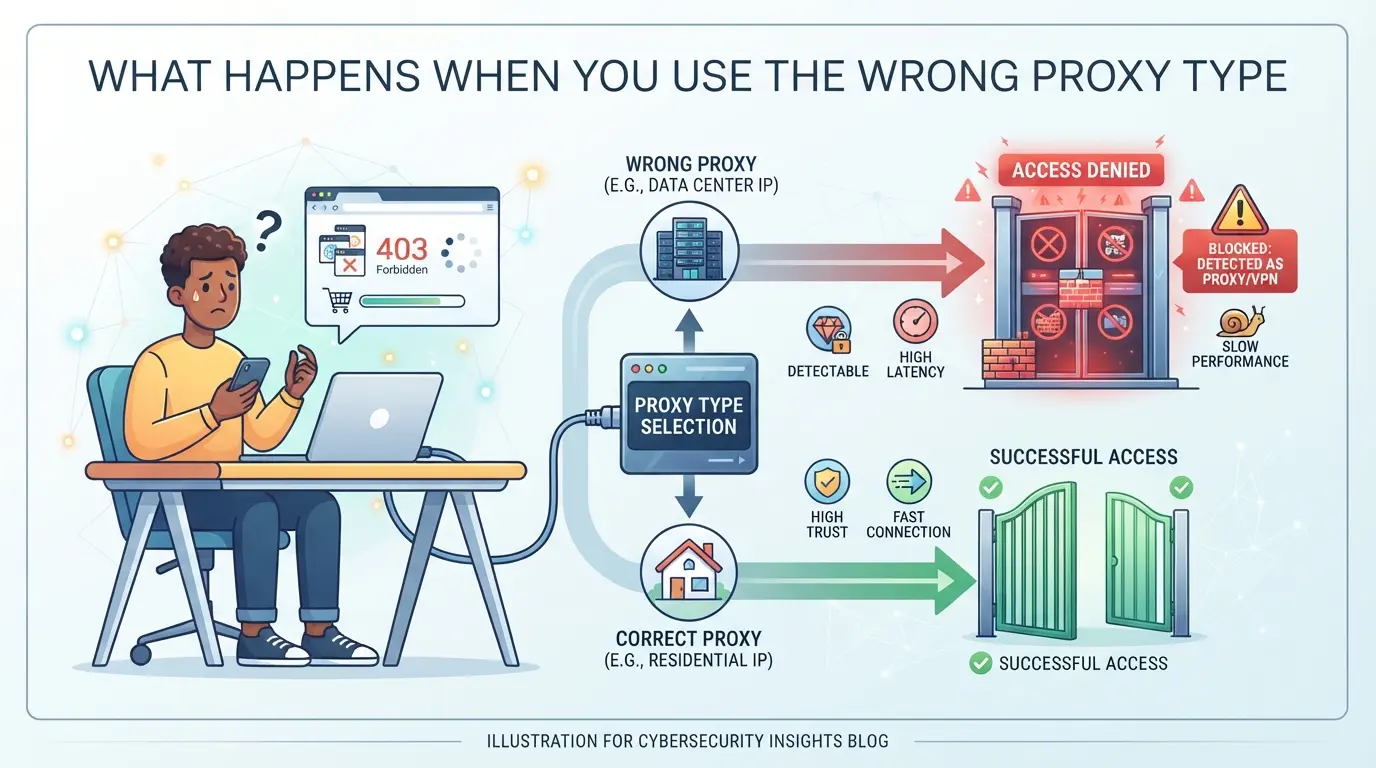
The wrong proxy type turns small mistakes into instant bans. Say you use a datacenter proxy because it’s cheap. Facebook sees hundreds of logins from the same IP, most linked to flagged accounts. Even if you run only one account, your session gets lumped in with everyone else. The first sign is a checkpoint: forced phone verification, or a “Suspicious Login” banner. If you try to recover, Facebook sometimes blocks you outright, and the account is unrecoverable. Residential proxies can fail too, especially if you pick a provider that recycles IPs. When your IP shows up on multiple accounts in the same week, Facebook treats it as a farm and shadowbans you. The mistake here isn’t just the proxy itself, but not matching IP, device, and session history consistently. If you skip this, you’ll see accounts locked, flagged, or permanently banned even after successful logins.
The real lesson is this: proxy choice isn’t just about picking the cheapest or fastest option, it’s about matching Facebook’s trust signals so your accounts don’t get swept up in bulk bans. If you miss this, you end up chasing random errors, not knowing the root cause is your proxy setup.
Next, see which proxy types are used for Facebook accounts and how each stacks up for safety and workflow.
Which Proxy Types Are Used for Facebook Accounts, and How Do They Compare?
Most Facebook account operators end up choosing between residential, mobile, and datacenter proxies. The right pick depends on why you need the account to look real, how much risk you can take, and where your budget sits. Each proxy type leaves a different trace, Facebook's systems are built to spot these differences. If you pick wrong, you’ll see login checkpoints or even get accounts locked before you finish setup. Here’s how the main proxy types actually stack up:
Residential Proxies: The Most Natural Option?
Residential proxies route your traffic through real home user IPs. These look genuine to Facebook, since they match the patterns of normal internet users. Most are sourced from peer-to-peer networks, meaning your IP changes often and blends in with local traffic.
| Type |
Typical Cost (per GB) |
Ban Risk |
Speed |
Realism for Facebook |
| Residential |
$3–$8 |
Low |
Medium |
High |
| Mobile |
$12–$25 |
Lowest |
Low |
Highest |
| Datacenter |
$1–$2 |
High |
High |
Low |
Residential proxies usually offer the best mix of price and safety for Facebook accounts that need to last, especially if you’re running aged or semi-warm profiles.
Mobile Proxies: Are They Worth the Price?
Mobile proxies use IPs from real mobile carriers, which Facebook trusts even more than home internet ranges. They’re almost never blacklisted, but cost 4–8 times as much as residential proxies. For most workflows, that price only makes sense if you run high-value accounts or see bans even after using residential IPs. Mobile proxies make sense only if you’re hitting Facebook’s strictest geo or risk checks, otherwise, you’re overspending.
Datacenter Proxies: Why They Often Fail
Datacenter proxies come from cloud providers like AWS or DigitalOcean. They offer the lowest price and best speed, but Facebook’s anti-abuse tools can spot them fast. Even if you stagger logins and rotate IPs, you’ll see more checkpoints, especially on new or high-risk accounts. Datacenter proxies work for scraping or low-value accounts, but they’re usually a bad fit for anything you want to keep alive.
If you try to save money by starting with datacenter IPs, expect to burn through accounts quickly or spend extra time solving security puzzles.
That’s where problems start to pile up, the wrong proxy type won’t just slow you down, it can get your Facebook accounts flagged before you even build momentum. The next step is knowing why bans happen even with the right proxy on paper, and what details most guides miss.
What Risks and Mistakes Cause Facebook Account Bans, Even with the 'Best' Proxy Type?
Even when you use the best proxy type for Facebook accounts, bans still happen if you miss certain setup details. The biggest problems come from operational mistakes, proxy quality only covers part of your risk.
Mixing Proxy Types or Changing IPs Too Often
Switching between proxy types or rotating IPs too fast can break session consistency. Facebook tracks not just where you log in from, but also how your IP history matches your device and browser fingerprint. If an account sees too many changes, like logging in from a mobile proxy one day and a datacenter IP the next, it often gets flagged for unusual activity. That means you may face login checkpoints, forced phone verification, or instant bans, even if your proxies are technically clean.
Fingerprint Mismatches and Browser Environment Leaks
- Set the browser time zone to match proxy location.
- Check that system language and OS align with proxy geography.
- Block or randomize WebRTC and canvas fingerprint leaks.
Reusing Proxies Across Multiple Accounts
Sharing one proxy across several accounts is a shortcut that usually backfires. Facebook’s anti-abuse system links accounts by IP, so if one gets flagged, others using the same proxy can get banned together. This is why it’s safer to dedicate one proxy per account and never overlap IPs between unrelated profiles.
Low-Quality or 'Burned' Proxy Sources
Cheap proxies often mean recycled or overused IPs, which Facebook already monitors for abuse. Even if the seller promises “fresh” IPs, you can end up inheriting someone else’s ban history.
- Test new proxies by logging into a low-value account first.
- Avoid providers who cannot confirm IP uniqueness or region.
- Rotate out any proxy that triggers instant checkpoints or login freezes.
Skipping these checks means your accounts are at risk, no matter which proxy type you start with.
How to Choose the Right Proxy Type for Your Facebook Account Workflow
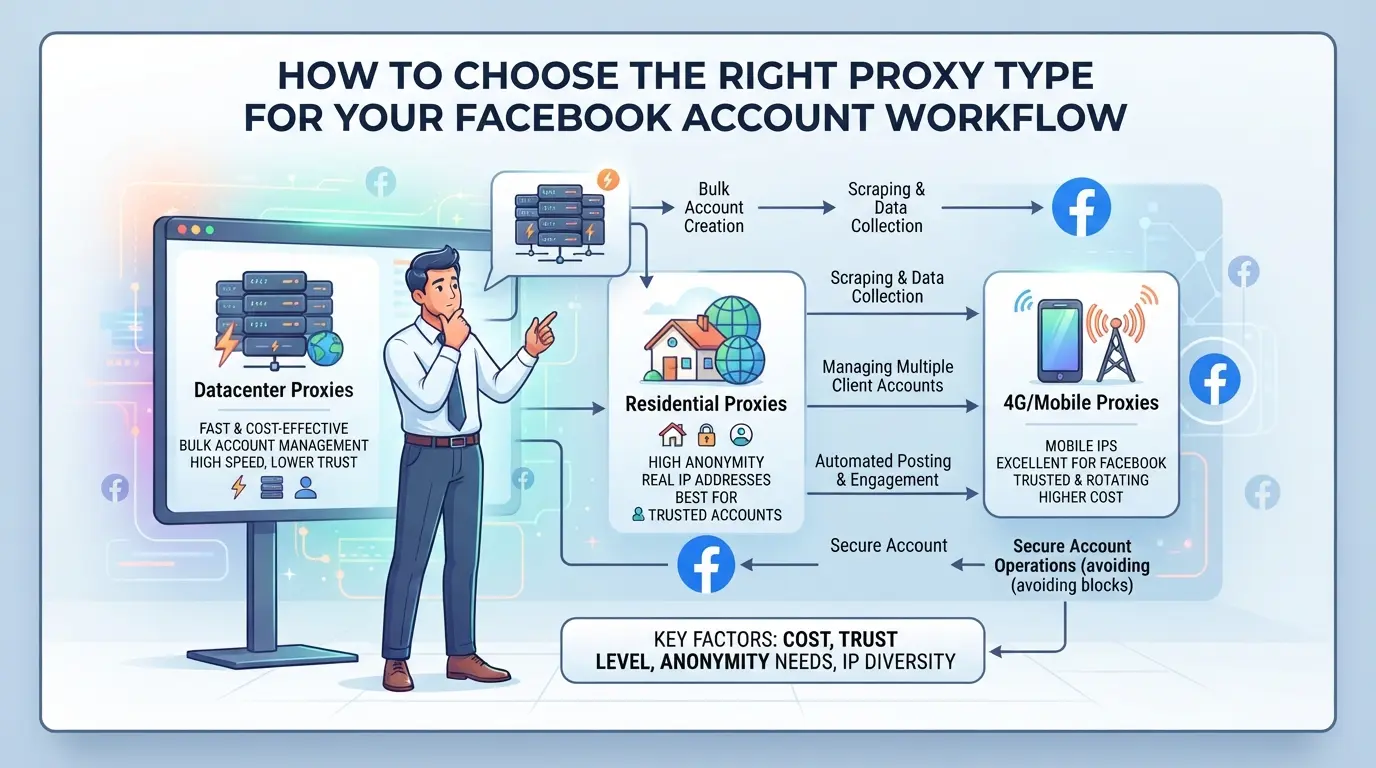
Choosing the right proxy type for Facebook accounts is less about chasing a “best” label and more about matching your risk, budget, and workflow. The wrong fit, no matter how high-end, means you’ll face bans or lockouts. Here’s a step-by-step guide to land on the right proxy for your actual use case.
Step 1: Define Your Facebook Use Case (Personal, Marketing, Automation, Farming)
- Write down exactly what you plan to do, personal browsing, running ads, group posting, automation, or farming.
- Check: new ad accounts and automation setups draw the most attention; personal use triggers fewer checks.
- If you’re running bulk or automated actions, you need cleaner, more unique IPs. Light manual use can get by with less.
Step 2: Match Proxy Type to Your Risk Level and Budget
- High-risk tasks (bulk accounts, automation, new accounts): pick residential or mobile proxies; datacenter IPs get flagged fast here.
- Low-risk, steady use (personal or single business accounts): datacenter proxies may work, but test for login issues first.
- Mind your budget, mobile proxies cost most, residential mid-range, datacenter cheapest. Scaling up means costs add up quickly.
| Proxy Type |
Risk Fit |
Budget Impact |
Common Use Case |
| Mobile |
High-risk |
$$$ |
Automation/Farming |
| Residential |
Mid/high-risk |
$$ |
Ads/Marketing |
| Datacenter |
Low-risk |
$ |
Personal/Single Account |
Source: Facebook account proxy comparison by use case and budget (2026)
Step 3: Vet Proxy Providers for Quality and Freshness
- Only buy from providers with clear rotation policies and real-time support.
- Run an IP check: search “this IP” in abuse databases, if flagged, skip that pool.
- Rotate your test IPs and watch for captchas or blocks on new Facebook logins. That’s a sign the IP is burned.
Step 4: Assign One Proxy Per Account and Keep Sessions Isolated
- Assign a unique proxy to each Facebook account, never share proxies between them.
- Track which proxy goes with which account in a spreadsheet or password manager.
- If you mix sessions, Facebook will link your accounts and may restrict all of them.
Skipping isolation is the fastest way to get all your accounts flagged, even if your proxies look clean on paper.
How to Set Up Separate Browser Profiles and Proxies for Facebook Accounts in DICloak
If you run multiple Facebook accounts, especially in social media marketing, keeping browser sessions and network fingerprints clean is non-negotiable. Even with the best proxy type for Facebook accounts, using the same browser profile across accounts can leave obvious traces that Facebook detects in seconds. Once you’ve picked a proxy type that fits your workflow, the next step is to isolate each account’s browser data and network connection. This is where profile and proxy separation matters.
Create a Separate Browser Profile for Each Facebook Account
Operators can create a new browser profile in DICloak for each Facebook account, keeping all session cookies, browser storage, and configuration data separate. For each profile, you can set the reported operating system, time zone, interface language, and other fingerprint signals. Matching fingerprint settings to the intended location or device type helps avoid mismatches that stand out to platform checks, but the scope is limited to browser profile controls, you still manage the Facebook account details yourself. This separation means you don’t risk a single device fingerprint leaking across multiple sessions.

Assign a User-Provided Proxy to Each Profile
After creating the profile, users can assign their own proxy to that profile in DICloak. For Facebook, this usually means a residential or mobile proxy you supply, entered directly or picked from a saved list. Use the built-in proxy check to confirm the IP, country, and time zone match your plan before logging in, if the test fails or the detected location is off, back out and try a different proxy. DICloak only stores and applies the proxy settings you choose; it does not sell proxies or guarantee how Facebook treats the connection. The separation here is at the session and network layer, keeping one account’s activity from crossing into another’s.

Teams running larger Facebook account fleets will see why this dual separation, profile and proxy, becomes even more important as you scale up.
When a team handles Facebook accounts, risk multiplies. A single weak profile or proxy can expose every account on that device, especially if team members rotate shifts or share machines.
How Shared Devices and Logins Create New Risks
- One login with a reused proxy can spread bans to the whole pool.
- Mixed browser profiles destroy audit trails, no way to check who triggered a block.
- Shared sessions make it impossible to prove who acted, so mistakes go undetected.
Best Practices for Teams: Assigning Profiles, Proxies, and Access
Teams need strict one-to-one mapping, one account, one proxy, one browser profile. Each team member should get unique logins and restricted access. If even a single account shares a proxy or device, cross-account risk jumps and Facebook can link activity across what should be isolated workflows. Track who logs in where. If you see two people on the same IP, audit immediately. Missing this step means even small errors become team-wide problems.
What Proxies Can, and Cannot, Do for Facebook Accounts in 2026
What Proxies Help With
Proxies hide your real IP and location, making each Facebook login appear to come from a different place. This keeps sessions separate and reduces cross-account tracking.
What Proxies Cannot Guarantee
No proxy, no matter how fresh, can guarantee your Facebook account stays safe or gets past all security checks.
- Accounts still get banned if browser fingerprints, cookies, or device patterns don't match the proxy's location.
- The safer move: treat proxies as one piece of the setup. Pair them with unique browser profiles and avoid reusing devices or cookies across accounts. Even the best proxies for Facebook accounts can’t save you from sloppy session handling.
Frequently Asked Questions About best proxy type for facebook accounts
Can I use free proxies for Facebook accounts?
Free proxies are almost always flagged by Facebook. They share IPs among many users, so your account gets mixed with suspicious traffic. Free proxies often leak your real IP or fail basic security checks. If you want the best proxy type for facebook accounts, paid residential or mobile proxies are much safer and more reliable.
How many Facebook accounts can I run with one proxy?
You should use one proxy per Facebook account. Sharing a proxy across multiple accounts increases the risk of bans. Facebook tracks unusual IP activity, so multiple accounts from a single IP can trigger restrictions. For safest results, assign a unique proxy to each account, especially if you manage business or marketing profiles.
Is it safer to use mobile proxies than residential proxies for Facebook?
Mobile proxies are safer for Facebook because they use IPs from real mobile devices, making them harder to detect. They cost more than residential proxies but offer better privacy and lower ban rates. If you need the best proxies for Facebook accounts, mobile proxies are worth it for critical accounts or large-scale operations.
What should I do if my Facebook account gets restricted even with a good proxy?
First, check your browser fingerprint settings to make sure they match your proxy. Review your recent activity for anything unusual, like sudden location changes or spammy actions. Try rotating your proxy IP or switching to a different proxy type. If the account stays restricted, submit an appeal to Facebook with accurate information.
Do I need to change my browser fingerprint when switching proxies?
Yes, your browser fingerprint should match your proxy type and location. Facebook compares your IP and browser details, so mismatches can lead to flags or restrictions. Use fingerprint-changing tools to set your browser language, time zone, and device type to match your new proxy. This helps your account look authentic.
Now that you understand which proxy types align best with your Facebook account needs, it’s time to consider your budget, scale, and privacy requirements before making a selection. Testing a reliable proxy solution can help you gauge performance and security firsthand. Try DICloak For Free
 Web Proxy Tools
 Free Tools
 Cookie Plugin
 UA Generator
 MAC Address Generator
 IP Generator
 IP Address List
 2FA Code Generator
 World Clock
 Anonymous Check
 WebRTC Leak Test
 UUID Generator
 Free Web Proxy Site
 Proxy Checker
 FB Ad Checker
 AI Web Scraping
 Free SMM Tools
 Twitter Shadowban Checker
 Instagram Name Checker
 UTM Generator
 Username Generator
 AI Hashtag Generator
 LinkedIn Headline Generator
 Social Media Image Resizer