Getting locked out during a ticketmaster login, or running into an endless “can’t log into ticketmaster” loop right before tickets drop, can throw off your entire plan. Sometimes the site rejects your password for no clear reason. Other times, you’re stuck waiting for a code that never arrives, or your account suddenly needs extra verification with no warning.
Even if your credentials are correct, browser autofill, old cookies, or switching devices can trigger unexpected security checks. If you manage more than one ticketmaster account login, maybe for family, resale, or work, the risk climbs. Multiple failed attempts, rapid logins from different IPs, or mismatched profile details can all lead to a temporary lockout or even a flagged account.
What most people miss is that Ticketmaster’s security systems aren’t just looking for stolen passwords. They also watch for patterns: unusual login times, location jumps, and even which browser or device you use. Missing a single flag can mean losing access right when you need it most. That’s why a clear, step-by-step process matters, knowing what triggers problems makes it easier to avoid them and recover faster if something goes wrong.
Start by checking the current login flow and the main reasons for failed sign-ins.
What You Need Before Logging In to Ticketmaster (2026)
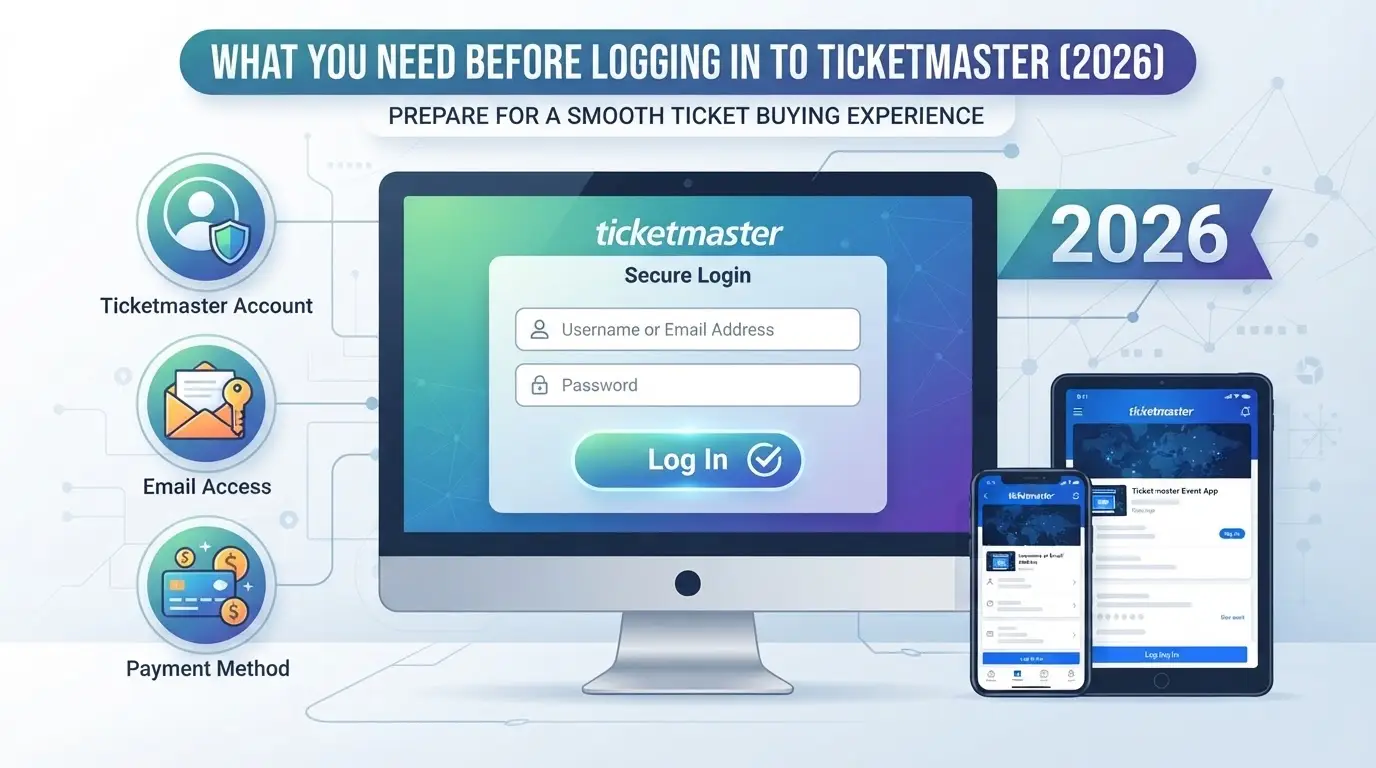
You need more than just your password to get through Ticketmaster’s login checks in 2026. Most failed logins come from missing a detail, wrong email, outdated browser, or losing access to your 2FA device. Here’s exactly what you should have ready before you even try to sign in.
Valid Email and Password Requirements
Ticketmaster only accepts emails in standard formats (letters, numbers, dots, and approved special characters). Disposable or temporary emails often get rejected. Passwords must be at least 12 characters, mix upper and lower case, and use at least one number plus a symbol. If your password uses dictionary words or repeats a past password, you’ll hit a security warning during setup. Reusing old passwords from before 2025 usually triggers a forced reset. If you’re not sure which email you signed up with, double-check your inbox for past Ticketmaster receipts, using the wrong email is a common way to get stuck at the login screen.
Device and Browser Compatibility in 2026
- Use Chrome, Firefox, or Safari updated within the last 6 months, older browsers may block login popups or 2FA windows.
- Windows 10+, macOS 12+, iOS 16+, or Android 13+ required; outdated OS versions can break the login page.
- Mobile logins sometimes require Face ID or fingerprint for autofill; desktop logins may demand manual entry after a failed attempt.
Two-Factor Authentication and Security Checks
Ticketmaster uses text codes or authenticator apps for 2FA. If you lose your 2FA device, recovery options depend on your backup settings.
- Check that your phone number or authenticator app is active and accessible.
- Have your backup codes saved offline; you’ll need one if your device is lost or reset.
- If you can’t access either method, prepare to verify your identity with support, this can take up to 72 hours and often means missing a time-sensitive ticket drop.
Missing any of these checks can stall your sign-in or lock you out. Before you move forward, confirm you meet all requirements, otherwise, the next steps won’t work. Up next: the exact process to sign in, with screenshots of each step.
How to Log In to Ticketmaster: Step-by-Step (With Screenshots)
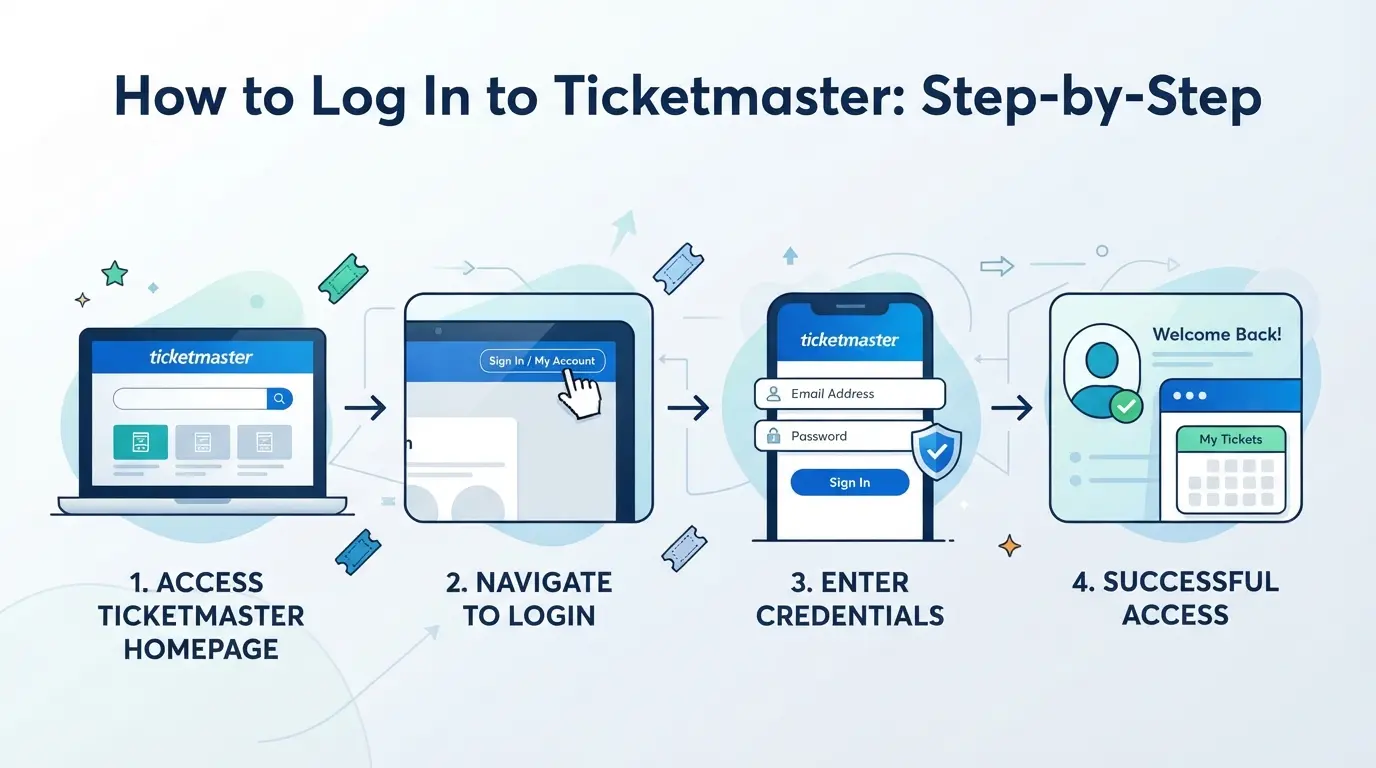
If you’ve got your login details ready, the actual sign-in only takes a minute, but missing a prompt or hitting the wrong device flow can stall you out. Below, you’ll find exactly how to log in, with each step mapped to the current desktop and app layouts for 2026.
Logging In on Desktop
- Go to ticketmaster.com and click “Sign In” at the top right. This takes you to the main login form, don’t use browser bookmarks, since Ticketmaster updates their link structure often.
- Enter your email and password. If you see a “Verify You’re Human” check, complete the captcha. If the form reloads, you may have a typo or an account lock, reset your password if needed.
- Click “Sign In.” You’ll land on your account dashboard if successful. If you’re bounced back to the login screen, clear your browser cookies and try again. Chrome stores stale login data for up to 30 days, so a fresh session can solve looping issues.
Logging In on the Ticketmaster App
- Download the Ticketmaster app from the App Store or Google Play. Avoid third-party sources, unofficial apps can steal passwords or fail to support new security steps.
- Open the app and tap “Sign In.” Enter your email and password. If you use Face ID or fingerprint unlock, the app may prompt you to enable this for future logins.
- Tap “Continue.” If you get a code sent to your email or phone, enter it to confirm it’s really you. Some users skip this by accident, watch for push notifications that might hide code prompts.
First-Time Login and Account Verification
- After your first login (or when using a new device), check your inbox for a verification email from Ticketmaster. Click the link inside within 10 minutes, expired links force you to restart.
- If prompted, enter the six-digit code sent to your phone or email. Stuck waiting? Spam filters sometimes catch these, look in Junk or Promotions tabs.
- Finish setup by confirming any pop-up permissions (like location or device access). Skipping these can block ticket downloads or transfers later.
Most login issues trace back to missed verification or stale browser data. If you’re still stuck, the next section breaks down the main reasons for a failed sign-in and how to fix them fast.
Why Ticketmaster Login Fails: Common Problems and Quick Fixes
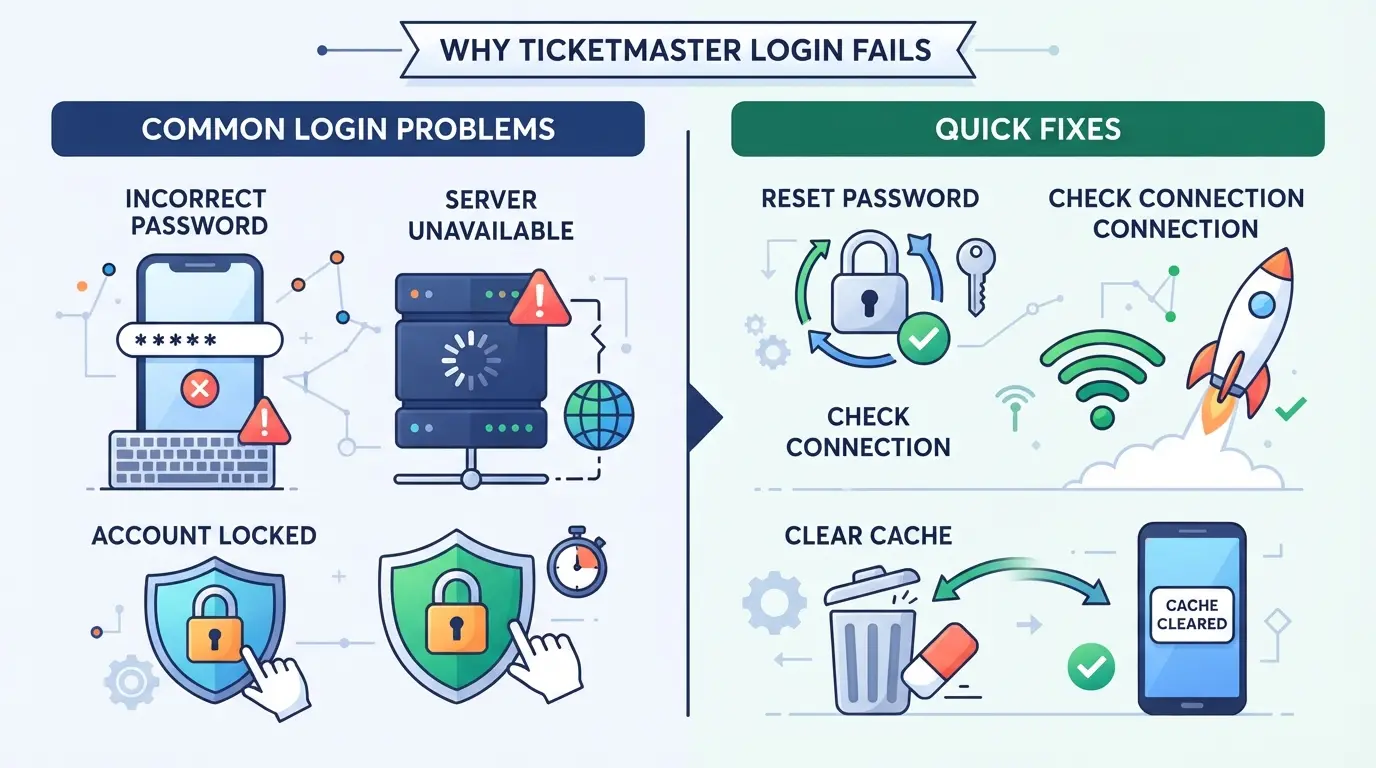
Failed sign-ins come down to a handful of repeat issues, bad credentials, browser problems, or Ticketmaster's security blocks. If your account won't open, the fix usually starts with one of these common causes.
Incorrect Credentials and Account Lockouts
A wrong password or username stops you fast. Use "Forgot Password" on the login page to reset, Ticketmaster emails a link in minutes. If too many failed tries lock your account, wait an hour before trying again or check your inbox for a security alert.
Browser, Cookie, and Cache Issues
Browsers can trip you up in ways that look like a password problem. If you clear cookies and cache, you wipe out old session errors, Chrome, for example, holds login session data for up to 30 days, and a corrupt file can keep blocking you even after you fix your password. Extensions like ad blockers, privacy tools, or even some password managers often break login forms by blocking scripts or auto-filling the wrong fields. If you get stuck on a blank page or the login just reloads with no error, open an incognito window and try again. Still stuck? Disable all extensions, close every open Ticketmaster tab, and restart the browser. If the login works in incognito but not regular mode, stale cookies or an extension is almost always the cause. Don’t overlook browser version, using an outdated browser sometimes triggers security warnings or silent rejections.
Device, Location, and Network Restrictions
- Signing in from a new device or city? Ticketmaster may send a verification email or SMS, open it right away or the link can expire.
- Huge location jumps (like logging in from two countries in one day) often trigger a security hold, use your usual device and network if possible.
- Public WiFi or shared networks sometimes get flagged if others are trying to log in at the same time; switch to mobile data if you suspect this.
If none of these solve your access problem, it's time to look at account recovery steps, most issues trace back to one of these blocks.
How to Recover a Ticketmaster Account If You Can't Log In
If you can't access your Ticketmaster account, even after fixing browser or password mistakes, you have to move fast. The longer your account stays locked, the harder it gets to regain control, especially during high-demand ticket drops or right before an event.
Password Reset and Email Recovery
- Go to the Ticketmaster sign-in page and click “Forgot Password?” Enter your account email and submit.
- Check all email folders (including spam/junk) for the reset link, Ticketmaster emails sometimes land outside your inbox. The link expires after 30 minutes.
- If no reset email arrives, confirm you entered the right address. Try searching your inbox for “Ticketmaster” to catch misspellings or old registrations.
- Still no email? Your account may be under review or the email address was changed. Move to account support (see below).
Resolving 2FA and Security Verification Problems
- If you enabled two-factor authentication (2FA) and lost your device, select “Can’t access authentication app?” on the login page.
- Follow the fallback instructions, usually, you’ll get a backup code sent to your email or phone. This only works if you set up backup options before.
- If both 2FA and email fail, you’ll need to verify your identity with Ticketmaster support. Prepare a recent ticket purchase receipt or the last four digits of your payment card to speed up the review.
When to Contact Ticketmaster Support
- Gather your details: full name, email tied to the account, phone number, and any order IDs from past purchases.
- Use the Ticketmaster Help portal or in-app support chat for faster queues, avoid email unless you have no other option.
- Response times in 2026 average 24–48 hours for standard requests, but high-demand event weeks can push replies to 3–5 days.
- If you get an automated denial, reply with more details or proof. Human review often unlocks accounts that bots flag by mistake.
Next, once you’re back in, set up new recovery info and update your password to reduce future lockouts.
How to Keep Your Ticketmaster Account Secure in 2026
Losing access right before a big event is a headache most people want to avoid. Staying ahead of new scams and login threats is the only way to keep your account safe this year.
Recognizing Phishing and Scam Attempts
Fake Ticketmaster login pages are more convincing than ever, some even copy error messages and branding exactly. Watch for odd URLs, missing HTTPS, or anything that asks for your code outside the official app or site. If you get a suspicious email or text, never click login links, open Ticketmaster directly and check your account there.
Setting Strong Passwords and Enabling 2FA
- Use a password manager and set a unique password (random, at least 14 characters)
- Turn on two-factor authentication (2FA) in your account settings
- Update 2FA if you change your device or phone number
Monitoring Account Activity and Devices
If you notice any logins from places or devices you don’t recognize, act fast, someone else could have access.
- Check your recent login history in the security or device section
- Log out from unfamiliar or old devices right away
- Change your password if anything looks off
Next, if you handle more than one account, the way you manage browser sessions and proxies matters even more.
Managing Multiple Ticketmaster Accounts: Safer Browser Profiles and Proxy Setup
Trying to handle more than one Ticketmaster account from the same device or IP is one of the fastest ways to get locked out, unless you use isolated browser profiles and dedicated proxies for each login.
Why Multiple Logins Trigger Security Warnings
Every time you sign in, Ticketmaster checks your device fingerprint and IP address. Logging into several accounts from a single browser or switching IPs too quickly almost always trips their security. One mistake, like logging out and back in with the same browser, can flag all connected accounts.
How Isolated Browser Profiles Reduce Risk
A browser profile is a separate browser profile, think of it like a unique "computer within your computer." Running each Ticketmaster account in its own profile keeps cookies, fingerprint, and local data completely separate. This makes it much harder for security systems to link your logins together. If you skip this step and just use "Incognito" or browser tabs, you’ll run into cross-session tracking, Ticketmaster may connect your accounts and freeze them without warning. The fastest way to get flagged is reusing a single browser profile for multiple accounts.
Using Proxies for Location and IP Consistency
- Assign one proxy per browser profile, never share proxies between accounts.
- Choose proxies that match your usual city or country.
- Stick to the same IP for each login session as much as possible.
How to Set Up Isolated Browser Profiles and Proxies for Platform Accounts in DICloak
If you run more than one platform account and want each login to stay separate, especially for things like ticketmaster login, browser-level isolation is the safest place to start. Standard browsers lump sessions into one environment, making it easy for cross-account signals to leak. DICloak gives operators a way to set up truly separate browser profiles, each with its own fingerprint settings and proxy connection, so team workflows don’t overlap or confuse account signals.
Creating Separate Browser Profiles and Configuring Fingerprints in DICloak
Operators can create a new browser profile in DICloak for every platform account they manage. Each profile stores its own environment: browser version, operating system, language, time zone, and hardware signals can all be set individually. This keeps each session’s storage, cookies, and fingerprinting data separate, so logins don’t blend together during team handoffs or multi-account use. The scope is limited to isolating browser session data and fingerprint settings, not changing how the platform sees the account itself.

Assigning and Testing Proxies for Each Profile in DICloak
For accounts that need steady network signals, operators can configure a user-owned proxy on each DICloak profile. Enter the proxy details, host, port, username, and password, then run a quick connectivity check to make sure the IP and geolocation match what’s needed before launching a session. DICloak does not supply proxies, and the choice of proxy source, type, or rotation rule is up to the user.

If login problems still block access after setup, the next step is to review escalation and support options.
What to Do If You Still Can't Log In: Escalation and Support Options
Gathering Evidence and Contacting Support
If every fix fails, gather proof before reaching out, screenshot error messages, note the device and browser, and list any recent account changes. When you start a support ticket, give a clear timeline and attach your evidence. Direct, specific details speed up support, vague requests sit longer in the queue.
Alternative Access and Temporary Solutions
Guest checkout and alternate emails sometimes work for urgent orders, but don't risk new accounts or third-party sites, these can trigger bigger problems.
- Try guest checkout if available for your ticket purchase.
- Check your inbox for password reset or lockout emails.
- Wait 15-30 minutes; repeated failed logins can trigger temporary holds.
Frequently Asked Questions About ticketmaster login
Why am I getting a 'suspicious activity' error when logging in to Ticketmaster?
You might see this error if you log in from a new device, use a different browser, or your IP address changes. Ticketmaster’s system flags these as possible security risks. If this happens, try logging in from your usual device and network. If you’re still blocked, reset your password or contact support for help.
Can I use the same Ticketmaster login on multiple devices?
Yes, you can use your Ticketmaster login on more than one device, like your phone and computer. However, logging in from too many devices or locations at once can trigger security checks. If Ticketmaster detects unusual activity, they may temporarily lock your account or ask you to verify your identity.
How do I reset my Ticketmaster password if I forgot my email?
If you can’t remember your email, try using other emails you may have registered. If that doesn’t work, use the “forgot email” or “can’t access your account?” link on the sign in page. If you still can’t recover your ticketmaster account login, contact Ticketmaster customer support for help.
Is it safe to save my Ticketmaster login in my browser or password manager?
Saving your login in a password manager is generally safe and recommended, as these tools encrypt your information. Saving it in your browser is convenient but less secure, especially if others use your device. Always use strong, unique passwords and enable two-factor authentication for extra protection.
What should I do if my Ticketmaster account is hacked or compromised?
Immediately change your password and log out of all devices. Check for unauthorized orders or changes. Contact Ticketmaster support to report the issue and secure your account. Also, update your email and password on other sites if you used the same details elsewhere.
Taking a few moments to secure your online accounts can make all the difference in protecting your personal information and event access. Consider using additional privacy tools to improve your login safety and simplify your experience. Try DICloak For Free
 Web Proxy Tools
 Free Tools
 Cookie Plugin
 UA Generator
 MAC Address Generator
 IP Generator
 IP Address List
 2FA Code Generator
 World Clock
 Anonymous Check
 WebRTC Leak Test
 UUID Generator
 Free Web Proxy Site
 Proxy Checker
 FB Ad Checker
 AI Web Scraping
 Free SMM Tools
 Twitter Shadowban Checker
 Instagram Name Checker
 UTM Generator
 Username Generator
 AI Hashtag Generator
 LinkedIn Headline Generator
 Social Media Image Resizer