Have you ever opened a Microsoft email or sign-in page and stopped for a second, wondering, “Is this real?” If you have, you are not alone. Many users see microsoftonline.com during work or school sign-ins, but the name can still feel unfamiliar. That is exactly why scammers take advantage of it. They build fake login pages, send urgent messages, and try to make people act before they think.
The truth is simple but important. Sometimes microsoftonline.com legit is part of a real Microsoft sign-in process. Other times, a similar-looking page can be a trap. That is why it is so important to know the difference. In this guide, you will learn what microsoftonline.com is, how fake Microsoft login scams work, how to check if a page is real, and what steps can help protect your account before and after a suspicious click.
Is microsoftonline.com Legit?
Seeing a microsoftonline.com login page can make people nervous, especially if they were not expecting it. That is understandable. The good news is that the real domain can be part of Microsoft’s normal sign-in system. But fake pages that look similar are also common, so context matters.
What is microsoftonline.com?
The short answer is yes, microsoftonline.com legit can be real. Microsoft uses work and school account portals for Microsoft 365 and related services, and those accounts are often managed by an organization. That is why this domain is commonly seen in business or school sign-ins rather than personal Microsoft account use.
For example, you might open a company SharePoint file or sign in to your school Microsoft 365 account and land on a microsoftonline.com login page. In that situation, the page may be normal because it matches what you were trying to access.
When microsoftonline.com is a normal Microsoft sign-in domain
A real microsoftonline.com login usually appears during a normal task. You may be signing in to Outlook for work, opening Teams, or accessing a school Office app. If the sign-in request starts from a trusted place, such as your company portal, school site, or your own saved bookmark, that is a better sign.
It is also helpful to remember that work or school accounts are different from personal Microsoft accounts. So seeing a different Microsoft sign-in path does not automatically mean danger. What matters more is whether the full domain is correct and whether the login request makes sense at that moment.
When a similar page may be a scam
This is where users need to be careful. Microsoft has reported phishing campaigns that mimic trusted sign-in pages, spoof domains, and use fake workplace messages to steal passwords or session data. That means a page can look polished and still be unsafe.
A common example is an email that says your account was locked or a file is waiting for review. The logo may look real, but the link may contain extra words, odd subdomains, or small spelling changes. If you were not trying to sign in, do not rush. A similar-looking page can still be a scam, even when it looks like Microsoft.
How Fake Microsoft Login Scams Work
After learning that the real domain can be valid, the next step is knowing how fake login scams copy that trust. This is where many people get fooled. A page may mention Microsoft, look clean, and still be dangerous. That is why checking context matters just as much as asking whether microsoftonline.com legit is real.
Common signs of a fake Microsoft email or message
Many Microsoft login scams begin with a message that creates pressure. It may say your password will expire today, your account was locked, or a file is waiting for review. Microsoft’s phishing guidance warns that attackers often pretend to be trusted companies and use links to fake websites that try to steal passwords or other personal information.
A common work example is a fake Teams, SharePoint, or Microsoft 365 notice. The message looks urgent, so the user clicks before thinking. In real life, that is how many people end up on a fake login microsoftonline.com page. If the message feels rushed, unexpected, or emotionally pushy, slow down before clicking. Microsoft has also reported large phishing campaigns that used trusted-looking messages to steal sign-in data.
How fake sender addresses trick users
The sender name is not enough. A message can say “Microsoft Account Team” and still be fake. Microsoft explains that spoofing happens when attackers forge the visible sender information so an email appears to come from a trusted source. Microsoft 365 even uses anti-spoofing protection because this trick is so common.
For example, a scam email may look like it came from Microsoft billing or support, but the real sender can be different when you inspect the full address or message details. Microsoft support also notes that some real account notices come from trusted domains such as @accountprotection.microsoft.com, which shows why users should check the full sender carefully instead of trusting the display name alone.
Why a Microsoft-looking page can still be fake
This is the part that catches careful people too. A fake page can copy Microsoft colors, logos, and layout very well. It may even appear after several redirects, which makes it feel more real. Microsoft Threat Intelligence said attackers abused routing tricks and spoofed domains in 2025, and Microsoft Defender for Office 365 blocked more than 13 million malicious emails linked to Tycoon2FA in one month of that period.
So even if a page looks professional, that does not prove microsoftonline.com legit in your case. What matters is the full domain, the path that brought you there, and whether the sign-in request matches what you were trying to do. A polished page can still be part of a phishing flow. Microsoft’s own security reporting shows that modern phishing attacks are built to look normal at first glance.
Examples of suspicious links and login pages
A suspicious link often has small changes that are easy to miss. It may add extra words, use a strange subdomain, or hide the real destination behind a button in an email. One common pattern is a message that says “Review shared document” or “Confirm unusual sign-in,” then sends the user to a page that only looks like login microsoftonline.com. The design may seem familiar, but the full web address is wrong.
Another warning sign is a login page that appears out of nowhere. Imagine you were not trying to sign in, but you suddenly get an email asking you to verify your Microsoft 365 access. That mismatch is important. Microsoft’s Outlook guidance tells users to report phishing messages with the built-in Report option, which reflects how common these scams are in normal inboxes.
So the safest habit is simple. Do not trust a Microsoft-looking email or page just because it feels familiar. If you were not expecting it, check the sender, hover over the link, and open Microsoft from your own saved bookmark or official portal instead.
How to Check If a Microsoft Login Page Is Real
Once you know how fake Microsoft login scams work, the next step is learning how to check a page before you type your password. This matters because a page can look safe and still be part of a phishing attack. The goal is not to panic every time you see a sign-in screen. The goal is to slow down and verify whether microsoftonline.com legit makes sense in that moment.
Check the full domain name carefully
The first step is simple but very important. Read the full web address, not just the part that says “Microsoft.” Attackers often use extra words, odd subdomains, or small spelling changes to make a fake page look real. Microsoft’s phishing guidance warns that scammers use links to fake websites that try to steal passwords and other personal information.
For example, a real login microsoftonline.com flow should match the task you were trying to do. But a fake link might hide the real destination behind a button in an email. If the address looks longer than expected, includes strange add-ons, or does not fit the action you started, stop there. A good page should make sense both in spelling and in context.
Use official Microsoft sign-in paths
A safer habit is to open Microsoft from a place you trust instead of from a surprise email. Microsoft’s support pages point users to official sign-in and account pages, including Microsoft 365 sign-in and the Microsoft account dashboard. Microsoft also says users can manage account settings and see suspicious activity through their own account pages.
Here is a simple example. If your school asks you to open Word online, it is safer to start from your school portal or your own saved bookmark than from a random email link. The same rule works for work accounts. If you were not expecting a sign-in request, do not let the page decide for you. Start from the official service you already know and see whether the same login page appears there. That is a better way to judge whether microsoftonline.com legit fits the situation.
Look at account and security alerts
Microsoft gives users ways to check whether account activity is real. The Microsoft account Recent activity page shows when and where the account was used in the last 30 days, including location details and how the account was accessed. Microsoft also explains that if there is an unusual sign-in attempt, it may send an email or text and ask for a security code.
This can help in real life. Imagine you get a warning email saying someone signed in from another country. Instead of clicking the email link right away, go to your account page directly and review your recent activity there. If the alert is real, you should be able to see matching details on the official account page. If you see nothing unusual, that message may be fake or misleading. That one extra check can save you from typing your password into a fake login microsoftonline.com page.
Understand Microsoft’s real communication channels
Microsoft does send real security messages, but users still need to verify them carefully. Microsoft says email from the Microsoft account team using the domain @accountprotection.microsoft.com is safe to trust for account notifications such as two-step verification codes and account updates. Microsoft also says it uses 69525 to send genuine security verification codes and activity alerts by text message.
At the same time, not every message that looks official is safe. Microsoft tells Outlook users to report suspicious messages with the built-in Report phishing option, and its phishing guidance says attackers often pretend to be trusted companies. So if a message pushes you to act fast, asks for login details, or sends you to an unexpected sign-in page, verify first through an official account page or your organization’s trusted portal.
In the end, checking whether microsoftonline.com legit is real is less about one visual clue and more about a few small checks done in the right order. Look at the full domain. Use official sign-in paths. Compare alerts with your real account activity. And trust verified Microsoft communication channels more than emotional or rushed messages.
How to Protect Yourself From microsoftonline.com Scams
After learning how to check whether a page is real, the next step is building safer habits before a scam reaches your password. This matters because even when microsoftonline.com legit can be real, attackers still try to copy trusted sign-in flows. Good protection is not one big trick. It is a few simple habits used every time.
Avoid clicking login links in unexpected emails
One of the safest habits is also the easiest. Do not sign in from a surprise email link. Microsoft’s phishing guidance warns that scammers often use links to fake websites to steal passwords and other personal information.
Here is a common example. You get an email saying your Microsoft 365 password will expire today, or that a file is waiting for review. The message may push you to open a login microsoftonline.com page right away. Instead of clicking, go to your own saved Microsoft bookmark, your company portal, or your school site and sign in from there. If the warning is real, you should still be able to find the same task after entering through the official path. That small pause can help you avoid a fake page even when it looks polished.
Use strong passwords and two-step verification
Strong account protection matters because a fake page only needs one mistake. Microsoft says two-step verification adds an extra security step when you sign in, and work or school accounts may require a code on devices that are not trusted. Microsoft also recommends stronger options such as Microsoft Authenticator, passwordless sign-in, Windows Hello, physical security keys, or SMS codes for supported accounts.
A real-life example is simple. Imagine someone enters a password on a fake site but has two-step verification turned on. The attacker may still be blocked from signing in without the second proof. That does not make you invincible, but it gives your account a much better chance. For personal Microsoft accounts, Microsoft explains that you can turn on two-step verification in your account security settings.
Keep your browser and device secure
Safe browsing tools can stop some scams before you even make a choice. Microsoft says Defender SmartScreen in Microsoft Edge checks sites against reported phishing and malicious websites, and Windows security features also include reputation-based protection against phishing, malware, and unwanted apps. Microsoft Defender web protection can also warn users about dangerous links on supported devices.
This helps in everyday life. If you click a bad link that only pretends to be login microsoftonline.com, your browser or device may warn you before the page fully loads. That is why it is smart to keep your browser updated, use built-in protection, and avoid downloading files from random pages that claim to fix your Microsoft account. Microsoft specifically advises users to browse with Edge for protection against scam sites and to be careful with downloads from third-party sites.
Protect work and school accounts
Work and school accounts need extra care because one stolen login can affect email, files, Teams, SharePoint, and other organization tools. Microsoft support explains that work or school accounts often use two-step verification and security info during sign-in, especially on devices that are not trusted. Microsoft Entra guidance also emphasizes stronger identity protection and modern authentication methods to reduce unauthorized access risk.
A simple example is a student or employee who receives a file-sharing email late at night and signs in without checking. If that page is fake, the attacker may get access to far more than one inbox. For that reason, it is safer to use your organization’s real portal, follow your IT team’s sign-in rules, and treat unexpected login prompts with caution even when microsoftonline.com legit sounds familiar. For admins and high-risk users, stronger phishing-resistant methods may be needed in some environments.
In the end, protection is about reducing easy mistakes. Open Microsoft from trusted paths, add a second layer of sign-in security, keep your browser and device defenses on, and treat work or school accounts like high-value targets. Those habits make it much harder for a fake Microsoft page to win.
What to Do If You Already Clicked a Suspicious Link
Even careful people make this mistake. A fake page can look real, especially when it copies a normal Microsoft sign-in flow. So if you clicked first and worried later, do not panic. What matters now is acting fast. Whether microsoftonline.com legit was real or not, these steps can help reduce damage.
Change your password immediately
If you entered your password on a suspicious page, change it right away from an official Microsoft account page, not from the same email or link. Microsoft’s recovery guidance says to clean your device for malware first and then update your password if your account may be compromised. Microsoft also recommends strong, unique passwords and multi-factor protection because MFA defeats most password attacks.
A simple example makes this clear. Imagine you opened a fake login microsoftonline.com page from a “shared document” email and typed your password before noticing the URL looked odd. In that case, go directly to your real Microsoft account or organization portal and change the password there. If you reuse that password on other accounts, change those too. That one step can stop an attacker from using the stolen password again.
Review recent account activity
After changing your password, check whether anyone actually used your account. Microsoft says you can review unusual sign-in attempts and other access details on the Recent activity page. If you see something you do not recognize, Microsoft lets you mark it as suspicious and begin securing the account.
This is very useful in real life. For example, if you clicked a suspicious link in the morning and then later saw a sign-in attempt from another country, that is a strong warning sign. Instead of guessing whether microsoftonline.com legit was safe, use the official activity tools to check what really happened. For work or school users, admins can also review broader Microsoft 365 audit records when needed.
Report the scam to Microsoft
Reporting matters because it helps protect other users too. Microsoft says the fastest way to report a phishing message in Outlook or Outlook.com is to use Report > Report phishing. Microsoft also provides a scam reporting page for unsafe sites and scam attempts.
Here is a simple example. If a message told you to verify your Microsoft 365 account and pushed you to a fake login microsoftonline.com page, report that email after you secure your account. Even if you already clicked it, reporting can help Microsoft improve filters and reduce the chance that the same scam reaches someone else.
Contact your IT team or relevant authorities if needed
If the account is tied to your job or school, tell your IT team as soon as possible. A stolen work or school login can affect email, Teams, files, SharePoint, and other systems, not just one inbox. Microsoft’s work and school security guidance shows that these accounts often connect to wider organization access, so early reporting helps teams respond faster.
In more serious cases, you may also need to contact outside authorities. Microsoft’s identity theft guidance tells users in the United States to report identity theft to the Federal Trade Commission. This becomes more important if you shared personal data, downloaded malware, or notice fraud beyond your Microsoft account.
The key point is simple. If you clicked a suspicious link, do not waste time wondering whether it looked close enough to microsoftonline.com legit. Change your password from a trusted path, review your account activity, report the scam, and get help quickly if the account affects work, school, or personal identity.
A Safer Way to Manage Multiple Microsoft Accounts with DICloak
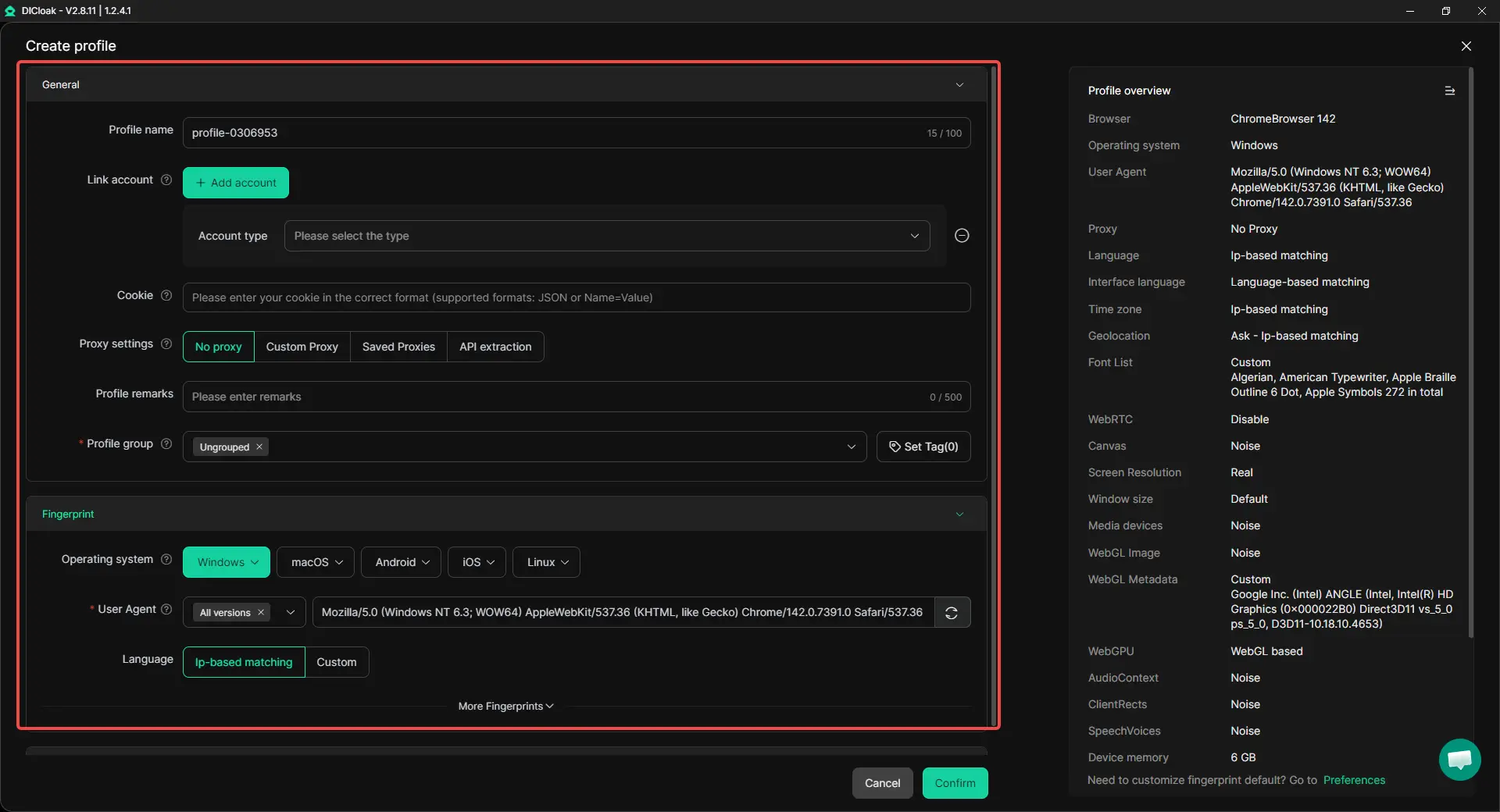
For many users, checking the domain, avoiding suspicious links, and turning on two-step verification are enough. But when one person needs to handle several Microsoft accounts, things can get confusing fast. A work account, a school account, and a personal account can easily get mixed in one browser. In that case, antidetect browser DICloak can serve as a practical extra tool for cleaner account separation.
Keep different accounts in separate browser profiles
Users can place different Microsoft accounts in different browser profiles instead of mixing them in one session. This helps keep cookies, cache, and login states separate, which can reduce account mix-ups during daily sign-ins. That is especially useful for people who switch between work, school, and personal Microsoft logins.
Use a custom proxy setup for cleaner account separation
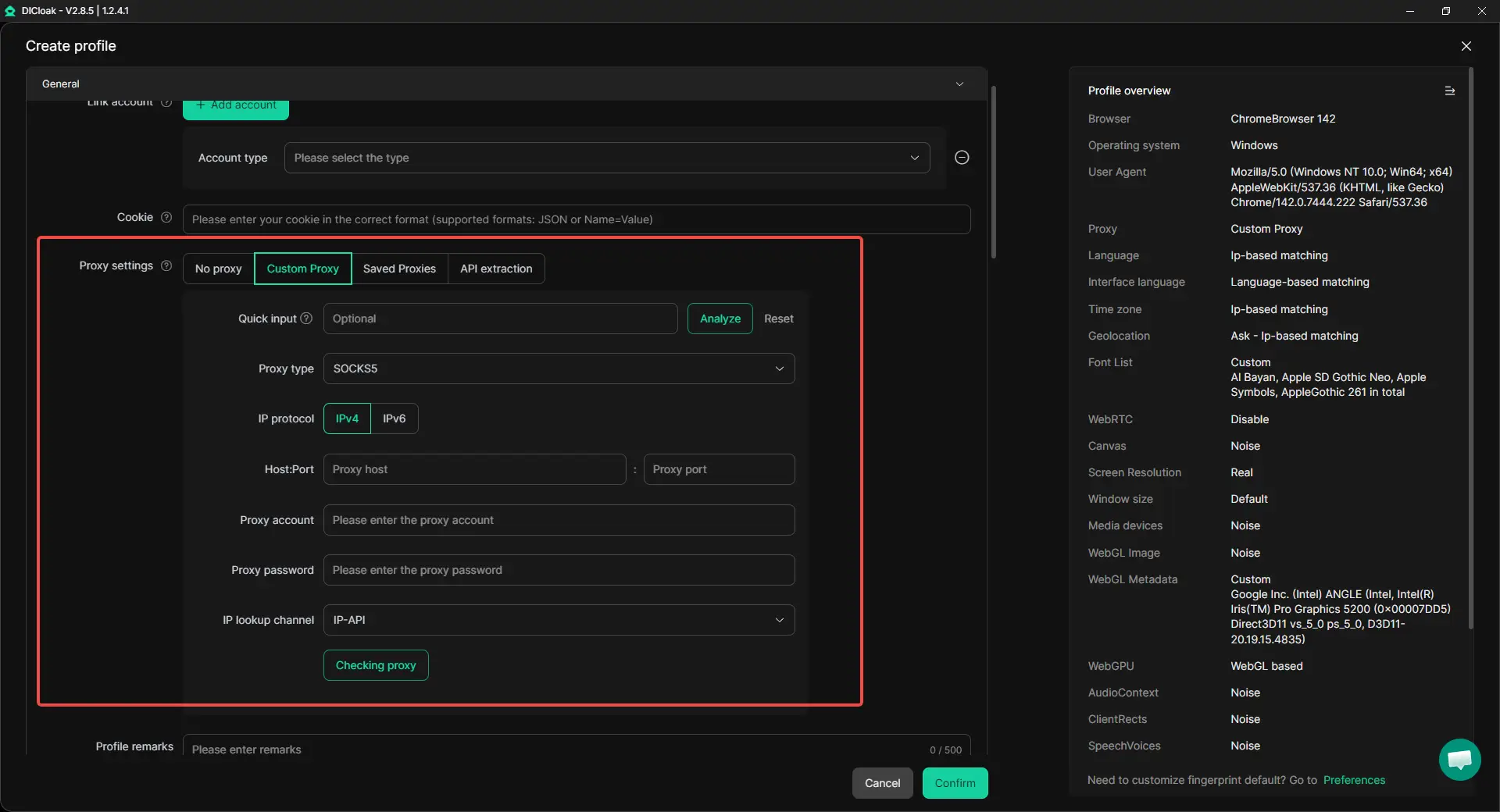
Users who need more control can also assign a different proxy to each profile. HTTP, HTTPS, and SOCKS5 proxies can be configured for separate browser profiles, making it easier to keep multiple account setups more organized. This can support a cleaner login workflow when many accounts are managed at the same time.
Make login paths more organized for teams and frequent users
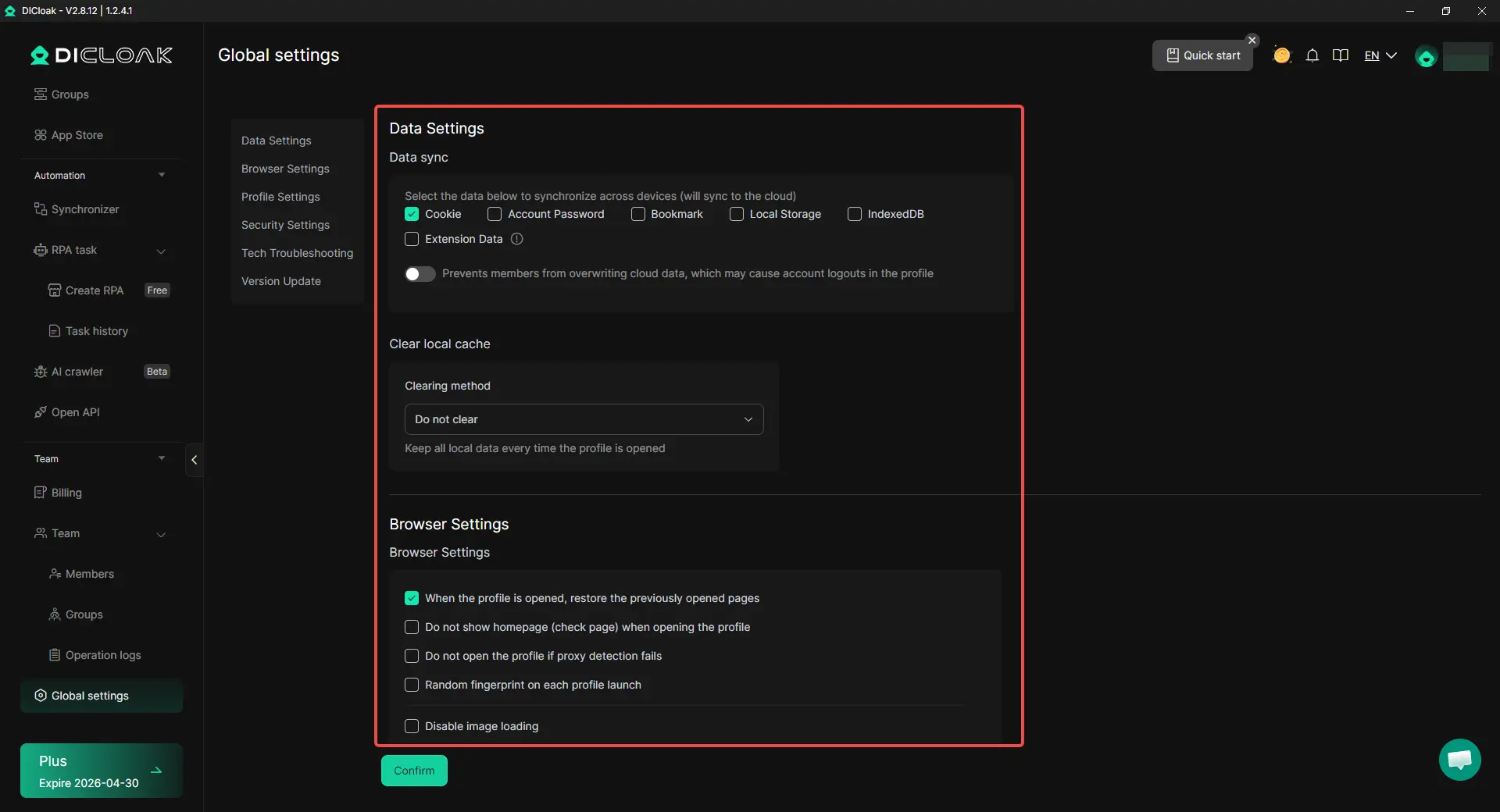
When accounts stay in separate profiles, it becomes easier to keep each one tied to its own fixed login path, such as a company Microsoft 365 portal or a school sign-in page. For teams, features like profile sharing, permission settings, and data isolation can also make shared account work more organized and reduce overlap in a normal browser workflow.
Conclusion
microsoftonline.com legit can be real, but that does not mean every page that looks similar is safe. In many normal cases, this domain is part of Microsoft’s sign-in system for work or school accounts. At the same time, scammers often copy Microsoft login pages, fake email alerts, and trusted-looking messages to steal passwords and account access. That is why users should not judge a page by its logo or design alone. The safer approach is to check the full domain, use trusted Microsoft sign-in paths, and confirm that the login request matches what they were trying to do.
The article also shows that protection is not only about spotting one fake link. It is about building better daily habits. Strong passwords, two-step verification, updated browsers, and careful attention to account alerts can all lower risk. If someone already clicked a suspicious link, fast action matters. Changing the password, reviewing recent activity, reporting the scam, and contacting an IT team when needed can help reduce damage. For people who handle several Microsoft accounts, keeping work, school, and personal logins in separate browser profiles can also make account access cleaner and less confusing. In the end, the best way to stay safe is to slow down, verify first, and treat every unexpected login request with caution.
FAQs About microsoftonline.com
Is microsoftonline.com legit for work or school account sign-ins?
Yes, microsoftonline.com legit can be real when it is used for Microsoft 365, work accounts, or school account sign-ins. The important part is checking the full domain, the login context, and whether you reached the page from a trusted source.
Why does a microsoftonline.com legit page still make people nervous?
Many users feel unsure because scammers often copy Microsoft login pages. A real microsoftonline.com legit page may look similar to a fake one, so people should not trust a page only because it has Microsoft branding. It is always safer to check the full web address and the reason you were asked to sign in.
How can I tell if microsoftonline.com legit is real or a scam?
To check whether microsoftonline.com legit is real, look at the full domain name, avoid rushed email links, and compare the login request with what you were trying to do. If the page appears out of nowhere or the link looks strange, it may be a scam.
Is it safe to enter my password on a microsoftonline.com legit login page?
It can be safe to use a microsoftonline.com legit login page when it comes from an official Microsoft, work, or school sign-in path. But if the page came from a suspicious email, a random message, or a strange redirect, do not enter your password until you verify it.
What should I do if I entered my password on a fake microsoftonline.com legit page?
If you think you entered your password on a fake page pretending to be microsoftonline.com legit, change your password right away, review recent account activity, and report the scam. If it was a work or school account, contact your IT team as soon as possible.
 Web Proxy Tools
 Free Tools
 Cookie Plugin
 UA Generator
 MAC Address Generator
 IP Generator
 IP Address List
 2FA Code Generator
 World Clock
 Anonymous Check
 WebRTC Leak Test
 UUID Generator
 Free Web Proxy Site
 Proxy Checker
 FB Ad Checker
 AI Web Scraping
 Free SMM Tools
 Twitter Shadowban Checker
 Instagram Name Checker
 UTM Generator
 Username Generator
 AI Hashtag Generator
 LinkedIn Headline Generator
 Social Media Image Resizer