Running a campaign without tracking results is like throwing money into the wind. According to Hootsuite, over 70% of businesses use Instagram Ads, but most waste budget because they miss key settings inside the instagram ad manager. Even experienced marketers get tripped up, audience targeting looks simple, but one wrong checkbox can drain your daily spend in hours. The Instagram advertising dashboard is packed with features, yet too many users stick to default options or skip custom reports, leaving them blind to what’s really working.
The real win comes from knowing which controls actually change your results. For example, adjusting placement from “Automatic” to “Manual” can double your click-through rate if you spot that Stories outperform Feed in your niche. The Instagram campaign manager also hides tools for split-testing, retargeting, and cost controls that most beginners overlook. Missing these means you’re not just leaving reach on the table, you’re probably paying more for less.
This guide strips away fluff and walks through every step inside Instagram Ads Manager, from creating your first ad to scaling campaigns with advanced reports. If you want to spend smarter, avoid hidden risks, and actually see which changes drive better performance, keep reading.
What Is Instagram Ad Manager and Why Do Marketers Use It?
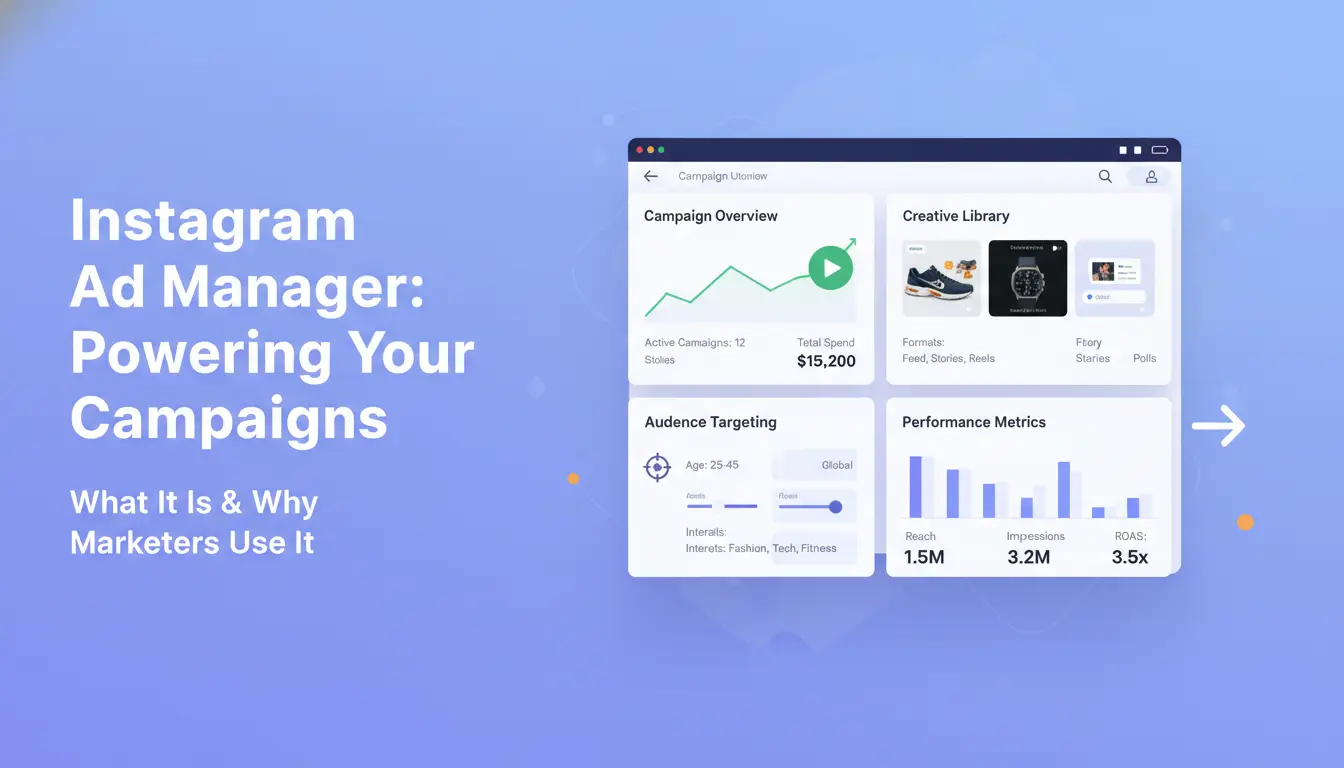
Instagram Ad Manager is the main tool for creating, running, and tracking ads on Instagram. Most marketers rely on it because it gives direct control over who sees their ads, how much they spend, and what results they get. If you want to reach more people or drive sales, the Instagram advertising dashboard is where you start.
How Instagram Ad Manager Works
The dashboard lets you set up ad campaigns, choose your target audience, set a budget, and pick where your ads show up. You see all your campaigns in one place, so it’s easy to spot what’s running and what needs fixing. The Instagram Ads Manager connects with Facebook Ads Manager, which means you use the same login and can run ads across both platforms. This link lets you use Facebook’s detailed targeting options, like age, location, interests, to reach the right users on Instagram. You can split-test different images or texts, set daily limits, and track every click or view.
Here’s a quick feature comparison:
| Feature |
Instagram Ad Manager |
Facebook Ads Manager |
| Audience Targeting |
Yes |
Yes |
| Budget Control |
Yes |
Yes |
| Cross-Platform Ads |
Yes |
Yes |
| Split Testing |
Yes |
Yes |
| Analytics |
Yes |
Yes |
Table: Both dashboards share core ad controls. See Meta’s guide for full specs.
Key Benefits for Businesses and Creators
The real strength is in audience targeting. You can reach users by age, interests, or custom groups you upload. This means small brands and creators can run ads that only show to people likely to buy or follow. The Instagram campaign manager also tracks performance in real time. You see which ads get clicks, what costs more, and where users drop off. For example, if you run a new Story ad, you can spot if it beats Feed ads and adjust your spend right away. Direct targeting and live analytics let you fix mistakes before they drain your budget.
What Should You Prepare Before Running Instagram Ads?
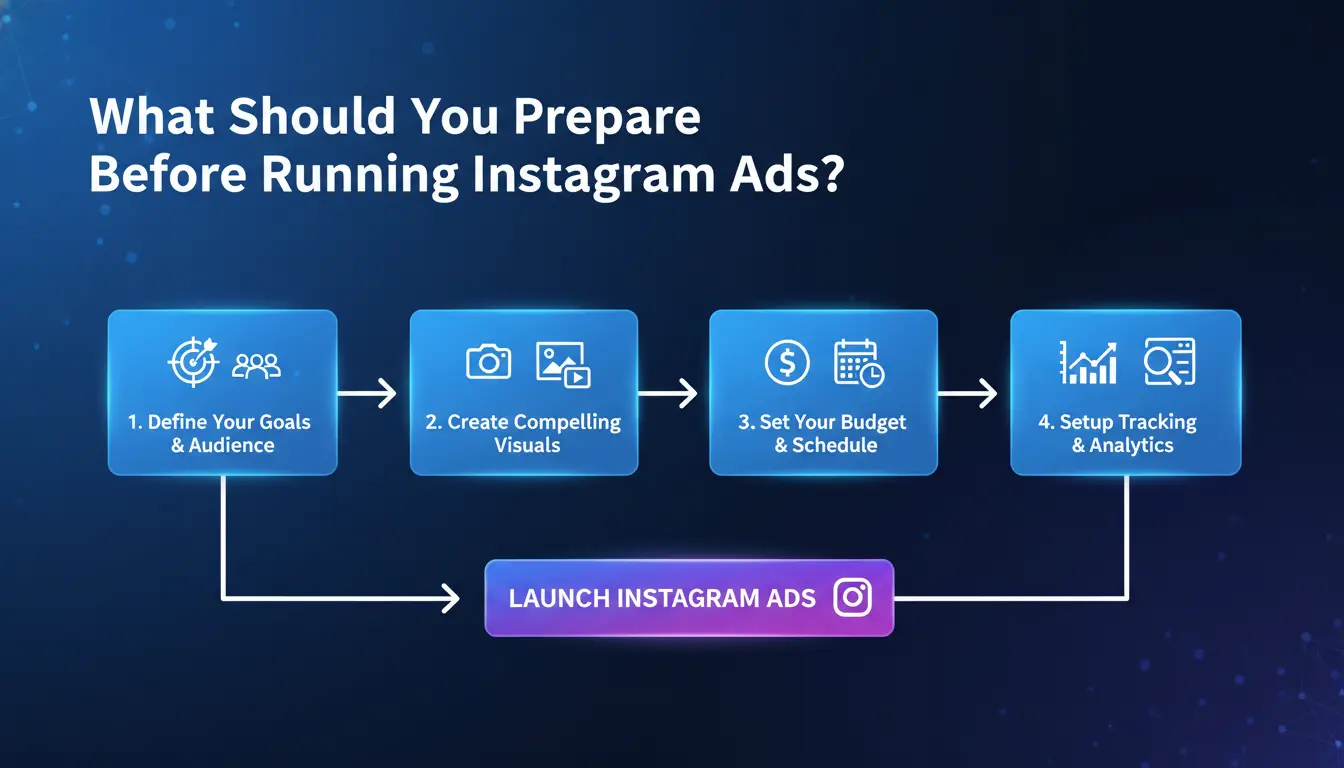
Before launching any campaign, your setup inside instagram ad manager can decide if your ads actually run, get flagged, or even reach the right people. Missing a single step here means wasted time and budget. The real prep isn’t just about having a catchy photo or headline, it’s about getting your accounts, assets, and policies in line so you can launch without headaches.
Setting Up Your Instagram Business Account
Running ads from a personal profile blocks you from using most features in Instagram Ads Manager. You need to switch your Instagram to a business account. This unlocks analytics, lets you add contact info, and connects your page to Facebook’s ad tools.
To run campaigns, link your Instagram to Facebook Business Manager. Go to your Facebook Business Settings, select “Accounts,” then “Instagram Accounts,” and add your Instagram login. This connection is what gives you access to the full instagram advertising dashboard and advanced targeting. If you skip this step, you’ll hit limits on spend, audience, and reporting.
What You Need for Ad Approval
Instagram rejects ads all the time for small mistakes. Their ad policy rules ban misleading claims, before/after photos, or even too much text on images. The fastest way to get flagged is to use copyrighted images or mention restricted content like tobacco or “get rich quick” offers.
Double-check your creative assets: images should be high resolution, not blurry or pixelated. Your landing page must load quickly and match what your ad promises. Even slow mobile sites get penalized. Having a working privacy policy on your landing page can also help you pass review.
The most common reason campaigns get stuck is missing the Facebook link or breaking a simple ad rule, fix these first if you want your ads to go live without problems.
Prepare these steps and you’ll spend less time fixing errors and more time actually running ads through your instagram campaign manager.
How to Create and Launch Your First Instagram Ad Campaign
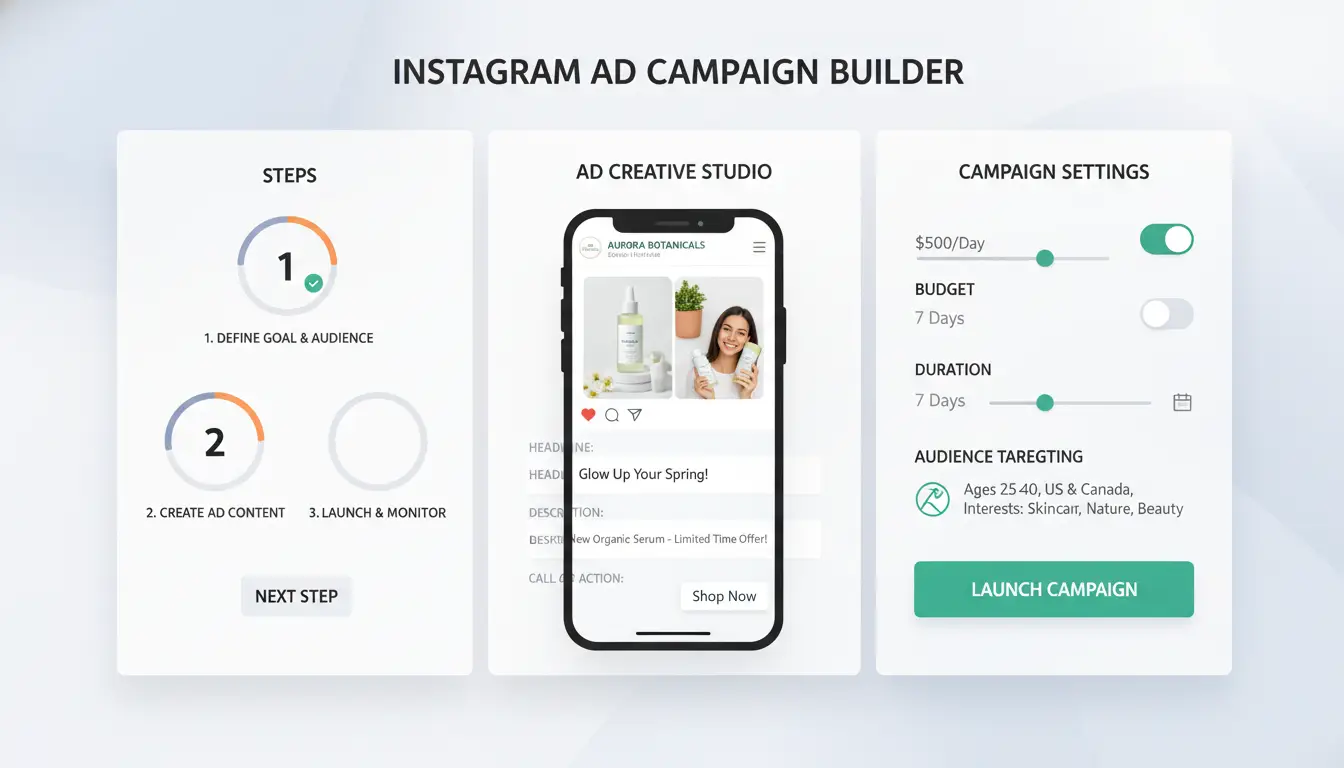
Launching your first Instagram ad campaign looks complicated, but Instagram Ad Manager breaks it into clear steps. The process comes down to picking your goal, setting your budget, choosing who sees your ads, and building your creative. Missing a single setup detail, like placement or audience, can double your costs with zero extra results.
Choosing Your Campaign Objective and Budget
Start in the Instagram advertising dashboard. Pick your campaign objective: Awareness, Traffic, or Conversions. For a new brand, Awareness gets your name out; Traffic sends users to your site; Conversions track actions like sales or signups. Your choice here changes what Instagram’s system will improve for.
Budget comes next. Daily budgets cap your spend per day, while Lifetime budgets spread your money across your whole campaign. For example, setting a $10 daily budget means the system will try to spend up to $10 each day, but a $70 lifetime budget could spread unevenly over a week if your ads perform better on certain days. Double-check your settings, as it’s easy to pick Lifetime but forget your campaign ends early.
Targeting, Creative, and Placement Settings
Targeting is where small mistakes get expensive. Inside Instagram Ads Manager, you’ll set audience options by location (country, city, or radius), age, gender, interests, and even lookalike audiences for more reach. For example, targeting “sports fans” in Los Angeles aged 18-30 gives you a sharper audience than “all US users.”
Next, choose your ad format, single image, carousel, or video, and placements. The Instagram campaign manager lets you pick Feed, Stories, or Reels. Many beginners leave “Automatic placements” on, but testing manual placement can double your results if your audience prefers Stories over Feed.
Review all settings before launching. The Instagram advertising dashboard gives a final preview, so check links, images, and copy for errors. Once you click Publish, your first campaign goes live.
Why Do Instagram Ads Get Rejected or Accounts Get Restricted?
Instagram ad manager flags ads and accounts for more reasons than most users expect. Missing these can waste your budget and trigger account limits that are hard to reverse. If you understand the most common triggers, and what the Instagram Ads Manager actually checks, you can avoid most problems before they happen.
Common Ad Policy Violations
The bulk of ad rejections happen because of content or technical mistakes. Instagram advertising dashboard will reject ads promoting restricted items like tobacco, adult products, or certain supplements. Trying to bypass this with vague wording or hiding product details usually backfires, since automated systems scan text and images. Misleading claims, such as “guaranteed results,” also trip policy alarms.
Technical errors are another frequent cause. Broken links, landing pages with slow load times, or images that look blurry or pixelated often get flagged. The campaign manager checks both the ad and where it leads, so even a working link that goes to a blank or blocked page can trigger rejection. Poorly formatted text, oversized images, or missing disclosures (like “Sponsored”) also set off review warnings.
Account Risk Factors and How to Reduce Them
Beyond ad content, the Instagram campaign manager tracks account behavior for signs of risk. Frequent changes in IP address or device, jumping between phones and computers or using multiple proxies without a clear pattern, signals possible account sharing or bot activity. If the payment method changes often, or if profile info looks inconsistent with past activity, the system may restrict your account or pause campaigns.
Suspicious payment details, such as using cards from different countries, or mismatched billing info, can freeze access. Accounts that suddenly ramp up ad spending or switch targeting regions also face extra review. To reduce risk, keep your login device stable, use consistent payment details, and avoid sudden changes in profile settings. If you manage multiple accounts or share access within a team, consider tools that isolate browser fingerprints and control permissions, this helps prevent detection and restriction.
How to Manage Multiple Instagram Ad Accounts Without Getting Flagged
Best Practices for Multi-Account Management
Running several Instagram ad accounts on one device can trigger bans fast. The main traps: using the same login environment, sharing IP addresses, or mixing business and client accounts in a single browser. Instagram ad manager and the Instagram advertising dashboard both track these signals. The safer approach is to keep each account fully separated, different browser profiles, unique proxies, and no shared cookies or sessions. Agencies should never log client accounts together, and freelancers need to avoid reusing fingerprints or device setups.
How DICloak Helps Agencies and Teams Manage Instagram Ads Safely
You can use tools like DICloak to keep Instagram ad accounts isolated with dedicated browser profiles and custom fingerprints, so Instagram campaign manager can’t link them. Each account runs with its own proxy, blocking cross-account bans.
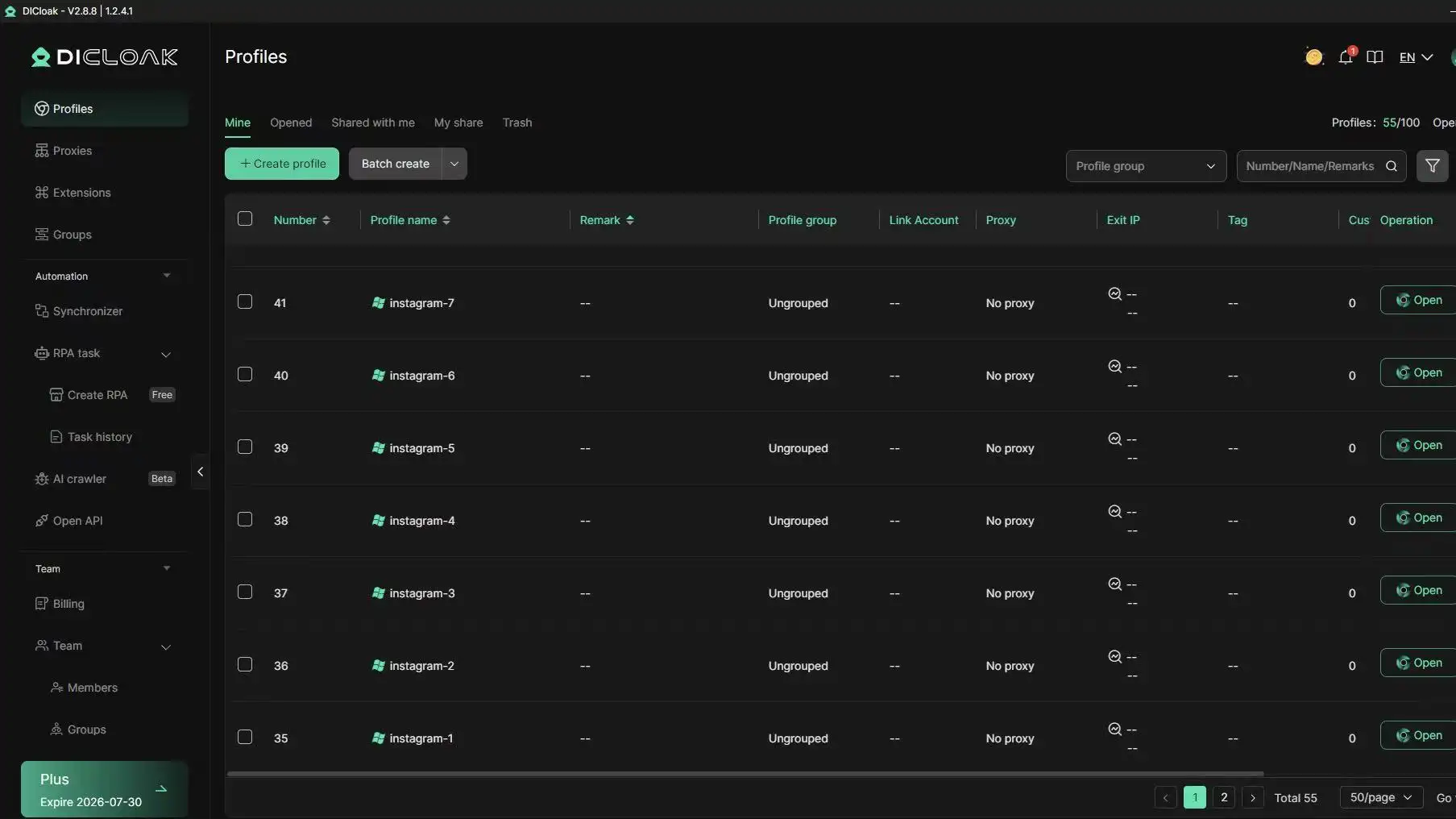
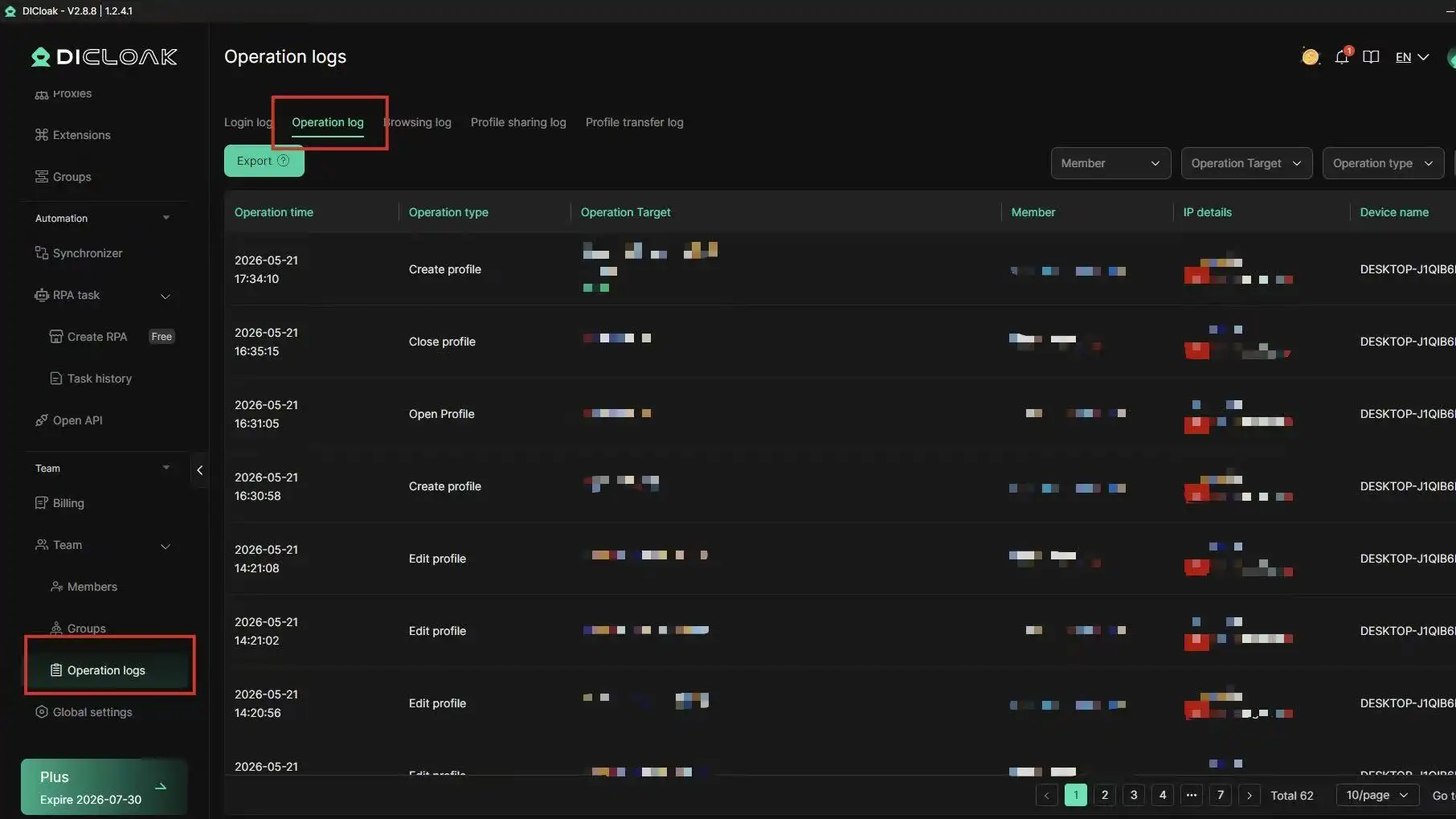
For teams, DICloak supports permission control, profile sharing, and operation logs. This means every staff member only accesses assigned accounts, no accidental mix-ups or trace leaks. Operation logs let managers track changes, cutting human error. Running accounts this way sharply reduces detection risk and keeps your campaigns stable. For more on ad policies, check Meta’s official ad account rules.
How to improve and Scale Your Instagram Ad Campaigns for Better Results
Running ads on Instagram can eat through budget fast if you ignore the numbers that matter. The instagram ad manager gives you deep control, but it’s easy to miss what actually drives better results. Real gains come from checking your data, testing small changes, and scaling only what’s proven to work. Below you’ll find the most direct ways to analyze, scale, and keep your campaigns running smoothly.
Analyzing Performance Metrics That Matter
Not all numbers in the Instagram Ads Manager dashboard are equal. Instead of getting distracted by reach or impressions, focus on these:
| Metric |
What It Tells You |
Why It Matters |
| CTR |
How often people click your ad |
Low CTR means your creative or targeting is off |
| CPC |
How much you pay per click |
High CPC drains budget fast |
| Conversions |
Actual actions (sales, signups) |
Shows if your ad is bringing real value |
| ROAS |
Return on ad spend |
Direct link to profit, not just traffic |
Source: Meta Business Help Center
A/B testing is hidden in plain sight inside the Instagram campaign manager. Test new headlines, images, or call-to-action buttons. For example, change just the image on two ad versions while keeping text the same. After a few days, pause the losing version. This makes your budget work harder and reveals what your audience actually prefers.
Scaling Campaigns Without Triggering Account Issues
Jumping your ad budget too fast is a common way to get flagged by Instagram’s automated systems. Instead, increase your budget in steps, about 20% every few days. This keeps your account in good standing and avoids sudden spikes that look suspicious.
Duplication is another trick: clone your best campaign, tweak the audience or creative slightly, and run both. This spreads risk and can double your reach without risking a single campaign’s health. Always watch for unusual costs or drops in results on the Instagram advertising dashboard.
For agencies or teams running many accounts, you can use DICloak to isolate browser profiles and avoid cross-account detection. This helps keep campaigns safe, especially when scaling across markets.
When Should You Use Advanced Tools for Instagram Ad Management?
The built-in Instagram ad manager works well for simple campaigns or when you handle just one brand. But as soon as you manage high ad volume, switch between brands, or coordinate a team, its limits show up fast. Tasks like sharing access, tracking who changed what, or running ads from different devices often slow teams down or create mistakes that cost real money.
Signs You Need More Than the Built-In Ad Manager
If you run dozens of ads each week, keep track of multiple brands, or your team works across different locations, manual management through the Instagram advertising dashboard can become a bottleneck. Common red flags include:
- Needing to jump between several ad accounts to make simple edits
- Losing track of who changed a budget or paused a campaign
- Teams sharing logins, which can trigger account reviews or restrictions
- Delays in approving ads because only one person holds access
When these issues pile up, mistakes get expensive. That's usually when advanced tools pay for themselves. Agencies and growth teams often outgrow the basic Instagram campaign manager once they hit 5+ team members or manage more than 10 active campaigns at once.
Choosing the Right Tool for Your Needs
Not all advanced tools deliver the same value. Before you switch, check for:
| Feature |
Why It Matters |
| Automation |
Cuts manual work and errors |
| Proxy support |
Reduces account lockouts |
| Team permissions |
Controls who can do what |
| Activity logs |
Tracks every change |
Source: Meta for Business
Cost also matters. Many tools charge by number of accounts or users, starting from $50/month. Weigh the time saved and risk reduction against the subscription. For example, you can use DICloak to set up unique browser profiles for each account, assign user roles, and keep a clear activity log, helpful for teams juggling many clients or strict compliance rules.
The biggest gains come when your ad management tool matches your actual workflow, not just the account list.
FAQ: Instagram Ad Manager Common Questions
How do I access Instagram Ad Manager?
You can reach Instagram Ad Manager through your Facebook Ads Manager account. Click “Create” and select “Instagram” as a placement. If you use a business account, you’ll see extra options for tracking and reporting.
Why aren’t my ads getting approved?
Most rejected ads break Instagram’s ad policies. Check for banned topics, too much text, or low-quality images. Fix these, then resubmit. Sometimes, copyright issues or restricted products will block approval.
What’s the difference between Instagram Ads Manager and the advertising dashboard in the app?
The app dashboard is simple, good for boosting posts. Instagram Ads Manager has deeper controls: budget split, custom audiences, and split-testing. If you want to manage advanced campaigns, always use Instagram Ads Manager for full features.
Can I edit ads after launch?
You can edit budgets, schedules, and audiences in the Instagram campaign manager. Creative (image or video) changes require duplicating the ad.
Why can’t I see detailed reports?
Use the “Customize Columns” tool in your dashboard to add more stats. Some advanced reports only show for campaigns with enough data.
Frequently Asked Questions
Is Instagram Ad Manager free to use?
Yes, Instagram Ad Manager is free to access and set up. You can use the dashboard to create, edit, and track ads without paying for the tool. However, you must pay for your ad campaigns. Your costs depend on your daily budget and bidding choices. There are no extra fees just for using Instagram Ad Manager.
Can I manage Instagram ads without a Facebook account?
No, you need a Facebook account to use Instagram Ads Manager. Instagram’s advertising dashboard is linked to Facebook’s platform. You must connect your Instagram profile to a Facebook Page to set up and run ads. This link is required for campaign management, billing, and reporting features.
How many Instagram ad accounts can I run at once?
You can manage up to five Instagram ad accounts per person by default. Running more may risk account bans or flagging by Instagram’s system. For safe multi-account management, use the Instagram campaign manager’s business tools, keep payment info unique for each account, and always follow Instagram’s advertising policies.
What should I do if my Instagram ad is rejected?
First, check the rejection reason in your Instagram advertising dashboard. Review your ad for violations, like banned content, too much text, or misleading claims. Fix the problem, then resubmit the ad for review. If you think your ad was wrongly rejected, you can appeal the decision directly in your Instagram campaign manager.
How do proxies help with Instagram ad account safety?
Proxies allow you to manage multiple Instagram ad accounts by giving each account a unique IP address. This lowers the chance of Instagram detecting and banning your accounts for suspicious activity. When using the Instagram Ads Manager for several accounts, proxies help keep your accounts separate and safer from automated blocks.
Conclusion
Instagram Ad Manager empowers businesses to create, monitor, and improve campaigns with precision, making it an essential tool for reaching targeted audiences and achieving marketing goals. Leveraging its solid analytics and user-friendly interface can help brands increase their advertising ROI and simplify their promotional efforts.
Try DICloak For Free
 Web Proxy Tools
 Free Tools
 Cookie Plugin
 UA Generator
 MAC Address Generator
 IP Generator
 IP Address List
 2FA Code Generator
 World Clock
 Anonymous Check
 WebRTC Leak Test
 UUID Generator
 Free Web Proxy Site
 Proxy Checker
 FB Ad Checker
 AI Web Scraping
 Free SMM Tools
 Twitter Shadowban Checker
 Instagram Name Checker
 UTM Generator
 Username Generator
 AI Hashtag Generator
 LinkedIn Headline Generator
 Social Media Image Resizer