YouTube’s Restricted Mode can flip on without warning, one day your favorite videos are gone, comments are hidden, and search results seem filtered. Sometimes it’s a school or work computer, sometimes your own device triggers it after a settings sync. Either way, the quick fix isn’t always obvious, especially when multiple users, parental controls, or account restrictions come into play.
Trying to disable restricted mode on YouTube isn’t just about flipping a single switch. If your account is managed by a parent, an organization, or set up with SafeSearch, you can turn off the YouTube content filter in your profile but still find videos blocked. The setting can even lock itself if your browser cookies, device policies, or network firewall get involved.
What actually works is knowing which layer is blocking you, profile, browser, or network. Skipping this check wastes time: you toggle the setting, refresh, but nothing changes. The real move is to test each layer, sign out and back in if needed, and clear browser cache if the restricted mode stays stuck. If you’re on a managed device or network, you may need admin access or to switch to a personal connection.
Here’s how to turn off restricted mode on YouTube without chasing your tail.
Why Is Restricted Mode Enabled on Your YouTube Account?
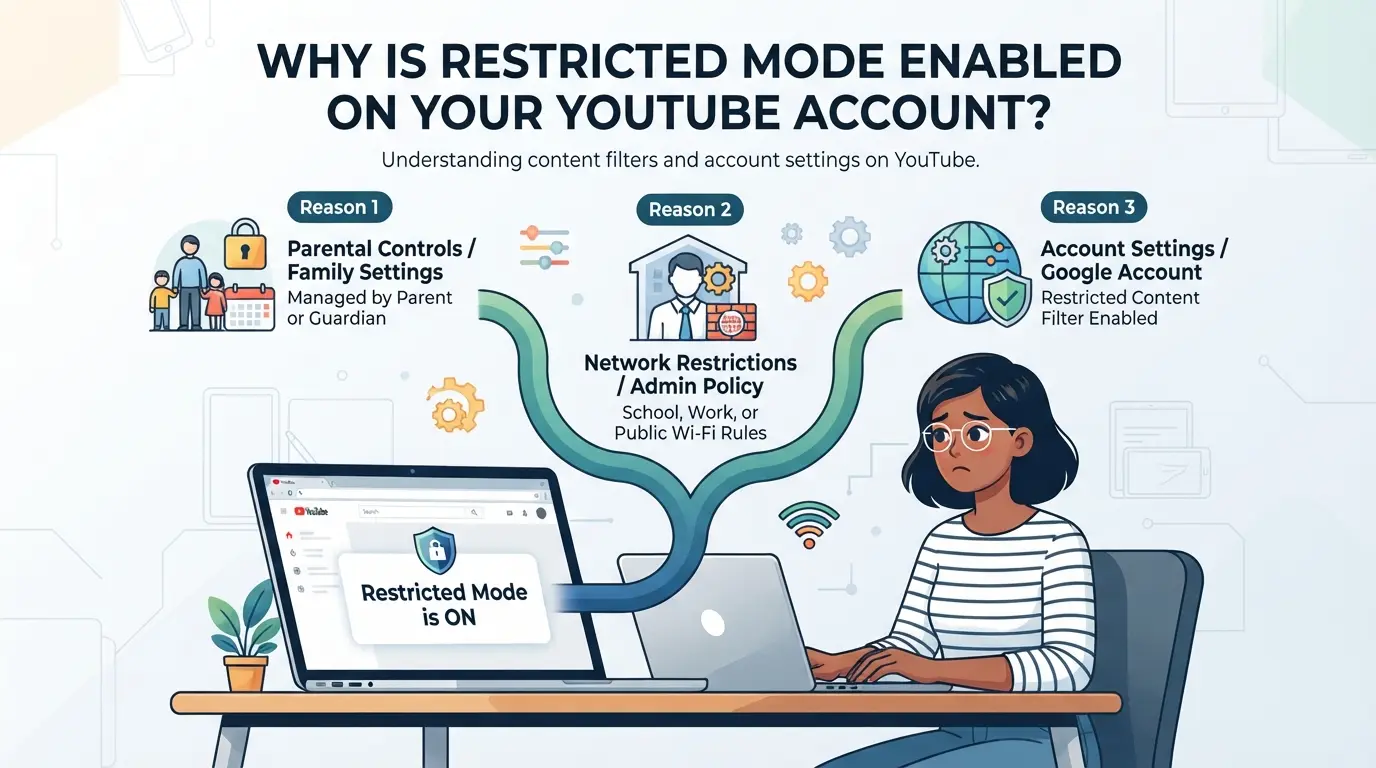
Restricted mode usually isn’t your choice, it’s set by someone else, a device rule, or a network. If you’re stuck wondering why videos keep getting filtered, the answer is almost always in the settings you can’t see right away.
Account Settings and Parental Controls
If a parent or manager set up your account, restricted mode can lock on, even if you try to change it. Family accounts, Google Workspace (school/work), and supervised profiles often have this filter enforced at the account level. So, turning it off in the app won't work until the parent or admin lifts the block.
Network and Device Policies
School, work, or public Wi-Fi networks often force restricted mode using device policies or network filters. Here’s where people get stuck: even if your own profile setting is “off,” the network itself can override that. For example, schools may push a policy through Google Admin that applies restricted mode to all signed-in users, no matter their personal setting. Work laptops and tablets sometimes have browser extensions or device management tools that force YouTube into restricted mode the moment you log in, and you can’t change this unless you have admin rights.
What trips up most people is the mix of device and network rules. You might turn off restricted mode at home, take your laptop to a coffee shop, and suddenly see it locked again, because the public Wi-Fi uses DNS filtering. Sometimes, even your phone’s mobile data can trigger this if your carrier has a content filter enabled at the SIM or account level. If you’re on a managed Chromebook or iPad, that’s another layer: device management can lock restricted mode, making it impossible to change without the admin password.
Browser and App Settings
- Clear your browser cookies and cache, old data can keep restricted mode stuck even after you change settings.
- Log out and back in, sometimes switching accounts or refreshing your session resets the filter.
- Check for browser extensions or add-ons, some can silently force restricted mode or block mature content, so try disabling them and reload YouTube.
If you’ve tried account and device fixes but restricted mode still won’t turn off, the next step is a careful walkthrough by platform: desktop, mobile, and TV. That’s where most people finally find which layer is really blocking them.
How to Turn Off Restricted Mode on YouTube: Step-by-Step for Desktop, Mobile, and TV
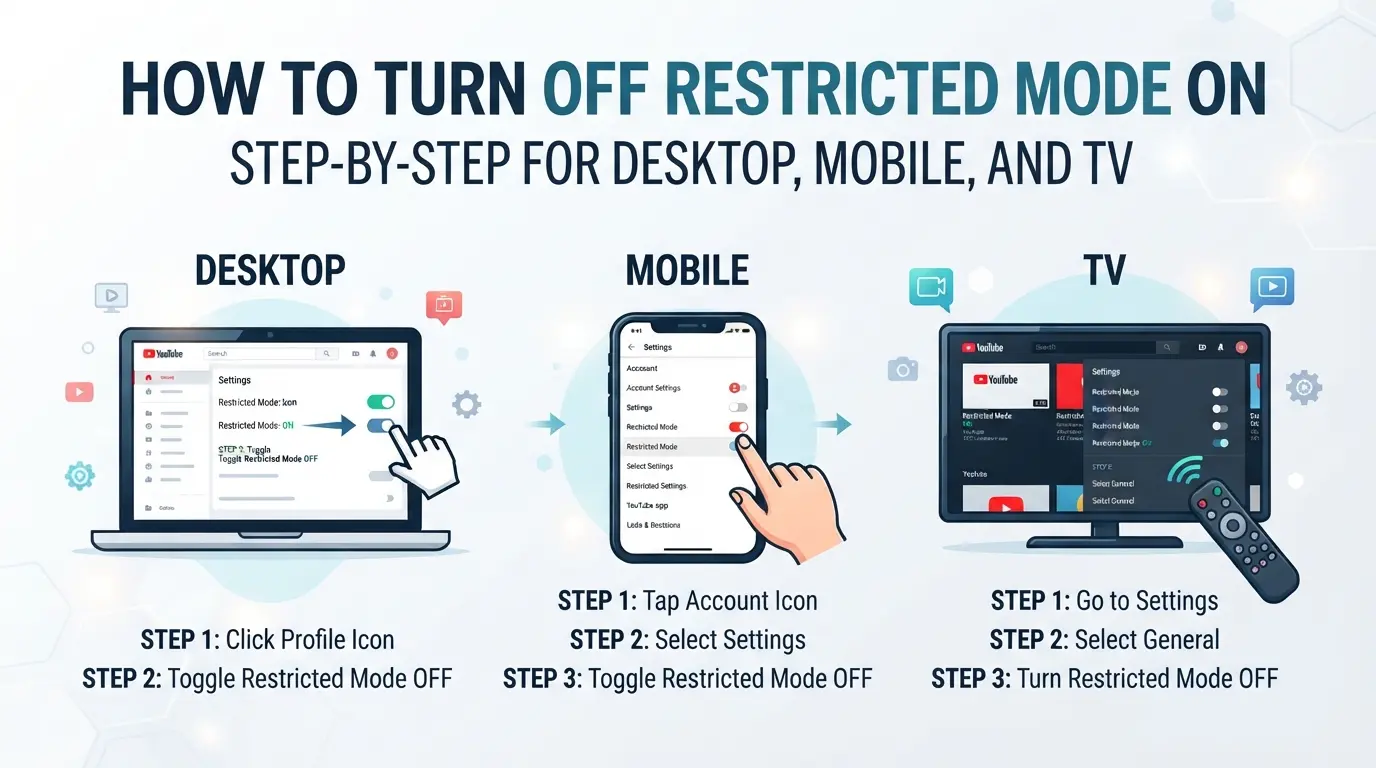
You don’t need to guess which setting to flip, disabling restricted mode takes just a minute if you’re using your own device and account. But where you find the toggle depends on your platform. Here’s exactly how to turn off YouTube’s content filter on desktop, mobile, and smart TVs.
Turning Off Restricted Mode on Desktop (Windows, Mac, Linux)
- Go to YouTube.com and sign in. Click your profile icon in the top right.
- Scroll down. At the very bottom of the menu, click “Restricted Mode.”
- Toggle “Activate Restricted Mode” off. You’ll see the switch turn gray when off.
- Refresh the page. If videos are still blocked, your browser may be caching old settings, clear your browser cache and try again.
If the toggle is gray and locked, your administrator or a browser extension may be forcing restricted mode. In that case, you won’t be able to change it without admin access.
Disabling Restricted Mode on YouTube Mobile App (Android, iOS)
- Open the YouTube app, tap your profile picture in the top right.
- Tap “Settings,” then “General.” On some versions, you’ll need to go into “Settings” > “General” > “Restricted Mode.”
- Tap the “Restricted Mode” slider to turn it off. The slider should be gray, not blue, when disabled.
- Close and reopen the app. If restricted mode is still active, sign out and sign back in, sometimes settings stick to your Google account, especially if you have Family Link or a school account.
On iOS, if you can’t find the setting, update your app. Older versions sometimes hide the option, or it may be under “Settings” > “Account.”
Turning Off Restricted Mode on Smart TVs and Streaming Devices
- Open the YouTube app on your smart TV or streaming box.
- Use your remote to go to “Settings.” Scroll to “Restricted Mode.”
- Set “Restricted Mode” to off. On some TVs, you’ll see a padlock, this means you need the main account password to unlock.
- Restart the app. If restricted mode stays on, check if your TV is managed by a family group or school, sometimes the setting is forced at the device or network level.
If you’re stuck, unplug the TV for 30 seconds to clear any cached settings, some devices only fully apply changes after a hard restart.
If you run through these steps and restricted mode won’t budge, you’re likely dealing with a managed account, browser extension, or network filter. The next section covers the specific problems that block the toggle and what you can do about each one.
Why Restricted Mode Won’t Turn Off: Common Problems and Fixes
If restricted mode stays on after you toggle it, the problem usually lies in a managed account, browser issue, or network filter. The fix depends on which layer is locking the setting. Here’s how to find and solve the main blockers.
Managed Accounts and Devices
If you use a Google Workspace, school, or work account, restricted mode may be forced by admin policy, your toggle won’t override it. On managed devices, even logging out and back in won’t help. If the Restricted Mode toggle is grayed out or resets after login, you’re likely under admin control and can’t change it without IT or parental access. For these cases, switching to a personal account or device is the only real workaround.
Browser Cache, Cookies, and Profile Issues
Sometimes the content filter sticks because old settings are cached or the wrong profile is active. Here’s what to check:
- Clear browser cache and cookies, stale data can keep restricted mode stuck.
- Switch browser profiles or accounts, make sure you’re not on a child or managed profile.
- Log out, restart your browser, and log back in, this resets session data and applies new settings.
Network Filters and Proxy Settings
Network-level restrictions can override your YouTube settings. If you’re on public WiFi, school, or work networks, filters may block content regardless of your account.
- Try connecting to a mobile hotspot or personal network, this bypasses workplace or school filters.
- Check if parental controls or firewall rules are set on your router, adjust settings if you have access.
- If proxies are set up, disable them and reload YouTube, some proxies force restricted mode by default.
If restricted mode keeps coming back, the real issue is usually a mix of admin policies and network controls. The next step is understanding what restricted mode actually does, and why these layers block certain content.
Risks, Privacy, and Content Limits: What Restricted Mode Actually Does
Restricted mode doesn’t just filter videos, it rewrites your YouTube experience at multiple levels. You lose access to age-restricted content, see fewer recommended videos, and your search results shrink fast. If you’re trying to figure out how to turn off restricted mode on youtube, knowing these limits helps you avoid wasted effort and unexpected blocks.
Content Filtering and Age Restrictions
YouTube restricted mode hides most videos flagged for mature themes, violence, or profanity. Even if you’re old enough and your account is verified, restricted mode still blocks anything that triggers the filter. Turning off restricted mode is the only way to see the full video catalog, but accounts managed by parents or schools stay limited.
Privacy and Account Data
Restricted mode changes what YouTube logs and shows. Your watch history and recommendations become less personal, and you might notice generic suggestions replacing your usual feed.
- If your account is tied to a family or organization, admins can see your activity but you can’t see theirs.
- Turning restricted mode off on a shared device can expose your viewing history to others, safer move is to use a private profile or clear history before switching.
Workflow and Access Limitations
Restricted mode blocks uploads, comments, and live chat for flagged accounts. If you use multiple profiles for work or content creation, only your unrestricted accounts can post or interact. This means some workflows, like managing channels or responding to comments, stop working until you fully disable the filter.
How Social Media Teams Manage Multiple YouTube Accounts Safely: Profile Isolation, Proxy Setup, and Permissions in DICloak
For teams that run several YouTube accounts, keeping restricted mode and login issues separate means more than just toggling a setting. If multiple accounts share the same browser profile, storage, or network, one account’s restriction or filter can bleed into another’s session, creating headaches for everyone. DICloak doesn’t control YouTube’s restricted mode, but it gives admins the controls needed to keep browser profiles, proxies, and team access cleanly separated. Here’s how a real team workflow plays out.
Isolated Browser Profiles and Fingerprint Configuration for YouTube Accounts
Operators can set up a fresh browser profile in DICloak for each YouTube account, storing them completely apart from other sessions. Each profile’s fingerprint, like operating system, User Agent, time zone, and screen settings, can be tuned to match workflow needs. This means one account’s cookies or browser signals won’t leak into another session, reducing accidental cross-account issues when team members log in for content uploads or reviews. The scope is limited to browser-profile access; it does not change YouTube’s account-level settings.

Proxy Configuration for Separate Network Identities
If the workflow calls for it, operators can assign a user-owned proxy to each DICloak profile and test the connection before opening YouTube. This makes it possible to keep network signals like IP address and region consistent for each account, even across devices or locations. Every proxy is set and checked by the user, DICloak only applies what’s configured at the profile level.

Team Collaboration and Permissions for Secure Account Access
For shared work, admins can limit which browser profiles each team member or group can see and operate, while hiding fields or actions that aren’t needed. This least-privilege approach keeps account handoffs and uploads organized, even on larger teams. These settings only affect access inside DICloak, not permissions in the YouTube account itself.

Teams that set up workflows this way cut down on mix-ups and keep every login, upload, and review tied to the right account, without crossing platform boundaries.
When You Shouldn’t Turn Off Restricted Mode: Safety, Compliance, and Family Scenarios
Some situations call for keeping restricted mode on, turning it off can expose kids or break workplace rules. If you’re not sure, check who manages your device and who uses your account.
Family and Child Safety
Restricted mode is built to filter adult content, which matters for kids and teens. If a child uses your device or profile, keep restricted mode on and set up parental controls. Skipping this step means kids may see videos you didn’t approve, YouTube’s filter isn’t perfect, but it blocks obvious risks.
School and Workplace Compliance
Schools and companies set restricted mode to follow their rules. Trying to turn it off on a managed device can get you flagged or lose you access.
- Check if your device is school- or work-managed before changing settings
- Never use personal logins to bypass controls on shared devices
- If restricted mode locks itself, ask IT or admin, don’t force a workaround
Troubleshooting Checklist: What to Do If Restricted Mode Keeps Coming Back
If you keep turning off restricted mode on YouTube and it reactivates, the real fix is to check which layer keeps resetting your setting. This isn’t always about your YouTube account alone, device controls, browser cache, or network filters can force the content filter back on, even after you disable it.
Check Account and Device Ownership
- Log in and verify you’re on your personal YouTube account, not a school, work, or supervised profile. Managed accounts can override your settings.
- Inspect device management: If your phone, tablet, or computer belongs to an organization, admin controls might block content changes. You won’t be able to update restricted mode if you don’t have full access.
- If you’re using a shared device, sign out from all accounts, restart, and log back in. A leftover session often forces restricted mode to re-enable.
- If the setting stays stuck after these steps, you might need admin permission or to use a personal device.
Clear Browser Data and Switch Profiles
- Clear browser cache and cookies. Stale data can lock restricted mode even after you toggle the switch.
- Try logging in with a different browser or device. If restricted mode stays on everywhere, the issue is likely tied to your account or network.
- If switching browsers works, your original browser may have a corrupted profile. Reset it or reinstall.
Review Network and Proxy Settings
If restricted mode still keeps coming back after checking account and browser layers, look at your internet connection. Many schools, offices, and public Wi-Fi networks use firewalls or proxies to force restricted mode.
- Confirm you’re not on a managed Wi-Fi or wired connection, network-level filters can override YouTube settings.
- Check proxy settings in your device’s network options. Disable or update any proxy tools if present.
- If you still can’t disable restricted mode, switch to personal mobile data for a clean test.
The most common hidden block is network-level filtering, many users waste time tweaking browser or account settings when the real culprit is the Wi-Fi they're connected to.
Summary: Key Takeaways for Turning Off Restricted Mode on YouTube in 2026
Main Steps Recap
- Log into your YouTube account and toggle restricted mode in your settings.
- If it stays on, check for device policies, browser cache, or network-level content filters.
- When the setting won’t stick, sign out and in again or switch to a personal device, network restrictions can override your choice.
Risks and Safe Practices
Turning off restricted mode can expose you to flagged or mature content. Keep it enabled if your device is managed by a school, parent, or employer, or if you’re sharing the device with minors. Changing the setting on a managed network may trigger compliance alerts or lock out certain YouTube features.
Frequently Asked Questions About how to turn off restricted mode on youtube
Why does restricted mode keep turning on automatically on YouTube?
Restricted mode might turn on by itself if your account is managed by a school, workplace, or parent. Device policies, browser settings, or network filters set by administrators can force restricted mode. Sometimes, browser add-ons or safe search settings also trigger it. You may need admin help to fully disable restricted mode on YouTube.
Can I turn off restricted mode if my YouTube account is managed by school or work?
If your Google account is managed by a school or employer, you usually can't turn off restricted mode yourself. Device or network administrators control these settings. Even if you try to disable restricted mode on YouTube, the system may automatically turn it back on. You need to contact your admin for changes.
Does using a proxy help bypass restricted mode on YouTube?
Using a proxy might bypass network-level filters that enforce YouTube restricted mode, but it doesn’t always work. Proxies can also cause security risks or break site features. If your account or device is managed, restricted mode may stay on regardless of network. Bypassing controls could violate school or work policies.
Will turning off restricted mode affect my YouTube recommendations or history?
Turning off restricted mode lets you see more videos, including content that’s sometimes filtered out. Your watch history and recommendations may include a wider range of topics. Privacy settings stay the same, but you might see videos that were hidden before. This can make YouTube suggest new types of content.
How do I fix restricted mode issues on YouTube mobile app?
To fix restricted mode problems on the YouTube app, try clearing the app cache and restarting it. Make sure you are signed in with the right account. Check for parental controls on your device or within your Google settings. If your account is managed, you may not have permission to change this setting.
Once you’ve adjusted the settings to match your viewing preferences, take a moment to verify that your changes have been applied by refreshing the page or restarting the app. If you continue to encounter limitations or need more solid content access, you might want to consider alternative tools designed to help you browse without restrictions. Try DICloak For Free
 Web Proxy Tools
 Free Tools
 Cookie Plugin
 UA Generator
 MAC Address Generator
 IP Generator
 IP Address List
 2FA Code Generator
 World Clock
 Anonymous Check
 WebRTC Leak Test
 UUID Generator
 Free Web Proxy Site
 Proxy Checker
 FB Ad Checker
 AI Web Scraping
 Free SMM Tools
 Twitter Shadowban Checker
 Instagram Name Checker
 UTM Generator
 Username Generator
 AI Hashtag Generator
 LinkedIn Headline Generator
 Social Media Image Resizer