Sharing a Kling AI account sounds simple until a teammate asks for the login. If that account is tied to your personal Google sign-in, billing details, project history, and paid credits, handing over the password can expose far more than the Kling workspace itself.
In 2026, teams have better options than simply passing credentials around. The right setup depends on whether you need regular team collaboration or controlled access to one existing Kling account. This guide explains Kling AI’s pricing and sharing rules, compares the main ways to share access, and shows how to let approved teammates work without giving away the master password.
Can You Share a Kling AI Account with Your Team?
Yes, a team can use Kling AI together, but there is an important difference between official team collaboration and sharing one personal login. Kling AI now supports Team and Team Space features, where invited members can work in a separate team workspace instead of using the owner’s personal space. This is usually the clearer choice when several editors or creators need regular access to the same production workflow.
Sharing an existing personal account is a different situation. A small agency may already have a paid Kling account and only need a contractor to help with a short video project, while another team may need several creators working together every day. Those two cases should not use the same access model because the level of collaboration, account control, and shared resources is different.
The key point is that Kling AI can be used by a team, but “team access” does not always mean “everyone uses the same login.” For ongoing collaboration, Kling’s Team Space is designed around separate team members and shared assets. If the goal is instead to give limited access to an existing account without handing over the master password, other controlled access methods may be more relevant.
What Do Kling AI Pricing and Account-Sharing Rules Allow?
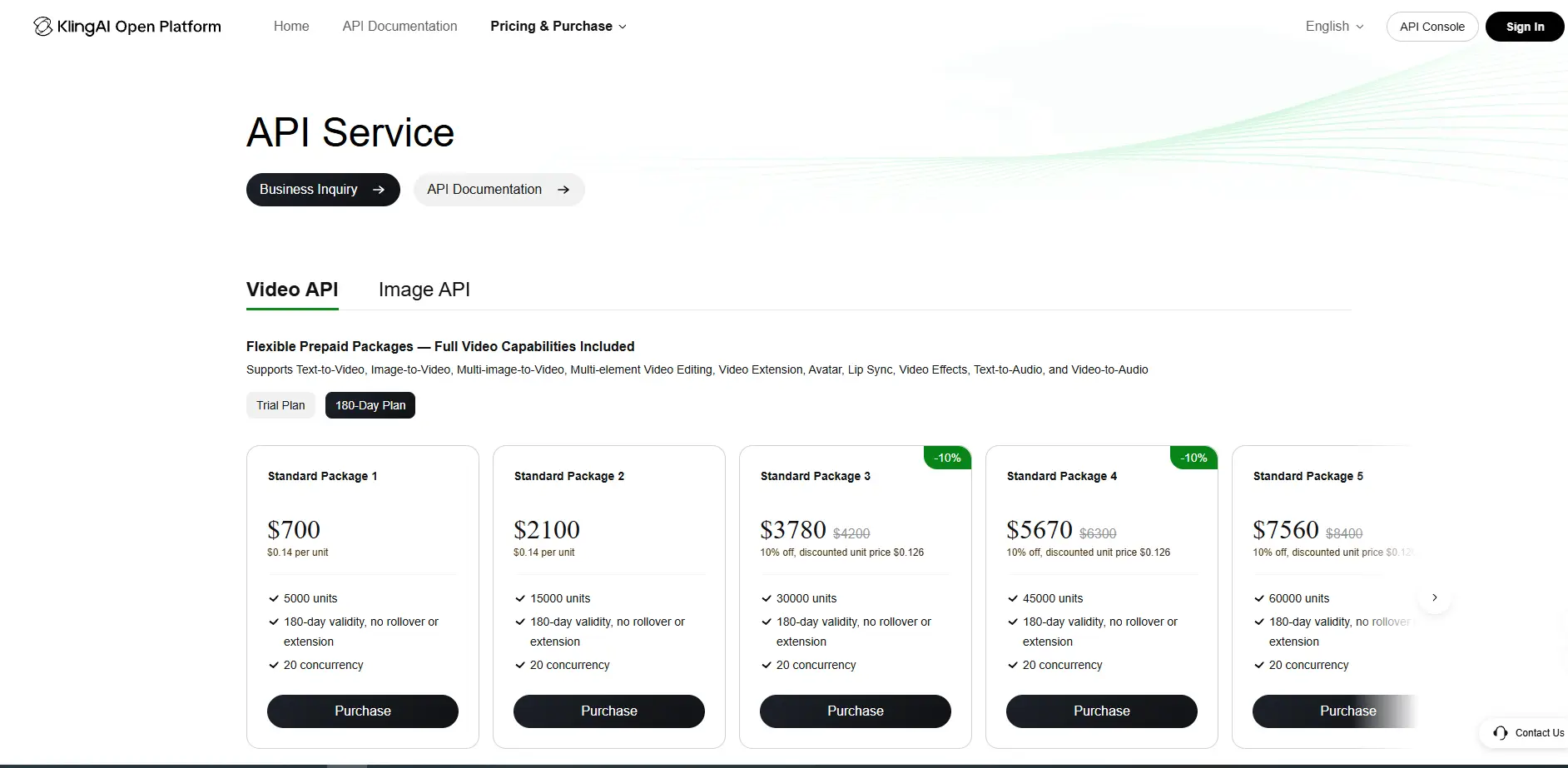
Kling AI pricing mainly determines how many credits and features you get, not how many people can share one login. A higher individual plan gives you more usage, but it does not automatically turn the account into a team account. For larger workflows, Kling AI also offers prepaid API plans. The current Video API starts at $700 for 5,000 units, while the Image API starts at $350 for 100,000 units. The listed plans support up to 20 concurrent Video API requests and 9 concurrent Image API requests, but these limits refer to API tasks, not the number of people who can share one Kling web account.
Sharing one Kling login is different from giving each teammate official access. Teams should consider both credit usage and member access before choosing a setup. For regular collaboration, Kling’s team or business options are usually the better fit; if the goal is simply to give a few people access to an existing account without handing over the password, other sharing methods may be worth comparing.
What Are the Best Ways to Share a Kling AI Account?
The best method depends on how your team works. For regular collaboration, Kling’s own Team Space should come first; for lighter access needs, a password manager or an authenticated browser Profile may be more practical.
Use Kling Team Space for Regular Team Collaboration
Kling Team Space is the cleaner choice when employees, editors, or agency members need ongoing access. Each person can work as a team member instead of relying on one personal login, which makes more sense when projects, assets, and account access need to stay organized.
For a team using Kling every day, official team access is usually a better fit than passing one personal account between several people.
Use Password Manager for Simple Credential Sharing
A password manager can work for a very small team when the main goal is to control how login details are shared. It is simple, but it does not manage what happens after someone enters the Kling account.
Team members may still use separate sessions, see the same account content, or access settings available to that login. It can also be less useful when the Kling account is tied to a personal Google sign-in. A password manager controls the credential, not the shared account experience.
Use an Antidetect Browser for Controlled Account Access
An antidetect browser is more relevant when the account owner wants authorized teammates to use an existing Kling session without sending them the master password. The owner signs in first, and the authenticated session stays inside a dedicated browser Profile.
With an antidetect browser like DICloak, that Profile can then be shared with selected team members and controlled through team permissions. This is useful for a small team or temporary contractor who needs access to the existing Kling account, while the owner keeps control of the login and can remove Profile access later.
The key difference is simple: Team Space gives people their own team access, a password manager shares credentials, and an antidetect browser can share an existing authenticated Profile. The right choice depends on whether your team needs long-term collaboration or controlled access to one existing account.
Why Use DICloak to Share a Kling AI Account?
A shared Kling session is only useful if the account owner can control who gets access and remove that access later. With DICloak Antidetect Browser, teams can share an existing signed-in Kling Profile without passing the master password around.
- Keep the Kling login in one dedicated Profile. The account owner completes the initial login, while the session, cookies, and related browser data stay inside the Profile. Approved teammates can use that Profile without needing the original login details.
- Share access only with the people who need it. Profile sharing and team permissions let a small agency, editor, or temporary contractor use the existing Kling session without giving everyone the account password.
- Review and remove access when the team changes. Team permissions and operation logs make it easier to check who has access and remove a freelancer or teammate when a project ends.
The main benefit is not only keeping the Kling password private, but keeping shared account access under the owner’s control.
How to Share a Kling AI Account with DICloak Without Sharing the Password
When an authorized team needs to use one Kling AI account, the owner can keep the signed-in session inside a dedicated browser Profile and share that Profile with selected members. With DICloak Antidetect Browser, the setup can combine Profile sharing, team permissions, and access controls without passing the master password around.
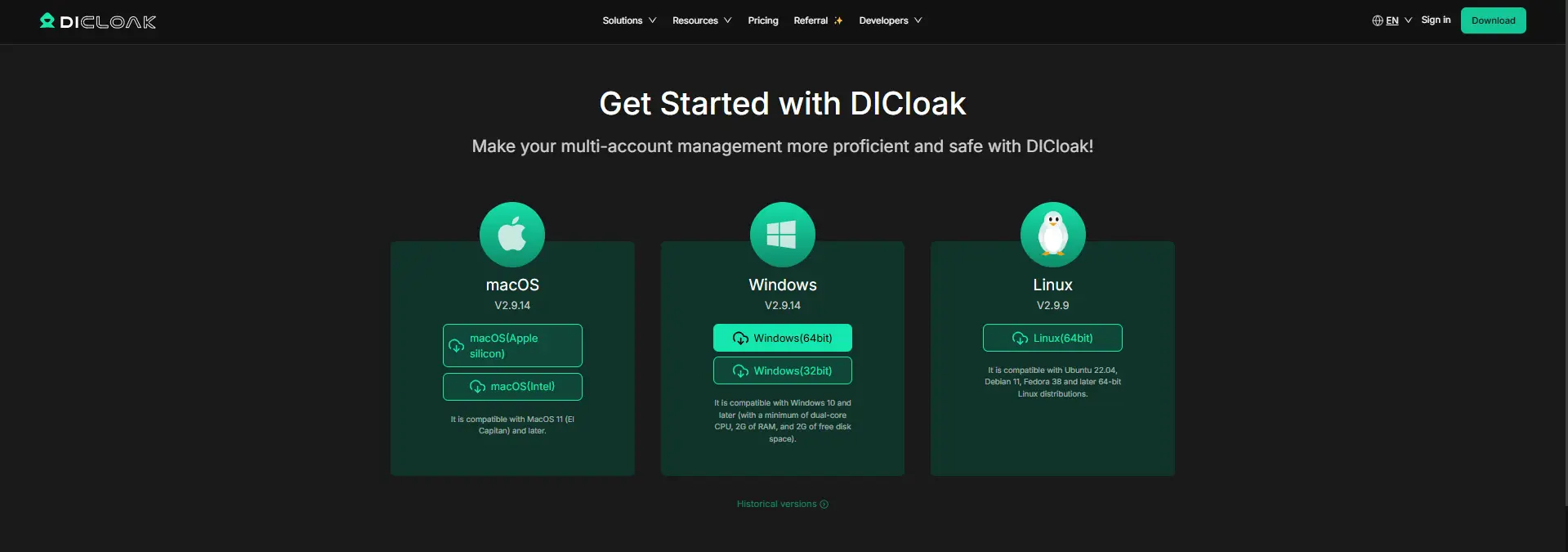
1. Install DICloak and Set Up Team Access
Download DICloak, create an account, and choose a team plan based on the number of members and browser Profiles your team needs.
2. Create a Dedicated Kling AI Profile
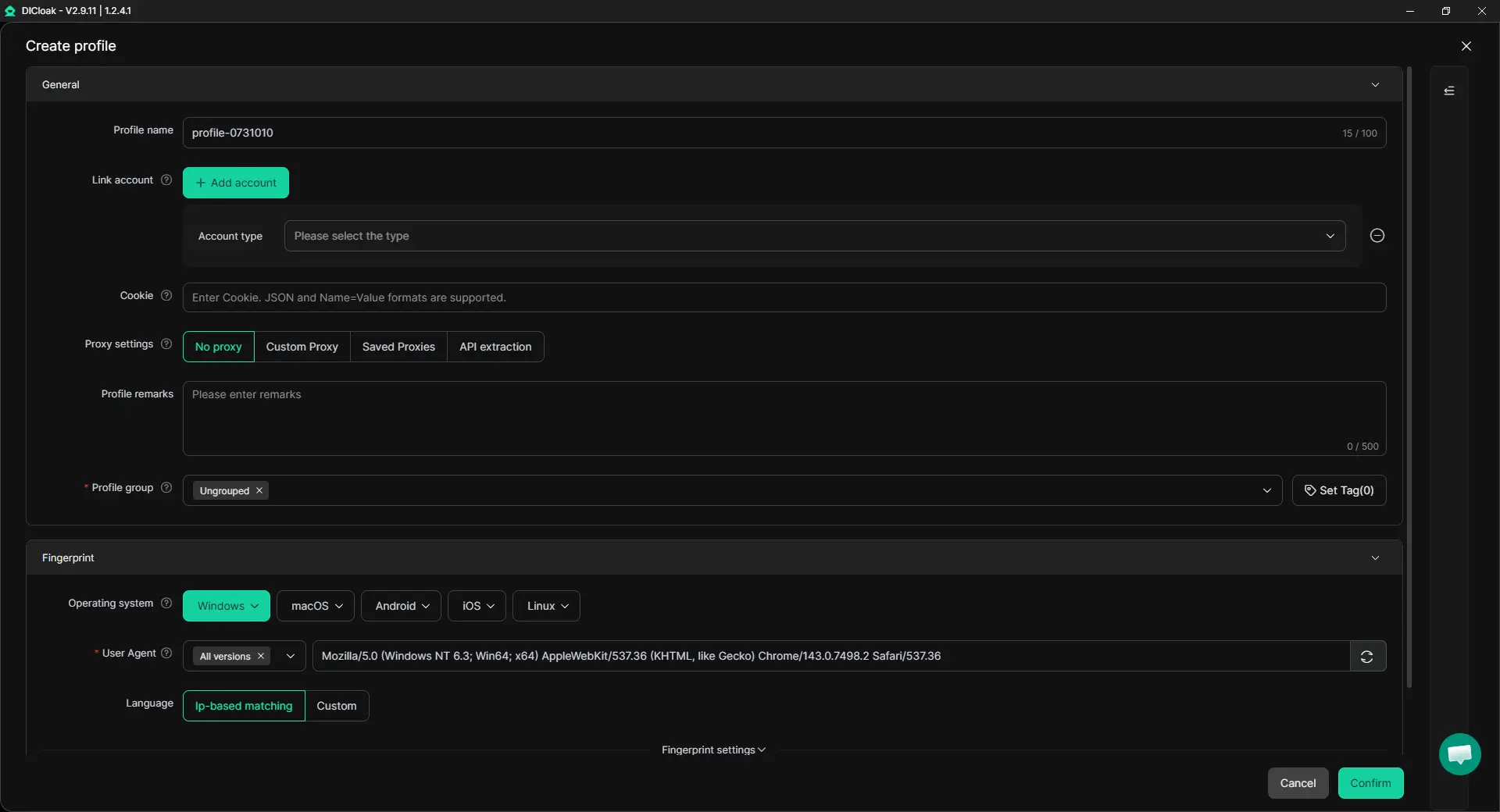
Create one Profile for the shared Kling AI account. It keeps the login session, cookies, and browser data separate from other projects. You can also add your own proxy if your workflow requires it, and enable Multiple sessions when approved members need to use the Profile at the same time.
3. Protect the Password and Sensitive Account Areas
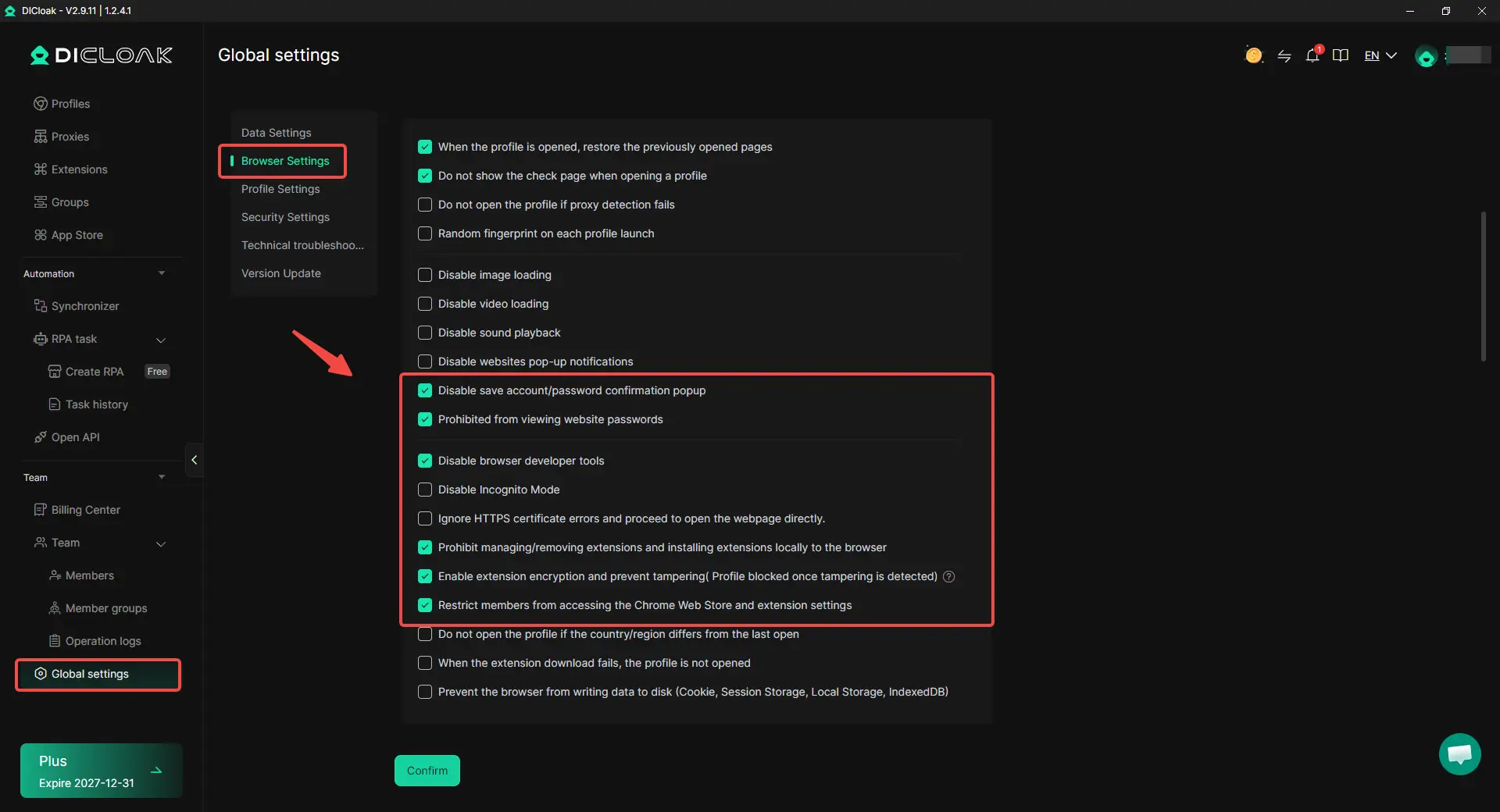
A shared Kling session may expose more than a teammate's needs. With DICloak, the account owner can limit access to sensitive parts of the account:
- Hide the password, so approved members do not need to view or copy it.
- Restrict website access to the pages needed for Kling's work.
- Hide sensitive elements such as billing, subscription, or account settings.
4. Sign In and Prepare the Kling AI Session
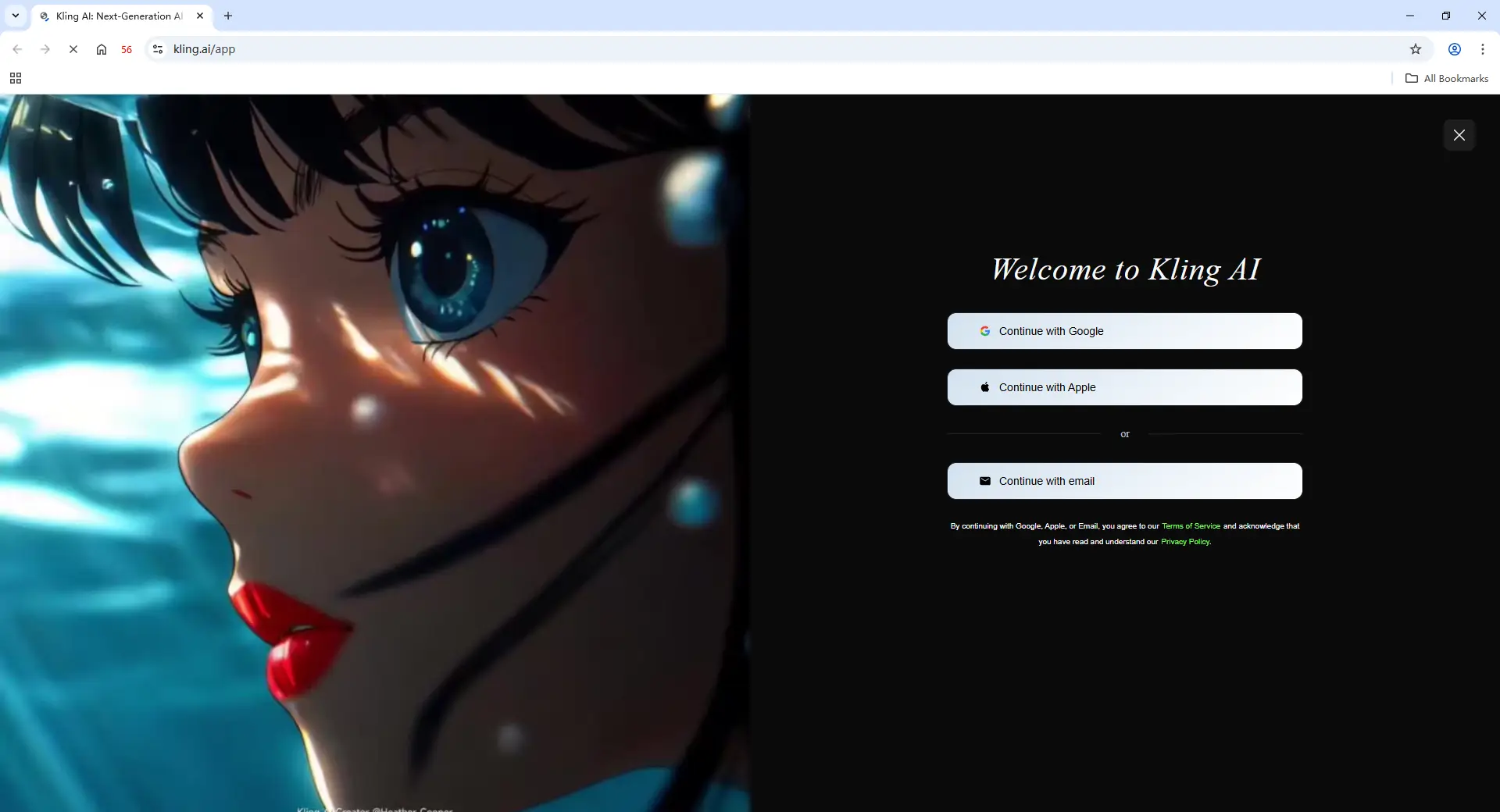
Open the dedicated Profile and let the account owner sign in to Kling AI and complete any required verification. Once the session is ready, approved members can use the Profile without receiving the original login details.
5. Share the Profile With Selected Members
Use Profile sharing and team permissions to give access only to teammates who need Kling AI. For example, an agency can let video editors work in the shared Profile while keeping account management access limited to the owner.
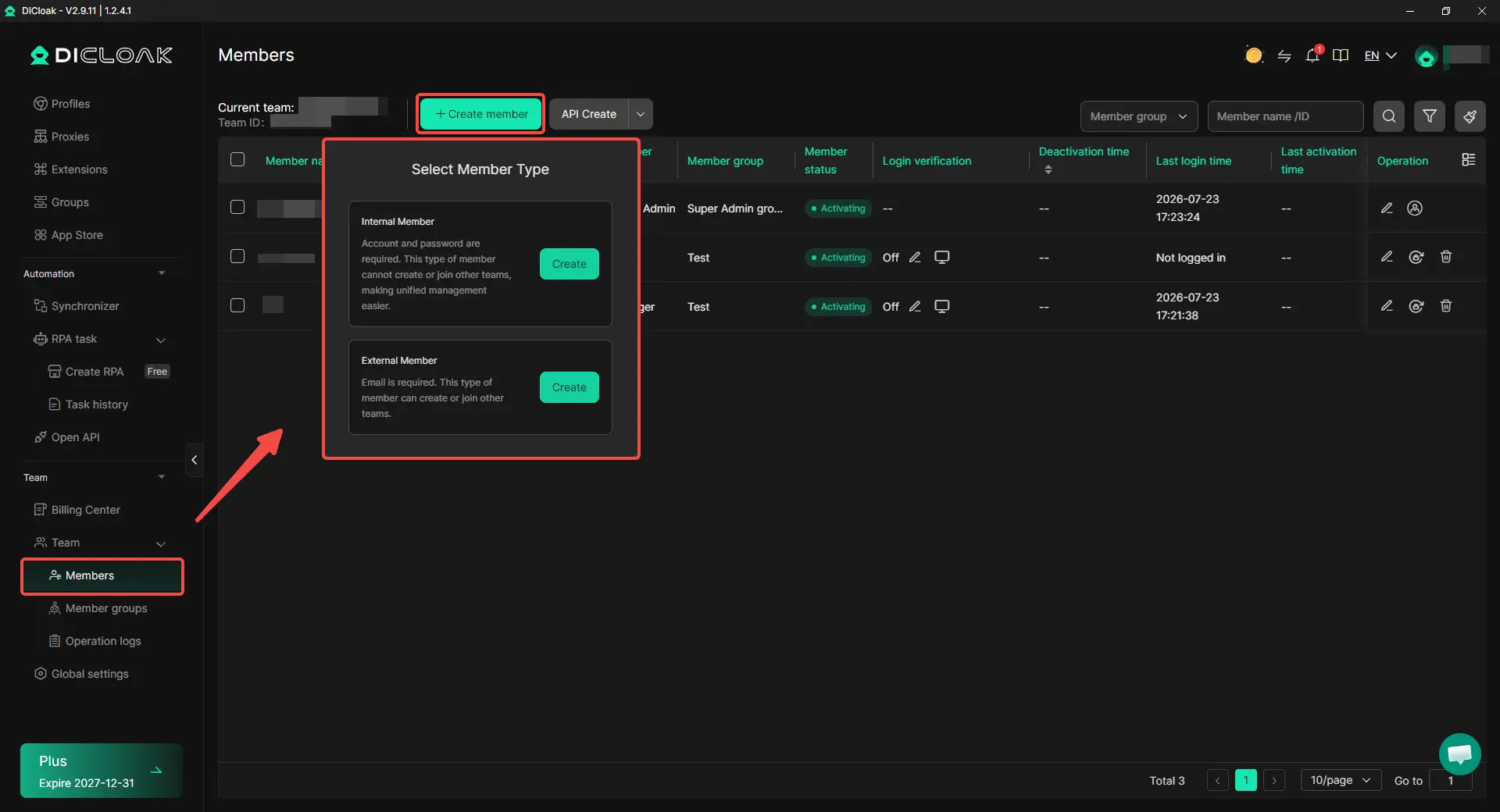
6. Review and Remove Access After the Project
Remove Profile access when a freelancer finishes a project, a teammate changes roles, or shared access is no longer needed. The strongest shared-account workflow covers both access and offboarding, not just the first login.
Frequently Asked Questions About Sharing a Kling AI Account
Can I share Kling AI if I signed up with my personal Google account?
Yes, but you should avoid giving teammates your Google password because it may provide access to services beyond Kling AI. If official Kling team access does not fit your workflow, an antidetect browser like DICloak can keep the owner’s signed-in Kling session inside a dedicated Profile so approved members can use that session without receiving the Google login details.
Will teammates using the same Kling AI account see my existing projects?
They may be able to see projects, generations, uploads, or settings available inside the same account. Hiding the password does not separate content within Kling AI, so teams working with different clients or confidential assets should consider whether Kling Team Space or separate accounts provide the level of separation they need.
Do team members share the same Kling AI credits when they use one account?
If several people work through the same paid account, their activity can affect the credits available to that account. Teams should therefore decide who can generate content and keep track of credit use, especially when multiple editors are working on high-volume video projects.
Is a password manager enough for sharing a Kling AI account?
A password manager can help control how credentials are shared, but it does not manage the signed-in browser session or what teammates can access after login. When the goal is to share an existing authenticated Kling session instead, using a shared browser Profile with DICloak can give the owner more control over Profile access and team permissions.
How can I remove a freelancer from a shared Kling AI account?
Remove their access as soon as the project ends rather than leaving the shared login available. With Kling Team Space, this normally means removing the member from the team; with a shared DICloak Profile, the owner can revoke that member’s Profile access without sending a new password to the rest of the team.
Conclusion
Sharing a Kling AI account with a team in 2026 is less about passing around one login and more about choosing the right access model. Kling Team Space is the better fit for regular collaboration, while a password manager or a controlled browser Profile can make more sense when a small authorized team only needs access to an existing account. The key is to think about credits, project visibility, member access, and what happens when someone leaves the team, not just whether the password stays hidden.
For teams that need to share an existing Kling AI account without sharing passwords, the most practical setup is one that keeps the account owner in control of the signed-in session, member permissions, and access removal. With an antidetect browser like DICloak, selected teammates can use a shared Kling Profile while the original login details remain with the account owner.
 Web Proxy Tools
 Free Tools
 Cookie Plugin
 UA Generator
 MAC Address Generator
 IP Generator
 IP Address List
 2FA Code Generator
 World Clock
 Anonymous Check
 WebRTC Leak Test
 UUID Generator
 Free Web Proxy Site
 Proxy Checker
 FB Ad Checker
 AI Web Scraping
 Free SMM Tools
 Twitter Shadowban Checker
 Instagram Name Checker
 UTM Generator
 Username Generator
 AI Hashtag Generator
 LinkedIn Headline Generator
 Social Media Image Resizer