Gamma now reports more than 100 million users, while over 1 million Gammas are created each day across presentations, documents, websites, and other visual content. As more marketing teams, agencies, and remote workers use the platform together, access becomes a practical issue: one person may manage the subscription, while others need to create, edit, or review the work.
Passing one login around may seem convenient, but it can give team members more access than their roles require. The better way to share a Gamma account with your team without sharing passwords is to decide whether each person needs access to one Gamma, the wider workspace, or an existing signed-in session. This guide compares those options and explains how to keep team access clear, limited, and easy to remove.
Why Do Teams Want to Share a Gamma Account?
Teams usually want to share a Gamma account because several people need to work on the same presentations, documents, or web content.The real need is often shared access to certain projects or resources. Common situations include:
- Marketing teams building pitch decks together. One person may write the copy, while another handles the layout, visuals, or final review.
- Agencies manage Gamma projects for several clients. Team members need to move between client work without exposing unrelated projects.
- One administrator paying for the plan while others create content. The account owner handles billing, but writers and designers do most of the daily work.
- Freelancers make temporary edits. A designer or contractor may only need access to one presentation for a limited time.
- Clients or managers review the work. They may only need to view the project or leave comments instead of editing the full workspace.
- Remote teams continue to work across time zones. Each person needs access to the latest version without sending files back and forth.
Giving every person the same account access is usually broader than the task requires. Teams often say they need to share a Gamma account, but what they usually need is access to a specific Gamma, workspace resources, or an existing paid session.
What Do Gamma’s Pricing and Account-Sharing Rules Allow?
Gamma lets users share individual content or add people to a team workspace. The better choice depends on whether someone only needs to review one Gamma or needs ongoing access to several projects.
Individual Plans vs. Team Plans
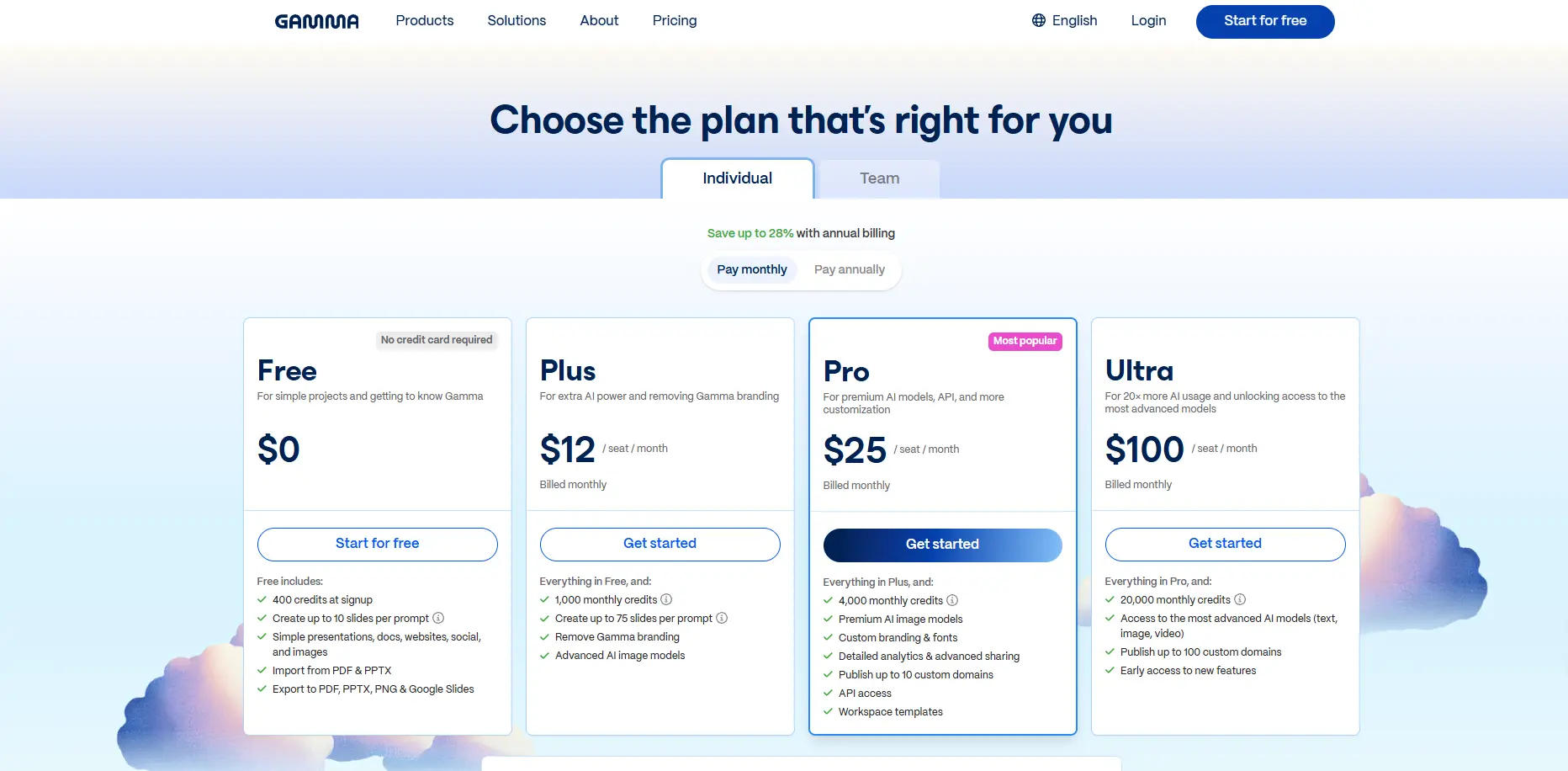
Gamma’s current individual plans include Free at $0, Plus at $12 per month, Pro at $25 per month, and Ultra at $100 per month. These plans can still work for collaboration when the account owner shares a specific Gamma with View, Comment, or Edit access.
For ongoing teamwork, Gamma offers:
- Team: $20 per seat per month, billed annually, with a two-seat minimum
- Business: $40 per seat per month, billed annually, with a ten-seat minimum
The Team plan adds centralized billing, shared folders, admin controls, and 6,000 monthly credits per seat. Business raises this to 10,000 credits per seat and adds features such as SSO and more advanced data controls.
Pricing should be based on how many people need ongoing creation access, not how many people may occasionally review a Gamma. A client who only leaves comments may not need a paid workspace seat.
Does Gamma Support One Shared Login?
Gamma is built around individual accounts, content sharing, and workspace collaboration. In most cases, separate logins make it easier to assign roles, track access, and remove one member without affecting everyone else.
Passing one login around may seem cheaper, but it can make 2FA, project ownership, billing access, and member offboarding harder to manage.
How Gamma Permissions Affect Sharing
Gamma offers several access levels:
- View: Read the content only
- Comment: Review and leave feedback
- Edit: Change one shared Gamma
- Workspace Member: Work across shared projects
- Admin: Manage members, billing, and workspace settings
A sharing link is usually enough for one-project access, while a paid workspace seat is better for long-term collaboration across several projects. Teams should also check workspace-level permissions, since they may affect the access set on an individual Gamma.
What Are the Best Ways to Share Gamma Accounts Without Sharing Passwords?
The best method depends on how much access each person needs. Gamma’s own sharing and workspace tools should come first, while a controlled browser session is better suited to teams that must keep using an existing paid account.
Share One Gamma With View, Comment, or Edit Access
Sharing one Gamma is the simplest option when someone only needs access to a specific project. It keeps the rest of the workspace outside the collaboration scope.
This method works well for:
- Clients reviewing a presentation
- Managers leaving comments
- Freelancers editing one project
- External partners who do not need workspace access
Choose View for reading, Comment for feedback, and Edit only when the person must change the content. For one-project work, this is usually the clearest and most limited access method.
Invite Long-Term Members to a Gamma Workspace
Workspace access is more suitable for employees or regular collaborators who work across several Gamma projects. Each person uses a separate account, which makes roles and access easier to manage.
This option fits teams that need to:
- Work across several presentations or documents
- Use shared folders and workspace resources
- Collaborate over a longer period
- Manage members and billing from one workspace
A full workspace invitation may be unnecessary for a client who only checks one pitch deck. It makes more sense for people involved in ongoing content creation.
Use a Password Manager or Remote Desktop for Limited Cases
A password manager may let a teammate sign in without seeing the password directly. However, the teammate still receives account-level access. It cannot normally limit that person to one Gamma project, and several users may still appear under the same account identity.
Remote desktop keeps the account logged in on one controlled device. This can work for an occasional account-level task, but it is less practical for regular teamwork. Members must connect to the same machine, and concurrent work can be difficult.
These methods solve password delivery, but they do not always solve access scope or team accountability.
Share a Controlled Browser Session With an Antidetect Browser
Some teams already have a paid Gamma account that contains active projects, saved settings, and an established login session. They may not be ready to add workspace seats, yet a contractor or teammate still needs temporary account-level access.
In this case, an antidetect browser like DICloak can be used to create a dedicated Gamma browser Profile. The account owner signs inside that Profile and shares it with selected team members instead of sending the original password.
The most relevant controls are:
- Profile sharing: Give selected members access to the signed-in Gamma Profile.
- Team permissions: Limit who can open or manage the shared Profile.
- Concurrent profile limits: Reduce editing conflicts when several people try to use the same session.
This setup is most useful when the work must happen inside an existing account. It should not replace Gamma’s View, Comment, Edit, or workspace permissions when those options already cover the task.
| Method |
Best for |
Access scope |
Main limitation |
| Share one Gamma |
Reviews or one-project editing |
One Gamma |
No wider account access |
| Workspace invitation |
Long-term team collaboration |
Multiple workspace projects |
May affect seat costs |
| Password manager |
Small, trusted teams |
Full account |
Limited project-level control |
| Remote desktop |
Occasional account-level tasks |
One remote device |
Less convenient for regular work |
| Controlled browser Profile |
Existing signed-in account workflows |
Dedicated account session |
Requires clear permissions and concurrency rules |
How to Share a Gamma Account With DICloak Without Showing the Password
When a team must use one existing Gamma login, the account owner can keep the signed-in session inside a dedicated browser Profile and share it with selected members using DICloak. This avoids sending the raw password and makes access easier to remove later.
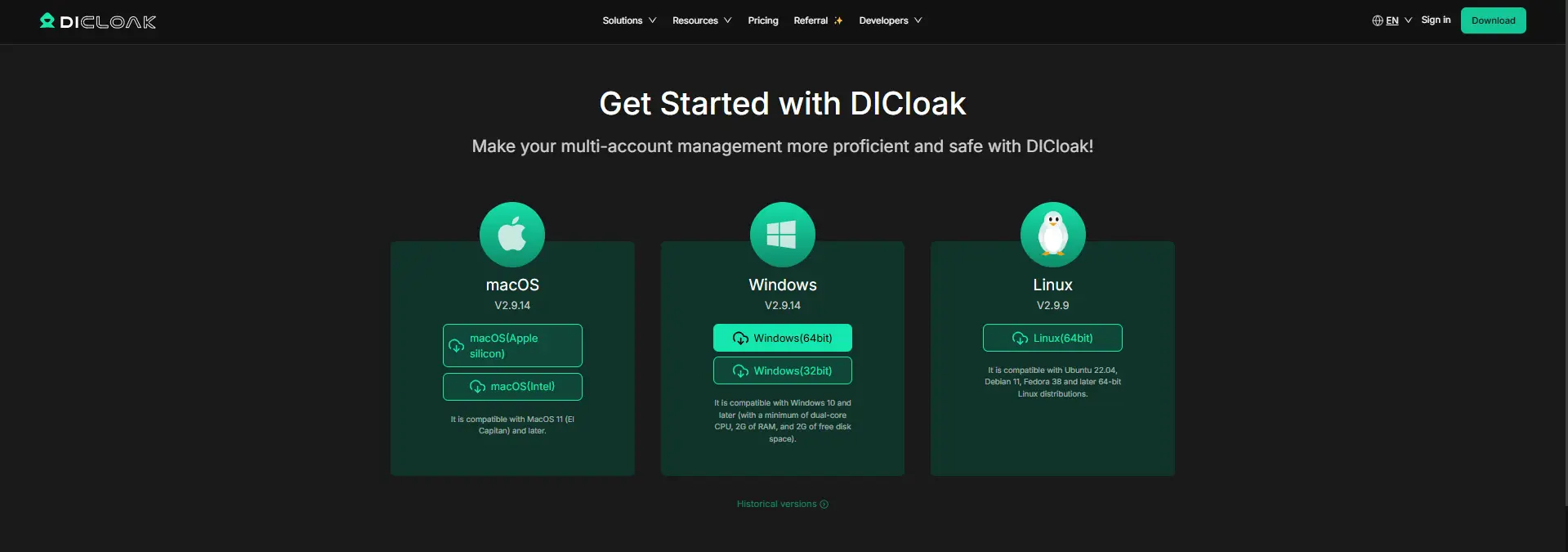
1. Install DICloak
Download DICloak, sign up, and select a plan that supports the number of team members and browser Profiles you expect to manage.
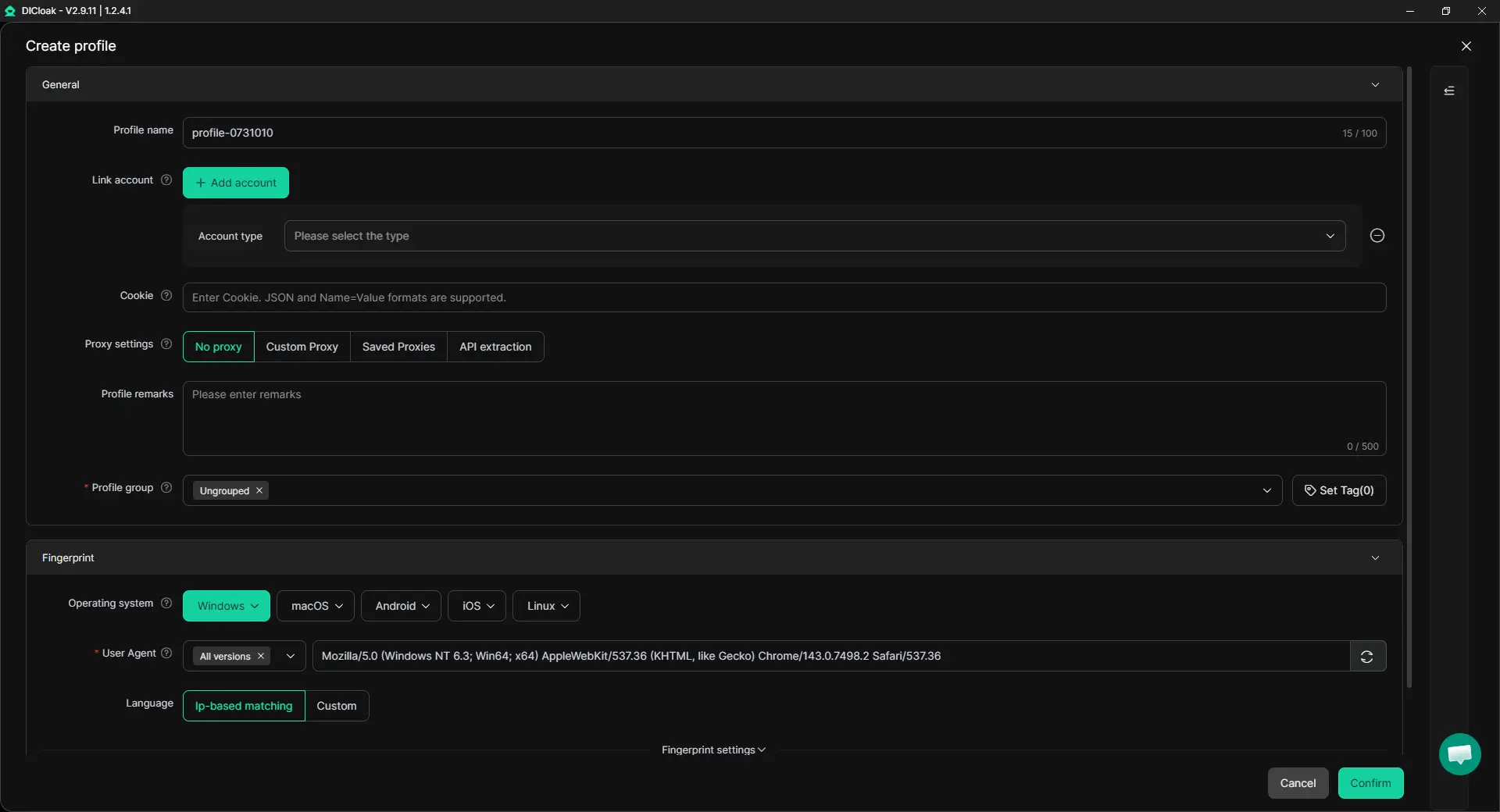
2. Create and Configure a Gamma Profile
Create one browser Profile for Gamma and give it a clear name, such as Gamma – Marketing Team. Keep personal accounts and unrelated client tools outside this Profile. You can also configure your own proxy when the account workflow requires a specific network or region. Keep the setup stable once the Profile is in use.
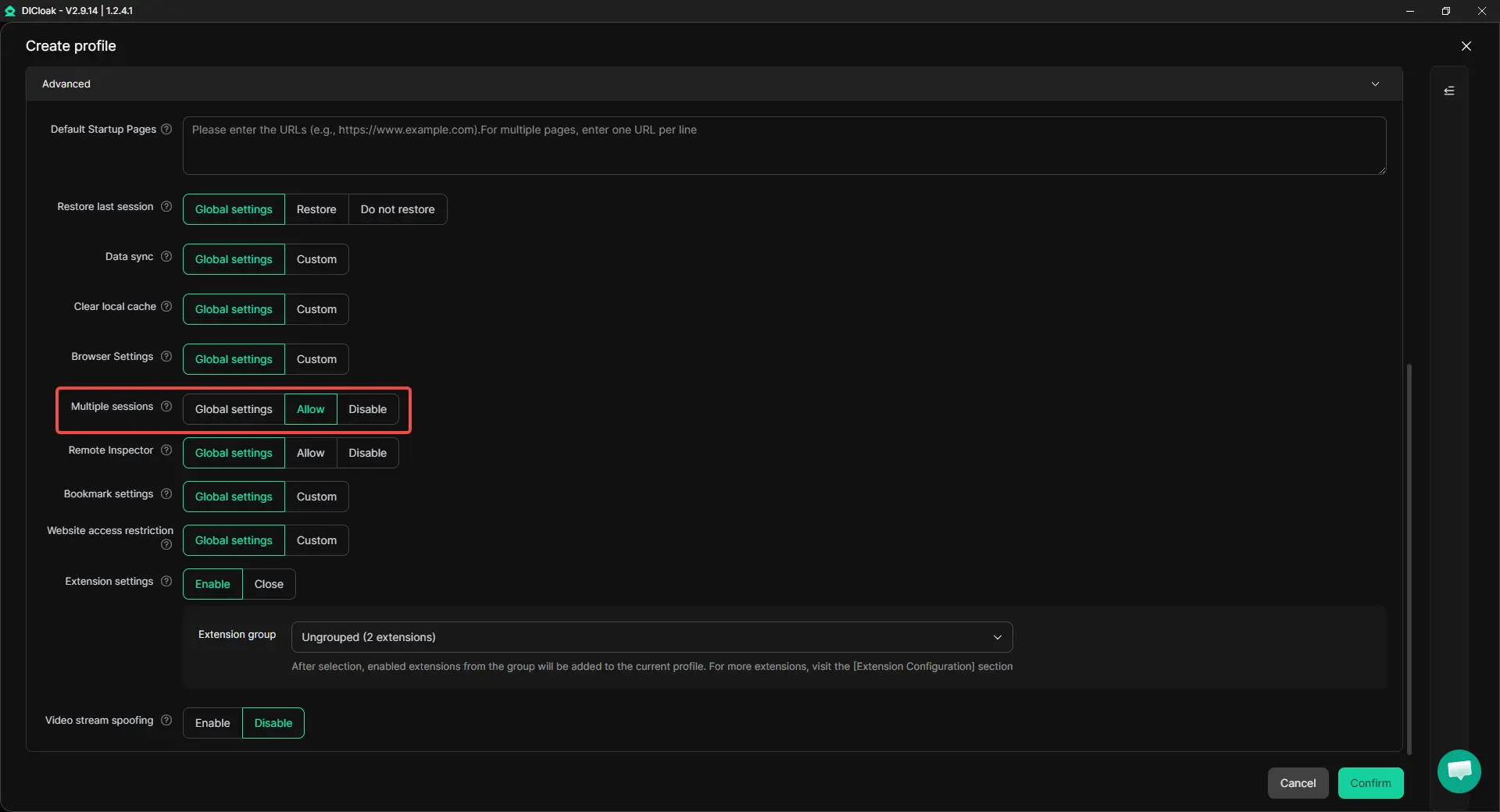
3. Enable Multiple Sessions When Needed
Enable Multiple sessions if several approved members need to access the Gamma account at the same time. This allows multiple members to open the same Profile simultaneously.
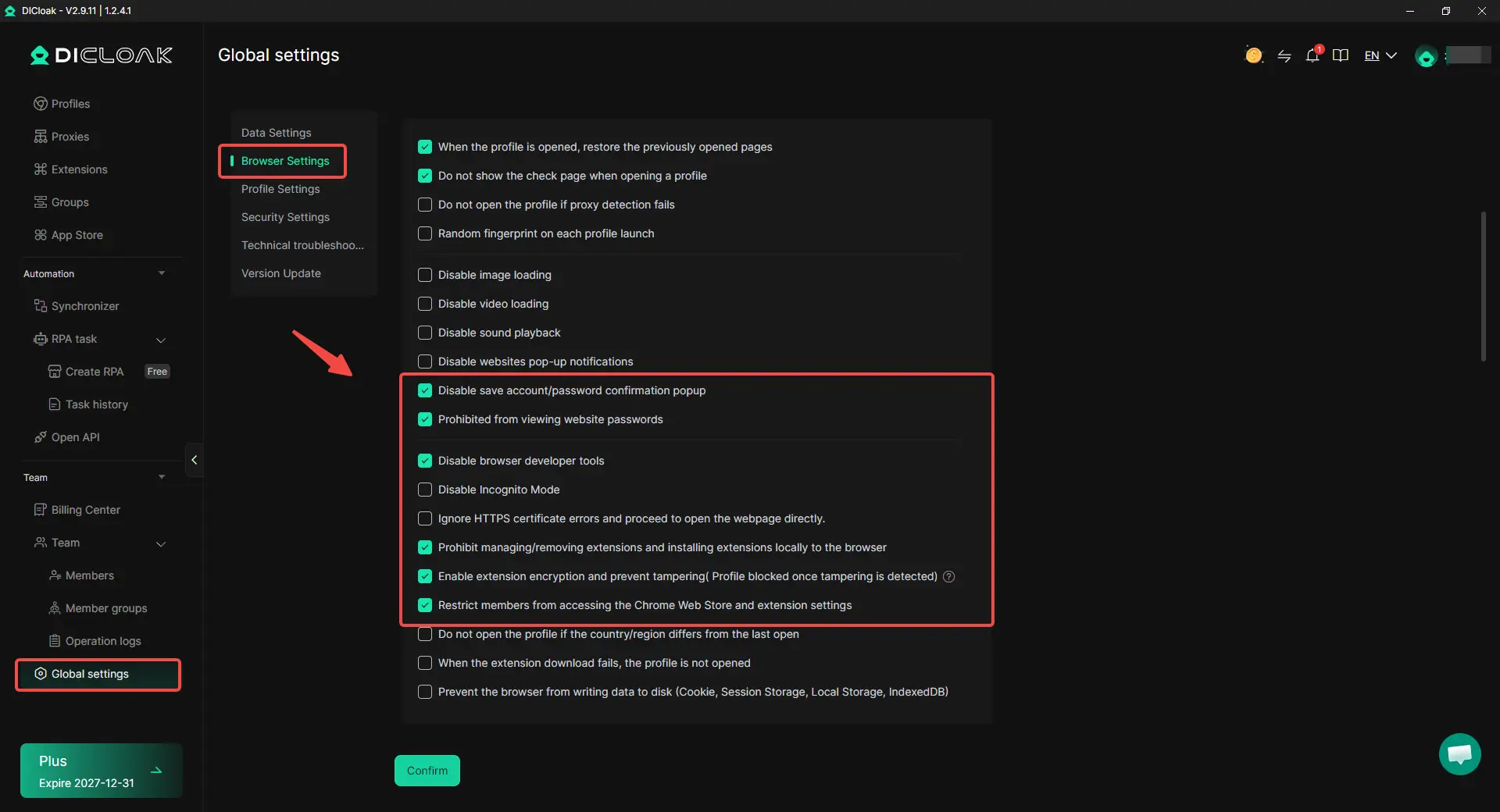
4. Prevent Members from Viewing the Password
Enable Prohibited from viewing website passwords, so approved members cannot view saved website passwords inside the shared Profile. This lets the account owner keep the Gamma login private while members use the existing signed-in session. For stronger access control, the owner can also disable browser developer tools or restrict extension settings when those features are not needed for the task.
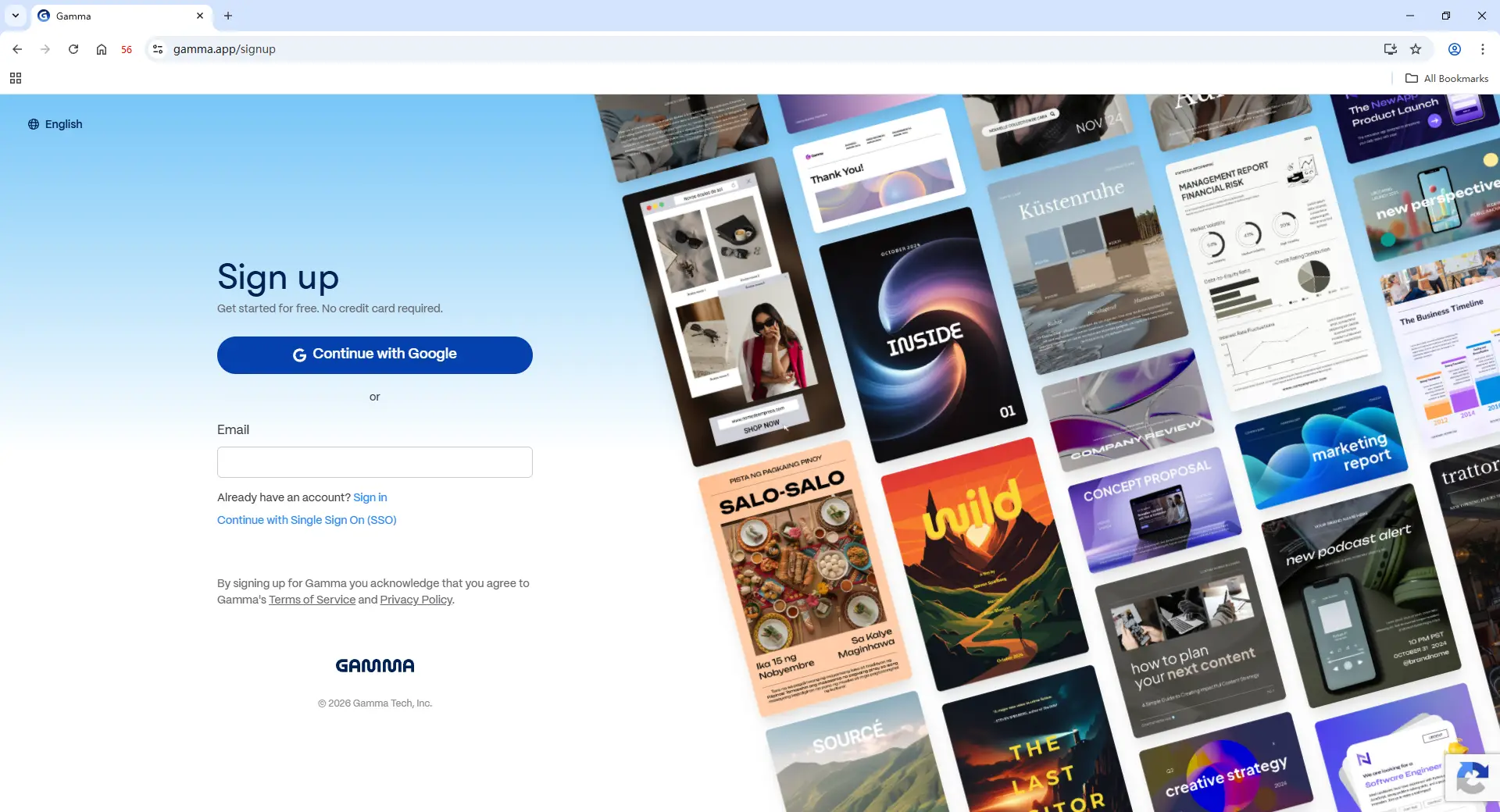
5. Sign In to Gamma and Save the Session
The account owner should open the configured Profile, sign in to Gamma, and complete any required verification. Once the account is ready, keep the signed-in session inside this Profile so approved members can access it without receiving the original password.
6. Share the Profile With Selected Members
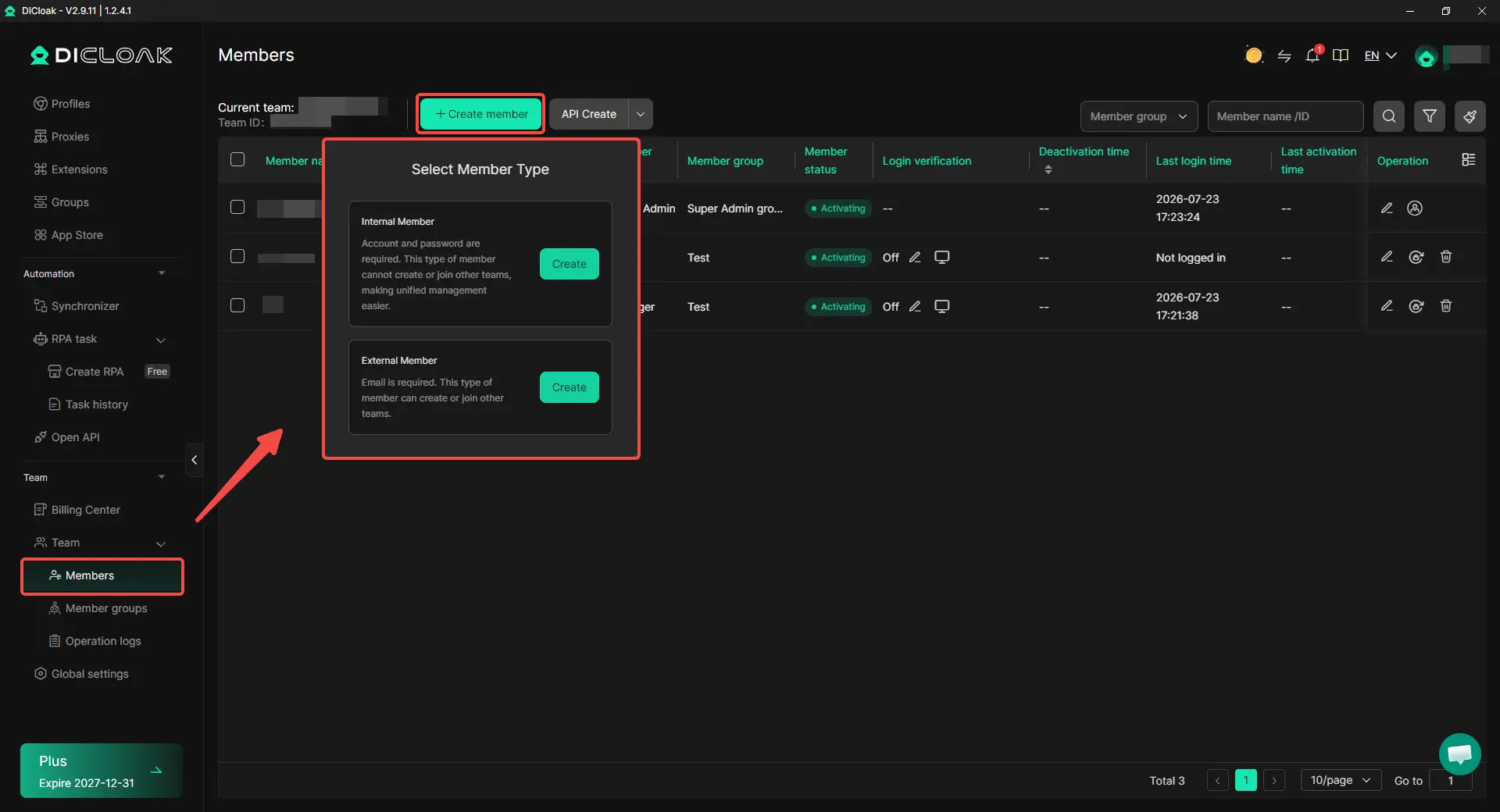
Add each teammate through a separate DICloak account and assign the Gamma Profile only to people who need it. With profile sharing and team permissions, approved members can open the saved session without receiving the original login details. A temporary designer should not receive access to unrelated Profiles or administrator settings.
7. Remove Access After the Project
Remove the member’s Profile access when the project ends or their role changes. Also review Gamma workspace invitations, project permissions, shared links, and other active sessions.
What Should Teams Check Before and After Sharing a Gamma Account?
Before sharing access, decide what each person needs to do, what they should not be able to change, and how access will be removed later. A sharing setup is only controlled when access can be limited, reviewed, and removed without disrupting everyone else.
Give Each Person Only the Access They Need
Not every teammate needs full workspace or account access. A client may only need View access, while a manager or reviewer may need Comment access. A contractor working on one project can receive Edit access to that Gamma, while an internal creator who works across several projects may need workspace membership. Admin access should be limited to people who manage billing, members, or workspace settings.
A client reviewing one pitch deck should not receive the same access as an employee managing several projects. Broader access may seem easier at first, but it creates more work when permissions need to be reviewed or removed.
Decide Who Can Use AI Credits and Change Billing
Review access and creation access are not the same. Someone who only reads or comments on a Gamma may not need a full member role, while a person who creates content regularly may need workspace access and AI credits.
Keep billing, subscription changes, and automatic credit purchases limited to the people responsible for them. Before adding a new member, check the current seat and credit rules so the team understands whether the invitation may affect costs.
Plan for Temporary Access and Member Offboarding
Temporary access should have a clear end date. Before removing a contractor, employee, or agency partner:
- Confirm that important Gammas and Admin access will remain with the team.
- Remove the person from the workspace or shared browser Profile, then revoke any links or saved sessions they no longer need.
- Review billing and update the login details if the original password was ever shared.
Removing one member is not enough if other access paths are still active.
Keep Personal and Client Work Separate
Agencies should avoid placing every client project inside one environment that is widely shared. A contractor working on Client A should not be able to open Client B’s presentations, billing details, or account settings.
Keep shared access limited to the Gamma projects needed for the current task. This makes client separation clearer and reduces the amount of access that must be reviewed when the project ends.
Frequently Asked Questions About Sharing a Gamma Account
Should every collaborator be added to the Gamma workspace?
No. Clients, reviewers, and short-term contractors often only need access to one Gamma through View, Comment, or Edit permissions. Workspace access is better for long-term team members who work across several projects, shared folders, or team resources.
Can I share one Gamma without adding someone to my workspace?
Yes. You can share a single Gamma by link or email and choose View, Comment, or Edit access. This works well for clients, reviewers, and contractors who only need one project and should not see the rest of the workspace.
Does adding a Gamma workspace member cost extra?
It may. Gamma uses per-member billing on paid plans, which means each active workspace member can affect the total subscription cost. Each member also has an individual credit balance, so teams should check both seat costs and credit settings before inviting someone who only needs occasional access.
How can a team use an existing Gamma session without showing the password?
When an authorized team must work through one existing signed-in session, an antidetect browser like DICloak can keep that session inside a dedicated browser Profile and share the Profile with selected members. Profile sharing and team permissions help control access, while password-viewing restrictions prevent members from seeing saved website passwords.
How should access be removed when a team member leaves?
Remove the person from the Gamma workspace and revoke any project links they no longer need. If they also used a shared browser Profile, remove that assignment and review any remaining saved sessions; access is not fully closed while an old link, workspace role, or shared session is still active.
Conclusion
Sharing a Gamma account with your team without sharing passwords starts with choosing the right level of access. Clients and reviewers may only need View or Comment access, contractors may need Edit access to one Gamma, and long-term team members may be better added to the workspace. Before inviting anyone, check seat costs, credit use, billing permissions, and how access will be removed when the work ends.
When a team must keep using one existing Gamma login, a dedicated browser Profile with an antidetect browser like DICloak can provide controlled access to the signed-in session without exposing the original password. The best Gamma account-sharing setup is the one that gives each person only the access needed for the task and makes that access easy to review and remove later.
 Web Proxy Tools
 Free Tools
 Cookie Plugin
 UA Generator
 MAC Address Generator
 IP Generator
 IP Address List
 2FA Code Generator
 World Clock
 Anonymous Check
 WebRTC Leak Test
 UUID Generator
 Free Web Proxy Site
 Proxy Checker
 FB Ad Checker
 AI Web Scraping
 Free SMM Tools
 Twitter Shadowban Checker
 Instagram Name Checker
 UTM Generator
 Username Generator
 AI Hashtag Generator
 LinkedIn Headline Generator
 Social Media Image Resizer