Manually configuring browser proxy settings is a legacy workflow that introduces unnecessary friction and human error. For professionals managing large-scale proxy pools or conducting sensitive market research, the need to navigate deep browser menus to toggle IPs is a significant bottleneck.
To maintain operational efficiency and granular control over digital identity, a dedicated management layer is mandatory. Proxy SwitchyOmega remains the important part for this task, providing a robust, programmable interface that replaces manual configuration with high-speed, rule-based switching.
Why is Proxy SwitchyOmega Still the Important Tool in 2026?
In an ecosystem saturated with "free" extensions that often monetize user data, SwitchyOmega stands out due to its open-source transparency and ad-free architecture. It is built for technical users who require a lean, reliable tool without the bloat of marketing-heavy alternatives.
One of its most enduring strengths is backward compatibility; it allows for seamless migration from older tools like SwitchySharp, making it the reliable choice for long-term power users. Key technical advantages include:
- Rapid Profile Deployment: Transition between active server configurations in two clicks.
- Protocol Flexibility: Native support for HTTP, HTTPS, and SOCKS5.
- Granular Automation: A sophisticated engine for triggering proxy changes based on destination URLs.
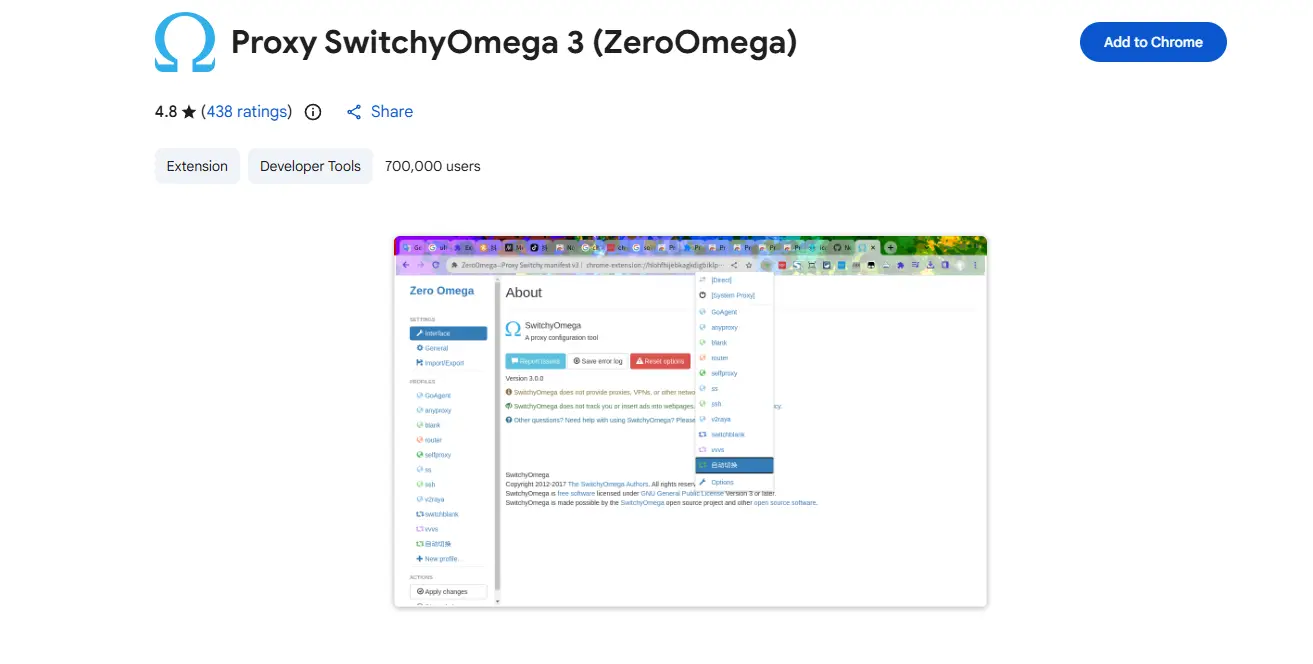
Is SwitchyOmega Disabled? Navigating the Move to ZeroOmega
Recent updates to browser manifest versions have led some users to find the legacy extension disabled in their web stores. If you encounter this, the solution is to transition to Proxy SwitchyOmega 3 (ZeroOmega).
ZeroOmega is the modernized successor designed for the latest browser engines. While it is optimized for 2026 standards, the core configuration logic, dashboard UI, and profile management remain identical to the legacy version. This guide applies to both the original extension and the ZeroOmega update.
Step-by-Step: How to Configure Your First Proxy Profile
The core of SwitchyOmega's utility lies in moving away from global browser settings into isolated, profile-based configurations.
Installing the Extension for Chrome and Firefox
Locate the extension in the Chrome Web Store or Firefox Add-ons gallery. Once installed, click the extension icon in your browser toolbar and select Options. This opens the management dashboard where all architectural configuration occurs.
Creating a New Profile and Selecting Types
On the left-hand menu, under "Profiles," select New Profile.
- Proxy Profile: Choose this for standard server setups. Unlike "Switch Profiles" (which manage logic) or "Virtual Profiles" (which act as aliases), a Proxy Profile is where you define the hardware connection to a specific server.
- Naming: Use a descriptive naming convention (e.g.,
US_Datacenter_01) to maintain clarity as your list scales.
Inputting Server Information and Protocol Selection
In the profile configuration screen, you must select the appropriate protocol and enter your server details.
- HTTP: Best for standard web scraping and general browsing.
- SOCKS5: The preferred choice for advanced privacy or applications requiring UDP support and higher anonymity levels.
Solving Authentication: Managing Usernames and Passwords
A common oversight during setup is the failure to authenticate premium proxies, which often results in connection timeouts or 407 errors.
Entering Proxy Credentials
Locate the Padlock icon on the far right of the server and port fields. This icon opens the authentication sub-menu. Enter the username and password provided by your proxy service (e.g., your Webshare credentials). Without this step, the proxy will remain unauthorized even if the IP and Port are correct.
Saving and Applying Changes
SwitchyOmega utilizes a "staging" system for changes. If you navigate away after entering details, the settings will not persist. Look for the Apply Changes button on the left-side menu. This button will be highlighted in orange whenever there are pending unsaved configurations. Always click this to commit your profile to the browser’s active memory.
Beyond Manual Switching: Using the Auto Switch Feature
The "Auto Switch" profile is where SwitchyOmega provides its greatest ROI. Instead of manual toggling, you can define "Condition Types" to automate routing.
By navigating to the "Rule List Room" within an Auto Switch profile, you can set wildcard patterns to trigger specific proxies. For example, using the pattern *.google.com with a "Wildcard" condition ensures that all Google traffic routes through your designated proxy profile, while other traffic remains on your local IP. This is essential for bypassing geo-fencing on specific targets without slowing down your entire browsing session.
Managing More Than Proxy Switching with DICloak
For simple browsing tasks, Proxy SwitchyOmega can be a practical tool for changing proxy settings inside the browser. But when users need to manage multiple accounts, keep login sessions separate, and maintain different browsing environments over time, proxy switching alone may not cover everything. In that case, DICloak can help users build a more organized setup.
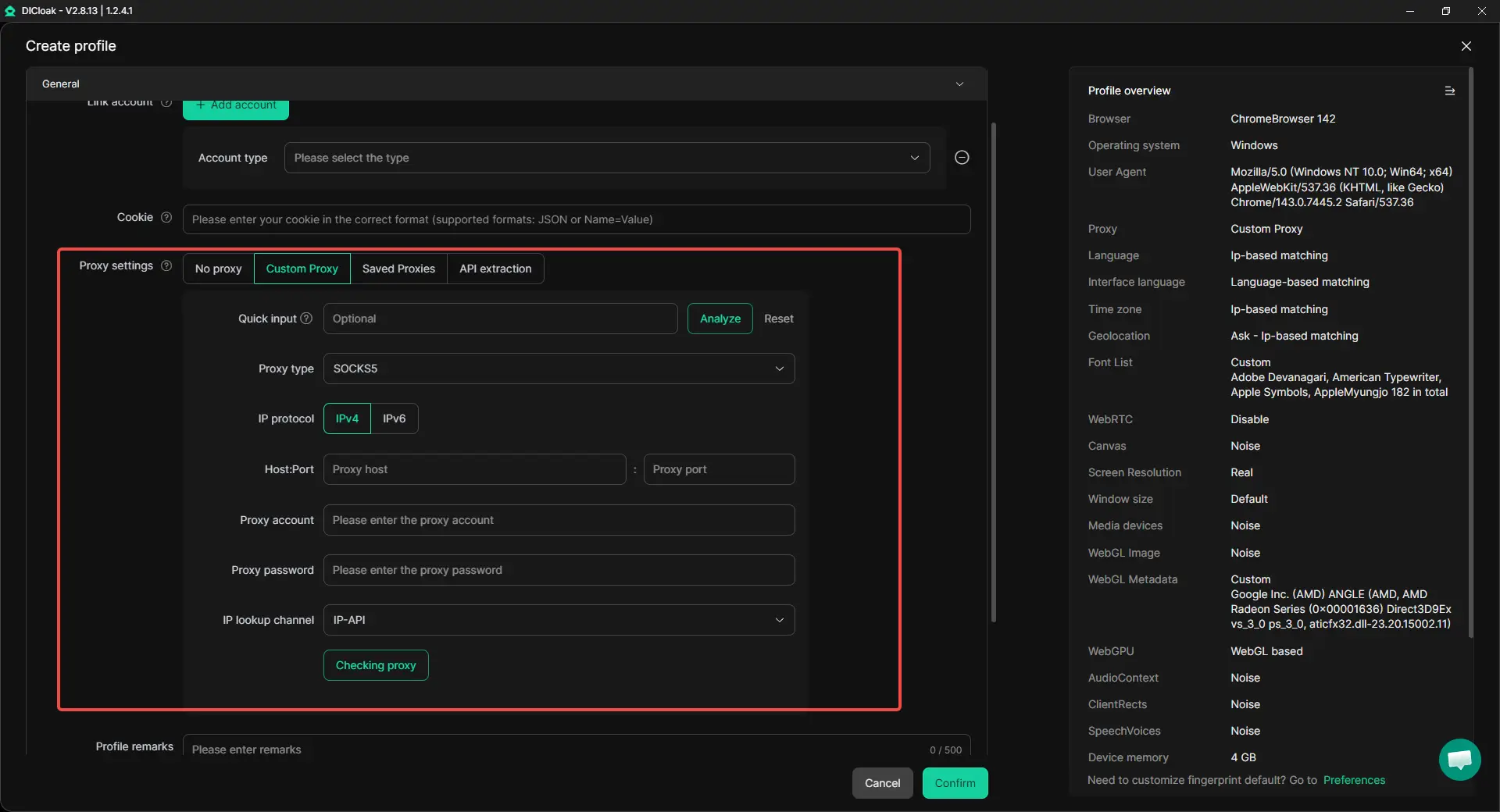
Configure a proxy for each browser profile
With Proxy SwitchyOmega, users usually switch proxy rules within one browser. With DICloak, users can assign a proxy directly to each browser profile. This can be useful when different accounts need to run with different network settings, because each profile can keep its own proxy configuration instead of sharing the same browser session.
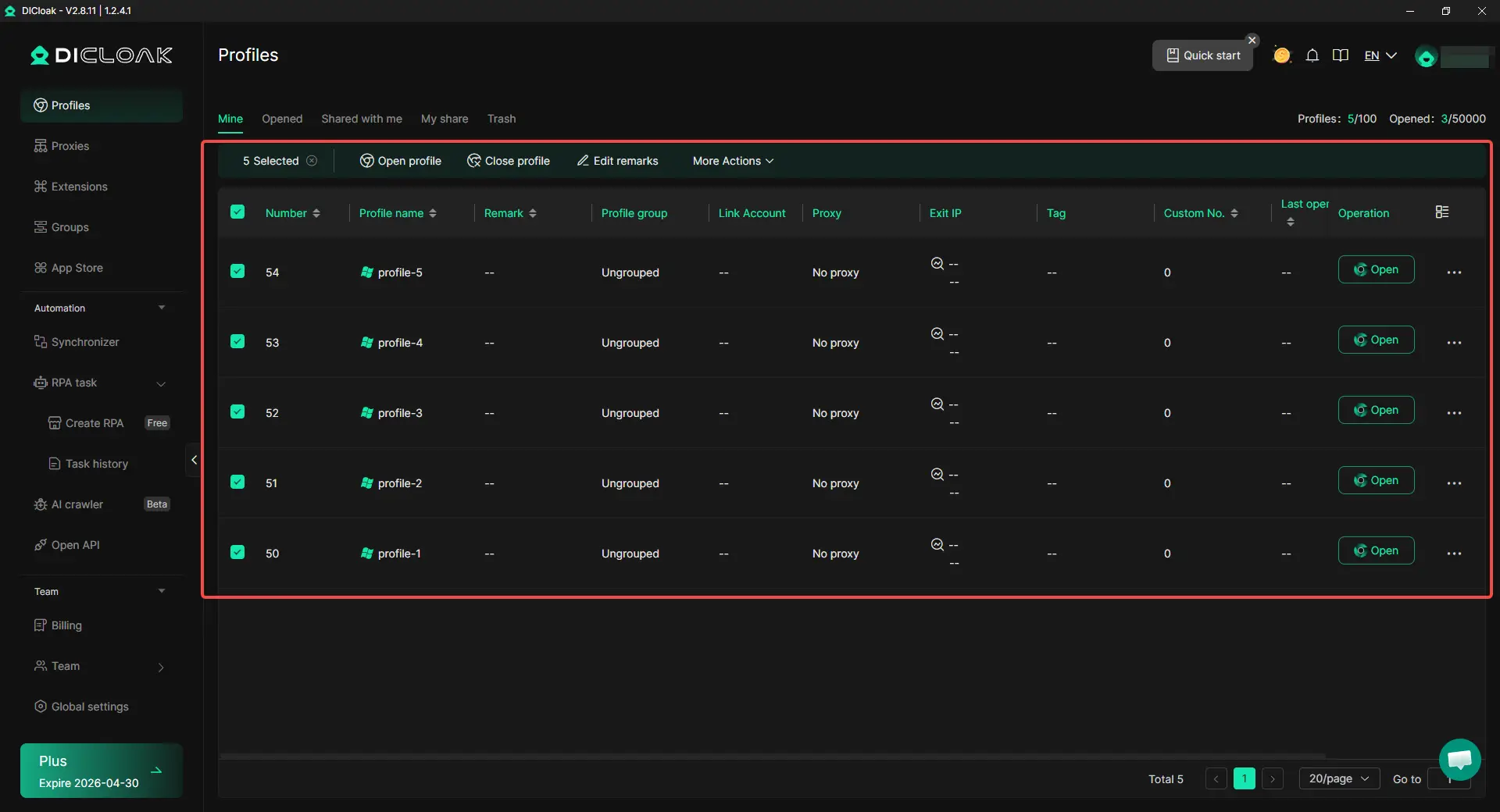
Keep browser data separated across accounts
One limit of using Proxy SwitchyOmega alone is that changing a proxy does not by itself separate cookies, cache, local storage, or login state. DICloak lets users create independent browser profiles, so each account can run in its own profile with its own session data. This makes it easier to reduce account mix-ups and keep account environments more clearly separated.
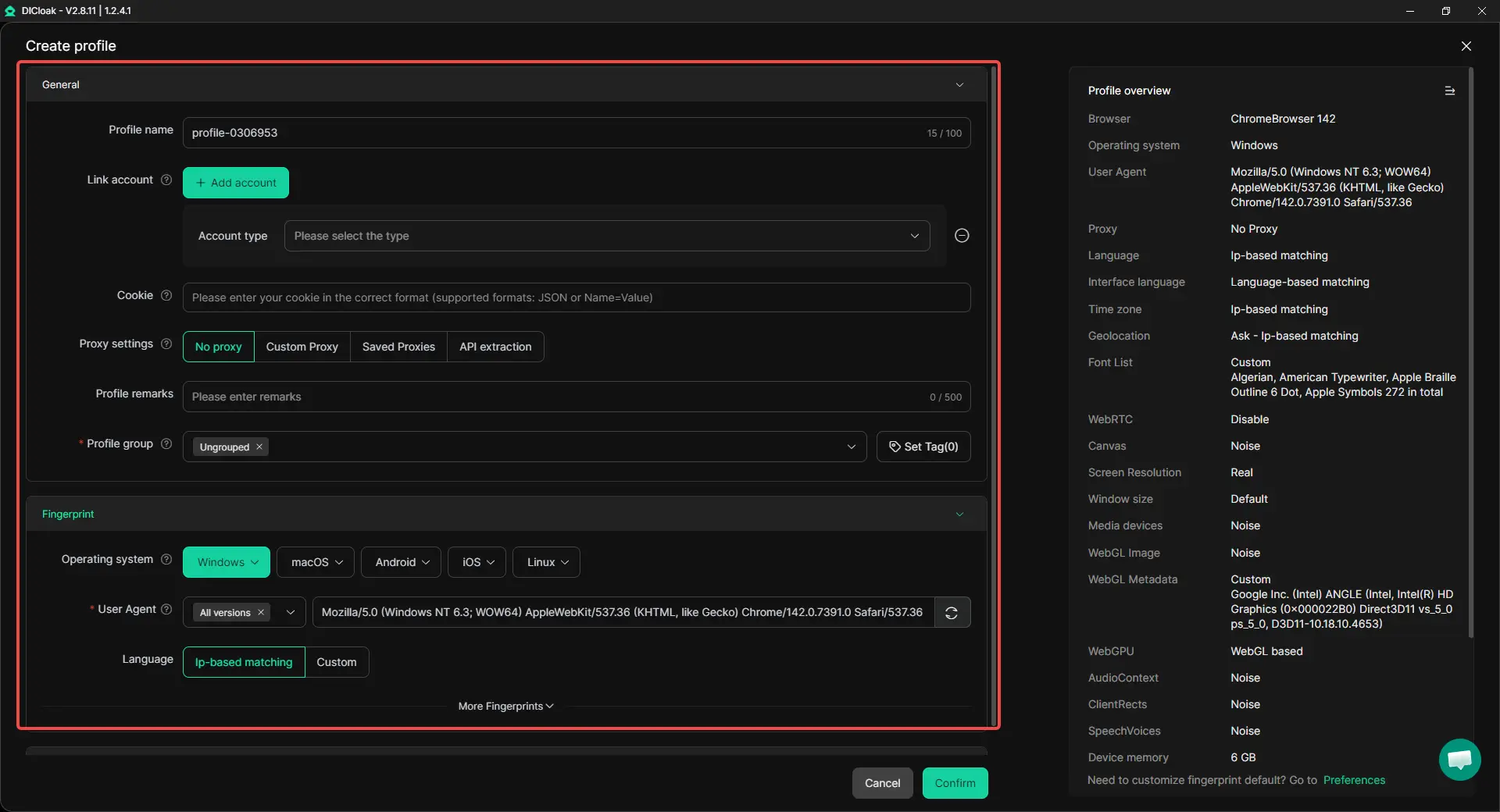
Adjust profile settings with more control
Some users start with Proxy SwitchyOmega because they want more flexibility in how they access different sites or accounts. DICloak adds another layer of control by allowing users to configure browser fingerprint settings for each profile. This gives users more options when they want different profiles to run with more distinct browser settings.
Troubleshooting Common Proxy SwitchyOmega Connection Issues
Checking for "Proxy Not Authorized" Errors
If you receive authorization prompts, re-verify the credentials in the Padlock menu. Ensure there are no leading or trailing spaces in the username or password fields, and verify that the "Apply Changes" button was clicked after entry.
Dealing with Protocol Mismatches
If your proxy provider specifies a SOCKS5 port but you have selected HTTP in the dashboard, the connection will drop. Always match the protocol in SwitchyOmega to the technical specifications of the proxy server.
Resolving DNS Leaks and Conflicts
Technical architects should be aware of DNS leaks. Even with a proxy active, your browser may leak your original IP through DNS requests. Ensure "Proxy DNS" is enabled if using SOCKS5. Additionally, disable all other "VPN" or proxy extensions, as they will conflict with SwitchyOmega’s ability to control the browser's networking stack.
Frequently Asked Questions
Does Proxy SwitchyOmega work with SOCKS5 proxies?
Yes. It supports SOCKS5, which is ideal for traffic that requires higher anonymity or non-web protocols.
Why is my IP not changing after setting up SwitchyOmega?
Configuration is not activation. You must click the extension icon in the toolbar and select the name of your created profile to make it active. If it is set to "Direct," you are still using your local IP.
Is Proxy SwitchyOmega free to use in 2026?
Yes. It remains an open-source, community-driven project that is free from licensing fees and advertisements.
Can I use SwitchyOmega on mobile browsers?
No. SwitchyOmega is designed for desktop Chrome and Firefox environments. Mobile users should look for integrated proxy solutions or system-level configurations.
How do I export my SwitchyOmega settings to another computer?
Use the "Import/Export" tab in the Options dashboard. This allows you to generate a backup file containing all profiles and rules for easy migration.
What is the best alternative if SwitchyOmega is not working?
If the legacy version is unsupported, transition to Proxy SwitchyOmega 3 (ZeroOmega) or use an antidetect browser like DICloak for professional account management.
After finalizing your setup, always perform a validation check via an IP leak site. This confirms that your traffic is routing correctly and your original identity is masked. For mission-critical operations, always source your proxies from providers offering a global reach—ideally across 195+ locations—and a verified 99.7% uptime to ensure your automated rules never fail due to server instability.
 Web Proxy Tools
 Free Tools
 Cookie Plugin
 UA Generator
 MAC Address Generator
 IP Generator
 IP Address List
 2FA Code Generator
 World Clock
 Anonymous Check
 WebRTC Leak Test
 UUID Generator
 Free Web Proxy Site
 Proxy Checker
 FB Ad Checker
 AI Web Scraping
 Free SMM Tools
 Twitter Shadowban Checker
 Instagram Name Checker
 UTM Generator
 Username Generator
 AI Hashtag Generator
 LinkedIn Headline Generator
 Social Media Image Resizer