Why Verifying Your Discord Account Matters
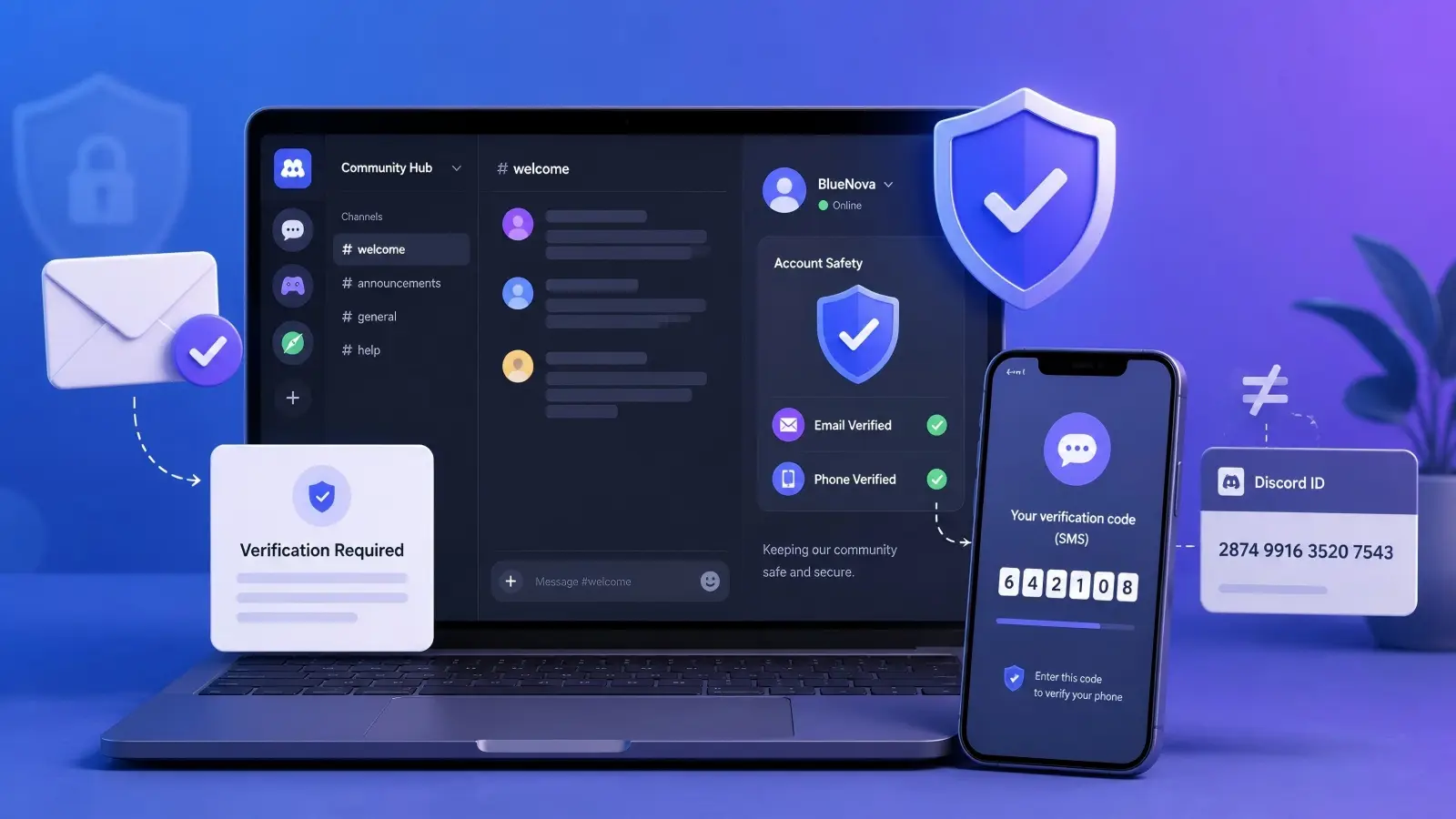
Discord verification is part of the platform’s safety system. Discord may ask you to confirm an email address, a phone number, or both, depending on your account activity and the server you join. Knowing how to verify Discord account details can help you avoid problems when Discord shows a “Verification Required” message. Verification is different from your Discord ID. Your Discord ID is the unique number linked to your account, while verification confirms information such as your email or phone number. You do not need your Discord ID to complete normal verification.
What Features Are Unlocked After Verification?
Verification mainly affects access to servers that use Discord’s Verification Levels. For example, a Low-level server may require a verified email, while the Highest level may require a verified phone number. If you can view a server but cannot send messages or join voice channels, the server’s verification settings may be one possible reason.
A verified phone number may also satisfy some lower verification requirements, depending on the server’s settings. However, phone verification does not automatically unlock Nitro, paid features, or special server roles. Its main purpose is to help an account meet certain Discord verification and safety requirements rather than provide extra account benefits.
How Verification Improves Account Security
A verified email may add another layer of account protection. Discord can send a Login Verification Email when it detects a sign-in from a new device or location. If someone has your password but cannot access your email inbox, this extra step may make an unfamiliar login more difficult. Email verification should still be used together with stronger security measures. A unique password and Multi-Factor Authentication can provide additional protection, especially for accounts used regularly or managed by a team. For example, if someone obtains your Discord password, MFA may still prevent or slow down unauthorized access.
Why Discord Requires Email or Phone Verification
Discord uses verification as one of several tools for reducing spam, bots, scams, and other forms of abuse. In some cases, users may see an additional verification request after activity that Discord considers unusual, such as joining many servers in a short period, sending many direct messages, or posting very quickly. Seeing a verification request does not necessarily mean the account has violated a rule.
For phone verification, users generally need a supported mobile number that is not already connected to another Discord account. VoIP numbers, landlines, or previously linked numbers may cause verification problems. As a result, some Discord phone errors may be related to the number itself rather than the SMS code.
Discord’s official dis.gd/phone-errors guidance covers several common phone verification issues. If verification fails, checking the exact error message first may be more useful than requesting new codes repeatedly. This can help you determine whether the issue involves the phone number, a temporary restriction, or another verification requirement.
Steps to Verify Your Discord Account
Once you understand why verification matters, the next step is learning how to verify a Discord account without creating unnecessary problems. Discord supports both email and phone verification, but users may not always need to complete both methods at the same time. Some accounts may only need email confirmation, while others may receive a Verification Required prompt asking for a mobile number.
The correct method usually depends on what Discord is asking for at that moment. If you only see an email verification notice, confirming the email may be enough. If Discord specifically requests a phone number, completing email verification alone may not remove that requirement.
How to Verify Your Account Using an Email Address
For many new accounts, email verification is the simplest place to start. Discord usually sends a verification message to the email address connected to the account, and users can open that message and follow the verification link. After the link is accepted, Discord should be able to recognize the email address as verified. You normally do not need your Discord ID because the verification link is already associated with the account.
If the original message is missing or the link no longer works, you can request another verification email. On desktop or in a browser, you can open User Settings > My Account and look for Resend Verification Email. On mobile, you can open User Settings > Account and follow the available Verify prompt. The exact wording or menu location may change over time, so following the prompts shown in the current Discord interface is usually the safest approach.
For example, you may create an account and leave the verification email unopened for several days. If the original link has expired, creating another Discord account is usually unnecessary. Requesting a new verification email is generally a better first step, followed by checking the spam folder and making sure messages from Discord are not being filtered or blocked.
How to Verify Your Account Using a Phone Number
Phone verification works a little differently because Discord may request it only in certain situations. If you see a Verification Required screen, you can follow the prompt, enter a supported mobile number, and wait for the SMS code. After entering the code, the account may be able to complete the required verification step. The phone number generally cannot already be associated with another active Discord account.
Users may also be able to add a phone number through their account settings. On desktop or in a browser, this option can usually be found under User Settings > My Account in the Phone Number section. Before requesting the code, check that both the country code and phone number are entered correctly, especially when the default country does not match your number.
For example, you may join a server that requires phone verification while your number is still linked to an older Discord account. Entering the same number on the new account may return an error instead of completing verification. In this case, the issue may be the existing phone-number connection rather than your current Discord ID or the SMS code, so removing the number from the previous account may be necessary before trying again.
What to Do If Verification Steps Fail
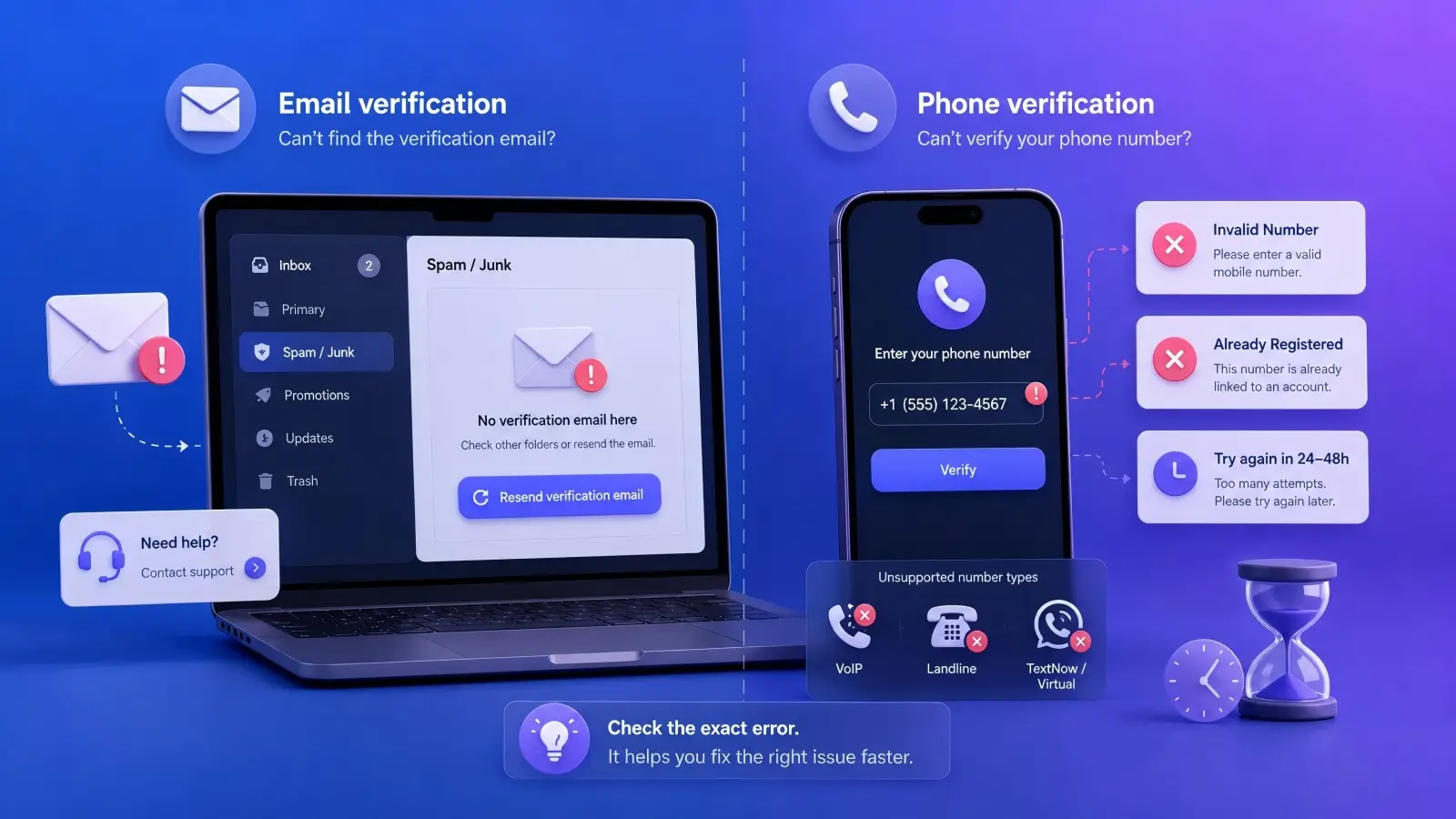
Verification problems are often caused by a specific email or phone issue, so repeatedly pressing the same button may not fix them. If an email does not arrive, first check spam or junk folders, request a new verification email, and confirm that the address on your account is correct. Discord says its support team cannot manually send verification emails for users. If the problem continues after the normal troubleshooting steps, you can contact Discord Support.
Phone problems need a different check. Common Discord phone errors include an invalid number, a number that is already registered, and a number that has been used too recently. Discord does not accept VoIP, burner, or landline numbers for account verification. If your number was recently used and enters a timeout period, Discord currently recommends waiting 24 to 48 hours before trying it again. This is useful to know because sending more codes during the timeout will not necessarily make verification faster.
You may also see users search for dis.gd phone errors when trying to understand these messages. Discord’s official phone error guidance explains that an “already registered” error usually means the number is connected to another account, while an “invalid phone number” error can mean the number format or number type is not supported. For example, if a normal mobile number works for calls but Discord identifies it as a VoIP number, repeating the same verification request is unlikely to solve the problem. Check the exact error first, then fix the cause or contact Discord Support if the number should be valid.
Common Issues During Discord Verification
Even when you know how to verify a Discord account, the process does not always work on the first try. The most common problems are usually linked to a missing email, an unsupported phone number, or a temporary security check. The key is to read the exact error instead of sending the same request again and again. Your Discord ID normally has nothing to do with these errors, since Discord uses the email or phone number linked to the account for verification.
Why You Are Not Receiving the Discord Verification Email
A missing verification email does not always mean Discord failed to send it. The message may be in your spam folder, or your email provider may be blocking messages from Discord. Discord recommends allowing emails from addresses such as notifications@discord.com, support@discord.com, and noreply@discord.com. You can then request a new verification email from your account settings. Discord also suggests trying another device if the message still does not arrive.
For example, a user may press “Resend Verification Email” several times and still see an empty inbox. If the email provider has filtered Discord messages, sending another copy will not solve the main problem. Checking spam filters and allowed senders first can save time. Discord Support also states that its team cannot manually send a verification email for you, so the normal resend process still needs to work.
Why Phone Verification Fails
Many Discord phone errors come from the phone number itself rather than the SMS code. Discord requires a valid mobile number and does not support landline or VoIP numbers for this type of verification. A phone number also cannot be connected to more than one Discord account at the same time. If you see a message saying the number cannot be associated with your account, it may already be linked to another account.
Another common case is a temporary rate limit. Discord says a recently used phone number can enter a timeout period, and users may need to wait 24 to 48 hours before trying again. For instance, if you remove a number from one account and immediately try to add it to another, another verification attempt may still fail. Repeatedly requesting codes during that period is unlikely to fix the issue.
If you search for dis.gd phone errors, that address leads to Discord’s official guide for these problems. It covers errors such as Phone is Already Registered and Invalid Phone Number, including incorrect number formats and unsupported number types. This makes the exact error message useful because it tells you whether you need to fix the number, remove it from another account, or contact Discord Support.
Why Discord Keeps Asking You to Verify
Sometimes verification appears again because Discord’s safety system has detected activity that needs an extra check. Discord says this can happen after joining many servers in a short time, sending direct messages to several people who are not friends, posting unusually fast, or using modified third-party clients. A server can also require verified members before allowing them to participate. In these cases, the verification screen is part of Discord’s anti-spam and account safety system rather than a problem with your Discord ID.
For example, a new user might verify an email successfully and then join several large servers within a few minutes. Discord may still ask for phone verification because the later activity triggered a stronger security check. This does not mean the earlier email verification disappeared. It means Discord is asking for another level of confirmation based on the current situation. If the account is already using valid information but the verification screen cannot be completed, the next step is to check the specific error and contact Discord Support when the official troubleshooting steps do not solve it.
Discord Verification Levels Explained
After learning how to verify a Discord account, you may still find that some servers ask for extra requirements. This happens because Discord servers can use their own Verification Level. The level is chosen by the server owner or admin, not by each member, and it applies across the whole server.
What Are the Different Verification Levels?
Discord currently offers five server verification levels: None, Low, Medium, High, and Highest. Each level adds another requirement before a member can fully participate. These rules are separate from your Discord ID, which is simply the unique number linked to your account.
- None: No verification is required.
- Low: You need a verified email.
- Medium: Your email must have been verified for more than 5 minutes.
- High: You need a verified email, your Discord account must be more than 5 minutes old, and you must have been in the server for more than 10 minutes.
- Highest: You need a verified phone number. A verified phone number also satisfies the lower verification requirements.
How Verification Levels Affect Server Access
If you do not meet a server's Verification Level, you may still be able to see parts of the server, but Discord can stop you from sending text messages or joining voice channels. For example, you may join a public server and see its channels but find that you cannot chat yet. If the server uses High verification, you may simply need to wait until the account and server membership time requirements are met.
The Highest level can be more noticeable because it requires a verified phone number. If phone verification fails, check the specific Discord phone errors rather than changing your Discord ID or creating another account. Problems such as an unsupported number or a number already linked to another account should be handled through Discord's official dis.gd phone errors guidance.
Which Level Is Best for Your Needs?
Regular members do not choose their own verification level. You only need to meet the level set by the server you want to use. If you already have a verified phone number on your account, Discord says it overrides the email and time-based requirements for server verification.
For server owners, the right level depends on the size and risk of the community. A small private server for friends may not need strict verification, while a public community may benefit from Low or Medium settings. Discord recommends increasing verification to High or Highest when a server is facing a raid or a sudden wave of suspicious accounts, because stronger requirements can slow down spam and bot activity.
Risks of Not Verifying Your Discord Account
Verification may feel optional when a new Discord account seems to work normally. However, leaving the account unverified can create problems later, especially when you join servers with stricter rules or Discord asks for an extra safety check. This is why learning how to verify a Discord account early can save time when you want to chat, join voice channels, or sign in from a new device. Discord says email and phone verification are part of its system for reducing spam, bots, and abuse.
How Unverified Accounts Are Limited in Features
An unverified account may have trouble participating in servers that use Verification Levels. For example, a server set to Low requires a verified email before a member can chat. Higher levels can also require an older account, a minimum time in the server, or a verified phone number. At the Highest level, a verified phone number is required. These limits are based on your verification status, not your Discord ID.
Imagine joining a large gaming community right before an event. You can see the server, but you cannot send messages because the server requires a verified email. Waiting until the event starts to verify the account can create an unnecessary delay. Completing the required verification earlier makes it less likely that server rules will interrupt normal use.
Why Unverified Accounts Can Have Weaker Login Protection
A verified email also supports an important security feature. As of 2026, Discord says accounts with a verified email can receive a Login Verification Email when someone tries to sign in from a new device or location. The user must confirm that the login is legitimate before continuing. An account without a verified email cannot rely on this email-based login check in the same way.
This does not mean email verification alone makes an account secure. Discord strongly recommends Multi-Factor Authentication with a passkey or authenticator app for stronger protection. For example, if someone learns your password and tries to sign in from another computer, a verified email can provide another check, while MFA adds a stronger second barrier. Using a unique password, verifying your email, and enabling MFA is safer than relying on verification alone.
How Delays in Verification Can Lead to Account Restrictions
Delaying verification does not automatically cause Discord to punish an account. The more accurate risk is that an existing restriction can remain in place until you complete the required check. Discord may show a Verification Required message after activity such as joining many servers quickly, sending many direct messages to people who are not friends, or posting unusually fast. If that happens, normal use may stay limited until the verification process is completed.
For example, suppose Discord asks for phone verification while you are trying to enter a community. If your number is already linked to another account or is not supported, the problem needs to be fixed before you can finish the check. These Discord phone errors are separate from your Discord ID and should be handled according to the specific error shown. Users who encounter this problem can check Discord's official dis.gd phone errors guidance instead of repeatedly requesting new codes.
The main lesson is simple: verification is easier to handle before you urgently need access to a server or account feature. Keeping a verified email on the account and dealing with phone verification when Discord requires it can reduce unexpected interruptions. It also gives you a better base for stronger security tools such as MFA.
If you use only one Discord account on one device, the normal Discord app or browser may already meet your needs. An antidetect browser may be more useful when you need to manage several legitimate Discord accounts for support, moderation, testing, or different communities. Discord also provides an Account Switcher on desktop, which can make moving between accounts more convenient, although it may not cover every multi-account management need.
For more complex setups, you can use DICloak Antidetect Browser to create separate browser Profiles for different authorized Discord accounts. You can configure each Profile with its own cookies, login session, browser settings, and network setup, which may help keep account activity more clearly separated and reduce the chance of accidental session mix-ups. This setup does not replace the normal steps for how to verify a Discord account, and Discord may still request email or phone verification depending on the account and its security checks.
Managing Multiple Discord Accounts More Clearly
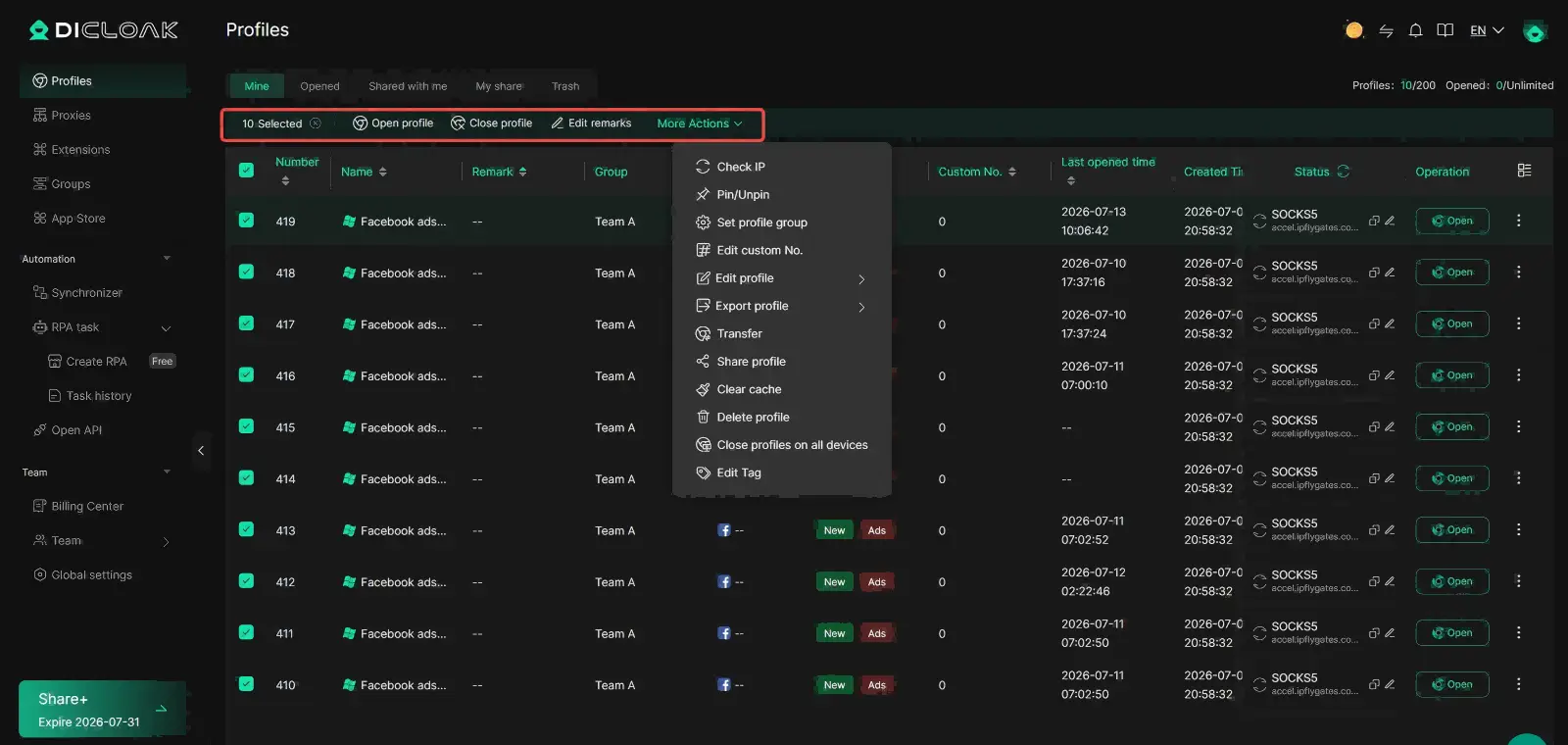
When several Discord accounts are used in the same browser, account sessions may become harder to keep organized. You might open the wrong account, mix up active sessions, or spend more time switching between logins. Teams can use DICloak to create a separate browser Profile for each authorized account, which may make daily account management easier to follow.
For example, a community manager may use one Discord account for customer support, another for moderation, and another for testing. Keeping these accounts in separate Profiles may make it easier to see which account is active and reduce accidental session mix-ups. When several team members are involved, they can also assign access to selected Profiles based on their roles. This type of setup may simplify shared account work, although Discord's own account, verification, and security rules still apply.
Keeping Browser Profiles and Fingerprint Settings Separate
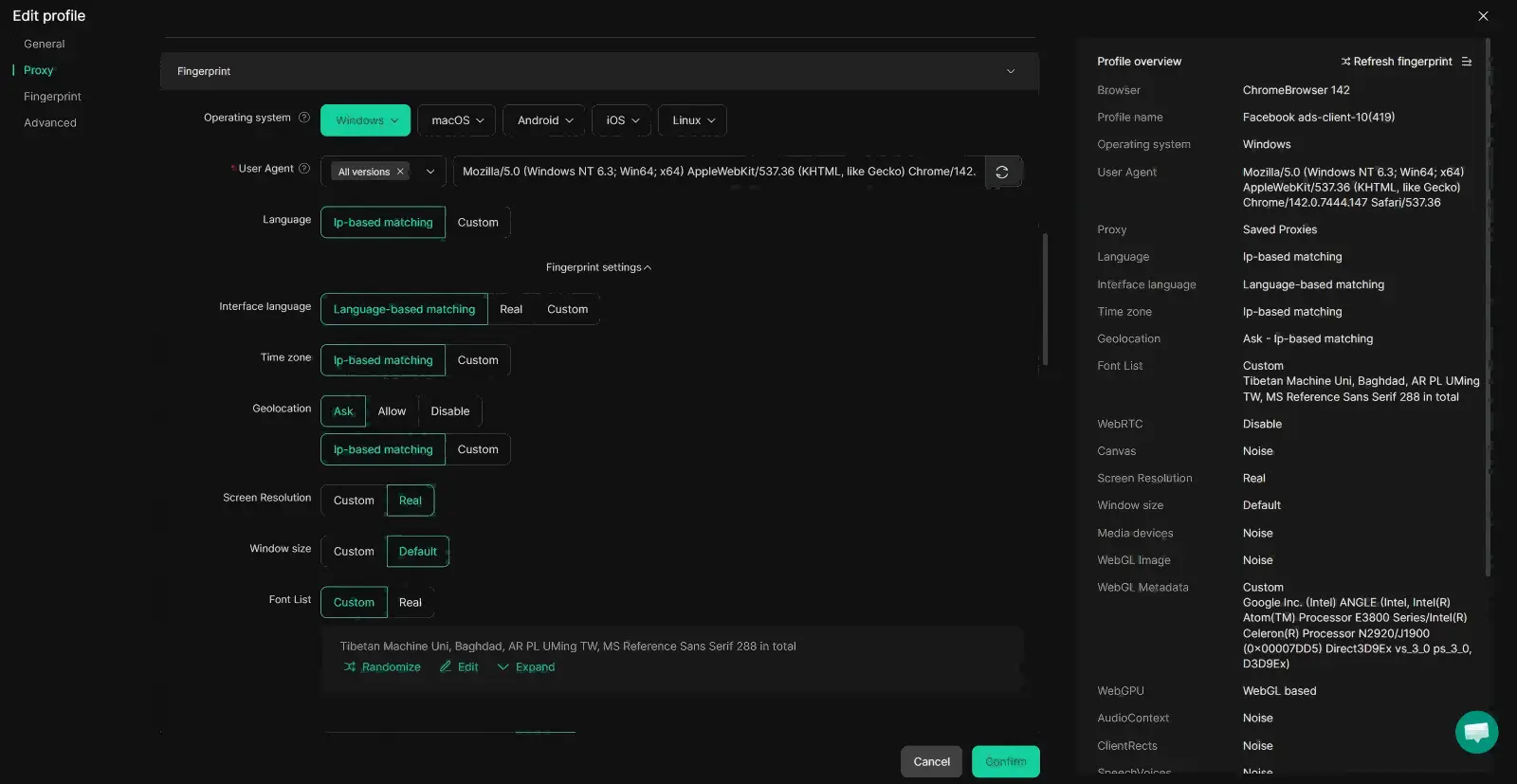
A browser fingerprint can include information such as the operating system, language, timezone, screen settings, and other browser-related details. When several accounts are managed through the same browser setup, some of this information may naturally be shared. Teams can use DICloak to configure separate browser Profiles and adjust fingerprint settings for different authorized accounts when their setup requires it.
This type of separation may help teams keep browser settings more consistent from one session to another, but it should not be treated as a way to avoid Discord verification or security checks. In many cases, keeping one account in the same Profile with broadly consistent settings may be more practical than frequently changing its browser configuration. For example, a team may continue using the same Profile for one Discord account instead of rebuilding its setup before every login.
If Discord shows Discord phone errors, changing browser or fingerprint settings may not address the underlying issue. Problems such as an unsupported phone number, a number already connected to another account, or a temporary verification restriction may need to be handled through Discord's own verification process. In those situations, the official dis.gd phone errors guidance may be more relevant than adjusting browser settings.
Keeping Account Access More Consistent Across a Team
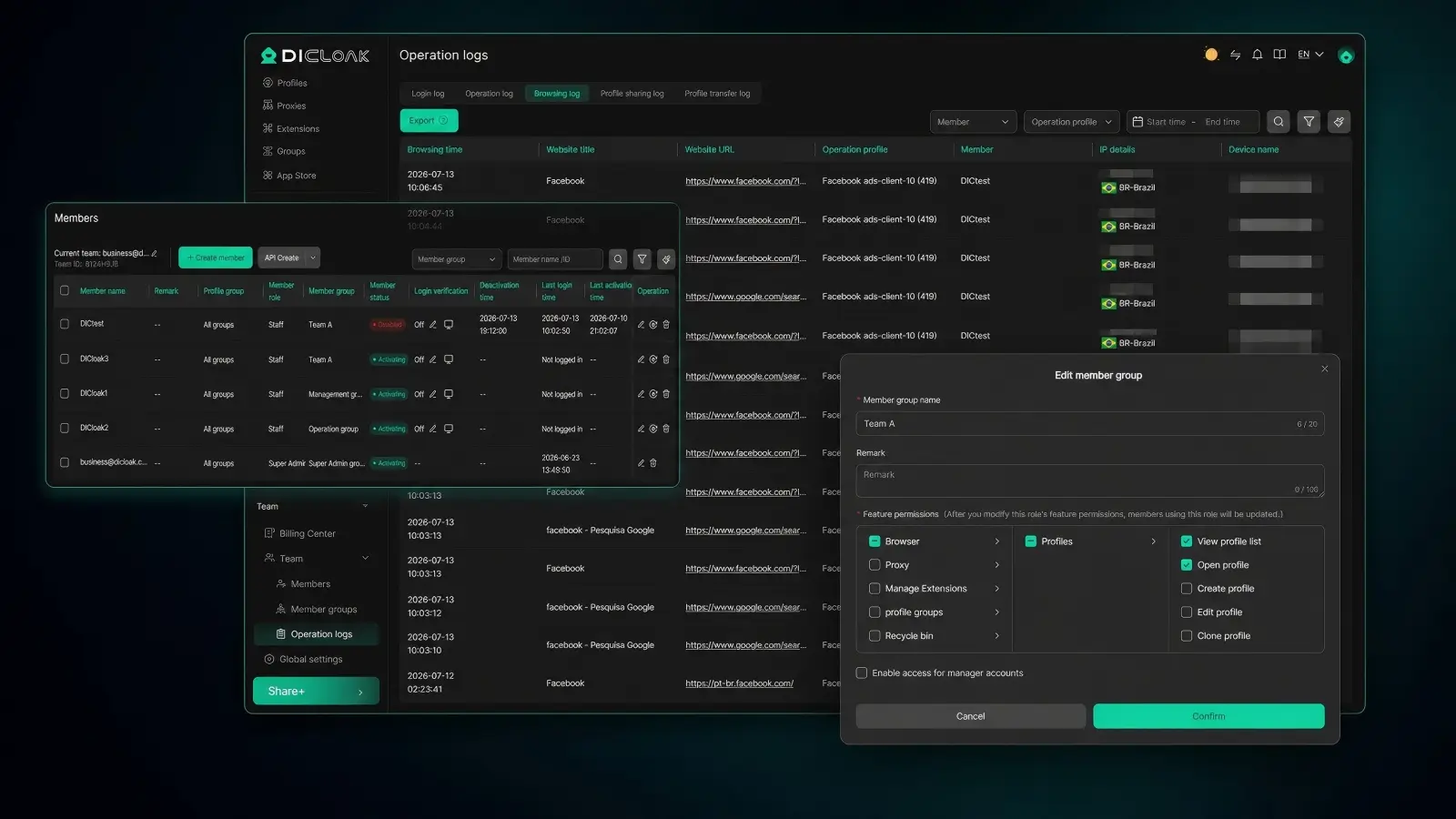
Account access may become harder to organize when team members work from different computers or locations. One person may use an office device, while another may need to continue the same account work elsewhere. If each person starts with a new browser session, the account setup may become less consistent and harder for the team to track over time.
Teams can use DICloak to keep an authorized Discord account in a dedicated browser Profile and give selected members access when needed. By continuing to use the same Profile, team members may be able to keep cookies, session data, and browser settings more consistent during account handoffs. This can also make it easier to identify the correct account and reduce the chance of using the wrong saved session.
For example, a Discord moderation team working from different locations may choose to use one assigned Profile for a shared community account instead of having every member create a separate browser setup. This approach may make account access easier to organize, but it does not guarantee fewer verification or security checks. Discord may still request additional verification depending on its own systems and the account's activity.
The main point is to use an antidetect browser as an account organization and session management tool, rather than as a replacement for Discord's verification system. Teams should still keep the account email verified, use a valid phone number when Discord requests one, and enable MFA when appropriate. If Discord asks for another verification check or places a restriction on an account, users should follow Discord's official verification and recovery process.
Frequently Asked Questions About How to Verify a Discord Account
1. How do I verify my Discord account in 2026?
To learn how to verify Discord account, confirm the email linked to your account or enter a valid phone number when Discord asks. Follow the email link or enter the SMS code to finish verification.
2. Can I use Discord without verifying my account?
Yes, but some servers may limit messaging or voice access for unverified accounts. Knowing how to verify Discord account can help you meet these server requirements.
3. Why does Discord keep asking me to verify my phone number?
Discord may ask for phone verification as an extra security check or because a server requires it. Make sure your number is valid, supported, and not already linked to another account.
4. Can the same phone number verify more than one Discord account?
A phone number generally cannot stay linked to multiple Discord accounts at the same time. If it is already registered, remove it from the old account before using it for how to verify Discord account steps.
5. What should I do if Discord verification does not work?
Check the exact error first. For email issues, resend the verification email; for phone issues, check whether your number is supported. If the normal how to verify Discord account steps still fail, contact Discord Support.
Conclusion
Knowing how to verify Discord account details can help you avoid many common problems, from missing verification emails to phone errors and server access limits. In most cases, the process is simple: confirm your email, add a valid mobile number when Discord requires it, and follow the exact message shown on your account. If something goes wrong, checking the real cause first is usually more useful than repeating the same step.
Verification is also only one part of keeping a Discord account in good shape. Use a strong password, enable MFA when possible, and follow Discord’s rules when managing your account. If you work with several authorized Discord accounts, keeping their browser sessions organized may also make daily account management easier. The safest approach is to treat verification as part of normal account security, not as a one-time task you only think about when access is already limited.
 Web Proxy Tools
 Free Tools
 Cookie Plugin
 UA Generator
 MAC Address Generator
 IP Generator
 IP Address List
 2FA Code Generator
 World Clock
 Anonymous Check
 WebRTC Leak Test
 UUID Generator
 Free Web Proxy Site
 Proxy Checker
 FB Ad Checker
 AI Web Scraping
 Free SMM Tools
 Twitter Shadowban Checker
 Instagram Name Checker
 UTM Generator
 Username Generator
 AI Hashtag Generator
 LinkedIn Headline Generator
 Social Media Image Resizer