Sharing Bolt.new with a team sounds simple until you decide who actually needs access. Should you share one project, add everyone to Bolt Teams, or let trusted teammates use the same existing account? The cost can change that decision too: Bolt Pro starts at $25 per month, while Teams costs $30 per member per month, and each paid team member gets their own token allocation instead of sharing one pool.
This guide explains how to share a Bolt.new account with your team without sharing passwords, from native project access and Bolt Teams to password managers and shared browser sessions. You will see which option fits different team setups, what you actually pay for, and how an antidetect browser like DICloak can work when several trusted teammates need the same logged-in Bolt.new session.
What Is Bolt.new and What Can Teams Do With It?
Bolt.new is an AI app and website builder that lets users create, edit, and publish projects by chatting with AI. It can also work with tools such as GitHub and Figma, while Bolt Cloud provides built-in hosting, databases, and other services for projects. For teams, the important point is that Bolt.new is better treated as a shared project workspace than as one login that everyone needs to use.
This becomes useful when several people contribute to the same product. A founder might create the first version of an app, a developer may continue the build, and a client may only need to review the result. Bolt supports project invitations, shared project access, and real-time multiplayer work, so collaborators can work inside the same project without automatically using the project owner's account.
Team collaboration still has boundaries. Bolt processes one AI prompt at a time in a shared project, and prompts use the token balance of the person who sends them. Some integrations also stay under the project owner's control, including GitHub connection management and MCP servers. These limits matter because the right way to share Bolt.new depends on what a teammate needs to do, which makes pricing, account rules, and available access options the next questions to consider.
How Much Does Bolt.new Cost, and Can You Share an Account With a Team?
Bolt.new offers Free, Pro, Teams, and Enterprise plans. For teams, the main question is whether people need their own Bolt access or only need to work on the same project or account.
Bolt.new Pricing for Individuals and Teams
With monthly billing, Bolt.new currently costs $0 for Free, $25 per month for Pro, and $30 per member per month for Teams. Enterprise pricing is custom.
| Plan |
Monthly price |
Best fit |
| Free |
$0 |
Testing Bolt or small personal projects |
| Pro |
$25/month |
One main user working on projects that may be shared |
| Teams |
$30/member/month |
Ongoing teams that need separate member access and team controls |
| Enterprise |
Custom |
Larger organizations with advanced requirements |
The biggest difference for account sharing is that Teams gives each paid member their own access and token allocation. Tokens are not placed into one shared team pool. That makes Teams a better fit for people who use Bolt regularly. If a freelancer only needs to work on one project for a short time, adding a full paid member may not always be necessary.
Can Multiple People Use the Same Bolt.new Account?
Teams can work around the same Bolt projects without always sharing one login. Bolt supports project sharing and team access, so collaborators can join with their own accounts and receive the permissions they need. But this is not always the same as using the original account. Some settings and connected services can still depend on the project owner, so a teammate may sometimes need access to the same existing account context. The right option depends on the task. Project sharing works well for limited access, Bolt Teams fits ongoing collaboration, while other sharing methods may be more useful when a trusted teammate needs the same logged-in account session.
What Are the Best Ways to Share Bolt.new With a Team?
There are several practical ways to share Bolt.new with a team, and the best option depends on what your teammates need to access. Project sharing works well for one project, Bolt Teams fits regular collaboration, while password managers and shared browser sessions are useful when several trusted users need the same account access. The key is to match the sharing method to the actual work instead of giving everyone more access than they need.
| Method |
Best for |
How access works |
| Bolt Project Sharing |
Clients, freelancers, developers |
Each person uses their own Bolt account to access a shared project |
| Bolt Teams |
Teams that work together regularly |
Members get their own team access and token allocation |
| Password Manager |
Trusted users who need the same login |
Login credentials are shared through a password manager |
| Antidetect Browser |
Teams that need the same existing Bolt.new session |
Members work from a shared browser Profile with the existing login session |
Share a Bolt.new Project With Viewers or Editors
Project sharing is often the easiest choice when another person only needs access to one Bolt.new project. You can invite a collaborator and give them Viewer or Editor access, so they can join from their own Bolt account instead of using yours.
Viewer access fits people who mainly need to review a build, such as a client checking progress or a manager giving feedback. Editor access makes more sense for a developer or designer who needs to prompt Bolt, edit files, or continue building the project. Since Editors can access more project information, including environment variables, there is little reason to give Editor access to someone who only needs to review the result.
This option works especially well for short projects and outside collaborators. For example, if a freelance developer is fixing one feature for a week, sharing that project may be all the access they need.
Use Bolt Teams for Ongoing Collaboration
Bolt Teams is a better fit when the same people work together regularly rather than joining one project for a short task. Each paid member gets their own access and token allocation, while admins can manage members, roles, subscriptions, and shared projects from the team.
A small product team is a typical example. If a founder, developer, and designer all use Bolt throughout the week, giving each person their own Team access is usually easier to manage than having everyone depend on one login. Team members can also work across multiple shared projects without being invited from scratch each time.
The important cost detail is that Team tokens are assigned to individual members rather than combined into one shared pool. Teams therefore makes the most sense when several people actively use Bolt, not simply because several people need to see the same project.
Share Login Credentials With a Password Manager
A password manager is another straightforward option when several trusted users need the same Bolt.new account. Instead of sending the password through email, chat, or a spreadsheet, the login can be stored and shared from one place.
This setup is useful when the team specifically wants to work from the same account rather than use separate collaborator accounts. It is simple to understand and does not require changing the way the original Bolt account is organized.
The main difference is that a password manager shares the credential, not the existing browser session. A teammate may still need to sign in again, complete any login checks, and create their own browser session before starting work. For teams that want to continue from an account that is already signed in, a shared browser session offers another option.
Use an Antidetect Browser for the Same Existing Session
If several trusted teammates need to use the same Bolt.new account, sharing the existing browser session can be more convenient than passing the login details around each time. The account can stay signed in inside one browser Profile, while selected team members open that same Profile when they need to continue the work.
With DICloak Antidetect Browser, teams can share a Bolt.new browser Profile with selected members instead of repeatedly sending the password. Profile sharing keeps the existing login session inside the shared Profile, while team permissions let admins decide which members can access it. Operation logs can also give the team a clearer record of Profile activity when several people are involved.
This can be useful for agencies, small teams, or temporary collaborators working from one existing Bolt.new account. For example, if a project manager creates the Bolt account and a developer needs to continue work later, the developer can open the shared Profile and work from the existing session rather than requesting the password and signing in again.
Why Use DICloak to Share a Bolt.new Account Without Sharing the Password?
If several trusted teammates need to use the same Bolt.new account, an antidetect browser can make account access easier to manage than sending the password each time. With DICloak Antidetect Browser, the team can keep the existing Bolt.new login inside one browser Profile and share that Profile with the people who need it.
This setup is especially useful when one person creates the Bolt.new account but other teammates need to continue work from the same signed-in session. Instead of asking for the login again, they can open the shared Profile and continue from the existing account setup.
- Share the existing Bolt.new session instead of the password. With Profile sharing in DICloak, teammates can use the browser Profile where Bolt.new is already signed in. This works well for a project manager handing work to a developer, or for team members who take turns working from the same Bolt.new account.
- Control who can open the Bolt.new Profile. Team permissions let admins choose which members can access a shared Profile. If only two developers need the Bolt.new account, there is no need to give the whole team access. This keeps account sharing focused on the people who actually work on that project.
- Review access and remove it when the work ends. Operation logs give teams a clearer view of Profile activity, while shared Profile access can be changed when a freelancer leaves or a project ends. This is more practical than keeping login details in old chat messages or shared documents after the work is finished.
Using DICloak lets trusted teammates work from the same existing Bolt.new browser session without repeatedly passing the account password around. For teams that choose this type of account sharing, the next step is setting up the Bolt.new Profile and giving the right members access.
How to Share a Bolt.new Account With Your Team Using DICloak
If your team needs to work from the same existing Bolt.new account, you can keep the logged-in session inside one browser Profile and share that Profile with selected teammates. With DICloak, the setup mainly involves creating the Profile once, signing in to Bolt.new, and deciding who can open it.
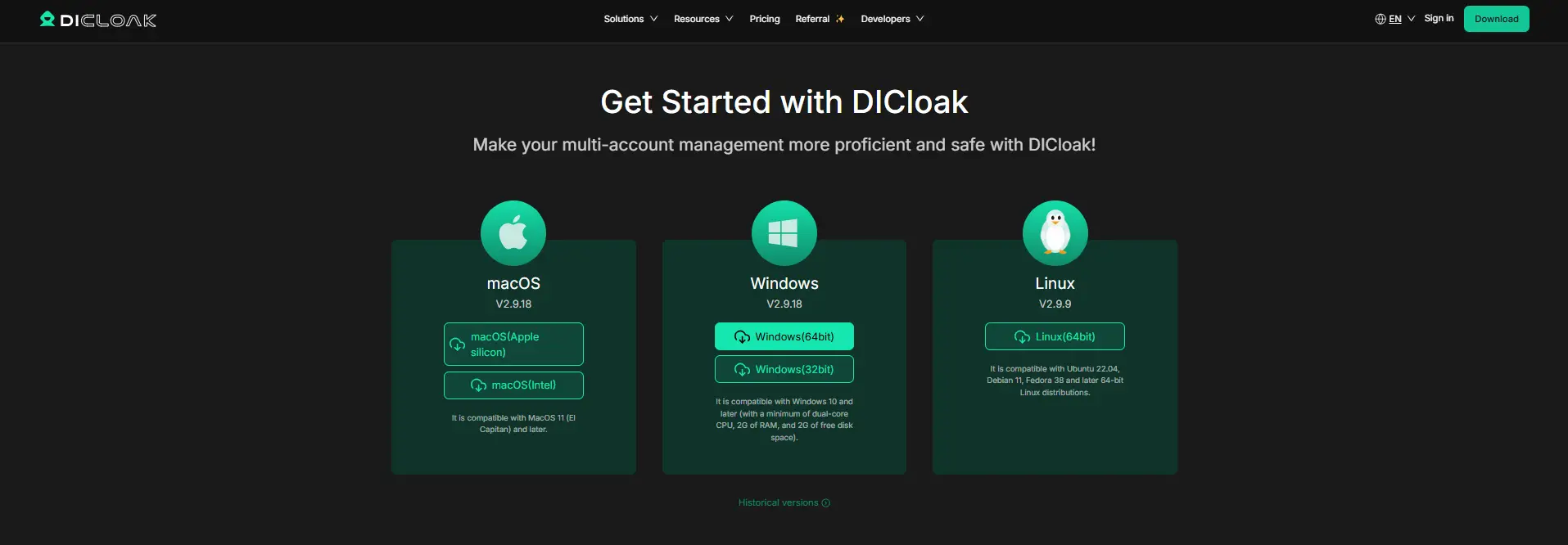
Step 1: Download and Install DICloak
Go to the official DICloak download page, install the desktop app, and create an account. The person managing the shared Bolt.new account should complete the first setup so they can create the Profile and manage team access later.
Step 2: Choose a Plan That Supports Team Sharing
Pick a DICloak plan based on how many teammates need access and how many browser Profiles your team plans to manage. For a small Bolt.new team, profile sharing and member support matter more than advanced automation features.
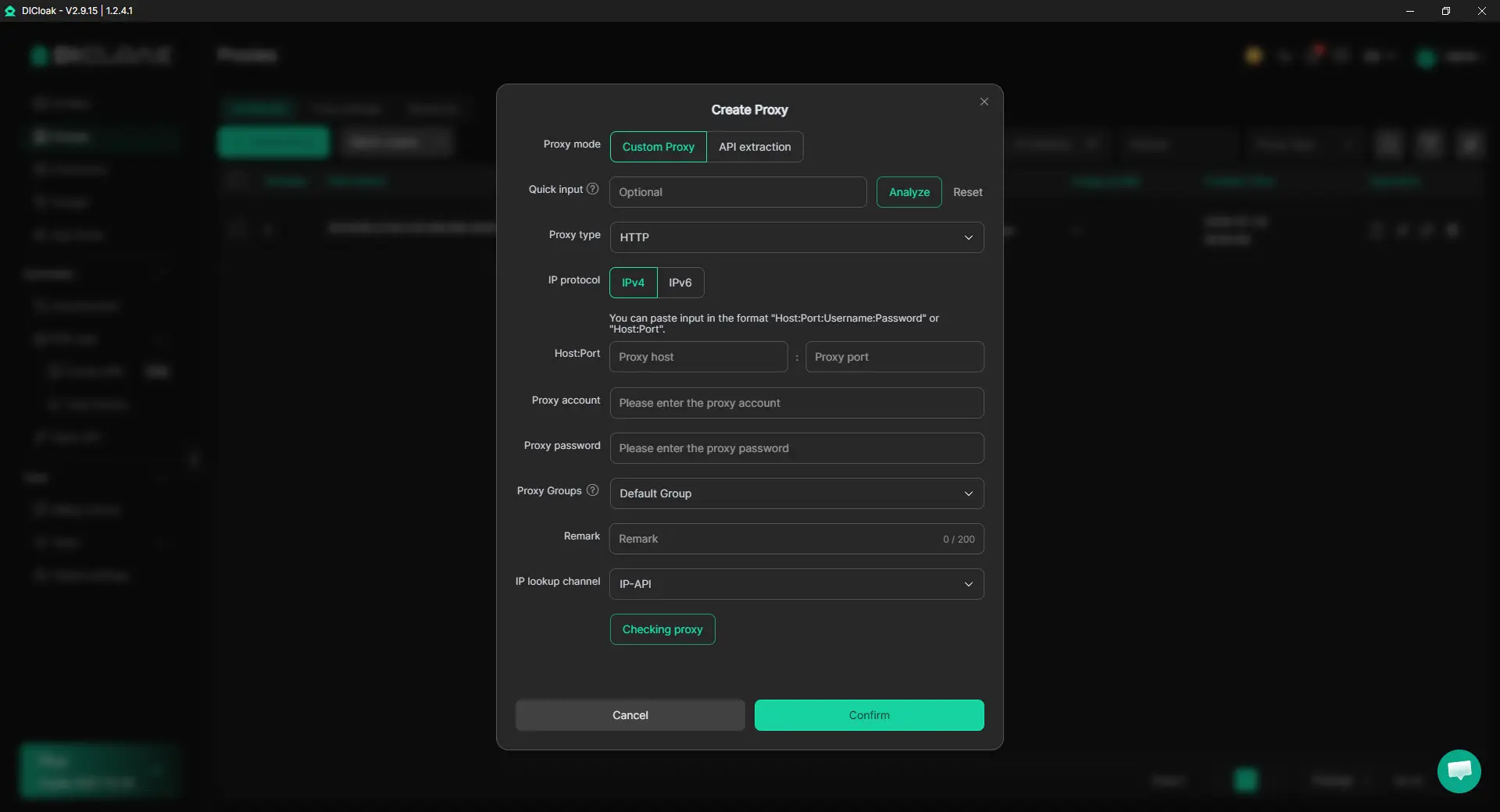
Step 3: Add a Proxy If Your Team Uses One
A proxy is optional. If the Bolt.new account already uses a specific user-configured proxy setup, you can assign that proxy to the browser profile, so teammates open the account with the same network configuration.
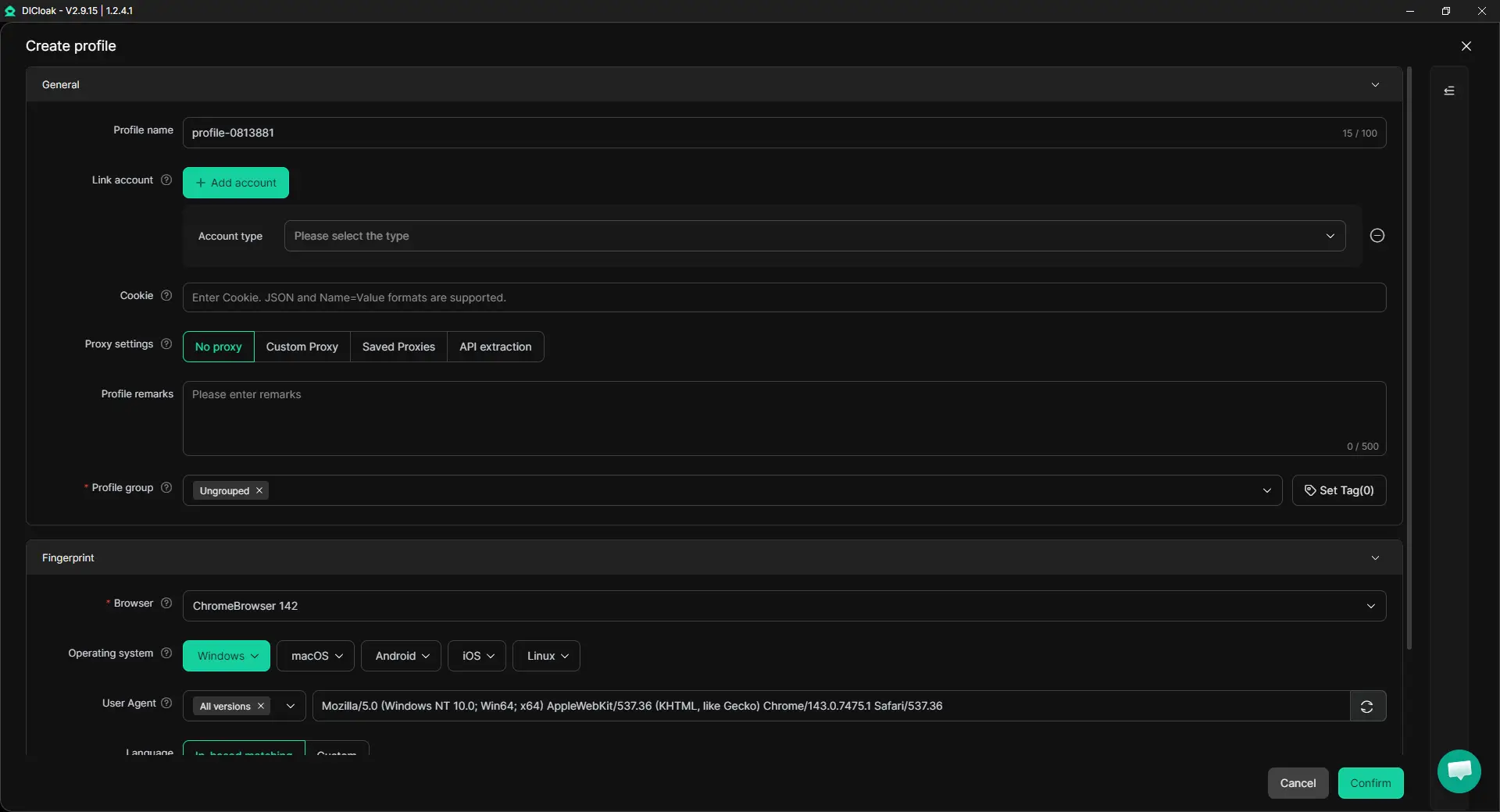
Step 4: Create a Dedicated Bolt.new Browser Profile
Create one browser Profile for the shared Bolt.new account instead of mixing it with other client or project accounts. The Profile keeps cookies, browser data, and the login session together, so teammates can return to the same account setup when they open it.
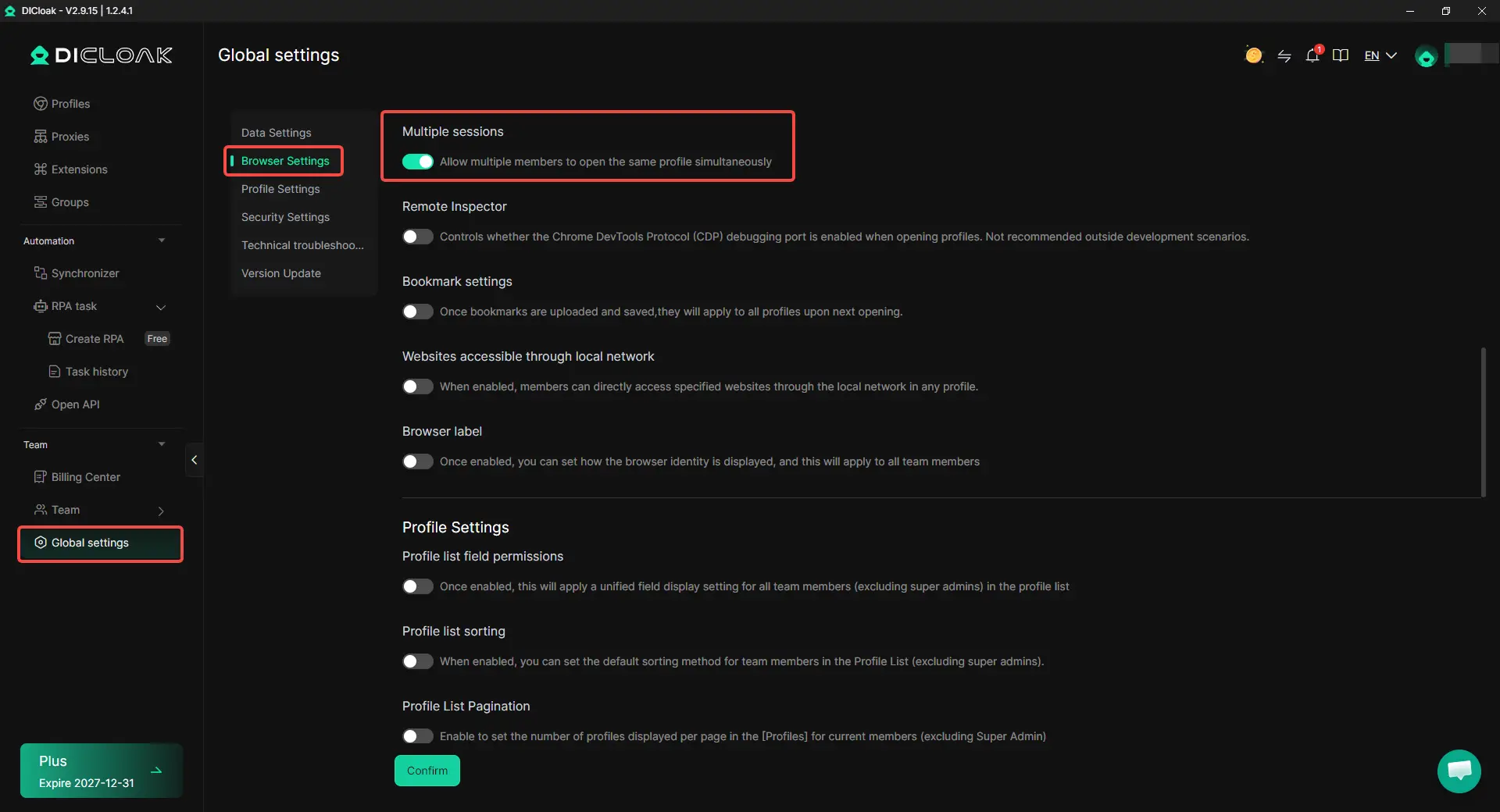
Step 5: Enable Multiple Sessions Only If You Need Them
If several teammates need to open the same Bolt.new Profile at the same time, enable Multiple sessions in the relevant settings. If people normally take turns, a simple handoff is easier and this option can stay off.
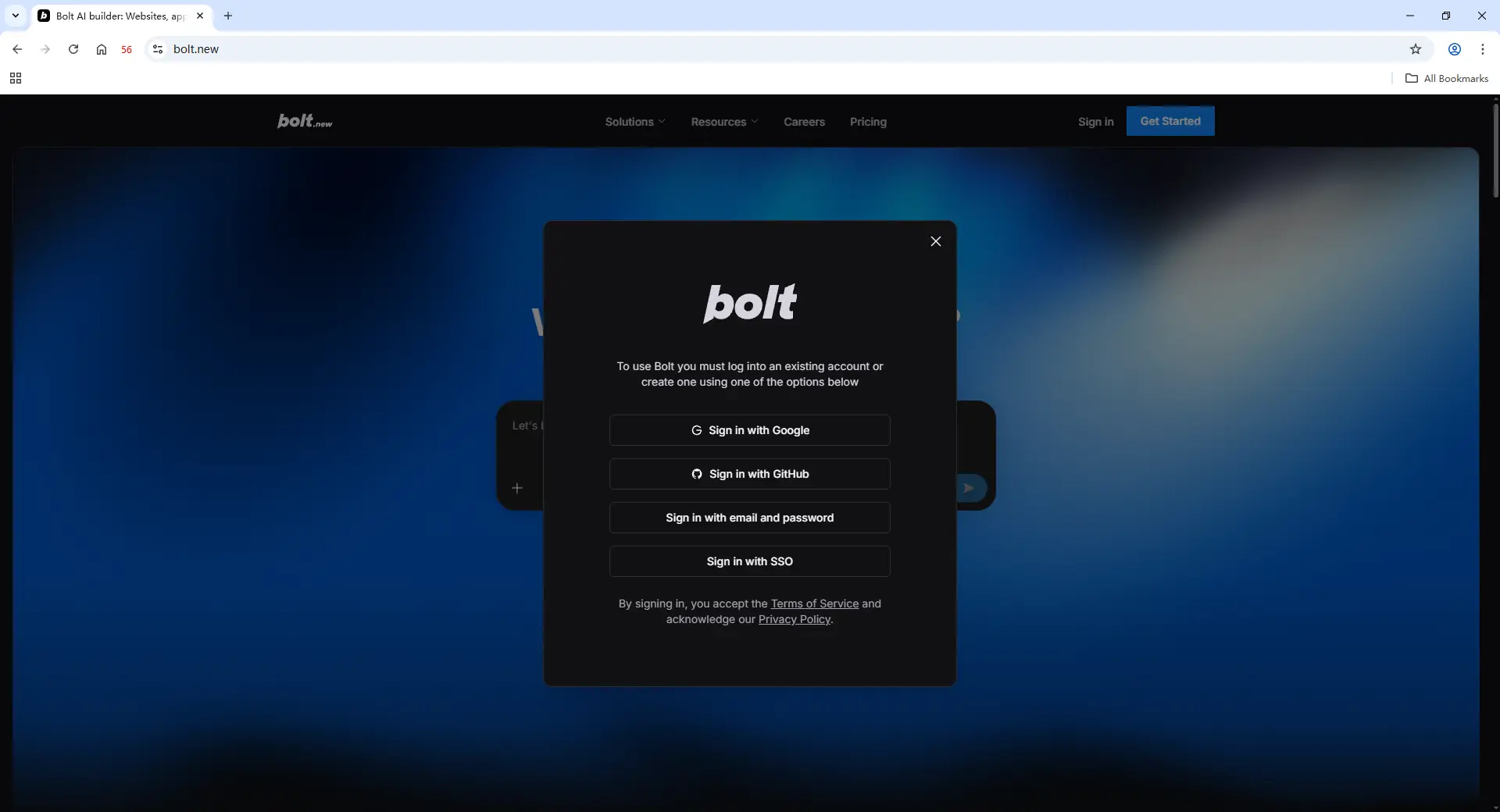
Step 6: Sign In to Bolt.new
Open the new Profile, go to Bolt.new, and sign in to the account. Once the login session is saved in the Profile, teammates with access can reopen that session without asking for the password each time.
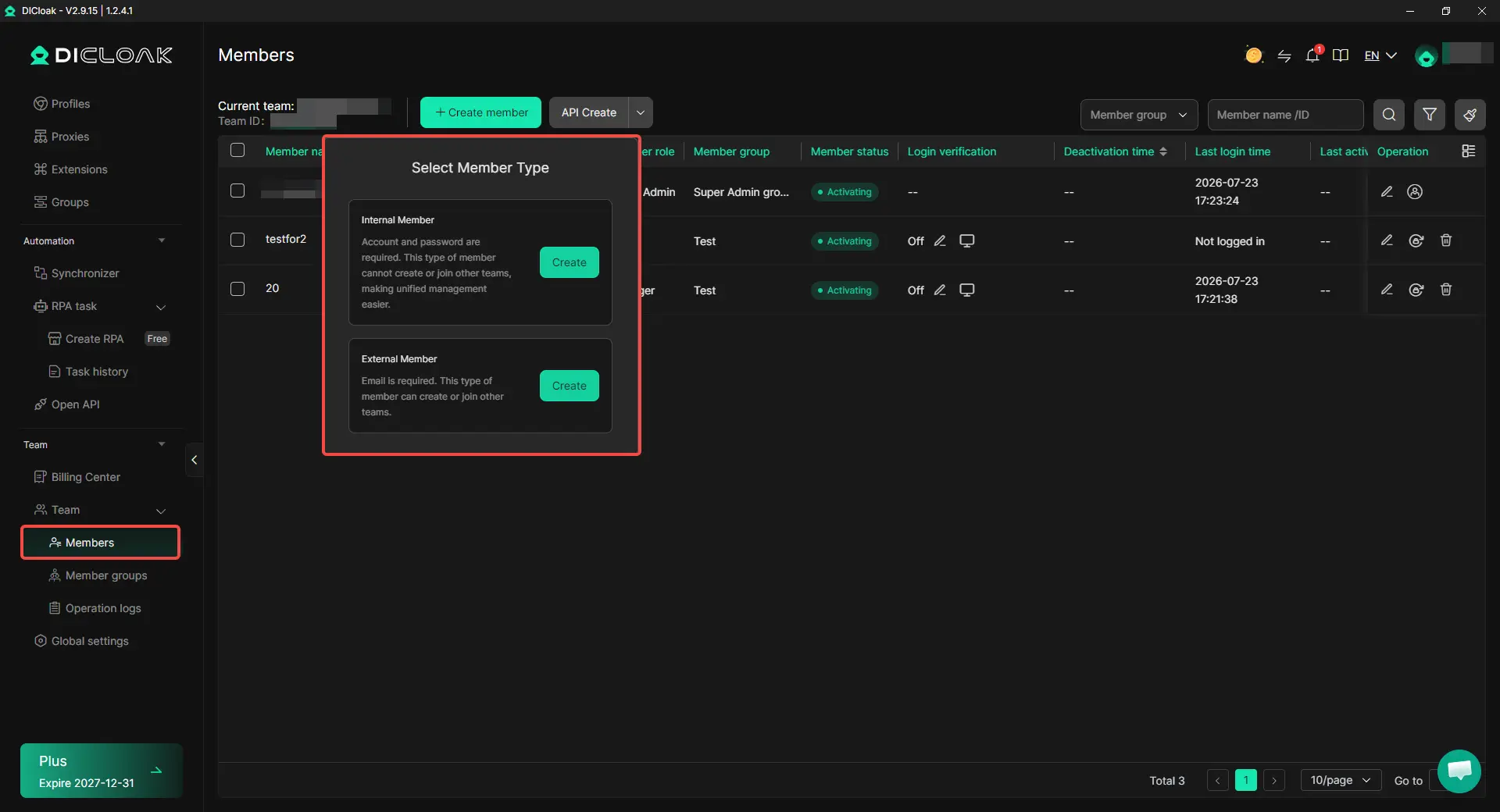
Step 7: Add Team Members and Share the Profile
Invite the people who need the Bolt.new account, then give them access to the dedicated Profile through the team and Profile-sharing controls. For example, a project manager can share the Bolt.new Profile with the developer working on that project without giving the same access to every team member.
Step 8: Open the Shared Bolt.new Profile
After a teammate joins the team and receives Profile access, the Bolt.new Profile will appear in their DICloak app. They can open it from their own computer and continue working from the existing logged-in session.

Frequently Asked Questions About Sharing Bolt.new With a Team
Do you need Bolt Teams to share a Bolt.new account or project?
No. If another person only needs to view or edit one project, Bolt.new project sharing may be enough because you can invite them with their own account and give them Viewer or Editor access. Bolt Teams is more useful when several people work together regularly and need separate member access, token allocations, and team-level management.
Can two people work on the same Bolt.new project at the same time?
Yes. Bolt.new supports multiplayer collaboration, so several collaborators can work in the same project. However, Bolt processes one AI prompt at a time, so another teammate may need to wait while a prompt is running. This makes real-time collaboration useful for shared development, but teams should still coordinate who is prompting or making major changes.
Whose tokens are used when a teammate works on a shared Bolt.new project?
The tokens come from the account of the person who sends the prompt, not automatically from the project owner's balance. On Bolt Teams, each paid member also receives their own token allocation rather than using one shared team token pool. This matters for teams with heavy and light users because one member cannot simply spend another member's unused allocation.
Can you share the same Bolt.new login without giving teammates the password?
Yes, if your team specifically needs the same existing login session, a shared browser Profile can be another option. Using an antidetect browser like DICloak, trusted teammates can open a Bolt.new Profile that already contains the saved login session, while Profile sharing and team permissions control who can access it.
What should you do when a freelancer no longer needs access to a shared Bolt.new account?
Remove the type of access you originally gave them. This may mean removing their Bolt project access, taking them out of the Bolt Team, or revoking access to a shared browser Profile. If the team used DICloak Antidetect Browser for the same Bolt.new session, Profile access can be removed without changing how the remaining teammates use that Profile.
Conclusion
Sharing Bolt.new with a team does not have to mean passing one password between several people. The right setup depends on what teammates actually need: project sharing works well for limited collaboration, Bolt Teams fits ongoing team work, and a password manager or shared browser session can make more sense when several trusted users need access to the same account. For teams that want to share a Bolt.new account with their team without sharing passwords, using an antidetect browser like DICloak can keep the existing login session inside one shared browser Profile and control which members can open it. The key is to choose the access method that matches the task, rather than giving every teammate more access than they need.
 Web Proxy Tools
 Free Tools
 Cookie Plugin
 UA Generator
 MAC Address Generator
 IP Generator
 IP Address List
 2FA Code Generator
 World Clock
 Anonymous Check
 WebRTC Leak Test
 UUID Generator
 Free Web Proxy Site
 Proxy Checker
 FB Ad Checker
 AI Web Scraping
 Free SMM Tools
 Twitter Shadowban Checker
 Instagram Name Checker
 UTM Generator
 Username Generator
 AI Hashtag Generator
 LinkedIn Headline Generator
 Social Media Image Resizer