Why Does Discord Fail to Login When Using a Proxy?
A Discord Login Not Working with Proxy problem does not always mean your password is wrong. In many cases, the login request never reaches Discord correctly. The proxy may be slow, offline, set up incorrectly, or unable to handle the connection Discord needs. This matters because Discord's own troubleshooting guides still tell users to check or disable proxies when connection problems appear. Discod also lists ERR_PROXY_CONNECTION_FAILED as a proxy-related error. Other connection errors can include timeouts, connection resets, and DNS failures. So, if you can’t log into Discord when using a proxy, it helps to separate two questions first: Is the proxy breaking the connection, or is Discord asking for extra account verification?
Common proxy-related issues affecting Discord login
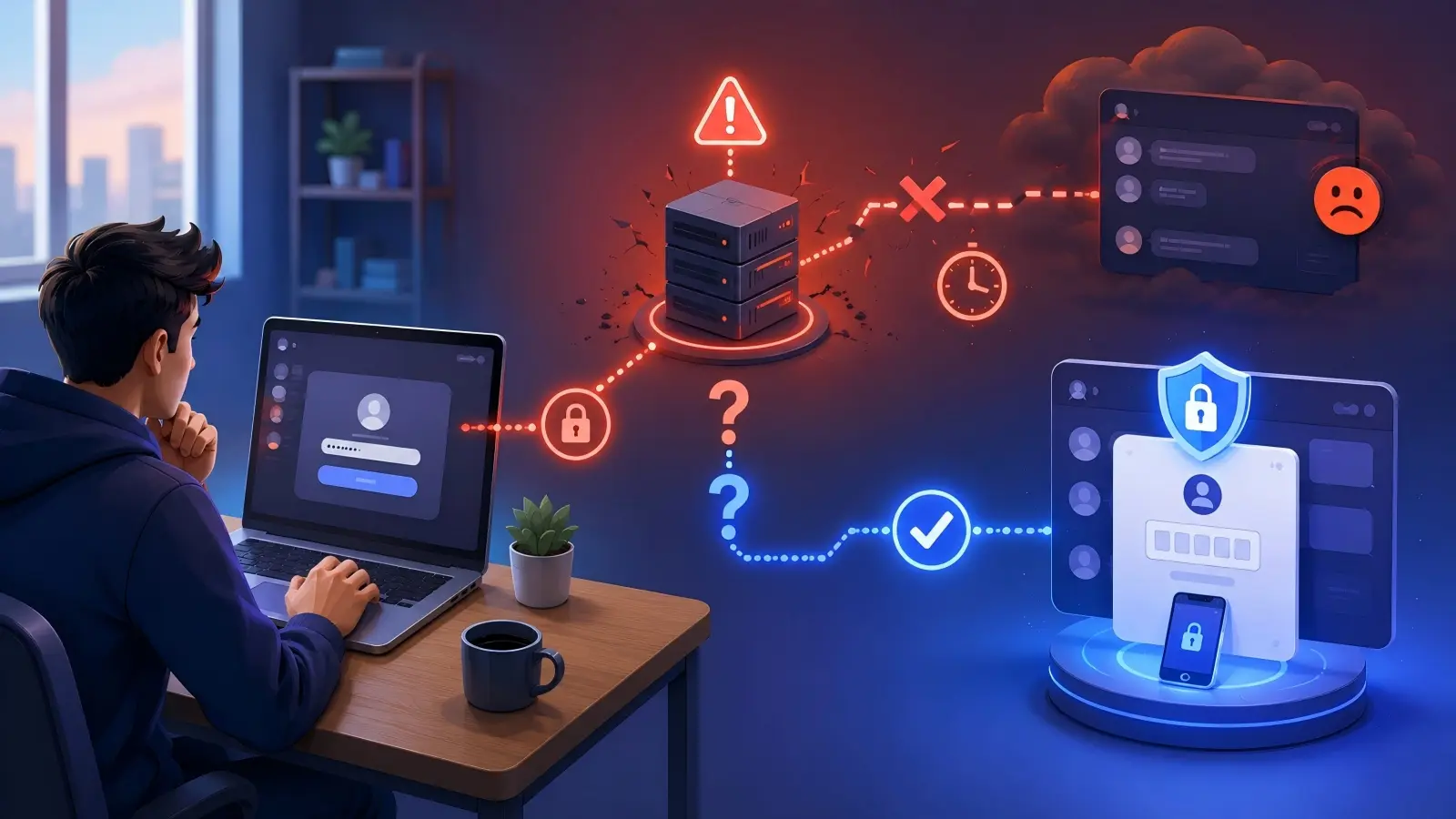
The first problem is often the proxy connection itself. A proxy sits between your device and Discord. Your login request goes to the proxy first. The proxy then sends it to Discord. If that middle step fails, Discord may never receive a complete request.
For example, imagine that Discord works normally on your home Wi-Fi. You enter the same email and password after turning on a proxy. This time, the page keeps loading or the desktop app stays on Connecting. You turn the proxy off, and Discord opens right away. That pattern strongly points to the network path rather than the account password. Several things can cause it.
The proxy server may simply be offline. It may also be overloaded. A page such as Google might still open, but Discord requests may time out because the connection is too slow or unstable. Proxy authentication can also create problems. Some proxies require a username and password before they allow traffic through. If those details are missing or entered in the wrong place, the browser or app may fail before Discord can even process the login. DNS is another possible cause. Your device needs to turn a domain such as discord.com into an IP address before it can connect. Discord's troubleshooting documentation lists ERR_NAME_NOT_RESOLVED among common connection errors and recommends checking DNS when connection problems continue. An unstable proxy can be even harder to spot. Suppose one login request leaves through one IP address, while the next request leaves through another. The connection may appear normal for a few seconds, then fail during login or verification. This is why simply seeing that a proxy is "online" is not enough. A stable connection matters too.
How Discord’s security measures interact with proxies
A working proxy can still change how a login looks from Discord's side. When you connect through a proxy, Discord sees the proxy's exit IP rather than your normal public IP. If that exit point is in another city or country, the network location connected to the login may look different from your usual connection. However, there is an important distinction here. Discord does not publicly state that using a proxy by itself will automatically trigger account verification. It would be misleading to say that every proxy login is treated as suspicious. What Discord does confirm is that it may show a Verification Required message when its safety systems detect activity that needs extra checks. Verification can involve an email address, phone number, or CAPTCHA. Discord says these checks help reduce automated abuse and spam.
Discord also supports several forms of multi-factor authentication in 2026, including passkeys and security keys, authenticator apps, SMS, and backup codes. These checks can become another part of the login flow when MFA is enabled on the account. Consider a simple example. A user normally logs in from the same laptop and the same local network. Later, the user connects through a proxy with an exit IP in another region and starts a fresh login session. The password can still be correct. But the login now comes through a different network route. If Discord requests extra verification at the same time, the user may think the proxy "blocked" the account. In reality, there may be two separate events: the proxy changed the connection, and Discord's security system requested another proof of account ownership.
CAPTCHA can create a similar misunderstanding. Discord confirms that CAPTCHA may appear as an additional security step during account verification. If the proxy connection is slow or keeps changing while that CAPTCHA loads, the verification process may fail even though the account itself is fine. This is why it is useful to distinguish a network failure from a verification challenge. They can look similar on the screen, but they need different fixes.
Signs your proxy settings might be causing the problem
The strongest sign is simple: Discord works without the proxy but stops working when the proxy is enabled. For example, you may see this pattern:
- Discord Web opens normally on your direct connection.
- You enable the proxy.
- The login page becomes slow or stays on a loading screen.
- Other sites may still work.
- You disable the proxy.
- Discord starts working again.
That is much stronger evidence of a proxy problem than a generic "Login failed" message. A Connecting screen is another useful clue. Discord's current troubleshooting page specifically tells users who are stuck on this screen to check their proxy settings and make sure a proxy is not enabled. Error messages can provide even clearer evidence. For example, ERR_PROXY_CONNECTION_FAILED points directly to the proxy layer. Errors such as ERR_CONNECTION_TIMED_OUT, ERR_CONNECTION_RESET, or ERR_NAME_NOT_RESOLVED can also suggest that the network path, DNS, firewall, or proxy configuration needs attention. Repeated verification prompts are different. They do not prove that the proxy is broken. They tell you that the login or account verification process needs more attention. Discord's official guidance says a Verification Required screen is part of its safety system, and CAPTCHA can also appear during verification.
Before changing your account settings, it is also worth checking Discord's official status page. If Discord is having a wider outage, switching proxy servers will not fix the real problem. Discord itself recommends checking its Status page when connection errors appear. The key is to compare the same login under two conditions. Try the same device and the same account once with the proxy and once without it. If the problem only appears after the proxy is enabled, you have a much clearer starting point for the next step.
Risks of Using Proxies for Discord Login
Once you have confirmed that the proxy is part of the login problem, the next question is whether it is only a connection issue. Sometimes it is. But proxy quality, security, and how the connection is used can create other risks too. This does not mean every Discord Login Not Working with Proxy case puts your account in danger. A reliable proxy used for normal activity is very different from an unstable public proxy used for spam or automation. Understanding that difference can save you from fixing the wrong problem.
Can proxies lead to account restrictions or bans?
Using a proxy does not appear by itself on Discord's current list of prohibited activities. Discord's rules focus much more on what an account does. For example, Discord prohibits spam, platform manipulation, automated account registration, self-bots, and attempts to evade permanent enforcement. Discord can warn, restrict, suspend, or remove accounts when its rules are broken. This distinction matters.
Imagine two users. The first user connects through a proxy because they are on a different network. They sign in, talk with friends, and use Discord normally. The second user connects many accounts through changing proxy IPs and uses automation to send large numbers of unsolicited messages. Both users may be using proxies. But their behavior is very different. Discord's policies clearly identify spam, automated abuse, and platform manipulation as violations. The proxy itself is not what makes the second case a policy problem. Discord's Terms of Service also give the company the right to suspend or terminate access when users break its terms or when continued access creates a risk to Discord, its users, or third parties. Its updated Warning System explains that rule violations may lead to restrictions that affect an account's standing.
There is another issue to consider: the IP address you receive from a proxy may have been used by other people before you. Suppose you buy access to a heavily shared proxy. You have no control over what previous users did with that IP. This does not mean Discord will automatically restrict your account because of the IP. Discord does not publish a rule saying that a shared or previously used proxy IP will cause a ban. Still, shared infrastructure can make troubleshooting harder. If you suddenly face verification screens or connection problems, you may not know whether the cause is your account, the proxy connection, or the network history of that exit point.
So if you can’t log into Discord when using proxy, do not immediately assume your account has been banned. First check whether Discord shows an actual warning, restriction, or account status message. A loading error or failed proxy connection is not the same thing as an enforcement action.
How insecure proxies can expose your data
A proxy should be trustworthy because your traffic passes through its network before reaching Discord. HTTPS protects your password and other sensitive data when the secure connection works correctly. So a proxy cannot simply read every Discord password. Still, an untrusted proxy may collect network data or cause certificate problems. For example, if Discord suddenly shows a certificate warning after you enable a proxy, do not enter your password. Fix the connection first. Free proxies can be especially risky because you may not know who runs them or how they handle logs. Use a trusted provider and enable multi-factor authentication for extra account protection.
Why some proxies fail to maintain stable connections
Discord needs a stable, long-lasting connection. A proxy may load the login page but still fail to keep Discord connected. Common causes include: high latency;
- packet loss;
- overloaded shared servers;
- rotating IPs;
- expired proxy authentication;
- connection timeouts.
For example, Discord may open normally but return to Connecting after a minute. This often points to an unstable proxy rather than a password problem. A basic website test is not enough. A proxy may load simple pages but still fail during a longer Discord session. If your Discord Login Not Working with Proxy issue includes repeated reconnects, slow channel loading, or frequent timeouts, focus on connection stability. An unsafe proxy should be replaced, while an unstable proxy needs a more reliable connection.
How to Troubleshoot Discord Login Issues with Proxy
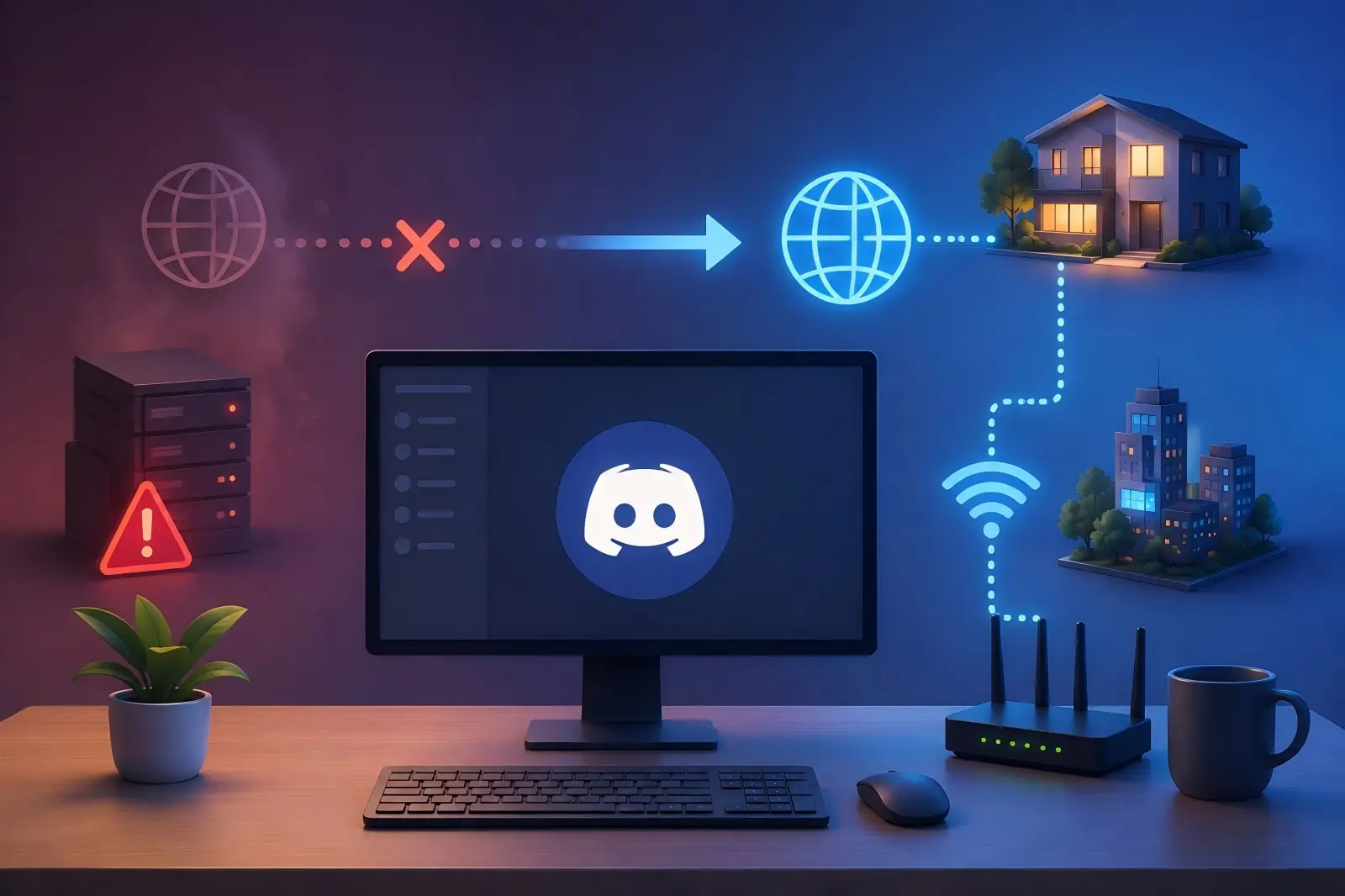
If your Discord login is not working with proxy, first find out whether the proxy is really the cause. Keep the same account, device, and browser. Change only the network connection.
Steps to identify if the proxy is causing login failures
Start by testing the proxy on normal websites. If pages are slow or keep timing out, Discord may also fail. Then check the proxy address, port, username, and password. Common errors include:
ERR_PROXY_CONNECTION_FAILEDERR_CONNECTION_TIMED_OUTERR_CONNECTION_RESETERR_NAME_NOT_RESOLVED
Also check whether the proxy IP stays the same. Frequent IP changes can cause reconnects.
How to test Discord login without a proxy
Disable the proxy and try Discord again with the same account and device. If you can’t log into Discord when using proxy, but Discord works normally without it, the proxy or its settings are likely the problem. If Discord fails on both connections, check Discord itself, your browser, app, DNS, or account verification. You can also try Discord Web and check the Discord status page.
What to do if troubleshooting doesn’t resolve the issue
If the problem continues, restart and update Discord, clear its cache, try another network, and check DNS settings. Also separate network errors from account errors. If Discord asks for MFA, email verification, or another security check, changing the proxy will not remove that requirement. If nothing works, record the exact error, whether it happens on Web or Desktop, and whether it appears with and without the proxy. Then contact Discord Support. The key is simple: find the failing layer first. This makes a Discord Login Not Working with Proxy problem much easier to fix.
Adjusting Proxy Settings for Discord Login
If Discord works without the proxy but fails after you enable it, check the proxy setup first. Discord does not have a normal in-app field for proxy IPs and ports. On desktop, proxy settings usually come from Windows or macOS. On mobile, they are often tied to the Wi-Fi network.
How to configure proxy settings for Discord on Windows
On Windows 10 and 11, go to: Settings > Network & internet > Proxy
For a manual proxy:
- Open Proxy.
- Find Manual proxy setup.
- Turn on Use a proxy server.
- Enter the proxy address and port.
- Save the settings.
Make sure the address, port, and authentication details match what your provider gave you. For example, if the correct port is 8080 but you enter 8008, Discord may stay on Connecting even though your account details are correct. After saving, open a normal HTTPS website and check your public IP. If the proxy does not work there, fix the proxy before testing Discord. If you can’t log into Discord when using proxy but Discord works as soon as you disable it, the proxy settings or connection quality are likely the cause.
Steps to set up proxy settings for Discord on macOS
On macOS, go to: Apple menu > System Settings > Network > your network service > Details > Proxies
You can choose options such as:
- HTTP proxy
- HTTPS proxy
- SOCKS proxy
- Automatic proxy configuration
Use the proxy type, server address, and port provided by your proxy service. If authentication is required, enter the username and password too. A common mistake is using the wrong protocol. For example, entering SOCKS5 details under an HTTP proxy setting can stop Discord from connecting. After saving the settings, test a few websites and confirm the exit IP. Then restart Discord. If Discord keeps returning to Connecting, the setup may be correct but the proxy itself may be unstable.
Proxy configuration tips for mobile Discord users
On mobile devices, proxy settings usually apply to a specific Wi-Fi network. On many Android phones, you can find them under the selected Wi-Fi network's advanced settings. On Google Pixel devices, the path is: Settings > Network & internet > Internet > Wi-Fi network > Edit > Advanced options > Proxy
On iPhone and iPad, go to: Settings > Wi-Fi > tap the information icon next to the network > Configure Proxy
Remember that a Wi-Fi proxy usually does not apply to mobile data. For example, if Discord fails on Wi-Fi with a proxy but works immediately on cellular data, the Wi-Fi or proxy configuration is likely involved. Whatever device you use, keep the process simple: enter the proxy details correctly, test the connection, confirm the exit IP, and then open Discord. If the Discord login is not working with proxy even though normal traffic works, the next step is to check the proxy's stability rather than repeatedly changing system settings.
What Proxy Types Work Best for Discord?
A proxy can be set up correctly and still cause Discord login problems if it is slow, unstable, or changes IPs too often. Discord does not officially recommend one specific proxy type, so focus more on connection quality and stability.
Comparing SOCKS5 and HTTP proxies for Discord
HTTP and HTTPS proxies are often enough for Discord Web. SOCKS5 is more flexible because it can support more types of traffic. However, protocol type alone does not decide performance. A stable HTTP proxy may work better than a SOCKS5 proxy that keeps disconnecting. If your Discord login is not working with proxy, check speed, stability, and IP consistency before switching proxy types.
Why residential proxies may perform better for Discord
Residential proxies use ISP-assigned IP addresses, while datacenter proxies usually come from hosting networks. A stable residential IP may work better in some cases, especially if your current datacenter proxy is heavily shared. But Discord does not officially say that residential proxies are preferred. For Discord login, avoid frequent IP rotation. A sticky or static session is usually easier to maintain because the IP stays consistent during the session.
Avoiding free proxies that cause login issues
Free proxies are often slow, unstable, and heavily shared. They may pass a basic IP test but fail when Discord needs a longer connection. They can also create security concerns. If a proxy causes certificate warnings, do not enter your Discord password until you know why. For a Discord Login Not Working with Proxy issue, choose a proxy that offers:
- stable connections;
- a consistent exit IP;
- reasonable latency;
- reliable authentication;
- and normal HTTPS connections.
The best proxy for Discord is not simply SOCKS5 or residential. A stable and predictable connection matters more than the label.
Mistakes to Avoid When Using Proxies with Discord
A good proxy can still cause Discord login problems if the IP is heavily shared, the settings are wrong, or another network setting interferes. If your Discord login is not working with proxy, check these common mistakes before replacing the proxy again.
Why using shared proxies can lead to login problems
A shared proxy lets many users connect through the same public IP. This makes the connection less predictable because other users can also affect that IP's reputation and traffic load. For example, one shared IP may work normally today but become slow or unstable later because more users are using it. Discord does not officially say that shared proxies are blocked. Still, a stable IP with less sharing is easier to manage than one that rotates often or is used by many unknown users. If you can’t log into Discord when using proxy, check whether the IP is shared, rotating, or changing during the session.
Misconfigurations that block Discord access
Wrong proxy settings are another common cause. Check:
- proxy type;
- server address;
- port;
- username and password;
- IP allowlist settings.
For example, using SOCKS5 proxy details under an HTTP proxy setting may stop Discord from loading. Authentication can also fail. If the proxy username or password is wrong, the request may never reach Discord. In that case, changing your Discord password will not help. Also make sure the proxy is configured in the correct place. A browser may use one proxy route while the Discord desktop app uses another.
Overlooked factors that disrupt proxy functionality
Sometimes the proxy is correct, but another setting causes the failure. Check your:
- system date and time;
- firewall;
- DNS;
- Discord app version;
- browser version;
- local cache.
For example, Discord may work in a browser but stay on Connecting in the desktop app because a firewall rule blocks the app. DNS problems can also stop Discord from finding the servers it needs, even when the proxy itself is online.
The best rule is simple: change one thing at a time. Test the proxy first. Then test Discord without it. After that, check DNS, firewall, system time, and the Discord app. This makes a Discord Login Not Working with Proxy issue much easier to diagnose and prevents you from changing settings that were never the real problem.
Alternative Solutions If Proxy Fails for Discord Login
If you have checked the proxy settings but Discord still will not connect, stop changing settings at random. Try a direct connection, another trusted network, or a different Discord client.
How to switch to a direct connection without a proxy
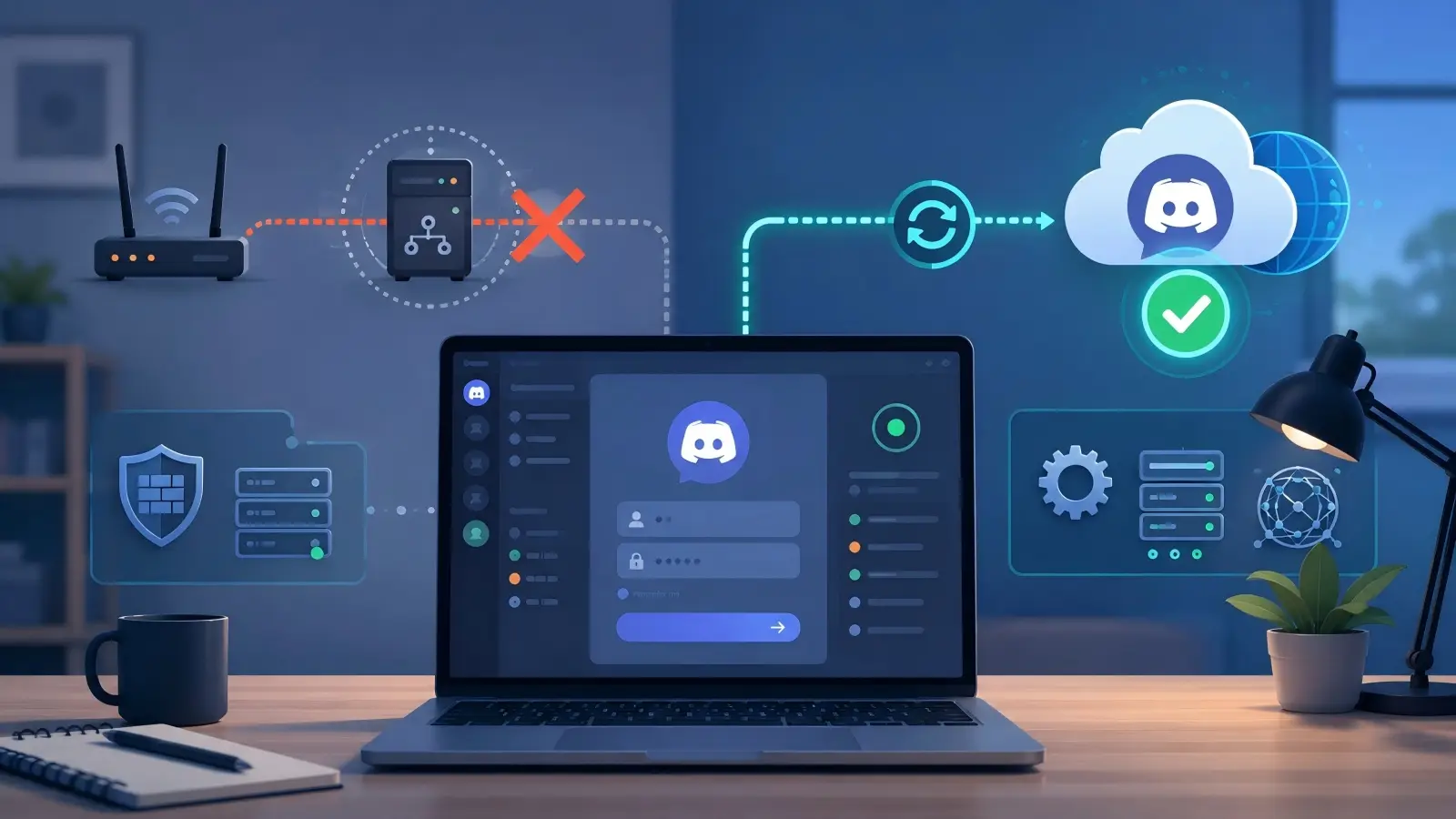
The easiest test is to disable the proxy and connect to Discord normally. On Windows, go to: Settings > Network & internet > Proxy
Then turn off Use a proxy server. On macOS, open the proxy settings for your active network and disable the proxy you added. Restart Discord and compare the result. If Discord stays on Connecting with the proxy but works normally without it, the proxy is likely causing the issue. If Discord still fails on a direct connection, check other causes such as DNS, firewall settings, Discord cache, or a service outage.
Using a secure network to avoid proxy-related issues
Another useful test is to change networks while keeping the same device and Discord account. For example, try:
- home Wi-Fi instead of office Wi-Fi;
- a personal hotspot instead of public Wi-Fi;
- another trusted private network.
If you can’t log into Discord when using proxy on one network but Discord works on another, the original network or proxy setup may be the problem. Choose a stable and trusted connection. Avoid unknown public Wi-Fi when entering account credentials.
When to consider other tools for Discord access
A failed proxy does not always mean you need another proxy. If the Discord desktop app fails, try Discord Web in an updated browser. If the web version works, the problem may be with the desktop app rather than your account. Browser Profile tools can also help when you manage several Discord work sessions. They can keep cookies, sessions, and proxy settings separate. However, they cannot repair a bad proxy or remove Discord verification requirements.
For a Discord Login Not Working with Proxy issue, match the solution to the real cause: use a direct connection for proxy failures, another network for connection problems, and another Discord client when the app itself is the issue.
A direct connection is usually the easiest choice when you only need one Discord account. But the situation changes when you manage several Discord accounts, use different proxies, or work with a team. Switching system proxy settings and signing in and out of the same browser can quickly become hard to manage. You may forget which proxy belongs to which account, while cookies from different sessions can end up in the same browser space.
You can use DICloak Antidetect Browser to create a separate browser Profile for each Discord workflow. Each Profile can keep its own proxy, cookies, browser data, and fingerprint settings. This lets you troubleshoot one Profile without changing the setup of the others. An antidetect browser cannot fix a dead proxy or remove Discord verification. If you can’t log into Discord when using proxy, make sure the proxy itself works first. The main benefit is having a more controlled browser setup once the basic network connection is stable.
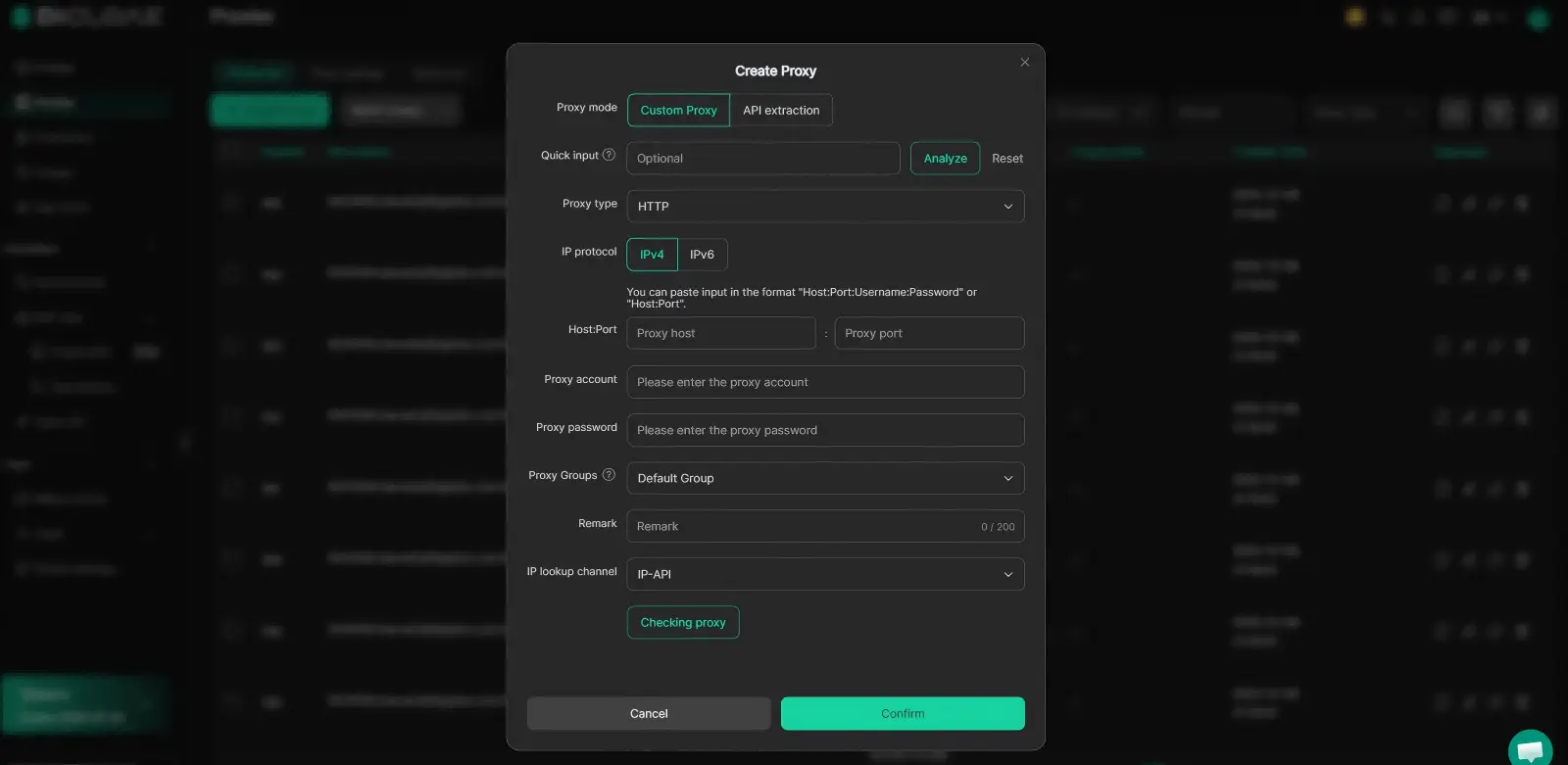
Configure and Check Your Discord Proxy in One Profile
One common cause of a Discord Login Not Working with Proxy problem is simple configuration confusion. For example, you may use Proxy A for one Discord account, switch the system proxy to Proxy B for another task, and forget to change it back. When Discord stops loading, it is no longer clear which connection the browser is using. You can avoid much of this manual switching by assigning the intended proxy directly to a browser Profile in DICloak. When creating a Profile, you can choose No Proxy, Custom Proxy, Saved Proxies, or proxy extraction through an API. This keeps the proxy configuration with the Profile instead of requiring you to change the whole computer's proxy each time.
A practical setup could look like this:
Discord Account A → Profile A → Proxy A Discord Account B → Profile B → Proxy B Discord Account C → Profile C → Proxy C
Before opening Discord, you can also check whether the expected proxy connection is available. If you enable Do not open the profile if proxy detection fails, the Profile will stop before launch when the proxy check fails. This helps separate network problems from account problems. If Profile A fails the proxy check before Discord even opens, there is little reason to reset the Discord password or clear cookies. If the proxy check passes but Discord asks for MFA or account verification, you know the login process itself needs attention.
Keep Multiple Discord Accounts in Separate Browser Profiles
Managing several Discord accounts in one normal browser often means repeated logging out and signing back in. You can instead create a separate DICloak Profile for each account or work task. Each Profile can keep its own cookies and browser settings, so one Discord session does not need to replace another.
For example, imagine a community team works with three Discord accounts for three different projects. Without separate Profiles, one team member may log out of Project A to open Project B. Another member later opens Project A and finds that the session is gone. By keeping each workflow in its own Profile, the team can reduce this kind of accidental session mixing without changing Discord's login rules.
For team use, you can also set Website Access Restrictions for different Member Groups. A Profile used for Discord work can be limited to approved sites instead of allowing members to browse anywhere from the same work session. You can also enable Security Protection Mode when browser extensions need tighter control. This can restrict actions such as changing protected extensions, opening developer tools, or accessing the Chrome Web Store. These controls are more useful for teams than for someone with only one Discord account. When several people use the same work setup, keeping unnecessary changes to a minimum makes future login problems easier to diagnose. If a new extension or unrelated website is introduced, it becomes another variable you need to check.
Keep Fingerprint Settings Consistent for Each Discord Profile
A proxy IP is only one part of a browser Profile. Websites can also receive information such as the operating system, User-Agent, language, time zone, screen settings, WebRTC behavior, Canvas data, and WebGL information.
You can configure these fingerprint settings separately for each DICloak Profile. For example, you can keep one stable proxy, one operating system setting, a current browser version, a suitable language, and a time zone that matches the proxy location. The key is consistency, not changing the fingerprint every time you log in.
If you change the proxy on Monday, browser settings on Tuesday, cookies on Wednesday, and the browser itself on Thursday, it becomes much harder to know what caused a login failure. Keeping one Profile stable removes some of that uncertainty.
It is also better not to treat fingerprint randomization as a fix for Discord login errors. If the proxy is timing out, changing Canvas or User-Agent settings will not repair the connection. If Discord asks for MFA or CAPTCHA verification, changing the browser fingerprint will not remove that requirement.
For a Discord Login Not Working with Proxy issue, the practical value is simpler: you can keep each Discord workflow in a separate Profile, assign the intended proxy, check the connection before launch, and maintain consistent browser settings. This does not guarantee a successful Discord login, but it reduces mixed variables and makes both daily account management and troubleshooting easier.
Frequently Asked Questions About Discord Login Not Working with Proxy
Why is my Discord login not working with proxy even when the password is correct?
If your Discord login is not working with proxy, the issue may be the proxy rather than your password. Check the proxy IP, port, authentication, speed, and stability. If Discord works after you disable the proxy, the proxy setup is likely the cause.
Can Discord login not working with proxy mean my account is banned?
Not usually. A Discord login not working with proxy often points to a connection or configuration issue. If your account is restricted, Discord is more likely to show a warning or verification message.
Which proxy type is better when Discord login is not working with proxy?
Both HTTP/HTTPS and SOCKS5 proxies can work. SOCKS5 is more flexible, but stability matters more than the proxy type. A reliable HTTP proxy may work better than an unstable SOCKS5 proxy.
What should I do if Discord login not working with proxy but works without it?
Check the proxy address, port, protocol, login details, and IP stability. If the proxy keeps timing out, rotating IPs, or disconnecting, use a more stable connection instead.
Can an antidetect browser help with Discord login not working with proxy?
It can help manage the setup, but it cannot fix a dead proxy or remove Discord verification. You can use DICloak to keep different Discord browser Profiles, proxies, cookies, sessions, and fingerprint settings separate, which makes login troubleshooting easier.
Conclusion
A Discord Login Not Working with Proxy problem does not always mean there is something wrong with your Discord account. In many cases, the real cause is a slow proxy, incorrect proxy settings, unstable IP rotation, DNS trouble, or a connection that cannot stay stable long enough for Discord to work normally. A good first step is to compare the same login with and without the proxy, then check the proxy address, port, authentication, IP stability, and Discord’s own status before changing account settings.
If you manage several Discord accounts or different proxy setups, keeping each account in a separate browser Profile can also make troubleshooting easier. You can use DICloak to keep proxies, cookies, sessions, and fingerprint settings separate, but it cannot repair a bad proxy or remove Discord verification requirements. The most useful approach is to keep the setup stable, change one thing at a time, and match the fix to the real cause of the login problem.
 Web Proxy Tools
 Free Tools
 Cookie Plugin
 UA Generator
 MAC Address Generator
 IP Generator
 IP Address List
 2FA Code Generator
 World Clock
 Anonymous Check
 WebRTC Leak Test
 UUID Generator
 Free Web Proxy Site
 Proxy Checker
 FB Ad Checker
 AI Web Scraping
 Free SMM Tools
 Twitter Shadowban Checker
 Instagram Name Checker
 UTM Generator
 Username Generator
 AI Hashtag Generator
 LinkedIn Headline Generator
 Social Media Image Resizer