A single missed step when you try to sync Facebook and Instagram accounts can lock you out of features, Meta’s own help center lists dozens of issues from users who lost access to cross-posting or ad tools after a bad connection. The process seems simple, but real-world cases show that even business owners with experience run into hidden risks: posts not sharing, ad accounts disconnecting, or two-factor authentication breaking. If you search how to link my facebook with instagram, you’ll find hundreds of results, but few answer the real questions, what can go wrong, which settings really matter, and how to unlink safely if something breaks.
Most guides focus only on the basic menu path, missing the key details: what happens if your Facebook profile isn’t an admin, what to do if your Instagram is a creator account, or how privacy settings affect account linking. These gaps can lead to lost campaigns or failed login recovery. In this guide, you’ll see exactly how to connect Facebook to Instagram step-by-step, what to check before you start, and where most users make mistakes. Solutions for business, creator, and personal accounts are all covered. If you want to avoid losing access or breaking your workflow, read on for the practical steps and real-world safety checks that matter most.
What Should You Know Before Linking Facebook and Instagram Accounts?
Linking your Facebook and Instagram accounts sounds simple, but a few details can trip you up if you rush. Before searching “how to link my facebook with instagram,” you should know what the connection actually changes, what gets shared, and which account types are safest to link. Missing a step can mean sharing the wrong posts, breaking login access, or losing campaign data.
What Does Linking Facebook and Instagram Actually Do?
When you link Instagram to Facebook, you unlock features like cross-posting, single sign-on for login, and combined notifications. You can share Instagram stories or posts to your Facebook timeline in one tap. If you’re running ads, campaigns can use both audiences, and you can manage messages in one inbox using Meta Business Suite.
However, linking also means some data flows both ways. Your Facebook name and profile picture may appear on connected Instagram accounts. Notifications can sync, and login recovery options may change. If you use two-factor authentication on either account, both may prompt for codes. For more on connected features, check Meta’s official help.
Who Should (and Shouldn’t) Link Their Accounts?
Business and creator profiles often need to sync Facebook and Instagram accounts to use Meta’s ad tools or automate content scheduling. Linking is also useful for personal users who want easy cross-posting or faster login recovery.
But if you manage multiple brands, share a device with others, or want to keep personal and business identities fully separate, linking may be risky. Unlinking later can break app logins or disconnect ad campaigns. You should always check your admin permissions and backup your recovery info before you connect Facebook to Instagram. If you’re unsure, test with a non-primary account first.
What Steps Should You Follow to Link Facebook with Instagram Safely?
Connecting your Facebook and Instagram accounts isn’t just about tapping a menu. If you skip key checks, you risk losing admin access, breaking ads, or exposing private info. To answer “how to link my facebook with instagram” the right way, follow the safest process below, direct from both apps. These steps cover business, creator, and personal accounts.
How to Link from the Instagram App (Step-by-Step)
Start by opening your Instagram app and going to your profile. Tap the menu (three lines), then choose “Settings and privacy.” Scroll down to “Accounts Center” and tap “Linked accounts.” This is where you connect Facebook to Instagram.
Before you pick a Facebook account or Page, check you’re logged into the right Facebook in your device’s browser or app. If you manage a business or creator account, make sure you’re an admin on the Facebook Page you want to link. Selecting the wrong profile can break your access to features like cross-posting or ads. For personal accounts, linking will let you share posts and stories to Facebook, but you should review what gets auto-shared.
After confirming your choice, Instagram will ask for permissions. Read every prompt, these control what each platform can see or do. The most common mistake is ignoring privacy settings and later finding posts shared in the wrong place.
How to Link from the Facebook App or Website
Open the Facebook app or go to facebook.com. Tap the menu, open “Settings & privacy,” then “Settings.” Under “Accounts Center,” select “Instagram accounts” and click “Add.” You’ll log in to your Instagram and pick what to sync.
Watch for prompts about profile permissions, sharing, and ad management. If Facebook asks you to confirm your identity or admin status, don’t skip it, this protects your account from losing control if you make a mistake.
The safest way to sync Facebook and Instagram accounts is to double-check admin roles and privacy settings before confirming any link.
Why Do Linking Errors Happen and How Can You Fix Them?
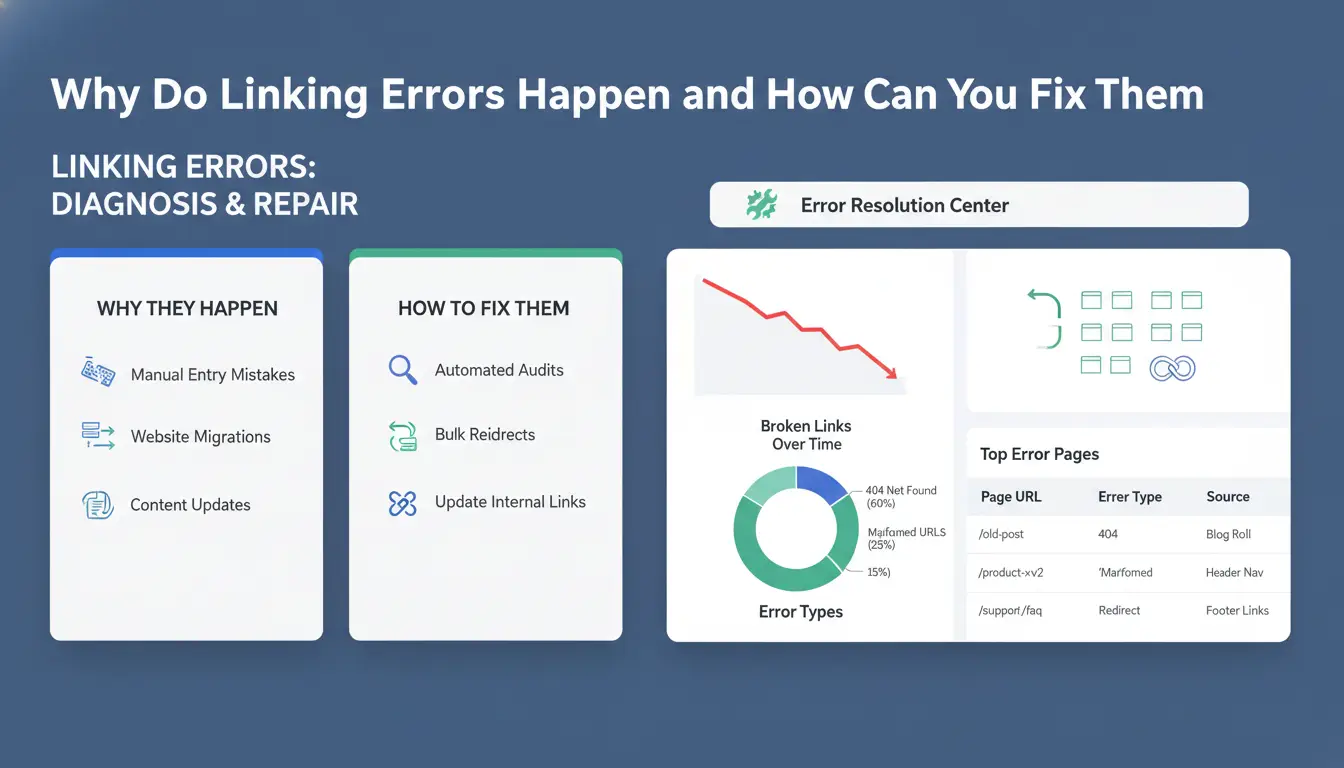
Trouble linking Facebook to Instagram is more common than most guides admit. Many users search for "how to link my facebook with instagram" and still hit error messages or broken connections. The reasons are rarely random: old links, role issues, or account type mismatches are usually the cause.
Most Frequent Linking Issues and What Causes Them
The most common roadblock is trying to connect an account that’s already linked somewhere else. For example, your Instagram might still be tied to an old Facebook Page or personal profile. Another frequent issue comes from permissions, if your Facebook account isn’t set as an admin on the Page you want to link, the process will fail every time. Account types matter too: creator and business accounts use different link paths and may block connection if set up wrong. Privacy or security settings can also block linking, especially if two-factor authentication is on for only one account.
Step-by-Step Fixes for Common Linking Errors
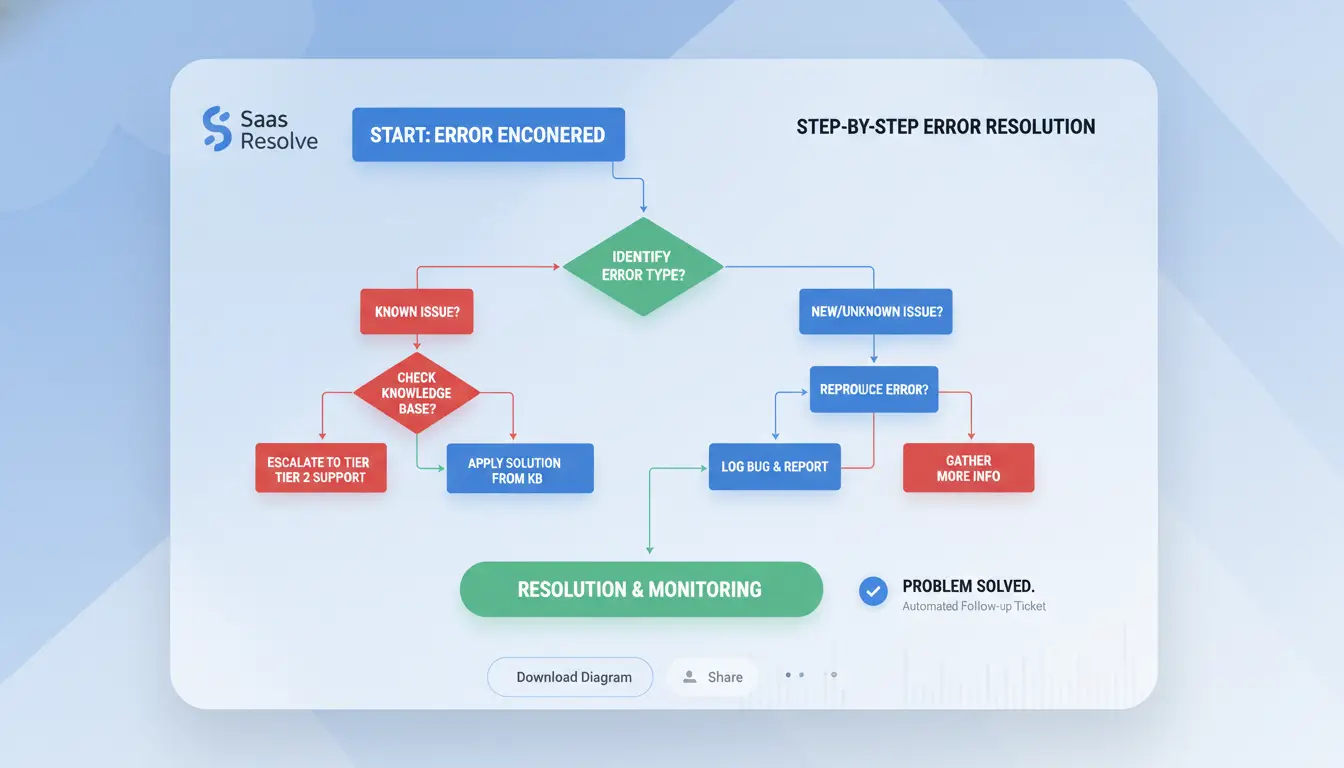
Start by checking which Facebook Page or Instagram profile is currently linked. Under Facebook Page settings, look for the Instagram tab, if an account is already connected, you’ll need to remove it before adding a new one. If you see “Page already linked” or a confirmation alert, log out of both apps and clear browser cookies. Try to link again using the official Meta Business Help Center. If you manage several accounts and need to sync Facebook and Instagram accounts for a team, make sure each profile is only connected in one place. For business workflows, you can use tools like DICloak for Social Media Marketing to avoid device mix-ups and profile overlap.
When to Contact Support (and What to Prepare)
If nothing works, document every error message and take screenshots of your Facebook and Instagram settings. Gather the account email addresses and the exact steps you tried. Use the Instagram support form or Facebook Help Center to escalate. Having clear details speeds up the review, support teams often ask for proof of account ownership, so prepare that in advance.
What Risks or Mistakes Can Get Your Linked Accounts Restricted or Banned?
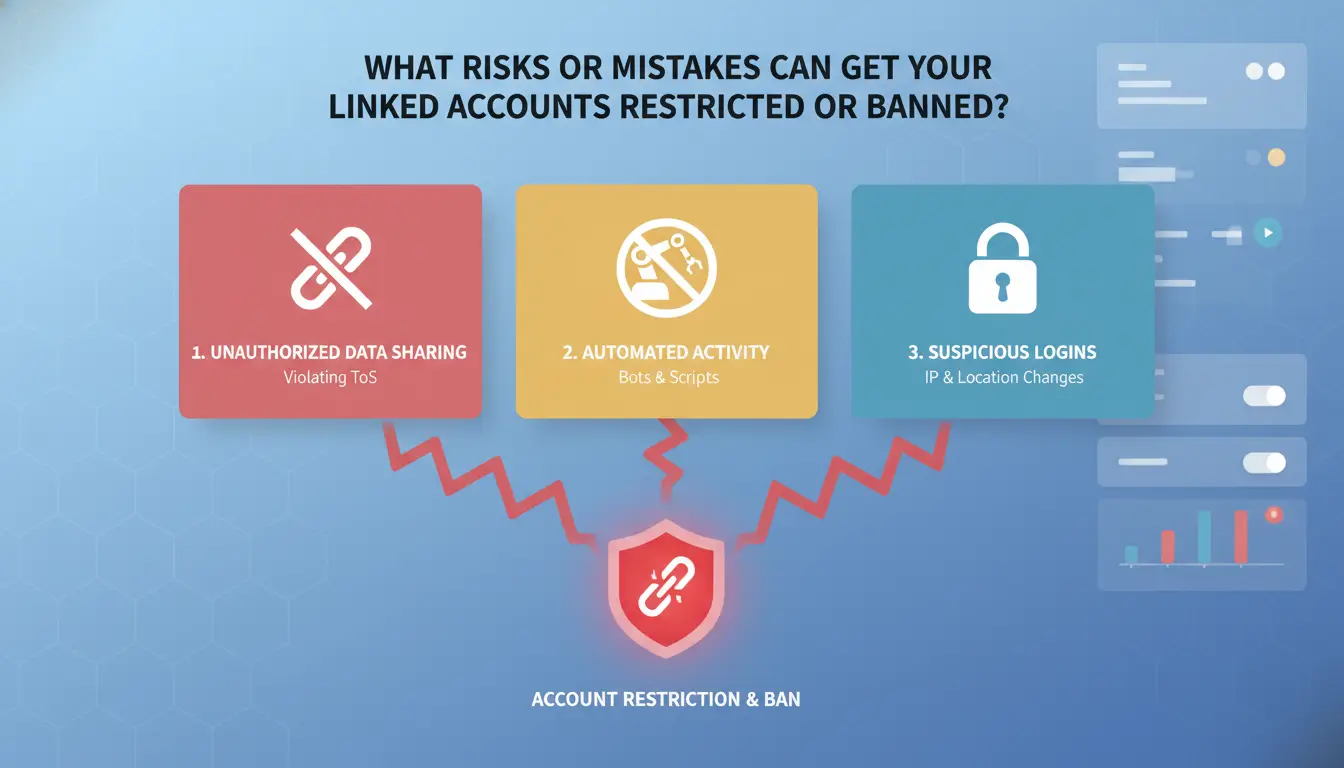
Mistakes when you try how to link my facebook with instagram aren’t just small errors, they can trigger real problems. Facebook and Instagram both use automated systems to spot suspicious activity, policy violations, or unusual logins. If something looks wrong, your accounts may get restricted or banned, blocking ad campaigns, content posting, or even access to your business page. Here’s what to watch for when you connect Facebook to Instagram or sync accounts for the first time.
Why Facebook or Instagram Restricts Linked Accounts
Both platforms scan for patterns that break their rules. If your account suddenly starts linking with new devices, uses the same IP for multiple profiles, or posts identical content across several linked accounts, it can look like spam or automation. Policy violations, like sharing copyrighted material, fake information, or running ads without the right permissions, are common triggers. Even a mismatch between your Facebook Page role and Instagram account type can cause restrictions. Meta’s Help Center details many of these triggers.
Common Mistakes Users Make When Linking Accounts
One of the biggest mistakes is linking the wrong Facebook Page or profile. If you link Instagram to a Facebook Page where your profile isn’t an admin, you may lose access or fail to sync content. Using the same device or IP to manage too many accounts can flag your activity and risk a ban. Trying to link Instagram creator accounts without checking compatibility often leads to failed connections. People also forget to adjust privacy settings, which blocks sharing or ad features.
How to Avoid Account Restrictions After Linking
Before you link Instagram to Facebook, double-check your Page role, account types, and device history. Use separate devices or proxies for each account if you manage several brands. Watch for warning signs like login failures, blocked posts, or sudden permission changes, these often mean a restriction is coming. The most critical step is to confirm admin access and account compatibility before syncing. If you need to run multiple profiles safely, you can use isolated browser profiles from tools like DICloak to reduce detection risks.
How Should You Manage Multiple Facebook and Instagram Accounts Without Getting Flagged?
Handling more than one Facebook or Instagram account is tricky, especially when you need to link Instagram to Facebook or sync Facebook and Instagram accounts for business or creator work. If you skip key steps, you risk getting blocked or losing access. Here’s what actually matters for safe multi-account management and how to link my facebook with instagram without triggering platform restrictions.
Why Managing Multiple Accounts Gets Risky
Platforms like Facebook and Instagram track device fingerprints, IP addresses, and login patterns to spot multi-account activity. If you log in to several accounts from the same browser or device, or switch IPs too quickly, their systems may see it as suspicious. Triggers for blocks include repeated logins from new devices, sudden changes in account ownership, or linking accounts with mismatched privacy settings. You’re most likely to get flagged when connecting Facebook to Instagram if your profiles show inconsistent info or if you link accounts that have different recovery emails.
Best Practices for Multi-Account Management
The safest way is to use separate browsers or browser profiles for each account. This keeps fingerprints unique and avoids cross-contamination. For example, business accounts should run in a dedicated browser profile, while personal accounts stay isolated. Proxies help by giving each account its own IP address, never share IPs between accounts you manage. This is especially important when you link Instagram to Facebook or sync Facebook and Instagram accounts for campaigns. Use a table to plan device and proxy split:
| Account Type |
Browser Profile |
Proxy/IP |
Purpose |
| Business |
Profile A |
Proxy 1 |
Ads/Brand |
| Creator |
Profile B |
Proxy 2 |
Content/Promo |
| Personal |
Profile C |
Home IP |
Private Use |
When to Use Tools for Safer Multi-Account Operations
If you handle more than three accounts or share access with a team, manual setup won’t cut it. Signs you need automation: frequent login errors, accidental cross-posts, or accounts getting restricted after linking. You can use DICloak to set up isolated browser profiles, assign proxies, and automate safe linking. Teams can coordinate access and track actions, reducing mistakes. Isolating accounts and using the right tools stops most flagging issues before they start.
How DICloak Helps Social Media Marketers Link and Manage Multiple Accounts Safely
Linking Facebook with Instagram sounds simple, but social media marketers know the real risk, getting accounts banned for suspicious activity, or losing admin rights after a failed sync. Typical guides on how to link my facebook with instagram miss the problem of device fingerprints and IP overlap, which can trigger automated checks on both platforms.
How DICloak Prevents Account Linking Risks
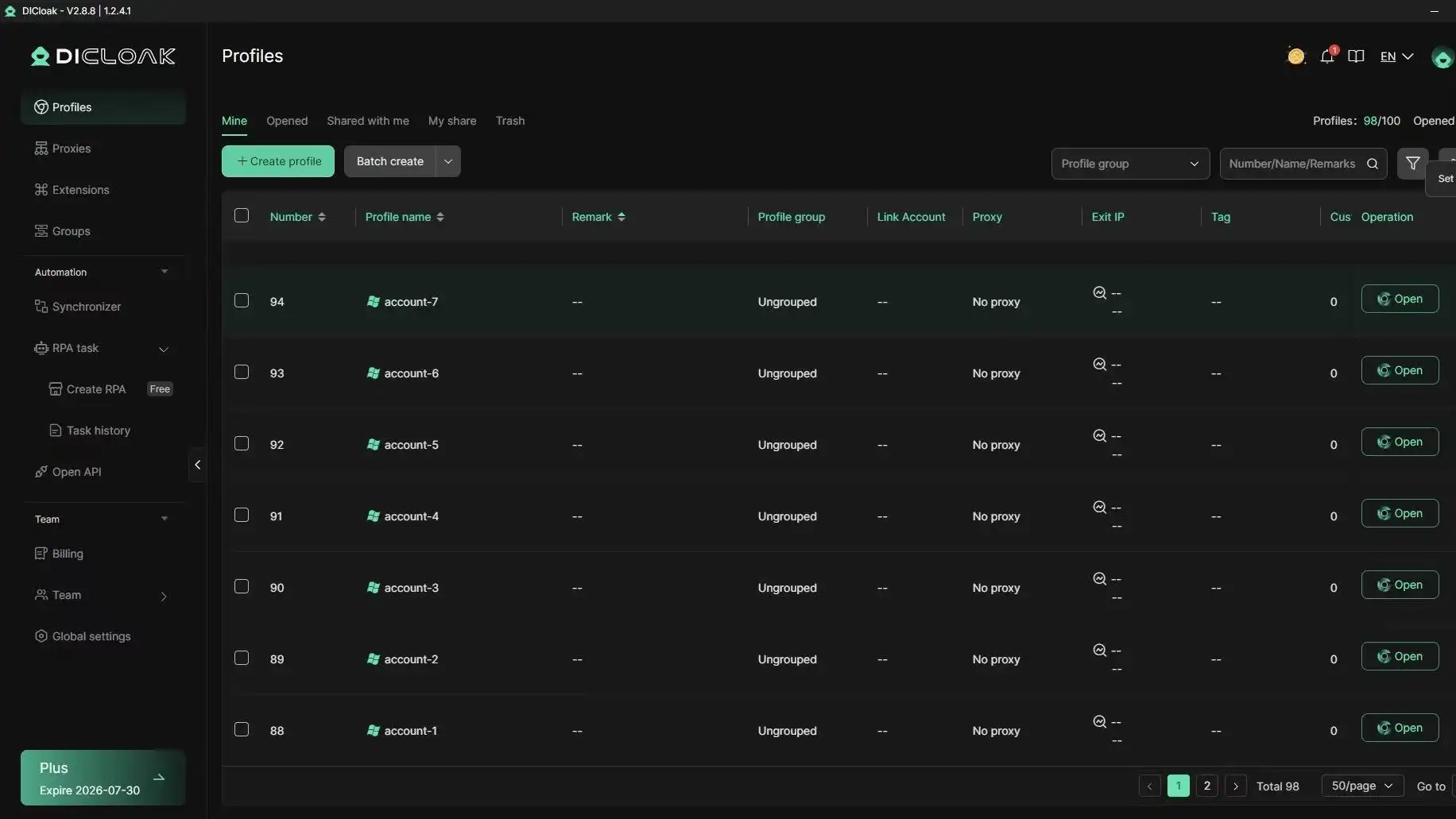
You can use DICloak to keep each Facebook and Instagram account in a separate browser profile, each with its own unique fingerprint and proxy. This reduces the chance of cross-account detection when you connect Facebook to Instagram or link Instagram to Facebook for business pages, ad accounts, or creator profiles. If you run campaigns for clients, DICloak keeps their accounts isolated, even if you manage everything on one device.
Boosting Efficiency with DICloak’s Automation and Team Tools
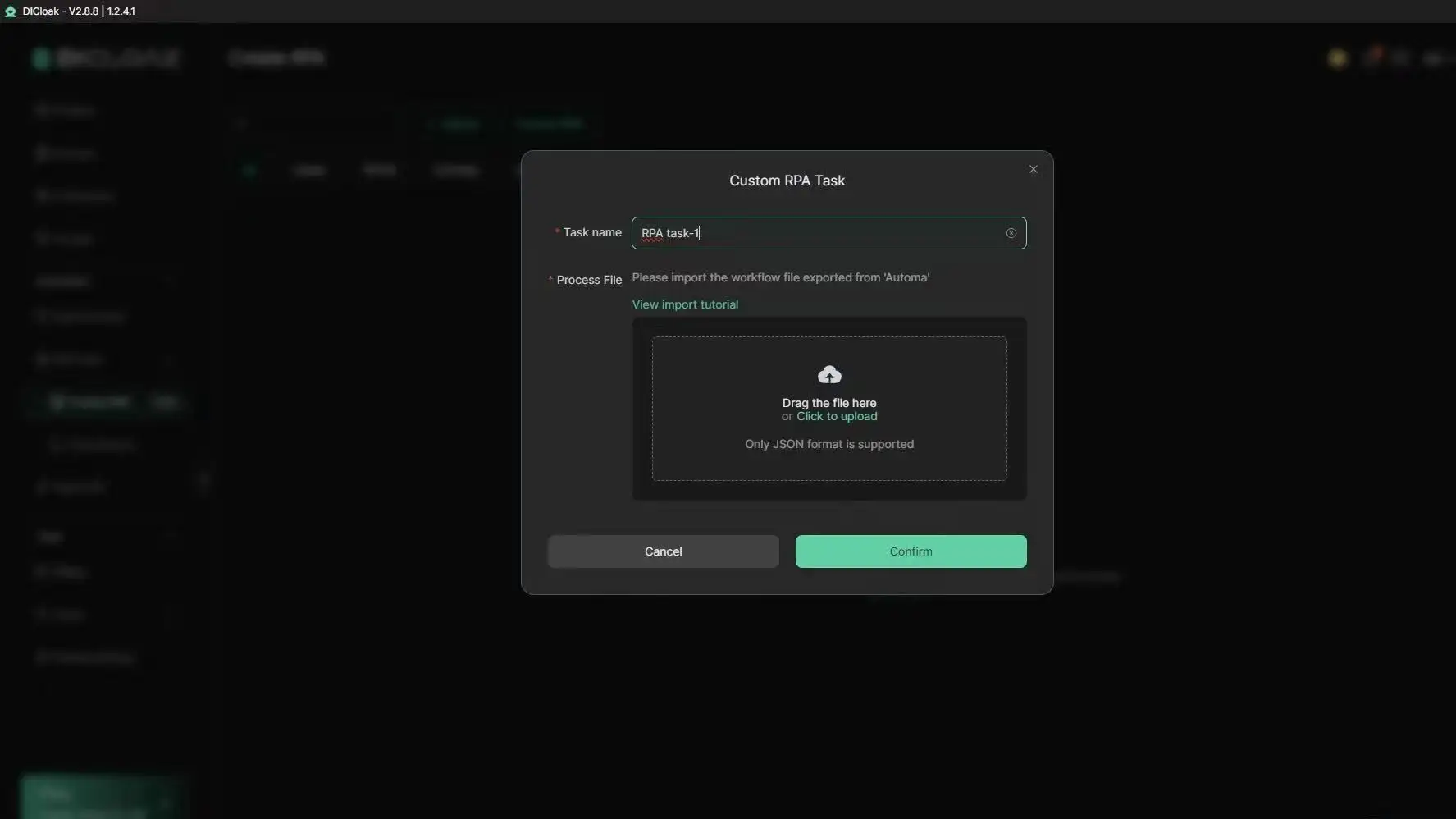
Tools like DICloak let you automate routine actions (posting, liking, switching accounts) with built-in RPA, and share browser profiles among team members with permission controls. This means fewer manual mistakes and less risk of account lockouts when syncing Facebook and Instagram accounts across a team.
Real-World Scenarios: Social Media Marketing with DICloak
Marketers running multi-account campaigns can safely link, unlink, and manage dozens of accounts, avoiding bans and workflow breakdowns that hit most agencies.
What to Do If You Want to Unlink or Switch Facebook and Instagram Accounts
Unlinking or switching your Facebook and Instagram accounts can fix login issues or let you manage campaigns from different profiles. The process sounds simple, but skipping key steps can lock you out or delete linked content. If you searched “how to link my facebook with instagram,” you probably want to know how to disconnect safely, switch accounts without losing data, and avoid common mistakes.
How to Unlink Accounts Step-by-Step
The unlink option sits under your Instagram profile’s “Account Center.” Open Instagram, tap Settings, go to Account Center, and see all connected accounts. Choose Facebook, then tap “Remove” to unlink. You can also do this from Facebook’s settings under “Linked Accounts.”
Shared posts and reels won’t be deleted, but new content won’t sync. Stories and ad campaigns linked across both platforms will stop syncing immediately. If your Instagram account is a creator or business type, double-check that you have admin rights on Facebook before unlinking, losing admin access can block you from managing ads or pages.
How to Switch to a Different Facebook or Instagram Account
To change which Facebook is linked, unlink the old one first. After removal, tap “Add Accounts” in Account Center to connect Facebook to Instagram or link Instagram to Facebook. Make sure both accounts are logged in on your device. If you switch from a personal to a business account, verify that pages and admin roles are set up before linking. This prevents lost access to ad tools and page management.
Risks to Watch for When Unlinking or Switching
The biggest risk is losing admin rights or content. If you unlink accounts that control Facebook pages, you may lose access to campaigns, analytics, or scheduled posts. Unlinking can trigger security checks; Facebook may ask for identity verification or block login for up to 24 hours if it detects unusual activity (Meta Help Center). Double-check all settings before you sync Facebook and Instagram accounts or switch profiles. Always confirm admin rights and backup any important content before making changes.
When Linking Facebook and Instagram Is Not the Best Option (and What to Do Instead)
Connecting Facebook to Instagram usually feels like a quick fix for managing posts and ads, but it can backfire if you’re not careful. Many users searching “how to link my facebook with instagram” end up locked out, facing privacy leaks, or dealing with broken workflows, especially when managing for clients or teams.
Situations Where Linking Accounts Causes More Problems
If you handle accounts for an agency or a client, linking can create ownership confusion. For example, if you connect Facebook to Instagram but don’t use the right admin profile, you risk losing access when the client changes roles or leaves the business. Teams often struggle when one person links Instagram to Facebook, but others need to schedule posts or run ads. Personal privacy is another concern. Linking syncs data, like contacts and profile info, which means your name, phone, or email may show up across platforms. Not everyone wants their personal details shared. For creators, merging profiles can affect branded content rules and limit account features.
Alternatives to Linking: What Works for Teams or Agencies
Instead of linking, agencies often use Meta Business Manager or Facebook Business Suite to grant access without sharing login details. These tools let you assign roles, schedule posts, and run ads across accounts, keeping everything separate. Manual sharing and content scheduling tools, like Buffer or Hootsuite, let you plan posts for Facebook and Instagram without linking. This avoids ownership mix-ups and keeps account control clear.
| Method |
Account Ownership |
Scheduling |
Access Control |
| Linking Accounts |
Mixed |
Yes |
Limited |
| Meta Business Manager |
Separate |
Yes |
Granular |
| Manual Scheduling Tools |
Separate |
Yes |
Clear |
(Sources: Meta Business Manager, Buffer, Hootsuite)
How to Decide If Linking Is Right for You
Before you sync Facebook and Instagram accounts, check these points: Who owns the profiles? Will you need to change access soon? Does linking expose your private info? For most business or team setups, the safer move is using dedicated management tools instead of direct linking. If you’re only posting for yourself, linking may be fine. Always ask: Will linking help, or will it create more problems down the line?
Frequently Asked Questions
Can I link multiple Facebook accounts to one Instagram account?
Facebook’s policy only lets you link one Facebook account to one Instagram account at a time. If you want to connect Facebook to Instagram for several accounts, you’ll need to create separate Instagram profiles or use Facebook Business Manager. Workarounds like switching accounts aren’t recommended for security and may cause syncing issues.
Will my followers see all my posts on both platforms after linking?
When you link Instagram to Facebook, you can choose to share posts automatically or manually. Your followers only see posts you select to cross-post. Privacy settings still apply, so if your Facebook posts are set to “Friends Only,” they won’t be visible to everyone. You control what content syncs between accounts.
Is it safe to link business accounts, or should I keep them separate?
Linking business accounts helps with ads and analytics, making it easier to manage your brand. However, if you sync Facebook and Instagram accounts, any issues like hacking or account bans can affect both platforms. Some businesses keep them separate to reduce risks, but most use linking for convenience and marketing.
What happens if I delete one account after linking?
If you delete your Facebook after linking Instagram, features like sharing posts or managing ads stop working. You might also lose access to Instagram tools tied to Facebook. To avoid losing access, unlink accounts before deleting. Always check connected apps and secure your login info first.
How do I fix ‘Page already linked to another Instagram account’ errors?
This error means your Facebook Page is linked elsewhere. To fix, log into Facebook, go to Page settings, then find “Instagram” and unlink the old account. Next, follow steps for how to link my facebook with instagram again. Make sure your Facebook Page isn’t connected to other Instagram accounts before retrying.
Conclusion
Linking your Facebook and Instagram accounts simplifys your social media management, making it easier to share content and connect with your audience across both platforms. By following a few simple steps, you can unlock features like cross-posting and unified messaging to save time and boost engagement.
Try DICloak For Free
 Web Proxy Tools
 Free Tools
 Cookie Plugin
 UA Generator
 MAC Address Generator
 IP Generator
 IP Address List
 2FA Code Generator
 World Clock
 Anonymous Check
 WebRTC Leak Test
 UUID Generator
 Free Web Proxy Site
 Proxy Checker
 FB Ad Checker
 AI Web Scraping
 Free SMM Tools
 Twitter Shadowban Checker
 Instagram Name Checker
 UTM Generator
 Username Generator
 AI Hashtag Generator
 LinkedIn Headline Generator
 Social Media Image Resizer