Common Triggers for Automatic Instagram Session Logouts
An Instagram session can end even when you did not click “Log out.” In many cases, the problem starts with the browser data that keeps the session active. Cookies can help websites remember that you are already signed in. If those cookies or other site data are deleted, Instagram may ask you to enter your login details again. Google also notes that Incognito mode removes cookies and site data after the private session ends, so it is a poor choice when you want a login to stay available for daily work.
Security changes can also end or interrupt an Instagram session. For example, a password change, a manual logout from Accounts Center > Password and security > Where you're logged in, or a security review can require a fresh login. Instagram also lets users review active sessions and remove devices they do not recognize. This is useful for security, but it also means a valid working session can disappear if a device is removed by mistake.
For people who manage several Instagram accounts, these issues become easier to notice. Imagine a social media manager who opens five client accounts in the same browser, clears browser data at the end of the week, and returns on Monday. Several accounts may need to be signed in again because the stored site data has been removed. The problem is not simply “Instagram keeps logging me out.” It can also come from how the browser profile is being managed.
How to Keep Instagram Sessions Logged In with Browser Profiles as Your Go-To Solution
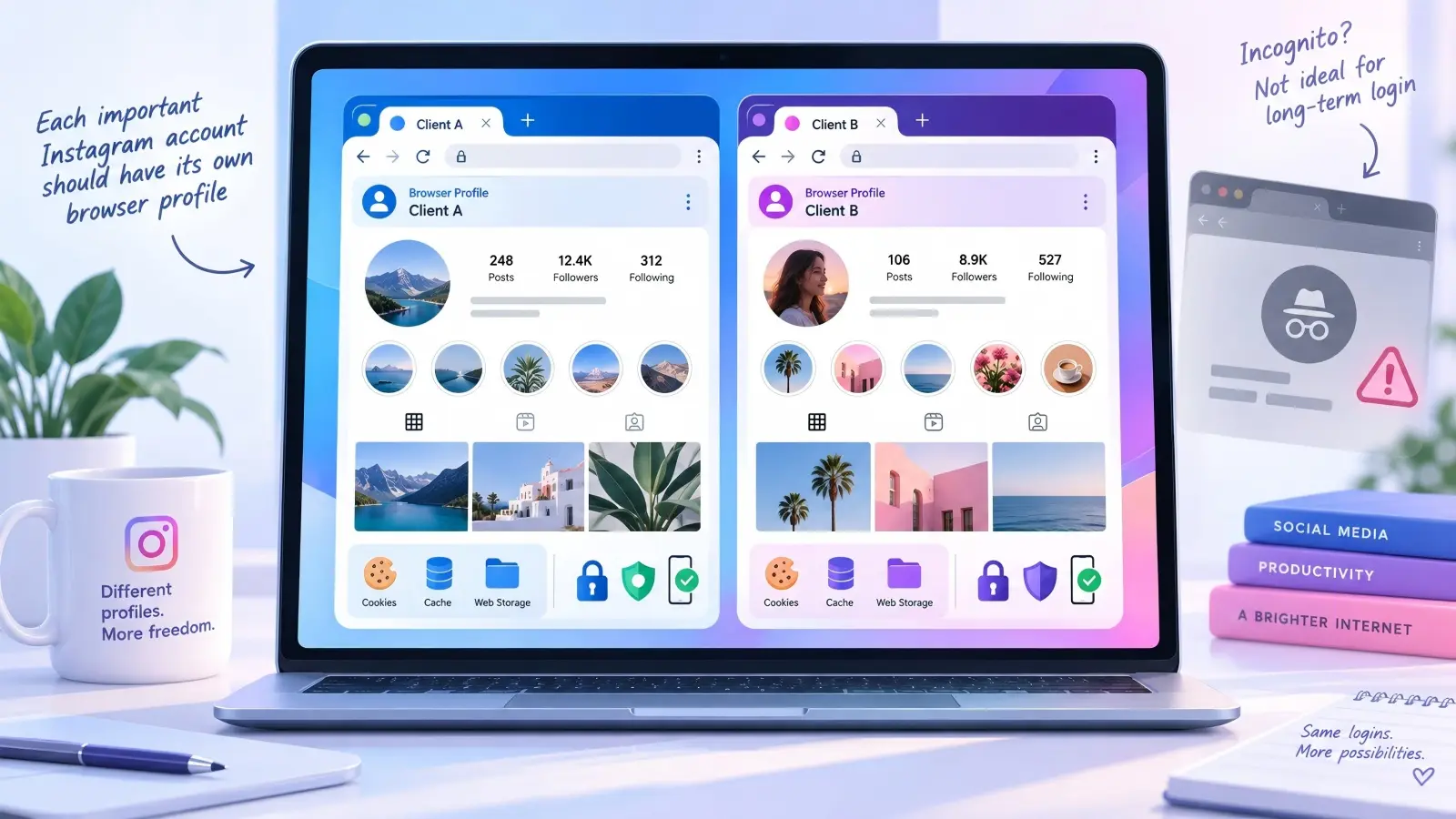
If you are researching how to keep Instagram sessions logged in with browser profiles, the main idea is simple: give each important Instagram account its own browser profile. A browser profile keeps browsing information separate from other profiles. Google explains that Chrome profiles separate information such as history, passwords, and settings, while its enterprise documentation also lists cookies, cache, and web storage as local browsing data connected with profile separation.
For example, an agency could create one browser profile for Client A and another for Client B. Client A's Instagram session stays inside its own profile instead of being mixed with the browser data used for Client B. The manager can close the browser and later reopen the same profile with its saved site data still available. This does not guarantee that Instagram will never request a password, 2FA code, or security check. However, it removes common problems caused by deleting, replacing, or mixing local browser session data.
The same rule should apply over time. Do not use Incognito mode for an account you expect to stay logged in, and avoid clearing the profile's cookies unless you are fixing a specific problem. If several people work with the account, they should also know which profile belongs to which Instagram account. A stable workflow matters more than repeatedly signing in whenever a session disappears.
Why Instagram's Native Switcher Cannot Sustain Persistent Logins
Instagram's built-in account switcher is useful for managing a few accounts. It lets users move between accounts without logging out each time. For a personal account and one or two business accounts, this may be enough.
The limit is that the switcher does not create a separate browser profile for each account. Cookies, cache, web storage, and browser settings are not isolated in the same way as dedicated browser profiles. This matters more for agencies or teams that manage many client accounts and need each workspace to stay clearly separated.
Shared-Data Issues That Cause Unexpected Session Drops
When several Instagram accounts share one browser profile, changes to browser data can affect more than one session. For example, clearing Instagram cookies to fix one account may also remove saved login data for other accounts using the same profile.
This is why how to keep Instagram sessions logged in with browser profiles is mainly about keeping each account's environment consistent. Separate profiles make it easier to know which cookies, settings, and login data belong to each account. Instagram can still request a password, 2FA, or security check when needed.
Limitations of Regular Browser Profiles and Container Tabs for Persistent Login
Built-in browser tools can already help with Instagram session management. Chrome profiles keep browsing data separate, while Firefox profiles can separate cookies, logins, history, passwords, settings, and add-ons. For someone who manages only one or two Instagram accounts, these options may be enough.
The limits become more obvious as the number of accounts grows. Firefox Containers can separate cookies and logins inside one Firefox profile, but some browser-level data is still shared. A team managing many client accounts may therefore want stronger separation between complete browser profiles.
| Browser setup |
Keeps login data separate? |
Best for |
| Chrome Profiles |
Yes, between profiles |
A few separate accounts |
| Firefox Profiles |
Yes, between profiles |
Separate personal or work spaces |
| Firefox Containers |
Mainly cookies and site data |
Several accounts in one Firefox profile |
| Incognito / Private Mode |
Temporary only |
Short-term logins |
| Isolated Browser Profiles |
Broader account separation |
Larger multi-account workflows |
For example, a freelancer with two Instagram accounts may be comfortable using two Chrome profiles. An agency with ten client accounts may need a clearer system. When learning how to keep Instagram sessions logged in with browser profiles, the main goal is to make every account easy to identify, reopen, and manage without affecting another account.
Why Private / Incognito Windows Fail for Long-Term Instagram Sessions
Incognito mode is built for temporary browsing, not persistent login. Once all private windows are closed, cookies and other temporary site data are normally removed.
For example, if you log in to a client Instagram account in Incognito on Friday and close the window, that session may not be available when you return on Monday. You may need to log in again and complete Instagram's normal security checks.
For long-term use, keep important accounts in persistent browser profiles instead of private windows.
How Isolated Browser Profiles Help You Keep Instagram Sessions Logged In
Isolated browser profiles give each Instagram account its own persistent workspace. Instead of opening accounts in new tabs or temporary sessions, users can return to the same assigned profile each time.Each account keeps its own browser data inside its profile. This makes it easier to avoid accidental cookie clearing, account mix-ups, and repeated logins.
This setup cannot guarantee that Instagram will never ask for a password, 2FA code, or security check. However, it creates a more consistent browser profile, which is one of the most practical parts of how to keep Instagram sessions logged in with browser profiles over time.
Limitations of Regular Browser Profiles and Container Tabs for Persistent Login
Regular browser profiles can already solve part of the problem. Chrome profiles keep browsing information such as history, passwords, bookmarks, and settings separate. Firefox profiles provide even broader separation, while Firefox Containers mainly separate cookies, logins, and site data inside the same Firefox profile.
This setup is often enough for a person managing only a few Instagram accounts. For example, a creator may keep a personal account in one Chrome profile and a business account in another. The limits appear as the setup grows. Firefox Containers still share some profile-level data, while standard profiles can become harder to organize when a team has many client accounts.
Why Private / Incognito Windows Fail for Long-Term Instagram Sessions
Incognito mode is not designed for persistent login. Chrome keeps cookies and site data only during the Incognito session. Once all Incognito windows are closed, that session ends and Chrome does not retain the site data.
That makes Incognito useful for a quick Instagram login, but not for an account you open every day. If you sign in on Monday, close the private window, and return on Tuesday, you should not expect the same browser session to remain. Anyone learning how to keep Instagram sessions logged in with browser profiles should therefore use a persistent profile rather than a temporary private window.
How Isolated Browser Profiles Help You Keep Instagram Sessions Logged In
For larger setups, isolated browser profiles offer a clearer approach. Each Instagram account can stay in its own persistent workspace instead of sharing one browser profile or relying on temporary tabs. This makes it easier to reopen the same account with the same stored session data and avoid changes made for another account.
For example, a social media team could create one profile for each client and always open that client through the same profile. This does not stop Instagram from requesting 2FA, a password, or another security check when needed. Instead, it gives the team a more stable and organized browser profile, which is the main idea behind how to keep Instagram sessions logged in with browser profiles.
Pre-Setup Tips for Stable Instagram Sessions
Before creating profiles, decide which Instagram account belongs to each workspace. Keep the account email, recovery method, and two-factor authentication available before you start. Meta recommends 2FA and can send a login request when someone tries to sign in from a browser or device it does not recognize. A little planning now can save a lot of confusion later.
Create Dedicated Isolated Profiles for Each Instagram Account
Use one persistent browser profile for each Instagram account you manage. Name profiles clearly, such as “Instagram – Brand A” or “Instagram – Client B,” so team members know which one to open. Chrome itself recommends separate profiles when users want to keep different accounts and browsing information apart.
For example, if you manage four client accounts, create four profiles instead of signing all four into one shared browser space. Log in once, complete any normal Instagram verification, and return to the same profile for future work. This simple routine is one of the most practical parts of how to keep Instagram sessions logged in with browser profiles.
Optimize Profile Settings to Maintain Long-Lived Login Status
Once an account is working, avoid making unnecessary changes to its browser profile. Do not clear its site data as part of routine cleanup, and do not switch to Guest or private browsing for daily work. Chrome notes that Guest browsing deletes browsing activity when the session ends, which makes it a poor choice for a login you want to reuse.
Keep the workflow simple as well. Use the same dedicated profile for the same Instagram account instead of creating a fresh profile every few days. If Instagram asks for a security check, complete it through the normal account process rather than trying to avoid it.
Practical Best Practices for Stable Instagram Sessions in Browser Profiles
A stable setup is mostly about consistency. For day-to-day Instagram account management, these habits help reduce avoidable session problems:
- Keep one Instagram account in one dedicated browser profile.
- Give every profile a clear account or client name.
- Avoid clearing cookies and site data without a reason.
- Do not use Incognito or Guest mode as a permanent workspace.
- Keep access to the account's email and 2FA method.
- Check unexpected login requests instead of approving them automatically.
- Let team members use the correct assigned profile rather than signing in again elsewhere.
These steps cannot make an Instagram session permanent. Instagram can still request a new login or verification when its security systems require it. The goal is to keep the browser side of the session as consistent and organized as possible, which makes how to keep Instagram sessions logged in with browser profiles much easier in daily use.
Pre-Setup Tips for Stable Instagram Sessions
The last section showed why a persistent browser profile matters. The next step is to make that profile easy to reuse. Before signing in, make sure you still have access to the Instagram account's email, phone number, and security method. Meta says users may need these details during account recovery, and it continues to recommend tools such as two-factor authentication and Security Checkup in 2026.
It also helps to decide who should use each account before setting up the browser. For example, if two team members manage the same brand account, they should know which profile is the main workspace instead of creating new browser profiles whenever they need access. The aim is not to avoid Instagram security checks. It is to reduce unnecessary changes on the browser side.
Create Dedicated Isolated Profiles for Each Instagram Account
A simple rule works well: one important Instagram account, one dedicated profile. Chrome profiles are designed to keep browser information separate, and Google recommends them for separating different accounts or workspaces. This makes them much easier to manage than opening several client accounts inside one general-purpose profile.
Suppose an agency handles six Instagram brands. Instead of remembering which account belongs to which tab, the team can create profiles named “Instagram – Brand 1,” “Instagram – Brand 2,” and so on. Each time someone works on Brand 2, they return to that same profile. This is a practical foundation for how to keep Instagram sessions logged in with browser profiles without constantly rebuilding the login environment.
Optimize Profile Settings to Maintain Long-Lived Login Status
Once a profile is working, avoid resetting it without a clear reason. Chrome explains that cookies and site storage are part of local browsing data, and deleting that data can remove information websites use to remember previous activity. If an Instagram session is stable, routine cookie clearing may create more work rather than solve a problem.
Private browsing should also stay separate from this workflow. Chrome removes cookies and site data when an Incognito session ends, so it is built for temporary browsing rather than long-term account access. A persistent Instagram workspace should therefore remain in its assigned profile unless you have a specific reason to move it.
Practical Best Practices for Stable Instagram Sessions in Browser Profiles
Long-term session stability usually comes from consistent habits rather than one special setting. A small team, for example, may keep the same Instagram account in the same profile every day, avoid unnecessary cookie deletion, and use the account's normal security methods whenever Instagram asks for verification. Meta's current security guidance still supports tools such as 2FA, login alerts, and Security Checkup. Meta also announced in April 2026 that passkeys are being expanded to Instagram as part of its updated Meta Account security system.
For everyday use, follow a few simple rules:
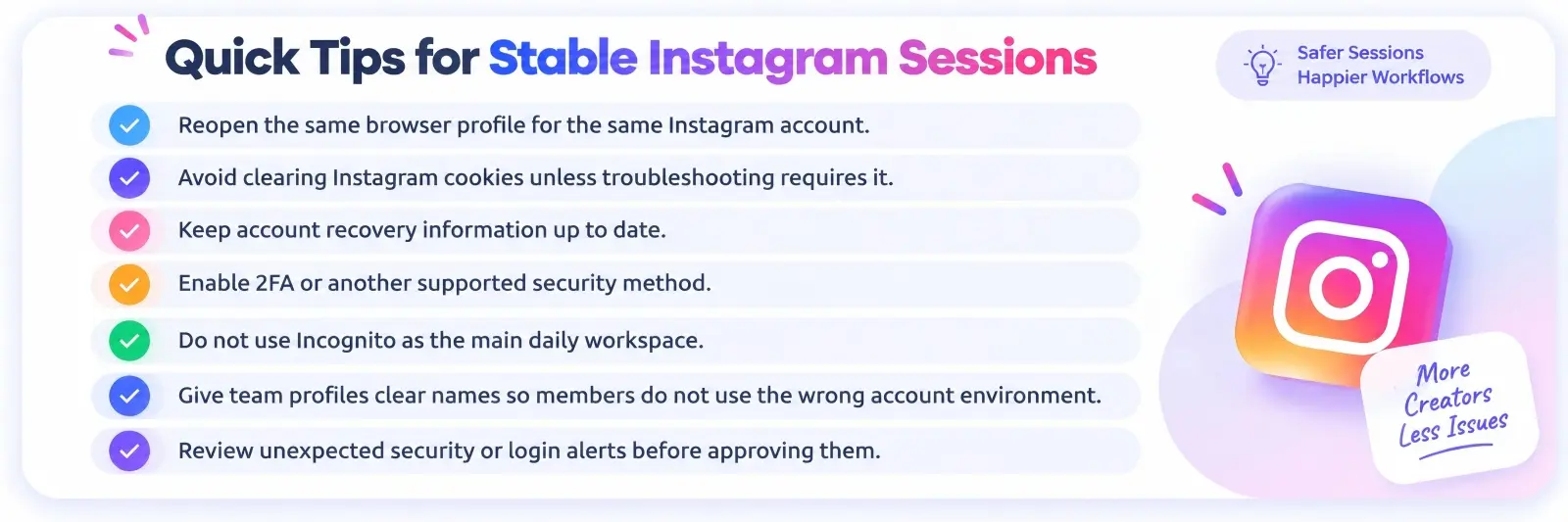
These habits do not make an Instagram login permanent. Meta can still request authentication when its security systems detect a reason to do so. But if your goal is learning how to keep Instagram sessions logged in with browser profiles, keeping each browser workspace stable, persistent, and easy to identify is one of the most useful practices.
Network and Proxy Tips to Keep Instagram Sessions Logged In with Browser Profiles
A dedicated browser profile works best when the network around it is also reasonably consistent. Meta said in its updated account recovery system that it now recognizes devices people usually use and familiar locations more effectively. This does not mean that changing networks will always log you out. However, avoiding unnecessary network changes can make your normal login pattern easier to maintain.
If you normally use a proxy for business account management, stability matters more than constant rotation. Keep the same account tied to a consistent network setup when possible. For example, if a US-based client account normally works through one assigned browser profile and a stable US connection, there is little reason to switch that profile between several countries in one day. A proxy should support a consistent workspace, not be used to avoid Instagram's security checks.
This is another practical part of how to keep Instagram sessions logged in with browser profiles. The browser profile keeps the local session environment organized, while a stable connection reduces unnecessary changes around that environment. Neither one can guarantee a permanent Instagram login because Meta still controls authentication and account security.
User Behavior Tips to Lower Instagram Security-Check Triggers
Your own login habits matter too. Meta says Instagram can send login requests when someone tries to access an account from a device or browser it does not recognize. Its current security tools also include two-factor authentication, login alerts, passkeys, and personalized security recommendations.
For everyday work, keep your routine simple. Return to the same assigned profile, avoid repeated login and logout cycles without a reason, and do not keep creating new profiles for the same account. If Instagram sends an unexpected login request, review it instead of approving it automatically. Teams should also make sure members know which profile belongs to each client so they do not create extra login sessions by mistake.
Troubleshooting: Instagram Still Logs You Out With Browser Profiles
Even a well-configured browser profile cannot solve every logout. If Instagram still asks you to sign in again, start by checking whether the problem is local or account-related.
- Check whether the profile still keeps Instagram cookies and site data.
- Make sure the browser is not set to delete site data when it closes.
- If you use a proxy, check whether the connection is stable instead of changing locations repeatedly.
- Review Instagram or Meta security alerts for an unfamiliar login or risky activity.
- Confirm that you can still access the email or phone number linked to the account.
- Complete any requested 2FA or security check through Instagram's normal process.
- If several profiles suddenly have the same problem, check for browser updates, extensions, or cleanup tools that may have changed stored data.
For example, if only one client profile starts logging out while five others remain stable, check that account's security activity and profile data first. If all six profiles lose their sessions after a browser cleanup, the cause is more likely on the browser side. This simple comparison can save time because you are testing the likely cause instead of rebuilding every profile.
If normal troubleshooting does not restore access, use Instagram's official recovery and support options. Meta expanded its account support tools in 2026, including a Meta AI support assistant in Instagram and the Help Center for supported regions. The goal of how to keep Instagram sessions logged in with browser profiles is to reduce avoidable session loss, not to bypass security checks that are meant to protect the account.
How DICloak Simplifies Instagram Session Management with Browser Profiles
For people managing many Instagram accounts, standard browser profiles may start to feel hard to organize. This is where an antidetect browser such as DICloak can be useful. Users can place each Instagram account in its own browser Profile and keep its cookies, browser settings, cache, and fingerprint data in that workspace. DICloak also lets users choose whether local profile data should be cleared and whether the last browser session should be restored. These controls can make it easier to keep the same working environment between visits.
This approach does not make an Instagram login permanent. Meta may still ask for a password, 2FA, or another security check when needed. Instead, users who are learning how to keep Instagram sessions logged in with browser profiles can use DICloak to reduce browser-side changes that may interrupt an otherwise normal session.
Isolating Instagram Accounts with Unique Browser Fingerprints
Users can create a separate DICloak Profile for every Instagram account they manage. Each Profile can use its own browser configuration, cache, cookies, and fingerprint settings. Users can also adjust details such as the browser version, operating system, user agent, language, and other fingerprint options.
For example, a social media agency managing eight client accounts could create eight clearly named Profiles. A team member working on Client A would reopen the same Profile instead of signing the account into a general browser window. If a proxy is part of the team's normal workflow, users can also assign a specific proxy to that Profile rather than changing the connection each time. This setup may help teams keep account environments more consistent, but users should still follow Instagram's normal login and security requirements.

Using the Synchronizer for Repetitive Instagram Tasks
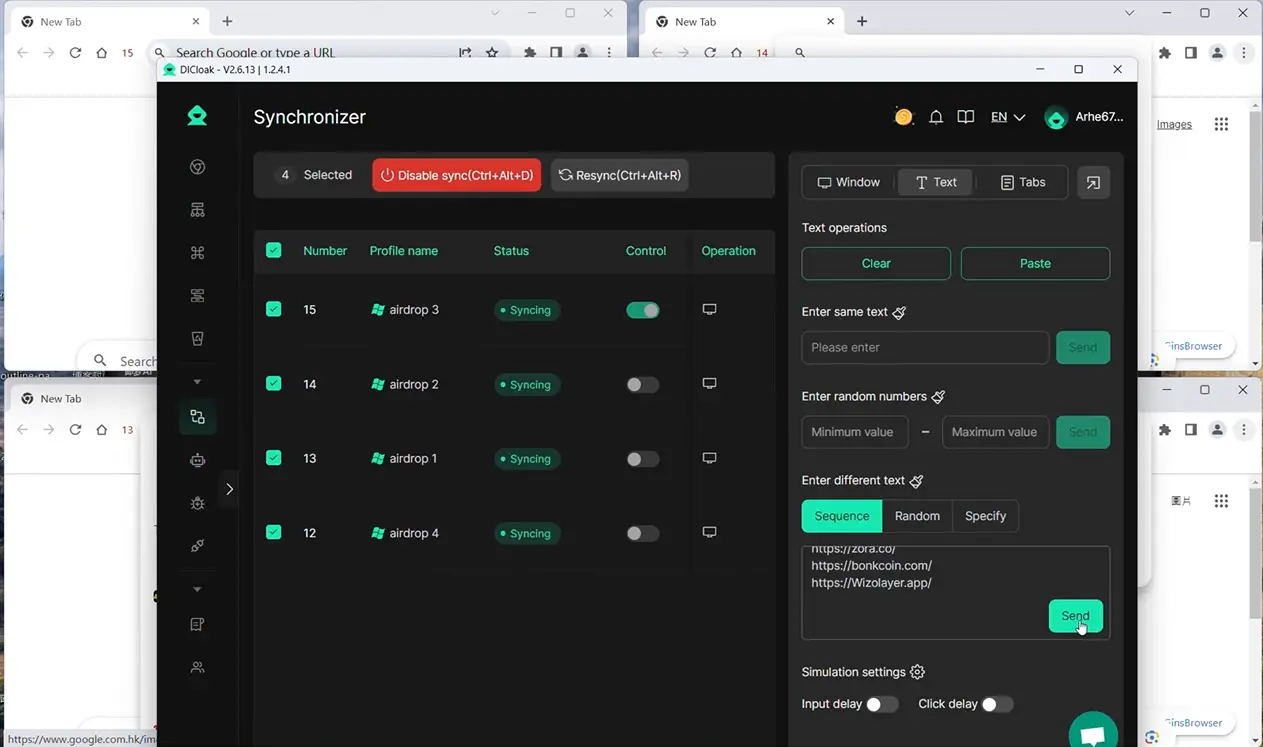
For teams that manage several Instagram accounts at the same time, repeating the same basic actions in many browser windows can take extra effort. In DICloak, users can use the Synchronizer to mirror selected actions, such as clicks, typing, scrolling, and opening URLs, across multiple open Profiles.
For example, a team member may need to open the same settings page or move through a similar workflow in several client Profiles. The Synchronizer can make these routine steps easier without requiring users to switch between windows one by one. It does not keep an Instagram session active by itself, but it can make multi-profile work more organized while users continue working inside their assigned browser Profiles.
Frequently Asked Questions About How to Keep Instagram Sessions Logged In with Browser Profiles
1. Can browser profiles keep Instagram logged in permanently?
No. Browser profiles can help keep cookies, session data, and account settings separate, but Instagram may still request a new login or security check. When learning how to keep Instagram sessions logged in with browser profiles, the goal is better session stability, not a permanent login.
2. Why does Instagram keep logging me out even when I use a browser profile?
Possible causes include cleared cookies, password changes, security checks, unstable network conditions, or changes to the browser profile. Check both the browser profile and Instagram's security activity before creating a new session.
3. Should I use one browser profile for each Instagram account?
For better separation, it is usually easier to assign one persistent browser profile to each important Instagram account. This keeps the account's cookies and local browser data away from other account sessions.
4. Does Incognito mode help keep Instagram sessions logged in?
No. Incognito mode is designed for temporary browsing and normally removes cookies and site data after the private session ends. A persistent browser profile is more suitable for how to keep Instagram sessions logged in with browser profiles over time.
5. Can a proxy help keep an Instagram session stable?
A stable proxy may help users keep a more consistent network environment when a proxy is already part of their workflow. However, changing IP locations often does not guarantee better session stability and may still lead to normal Instagram security checks.
Conclusion
Learning how to keep Instagram sessions logged in with browser profiles is less about finding a trick that makes a login permanent and more about keeping each account in a stable browser profile. Dedicated profiles can help users separate cookies, session data, browser settings, and account workflows. Avoiding Incognito mode, unnecessary cookie clearing, frequent environment changes, and repeated logins can also reduce avoidable session problems.
For people who manage only a few Instagram accounts, standard browser profiles may be enough. Teams and agencies with larger account setups may prefer an antidetect browser like DICloak to organize separate Profiles, manage browser settings, assign proxies, and support team workflows in one place. Instagram may still request passwords, 2FA, or security checks when needed, so no browser setup can guarantee a permanent session. The practical goal is to keep each account's working environment consistent, easy to manage, and ready to reopen when you need it.
 Web Proxy Tools
 Free Tools
 Cookie Plugin
 UA Generator
 MAC Address Generator
 IP Generator
 IP Address List
 2FA Code Generator
 World Clock
 Anonymous Check
 WebRTC Leak Test
 UUID Generator
 Free Web Proxy Site
 Proxy Checker
 FB Ad Checker
 AI Web Scraping
 Free SMM Tools
 Twitter Shadowban Checker
 Instagram Name Checker
 UTM Generator
 Username Generator
 AI Hashtag Generator
 LinkedIn Headline Generator
 Social Media Image Resizer