You finally sit down to check messages or run ads, but Facebook throws up a login error you haven’t seen before. Maybe the screen keeps refreshing, your code never arrives, or you get the dreaded “facebook login not working” message even though your password was right the last time. For anyone managing personal or business accounts, a facebook login issue can block everything, from posting updates to handling urgent customer questions.
What catches most people off guard is how unpredictable these problems can be. One day, your login works fine on your phone but fails on your laptop. You reset your password, but the same error shows up on a different browser. Sometimes it’s a device fingerprint mismatch, sometimes it’s a cookie problem, and sometimes the platform itself is rolling out silent changes behind the scenes.
The real trouble starts when you waste hours repeating the same fixes, clearing cache, switching browsers, or copying codes, only to end up right where you started. If you rely on Facebook for work, waiting for the lockout to resolve on its own isn’t an option. You want to know which fix actually works for your error, and how to avoid triggering more blocks or security checks in the process.
Start by checking which type of Facebook login problem you’re facing and what it means for your next steps.
What Causes Facebook Login Issues in 2026?
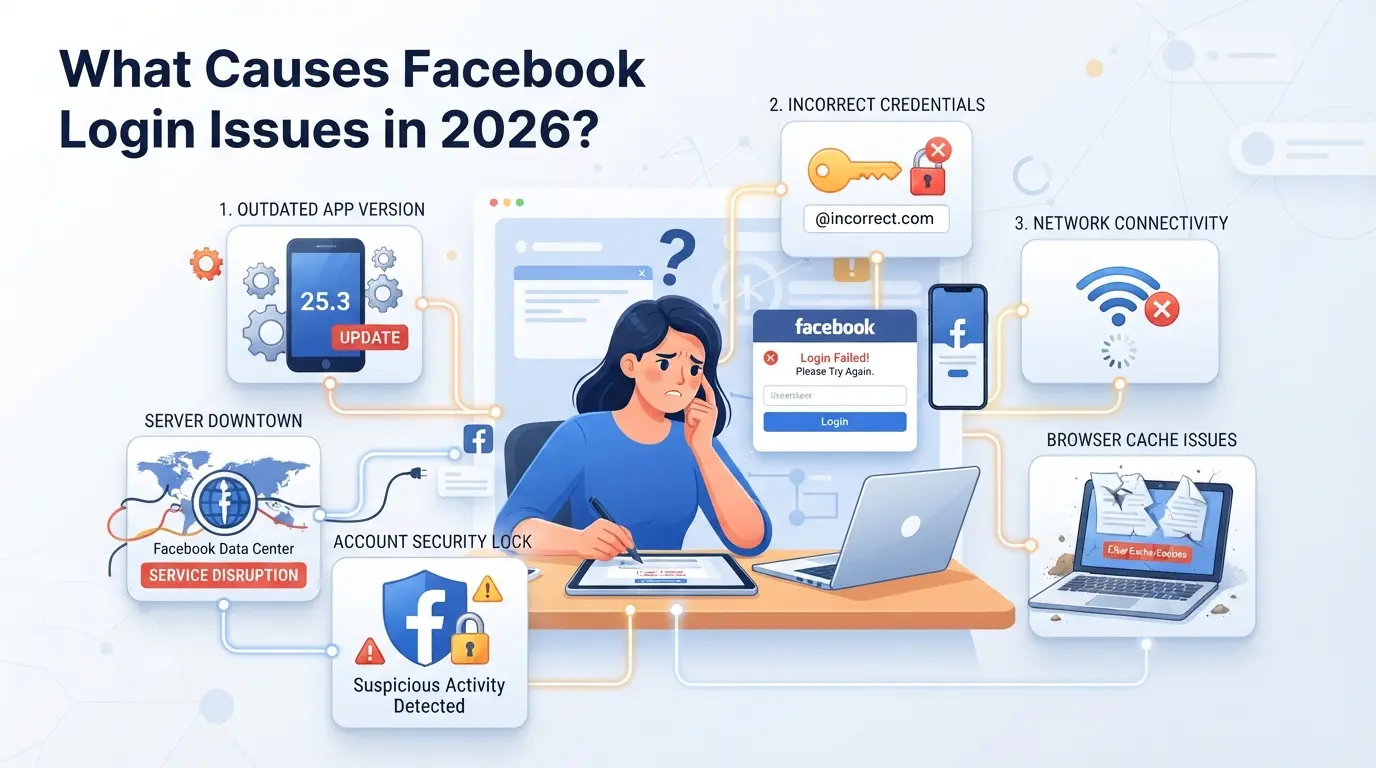
Most login problems in 2026 come down to tighter security, device mismatches, or new platform checks, not just a forgotten password. What worked to fix Facebook login errors last year might not solve them now, because the underlying causes and error triggers keep changing.
Common Error Messages and What They Mean
“Account not found” almost always means you’ve got a typo or used the wrong email, but it can also pop up if your account is disabled or deleted. “Incorrect password” is self-explanatory, unless the system is actually blocking your attempt for security reasons. “Suspicious activity detected” often points to device or location changes, not just bad passwords. “Too many login attempts” means you’ll have to wait or solve a CAPTCHA before trying again.
Platform Changes Impacting Login
Facebook’s security stack in 2026 is much less forgiving than even a year ago. Device fingerprinting now looks at more than cookies, it checks browser version, display resolution, and even subtle differences in how your browser handles fonts or scripts. If you try to log in from a browser or device that doesn’t match your past patterns, you’re likely to see extra verification steps or get blocked entirely.
One of the biggest headaches is the silent rollout of new login protocols. Facebook sometimes pushes code changes that affect how cookies and sessions work, but users get no warning. You might find your main device suddenly needs to pass a new security check, even if you haven’t changed anything. This hits hardest for people who use multiple browsers, run privacy extensions, or switch between devices. For example, someone who manages several business accounts may get locked out after a browser update, while their phone still works fine. That’s because the updated browser is now sending a fingerprint Facebook doesn’t recognize, triggering security flags. When this happens, traditional fixes, like resetting your password or clearing cookies, often do nothing, since the root problem sits with Facebook’s backend checks.
Older advice like “just try a different browser” is much less likely to work now. In some cases, switching browsers creates what looks like a suspicious login attempt, leading to temporary lockouts or more identity checks. The safest approach is to keep your main login device and browser as consistent as possible, and to watch for news of major Facebook updates if you notice sudden changes in login behavior.
Account Restrictions and Suspensions
- Logging in from new devices or locations too quickly can trigger restrictions, even if you use the correct password.
- Bulk account actions, like logging into several accounts from one IP, almost always draw attention, raising the risk of a temporary suspension.
- Repeated failed login attempts, especially across multiple profiles, get flagged fast and can result in a “suspicious activity” lockout.
If you hit a wall with one of these restrictions, diagnosing the exact trigger is the next step. That way, you can avoid repeating the same mistakes and focus on what actually caused your lockout.
How to Diagnose Your Facebook Login Problem
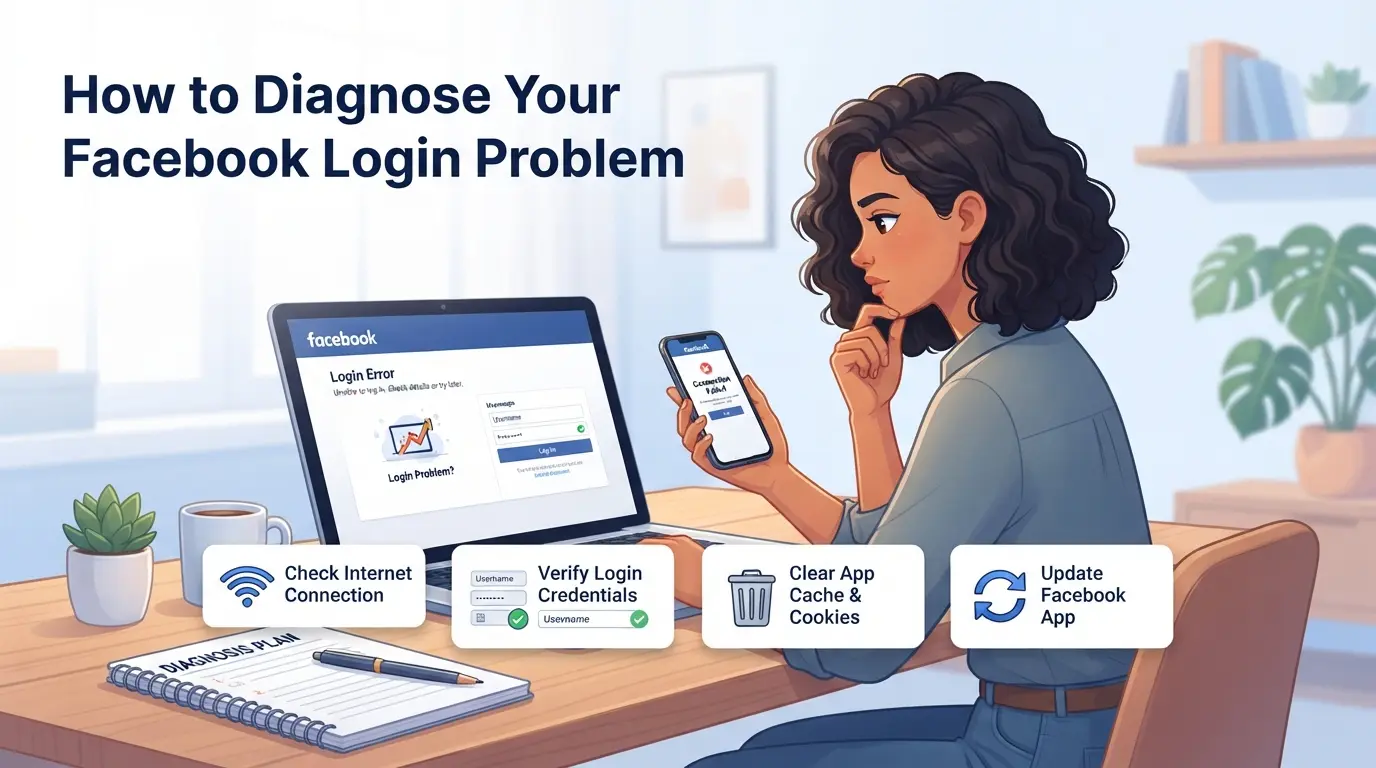
If your Facebook login isn't working, you can pinpoint the root cause by working through a focused checklist, don't just guess or repeat random fixes. Jump straight into diagnosis so you know exactly what to try next.
Step-by-Step Diagnosis Checklist
Start with these concrete steps. They narrow down if your problem is account-related, device-specific, or tied to Facebook’s security changes:
- Check the error code or message: Write down the exact wording. “Incorrect password” points to credential issues; “Suspicious activity” or “Session expired” usually means Facebook flagged something unusual.
- Try logging in from another device: If login fails everywhere, your account may be restricted. If only on one device, it’s often a local issue, like browser settings or stored cookies.
- Review recent account activity: Look for unexpected logins, password changes, or notification emails from Facebook. If you spot any, your account may have been flagged or temporarily locked out.
If you see a “Check your identity” request after using a new phone or browser, Facebook is likely responding to a device fingerprint mismatch. Diagnosing the exact trigger before applying fixes saves hours and avoids repeated lockouts.
Browser and App Troubleshooting
Browser and app glitches cause more login failures than most users realize. Before digging deeper, run these quick checks:
- Clear cache and cookies, if you don’t, stale session data can block login for up to 30 days after a Facebook update.
- Update your browser or Facebook app, old versions are often incompatible with new login protocols.
- Try incognito/private mode, this skips stored cookies and disables most extensions, revealing if your issue comes from browser settings.
Network and Proxy Checks
Sometimes, login errors aren’t about your account or device, they’re about your internet connection or how your network routes traffic. If Facebook keeps asking for extra verification or fails to load, check these points:
- Test your internet connection, unstable Wi-Fi or mobile data will drop login attempts or timeout mid-process.
- Disable custom proxy settings, an incorrect or mismatched proxy can trigger security checks or block Facebook entirely.
- Switch to a different network, public Wi-Fi or shared connections often cause login errors, especially if Facebook detects multiple users from the same IP.
If none of these steps resolve your login issue, you’re likely facing a platform-level restriction or a more complex account security lockout. The next section will walk through targeted fixes for the most common Facebook login errors.
How to Fix the Most Common Facebook Login Errors
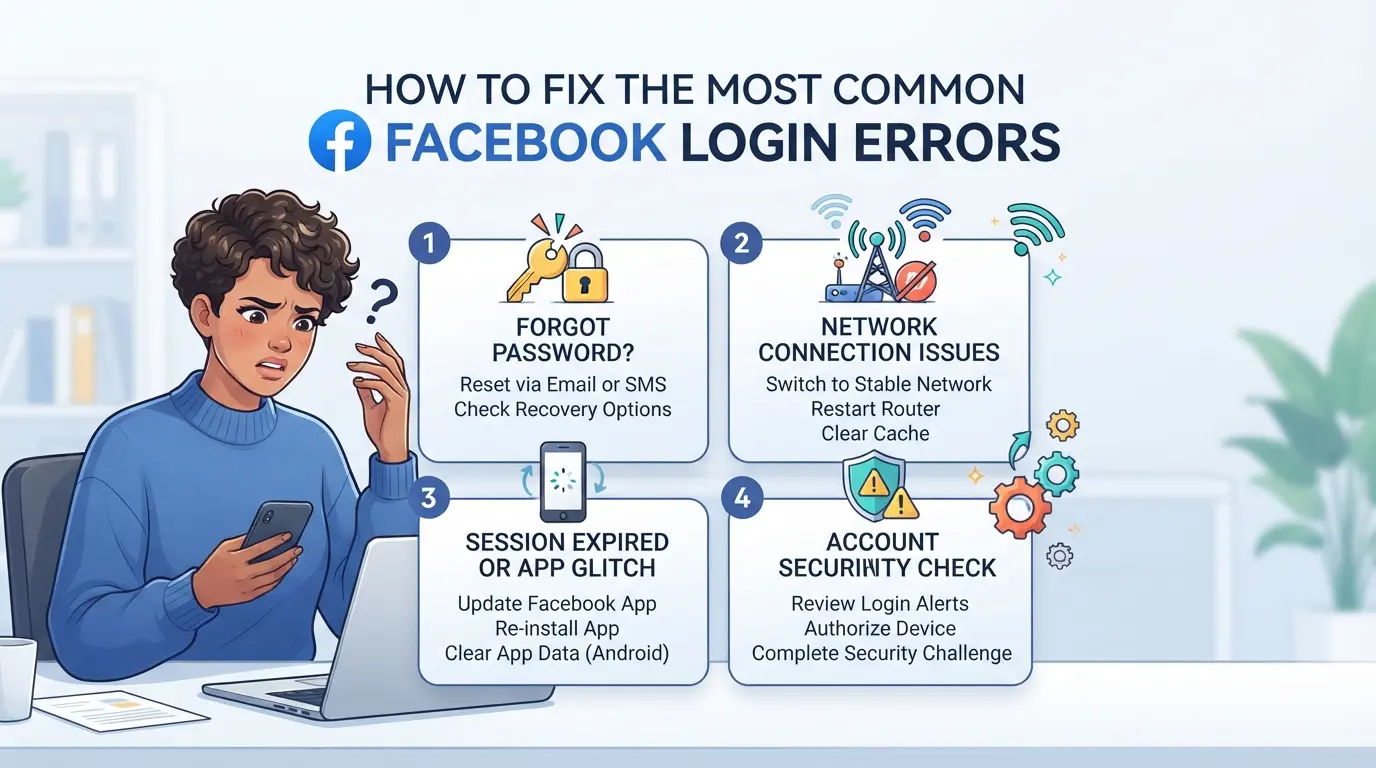
If you know the exact reason for your login failure, fixing it gets a lot easier. Here’s how to handle the most frequent Facebook login problems without wasting time or accidentally making things worse.
Resetting Your Password and Account Recovery
- Go to the Facebook login page and click “Forgot Password?”, If you don’t see your email or phone listed, check if you’ve used a different account or misspelled your info.
- Enter your recovery email or phone number, If Facebook says “No account found,” try your secondary contacts or check for typos.
- Follow the reset link sent via email or SMS, If the link expires or doesn’t arrive, wait 10 minutes, then request again. Using an old browser can block reset emails.
- If you have two-factor authentication (2FA) and can’t access your code generator, use a backup email or phone. If you’re locked out of all methods, the only option is to submit an ID appeal, which can take up to 48 hours.
Resolving Suspicious Activity and Account Restrictions
- If Facebook displays a “Suspicious Activity” banner, click “Secure Account” and follow their prompts, This usually means your login attempt triggered a risk flag based on device, location, or behavior.
- When asked for ID verification, upload a clear photo matching your account name, Blurry or cropped images are rejected and will delay review.
- If your account is restricted, check the restriction notice for duration, Temporary locks often last 24-72 hours. Permanent bans require a formal appeal.
- After submitting an appeal, monitor your email for updates, If you see no response in 72 hours, try logging in again. Weekend appeals process slower; Friday submissions often don’t get resolved until Monday.
Fixing Device and Browser Compatibility Issues
- Confirm you’re using a supported browser, As of 2026, Facebook works best with Chrome, Firefox, Edge, and Safari. Outdated browsers (like Chrome v120 or lower) may not load login pages.
- Clear your browser cache and cookies, Facebook stores session data for up to 30 days; a stale cookie can block login even after device changes.
- Switch devices if the login fails, If your phone lets you in but your laptop doesn’t, the issue is likely browser-related. Try updating your laptop’s OS, or use incognito mode to bypass stuck sessions.
- If login errors persist after updating, check for browser extensions that interfere with Facebook, Disable ad blockers or script managers, then retry.
Sometimes, fixing a facebook login issue means combining steps, resetting your password won’t help if your device triggers restriction, and clearing cache won’t fix an expired recovery link. The fastest way to resolve most login errors is to tackle the root cause first and avoid repeating actions that trigger additional security checks.
Account lockouts hit multi-account users harder, especially if you try logging in from several devices or browsers at once. Next up, you’ll see why these login problems show up more often for marketers and teams with multiple Facebook accounts.
Why Facebook Login Issues Are More Common for Multi-Account Users
Running several Facebook accounts on one device makes login errors much more frequent. The platform flags patterns that look different from normal user activity, so marketers, team admins, and anyone managing multiple profiles face tighter checks and more frequent lockouts.
How Facebook Detects Multiple Accounts
Facebook tracks browser fingerprints, IP addresses, and device IDs every time you log in. If you switch between accounts too quickly or use similar activity patterns, the platform's backend often marks your session as suspicious. This leads to forced password resets, two-factor prompts, or outright login blocks, especially after a device change or proxy swap.
The real risk is that Facebook combines fingerprinting and IP checks, so mixing multiple accounts on one device almost always raises red flags.
Common Mistakes That Trigger Restrictions
Mixing work and personal accounts, or repeatedly logging in and out, is a recipe for restrictions.
- If you log into several accounts from the same device, Facebook may freeze all of them for “unusual activity.”
- Safer move: Keep each account on its own browser profile or device, and avoid logging in and out rapidly.
Even small mistakes, like using cookies from one session to start another, can trigger lockouts that waste hours. If you're managing accounts for a team or business, separating login environments is the easiest way to cut down on these problems.
How Marketers and Teams Can Safely Manage Multiple Facebook Accounts Using DICloak
Multi-account workflows almost always run into platform friction, especially when Facebook login issues start piling up from shared browser storage, overlapping device signals, or inconsistent network connections. If you manage more than one Facebook account for work, the usual fixes (clearing cache, swapping devices) only go so far. The real gap isn’t just technical; it’s organizational. Teams need a way to keep each account’s login session separate, stable, and easy to hand off without risking more blocks or access problems.
Isolating Facebook Accounts with Separate Browser Profiles and Fingerprint Settings
Operators can set up a dedicated browser profile for each Facebook account inside DICloak. This means every login session gets its own storage, cookie jar, and browser-identification signals, like operating system, user agent, time zone, and screen size. Configuring fingerprint settings per profile is what keeps accounts from overlapping or leaking signals between sessions. For instance, a team managing client pages can create a profile for each account, adjust the OS and language, and keep activity consistent across devices. The scope here is limited to browser profile separation; operators configure profile signals, but platform account logic remains outside DICloak’s control.

Configuring Proxies for Each Facebook Account Profile
Each profile can have its own network connection. Operators add a user-provided proxy to DICloak, plug in host and port details, then test the connection, checking exit IP, region, and time zone before opening a Facebook session. Teams handling agency accounts often need proxies to prevent network overlap or trigger location-based workflows. Whether it’s HTTP, HTTPS, or SOCKS5, proxy setup is handled per profile, giving each account a separate path. The responsibility for proxy quality, compliance, and rotation belongs to the operator; DICloak stores and applies the settings but does not supply proxies or guarantee platform outcomes.

This setup gives teams a controlled foundation for managing multiple Facebook accounts. When login problems go beyond browser and network conflicts, it’s time to consider advanced workflows or seek platform support.
Advanced Solutions: When to Seek Facebook Support or Use Professional Tools
If you’ve tried every fix, but your facebook login issue still blocks access, or you run into unusual errors no one else seems to have, it’s time to escalate. Some problems can’t be solved with browser resets or new passwords, especially for business-critical accounts.
When to Contact Facebook Support
- Your account is locked or disabled and recovery options fail
- You suspect a security breach, such as changed email or unauthorized logins
- You face a permanent suspension or repeated ID checks with no way to resolve them
Using Professional Tools for Multi-Account Management
For complex workflows, like running dozens of accounts, each with different proxies, manual fixes rarely hold up. Browser profile tools let you separate sessions, device fingerprints, and cookies so Facebook doesn’t link accounts by mistake. Trying to manage multi-account setups without these tools often leads to more blocks, not fewer. If repeated login errors hit only your work setups, it’s a sign your manual process isn’t enough.
If nothing works, escalate to support or switch to tools built for this kind of risk, don’t just keep retrying the same fixes.
Best Practices to Prevent Facebook Login Issues in the Future
Keeping Accounts Secure and Consistent
Switching to strong, unique passwords and enabling two-factor authentication make account takeovers much less likely. Avoiding random logins, bulk actions, and pattern-breaking activity is the single most practical way to dodge new security blocks, Facebook flags sudden changes faster than you might expect.
Maintaining Device and Browser Hygiene
Routine device checks matter more than most users realize. Updating your browser and operating system, clearing out cached data, and staying away from unknown browser extensions can head off login problems before they start.
- Update browser and operating system at least monthly
- Clear cache and cookies if login errors persist or after major Facebook updates
- Remove or disable any extension you didn’t install yourself
Frequently Asked Questions About facebook login issue
Why can't I log into Facebook even after resetting my password?
If you still have a facebook login issue after changing your password, your account may be restricted or flagged for suspicious activity. Sometimes, logging in from a new device or location triggers extra security steps. Check your email for alerts from Facebook, and try clearing your browser cache or using a different device.
Is it safe to use proxies for Facebook login?
Using proxies can help manage several accounts, but low-quality or public proxies can cause facebook login problems. Facebook may block logins from suspicious IP addresses. Always use trusted, residential proxies and avoid rapid changes in location to keep your accounts secure and avoid login errors.
How do I recover a Facebook account if I lost access to my phone and email?
Go to the Facebook login page and click “Forgot Password?” Use any recovery options shown, like trusted contacts or answering security questions. You may need to upload an official ID for identity verification. Be sure to follow all instructions carefully to regain access to your account.
Can browser fingerprinting cause Facebook login issues?
Yes, browser fingerprinting can lead to facebook login not working, especially if your device or browser setup changes often. Facebook collects data about your browser and device. If this fingerprint looks different, Facebook might require extra verification or block you until you confirm your identity.
What should I do if Facebook keeps logging me out?
Frequent logouts could mean device conflicts, outdated browser cookies, or a security alert on your account. First, sign out of all sessions from your Facebook settings. Clear your browser cookies and cache, then update your browser. If you see security warnings, follow Facebook’s instructions to secure your account.
If troubleshooting steps haven’t resolved your access problem, considering alternative secure login tools can help safeguard your online activity and simplify authentication. Evaluating solutions that prioritize privacy and reliability may be the next logical step. Try DICloak For Free
 Web Proxy Tools
 Free Tools
 Cookie Plugin
 UA Generator
 MAC Address Generator
 IP Generator
 IP Address List
 2FA Code Generator
 World Clock
 Anonymous Check
 WebRTC Leak Test
 UUID Generator
 Free Web Proxy Site
 Proxy Checker
 FB Ad Checker
 AI Web Scraping
 Free SMM Tools
 Twitter Shadowban Checker
 Instagram Name Checker
 UTM Generator
 Username Generator
 AI Hashtag Generator
 LinkedIn Headline Generator
 Social Media Image Resizer