Starting a new YouTube idea often leads to one big question: do you need a new email for every channel? Many creators feel stuck at this point and delay launching new content. The good news is that YouTube does not work that way. You can grow multiple channels, explore different niches, and test new formats without creating extra Google accounts.
In this guide, you will learn how to create a new YouTube channel with the same email using YouTube’s official tools. We will walk through the exact steps, explain why Brand Accounts matter, and show how creators and businesses manage several channels safely under one login. If you want a simple, clean, and scalable way to expand on YouTube, this guide will show you how to get started the right way.
Personal Accounts vs. Brand Accounts
Before learning how to create a new YouTube channel with the same email, you need to understand how YouTube organizes accounts. Many users think every channel needs a new email. This is not true. YouTube uses two main channel types. Each one works in a different way. Knowing the difference helps you avoid mistakes later.
A personal YouTube account is the default setup. It is directly linked to your Google email. The channel uses your Google Account identity. This means your account name and profile photo often appear as the channel owner. With this type, you cannot create multiple personal YouTube channels under the same email. One email equals one personal channel. This is why many beginners feel stuck when they try to add another channel.
A Brand Account works differently. It creates a separate identity under your Google account. The email stays the same, but the channel has its own name, logo, and profile image. This is the key reason people search for how to create a new YouTube channel with the same email. When you create a new channel through YouTube settings, YouTube automatically creates it as a Brand Account.
In short, if your goal is to create a new YouTube channel with the same email, a Brand Account is not just an option. It is the official and recommended way to do it.
Step-by-Step Process to Create a New YouTube Channel with the Same Email
After understanding channel types, the next step is execution. This section explains the exact workflow YouTube provides. It shows how to create a new YouTube channel with the same email using official YouTube settings. The process is safe, repeatable, and works for both creators and businesses.
Signing into Your Google Account
First, go to YouTube.com and sign in with your Google account.
It is important to use the same email you already use for your existing channel. YouTube links all channels to your Google login. If you sign in with a different email by mistake, the new channel will not appear in your channel list later.
For example, if your current channel uses example@gmail.com, you must log in with that same email. This is the basic rule for anyone learning how to create a new YouTube channel with the same email.
Accessing YouTube Channel Settings
After signing in, click your profile icon in the top-right corner.
From the menu, select YouTube Studio. This opens your main dashboard. YouTube Studio is where all channel controls live.
Next, follow this path step by step.
- Click Settings in the left menu.
- Then go to Channel.
- Open Advanced Settings.
- Scroll down and click Manage YouTube Account.
This path is important. Many users miss it because it is not on the main upload page. However, this is the official place YouTube uses to manage multiple channels. It is also the correct path for how to create a new YouTube channel without deleting or replacing your current one.
Creating a New Channel
On the Manage YouTube Account page, you will see a section called Your YouTube Channels. Here, click Create a New Channel. YouTube will then ask you to choose a channel name. This name becomes the identity of your new Brand Account. It does not need to match your Google name. You can choose a name based on your content focus, such as Travel Tips Weekly, Short Fitness Clips, or Company Product Updates.
After you click Create, YouTube instantly creates a new Brand Account channel under your same email. This is the key step that explains how to create a new YouTube channel with the same email.
You can repeat this process later to create more channels. Each channel will appear in your channel switcher. You do not need new emails or extra logins.
Once the channel is created, you can customize it. You may add a profile photo, a banner, and a short description. These settings help viewers understand your content and help YouTube classify your channel correctly.
In one common real-world case, a small business owner uses one Google account to manage two channels. One channel is used for long product demos. Another channel focuses on short ads and updates. Both channels stay under the same email. The owner switches between them inside YouTube Studio with one click. This setup is common and fully supported by YouTube.
By following these steps, you now understand how to create a new YouTube channel with the same email in a clean and official way, without risking account confusion or loss.
Benefits of Having Multiple YouTube Channels When You Create a New Channel with the Same Email
After learning how to create a new YouTube channel with the same email, the real value comes from how you use that setup. Multiple channels are not only about growth. They are about clarity, control, and long-term efficiency. When channels are well separated, both viewers and creators benefit.
Content Organization
Running more than one channel helps you keep content clear and focused.
When one channel covers too many topics, audiences often lose interest. A viewer may subscribe for tutorials, but leave when they see unrelated Shorts or ads. Creating a second channel solves this problem. Each channel speaks to one clear audience.
For example, a creator may keep one channel for long educational videos. Another channel focuses only on short tips or highlights. Both channels feel more consistent. Viewers know what to expect. YouTube’s system can also understand the topic of each channel more easily.
This is a common reason creators look up how to create a new YouTube channel when their content direction changes. Using the same email makes this transition smooth and safe.
Using a Brand Account adds more structure to this setup:
- Simplified account management: All channels stay under one Google account. There is no need to manage many emails. This reduces mistakes and saves time, especially for creators who upload often.
- Separate branding for each channel: Each channel can have its own name, logo, and style. This is important when content topics are very different. Viewers see clear brands, not mixed messages.
- No need for multiple logins: You can switch between channels in a few clicks. There is no need to sign out or re-enter passwords. This makes daily publishing much easier.
These benefits explain why how to create a new YouTube channel with the same email is the preferred method for organized growth.
Monetization Opportunities
Multiple channels can also open more income paths when planned carefully.
YouTube allows creators to connect more than one channel to the same AdSense account. This means earnings from different channels can flow into one payout system. Managing money stays simple, even as channels grow.
Different channels can also serve different monetization goals. One channel may focus on long videos that build watch time and ad revenue. Another channel may grow faster through shorts, sponsorships, or brand deals. Each channel supports a different income style, but both are managed under one email.
Brand Accounts also support team collaboration, which helps monetization scale. You can add editors or marketing partners as channel managers without sharing your personal Google login. This is common for businesses and growing creator teams. It also keeps your main account secure.
In one real-world scenario, a small business runs two channels under the same email. One channel publishes detailed product guides. The second channel posts short promotional clips. The team switches channels easily, assigns managers, and tracks performance separately. Over time, both channels generate value in different ways.
When you understand how to create a new YouTube channel with the same email, you are not just adding another channel. You are building a flexible system. That system supports cleaner content, stronger branding, safer teamwork, and more ways to earn as your audience grows.
Security Considerations When You Create Multiple YouTube Channels with the Same Email
After understanding the benefits of running multiple channels, it is important to look at the limits and risks. Learning how to create a new YouTube channel with the same email gives you more control, but it also means one account connects everything. Knowing these risks helps you avoid costly mistakes.
Importance of Account Security
Using one email for many channels is convenient, but it creates shared responsibility.
One key risk is policy impact across channels. If YouTube suspends one channel for serious policy violations, other channels under the same Google account may also be reviewed or restricted. This can happen even if the other channels follow the rules. YouTube’s enforcement systems often look at account-level behavior, not only single channels.
For example, a creator runs two channels under one email. One channel uploads original tutorials. The second channel reposts content without permission. When YouTube detects the violation, the entire account comes under review. This situation shows why every channel must follow the rules when you use one email.
Another risk is account security. If your Google account is hacked, all connected YouTube channels are at risk. Videos can be deleted. Settings can be changed. Channels can even be misused to break YouTube rules. This is why creators who understand how to create a new YouTube channel with the same email are strongly advised to enable two-step verification and protect their login carefully.
Best Practices for Channel Management
Good management habits reduce risk and keep channels healthy.
- Secure your Google account. Use a strong password. Turn on two-factor authentication. Avoid logging in on public or shared computers. These steps protect every channel at once.
- Keep channels clearly separated. Each channel should have its own content focus and upload style. Avoid posting the same videos across channels without changes. This helps maintain algorithm independence and avoids reused-content issues.
- Manage permissions with care. Brand Accounts allow team access, but only add managers when necessary. Remove access when someone no longer works with you. Clear roles reduce errors and protect your channels.
- Understand the limit of personal YouTube accounts. You cannot create multiple personal YouTube channels under one email. If you need separate personal identities, you must use different Google accounts with different emails. This is an important detail many people miss when searching how to create a new YouTube channel.
In a common real-world setup, a business runs several Brand Account channels under one email. Each channel has its own manager. The owner keeps full control, reviews content regularly, and follows policy updates. This structure allows growth while keeping risk under control.
When you understand both the benefits and the limits of how to create a new YouTube channel with the same email, you can build safely. Smart security choices and clear rules turn one email into a stable foundation, not a single point of failure.
How to Manage Multiple YouTube Channels Created with the Same Email Effectively
Once security is in place, efficiency becomes the next goal. After you understand how to create a new YouTube channel with the same email, smart management helps you stay consistent, reduce errors, and grow each channel on its own path.
Utilizing YouTube Studio
YouTube Studio is the main workspace for managing multiple channels.
Each channel linked to your email has its own Studio view. Inside YouTube Studio, you can plan uploads, reply to comments, review analytics, and manage monetization. Even though all channels use one login, their data stays separate.
To stay organized, many creators plan a clear content strategy for each channel. A simple content calendar helps. One channel may upload once a week with long videos. Another may post Shorts daily. Planning content by audience and niche keeps channels focused and avoids overlap.
Playlists are also useful. If a channel covers related topics, playlists can group videos without creating a new channel. This helps when content fits the same audience but needs better structure. Creating a new channel makes sense only when the audience or format is clearly different.
YouTube Analytics inside Studio plays a key role here. Each channel shows its own performance data, such as watch time, click-through rate, and audience retention. These insights help you adjust titles, thumbnails, and posting times for better results. This is especially helpful for creators who already know how to create a new YouTube channel and want to optimize growth.
Channel Switching Feature
Managing multiple channels is much easier with YouTube’s built-in channel switching feature.
You can switch channels by clicking your profile icon and choosing Switch account. This lets you move between channels without logging out. It saves time and reduces mistakes during uploads or comment replies.
For example, a marketing manager may post a tutorial video on one channel, then switch channels to upload a short promo clip. Both actions happen under the same email, but each channel stays independent.
Some teams that manage many channels or client accounts also use separate browsing profiles to reduce confusion and improve security. These setups help isolate sessions and keep workflows clean, especially when multiple people access different channels. However, it is important to remember that tools do not replace good policy compliance. YouTube rules still apply to every channel.
Use DICloak for Secure Account Management
When users manage several YouTube channels created under the same email, daily operations can become complex. In these cases, creators can use DICloak Antidetect Browser as a supporting tool to keep channel sessions organized and isolated during work.
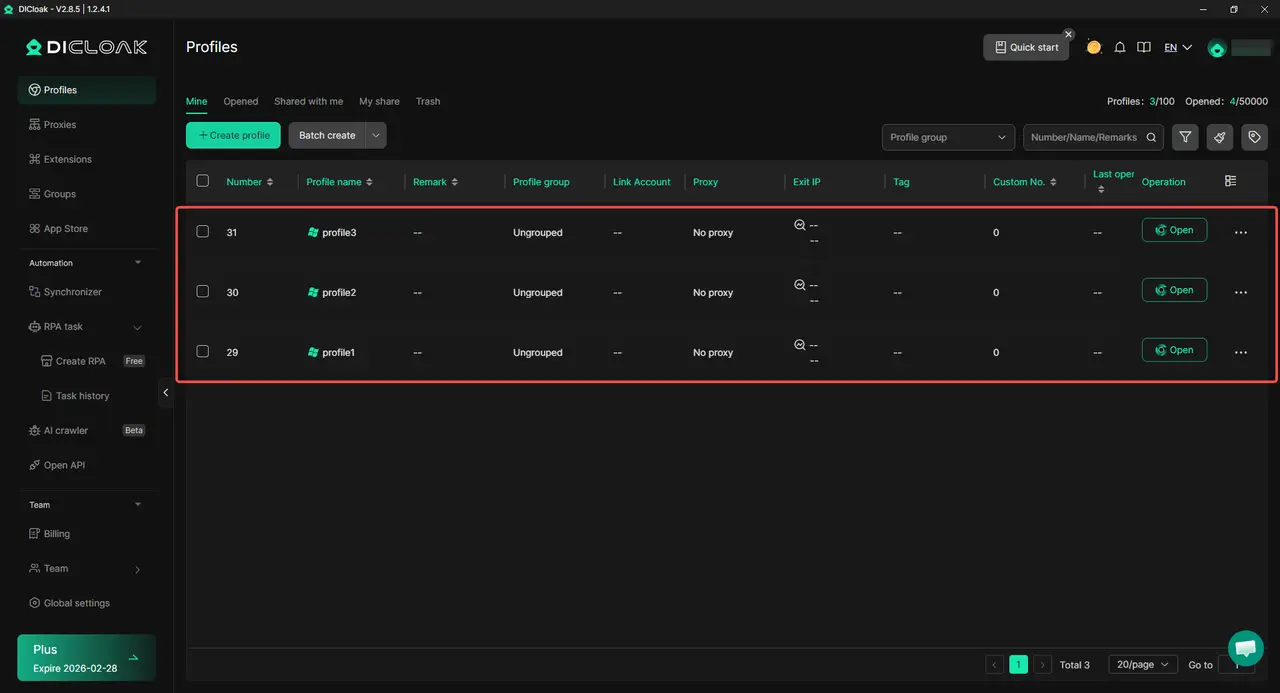
- Create isolated browser profiles for each channel: Users can open each YouTube channel inside a separate browser profile. Each profile runs in its own profile, with independent cookies, cache, and browser data. This helps avoid session mix-ups when switching between channels during uploads, comments, or analytics checks.
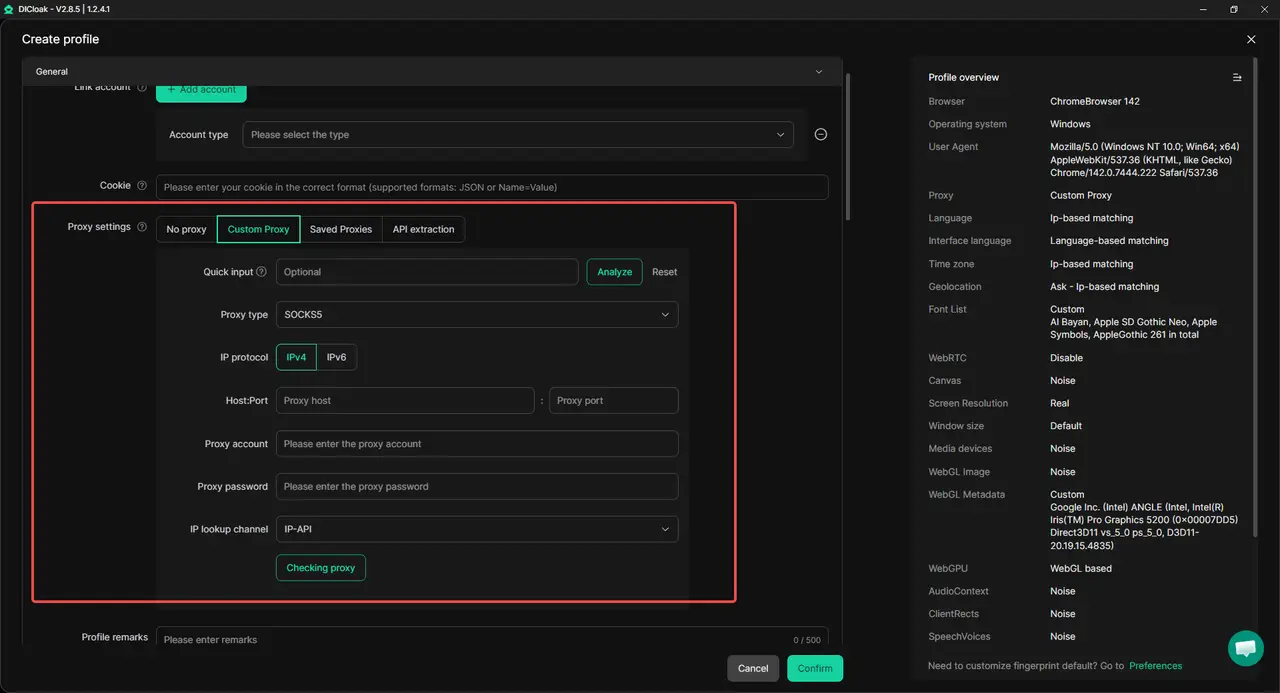
- Customize proxy settings for each profile: Users can manually configure their own proxy settings for each browser profile, including HTTP, HTTPS, or SOCKS5 proxies. By assigning a different proxy configuration to each channel profile, users can keep network environments consistent during repeated logins. This is especially helpful for teams or creators who work from multiple locations.
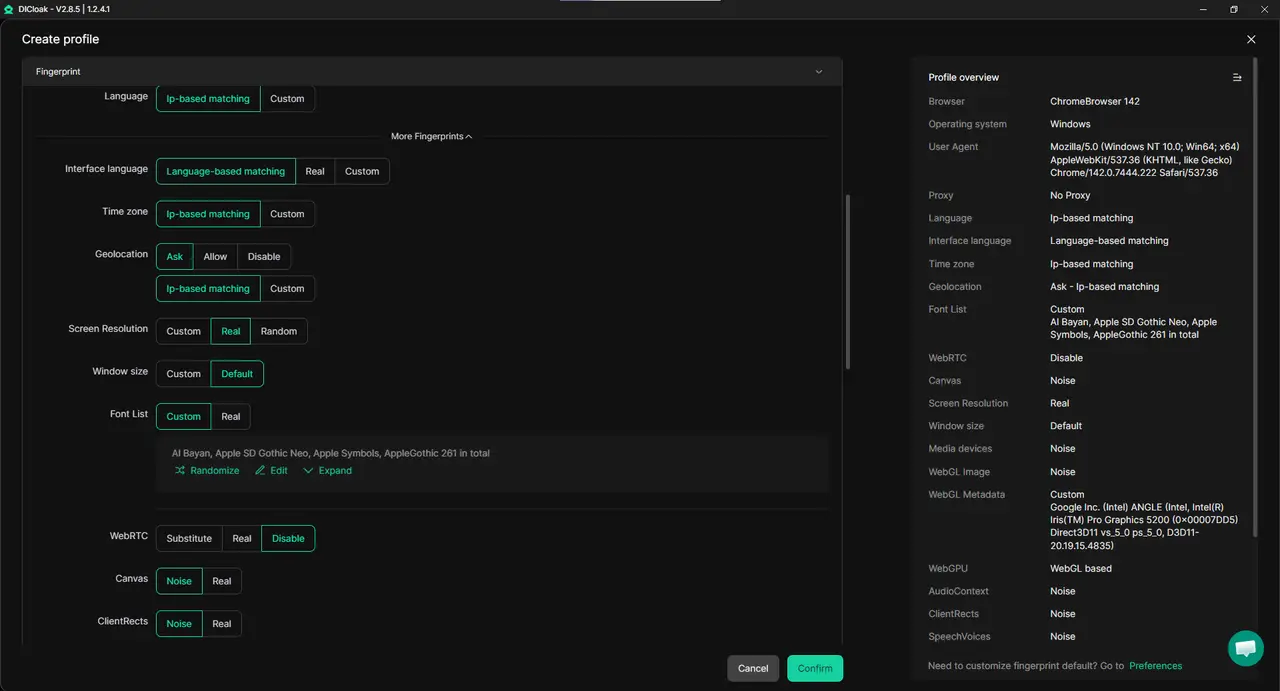
- Manage browser fingerprints independently: Each profile allows users to control browser fingerprint elements such as screen resolution, system language, and WebGL parameters. This helps keep channel profiles separate when users frequently switch between accounts. It is useful for creators managing multiple channels under one email who want clear operational boundaries.
- Support safer team workflows without sharing main logins: When working with editors or partners, users can assign specific browser profiles instead of sharing their primary Google login. This reduces the risk of accidental changes across channels and helps maintain clearer responsibility during collaboration.
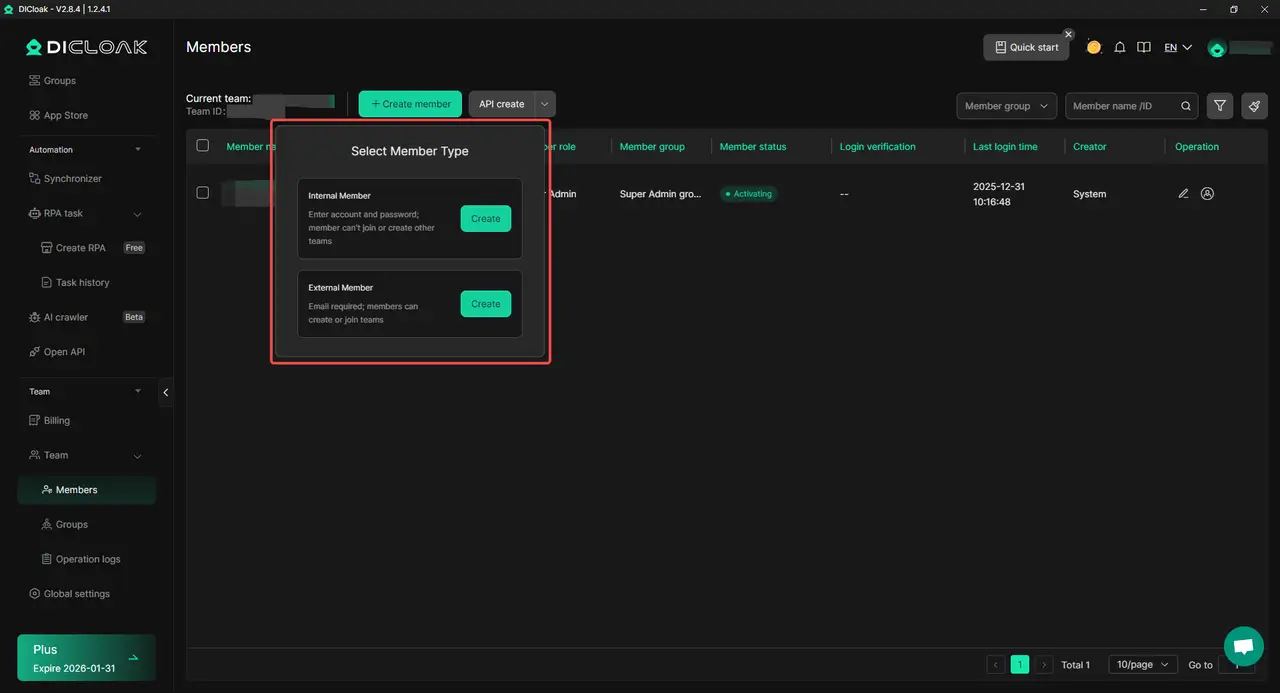
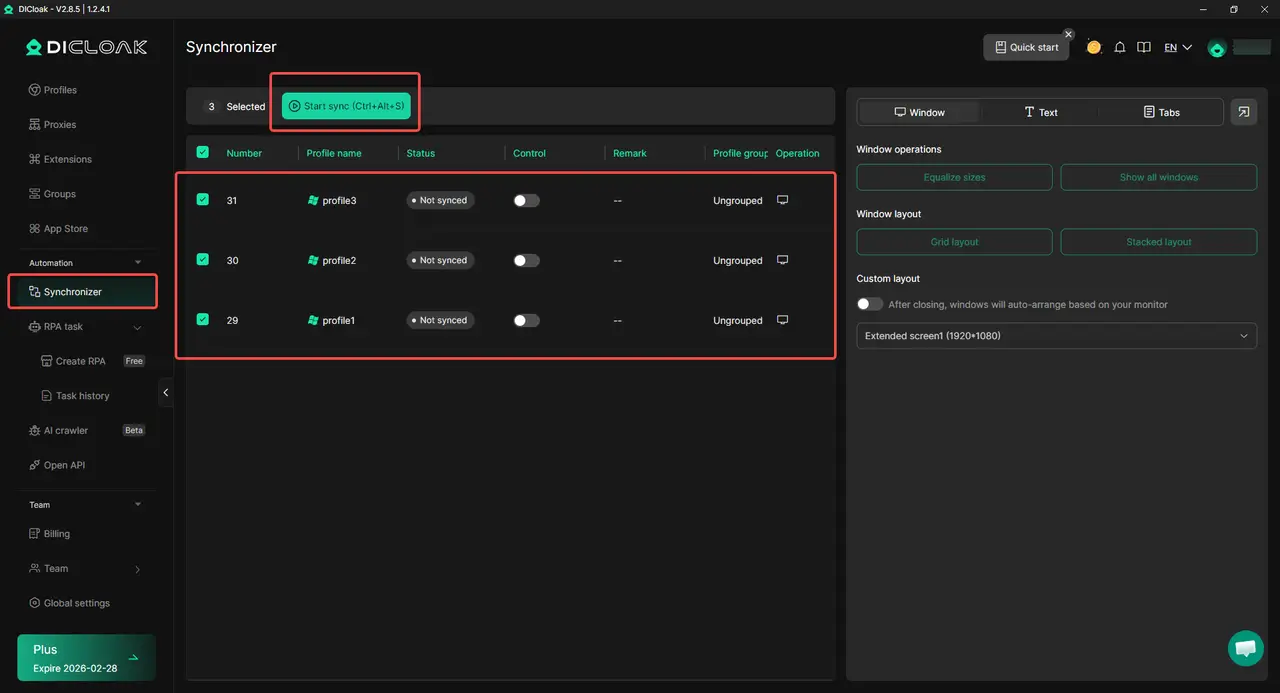
- Improve daily efficiency when managing multiple channels: For creators who already know how to create a new YouTube channel with the same email, uploading videos one by one can be time-consuming. With DICloak’s Synchronizer, users can trigger video uploads across multiple browser profiles at the same time. This helps speed up publishing when managing several channels in one session, while each channel still runs in its own isolated profile.
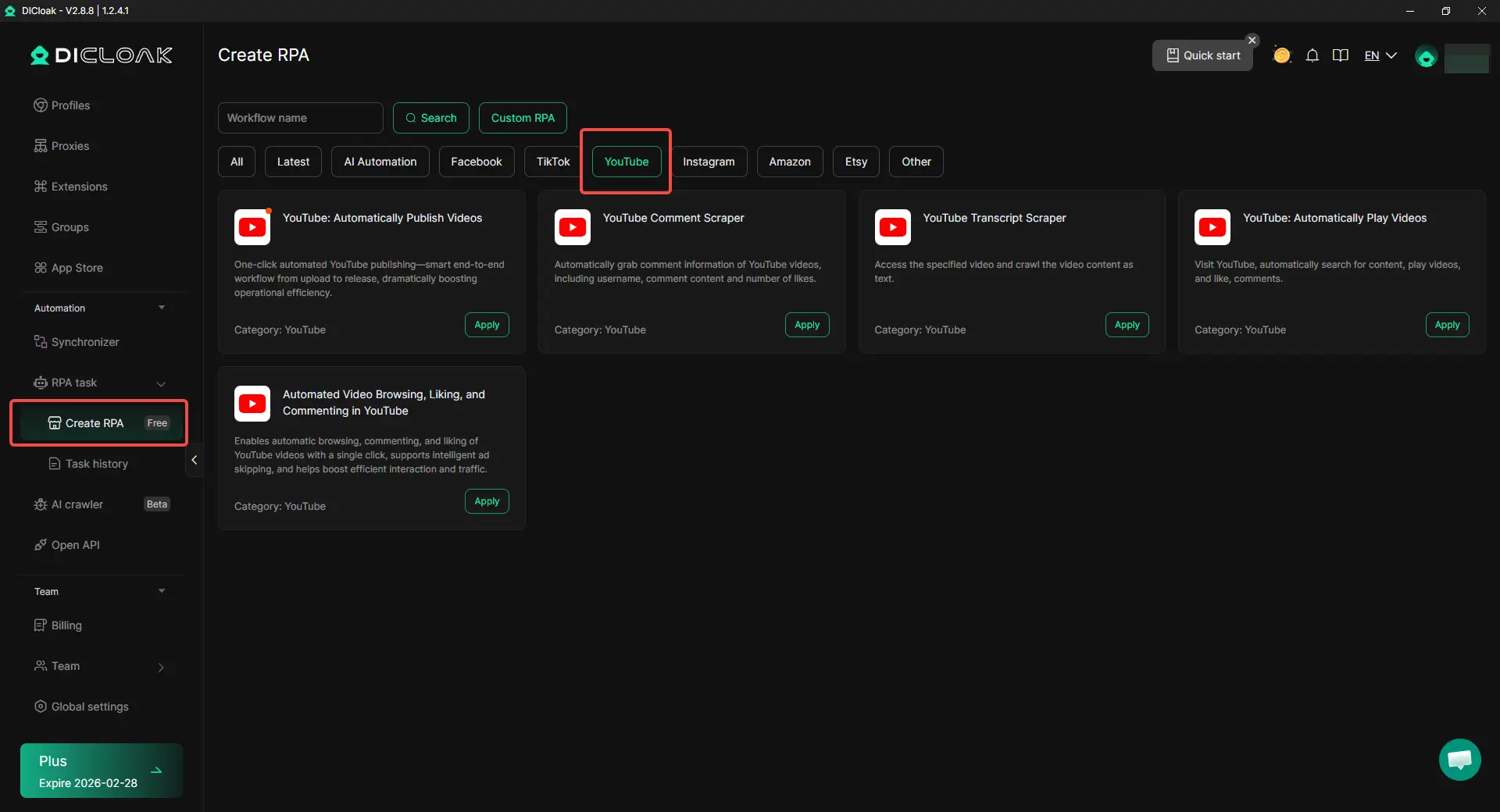
- Use built-in YouTube RPA workflows for routine tasks: In addition to manual operations, users can also take advantage of YouTube-focused RPA workflows inside DICloak. These ready-made automations can handle routine actions such as publishing videos, browsing content, or collecting basic data within isolated profiles. For creators managing multiple channels created under the same email, these RPA workflows help reduce repetitive work and keep operations consistent across channels, while each task still runs inside its own controlled browser profile.
It is important to note that tools do not replace compliance with YouTube policies. However, when combined with responsible channel practices, users can rely on this setup to better manage the workflow that comes after learning how to create a new YouTube channel and scaling content across multiple channels.
When you combine strong planning, clear analytics review, and careful channel switching, managing multiple channels becomes simple. With the right habits, how to create a new YouTube channel with the same email turns from a setup task into a long-term system that supports growth, safety, and efficiency.
Alternatives to How to Create a New YouTube Channel with the Same Email
After learning how to create a new YouTube channel with the same email and how to manage it well, some creators realize they may not need another channel at all. In other cases, a different setup works better. Below are two common alternatives, with clear pros and cons, so you can choose what fits your goals.
Using Playlists for Content Organization
Playlists are a simple option when your content targets the same audience.
If your videos cover related topics, playlists can group them without creating a new channel. This keeps everything under one brand and one subscriber base. It also reduces daily work, since you manage only one channel.
For example, a tech creator runs one channel. They post phone reviews, laptop guides, and short tips. Instead of opening a second channel, they create playlists like “Phone Reviews,” “Laptop Guides,” and “Quick Tips.” Viewers can easily find what they want, and the channel stays focused.
Playlists work best when:
- The audience is the same
- The content style is similar
- Branding does not need to change
However, playlists have limits. All videos still share one algorithm history and one channel identity. If your content styles or audiences are very different, playlists may feel crowded. In that case, creators often look again at how to create a new YouTube channel to keep things clean.
Creating Separate Google Accounts
Another option is using different Google accounts for different channels.
This approach gives full separation. Each channel has its own email, login, and account history. Some creators prefer this for client work or strict separation between projects.
For example, a freelancer manages their personal channel with one email. They also manage a client’s channel using the client’s Google account. This avoids overlap and keeps ownership clear.
There are benefits:
- Full independence between channels
- No shared account-level risk
- Clear ownership for business or client projects
But there are also downsides:
- More emails to manage
- More logins and passwords
- Harder daily switching between channels
Because of this extra work, many creators prefer how to create a new YouTube channel with the same email using Brand Accounts. It offers separation without the overhead of multiple Google accounts.
In short, playlists work well for related content. Separate Google accounts work for strict separation. But when you want balance, flexibility, and easier management, understanding how to create a new YouTube channel with the same email remains the most practical solution for long-term growth.
Conclusion
Creating multiple YouTube channels does not require multiple emails. This guide explains how to create a new YouTube channel with the same email using YouTube’s official Brand Account system. With one Google login, you can manage separate channels, each with its own name, content focus, and audience, without extra accounts.
Once the channels are set up, tools like YouTube Studio, analytics, and channel switching make daily management easier. At the same time, strong account security and clear content separation help reduce risk. For most creators, understanding how to create a new YouTube channel with the same email is the simplest and most flexible way to grow on YouTube.
Frequently Asked Questions (FAQs)
Can I really create a new YouTube channel with the same email?
Yes, you can create a new YouTube channel with the same email by using a Brand Account. YouTube allows one Google account to manage multiple channels. Each new channel has its own name, branding, and settings, while still being linked to the same email login. This is the official and recommended method provided by YouTube.
How many YouTube channels can I create with the same email?
YouTube does not publish a fixed public limit, but most users can create dozens of channels under one Google account using Brand Accounts. For typical creators and businesses, this is more than enough. If you reach limits or see restrictions, YouTube may ask you to slow down or review account activity.
Is it safe to create a new YouTube channel with the same email?
Yes, it is safe if you follow best practices. When you create a new YouTube channel with the same email, all channels share the same Google account security. This means you should use a strong password, enable two-step verification, and follow YouTube’s policies on every channel. Good security habits protect all channels at once.
Will one channel’s problems affect other channels under the same email?
In some cases, yes. If one channel under the same email has serious policy violations, YouTube may review other channels linked to that account. This is why it is important to keep content separate, follow community guidelines, and manage each channel responsibly when you create a new YouTube channel with the same email.
Should I create a new YouTube channel with the same email or use a different Google account?
It depends on your goal. If you want easy switching, shared management, and one login, learning how to create a new YouTube channel with the same email is usually the best option. If you need full separation, such as client ownership or personal privacy, using separate Google accounts may be a better choice. Most creators start with one email and scale from there.
 Web Proxy Tools
 Free Tools
 Cookie Plugin
 UA Generator
 MAC Address Generator
 IP Generator
 IP Address List
 2FA Code Generator
 World Clock
 Anonymous Check
 WebRTC Leak Test
 UUID Generator
 Free Web Proxy Site
 Proxy Checker
 FB Ad Checker
 AI Web Scraping
 Free SMM Tools
 Twitter Shadowban Checker
 Instagram Name Checker
 UTM Generator
 Username Generator
 AI Hashtag Generator
 LinkedIn Headline Generator
 Social Media Image Resizer