LinkedIn Premium subscriptions can feel like a trap , you sign up for a free trial, forget to cancel, and then get billed for another month you barely use. The real headache starts when you try to cancel: the steps are buried, auto-renew is confusing, and LinkedIn keeps prompting you with retention offers. Many users worry about hidden fees or losing access to features they rely on for recruiting or outreach, especially if they run multiple accounts for business or side gigs.
What trips people up is not just the cancellation itself, but the timing. If you cancel LinkedIn Premium subscription even a day late, your account can get charged for the full next cycle. There’s also a risk , canceling might downgrade your search limits or message quota instantly, so if you need to wrap up a project or contact list, you have to plan ahead. For those using LinkedIn Premium trials to manage several profiles, juggling cancellations across accounts can lead to missed deadlines or even lost data if you don’t check session logs and email settings carefully.
The practical fix is learning the step-by-step cancellation process, knowing exactly when your changes take effect, and understanding what happens to your account after you stop LinkedIn Premium. This guide covers not just how to end LinkedIn Premium trial safely, but also how to avoid common mistakes and manage multiple accounts without surprises.
Start with the official cancellation workflow, here’s what to check first.
What to Check Before You Cancel LinkedIn Premium
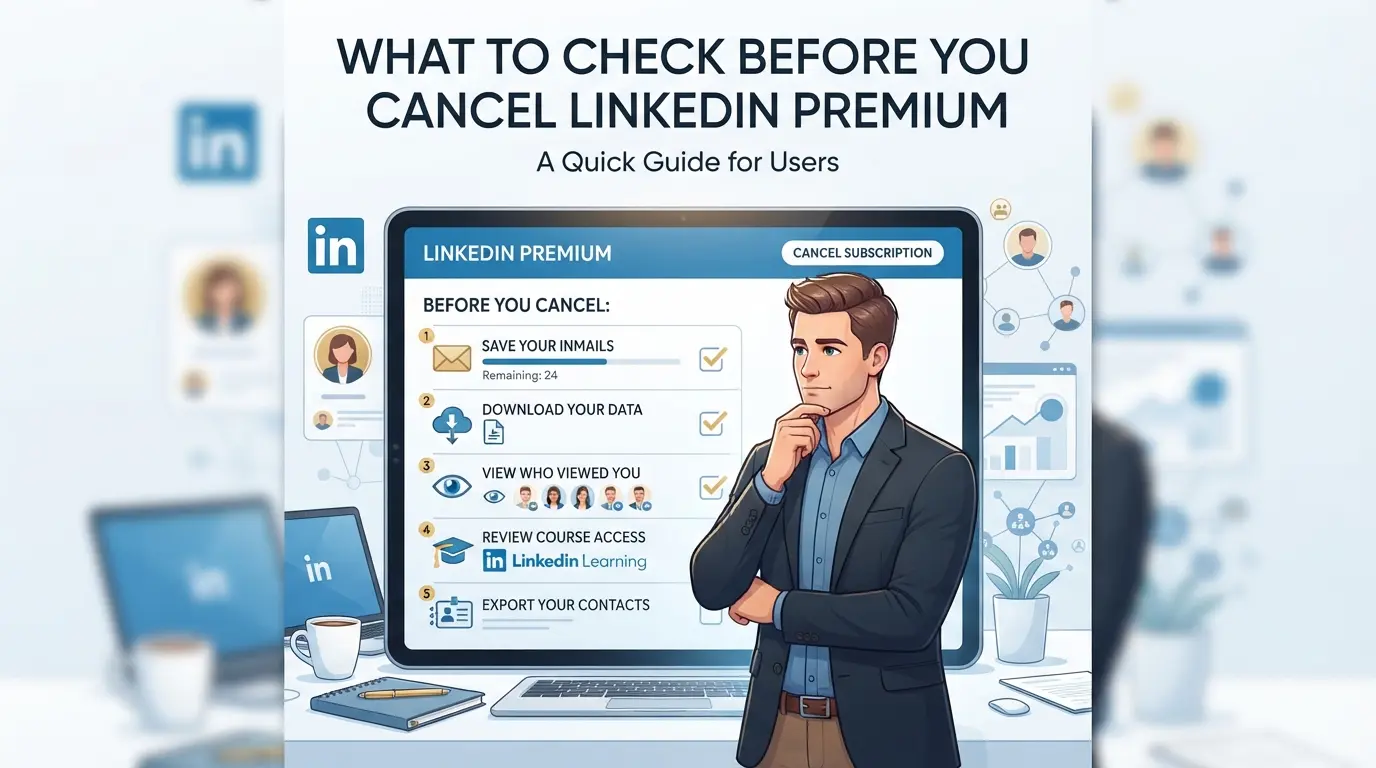
If you rush to stop LinkedIn Premium without checking a few key settings, you can lose unused InMail credits, advanced reports, or trigger an extra payment that can’t be undone. The right move is to clear out your valuable features and download anything you might need later, the biggest regret comes from missing a report or wasting paid credits that disappear after cancellation.
Use Up Remaining InMail Credits and Download Reports
Unused InMail credits don’t roll over once you cancel. Log in and check your balance in the Premium dashboard. Send any last outreach messages before your account downgrades, there’s no way to recover lost credits after you hit cancel. Download saved leads, search reports, and connection data from the “My Premium Features” tab while you still have access. If you skip this, you risk losing custom lists and analytics that are locked behind Premium.
Review Premium-Only Features You’ll Lose
Some features stop working right away, others fade at your next billing date. Run this quick checklist before you cancel:
- Export all advanced search results and saved filters, you’ll lose access instantly.
- Finish LinkedIn Learning courses; certificates vanish after downgrade.
- Save salary insights and competitive data if you rely on them for job hunting.
Check Your Billing Cycle and Next Payment Date
Missing your renewal window can mean an extra month’s charge or trouble getting a refund. Open your LinkedIn Premium settings and check the next billing date. Cancel at least 24 hours before renewal to avoid unwanted fees, waiting until the last minute can leave you stuck with another cycle.
- Find your next payment date in “Manage Subscription” under account settings.
- Confirm if you’re on a monthly or annual plan; refund rules vary.
- Check your bank or PayPal activity for pending charges, sometimes cancellations don’t process instantly.
Once you’ve covered these details, you’re ready to start the cancellation process. The next section walks through the exact steps for desktop and mobile, so you don’t miss any hidden settings or risk stopping your LinkedIn Premium subscription the wrong way.
Step-by-Step: How to Cancel LinkedIn Premium on Desktop and Mobile
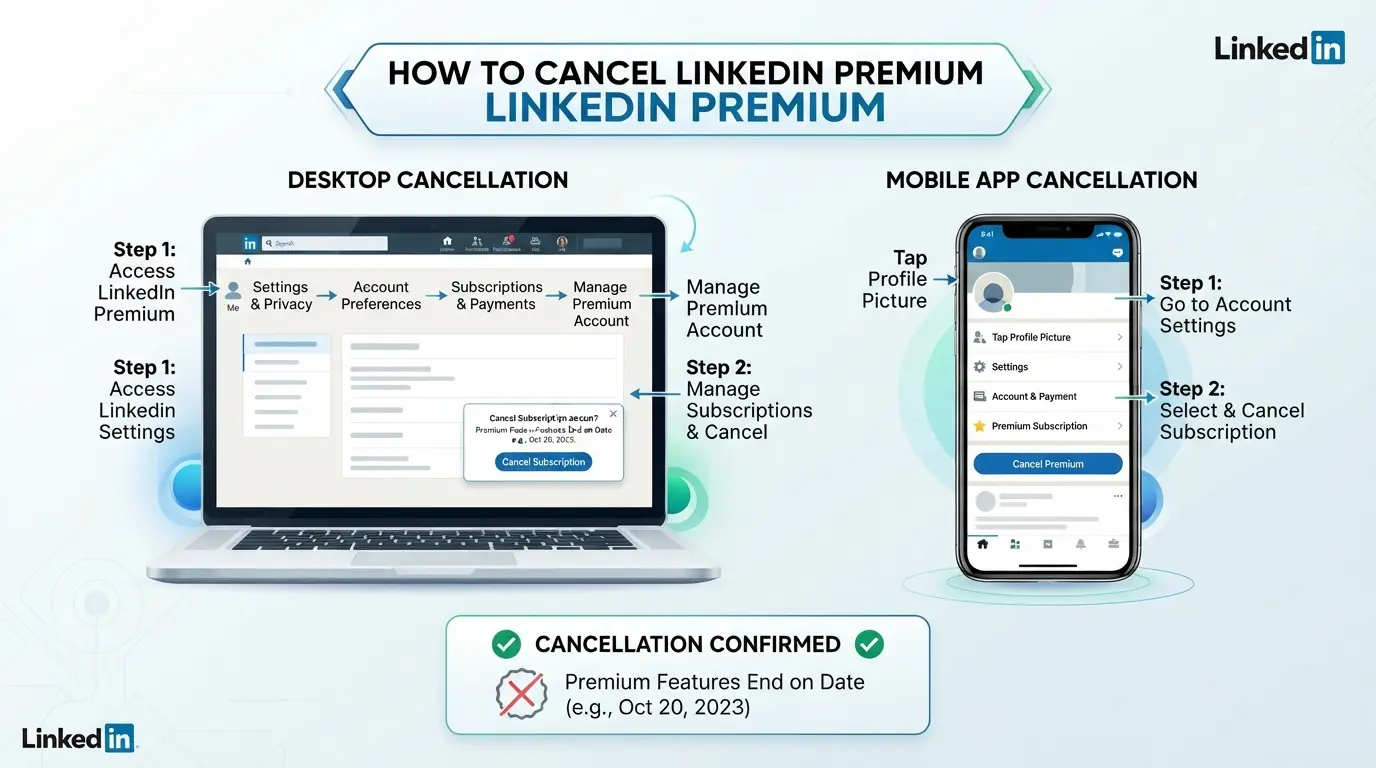
You can cancel LinkedIn Premium in 2026 on web, iPhone, or Android without waiting for support. Each device has its own workflow, and missing a step can leave your subscription active, especially if you signed up through Apple or Google Play. Use these step-by-step guides to avoid billing mistakes and get instant confirmation.
Cancel LinkedIn Premium on Desktop (Web Browser)
- Log in to your LinkedIn account and click your profile icon in the top right.
- Go to “Settings & Privacy,” then open “Subscriptions & Payments.”
- Click “Manage Premium Account.” If you don’t see this, check which account you’re logged in to.
- Select “Cancel Subscription” and follow the prompts. You’ll get a confirmation email within 5 minutes, if not, your cancellation didn’t go through.
Cancel LinkedIn Premium on iPhone (App Store Billing)
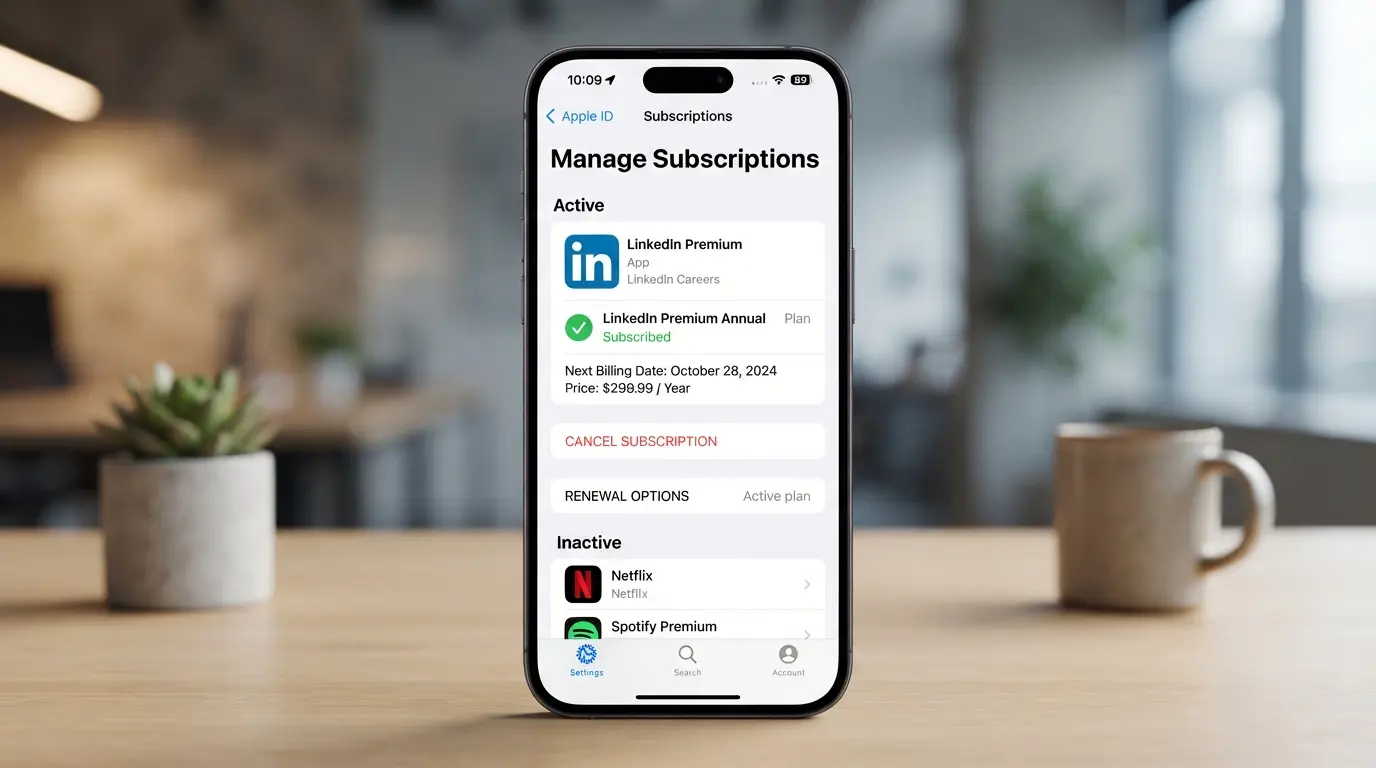
- Open your iPhone’s Settings and tap your Apple ID at the top.
- Select “Subscriptions,” then find LinkedIn in the list.
- Tap “Cancel Subscription.” If LinkedIn isn’t listed, you likely signed up on desktop or Android.
- Wait for Apple’s email confirmation, if you don’t get it, the cancellation probably failed.
Cancel LinkedIn Premium on Android (Google Play Billing)
- Launch Google Play Store and tap your profile icon.
- Choose “Payments & Subscriptions,” then tap “Subscriptions.”
- Find LinkedIn, tap it, and select “Cancel Subscription.”
- Watch for a Google Play email confirming the change, if you don’t see it in your inbox, double-check your account.
Troubleshooting: If You Don’t See the Cancel Option
- Switch accounts, sometimes you’re logged in under the wrong LinkedIn profile, especially if you manage multiple accounts.
- Check if the subscription was purchased through Apple or Google Play instead of LinkedIn; the cancellation button only appears on the original platform.
- If your account is suspended or managed by a team, contact LinkedIn support directly. Team-managed accounts won’t display the cancel option unless you’re the billing owner.
- If you can’t cancel from any device, the fastest workaround is to use LinkedIn’s in-app chat support between 8-10am UTC, queue times are shortest and you’ll get a live response.
Finishing the cancellation on your device is only half the fix. If you’re on a free trial, the next step is making sure you aren’t charged once your trial ends, skip ahead to learn how to avoid surprise fees.
How to Cancel LinkedIn Premium Free Trial Without Getting Charged
Canceling your LinkedIn Premium free trial on time is the difference between walking away with zero cost and getting hit with a surprise bill. Here’s how to avoid the most common mistakes.
When to Cancel to Avoid Charges
If you’re trying to end your free trial without paying, timing matters more than anything else. Cancel at least 24 hours before your trial ends, waiting until the last day is risky because LinkedIn’s system often processes renewals overnight.
- Check your trial end date in LinkedIn’s billing section. This is visible under “Premium Subscription Settings.”
- Set a calendar reminder one day before expiration. If you wait until the last minute, you risk getting charged if the cancellation doesn’t process instantly.
- Cancel at least 24 hours before the deadline. This gives LinkedIn’s system enough time to log your cancellation before the billing cycle starts.
- Take a screenshot of the confirmation page. If your cancellation doesn’t go through, this is your proof.
Step-by-Step: Ending Your Free Trial
Getting to the right cancellation page is where most people mess up, LinkedIn hides the option behind several menus, and using the wrong workflow can leave your trial active.
- Log into LinkedIn on desktop or app.
- Go to “Settings & Privacy” → “Account Preferences” → “Premium Subscription Settings.”
- Click “Cancel Subscription” and follow the final confirmation steps. If you don’t see a confirmation banner, refresh and check your subscription status.
- After canceling, confirm your trial status says “ending” or “cancelled.” If it still says “active,” repeat the process or contact support.
What Happens If You Forget to Cancel in Time
If you miss the deadline and get charged, refund chances depend on how quickly you act and if you’ve used Premium features after renewal.
- If you’re billed, check your account for the charge date and invoice.
- Go to LinkedIn’s help center and submit a refund request within 48 hours. Using Premium features after renewal can make refunds harder.
- If support doesn’t respond in 72 hours, use their live chat or phone callback for faster resolution.
- Keep all records of your cancellation and support tickets, these help if you need to escalate.
Missing the cutoff usually means you’ll pay for the next month, so knowing exactly when to cancel is the safest move. Next, you’ll want to know what changes once your Premium ends and how it affects your LinkedIn account.
What Happens After You Cancel LinkedIn Premium?
Canceling LinkedIn Premium cuts off paid features right away, but your basic account stays intact. Most users worry about losing access or missing messages, here’s what actually changes and what doesn’t.
Loss of Premium Features and Data
Premium features like advanced search filters, full InMail access, and profile viewing insights shut down as soon as your billing cycle ends. Any unused InMail credits disappear, there’s no grace period or refund. Saved reports and analytics tied to Premium also become inaccessible. If you relied on LinkedIn Premium to track prospects or run searches for hiring, you’ll notice the drop in quota and filtering options the next time you log in.
Access to Your LinkedIn Account and Basic Features
You keep your LinkedIn profile, connections, and standard messaging tools. Your account won’t be deleted or restricted, only the Premium badge and extras vanish. For example, you can still search for people and send basic messages, but you’ll hit search limits faster. If you had a project in progress, you might need to adjust your workflow since bulk messaging and detailed insights are gone. The biggest risk is losing access to saved data; once the subscription stops, you can’t recover old Premium reports, so download anything critical before canceling.
Billing and Subscription Status
- Billing ends at your next renewal date; you won’t be charged further.
- Check your account’s “Subscriptions & Payments” section to confirm the cancellation was processed.
- If you get an email saying your Premium ended, your account is downgraded, you can spot this by the missing Premium badge and feature prompts.
If cancellation doesn’t show up immediately in your account dashboard, log out and back in. Sometimes the status updates only after a fresh session or the next billing cycle clears. That’s your cue to check for lingering charges or feature access before moving on.
Teams managing several LinkedIn accounts after cancelling Premium have to rethink session safety and profile separation, shared logins and browser mixing cause most restrictions.
Risks of Managing Multiple LinkedIn Accounts Without Isolation
- Shared browsers link cookies, so LinkedIn may flag accounts for suspicious activity.
- Using the same device for multiple accounts can trigger bans due to IP overlap.
- Forgetting to clear session history or mix passwords often leads to cross-account detection.
Best Practices for Secure Multi-Account Workflows
Keep each account in its own browser profile or container, never reuse sessions across accounts. Assign clear roles: one person manages passwords, another handles content. Use a shared spreadsheet to track who logged in, when, and from which device. If you see unusual login attempts or sudden access blocks, check browser history for leftover cookies and run a quick password reset. This workflow cuts the risk of accidental account linking and keeps the audit trail clean for every client or team member.
How to Set Up Safer LinkedIn Account Management with DICloak: Profile Isolation, Proxy Configuration, and Team Permissions
For teams or agencies stepping away from LinkedIn Premium, managing multiple LinkedIn accounts can get messy fast, especially when browser sessions overlap or members share devices. The main gap is keeping each account truly separate, so profile data, cookies, and fingerprints don’t bleed across sessions. If you need to coordinate LinkedIn accounts after cancelling Premium, DICloak gives you three practical controls: isolated browser profiles, user-provided proxies, and granular team permissions.
Create Isolated Browser Profiles and Configure Fingerprints for Each LinkedIn Account
Operators can create a new browser profile for every LinkedIn account and adjust fingerprint settings like User Agent, time zone, interface language, and screen size. This prevents session mix-ups, so each LinkedIn login stays in its own environment, no shared storage, no accidental cookie crossover. For example, a social media manager assigns LinkedIn accounts to team members, each with a profile configured for their workflow. The scope stays at the browser layer; it doesn’t change LinkedIn’s own account controls.

Assign a User-Provided Proxy to Each Profile for Network Separation
Every browser profile can get its own proxy, which operators add and test in DICloak before starting a LinkedIn session. This way, each account uses a separate network path, so session traffic is kept distinct, especially useful when accounts need different locations or compliance rules. Operators handle proxy selection and setup; DICloak only stores and applies what’s configured. If the proxy fails the connectivity check, you’ll see a clear error, so you don’t waste time troubleshooting inside LinkedIn.

Control Team Access and Permissions for LinkedIn Profiles
Admins set which team members can access which LinkedIn profiles, group accounts by project, and limit actions to only what each role needs. You can restrict profile visibility and functions, so a freelancer can open just their assigned account, while a manager sees all profiles and logs. These controls keep workflow clean and prevent accidental profile overlap. Permissions inside DICloak don’t affect LinkedIn’s own platform settings.

If you’re ready to handle refunds or billing cleanup, the next section covers what to do after stopping LinkedIn Premium.
How to Request a Refund or Fix Billing Issues After Cancelling LinkedIn Premium
If you cancelled LinkedIn Premium and notice extra charges or billing errors, you can still get a refund, but you need to act fast before the refund window closes.
Who Is Eligible for a Refund
- Cancel within 14 days, most paid Premium plans are eligible for a refund if you cancel in the first two weeks.
- Free trial charges, refunds are only possible if you never used the trial features after being billed.
- Duplicate payment, if you’re charged twice for the same period, request a refund.
- Technical errors, if cancellation failed and you got billed after confirming, report it immediately.
How to Request a Refund or Dispute a Charge
- Sign in and go to your LinkedIn account settings, find the “Billing and Payments” section.
- Use the “Contact Support” form, describe the issue, include your cancellation date and invoice number.
- Attach screenshots, proof of cancellation and extra charges speeds up the process.
- Check email for LinkedIn’s reply, most cases resolve within 3-5 business days if your details are clear.
Next, see the most common mistakes users make when cancelling Premium and how to avoid getting stuck with extra fees.
Common Problems and Mistakes When Cancelling LinkedIn Premium (and How to Avoid Them)
Missing the Cancellation Window If you wait until the last day to cancel, you risk getting billed for another month, LinkedIn processes cancellations instantly, but payment deadlines aren’t flexible. Set a calendar reminder at least 24 hours before your renewal date and confirm the cancellation went through on your billing page.
Cancelling on the Wrong Platform (Web vs. App Store vs. Google Play)
- Check where you first bought LinkedIn Premium: web, Apple, or Google Play.
- Cancel directly in the platform where you started the subscription.
- Confirm cancellation with a platform email or LinkedIn dashboard update.
Not Downloading Data or Using Credits Before Cancelling
Unused InMail credits and premium insights disappear right after you stop LinkedIn Premium. Download any billing receipts or account data before you cancel, and use up all remaining credits, since you can’t reclaim them later.
Assuming All Features End Immediately
Some features last until your paid period ends; others stop right away. Check your subscription status and expiry date before logging out.
- Look for the “Premium” badge in your LinkedIn profile.
- Review your account’s billing history for expiration info.
- Test advanced search or messaging to confirm feature access.
Frequently Asked Questions About how to cancel linkedin premium
Can I reactivate LinkedIn Premium after cancelling?
Yes, you can resubscribe to LinkedIn Premium at any time after you cancel. Just log in, go to the Premium section, and pick a plan. Keep in mind that any InMail credits or discounts you had before may not be restored. You will start fresh with the current offers and pricing.
Will I lose my LinkedIn profile or connections if I cancel Premium?
No, cancelling LinkedIn Premium does not delete your profile or connections. Your account stays active, and you keep all your connections, messages, and job history. Only the Premium features, like InMail credits and advanced search filters, will be removed once your subscription ends.
How long does it take for LinkedIn Premium cancellation to take effect?
When you stop LinkedIn Premium, your Premium features stay active until your current billing period ends. If you’re on a free trial, features usually end right after you cancel. You can still use LinkedIn’s free features after your Premium plan or trial expires.
Can I cancel LinkedIn Premium if my account is suspended?
If your account is suspended and you can’t log in, you may not be able to end your LinkedIn Premium subscription by yourself. In this case, you should contact LinkedIn customer support for help. They can guide you through the process or cancel the subscription on your behalf.
Is there a penalty or fee for cancelling LinkedIn Premium early?
There is no penalty or extra fee for cancelling your LinkedIn Premium subscription before the end of your billing cycle. However, LinkedIn usually doesn’t give refunds for unused time, unless you qualify under their refund policy. You will continue to have Premium access until your subscription period ends.
Once your subscription is canceled, be sure to review your account settings and adjust any preferences that may have changed. If you decide to revisit premium features in the future, LinkedIn makes it easy to re-activate your plan whenever needed. Try DICloak For Free
 Web Proxy Tools
 Free Tools
 Cookie Plugin
 UA Generator
 MAC Address Generator
 IP Generator
 IP Address List
 2FA Code Generator
 World Clock
 Anonymous Check
 WebRTC Leak Test
 UUID Generator
 Free Web Proxy Site
 Proxy Checker
 FB Ad Checker
 AI Web Scraping
 Free SMM Tools
 Twitter Shadowban Checker
 Instagram Name Checker
 UTM Generator
 Username Generator
 AI Hashtag Generator
 LinkedIn Headline Generator
 Social Media Image Resizer