Every time you open a website and see a pop-up asking for your location, you’re facing a real privacy tradeoff. The site wants your geolocation to personalize content or verify your region, but handing over your true coordinates can expose more than you expect, especially if you’re using a shared device, working remotely, or concerned about tracking across sessions.
Turning off location permissions sounds simple, but it often breaks services you rely on. Location-based discounts, region-locked media, and even basic map widgets can stop working. Most browsers only give you two choices: reveal your exact spot or block access completely. That leaves little room for controlling what gets shared and when, especially if you need to mask your real location for testing, content access, or privacy.
This is where a location guard steps in. Instead of just blocking or allowing, tools in this category let you send fake or “blurred” locations to any site, hiding your actual place without losing all functionality. For developers, QA testers, gig workers, and privacy-focused users, a strong location masking extension can close gaps that standard browser settings miss. The right setup keeps your geolocation private but your workflows intact.
Here’s what actually happens behind the scenes, and what to watch for when using these tools.
What Is Location Guard and Why Do People Use It?
People search for location guard tools because native browser controls don’t give enough flexibility. Instead of just blocking or sharing your exact coordinates, these extensions let you blur or fake your location for any site, so you can keep working, testing, or browsing without exposing your real spot.
How Geolocation Works in Modern Browsers
Modern browsers use the Geolocation API to let websites request your position. If you allow access, your device sends GPS or Wi-Fi-based coordinates. Most sites combine this data with IP checks and cookie tracking, so even if you block the API, some platforms can still guess your region.
Checklist:
- If you deny location permission, some sites lock features or block access.
- Granting access means your precise location (down to 5 meters) is visible.
- Even “allow once” can leave traces in session logs and cookies.
Common Reasons to Mask Your Location
Privacy is the core driver, real-world location often leaks more than you expect. For example, gig workers testing app flows might need to appear in a different city to trigger regional features, but exposing their actual location risks account linking or unwanted scrutiny. The same goes for QA teams: testing a geo-fenced site without spoofing means you can’t see localized content or error states.
Another reason is region-specific access. Streaming platforms and news sites often restrict content based on location. Using a fake location browser extension can unlock these features, but there’s a catch. Some sites cross-check your IP, browser fingerprint, and geolocation API response. If those don’t match, you can get flagged, locked out, or forced to verify your identity. This is why masking your spot isn’t just about flipping a switch, it’s about making sure all signals line up.
The biggest practical insight: masking your location only works if you understand how sites combine browser, IP, and session data, missing one layer means the privacy isn’t real, and you risk breakage or exposure.
If you set the extension to a location too far from your real network region, expect login failures, CAPTCHA popups, or even temporary suspensions. On some banking or gig platforms, mismatched location signals can trigger manual reviews. So before you use a location masking extension, check how your target site handles geolocation, and plan for what happens if your signals don’t match.
Ready to dig deeper? The next step is figuring out what you need to check before trusting any extension, especially if your work depends on reliable masking.
What Should You Check Before Using a Location Guard Extension?
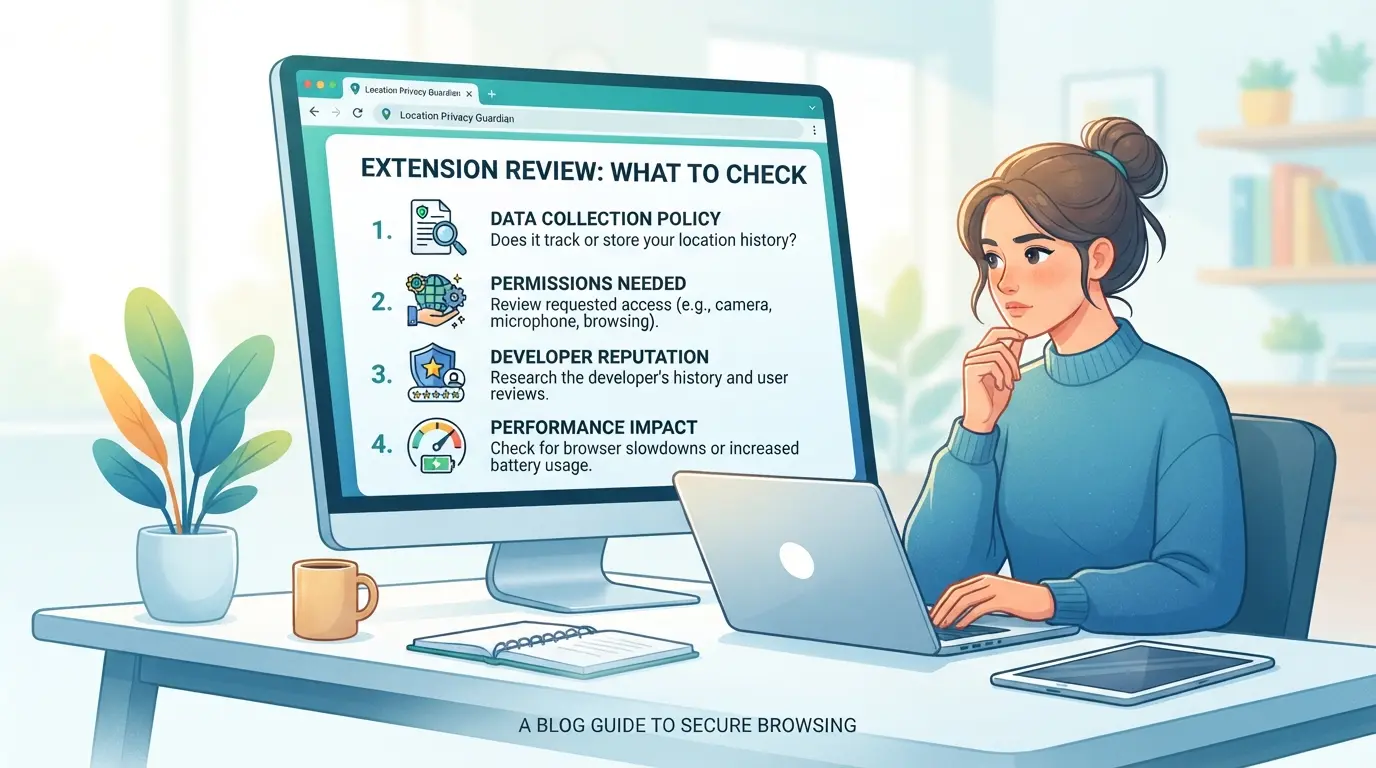
Before you install any location masking extension, take a minute to check how it interacts with your browser, what information it collects, and whether using it puts you at risk of breaking site or legal rules. Missing any of these can leave you exposed, sometimes in ways you won’t catch until it’s too late.
Extension Permissions and Data Access
The most common failure point is permissions. Many location-masking tools ask for broad access: reading all website data, modifying browser settings, or tracking your browsing. Only accept the minimum needed, if an extension wants permission to “read and change all your data on all websites,” stop and ask why. Some tools bury extra tracking or analytics in these permissions. Once installed, an over-permissive extension can log your browsing history, leak your real location, or inject ads. The best practical move is to review the required permissions line by line before clicking Install, don’t rely on default browser warnings.
Compatibility with Your Browser and Sites
Extensions that work on Chrome might break on Firefox, or only support newer browser versions. Some can conflict with password managers, anti-tracking add-ons, or banking sites.
- Check the extension’s update date, outdated tools often fail on modern browser versions.
- Test geolocation in a private/incognito window to catch conflicts early.
- Disable similar privacy extensions one by one if your fake location isn’t sticking.
Legal and Platform Policy Considerations
Some sites and services ban fake location use outright. Even if you’re masking for privacy, you can get locked out or banned if a site detects tampering. Local laws may also limit location spoofing.
- Confirm whether the platform you’re testing or using allows masked locations, review terms, not just help docs.
- If using for work (QA, gig platforms), check with your compliance team; some platforms log location changes even if masked.
- Never use location-masking tools to access restricted content in regions where it’s illegal, penalties can include permanent account loss or legal action.
Most issues with these extensions only show up after you’ve already exposed data or triggered an account lock. The next section covers the main risks and technical limits you’re likely to hit, so you can spot trouble before it costs you.
What Are the Main Risks and Limitations of Location Guard Tools?
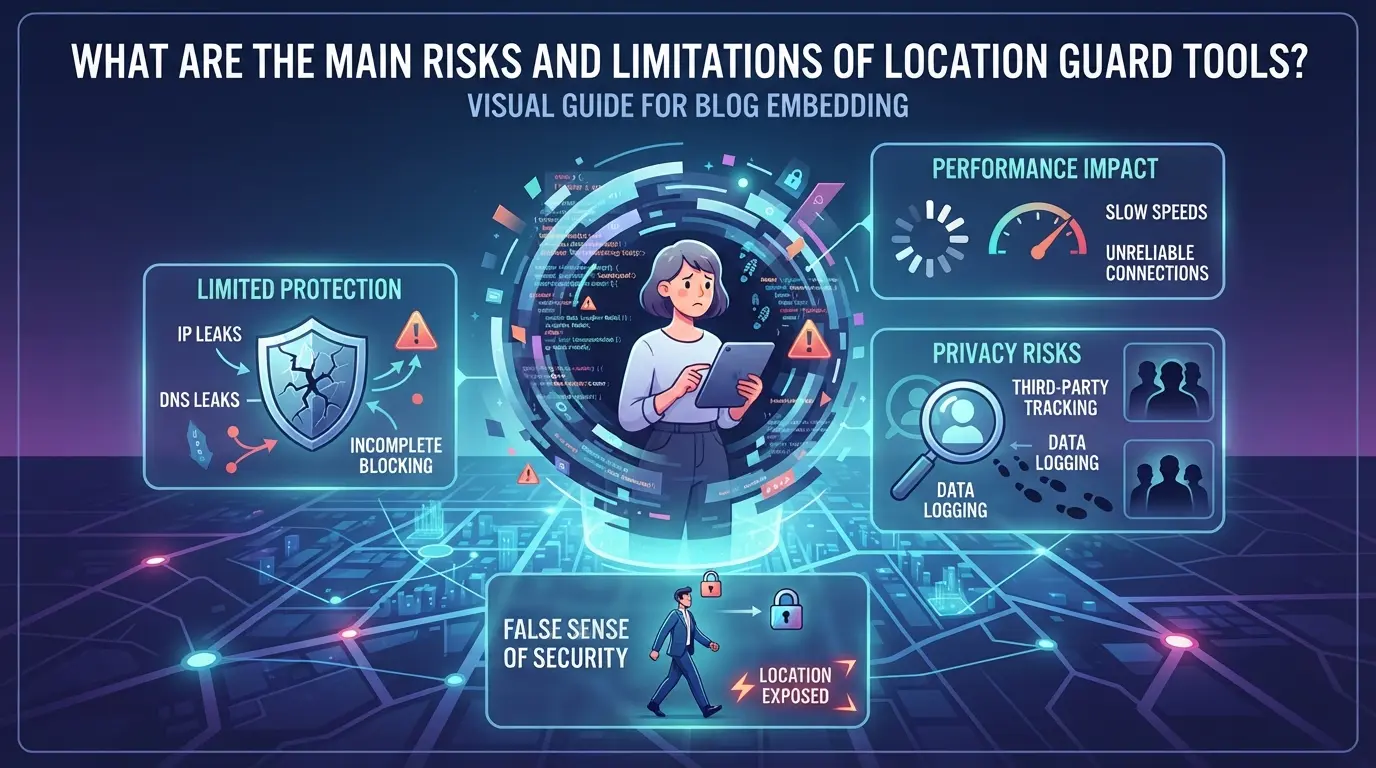
You can mask your browser’s reported location, but that doesn’t mean every site will accept it or that your real location is fully hidden. The main risks come from how sites verify your location and what signals leak through, even with masking enabled.
Common Scenarios Where Location Guard Fails
Banks, streaming services, and government portals often block logins or content when a masked location doesn’t match your real region. Some will lock your account or trigger extra verification if they spot a mismatch between your browser and network location. For critical sites, even the best masking extension can’t guarantee access.
How Sites Detect Fake Locations
Sites rarely trust just your reported coordinates. They check your IP address, timezone, device language, and sometimes even browser “fingerprints” to spot fake location tricks.
Warning: A location masking extension hides only one signal, sites can still compare other details.
- If your IP is in Germany but your browser reports New York, access to region-locked content will usually fail, or you’ll get flagged for suspicious activity.
- Safer move: Pair any fake location browser setup with a matching proxy and adjust your timezone and language to align with the target region.
Privacy and Security Trade-offs
Even if you mask your location, cookies, browser history, and cached data can leak clues about where you actually are. Relying on a location guard alone can give a false sense of privacy, sites may still track or profile you using other methods. For anyone who needs stronger geolocation privacy, masking tools are just one piece of the puzzle.
Next, here’s how to actually set up and use a location masking extension the right way.
How to Set Up and Use a Location Guard Extension Step by Step
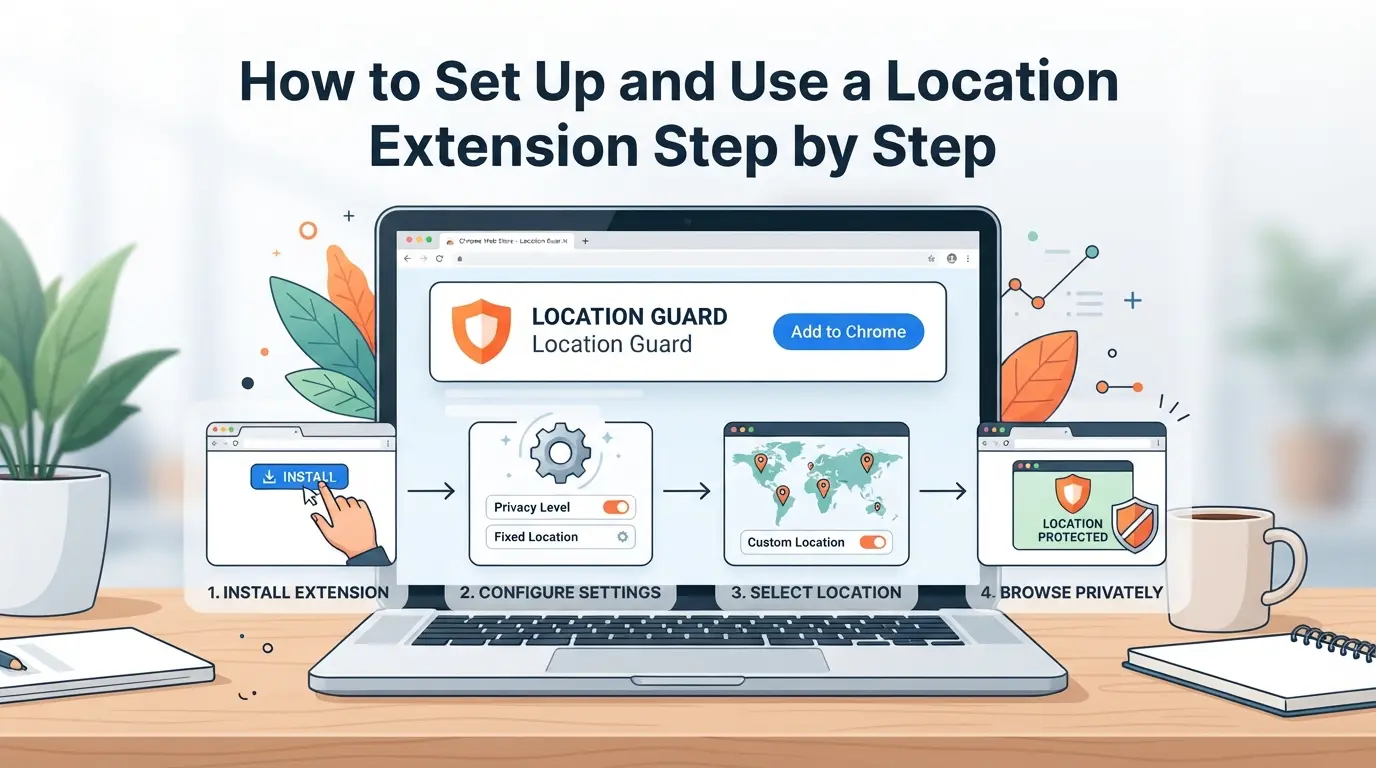
Getting a location masking extension up and running is quick, if you follow the right workflow. The goal isn’t just to install it, but to actually control which sites see what, and avoid mistakes that leave traces or break your browsing. Here’s a step-by-step breakdown you can use right now.
Installing the Extension Safely
- Find the extension in the official Chrome Web Store or Firefox Add-ons site. Don’t use links from random forums, those are where most malware slips through.
- Check the ratings and reviews. If you see fewer than 50 installs or any reports of bugs or hijacks, skip it.
- After installing, look for a new icon in your browser toolbar. If it’s missing, refresh the browser, sometimes the extension doesn’t load until a restart.
- Click the icon. The first pop-up should show basic settings, not demand extra permissions or redirect you to an unfamiliar site. If it does, uninstall immediately.
Configuring Your Fake Location
- Open the extension and choose “Set location.” Pick a spot on the map or enter coordinates. This tells sites where you “are.”
- Visit a site like browserleaks.com/geolocation to check if your fake location is showing up. If the site still sees your real spot, clear your cache, some browsers store geolocation results for up to 24 hours.
- Adjust the blur setting if available. More blur means less accuracy, but some sites may reject locations that are too vague.
Toggling and Resetting Location Guard
- Disable or enable masking with the extension toggle. Make sure to turn it off for banking or login pages, some apps will block you if your location looks fake.
- To reset, hit “Restore real location” in the extension. If the setting doesn’t revert, restart your browser; stuck settings usually clear after a full restart.
- For site-specific masking, set rules in the extension options. If a site doesn’t respect rules, check for conflicting browser privacy settings.
The setup covers most privacy needs, next, you’ll want to know when it’s safer to use advanced isolation or proxies instead.
When Advanced Users Turn to DICloak for Profile Isolation and Proxy Configuration
Most people use a location guard extension to mask their browser-reported location. But sometimes that’s not enough, especially for users managing multiple platform accounts, or anyone who needs a tighter separation between work and personal sessions. If you find basic extensions leaking data across sessions or failing to hold up under platform review, it’s time to consider tools that let you build truly isolated browser profiles and network paths. Here’s how advanced operators use DICloak to set up stronger geolocation privacy.
Profile Isolation and Fingerprint Configuration in DICloak
A single browser session can leave traces, shared cookies, cached data, and fingerprint signals, making it possible for sites to link your activity. Operators using DICloak start by creating a separate browser profile for each workflow. Inside the profile settings, you can configure the reported geolocation, time zone, system language, and dozens of fingerprint signals. For example, a team handling platform accounts will set up a new profile, choose a custom location, and align all browser-identification signals to match their intended region. Keeping account workflows fully separated depends on controlling both browser storage and fingerprint signals, just masking location isn’t enough if sessions overlap or data leaks. The scope here is limited to profile-level environment setup; it doesn’t manage platform accounts or content.

Proxy Configuration for Consistent Location Masking
Even if browser signals are clean, your network traffic still reveals your real IP and region unless you configure a proxy. With DICloak, operators assign a user-provided proxy to each browser profile. That means every session can exit through a consistent network location that matches the configured geolocation. For example, adding a SOCKS5 proxy lets you test the actual exit IP and country to line up with your fingerprint settings. The proxy setup is handled per profile, users choose, enter, and verify their own proxies. DICloak does not supply proxies or guarantee network privacy; it only stores and applies the settings at the profile layer.

If you run into issues syncing browser signals and network paths, next up is troubleshooting common problems, here’s what to check before blaming your tools.
How to Troubleshoot Common Location Guard Problems
When a fake location browser extension fails, most fixes are quick, here’s how to get back on track without losing time.
Location Still Detected Incorrectly
If sites keep showing your real location, clear your browser cache and cookies, old data can override fresh location settings. Disable other privacy or geo-related extensions, since conflicts often break the masking. If the issue sticks, try a private window or restart your browser to reset session data.
Sites Blocking or Ignoring Fake Location
- Test masking on a different browser or new user profile.
- Check if the site uses IP-based location checks that bypass browser settings.
- Look for popups or page messages hinting at multi-layer checks.
Extension Errors and Updates
Update or reinstall the extension if it glitches, since some browser updates break compatibility. If bugs persist, report them directly, most developers patch common issues fast.
- Remove and reinstall the extension from the official store.
- Check for updates in your browser’s extensions menu.
- Send error details to the support or issue tracker page.
How Does Location Guard Compare to Other Geolocation Privacy Methods?
Most users start with a location masking extension because it’s fast and doesn’t need technical setup. But the real question is whether a browser extension alone is enough, or if you should switch to proxies or advanced profile tools for more privacy or harder-to-detect spoofing.
Location Guard Extensions vs. Proxies vs. Antidetect Browsers
| Method |
Ease of Use |
Privacy Strength |
Detection Risk |
Best Use Case |
| Location Guard Extension |
One-click install |
Low–Medium |
Can be detected |
Basic testing, light privacy |
| Proxies (with browser) |
Medium (manual) |
Medium |
Lower if set up well |
Access region-locked content |
| Antidetect Browser Tools |
Advanced setup |
High |
Lowest (if used right) |
Multi-account, high-stakes ops |
Table: Real-world tradeoffs between browser extensions, proxies, and advanced browser tools for geolocation privacy.
The fastest way to hide your real location is with a browser extension, but sites can often spot these tools, especially if you forget to match your IP address and timezone. Proxies give you better region control, but need more manual setup and can still leak if your browser fingerprint stays the same. Antidetect browsers go further by letting you isolate profiles, rotate device fingerprints, and tie each session to a unique proxy, this is what most serious operators use for heavy automation or account farming.
The biggest gap with extensions is that they only mask location at the surface, if your IP address or device fingerprint points elsewhere, detection scripts catch the mismatch.
For anyone doing more than light testing or hiding from basic geolocation checks, combining proxies and browser profile isolation is the safer move. Extensions are quick, but aren’t built for high-stakes privacy.
Frequently Asked Questions About location guard
Is using a location guard extension legal in 2026?
Using a location guard extension is legal in most countries, but some websites may block or restrict users who change their geolocation. Always check your local laws and the platform’s policy before using this extension. For example, online banking sites often require accurate location data for security reasons.
Can websites still detect my real location even with Location Guard?
Websites can sometimes detect your true location by checking your IP address or using browser fingerprinting. Even if you use Location Guard to mask your browser’s geolocation, these other signals can reveal where you are. For stronger privacy, consider additional tools like proxys or proxies.
Does Location Guard slow down my browser or affect performance?
Most users report little to no slowdown when using Location Guard. However, if you have many extensions or if a website runs heavy scripts, you might notice some lag. Conflicts between extensions can also cause issues, so try disabling others if you see performance drops.
Can I use a location masking extension on mobile browsers?
Most browser extensions, including location masking tools, only work on desktop browsers like Chrome or Firefox. Mobile browsers rarely support these features. If you need geolocation privacy on your phone, look for dedicated apps or privacy settings in your device.
What’s the difference between a fake location browser extension and a proxy?
A fake location browser extension changes the geolocation your browser reports to websites, while a proxy routes your internet traffic through another server, changing your IP address. Used together, these tools can help hide both your physical and network location from trackers.
If protecting your privacy while using location-based services matters to you, now is the time to evaluate which tools best fit your needs. Consider testing solutions that offer solid controls and a user-friendly experience to ensure your sensitive data stays secure. Try DICloak For Free
 Web Proxy Tools
 Free Tools
 Cookie Plugin
 UA Generator
 MAC Address Generator
 IP Generator
 IP Address List
 2FA Code Generator
 World Clock
 Anonymous Check
 WebRTC Leak Test
 UUID Generator
 Free Web Proxy Site
 Proxy Checker
 FB Ad Checker
 AI Web Scraping
 Free SMM Tools
 Twitter Shadowban Checker
 Instagram Name Checker
 UTM Generator
 Username Generator
 AI Hashtag Generator
 LinkedIn Headline Generator
 Social Media Image Resizer