Have you tried to open Gemini, only to see “Gemini isn’t currently supported in your country. stay tuned!” on your screen? It can be frustrating, especially when you know other people are already using it. The confusing part is that this message does not always mean Gemini is fully blocked in your country. Sometimes the real reason is your account, browser, network, or a feature that is still rolling out slowly.
In this guide, you will learn what this message really means, why it happens, and how to check the cause step by step. You will also see safer ways to improve access, the risks of common workarounds, and the best AI alternatives to use if Gemini still is not available. By the end, you will have a clearer and easier path forward instead of guessing what went wrong.
What Does “Gemini Isn’t Currently Supported in Your Country” Mean?
When you see “Gemini isn’t currently supported in your country. stay tuned!”, it usually means Gemini is not available for your current setup right now. Sometimes this is a real location limit. But sometimes it is not only about where you live. Google says access can also depend on your account type, age, browser, and whether the service is enabled for your school or work account.
For example, a user may be in a supported country and still see Gemini not available. This can happen when they sign in with a school account that has not been enabled by the admin, or with a work account that does not have Gemini access. Google also says users must meet age rules, and some Gemini features have extra limits for younger users.
Browser setup can matter too. Google notes that Gemini in Chrome isn‘t available in your location in some cases because that feature is still limited by region and age. So if Gemini works on the web but not inside Chrome, the issue may be with that feature itself, not your whole country. In short, this warning is a broad access message. It does not always mean Gemini is fully blocked where you are.

Why Is Gemini Not Supported in Some Countries?
As the last section showed, this message is not always only about where you live. But in some cases, the country really is the main reason. Google rolls out Gemini by market, product, and account type, so access does not open everywhere at the same time. This is why one user may get access while another still sees “Gemini isn’t currently supported in your country. stay tuned!”
Regulatory and Compliance Reasons
One major reason is local law. AI tools must follow different rules on privacy, data use, and online services in each market. Because of this, global AI products often launch in phases instead of opening everywhere at once. So if Gemini is not live in your region yet, the issue may be policy or rollout timing, not a permanent block.
Google’s Regional Rollout Strategy
Google also expands Gemini step by step. It looks at language support, local readiness, and product rollout plans. That is why some countries get new features earlier than others. In some cases, the main Gemini app may work, while newer tools or Chrome-based features still do not. This is one reason some users see Gemini in Chrome isn‘t available in your location even when Gemini exists in their market.
Account, Network, and Device Factors
Sometimes the country is not the real problem at all. Work, school, and other managed accounts may have different access rules. Browser settings, shared IPs, proxies, or unusual traffic patterns can also affect access. This is why two users in the same place can get different results, or why Gemini may work on one device but not another.
Is This Temporary or Long-Term?
In many cases, the restriction is temporary. That is more likely when Google is still rolling out a feature or when the issue comes from account or browser settings. But if a country is outside Google’s current support range, or if local rules are stricter, access may take much longer. In other words, this message can mean either a short-term setup problem or a real regional limit.
How to Check Why Gemini Is Not Working for You
Now that you know the issue may be about region, account, or setup, the best next step is to check each part in order. This is the fastest way to understand why you are seeing “Gemini isn’t currently supported in your country. stay tuned!” instead of guessing.
Confirm Whether Gemini Is Officially Available in Your Region
Start with Google’s official Gemini Help pages. Google says the Gemini web app is available in more than 230 countries and territories, but it also says rollout expands gradually and stays consistent with local regulations and Google’s AI principles. So the first thing to check is simple. Is Gemini officially supported where you are right now, and is the feature you want also supported there?
It also helps to compare your current location with your Google account setup. Some users find that their account region, browser location, or recent sign-in pattern does not fully match where they are using Gemini now. This can make Gemini not available appear even when the country itself is not the only problem.
Test Your Account and Network Setup
Next, test with a personal Google account if you are using a school or work account. Google says Workspace access depends on admin controls, licenses, and whether Gemini features are turned on. That means two users in the same city can get different results on the same network. One account may work, while the other is blocked by admin policy.
After that, check your network path. Ask yourself a few simple questions. Are you on a home network, company network, school Wi-Fi, or a special routed connection? Is your browser using automatic proxy switching? Are you sending traffic through a shared or managed connection without realizing it? These details matter because Google may react differently when traffic looks shared, unusual, or high risk. Google’s own help pages say unusual traffic from one network can trigger extra checks.
It is also worth checking what kind of IP you are using. In practice, cloud server IPs, VPS IPs, free proxies, reused datacenter IPs, and other heavily shared routes are more likely to look commercial or abnormal than a normal home connection. That does not guarantee failure, but it can raise the chance of access problems. This is why some users see Gemini fail even when their IP appears to be in a supported country.
Another useful test is IP stability. Refresh your IP lookup more than once and see whether the IP address, city, carrier, or ASN changes quickly. If these details keep jumping, Google may read the session as unstable or suspicious. A stable network is usually safer than one that keeps changing identity in a short time.
Clean Up Your Browser Environment
Browser setup can also change the result. Test in Incognito mode or another browser. Clear cookies, cache, and old session data. Turn off browser extensions that may change traffic or location behavior. This step matters because old cookies, mixed account logins, or browser tools can confuse the session and make the location signal look less consistent. Google community guidance often points to cached data and browser settings as common causes.
You should also check whether the issue only happens inside Chrome. Google says Gemini in Chrome isn‘t available in your location for some users because that feature has its own rollout rules. Chrome can also use location permissions or IP-based location signals. So if Gemini works on the web but fails only in Chrome, the problem may be tied to Chrome setup, not your entire Gemini access.
Mobile users should be careful too. A phone that switches between Wi-Fi and mobile data can change location signals very quickly. A dual-SIM setup or a router with old cached network data can also create inconsistent results. If Gemini works on desktop but not on mobile, test again on one stable network before assuming the service is fully blocked. This is especially useful when checking newer experiences that users associate with Gemini 3, because newer features often have narrower rollout rules than the main web app.
Possible Ways to Access Gemini More Smoothly
Once you have checked the real cause, start with the safest fixes first. This matters because the message “Gemini isn’t currently supported in your country. stay tuned!” is sometimes caused by account or browser issues, not a hard country block. In many support cases, simple cleanup steps can solve the problem without changing anything major.
Safe First Steps Before Trying Any Workaround
First, review your Google account details, along with your language and region settings. Then sign in with a supported personal Google account if you were using a school or work account. Google’s help pages and user discussions often show that account eligibility, admin controls, and region setup are common reasons behind Gemini not available errors. After that, clear cookies, cache, and old session data, then test again in an Incognito window. These steps are simple, low risk, and often fix access problems caused by old browser data.
For example, a user may think the block is caused by their country, but the real issue may be an old browser session linked to another Google account. After signing out, clearing site data, and logging back in with one personal account, Gemini may start working again. In another case, some users see Gemini in Chrome isn‘t available in your location while the web version still works. This usually means the issue is tied to Chrome’s separate rollout or local browser setup, not full Gemini access.
Common Workarounds Users Try
If the safe steps do not help, some users try changing their account region, using a residential proxy, or using an API relay service.
For long-term use, a US static residential IP is often seen as the most stable option. The IP stays the same, the location signal looks more natural, and the account environment is easier to keep consistent. This is often better for business use, AI work, or long-term account access. For short-term tasks, some users choose a US dynamic residential IP. It still looks more natural than shared datacenter traffic, but the IP can change. This makes it more suitable for testing, temporary logins, or short-term use.
By contrast, datacenter IPs are more likely to trigger Google risk checks. Because of this, users may see Gemini not available more often, and some features may work less smoothly. Some advanced users also try API relay services. These are usually for developers testing newer model access, including tools linked to Gemini 3, but they are more complex and not ideal for most normal users.
Risks and Precautions
These workarounds can bring real risks. Google systems may flag unusual or automated-looking traffic, especially when many users appear to come from one IP or when the traffic pattern looks abnormal. This can lead to extra checks, blocked requests, or temporary loss of access. Free or low-quality tools can make the problem worse because they often rely on crowded IP pools or unstable routing. They can also create privacy and security concerns if your data passes through unknown services.
The safest approach is to fix the simple issues first. Check your account type, browser data, and region settings before trying anything more complex. This path is more stable and carries less risk. Many users find that once they clean up their setup, the error disappears without the need for advanced tools. If you still see “Gemini isn’t currently supported in your country. stay tuned!”, it is better to move step by step and avoid rushing into risky solutions.
Best Alternatives If Gemini Is Not Available
If you still see “Gemini isn’t currently supported in your country. stay tuned!”, it may be smarter to use another AI tool for now. This is often easier than spending too much time on setup changes. A good alternative can still help with writing, study, search, coding, and daily work. In many cases, it is also a lower-risk choice than trying to force access when Gemini not available keeps showing up.
ChatGPT is one of the strongest alternatives when you keep seeing “Gemini isn’t currently supported in your country. stay tuned!” It is a flexible AI assistant for writing, summarizing, brainstorming, coding, translation, and file-based work. OpenAI offers a free version, and its paid plans include Go, Plus, Pro, Business, and Enterprise. OpenAI’s official pricing page says ChatGPT Go starts at $8/month, Plus is $20/month, and Pro is $200/month, while business and enterprise plans are also available.
One reason ChatGPT works well as a Gemini replacement is its wide range of use cases. A student can use it to explain hard topics in simpler words, rewrite notes, or build study outlines. A marketer can use it to draft blog posts, ad copy, or social captions. A programmer can use it to explain code, fix bugs, or generate scripts. This makes it a good all-purpose tool for people who need one AI product for many different tasks. Its free plan also lowers the barrier for new users who just want to test an alternative before paying.
Pros: ChatGPT is very flexible. It works well for both creative and practical tasks. It has a free plan, so it is easy to try. It also has stronger paid tiers for users who want more power, more tools, and broader access.
Cons: Some of the best features are limited to paid plans. The user experience can also change based on which plan you choose, so free users may not get the same depth or speed as paid users.
2. Claude
Claude is a strong choice for users who care about clear writing, document-heavy tasks, and thoughtful answers. Anthropic’s official pricing page shows a Free plan, a Pro plan at $17/month billed annually or $20 billed monthly, and higher-tier plans such as Max, Team, and Enterprise. Anthropic also highlights features like more usage, access to Research, more Claude models, and tools such as Claude for Excel and Claude for PowerPoint in some paid plans.
Claude stands out because it feels especially comfortable for long reading and long writing. For example, if a user needs to review a long article, compare two reports, or rewrite a large block of text in a calmer and more polished tone, Claude is often a very natural fit. That makes it useful for researchers, students, writers, and teams that work with a lot of text every day. Anthropic also continues to update Claude’s model family, including newer model releases such as Sonnet 4.6 and Opus 4.6.
Pros: Claude is strong for long-form writing, reading, summarizing, and structured thinking. It is a good option for users who want answers that feel careful and organized. It also has a free entry point, which makes testing easier.
Cons: Heavier usage and more advanced features depend on paid plans. It may also feel less direct than a research-first tool when a user mainly wants fast fact-finding instead of deep writing support. This is an inference based on Claude’s plan design and feature positioning.
3. Microsoft Copilot
Microsoft Copilot is a practical alternative for people who already work inside the Microsoft ecosystem. Microsoft says the Copilot app is a conversational AI experience, while Microsoft 365 Copilot for individuals brings Copilot into Word, PowerPoint, Excel, and Outlook. Microsoft also offers business-focused Copilot plans and notes that some products or offers can vary by customer type and market. Microsoft’s business pricing pages show active business bundles and add-on pricing, with some promotional pricing in effect through mid-2026 and a note that Copilot Business remains $21 per user per month in a recent Microsoft update.
Copilot is especially useful for office tasks. For example, a user who cannot access Gemini can still draft emails in Outlook, clean up a Word document, generate a presentation in PowerPoint, or explore spreadsheet help in Excel. For many business users, that direct connection to daily work tools is the main reason to choose Copilot. Instead of moving between different apps, they can stay inside the software they already use.
Pros: Copilot fits naturally into Microsoft 365 apps. It is very useful for workplace tasks like documents, slides, spreadsheets, and email. This makes it a strong option for office teams and professionals.
Cons: Its value is highest for people already using Microsoft products. If you do not work in that ecosystem, it may feel less useful than a broader standalone chatbot. Availability and pricing can also depend on plan type, business status, and market.
4. Perplexity
Perplexity is a strong option for users who want fast answers, web-backed research, and a more search-focused AI experience. Perplexity’s official pricing pages show Pro at $17/month and Enterprise Pro at $34 per seat per month when billed annually. The company describes Enterprise as a secure platform that can work across files and tools for tasks, research, and more complex projects.
Perplexity is especially good for people who care about finding information quickly. For example, if a user needs to compare product details, check recent developments, collect sources, or answer a factual question fast, Perplexity can feel more direct than a general-purpose chatbot. That makes it useful for researchers, analysts, journalists, content teams, and users who want a “search plus AI” workflow instead of only conversational writing. Perplexity also offers discounted student access in some cases.
Pros: Perplexity is strong for research, fact-finding, and source-based answers. It is often a better choice for users who want quick information and citations rather than longer creative drafting.
Cons: It is less centered on long creative writing or polished drafting than tools built more directly around conversation and text generation. Some stronger privacy and team features are part of higher-tier plans. This is an inference based on Perplexity’s public pricing and product positioning.
Other regionally available AI assistants may also work well depending on where you live. Availability can change by country, so it is best to check the official product page before choosing one.
So if Gemini still does not work for you, choosing a strong alternative is not a downgrade. In many real-world cases, it is the fastest and most practical way forward.
When “Gemini isn’t currently supported in your country. stay tuned!” keeps appearing, the issue is not always the country alone. In many cases, the real problem is a messy browser setup, mixed account signals, or unstable network matching. For users who work across regions or manage more than one account, a more isolated browser profile can make access management much cleaner.
Reduce Risk with Profile Isolation
Repeated access issues are often linked to browser fingerprints, old sessions, extension conflicts, or mixed account history. A cleaner setup comes from keeping each account in a separate browser profile with its own fingerprint and local data. This lowers the chance of account overlap and makes multi-account use on one device more stable.
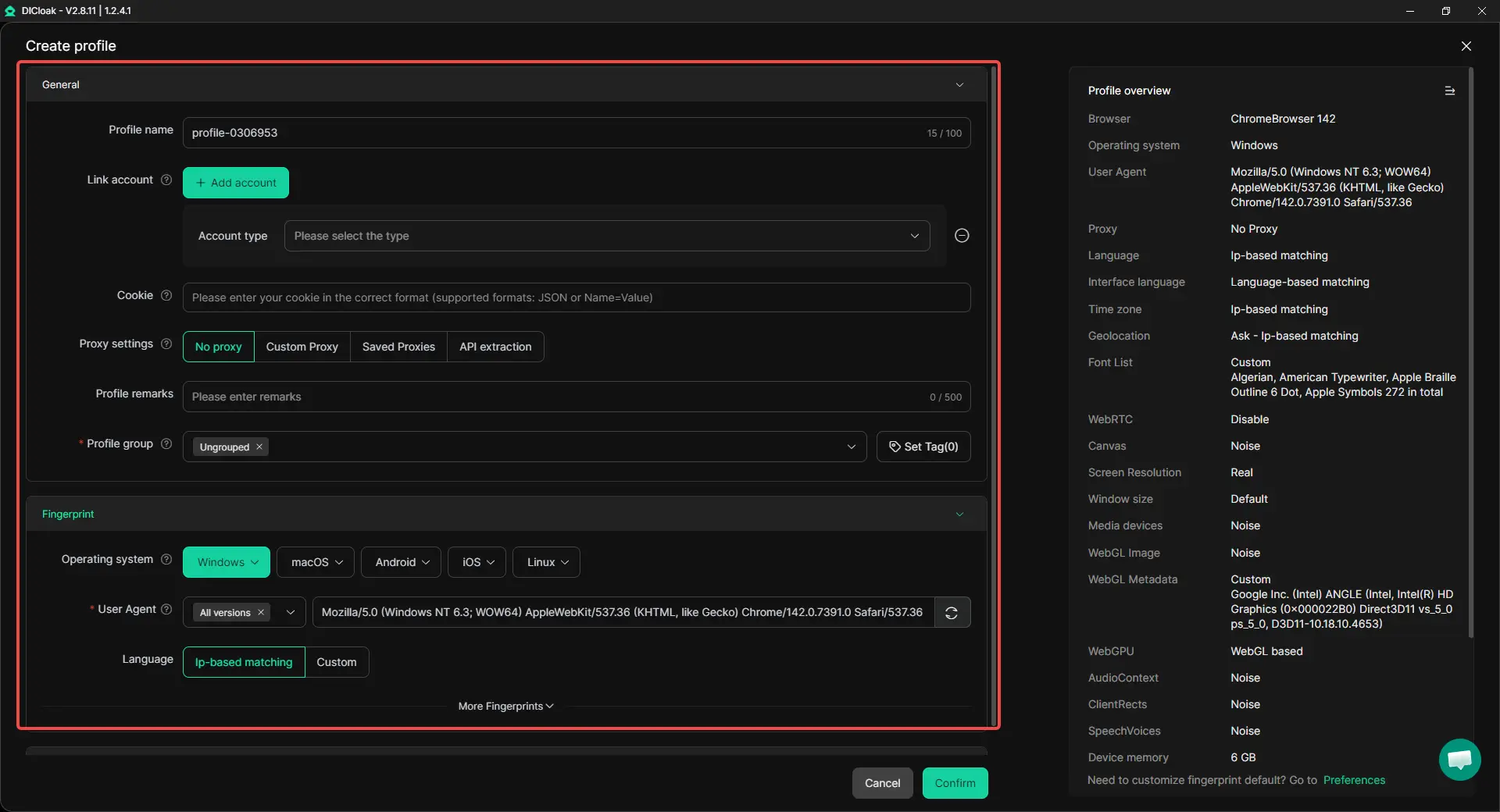
Customize Proxy Settings for Better Location Consistency
When users see Gemini not available, location matching is often part of the problem. A more controlled setup comes from assigning a separate proxy to each browser profile and keeping that profile-network pairing stable. With support for HTTP, HTTPS, and SOCKS5 proxies, each account can keep its own network identity instead of sharing one route across the whole device.
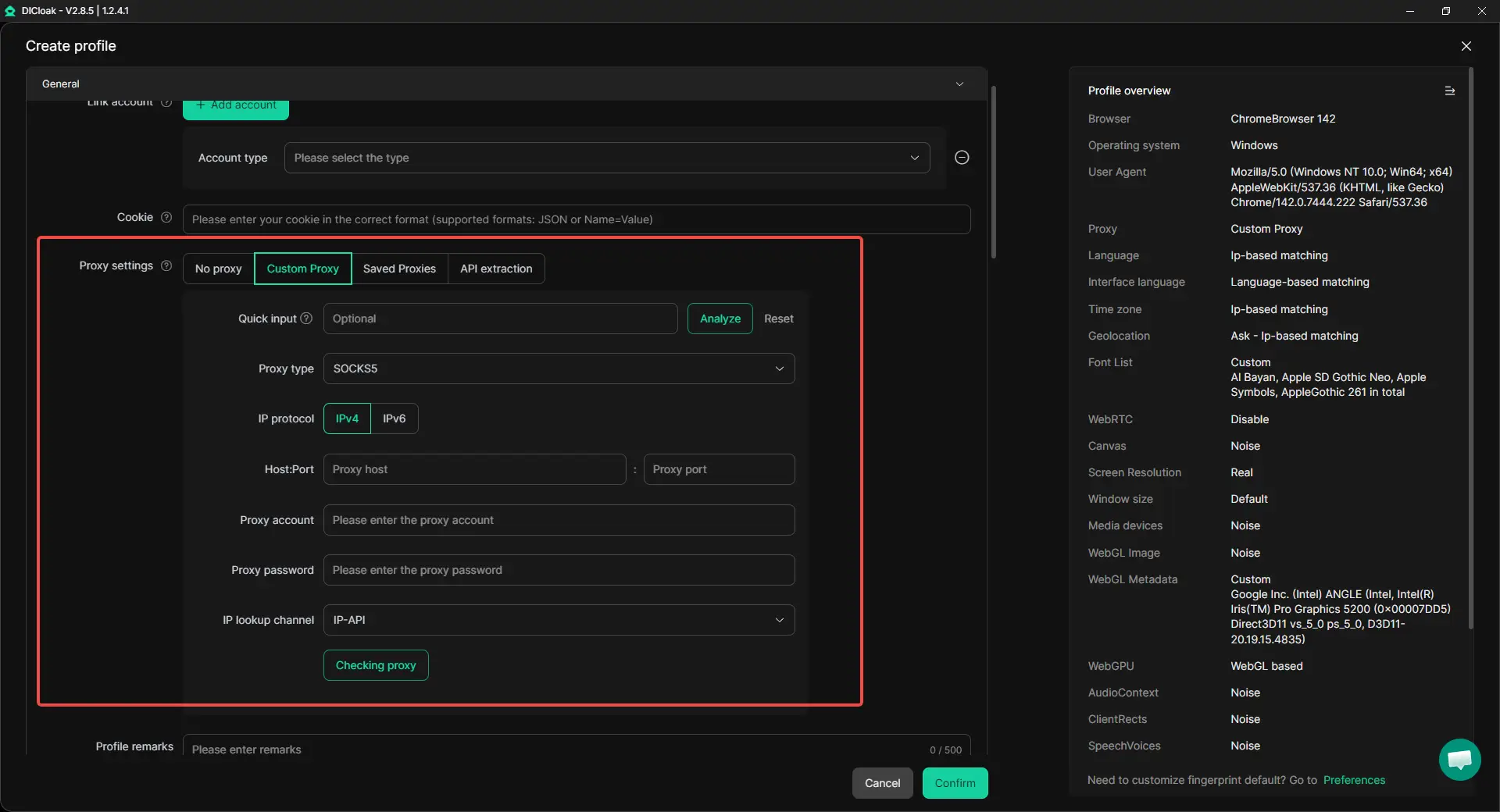
Securely Manage Multiple Accounts Across Regions
Using the same browser profile for different accounts can create messy signals. Old cookies, saved sessions, and repeated logins can all increase access problems. Running each account in its own isolated profile makes it easier to manage different regional accounts, social accounts, or testing workflows on one device without mixing browser history.
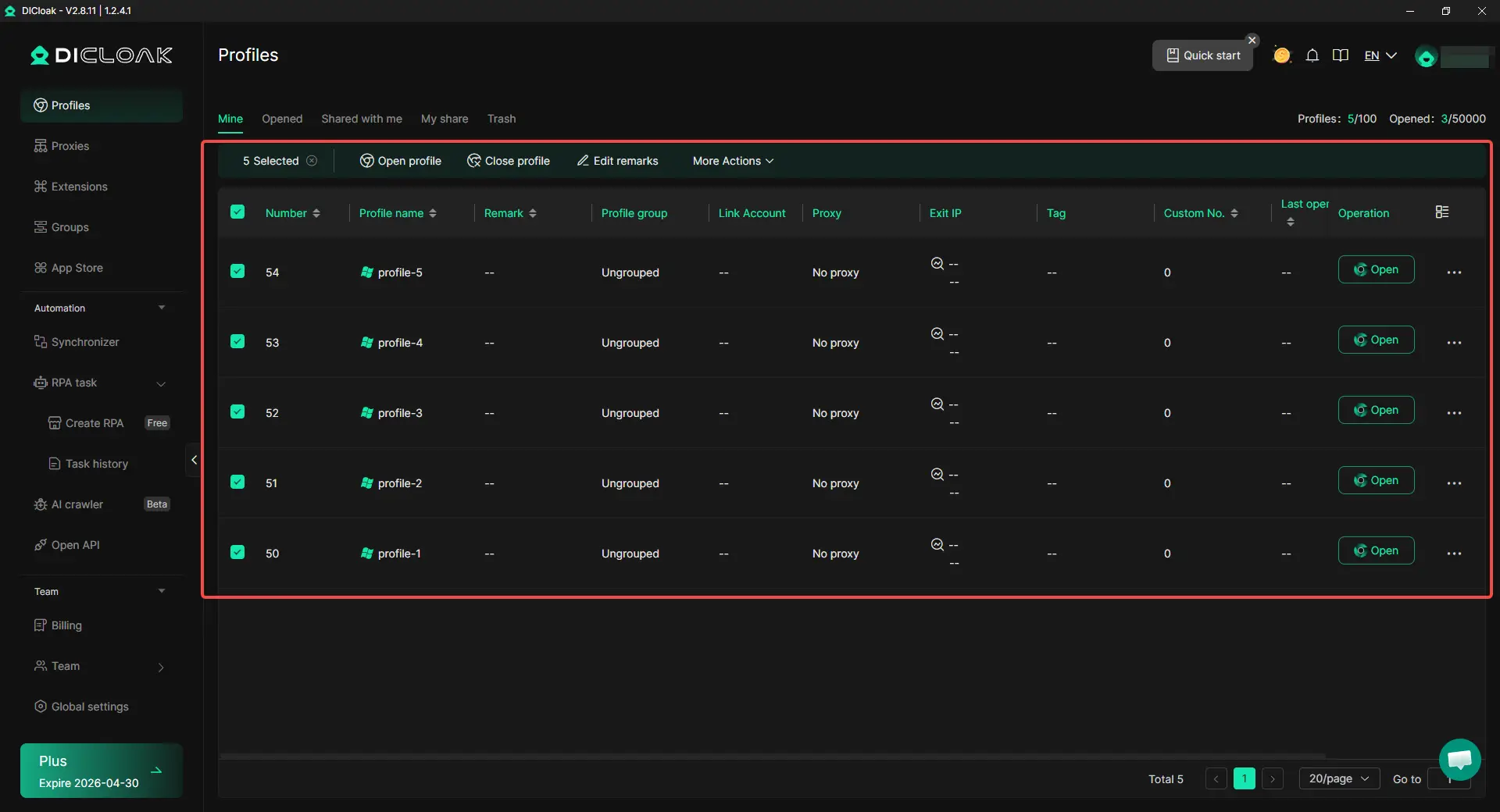
Share Accounts with Teammates Without Exposing Passwords
In team workflows, sharing passwords or logging into the same account from different unmanaged browsers creates extra risk. A profile-based sharing setup is safer because teammates can open the same working environment without rebuilding it each time. With permission settings, operation logs, and data isolation, collaboration becomes easier to control.
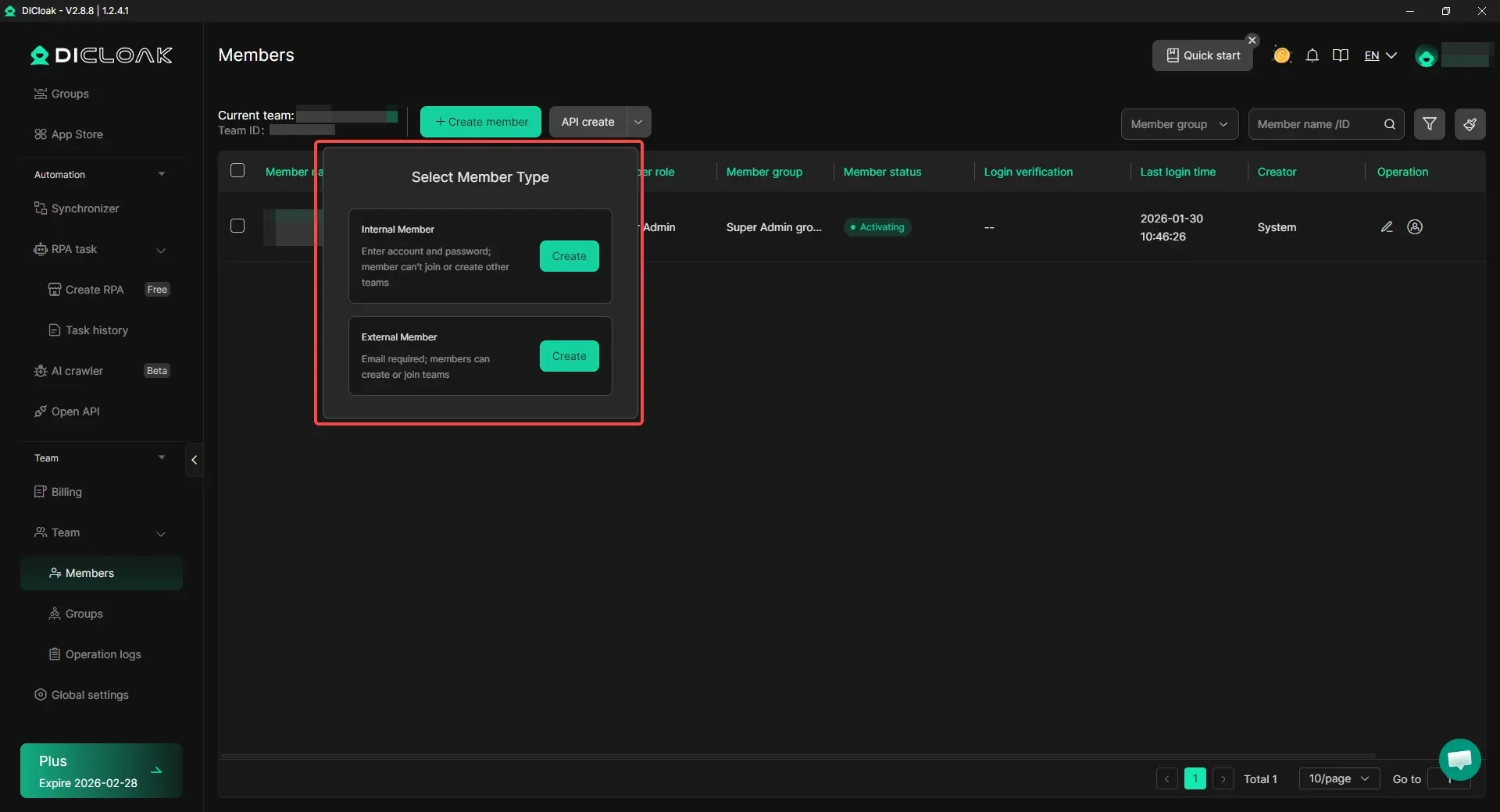
For casual users, the simple fixes in the earlier sections may be enough. But for teams and professionals who need cleaner account separation, stable proxy matching, and safer account sharing, this kind of setup is often a more practical long-term option.
Common Questions About Gemini’s Regional Restrictions
Why do I see “Gemini isn’t currently supported in your country. stay tuned!”?
This message means Gemini is not available for your current setup right now. The reason may be your region, account type, browser, network, or rollout status.
Can I see this message even if Gemini is available in my country?
Yes. This can happen if you are using a school or work account, old browser data, unstable location signals, or a feature that has not fully rolled out yet.
Is this problem temporary?
Sometimes yes. If the issue comes from account settings, browser data, or limited rollout, it may be fixed. But if Gemini is not officially supported in your region, it may last longer.
What should I do first?
Start with the basics. Use a supported personal account, check your region settings, clear cookies and cache, and test again in Incognito mode or another browser.
What is the best alternative if Gemini still does not work?
Many users choose ChatGPT, Claude, Microsoft Copilot, or Perplexity. A stable alternative is often easier and safer than forcing access.
Conclusion
When you see “Gemini isn’t currently supported in your country. stay tuned!”, the issue may be caused by region limits, account type, browser settings, or network signals. That is why some users still get Gemini not available even when Gemini is already open in their market.
The best first step is to check official availability, then test your account, browser, and network one by one. In many cases, simple fixes like changing to a supported personal account, clearing browser data, and using a cleaner setup can solve the problem.
If Gemini still does not work, using alternatives like ChatGPT, Claude, Microsoft Copilot, or Perplexity is often the easier and safer choice. For users who manage multiple accounts or work across regions, a more isolated browser setup with stable proxy matching and account sharing can also make access management more consistent.
 Web Proxy Tools
 Free Tools
 Cookie Plugin
 UA Generator
 MAC Address Generator
 IP Generator
 IP Address List
 2FA Code Generator
 World Clock
 Anonymous Check
 WebRTC Leak Test
 UUID Generator
 Free Web Proxy Site
 Proxy Checker
 FB Ad Checker
 AI Web Scraping
 Free SMM Tools
 Twitter Shadowban Checker
 Instagram Name Checker
 UTM Generator
 Username Generator
 AI Hashtag Generator
 LinkedIn Headline Generator
 Social Media Image Resizer