A product team can lose half a day when one UI mockup prompt keeps returning broken text, extra objects, or the wrong aspect ratio. That pattern is common with image models: small prompt gaps create big output drift, and every rerun costs time. OpenAI’s 4o image generation announcement and API pricing page make this practical issue clear for builders shipping visuals at speed, not just testing demos. If you are using chatgpt images 2.0, the real challenge is not getting an image, but getting the right image on the earliest tries.
This guide gives you an operator-style workflow: how to write prompts that lock subject, layout, and text; how to catch failure patterns before you rerun; and how to tighten outputs with short revision loops based on OpenAI prompt engineering practices. You will also see where teams lose control, like vague constraints, mixed style signals, and missing negative instructions. The goal is simple: fewer retries, cleaner outputs, and predictable results you can ship. Start with the prompt structure that reduces error rates before style tuning.
What Is ChatGPT Images 2.0 and What Actually Changed?
What ChatGPT Images 2.0 is designed to do
ChatGPT Images 2.0 is a text-to-image workflow inside chat. You describe a scene, get an image, then refine it in short loops. You can use it for ad drafts, product mockups, social posts, and storyboard frames.
The core gain is tighter back-and-forth. You keep context in one thread, so edits like “keep layout, change lighting, fix text on sign” are easier to apply without restarting. OpenAI positions this as multimodal creation in one interface on ChatGPT and its broader OpenAI platform.
How it differs from older ChatGPT image workflows
Older flows often felt split: prompt, output, restart. Newer flows keep revision context better and follow constraints more closely when prompts are specific.
| Workflow point |
Older image flow |
ChatGPT Images 2.0 |
| Revision memory |
Often weak across retries |
Keeps prior instructions in chat context |
| Prompt handling |
Broad prompts gave random drift |
Clear constraints give more stable outputs |
| Iteration speed |
More restart cycles |
Faster edit loops in one thread |
Prompt length is not the main factor. Clear constraints win: subject, camera angle, style, text rules, and what to avoid. Guidance in OpenAI prompt best practices aligns with this pattern. 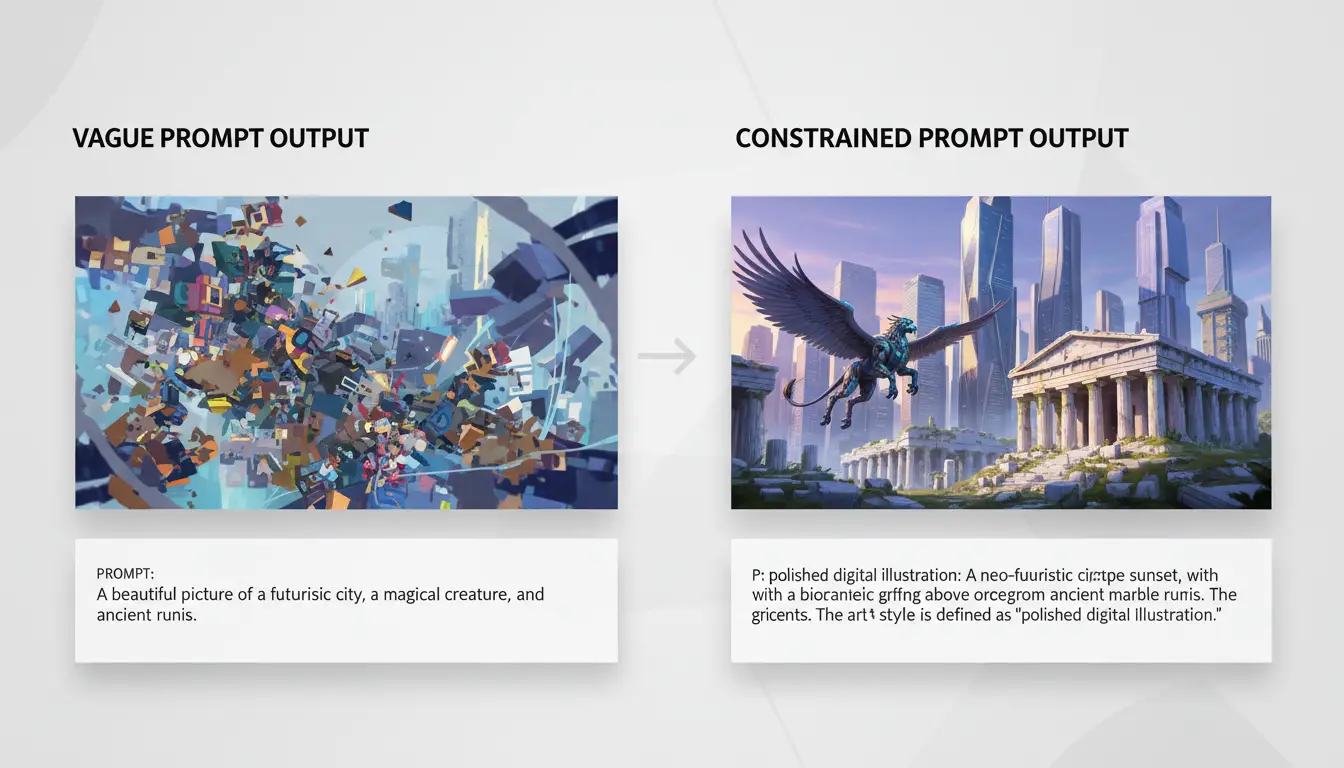
When to use it and when another tool may fit better
Use chatgpt images 2.0 for fast concept generation, variant testing, and early creative direction. Use a layer-based editor when you need pixel-level control, exact kerning, or strict print specs. Use chat for speed, then switch tools for final production polish.
How Do You Start Using ChatGPT Images 2.0 Step by Step?
What you need before your first generation
Open ChatGPT and confirm image generation is enabled in your account. If the image tool is missing, check your plan and workspace settings in the OpenAI Help Center. Set one clear goal before you type anything: ad banner, product mockup, blog header, or social post.
Write a short brief with 4 lines:
- Subject: “blue running shoe on white background”
- Style: “clean studio photo”
- Format: “1:1 square, for Instagram”
- Must-have text: “SPRING DROP”
If your goal is vague, your output will drift. Keep your brief specific and testable.
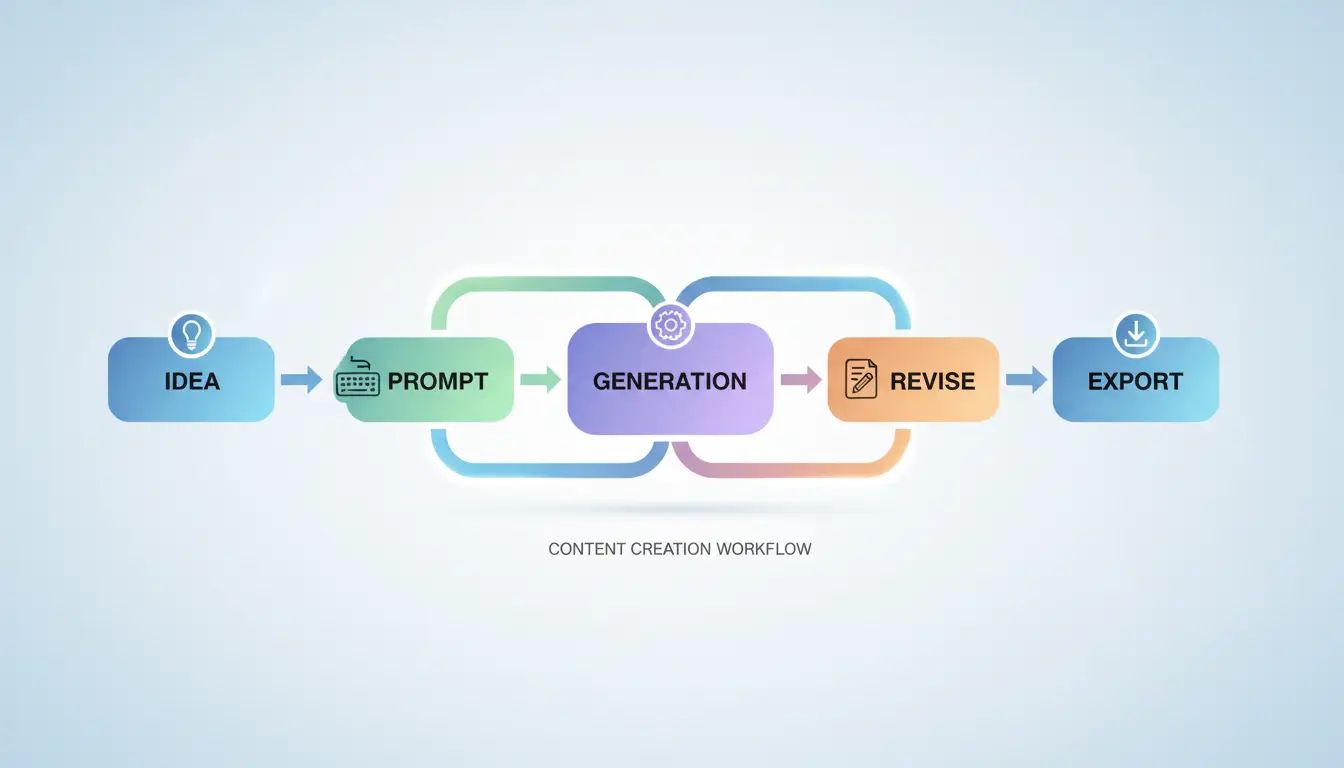
First-image workflow from prompt to output
Use one prompt that locks subject, style, composition, and text in a single shot. Example:
“Create a 1:1 image of one blue running shoe on a white studio background. Soft shadow under the shoe. Add headline text at top: SPRING DROP. Keep text readable, sans-serif, high contrast.”
Run generation once. Check three things right away:
- Is the subject correct?
- Is layout usable without heavy edits?
- Is text readable and spelled right?
If one part fails, ask for one fix only: “Keep everything the same, but increase headline size by 20%.”
Save outputs with a naming pattern like shoe_studio_v01, v02_textfix, v03_colorfix. Export in PNG for sharp text or JPEG for smaller file size.
How to iterate without restarting from zero
In chatgpt images 2.0, do not rewrite the full prompt every round. Keep what works and edit one variable per turn: color, camera angle, background tone, or text position.
Good follow-up prompts:
- “Keep layout. Change palette to warm orange and cream.”
- “Keep colors. Move shoe 15% left for text space.”
- “Keep composition. Make mood more sporty, less luxury.”
This workflow gets your first usable image faster and keeps revision history clean.
How Can You Write Prompts That Get Better Images Faster?
If you use chatgpt images 2.0 for real work, speed comes from prompt structure, not luck. A reusable format cuts retries and keeps outputs consistent across a team. OpenAI’s own prompt writing guide and images docs support this rule: be explicit, then iterate in short loops.
A prompt formula that works for most image goals
- Subject + style + composition + lighting + constraints Use this one-line order every time: “[Subject], in [style], [composition], [lighting], with [constraints].”
Example: “Matte black running shoe on white pedestal, clean studio photo style, centered medium shot, soft top light, no text, no logo distortion, sharp edges.”
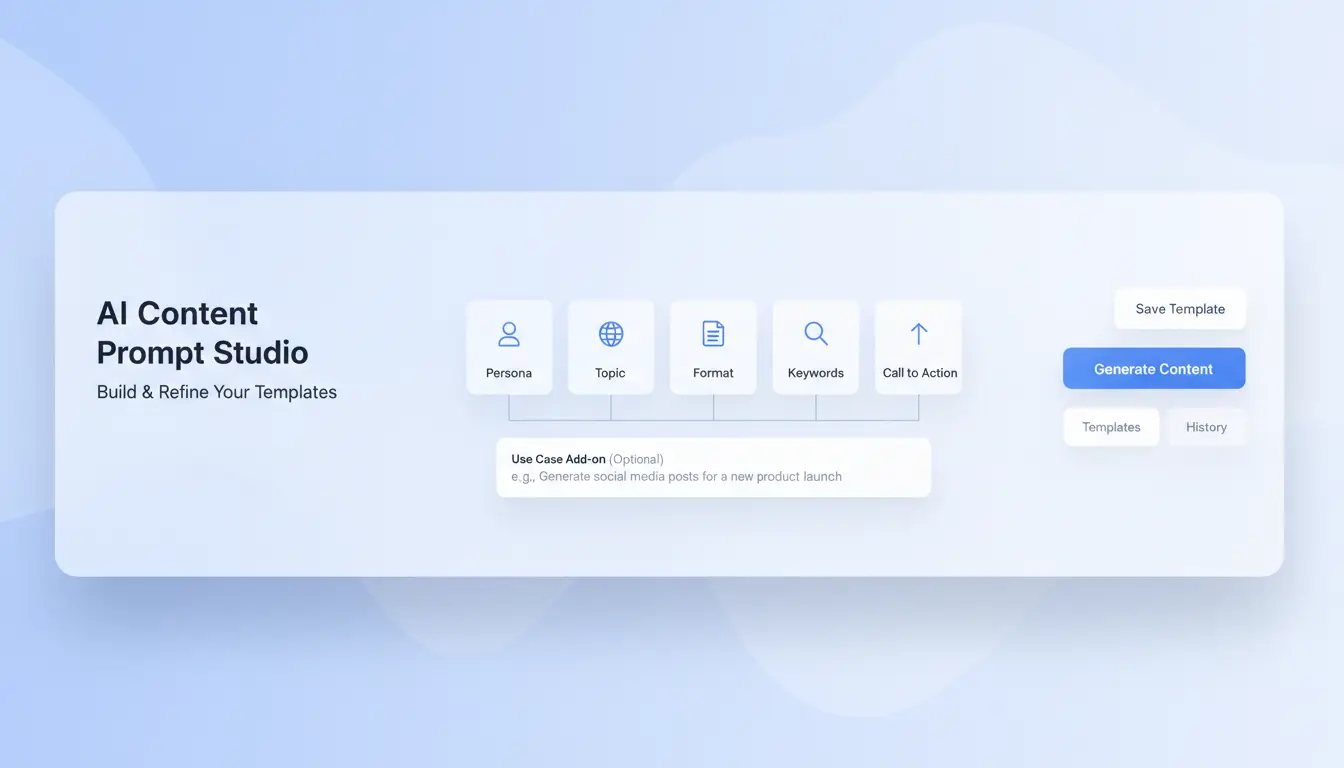
- How to add context without overloading the model Add one short “use case” line after the core prompt: “Use case: ecommerce hero banner for desktop and mobile crop.” Keep context to one goal, one audience, one output size. Lock constraints before style tweaks.
Prompt examples by scenario
- Product ad creative, blog hero image, and thumbnail concepts
- How prompt wording changes output tone and detail
| Scenario |
Weak prompt |
Strong prompt |
| Product ad creative |
“Make a cool shoe ad” |
“Running shoe product ad, clean studio style, 3/4 angle, high contrast rim light, empty right side for copy, no extra objects.” |
| Blog hero image |
“AI image for blog” |
“Abstract AI workflow illustration, flat vector style, wide 16:9, muted blue palette, no text, simple background.” |
| Thumbnail concept |
“YouTube thumbnail about coding” |
“Coding desk scene, bold neon colors, close-up framing, dramatic key light, space for title at top, no readable UI text.” |
Use composition terms from shot types) and lighting terms from color temperature basics to reduce guesswork.
Common prompt mistakes that waste generations
- Conflicting instructions and vague style requests “Minimalist but highly detailed” creates clashes. Pick one direction.
- Too many objectives in one prompt Do not ask for ad image, logo design, and thumbnail in one run. In chatgpt images 2.0, split goals into separate prompts, then refine one variable at a time.
Why Do ChatGPT Images 2.0 Results Sometimes Look Wrong, and How Do You Fix Them?
Most bad outputs come from unclear constraints, not model failure. With chatgpt images 2.0, random retries usually repeat the same error pattern. Treat each failed image as a diagnostic signal: identify the failure type, edit one variable, rerun, and compare.
How to troubleshoot composition and subject errors
Crowded scenes and missing objects usually mean your prompt has too few layout rules. State object count, position, and depth in one line. Example: “Three objects only: red mug in foreground left, notebook center, lamp background right.”
If the focal point looks weak, force visual hierarchy. Add: “primary subject occupies 40% of frame; background low detail.” For framing, use camera language from shot size basics) and rule of thirds:
- “medium close-up, eye-level”
- “subject on right third”
- “negative space on left for headline”
How to fix style mismatch and inconsistent look
Style drift happens when tone words conflict (“cinematic + flat icon + watercolor”). Keep one style anchor and one mood anchor only. Use a fixed palette line, such as “muted teal, warm gray, off-white, low saturation.”
| Prompt setup |
What goes wrong |
Targeted fix |
| “modern, cinematic, cartoon, watercolor” |
mixed rendering style |
pick one: “cinematic photo style” |
| no palette defined |
color shifts between runs |
add 3–4 fixed colors |
| no texture guidance |
random gloss/grain |
specify “matte finish, soft grain” |
For repeatable tone, keep a saved “style block” aligned with OpenAI image generation guidance.
What to do when output quality drops across iterations
Quality drops after long revision chains. Branch a new prompt thread when you pass 4–6 edits and still see the same defect.
Keep a shortlist of templates that already worked in chatgpt images 2.0: product shot, character portrait, UI mockup, ad creative. Store each with three parts: locked style block, composition block, and negative instructions (“no extra hands, no extra text, no logo distortion”). This cuts guesswork and keeps revisions controlled.
What Limits, Pricing Factors, and Usage Rights Should You Check First?
Before you scale chatgpt images 2.0 for client work, check limits, cost logic, and license rules in one pass. Track usable-image rate, not output count. A team that ships 20 approved images from 100 generations runs a very different budget than a team that ships 20 from 35.
How plan limits can affect image workflow speed
Generation caps and queue delays can break production timing. Review your current limits in your account and confirm model access before launch windows. OpenAI can change limits by plan or traffic level, so keep a buffer day for heavy batches. Use smaller prompt batches during peak hours, then run revision batches when queues drop.
How to estimate cost per usable image
Do not price by raw generations alone. Price by accepted outputs after review and edits.
| Metric |
What to track |
Why it changes budget |
| Raw generations |
Total images created |
Shows platform usage only |
| Usable images |
Images approved for delivery |
Ties to business output |
| Iterations per approved image |
Drafts + revisions |
Captures prompt efficiency |
| Cost per usable image |
Total spend / usable images |
Real unit economics |
Use current rates from OpenAI API pricing and model behavior notes in the Images guide.
What to verify about commercial use and licensing
Check ownership, redistribution, and client handoff terms before publishing. Read the current OpenAI Terms of Use and Usage Policies. Add an internal checklist: prompt log saved, source assets cleared, trademark scan done, and final human review signed. If your team uses chatgpt images 2.0 for paid ads, this checklist reduces legal surprises during client delivery.
How Do You Keep ChatGPT Images 2.0 Outputs Consistent for a Brand or Campaign?
If your team ships batches of creatives, random prompt writing will break brand consistency fast. Lock your visual rules before prompts. With chatgpt images 2.0, a repeatable system beats one-off prompt hacks.
Build a mini style guide before generating at scale
Write a one-page guide with fixed tokens: 3–5 HEX colors, lighting mood, camera distance, framing, and typography direction. Use one reference for color logic like Material Design color system. Set hard no-go items: banned colors, logo distortion, extra fingers, warped text, crowded backgrounds, and off-tone emotions. Keep this guide in your prompt header so every asset starts from the same baseline.
Use versioned prompt templates for repeatable quality
Name prompts like IMG-Q3-Hero-v04. Save each revision with output notes: what passed, what failed, what changed. Follow OpenAI prompt engineering practices: clear role, constraints, and negative instructions.
| Asset type |
Locked fields |
Variable fields |
| Social post |
palette, lens, brand tone |
headline, CTA text |
| Ad creative |
palette, product angle, spacing |
offer text, ratio |
| Blog hero |
palette, composition grid |
title length, icon set |
Reuse proven templates across channels, then swap only the variable fields. That keeps chatgpt images 2.0 outputs stable.
Set a quality control pass before final export
Run a quick checklist before export: text readable at 320px, contrast meets WCAG contrast guidance, logo clear, and message fit for channel context. Use a two-person review loop with a 10-minute cap. Log reject reasons, then patch the template instead of patching one image.
How Can Teams Share ChatGPT Image Work Safely Without Login Conflicts?
Why shared access can trigger friction and account risk
Shared logins often break when users switch devices, IP locations, or browser setups during the same day. That pattern can trigger extra verification and session drops. In a fast image sprint, one forced re-login can block the whole queue.
The bigger issue is workflow drift. Two people edit prompts, one person reruns old settings, and nobody knows which version produced the approved image. With chatgpt images 2.0, teams usually lose time on session recovery and prompt confusion, not on generation itself.
How DICloak helps teams run a safer shared workflow
You can use DICloak to keep each operator in an isolated browser profile, with fixed fingerprint settings and a dedicated proxy per profile. That reduces random environment jumps that often trigger checks tied to device fingerprinting.
It also supports team permissions, profile sharing, and operation logs, so you can see who changed what and when.
| Shared account method |
Session stability |
Traceability |
| Raw shared login in one browser |
Frequent interruptions |
Low |
| DICloak profile-based access |
More stable sessions |
Clear action logs |
A practical setup for image teams using one shared account flow
Split work by role: ideation writes prompts, generation runs outputs, review approves or sends revisions. Give each role its own profile and access scope.
Use batch operations for repeated prompt variants. Use RPA for repetitive clicks, naming, and export steps. Keep one change log per task so your chatgpt images 2.0 pipeline stays stable and auditable.
ChatGPT Images 2.0 vs Other AI Image Tools: Which One Fits Your Goal?
Where ChatGPT Images 2.0 is strongest
For fast drafts, chatgpt images 2.0 works well in a chat flow. You can ask, check, and revise in one place, which helps non-design teams ship blog graphics and test ad ideas fast. OpenAI image generation also fits prompt-driven work where copy and visuals need tight alignment. If speed and simple iteration are your main goal, this is the easiest starting point.
Where specialized image tools may outperform it
If you need deeper style locking, heavy edits, or upscale control, dedicated tools can fit better. Midjourney is often chosen for strong style output, while Adobe Firefly fits edit-heavy brand workflows.
Team production brings a different risk: shared logins, mixed sessions, and unclear ownership. You can use DICloak to map each teammate to an isolated browser profile with a dedicated proxy, so shared image work stays separated and clean.
Tools like DICloak let you share profiles with role permissions and keep operation logs, so who changed what is traceable. Batch actions and RPA also cut repeat manual steps that cause avoidable mistakes.
A quick decision matrix by use case
| Use case |
Faster pick |
Better control pick |
| Blog visuals |
ChatGPT Images 2.0 |
ChatGPT + Firefly |
| Ad creatives |
ChatGPT for variants |
Midjourney + editor |
| Concept art |
ChatGPT for rough ideas |
Midjourney |
| Product mockups |
ChatGPT drafts |
Firefly or editor stack |
Frequently Asked Questions
Is chatgpt images 2.0 available on free accounts?
chatgpt images 2.0 access can differ by account tier, rollout phase, and country rules. Free users may see limited or delayed access, while paid plans often get features first. Open your model picker and settings to confirm what your account currently includes. Recheck often, because availability updates over time.
Can I use chatgpt images 2.0 images for client or commercial projects?
You can use chatgpt images 2.0 for client work if your usage matches the platform terms and any policy limits. Before delivery, verify license language, trademarks, and likeness risks. Teams should keep a simple rights checklist: source prompt, generated file date, model used, and final approval notes for each asset.
Does chatgpt images 2.0 support image editing as well as text-to-image creation?
Yes. chatgpt images 2.0 can create images from text and also handle basic edits like style changes, background swaps, and prompt-led variations. You can iterate by refining prompts and rerunning with clear constraints. For pixel-perfect retouching, layered files, or print prepress tasks, external editors such as Photoshop or Figma still help.
How many prompt iterations should I expect with chatgpt images 2.0 before getting a final image?
Most teams get a usable result in 3 to 8 prompt rounds with chatgpt images 2.0. Complex brand scenes may take more. A prompt template cuts retries: include subject, composition, lighting, color palette, aspect ratio, and banned elements. Save winning prompts so future projects start closer to final quality.
What is the best file workflow after generating assets with chatgpt images 2.0?
After generating assets with chatgpt images 2.0, export a master file and web-ready versions. Use names like client_project_scene_v03_date. Keep folders for prompts, drafts, finals, and licensed references. Lock a final version, then run a quick check for resolution, crop safety, spelling, and brand colors before publishing.
ChatGPT Images 2.0 marks a practical shift from basic image generation to faster, more controllable visual creation that fits real workflows for marketing, design, and content teams. The key takeaway is that better prompt handling, stronger style consistency, and easier editing make AI visuals more useful when paired with clear human direction. Try DICloak For Free
 Web Proxy Tools
 Free Tools
 Cookie Plugin
 UA Generator
 MAC Address Generator
 IP Generator
 IP Address List
 2FA Code Generator
 World Clock
 Anonymous Check
 WebRTC Leak Test
 UUID Generator
 Free Web Proxy Site
 Proxy Checker
 FB Ad Checker
 AI Web Scraping
 Free SMM Tools
 Twitter Shadowban Checker
 Instagram Name Checker
 UTM Generator
 Username Generator
 AI Hashtag Generator
 LinkedIn Headline Generator
 Social Media Image Resizer