ChatGPT is widely used for writing, coding, research, and problem-solving. While the platform offers free access, its most advanced models—such as GPT-4o and o3-mini—operate under usage limits.
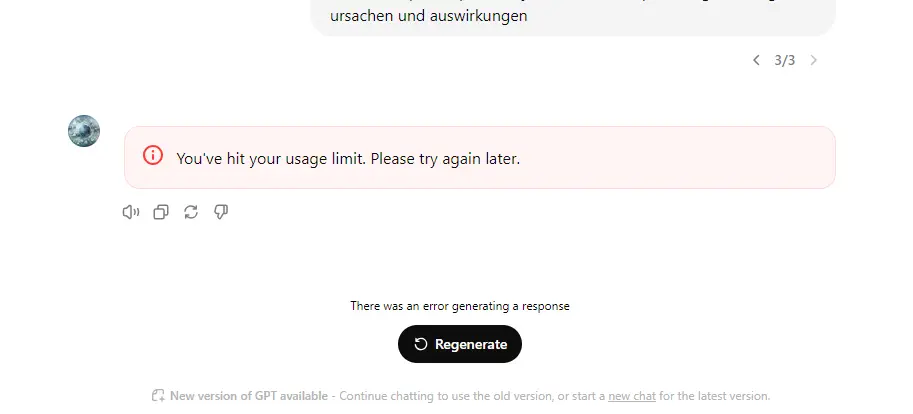
Heavy users often encounter the message:
“chatgpt you've hit your limit.”
When this notification appears, access to that model temporarily pauses until the usage window resets.
For casual users, this may only happen occasionally. But for researchers, developers, marketers, and content creators who rely on ChatGPT daily, waiting for the reset can interrupt ongoing work.
Understanding how ChatGPT limits work—and how experienced users structure their workflows around them—can help reduce these interruptions.
Why “ChatGPT You’ve Hit Your Limit” Appears
The message “chatgpt you've hit your limit” appears when an account reaches the maximum number of messages allowed for a specific model during a defined time period.
These limits vary depending on:
- the model being used
- your subscription plan
- system load and resource availability
Once the limit is reached, the model becomes temporarily unavailable until the reset window passes.
Because ChatGPT limits differ across subscription tiers, many users want a clearer comparison of how each plan handles usage quotas. The table below provides a simplified overview of typical message limits across ChatGPT plans.
ChatGPT Message Limits by Plan
| ChatGPT Plan |
GPT-4o Limit |
O1 Limit |
Reset Window |
| Free Plan |
Limited access (usage varies) |
Not available |
Typically resets within several hours |
| ChatGPT Plus |
~80 GPT-4o messages every 3 hours |
~50 O1-preview per week / ~50 O1-mini per day |
Rolling usage window |
| ChatGPT Pro |
Significantly higher limits |
Higher weekly quotas |
Rolling usage win |
ChatGPT Usage Limits by Subscription
Because OpenAI periodically updates usage policies, the exact limits may change over time. The sections below explain how these subscription tiers typically differ in practice.
Free Plan
Free users can access several models but with stricter quotas.
Typical access includes:
- limited usage of o3-mini
- limited usage of GPT-4o mini
- limited usage of GPT-4o
- no access to O1 models
Exact message limits are not always publicly disclosed.
ChatGPT Plus
The Plus subscription expands access to more advanced models.
Typical limits include:
- unlimited GPT-4o mini
- roughly 80 GPT-4o messages every 3 hours
- roughly 40 GPT-4 messages every 3 hours
- around 50 O1-preview messages per week
- around 50 O1-mini messages per day
ChatGPT Pro
ChatGPT Pro provides the highest usage allowances and expanded model access.
Users who rely heavily on AI tools often upgrade to this plan for fewer restrictions.
Why Power Users See “ChatGPT You’ve Hit Your Limit” More Often
The more frequently you use advanced models, the more likely you are to encounter the chatgpt you've hit your limit notification.
This usually happens when:
- You send many prompts within a short period
- You rely heavily on advanced reasoning models
- you generate large outputs repeatedly
- you run long multi-step conversations
For casual users, this may not be an issue.
But for power users, waiting several hours for a reset can interrupt ongoing work.
That’s why the best way to stay productive is not to “fight” the limit, but to plan around it. Instead of relying on a single account until it hits the cap, many heavy users spread their usage across multiple accounts and keep each one separated in its own browser profile.
A Practical Workflow for Handling “ChatGPT You’ve Hit Your Limit”
One way to reduce interruptions is to organize multiple ChatGPT accounts and manage them through separated browser profiles.
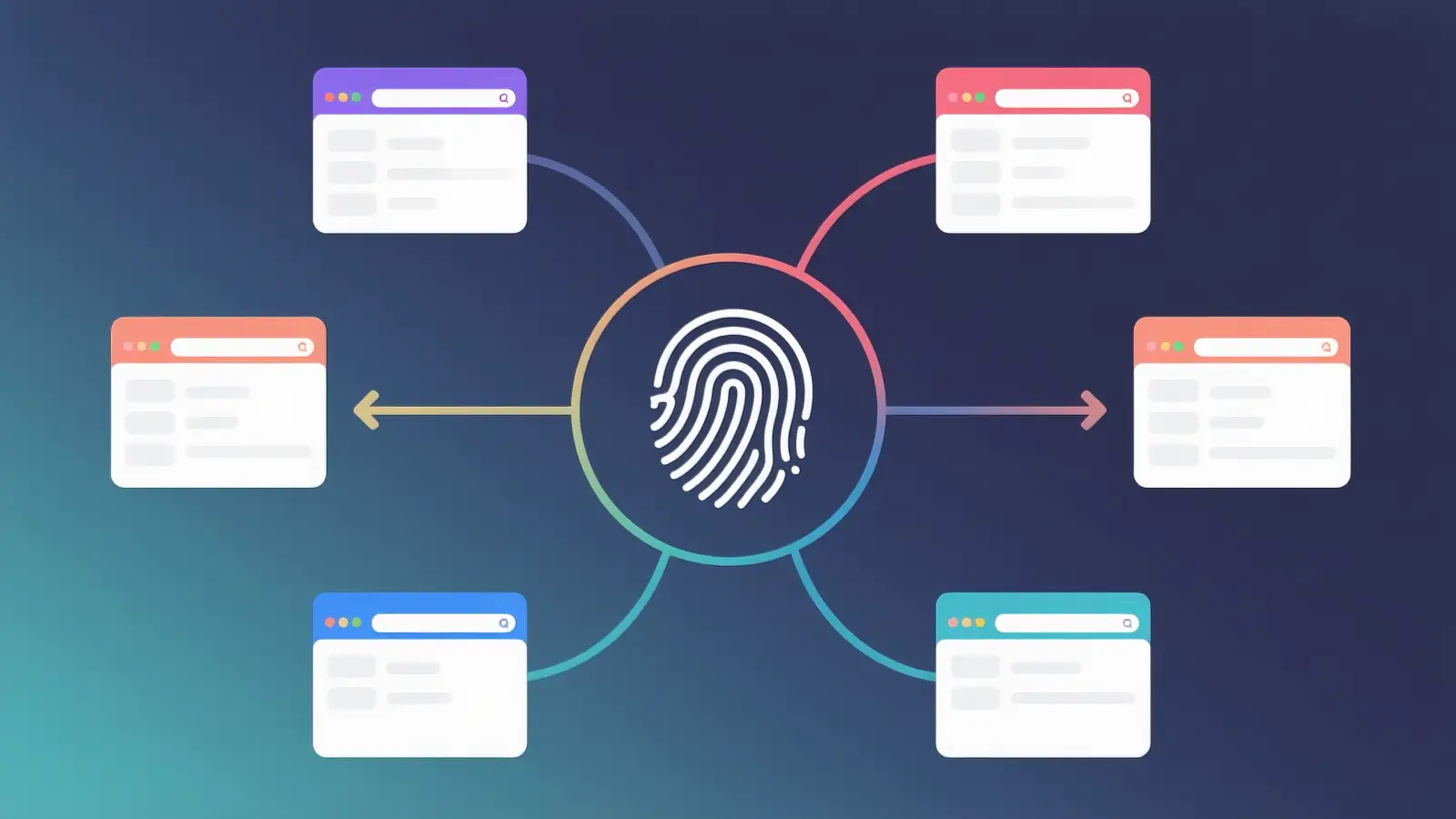
Tools designed for multi-account workflows, such as DICloak, allow each account to run in its own isolated browser profile.
Each profile maintains its own:
- cookies
- login sessions
- browser settings
- storage data
Because profiles operate independently, switching between accounts becomes more structured and easier to manage.
This approach does not remove OpenAI’s limits, but it can help organize usage across multiple accounts.
Step-by-Step Guide to Managing Accounts When “ChatGPT You’ve Hit Your Limit” Appears
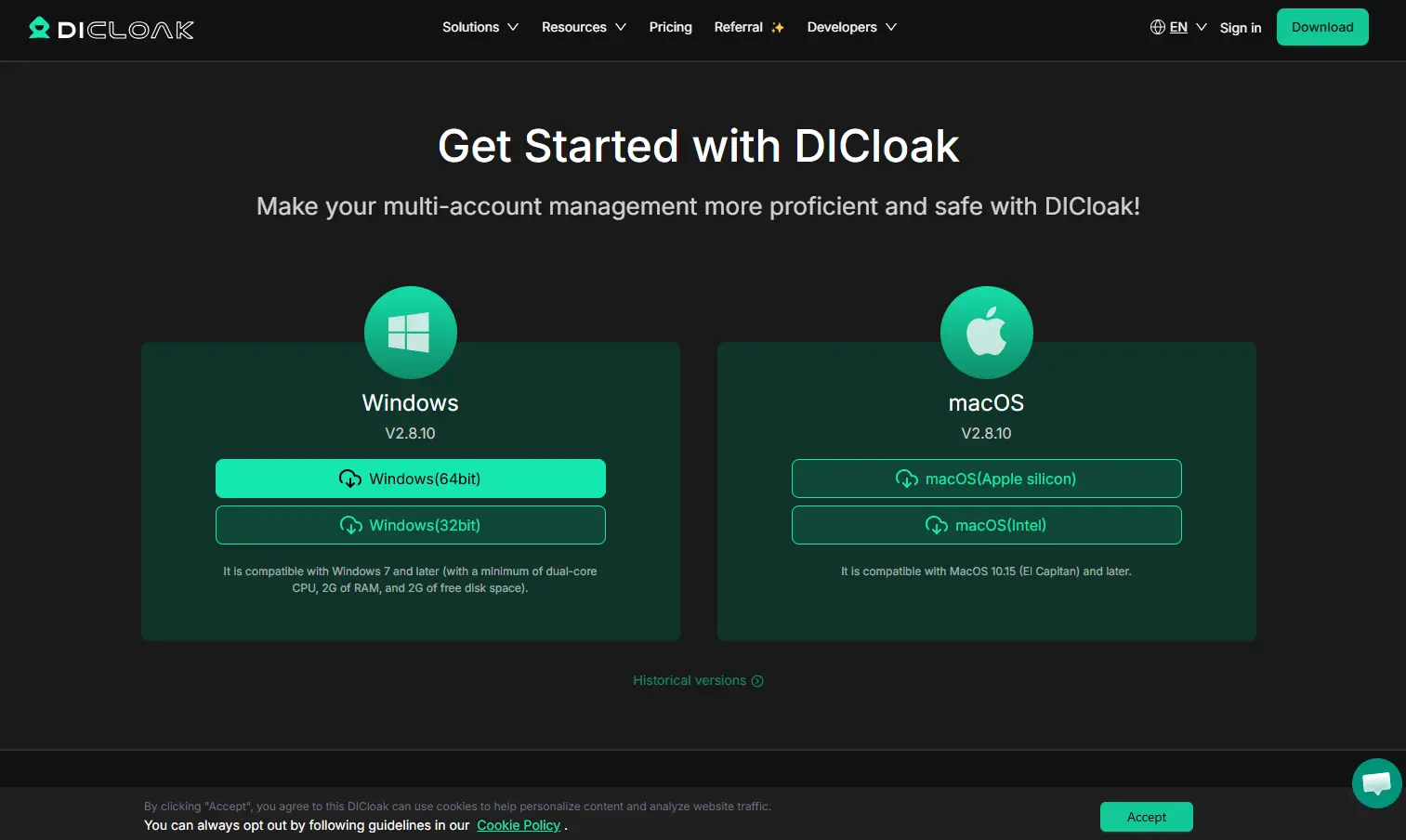
Step 1: Install DICloak
Download the browser from the DICloak official website and create a user account.
After installation, you will be able to create and manage multiple browser profiles from a single dashboard.
Step 2: Create Separate Profiles
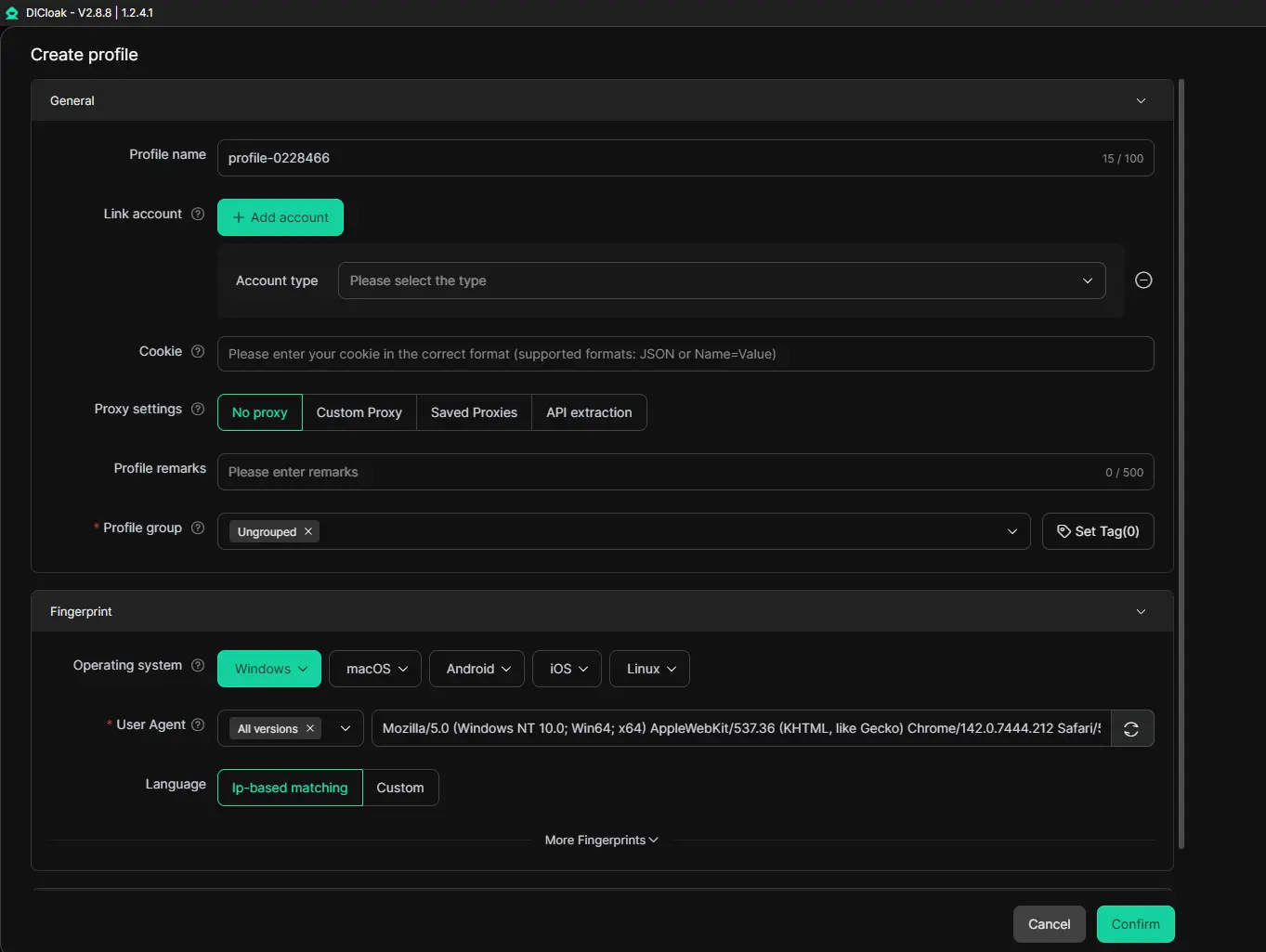
Create a new browser profile for each account.
Each profile operates independently and stores its own session data.
Typical profile settings include:
- user agent
- timezone
- language
- screen resolution
These settings help profiles operate as separate browser sessions.
Step 3: Register Multiple Email Accounts
Create several Gmail accounts and use them to register separate OpenAI accounts.
Then log into each account inside its corresponding DICloak profile.
Keeping one account per profile helps maintain clear organization.
Step 4: Use ChatGPT Within Each Account’s Limit
Open ChatGPT in each profile and use it normally.
Each account will have its own message quota. When one account reaches its usage limit, you can continue working from another profile.
Step 5: Switch Profiles When Limits Are Reached
When you encounter the message chatgpt you've hit your limit, simply switch to another profile and continue your workflow.
This method helps maintain uninterrupted productivity during long work sessions.
Alternative Ways to Handle ChatGPT Limits
Multi-account workflows are not the only option.
Users may also handle limits by:
Upgrading Subscription Plans
Paid plans such as ChatGPT Plus or ChatGPT Pro offer significantly higher usage limits.
Scheduling Usage Windows
Some users simply spread their ChatGPT usage throughout the day to avoid hitting usage caps quickly.
Using Different Models
Lower-tier models such as GPT-4o mini may have higher availability compared with more advanced reasoning models.
Tips to Reduce Interruptions from “ChatGPT You’ve Hit Your Limit”
A few simple practices can make multi-account workflows easier.
Keep Profiles Clearly Labeled
Naming profiles helps users quickly identify which account they contain.
Example labels:
- ChatGPT-Research
- ChatGPT-Writing
- ChatGPT-Backup
Rotate Accounts Strategically
Instead of exhausting one account completely, rotating usage can distribute message limits more evenly.
Avoid Logging Multiple Accounts in the Same Profile
Each profile should contain only one ChatGPT account to avoid session conflicts.
Share Conversations Across Accounts
ChatGPT allows conversations to be shared through links.
Opening a shared conversation link inside another profile allows discussions to continue across accounts.
Frequently Asked Questions
How many Gmail accounts should I create?
Many users start with two or three accounts and expand only if their workflow requires it.
How long does “chatgpt you've hit your limit” last?
Most limits reset after several hours, though some quotas may reset daily or weekly depending on the model and subscription plan.
Why do I see “chatgpt you've hit your limit” so quickly?
Heavy ChatGPT usage of advanced models, long prompts, and complex reasoning tasks can consume message quotas faster.
Yes. Upgrading to plans such as ChatGPT Plus or ChatGPT Pro typically increases available usage limits.
Is DICloak free?
DICloak offers a free plan with basic browser profile management features,while advanced capabilities may require a paid subscription.
Conclusion
Seeing the message “chatgpt you've hit your limit” can interrupt productivity, especially for users who depend on ChatGPT throughout the day.
Understanding how usage limits work—and organizing workflows around them—can significantly reduce downtime.
By managing multiple accounts through separate browser profiles, users can structure their work sessions more efficiently.
Tools like DICloak help make this process easier by allowing multiple independent browser profiles to run on the same device, making it easier to manage several ChatGPT accounts within a structured workflow.
For professionals who already manage multiple online accounts, adopting a structured workflow can make ChatGPT usage far more consistent and productive.
 Web Proxy Tools
 Free Tools
 Cookie Plugin
 UA Generator
 MAC Address Generator
 IP Generator
 IP Address List
 2FA Code Generator
 World Clock
 Anonymous Check
 WebRTC Leak Test
 UUID Generator
 Free Web Proxy Site
 Proxy Checker
 FB Ad Checker
 AI Web Scraping
 Free SMM Tools
 Twitter Shadowban Checker
 Instagram Name Checker
 UTM Generator
 Username Generator
 AI Hashtag Generator
 LinkedIn Headline Generator
 Social Media Image Resizer