Last year, over 2 million websites tracked user actions with Meta Pixel, according to Meta’s official documentation. But more than half of small business owners still struggle to answer the simple question: what is meta pixel and why does it keep showing up in their analytics and ad dashboards? The confusion usually starts when a site suddenly shows odd spikes in traffic or conversion events that don’t match sales numbers. Sometimes, developers find the pixel firing multiple times on a single page load, leading to wasted ad spend and messy reporting. Others get stuck during meta pixel setup, one misplaced snippet means hours lost debugging.
Meta Pixel works by embedding a tiny script on your website. It records user actions such as page views, button clicks, and form submissions, sending these details straight to Meta’s servers. That data powers retargeting ads, conversion tracking, and custom audiences for platforms like Facebook and Instagram. When set up correctly, it can reveal exactly which campaigns drive sales, but a bad configuration risks leaking user data or triggering privacy complaints. If you want a clear answer to meta pixel explained, or need to know how does meta pixel work without breaking your site, you’re not alone.
Understanding how Meta Pixel operates and how to use it safely gives you control over your marketing and protects user privacy. Here’s what most teams miss, and how to avoid those mistakes.
What Is Meta Pixel and Why Does It Matter for Marketers?
Meta Pixel is a small snippet of code you add to your website. Its job is to track what visitors do, like which pages they view, which buttons they click, and if they fill out a form. All this data goes back to Meta (the company behind Facebook and Instagram) to help you understand and improve your ad performance. If you’re searching for “what is meta pixel” or want “meta pixel explained” in plain language, it’s simply a way to connect your website activity with your Meta ad campaigns.
How Meta Pixel Collects Data on Your Website
After Meta Pixel setup, every time someone lands on your site, the pixel logs key actions. These include page views, add-to-cart events, purchases, and lead form submissions. The pixel works in real time: as soon as an action happens, it sends the details to Meta’s servers using a secure connection. This process links user activity on your site to their Facebook or Instagram profiles, making it possible to see which ads led to which results on your site. If you want a clear view of “how does meta pixel work,” it’s about tracking user behavior and matching it to ad data without guesswork.
Why Meta Pixel Is Essential for Facebook and Instagram Ads
Running ads without Meta Pixel is like flying blind. You lose the ability to retarget visitors, build lookalike audiences, or measure which ads actually drive sales. With the pixel active, you can show specific ads to people who looked at a product but didn’t buy, or exclude customers who already converted. This boosts return on ad spend and shrinks wasted budget. Without Meta Pixel tracking, you can’t really judge if your Facebook and Instagram ads are working or just burning money. For deeper technical details, see Meta’s official Pixel guide.
How Does Meta Pixel Work? Tracking, Events, and Data Flow Explained
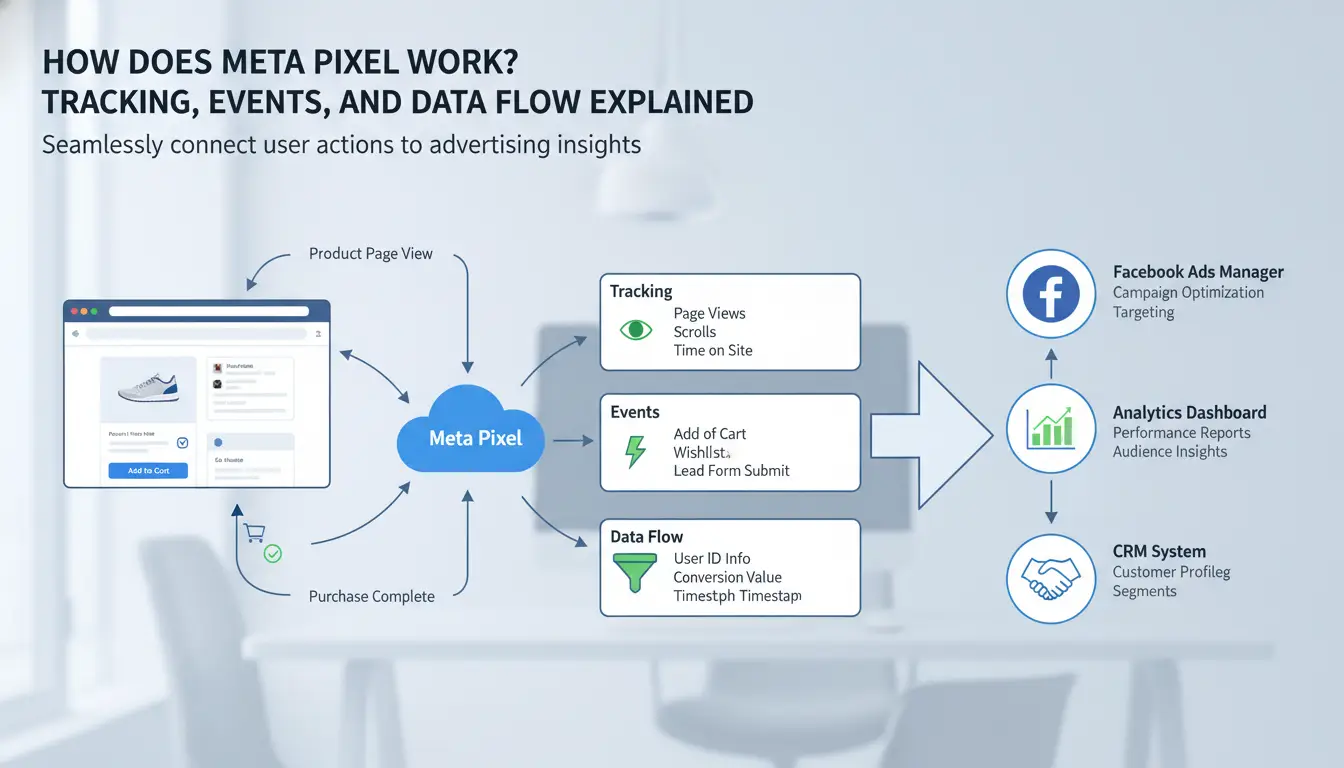
Meta Pixel is a small script added to your website that tells Meta (Facebook, Instagram) what users do on your site. If you’ve searched “what is meta pixel” or needed meta pixel explained for your team, here’s the technical side, without fluff.
What Are Meta Pixel Events and Why Do They Matter?
Events are the actions Meta Pixel tracks. Standard events cover common actions like PageView, AddToCart, and Purchase. PageView fires when someone loads a webpage. AddToCart signals when a user puts an item in their cart. Purchase records a completed sale. Custom events let you track actions unique to your site, such as “NewsletterSignup” or “VideoWatched.” These events help you see which parts of your site get real engagement and let you build audiences for retargeting. If you want advanced tracking, you can use Meta’s event setup tool to add custom triggers without editing code.
How Data Moves from Your Website to Meta
When someone visits your site, Meta Pixel uses cookies to mark their browser. The pixel collects event data, such as what pages were seen or what buttons were clicked, and sends it to Meta’s servers. This information is used for ad targeting, conversion tracking, and building custom audiences. Meta matches pixel data with Facebook profiles to show ads to users who took specific actions. If you’re worried about privacy, be aware that Meta’s privacy policy explains what data gets collected and how it’s used.
What Happens When Tracking Is Blocked or Limited
Browser privacy settings and updates like iOS 14+ can block cookies and limit tracking. This means Meta Pixel may not record every event or connect data to a user profile. Even with restrictions, Meta still receives basic event info, like anonymous page loads or purchases, but loses details on user identity. If you want to track more reliably, consider server-side meta pixel setup, which bypasses some browser blocks.
What Should You Check Before Setting Up Meta Pixel? Key Risks and Mistakes
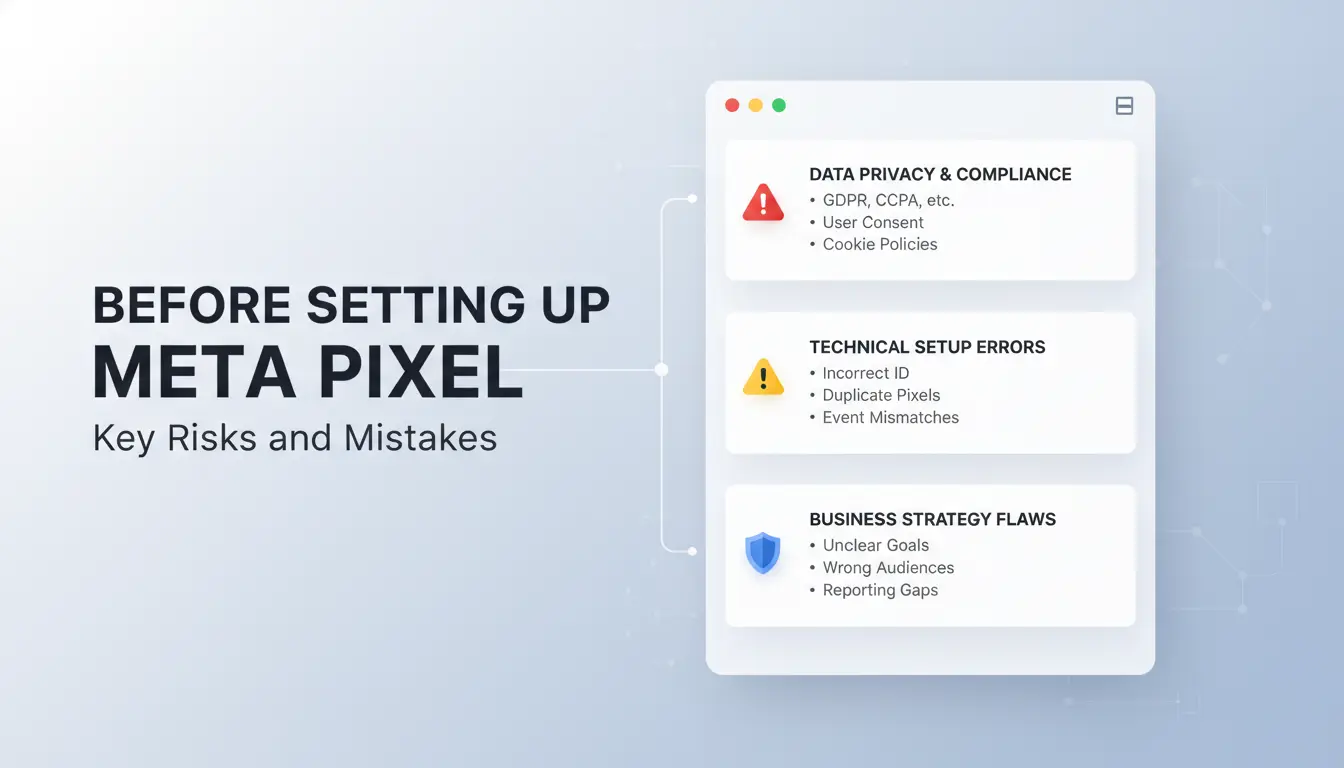
Setting up Meta Pixel can seem simple, but small errors often cause big tracking gaps or privacy problems. Before you add any code, slow down and check these points. Skipping them is why most teams later ask, “why won’t my pixel fire?” or “is this even legal?”
Common Setup Errors That Break Tracking
One of the most common mistakes is placing the pixel code in the wrong part of your web page. Meta Pixel needs to load in the section, before any user actions, or you’ll miss key events. Sometimes, teams add the script twice, this sends duplicate events, making reports look inflated or wrong. Missing events, like “Add to Cart” or “Purchase”, usually come from typos or forgetting to add the code on some pages.
Check your setup with Meta’s official Pixel Helper tool. If you’re still not sure how does meta pixel work, this tool shows what’s firing and what’s broken. 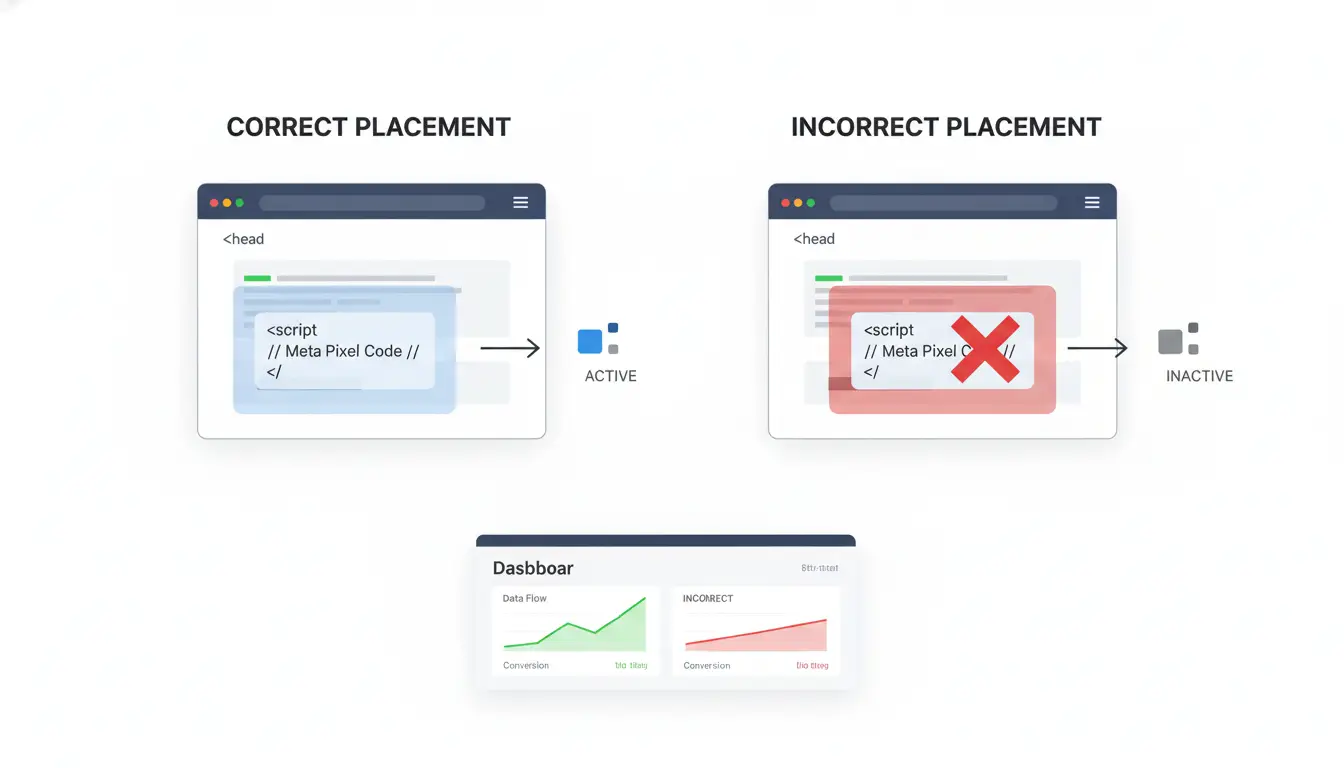
Privacy, Consent, and Legal Considerations
Meta Pixel collects user data, so you need to think about privacy laws like GDPR and CCPA. In most regions, you must tell users you’re tracking them and get their clear consent, just having a privacy policy isn’t enough. Use a simple banner or popup that asks users to accept tracking before Meta Pixel fires, and make sure you actually block the pixel until they say yes. Failing to do this can lead to user complaints or even fines.
How to Avoid Data Leaks and Account Mix-Ups
Sharing pixel access with the wrong people is risky. If you add a freelancer or agency to your Meta Business account, double-check their permissions. Never let outside users see data from other brands or clients. For agencies, set up a separate pixel for each client in your Meta Business Manager. That keeps campaigns and audiences from getting mixed together, one of the most common mistakes in meta pixel setup.
Missing a single privacy or code check here can break your whole ad spend. If you’re still asking what is meta pixel or want meta pixel explained in plain language, get a second set of eyes before launch.
How to Set Up Meta Pixel: Step-by-Step for Any Website Platform
Setting up Meta Pixel looks simple, but missing even one detail can break your tracking or create data leaks. If you want "what is meta pixel" to mean real results for your business, you need a setup that fits your platform and marketing goals.
Creating and Naming Your Meta Pixel
Start inside Meta Events Manager. Click “Connect Data Sources,” then choose “Web” and “Meta Pixel.” Give your pixel a name that matches your website or traffic source, “ShopMain2026” beats “Pixel 1” when you manage more than one site. Good pixel names help you avoid mixing up data later, especially if you run campaigns for different brands or stores.
Installing Meta Pixel on Popular Platforms
Meta Pixel setup changes based on your website platform. Shopify and WooCommerce both offer direct Meta integrations where you paste your Pixel ID, no code needed. For WordPress, plugins like PixelYourSite can handle most installs. On custom sites, copy the pixel code from Events Manager and paste it right before the closing tag on every page you want to track. If you want to set up advanced events, like purchase or signup, use Meta’s Event Setup Tool or add extra code for custom triggers.
Verifying That Meta Pixel Is Working
If you only set up the code but don’t test it, you might miss hidden errors. Use the Meta Pixel Helper Chrome extension to check if your pixel is firing on page load and logins. Inside Events Manager, look for real-time events, PageView, AddToCart, or your custom actions. Test both standard and custom events by running through your site as a user. Never skip this final check, missing events cost you real data.
How to Use Meta Pixel Data for Better Ad Targeting and Retargeting
Meta Pixel turns website activity into actionable marketing data. If you’re searching for what is meta pixel or want meta pixel explained in real-world terms, the key is how that data lets you target, scale, and retarget smarter. Here’s how teams actually put pixel data to work.
Building Custom Audiences from Pixel Data
Once meta pixel setup is done, you can build custom audiences in Meta Ads Manager. This means you target users based on actions they take, like visiting a page, adding to cart, or starting checkout. For example, you might create segments for cart abandoners or people who viewed a product but didn’t buy. You can also split audiences by event (such as form submission vs. blog read) or by specific landing page. The benefit? Your ads reach people already interested, not random users. See Meta’s official guide for step-by-step instructions.
Creating Lookalike Audiences for Scaling Campaigns
Lookalike audiences let you find new users who act like your best customers. Meta’s system uses pixel data, such as buyers or subscribers, to create a model and then finds similar profiles. This works best when your custom audience is at least 1,000 users with clear behavior patterns. If you have strong purchase or signup events tracked, lookalike audiences can help scale campaigns without wasting budget. You can adjust the similarity level for broader or narrower targeting. More details at Meta’s lookalike audience page.
Retargeting Strategies That Convert
Retargeting is where pixel data shines. You can run dynamic product ads, showing users items they viewed or left in their cart. Sequenced retargeting means showing a series of ads, like reminder, offer, then review, so users don’t see the same message. Exclusions matter: remove buyers from retargeting to avoid wasted spend. For teams managing multiple brands or accounts, tools like DICloak help keep browser fingerprints separate, so ad platforms don’t cross-track or flag unusual activity.
How Social Media Marketers Can Manage Multiple Meta Pixels Safely with DICloak
Why Managing Many Pixels and Accounts Gets Risky
Running several Meta Pixels for different brands or clients sounds simple, but the risks pile up fast. Cross-account contamination can occur if browser sessions aren’t truly separate, one slip and all accounts get flagged, leading to bans or suspicious logins. Even one misstep in meta pixel setup may cause data leaks, exposing client information or mixing ad audiences. Keeping each client’s data stream fully isolated is tough when using just one browser or device.
How DICloak’s Browser Isolation and Proxy Features Help
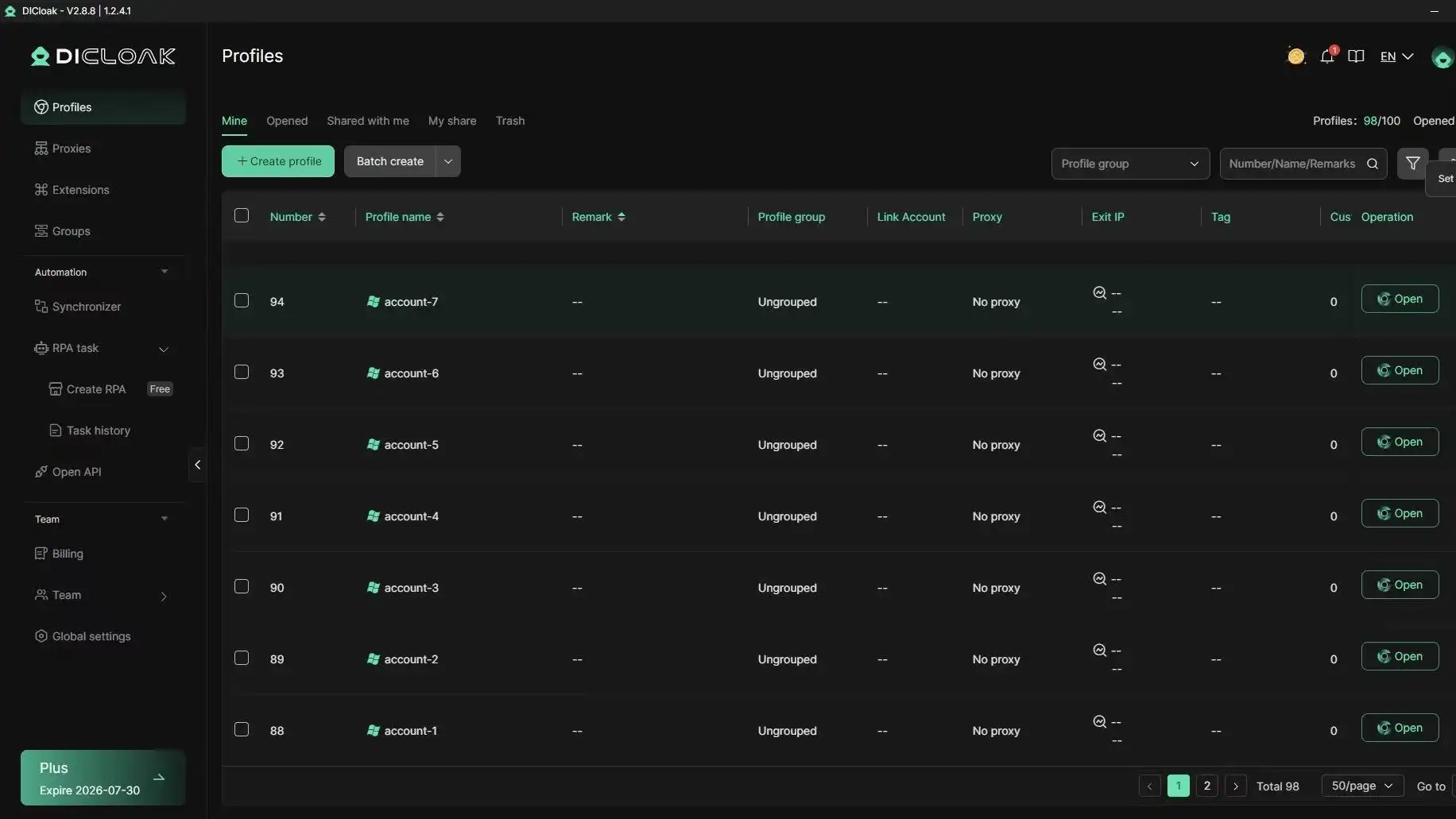
You can use DICloak to create a separate browser profile for every Meta Pixel, ad account, or client. Each profile runs in its own container, so cookies and logins never cross over. Adding custom proxies gives each account a unique fingerprint, which helps avoid detection by Meta’s security systems and keeps tracking data clean. This setup makes it much safer for agencies handling multiple brands at once.
Automating Routine Pixel Tasks and Team Collaboration
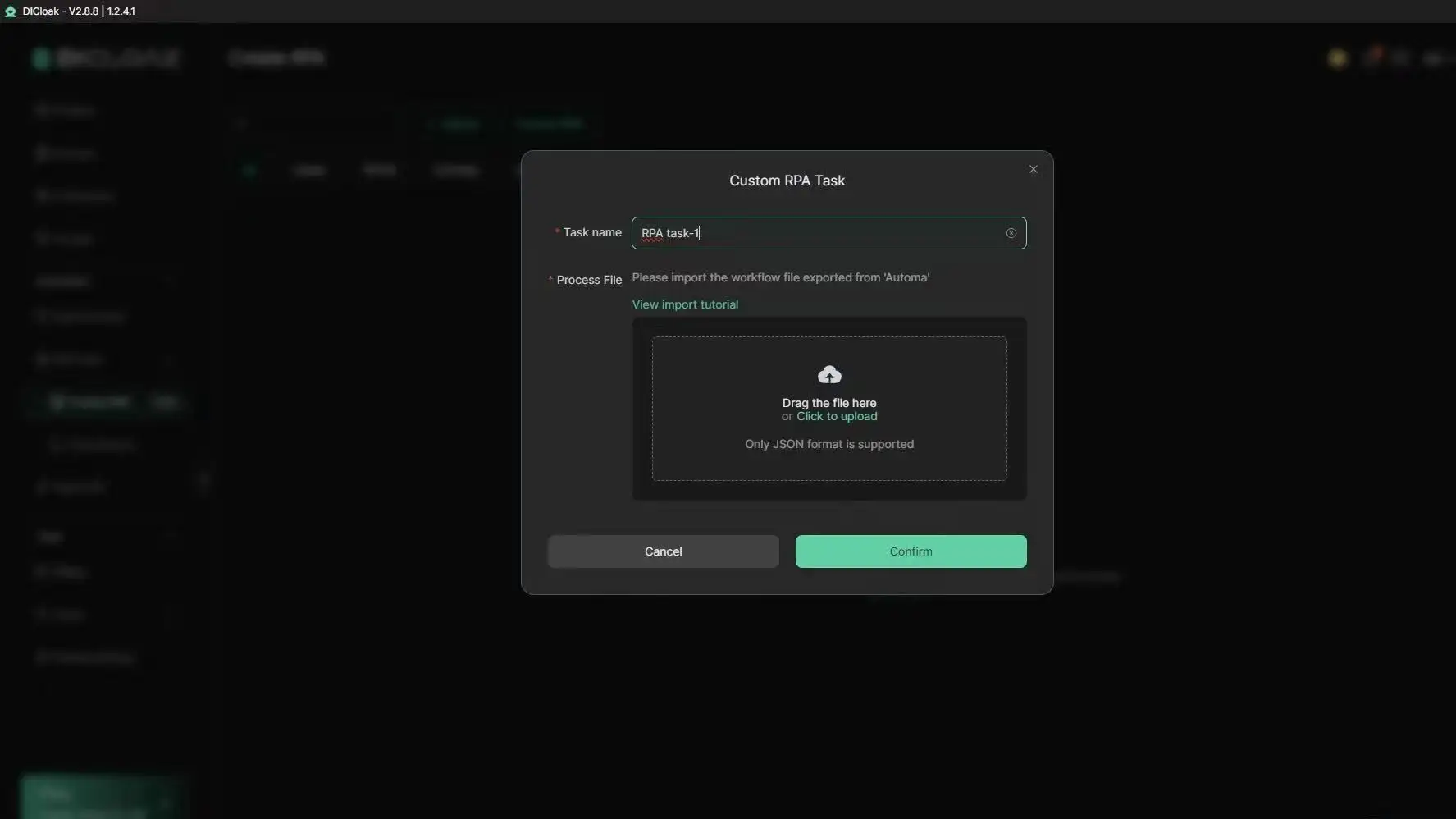
Tools like DICloak let you batch-manage profiles, automate repetitive actions with RPA, and assign team permissions. Audit logs show who changed what and when. That means less busywork, and you keep workflows safe and organized while meeting every client’s needs.
Meta Pixel vs. Conversions API: Which Tracking Method Should You Use?
Choosing between Meta Pixel and Conversions API matters more now because browser privacy updates break old tracking setups fast. If you’re searching for what is meta pixel, you probably want to know whether you need the classic browser pixel, Conversions API, or both. Here’s what actually changes for teams managing ad spend.
How Conversions API Complements or Replaces Meta Pixel
Meta Pixel tracks events like purchases or sign-ups through browser code. This means ad blockers or privacy tools can block it, and browser updates can hide data. Conversions API, on the other hand, sends the same actions straight from your server, so it ignores browser limits. Used together, they cover gaps the other misses. For example, Pixel catches browser-only actions, while Conversions API tracks server-only events, like post-checkout steps. Most teams start with Pixel, then add Conversions API for better coverage after seeing gaps.
| Feature |
Meta Pixel (Browser) |
Conversions API (Server) |
| Setup complexity |
Simple |
Advanced |
| Blocked by ad blockers |
Yes |
No |
| Tracks server events |
No |
Yes |
| Immediate data |
Yes |
Yes |
Table: Tracking method comparison. See Meta’s docs for details.
Which Method Is More Accurate After Privacy Updates?
After iOS 14+ and changes in browsers like Safari and Chrome, Meta Pixel alone often misses 10-30% of events. Ad blockers can push this even higher. Conversions API recovers lost data by sending it direct, but only if you set it up to match browser sessions. For the best results, use both: Pixel for real-time triggers, Conversions API to fill in the blanks. Missing the server-side piece means your reported conversions can drop sharply, even when sales stay steady.
How to Set Up Conversions API Alongside Meta Pixel
Starting with Pixel is faster, just copy the script, then check that it fires on key actions. For Conversions API, you need server access and should match events by user ID or email so Meta links browser and server data. A common mistake: sending duplicate events, which inflates reports. Always test both setups using Meta Events Manager. For teams after a “meta pixel explained” or “meta pixel setup” guide, focus on getting both working together before you tweak campaigns.
Troubleshooting Meta Pixel: How to Fix Common Tracking and Data Issues
Meta Pixel often creates confusion, especially when you search "what is meta pixel" and end up with technical problems instead of clear answers. The most common mistakes come from setup errors and site changes that break tracking. Here’s how to spot and fix the usual pixel issues so your data stays reliable.
Pixel Not Firing or Not Detected
Start by checking if your pixel is actually working. Use Meta’s Pixel Helper extension in Chrome. If the pixel isn’t firing, the script might be missing or placed wrong in your website code. Look for typos, script placement errors, or conflicts with other site scripts. For WordPress sites, wrong theme edits or plugin clashes cause most failures. After any fix, reload your site and see if Pixel Helper shows the pixel as detected. If it still fails, double-check your pixel ID and make sure it matches what Meta Events Manager shows.
Duplicate Events, Missing Data, and Deduplication Warnings
When you see duplicate events or warnings in Events Manager, the problem usually comes from firing the pixel multiple times on a single page load. This can happen if you install Meta Pixel through both direct code and a tag manager like Google Tag Manager. Missing data is often a result of browser privacy settings, ad blockers, or incorrect event parameters. To fix, remove any extra pixel scripts, test for single firing per event, and make sure parameters like event_id are unique. Keeping deduplication clean is key for accurate tracking.
Keeping Tracking Accurate Over Time
Many teams forget to update their pixel after site redesigns or platform migrations. That’s why regular monitoring in Meta Events Manager matters. Check event logs weekly for errors or missing conversions. If you change page URLs, forms, or site structure, revisit your meta pixel setup and verify new pages are tracked. The biggest mistake is assuming pixel tracking stays correct after site changes, always test after updates.
Frequently Asked Questions
Is Meta Pixel free to use or does it cost extra?
Meta Pixel is free to set up and use on your website. You only pay for ads you run on Facebook or Instagram. The pixel itself helps track visitor actions, but there is no extra charge for installation or basic tracking. If you want to know what is meta pixel, it’s a tool for measuring ad performance.
Can I use Meta Pixel on more than one website?
Yes, you can use Meta Pixel on multiple websites. Meta Pixel setup lets you create separate pixels for each site or use one pixel across several sites. For best results, keep pixels organized and match them with your ad accounts. This helps Meta Pixel work correctly and keeps your data clean.
What data does Meta Pixel actually collect from my visitors?
Meta Pixel explained: It records events like page views, purchases, and button clicks. It does not automatically collect names, emails, or other personal details unless you set it up for custom tracking. What is meta pixel? It’s a tool to track actions, not personal info, unless you configure it that way.
How do I remove or disable Meta Pixel if I no longer want tracking?
To disable Meta Pixel, go to Facebook Events Manager and delete the pixel from your account. Also, remove the Meta Pixel code from your website pages. This stops tracking and ensures that no visitor data is sent to Meta. Proper removal gives you full control over your site’s privacy.
Will Meta Pixel work if users block cookies or use privacy browsers?
Meta Pixel may not work well if users block cookies or use privacy browsers. When cookies are blocked, tracking is limited or stopped. For better results, consider using Meta’s Conversions API. This tool helps track conversions even when browser restrictions affect how Meta Pixel works.
Conclusion
Meta Pixel is a powerful analytics tool that helps businesses track user interactions and improve their advertising strategies on Facebook and beyond. Understanding how it works can significantly improve your ability to measure and improve marketing performance.
Try DICloak For Free
 Web Proxy Tools
 Free Tools
 Cookie Plugin
 UA Generator
 MAC Address Generator
 IP Generator
 IP Address List
 2FA Code Generator
 World Clock
 Anonymous Check
 WebRTC Leak Test
 UUID Generator
 Free Web Proxy Site
 Proxy Checker
 FB Ad Checker
 AI Web Scraping
 Free SMM Tools
 Twitter Shadowban Checker
 Instagram Name Checker
 UTM Generator
 Username Generator
 AI Hashtag Generator
 LinkedIn Headline Generator
 Social Media Image Resizer