A browser fingerprint is one of the main ways websites can recognize you online, even when you clear cookies or use private mode. It is built from small details like your browser, device, system settings, fonts, and graphics setup. On their own, these details may seem harmless. But when combined, they can make your browser look unique. In this guide, you will learn what a browser fingerprint is, how it works, why websites use it, and what you can do to reduce the privacy risks.
What Is a Browser Fingerprint?
A browser fingerprint is a way for a website to recognize your browser by looking at many small details at once. These details can include your browser type, operating system, language, time zone, screen size, fonts, and graphics settings. On their own, these details may seem normal. But when a site combines them, they can create a pattern that makes your browser look different from others. MDN defines fingerprinting as the practice of identifying a browser by collecting and combining distinguishing features of the browser and operating system. EFF describes it in a similar way: a digital fingerprint is a list of characteristics that can make one browser and device setup stand out.
What a browser fingerprint means in simple terms
In simple terms, a browser fingerprint is like a digital description of your browser setup. It is not one single ID that you type in. It is more like a puzzle made from many pieces of information. For example, two people may both use Chrome, but one may have a different screen size, language setting, font list, and graphics setup. That combination can make their browsers look different enough to be recognized. EFF notes that even details that seem minor, such as screen resolution and installed fonts, can be gathered and used in fingerprinting.
Why a browser fingerprint is different from a cookie
A browser fingerprint is different from a cookie because a cookie is a small piece of data stored by the browser and server to remember information across page visits, while a fingerprint is built by observing browser and device traits. If you delete cookies, the stored data is gone. But a browser fingerprint can still be created again the next time you visit a site, because the site can read the same browser signals again. MDN explains that cookies are small pieces of data used to remember stateful information, while fingerprinting relies on combining browser and system features for identification. EFF also notes that fingerprinting can track users in ways that are harder to control than cookies.
Why websites use browser fingerprints
Websites use browser fingerprints for a few reasons. Some use them for tracking and advertising. Others use them for security, fraud detection, or account protection. MDN’s webRequest documentation separates fingerprinting used for tracking from fingerprinting used for anti-fraud purposes, such as payment providers identifying a visiting user for security checks. That is why browser fingerprinting is not always used for the same purpose. In practice, the same kind of browser data can be used either to follow users across sites or to help detect suspicious logins.
How Browser Fingerprinting Works
Now that the basic idea is clear, the next question is simple: how does browser fingerprinting actually work? It works by collecting many small technical details from your browser and device, then combining them into one profile. MDN says websites can gather features of the browser and operating system and use them together to identify a browser.
What data points are used to build a browser fingerprint
A browser fingerprint is usually built from details like your browser version, time zone, language, screen size, resolution, installed fonts, audio or video codec support, and browser settings. Some sites also use methods like canvas or WebGL checks to learn more about your graphics setup. These are small signals on their own, but together they can reveal a lot. MDN lists browser version, time zone, preferred language, codecs, fonts, browser settings, and display size as common fingerprint elements. EFF also notes that sites may look at screen resolution, plugins, platform details, and graphics-related signals.
How websites combine small signals into one profile
The key is not one detail. It is the combination. Many people may use the same browser, and many may share the same language or screen size. But far fewer people will have the exact same mix of browser version, fonts, time zone, graphics behavior, and settings. EFF explains that when these separate properties are stitched together, they can form a unique story about one browser. In simple terms, fingerprinting works like a checklist: each extra detail helps narrow the match.
For example, Chrome on Windows is not unique by itself. But Chrome on Windows with one specific time zone, one font list, one screen resolution, and one graphics pattern can become much easier to recognize. That is why browser fingerprinting can feel invisible to users. Nothing obvious is stored like a cookie, but the browser still keeps presenting the same identifying pattern.
Why browser fingerprints can persist across sessions
Browser fingerprints can persist across sessions because the same browser and device often keep exposing the same signals each time you return. If you clear cookies, that removes stored identifiers. But it does not change your browser version, screen setup, fonts, or time zone. A site can read those signals again and rebuild a similar fingerprint on the next visit. EFF notes that fingerprinting can track users without relying on persistent identifiers stored on the device and can even help recreate tracking after cookies are deleted.
That is also why fingerprinting is harder to escape with simple cleanup steps. Private mode may hide some local history, but it does not automatically make your browser look ordinary. As long as the same useful APIs keep exposing enough detail, websites can keep trying to identify the browser across visits.
What Information Can a Browser Fingerprint Reveal?
Now that we have looked at how browser fingerprinting works, the next step is to see what it can actually reveal. A browser fingerprint does not usually expose your name by itself. But it can expose enough browser and device details to make your setup stand out from many others. MDN explains that fingerprinting works by collecting distinguishing features of the browser and operating system, while EFF notes that even ordinary technical details can make a browser easier to identify.
Browser and device details that often get exposed
A browser fingerprint can include details like your browser version, operating system, language, screen size, time zone, and supported features. Some sites can also read information through headers and browser APIs that reveal what kind of device or browser profile you are using. MDN notes that common fingerprint elements include browser and OS features, while EFF’s Cover Your Tracks explains that browser, operating system, plugins, ad blockers, and other privacy software can all contribute to how identifiable a browser looks.
Why fonts, graphics, and system settings matter
Fonts, graphics, and system settings matter because they add more small signals to the profile. A font list can differ from one computer to another. Graphics checks can reveal how your device renders images or uses WebGL. Settings like language, display size, and time zone also add more detail. EFF explains that fingerprinting can use seemingly ordinary traits such as screen resolution, time zone, and system version, and its self-defense guide notes that JavaScript can be used to detect plugins and fonts.
What makes one fingerprint look more unique than another
A fingerprint looks more unique when it combines many details that do not often appear together. One data point is usually not enough. But a rare mix of browser version, screen setup, fonts, graphics behavior, and privacy tools can make one browser easier to pick out. EFF’s Cover Your Tracks is built around this idea: it measures how unique and identifiable your browser appears based on its characteristics. In simple terms, the more unusual your combination looks, the easier it is to recognize across visits.
Browser Fingerprint vs. Cookies: What Is the Difference?
After seeing how much a browser fingerprint can reveal, it helps to compare it with something more familiar: cookies. Both can be used to recognize users, but they work in very different ways. Mozilla explains that cookies store data in the browser, while fingerprinting identifies a browser by observing its traits.
How cookies track users
Cookies are small files that a website stores in your browser. They help sites remember logins, settings, and past visits. They can also be used for tracking, especially across ad networks. In simple terms, cookies track by saving an identifier and reading it later.
Why browser fingerprints are harder to clear
A browser fingerprint is harder to clear because it is not just one saved file. It is rebuilt from browser and device details like screen size, language, fonts, and graphics signals. You can delete cookies, but your browser may still look very similar the next time you visit a site. That is why fingerprinting can keep working even after basic cleanup.
Which method feels more invasive in practice
In practice, many users feel fingerprinting is more invasive. Cookies are easier to see, manage, and delete. Browser fingerprints are much less visible, and most people do not realize how many small settings can be used to identify them. So while both affect privacy, fingerprinting often feels harder to control.
Why Browser Fingerprinting Is a Privacy Concern
By this point, the real problem becomes easier to see. A browser fingerprint is not just a technical detail. It can also work as a tracking method. Mozilla describes fingerprinting as a way for websites to collect browser or device data and use it to identify and track a user, and Firefox groups fingerprinting technologies under tracking protections.
How fingerprinting can track users without cookies
Fingerprinting can track users without relying on cookies because it does not need one saved ID file in the browser. Instead, a site can rebuild the fingerprint from browser and device signals each time you visit. EFF notes that browser fingerprinting can track users much like cookies do, but with subtler and harder-to-control methods, and it can still work when people try to delete cookies.
Why private browsing does not fully stop fingerprinting
Private browsing helps with local history and stored session data, but it does not automatically make your browser look generic. If the browser still exposes enough useful signals, websites can keep trying to identify it. Mozilla’s privacy docs describe fingerprinting as building a store of data points that differentiate users, and those data points can include things beyond cookies, such as browser and locally installed fonts.
When fingerprint accuracy becomes a real anonymity problem
Fingerprinting becomes a real anonymity problem when a browser looks rare enough to stand out from the crowd. EFF’s research found that many browsers were uniquely identifiable based on version and configuration information, and its current testing project is built around measuring how identifiable a browser appears. In practice, that means even without your name, a highly unique browser can be recognized again across visits.
How to Reduce Browser Fingerprinting Risks
Once you understand why fingerprinting is a privacy problem, the next step is more practical: reducing how much your browser gives away. There is no perfect fix, but some settings and tools can make fingerprinting harder. Firefox, for example, offers protections against fingerprinting and also provides a more advanced Resist Fingerprinting option, though Mozilla warns that it can cause site problems.
How privacy-focused browser settings can help
Privacy-focused settings can limit some of the signals sites use to identify your browser. Firefox says its tracking protections can block known fingerprinters and limit the information the browser exposes. More advanced options like Resist Fingerprinting try to make browsers look less unique by reducing or standardizing certain details.
Why some anti-fingerprinting tools break websites
The trade-off is that stronger protection can hurt normal browsing. Mozilla says Resist Fingerprinting may cause blurry images, wrong language display, broken input behavior, or other site problems. That happens because some anti-fingerprinting tools reduce or spoof browser details that websites normally use for features and layout.
What switching browsers can and cannot solve
Switching browsers can help, but it is not a full solution. Some browsers expose less identifying information or block known fingerprinters more aggressively, which can lower risk. But a different browser still has its own settings, device signals, and behavior. In other words, switching browsers may reduce fingerprinting, but it does not make you invisible by itself.
When a Managed Browser Environment Helps More Than Basic Privacy Tools
Why DICloak is not the same as a privacy browser
At this point, it helps to make one thing clear. DICloak is not just a privacy browser. It is an antidetect browser built for people who need to manage multiple accounts in a more structured way. Instead of only focusing on blocking trackers during normal browsing, DICloak is designed around isolated browser profiles, customizable fingerprint settings, proxy integration, and workflow management. That makes it a better fit for operational use, not just casual privacy protection.
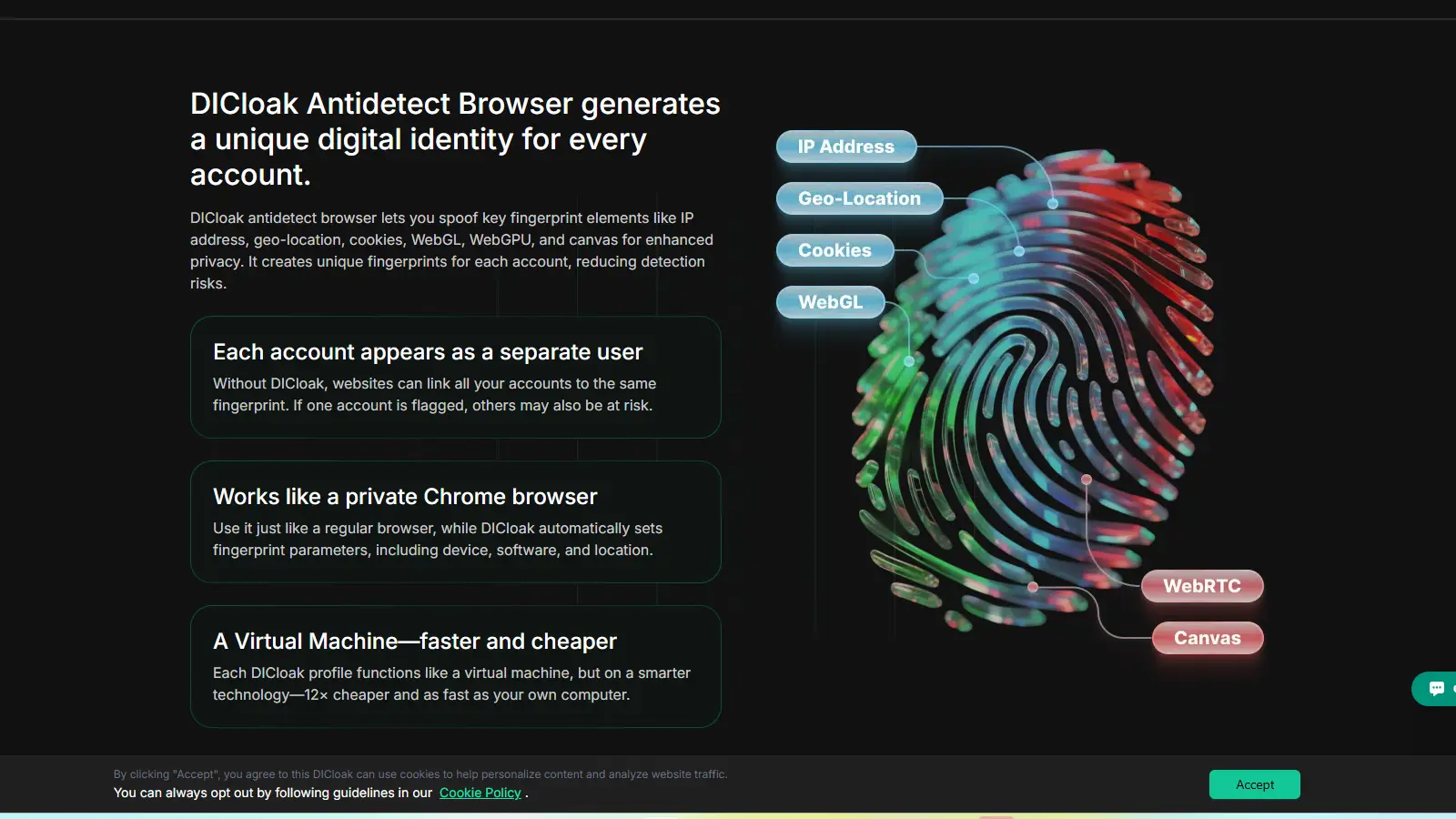
How separate browser profiles help manage fingerprint differences
This matters when one browser setup is not enough. DICloak lets users create separate browser profiles, each with its own fingerprint configuration and proxy setup. That can help keep sessions apart, reduce profile overlap, and make different account environments easier to manage. It also includes practical tools like bulk profile actions, built-in RPA automation, and a synchronizer, which can save time when the work involves repeated actions across many profiles.
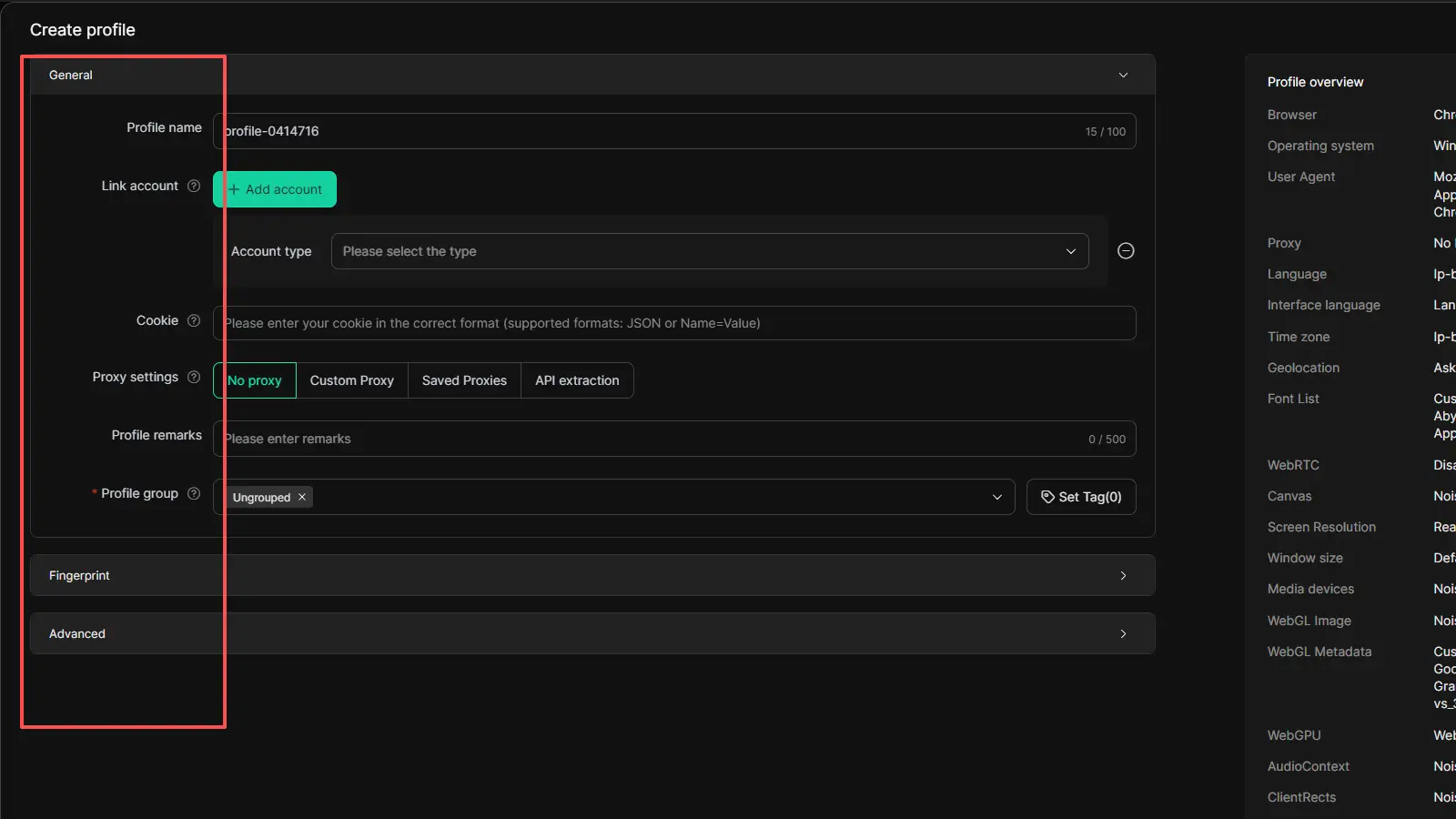
When DICloak makes sense for multi-account workflows
DICloak makes the most sense when the real challenge is managing scale. If you work in social media management, affiliate marketing, e-commerce, traffic arbitrage, account farming, or similar multi-account environments, basic browser privacy tools are usually not enough. DICloak is built for that kind of setup. It supports team collaboration features like profile sharing, permission settings, data isolation, and operation logs. In that sense, it is less about making one browser more private, and more about creating a secure and efficient system for running many browser identities at once.
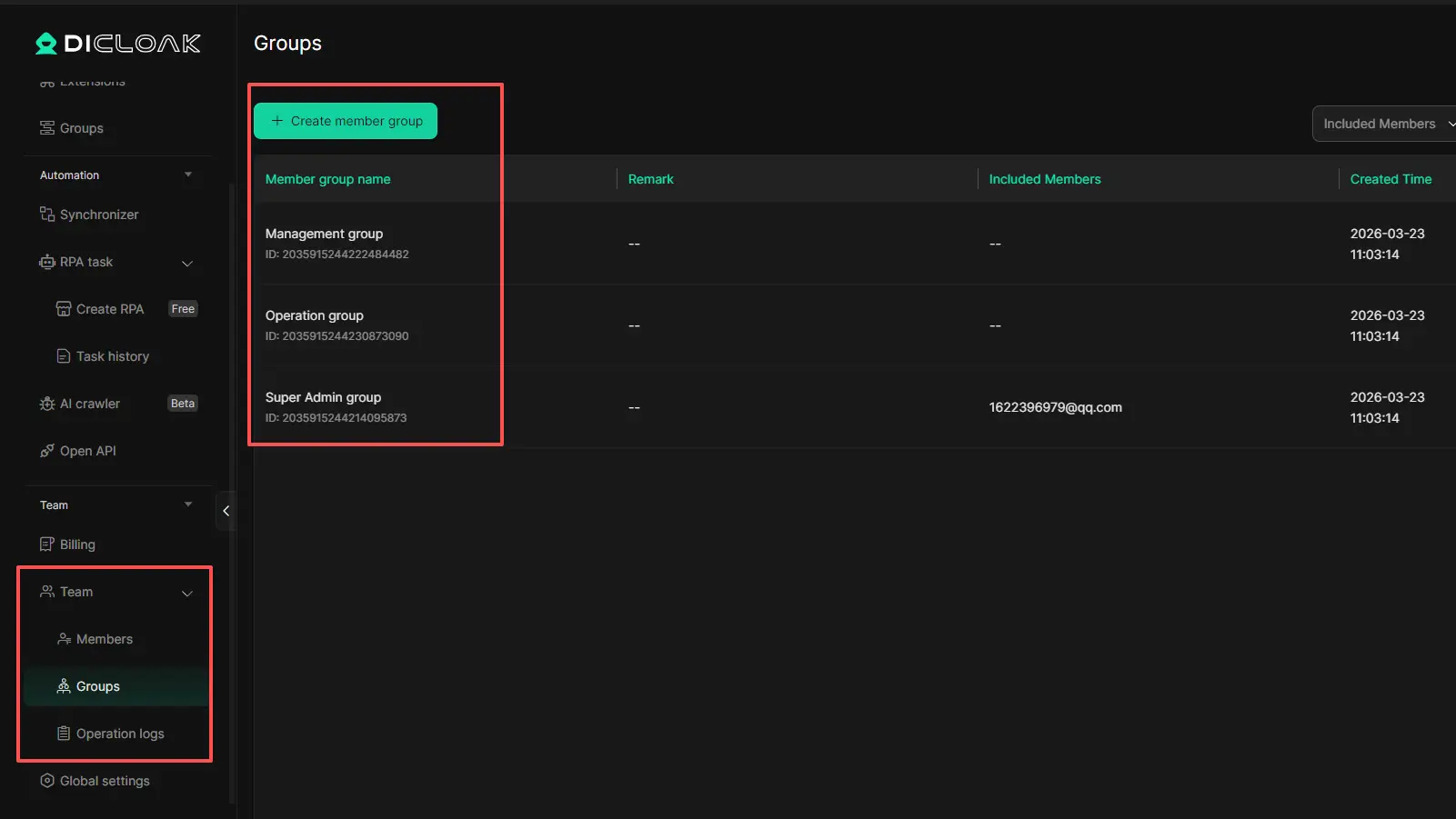
FAQs about What Is a Browser Fingerprint
Q1: What is a browser fingerprint?
A browser fingerprint is a set of details that websites collect from your browser and device to help identify your setup. It can include things like your browser version, screen size, language, time zone, fonts, and graphics settings. When these details are combined, they can make your browser look unique.
Q2: Why do websites use a browser fingerprint?
Websites use a browser fingerprint for different reasons. Some use it for tracking and advertising. Others use it for security, fraud detection, or account protection. That is why browser fingerprinting can be used for both business purposes and user monitoring.
Q3: Can a browser fingerprint track you without cookies?
Yes. A browser fingerprint can still help websites recognize your browser even if cookies are deleted. That is one reason browser fingerprinting is often seen as more persistent than cookie-based tracking.
Q4: Can you completely block a browser fingerprint?
No, not completely in most cases. You can reduce how much your browser fingerprint reveals by using privacy-focused settings, anti-fingerprinting tools, or a different browser setup. But fully blocking browser fingerprinting is difficult because many websites rely on normal browser data to work properly.
Q5: Does incognito mode stop a browser fingerprint?
Not fully. Incognito or private mode can reduce stored data like history and cookies, but it does not completely stop a browser fingerprint from being created. Websites may still read browser and device signals during your session.
Conclusion
A browser fingerprint is one of the less visible ways websites can recognize users online. Unlike cookies, it is built from browser and device details that can be collected again across visits. That is why it matters in 2026. Once you understand how browser fingerprinting works, it becomes easier to see both the privacy risks and the limits of common protections like private mode or simple cleanup steps. The best approach is to reduce unnecessary exposure, use privacy-focused settings wisely, and choose a browser setup that fits the level of control you actually need.
 Web Proxy Tools
 Free Tools
 Cookie Plugin
 UA Generator
 MAC Address Generator
 IP Generator
 IP Address List
 2FA Code Generator
 World Clock
 Anonymous Check
 WebRTC Leak Test
 UUID Generator
 Free Web Proxy Site
 Proxy Checker
 FB Ad Checker
 AI Web Scraping
 Free SMM Tools
 Twitter Shadowban Checker
 Instagram Name Checker
 UTM Generator
 Username Generator
 AI Hashtag Generator
 LinkedIn Headline Generator
 Social Media Image Resizer