You paste a proxy URL into Telegram, it connects, and then chat loading fails again within a minute. That loop is common when the link is dead, overloaded, or set up with the wrong protocol fields. Telegram supports proxy connections, and its official FAQ and MTProto documentation show the core pieces, but public link lists often mix working entries with broken ones. Some links use SOCKS, others use MTProto secrets, and that difference changes how you test and troubleshoot.
This guide gives you a practical workflow for telegram proxy links: where to find cleaner sources, how to test a link before you trust it, what failure signals to check in under two minutes, and how to set a safe fallback list on mobile and desktop. You will also see the common mistakes that waste time, like testing only connection status while skipping real message and media checks. Start with the filtering rules that help you reject bad links fast before you spend time on deeper testing.
What Should You Check Before Using Telegram Proxy Links?

Bad links fail in two ways: they do not connect, or they connect and still expose your account to avoidable risk. Before you open unknown telegram proxy links, run this fast filter from Telegram’s proxy FAQ and protocol docs for MTProto.
What red flags usually mean a proxy link is risky?
Reject links that come from repost chains with no original channel, no update time, and uptime claims like “100% always online.” Public proxies go down often. Honest lists show recent check times and failed nodes.
Reject links that open browser pages, ask for app installs, or request account actions outside Telegram’s native connect flow. A proxy link should only pass connection fields. It should not ask for contacts, files, or payment.
If the same host appears with random ports and no notes, skip it. That pattern often means copied lists, not tested nodes.
Which connection details should a valid Telegram proxy link provide?
A usable link needs server, port, and protocol type. For SOCKS, auth may be optional. For MTProto, a secret is usually required.
| Field |
Looks valid |
Reject if |
| Server |
IP or domain only |
Extra path/query junk |
| Port |
Number 1–65535 |
Missing or non-numeric |
| Protocol |
SOCKS5 or MTProto |
Not stated |
| Secret/Auth |
Present when protocol needs it |
Empty required field |
| Open behavior |
Opens Telegram connect screen |
Redirects outside Telegram |
Reference format details in SOCKS and Telegram docs.
How can beginners run a 60-second safety checklist before tapping Connect?
Check source reputation in 10 seconds: official channel, clear post history, recent timestamp.
Check link shape in 20 seconds: complete fields, no redirect behavior, no odd parameters.
Test in 30 seconds: connect on a low-risk session, send one text, load one image, then disconnect if delay spikes or reconnect loops start.
Use this quick rule: never test unknown telegram proxy links on your primary account first.
How Can You Tell Whether Telegram Proxy Links Are Actually Working?
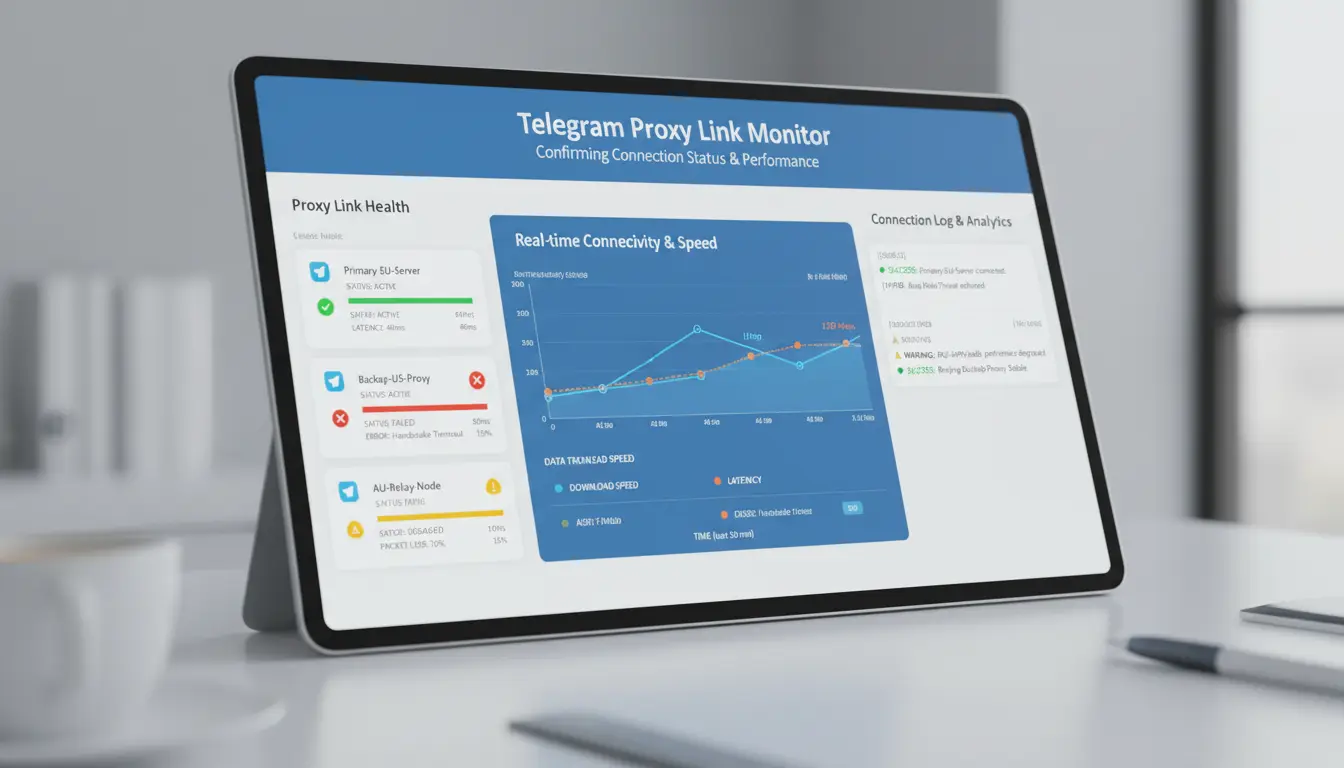
Do not trust a link just because Telegram shows “connected.” Test each link with a short, repeatable check. For telegram proxy links, your goal is steady use, not one lucky connect.
Which speed and stability checks matter most?
Run a 2-minute test on Wi-Fi and mobile data. Check four signals:
- Latency to connect (time until Telegram becomes usable)
- Handshake success (connects on the first try)
- Reconnect time after toggling airplane mode
- Short-session drop rate (drops during 10 quick actions: open chats, send text, load media)
A link can pass one handshake and still fail in normal use. Treat repeated reconnects as a failure, even if messages sometimes send.
| Check |
Pass |
Warning |
Fail |
| Connect latency |
<2s |
2-5s |
\\>5s or timeout |
| First-try handshake (10 tries) |
9-10 |
7-8 |
≤6 |
| Reconnect after network flip |
<3s |
3-8s |
\\>8s |
| Drops in 10 actions |
0 |
1 |
≥2 |
How do you detect mismatch problems between region, account behavior, and proxy endpoint?
Keep behavior consistent. If your account usually logs in from one country, then a far-away proxy endpoint can trigger extra checks or forced relogin. Watch for repeated code prompts and session resets. Use Telegram’s official proxy setup guide and match proxy type correctly: SOCKS link in SOCKS field, MTProto secret in MTProto field. Wrong type often looks like random instability.
When should you retire a link and switch to a backup?
Retire a link after two failed test rounds in one day, or if it hits any hard fail in the table twice. Keep three backups and rotate only after a clear fail. For team use, share one simple scorecard so everyone judges links the same way, then keep a clean list of tested telegram proxy links with last test time and result.
How Do You Add Telegram Proxy Links on Android, iPhone, and Desktop?
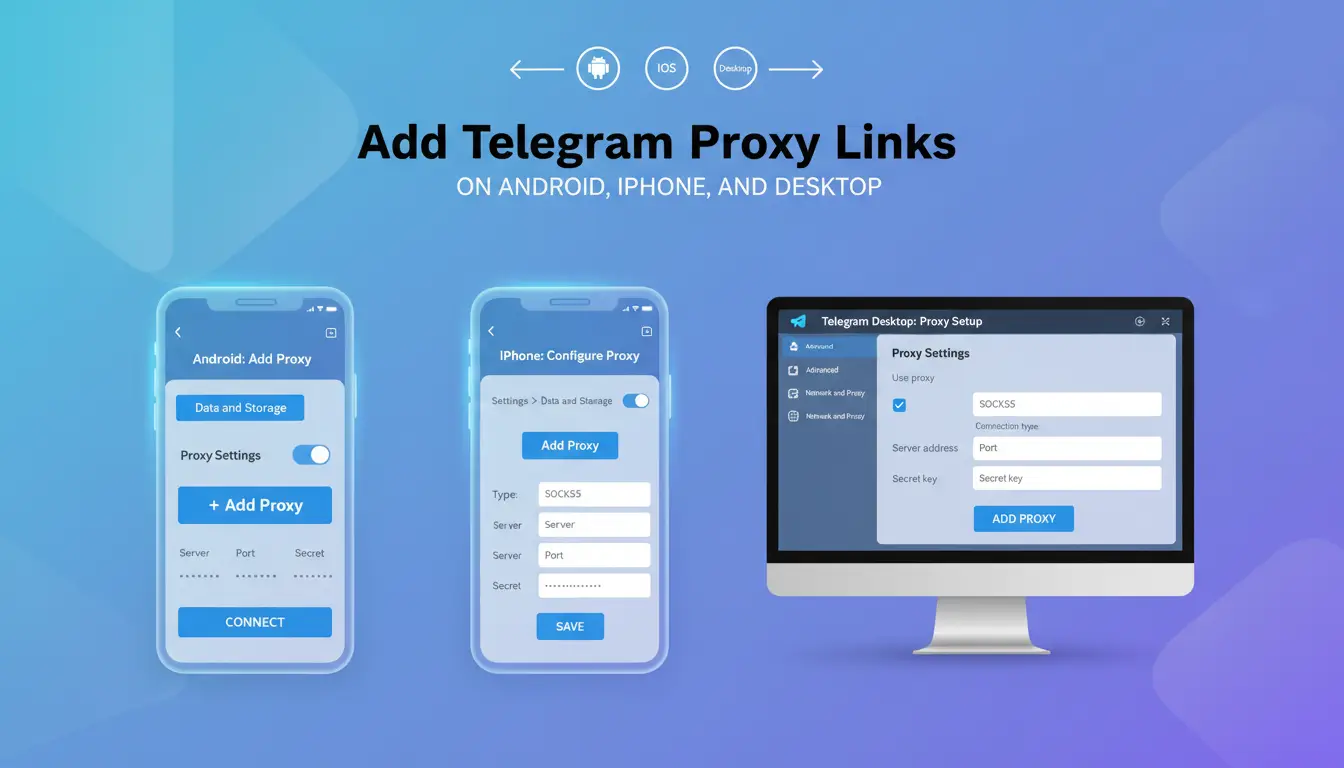
Use this flow when testing telegram proxy links from public channels or private lists. Telegram supports SOCKS5 proxy settings and MTProto proxy settings. You can install the latest clients from Telegram Apps.
What is the difference between one-tap Telegram proxy links and manual setup?
One-tap links are fast. Manual setup is slower, but you can spot copy errors before saving.
| Method |
Good for |
Risk point |
What to check |
One-tap link (tg://proxy...) |
Quick add from trusted source |
Hidden wrong host or port |
Open details screen before tapping Save |
| Manual fields |
Copying from docs or seller message |
Typo in secret, username, or port |
Match host, port, and auth field line by line |
If a shared link fails, copy its values into manual fields and save again. That catches bad URL encoding.
Step-by-step setup on Android, iOS, and Telegram Desktop
Android: Settings → Data and Storage → Proxy → Add Proxy. Choose SOCKS5 or MTProto, fill fields, Save, then toggle on.
iPhone: Settings → Data and Storage → Proxy → Add Proxy. Pick type, paste host and port, add secret or login data, Save, then enable.
Desktop: Settings → Advanced → Connection type → Use custom proxy → Add proxy. Enter values, Save, then turn it on.
Save at least two endpoints. Put your most stable one at the top. If one drops, switch to the next saved entry in one tap.
How do you confirm the proxy is active after setup?
Open Telegram and check proxy status in settings. It should show Connected. Then run real tests:
- Send a message to a contact
- Open a channel with images
- Upload a small file (1–5 MB)
If status says Connected but messages fail, switch to another saved proxy and retest. Run each test in under two minutes. If media stalls or sends fail, keep that proxy disabled and move on.
MTProto vs SOCKS5 Telegram Proxy Links: Which One Should You Use?
For telegram proxy links, protocol choice changes your day-to-day results: connect speed, drop rate, and setup time. MTProto docs and the SOCKS protocol spec describe different designs, and that difference shows up fast in real use.
When are MTProto proxy links the better fit?
MTProto is built for Telegram traffic, so setup in Telegram is direct: server, port, secret. In clean network conditions, it often reconnects quickly after short drops. It is a strong fit if Telegram is the only app you need through the proxy.
Limits show up in mixed workflows. MTProto is Telegram-only, so your browser or other chat apps cannot reuse the same proxy endpoint. Troubleshooting can also be harder for beginners because the secret must match exactly.
When does SOCKS5 make more sense for Telegram users?
SOCKS5 works across apps, not only Telegram. You can set one proxy in Telegram and reuse the same host and port in other tools. That makes account routines easier when you switch between desktop apps.
It also supports username/password auth, which helps when providers rotate access. The trade-off is setup variance: app behavior can differ by client, so reconnect patterns are less consistent than Telegram-native MTProto in some networks.
How to choose by scenario: casual messaging, heavy media, or multi-account routines
Pick MTProto for Telegram-only use, choose SOCKS5 for cross-app workflows.
| Scenario |
Speed sensitivity |
Reconnect tolerance |
Maintenance effort |
Better pick |
| Casual messaging |
Medium |
Low |
Low |
MTProto |
| Heavy media transfers |
High |
Low |
Medium |
Test both; keep faster stable link |
| Multi-account routines |
Medium |
Medium |
Medium/High |
SOCKS5 |
Why Do Free Telegram Proxy Links Die Quickly, and How Can You Keep a Stable Backup List?
Why public proxy lists become unstable fast
Free links fail fast for two practical reasons: crowd traffic and stale reposts. A link can work in the morning, then slow down or fail after shared groups push heavy traffic to one endpoint. Public channels also repost old entries without retesting.
The mix of protocols adds more failure points. Some links are SOCKS, some are MTProto. If your test method does not match the protocol, you may mark a good link as bad, or trust a bad one by mistake.
For telegram proxy links, check more than “connected” status. Send one text, load one image, and open one channel with media. That 60-second check catches weak links early.
How many backup links should you keep, and how often should you refresh?
Keep a small pool you can retest quickly, not a huge list you never verify.
| Use case |
Backup pool size |
Fast refresh |
Full retest |
Drop rule |
| Individual |
6-8 links |
Every 24 hours |
Every 7 days |
Remove after 2 failed tests |
| Team |
12-20 links |
Every 12 hours |
Every 3 days |
Remove after 2 failed tests |
Pick 2 “hot” backups with the best recent checks, then rotate others through retests. A short, clean list stays usable longer than a long, stale list.
How to track link health with a simple log
Use a plain sheet with four fields: source, added date, last test result, failure reason. Add one more field: replacement status (queued/replaced).
This log cuts downtime. When one link fails, you already know which backup passed recent tests and which source keeps sending dead links.
Team mistakes usually happen during handoff, not setup. One person edits a proxy, another logs in from a new environment, and the account starts throwing session alerts. With telegram proxy links, copy-paste sharing in chat creates hidden risk fast.
What risks appear when multiple people share Telegram accounts and proxy links?
When two people use the same account from mixed IP locations, Telegram may treat that pattern as abnormal behavior. If they also share one browser profile, cookies and device signals can overlap, which raises account linkage risk. Unmanaged shared access also creates basic confusion: nobody knows who changed the proxy, when it changed, or why messages stopped loading. You can see protocol basics in MTProto docs and proxy type differences in SOCKS, but teams still need process control.
How to set up isolated browser profiles with dedicated proxies in DICloak
Keep one account in one profile with one proxy. In DICloak, create a separate browser profile for each Telegram account. Bind one dedicated proxy to each profile. Do not reuse profiles across team members. Store a short note inside each profile: proxy type, link source, and last test time. That gives clean ownership and faster troubleshooting. For policy context, check Telegram FAQ and DICloak.
How do permissions, operation logs, batch actions, and RPA reduce human error?
Use role permissions so only approved staff can edit proxy settings. Keep login users separate from settings admins. Operation logs create an audit trail, so you can trace failures to one change event instead of guessing. Batch actions help apply the same safe setup to new profiles. RPA can run repeat checks, like opening Telegram Web and verifying message send.
| Area |
Unmanaged sharing |
Controlled workflow in DICloak |
| Proxy edits |
Anyone can change |
Permission-based edits |
| Troubleshooting |
Guesswork |
Timestamped operation logs |
| New account setup |
Manual, inconsistent |
Batch actions + RPA checks |
What Are the Most Common Telegram Proxy Link Errors and Fast Fixes?
Use this path when telegram proxy links fail. Check protocol type against MTProto rules and SOCKS format before changing app settings.
Why does Telegram show connected but messages still fail?
“Connected” only means the socket opened. It does not confirm stable message routing or media upload. Run a 2-minute check: send text, send a photo, open a channel, then switch from Wi-Fi to mobile data. If one step fails, your endpoint is unstable or fallback order is wrong.
| Error signal |
30-second check |
Fast fix |
| Connected, no sends |
Send text + photo |
Reorder proxy list, put tested link on top |
| Sends text, media fails |
Upload 5–10 MB file |
Change endpoint with lower packet loss |
| Works on Wi-Fi only |
Retry on mobile data |
Replace endpoint; local network route may block it |
How to troubleshoot timeout, auth failed, and endless reconnect loops
Timeout loops usually come from wrong port, bad secret, or protocol mismatch. Re-enter host, port, username/password or MTProto secret exactly. Then toggle proxy off/on and restart Telegram once.
If your team handles several accounts, random device switching can create new failures. You can use DICloak to map one Telegram account to one browser profile, each with its own proxy settings, so sessions stay isolated.
Tools like DICloak let you set role permissions and operation logs, so teammates do not share raw credentials. You can also run batch actions and RPA for repeat account tasks, cutting manual input mistakes during reconnect troubleshooting.
When should you replace the link immediately instead of fixing local settings?
Replace now if auth keeps failing after one clean credential re-entry, or reconnect loops continue across two networks and two devices. At that point, endpoint decay is likely. Keep a short backup list of tested telegram proxy links and switch fast instead of retesting dead entries.
When Should You Stop Relying on Public Telegram Proxy Links?
What are the signs your use case has outgrown public links?
Public lists work for light use, but they break fast under daily operations. Move on when you hit repeat failure patterns: two or more link failures in one workday, over 15 minutes spent checking links per shift, or missed reply windows in support chats. If login works but media upload stalls, treat that as a failure too. Use Telegram proxy setup guidance plus protocol checks from MTProto docs and SOCKS basics. If link maintenance starts taking more time than chat work, public links are no longer a fit.
What should you compare when choosing a private proxy source?
Compare service terms before you pay.
| Check item |
What to verify |
Why it affects day-to-day use |
| Uptime commitment |
Written SLA and refund terms |
Cuts random outages |
| Support speed |
Real response time during incidents |
Shortens downtime |
| Rotation control |
Sticky session length and manual switch |
Prevents session resets |
| Region choices |
City/country options |
Matches account activity region |
| Billing model |
Per-GB vs per-port plans |
Avoids paying for unused traffic |
How to migrate with minimal downtime
Start with a test group of 10% of accounts. Keep old and new routes in parallel for 48 hours. Define fallback: switch back after three failed sends in 10 minutes. Track send success rate, media send delay, and reconnect count after cutover. Keep two backup telegram proxy links only for emergency failover, not daily use.
Frequently Asked Questions
Are telegram proxy links legal to use in every country?
Lawful use of telegram proxy links changes by country. Some places allow privacy tools, while others restrict traffic obfuscation or unregistered proxy services. Your purpose also matters: normal access is treated differently from fraud or abuse. Check telecom rules, censorship laws, and Telegram’s Terms of Service before you connect.
How often should I replace telegram proxy links for stable performance?
Do not rotate telegram proxy links on a fixed daily timer. Replace a link when you see repeated timeouts, big speed drops, or frequent disconnects during normal use. Run quick health checks every few days: open chats, send media, and test reconnect time. Keep one backup link ready for failover.
Can I use the same telegram proxy links on multiple devices at once?
Yes, you can use the same telegram proxy links on multiple devices, but shared endpoints can get crowded. More devices mean more requests, which can trigger rate pressure or temporary blocks on weak proxies. Keep login behavior consistent across devices, avoid rapid location jumps, and monitor each device for connection errors.
Do telegram proxy links affect voice calls, media downloads, or upload speed?
Telegram proxy links can change call quality and transfer speed. Voice calls need low latency, while media uploads and downloads need steady bandwidth. A busy endpoint may cause jitter, buffering, or slow progress bars. Test each activity type separately: place a short call, download a large file, and upload a video clip.
Can telegram proxy links hide my phone number from Telegram contacts?
No. Telegram proxy links only route your internet traffic to Telegram servers. They do not edit account identity fields or contact settings. If you want fewer people to see your number, change Telegram privacy options: set Phone Number visibility to “Nobody” and control who can find you by number.
Telegram proxy links can help restore reliable access to Telegram in restricted networks, but the best results come from choosing trusted sources and rotating links when performance drops. By prioritizing security, speed, and consistency, users can stay connected while reducing privacy risks and interruptions.
Try DICloak For Free
 Web Proxy Tools
 Free Tools
 Cookie Plugin
 UA Generator
 MAC Address Generator
 IP Generator
 IP Address List
 2FA Code Generator
 World Clock
 Anonymous Check
 WebRTC Leak Test
 UUID Generator
 Free Web Proxy Site
 Proxy Checker
 FB Ad Checker
 AI Web Scraping
 Free SMM Tools
 Twitter Shadowban Checker
 Instagram Name Checker
 UTM Generator
 Username Generator
 AI Hashtag Generator
 LinkedIn Headline Generator
 Social Media Image Resizer