Pinterest is useful for ideas, shopping, and inspiration, but the ads can quickly take over the feed. Many users look for a Pinterest ad blocker because promoted Pins often blend in with normal content and keep showing up even after they try to hide them. The problem is that Pinterest does not offer a built-in way to remove all ads. Its settings can reduce ad personalization, but they cannot fully stop sponsored content. That is why many users turn to browser extensions, privacy settings, and other workarounds to make Pinterest easier to use. In this guide, you will see what works, what does not, and the safest ways to reduce Pinterest ads in 2026.
Can You Really Block Pinterest Ads in 2026?
Yes, but only up to a point. A Pinterest ad blocker can hide many promoted Pins in a desktop browser, especially when you use a strong extension with current filter rules. But it cannot promise a perfect, permanent ad-free feed. Pinterest still serves ads inside its platform, and the site can change how those ads appear. That is why one user may feel an ad blocker for Pinterest works well on Chrome, while another still sees a few sponsored posts after a Pinterest update.
What a Pinterest ad blocker can and cannot do
A good Pinterest ad blocker can remove many visible ad elements, such as promoted posts mixed into the home feed. For example, if you browse Pinterest on a laptop with a content blocker installed, your feed may look cleaner because the extension filters ad-related page elements before they fully load. Tools like uBlock Origin Lite and AdBlock are built to block ads and trackers in the browser, which is why they are often the first tools people try when they want to block ads on Pinterest. But these tools do not control Pinterest itself. They do not turn off Pinterest ads at the account level, and they do not stop Pinterest from being an ad-supported platform. They also may not catch every ad if Pinterest changes its page structure or labels.
Why Pinterest settings reduce ads but do not remove them completely
Pinterest does give users some control, but that control is limited. In Privacy and data settings, users can change options like using info from sites they visit, partner info, ads about Pinterest, and activity for ads reporting. These settings can reduce how personalized ads feel. They can also make the ad experience less targeted over time.
Still, Pinterest says you cannot turn off ads completely. The platform only lets you limit the kinds of information used to choose which ads you see. It also lets you block specific advertisers, with a limit of up to 1,000 advertisers. So if you were hoping Pinterest settings alone would fully block ads on Pinterest, that will not happen. They are better for reducing ad relevance than removing ads from the feed.
Desktop vs. mobile: where ad blocking works better
Desktop usually works better. That is because browser extensions are built for desktop browsers like Chrome, Firefox, Edge, and Safari. AdBlock officially offers versions for Chrome, Firefox, Edge, Safari, iOS, and Android, but browser-based blocking is still much easier to control on desktop than inside the Pinterest mobile app. In real use, that means an ad blocker for Pinterest often works best when you open Pinterest in a desktop browser instead of the app.
Mobile is more limited, especially inside the app. If you use Pinterest in the app, you usually cannot rely on the same extension-based setup that works on desktop. A more practical option is to use Pinterest in a mobile browser with ad-blocking support, then compare the experience. For many users in 2026, that is the simplest answer: if your goal is to make a Pinterest ad blocker work better, start on desktop first, then test mobile browser options after that.
How to Block Pinterest Ads with Browser Extensions
If the first section made one thing clear, it is this: a Pinterest ad blocker works best in a browser, not through Pinterest’s own settings. Pinterest can still show ads in the home feed and search results, because ads are part of the platform. That is why many users who want to block ads on Pinterest turn to browser extensions first. Pinterest itself says ads appear as promoted Pins in places like the home feed and search results, so the most practical way to reduce them is usually to filter them in the browser before they fully load.
How to use uBlock Origin for Pinterest
A common starting point is uBlock Origin on Firefox or uBlock Origin Lite on Chrome. On Firefox, uBlock Origin is still available as an extension. On Chrome, the official option many users now install is uBlock Origin Lite, which says it blocks ads, trackers, miners, and more right after installation.
The setup is simple. First, install the extension from the official store for your browser. Then open Pinterest in a new tab and refresh the page once. After that, scroll your home feed and search results to see whether promoted Pins are reduced. For many people, that first step already makes the feed feel cleaner. If ads still show up, open the extension settings and make sure the default filter lists are active. uBlock Origin Lite says its default rules already include built-in filter lists, EasyList, EasyPrivacy, and Peter Lowe’s list, so you are not starting from zero.
How to use AdBlock or similar extensions on Pinterest
AdBlock is another common choice if you want an ad blocker for Pinterest that is easy to install and use. AdBlock says its extension removes ads and helps protect against third-party trackers, and it offers versions for major browsers.
The easiest method is to install AdBlock from the official site or browser store, open Pinterest, and reload the page. Then check your feed, related Pins, and search pages. If you still notice sponsored content, make sure the extension is turned on for Pinterest and not paused for that site. This sounds obvious, but it is a very common mistake. Some users install an extension and forget that it is disabled on one site or one browser profile.
You can use similar tools too, but the same rule applies: install from official sources, test on desktop first, and keep expectations realistic.
Which browsers work best with Pinterest ad blockers
Desktop browsers usually work best if your goal is to block ads on Pinterest. Chrome, Firefox, and Edge are the most practical choices because they support widely used ad-blocking extensions. Firefox still offers uBlock Origin directly through Mozilla’s add-on store, while Chrome offers uBlock Origin Lite through the Chrome Web Store. AdBlock also says it works on Chrome, Safari, Firefox, and Edge, with additional mobile support on Android and iOS.
In real use, Firefox and Chrome-style desktop browsers are often the easiest places to start because extension support is clear and setup is fast. Mobile is different. Even when an ad blocker brand supports mobile in some form, the Pinterest app does not work the same way as a desktop browser page. That is why users who want a better result from a Pinterest ad blocker often test Pinterest in a mobile browser instead of the app. It gives them more control and makes troubleshooting easier.
So if you want the simplest path, start here: install one trusted browser extension, test it on desktop Pinterest first, refresh the page, and compare your feed before and after. That gives you a clear baseline before you try harder fixes.
How to Reduce Pinterest Ads Without an Ad Blocker
If you do not want to install a Pinterest ad blocker, you still have a few useful options. They will not fully remove ads, but they can make Pinterest feel less crowded and less repetitive. This is the key difference: a Pinterest ad blocker tries to hide ads in the browser, while Pinterest’s own settings only change how ads are chosen and shown to you. Pinterest says you cannot turn off ads completely, but you can limit some of the data used for ad selection and block specific advertisers.
How to change your ad personalization settings on Pinterest
One of the easiest ways to reduce ad pressure is to change your Privacy and data settings. Pinterest lets users control several ad-related options, including “Use info from sites you visit,” “Use of partner info,” “Ads about Pinterest,” and “Activity for ads reporting.”
- On desktop, you can go to Settings > Privacy and data and check or uncheck these items.
- On mobile, you can open your profile, go into settings, and toggle the same options there.
This matters in real use. For example, if you looked at a lot of kitchen blogs or saved many home makeover Pins last week, Pinterest may use that activity to shape future recommendations and ads. Turning off some of those personalization settings can make the feed feel less sharply targeted over time. But it is important to stay realistic: this is not the same as using an ad blocker for Pinterest. These settings may reduce how relevant ads feel, but they do not fully block ads on Pinterest. Pinterest says ads can still appear even after you change personalization settings.
How to block specific advertisers on Pinterest
If the same brand keeps showing up in your feed, you can block that advertiser directly. Pinterest says users can block an advertiser’s Pinterest profile, and the platform allows blocking up to 1,000 advertisers. That can be very helpful when one store or product category keeps coming back and making the feed feel repetitive.
This method works best when the problem is not “too many ads” in general, but “too many ads from the same advertiser.” For example, if you keep seeing the same skin care brand or furniture shop every few scrolls, blocking that advertiser can clean up your experience faster than waiting for the algorithm to adjust. It is still not a replacement for a Pinterest ad blocker, but it is one of the most useful built-in tools Pinterest gives regular users.
How to make your Pinterest feed feel less ad-heavy
You can also make the feed feel lighter by giving Pinterest better feedback. Pinterest says if you see an ad that does not interest you, you can hide it, and your feedback helps the platform show more relevant ads in the future. This will not remove all sponsored content, but it can reduce how annoying the feed feels. Imagine your home feed is full of wedding products, but you only clicked one bridal Pin for a friend last month. In that case, hiding those ads, blocking repeat advertisers, and turning down ad personalization can slowly push the feed in a better direction. So while a Pinterest ad blocker is still the stronger option for people who want to block ads on Pinterest more aggressively, Pinterest’s own tools are still worth using, especially if you want a simpler setup with no extra extension installed.
Why Your Pinterest Ad Blocker Is Not Working
If Pinterest still looks full of sponsored Pins after everything you tried in the last section, that does not always mean your setup failed. A Pinterest ad blocker can work well one day and feel weaker the next, especially on a platform like Pinterest where ads appear in the home feed, search results, and related content areas. Since promoted Pins are built into normal browsing spaces, even a good ad blocker for Pinterest may need updates or small fixes to keep working well.
Common setup mistakes that stop blockers from working
The first problem is often simple. The extension may be installed, but not fully active on Pinterest. Some users forget to refresh the page after installing it. Others pause the blocker on one site, use the wrong browser profile, or never check whether the filter lists are up to date. AdBlock’s own help center says users can manually update filter lists from the extension settings, and that step alone can fix many display issues.
Another common issue is weak default filtering. For example, you may install a Pinterest ad blocker, open Pinterest once, still see promoted Pins, and assume the tool does not work. But uBlock Origin Lite says extra rulesets can be enabled from its options page. That means the extension may need stronger settings before it does the job you expected. In real use, this matters when ads blend into normal Pins and need more than the lightest default filtering.
How Pinterest updates can break ad blocker rules
Pinterest changes how content is placed and shown. Its own help pages explain that ads can appear in the home feed, search results, related Pins, and other placements. When that layout changes, an older filter rule may stop matching the ad element it used to hide. So your ad blocker for Pinterest might not actually be broken. It may just be using rules built for an older version of the page.
This is why two people can have very different results at the same time. One person on Firefox with a fresh ruleset may feel their Pinterest ad blocker works fine. Another person on a different browser, or with stale filters, may still see sponsored posts in search. That does not mean you can never block ads on Pinterest. It usually means the blocker and the site are playing catch-up with each other. AdBlock also notes that some customization options changed in newer Chrome versions because of Manifest V3, which can affect how people fine-tune filtering.
Simple troubleshooting steps that often fix the issue
Start with the easiest fix: refresh Pinterest, then update your extension’s filter lists. AdBlock’s official support says to use the extension settings and click update now on the Filter Lists page. If that does not help, restart the browser. That simple routine solves more problems than many users expect.
If ads still remain, check whether the extension is actually enabled for Pinterest, then open the extension options and look for stronger filtering or extra rulesets. With uBlock Origin Lite, the official Chrome Web Store page says you can enable more rulesets from the options page. If you use AdBlock and want tighter control, its help center also explains how to add custom filters manually. That can help when standard rules miss a specific ad pattern on Pinterest.
One last tip: test Pinterest in a clean desktop browser session before changing too many things at once. Open Pinterest, scroll the home feed, then run the same check in search results. If the feed looks cleaner in one browser but not another, the issue is often the setup, not Pinterest itself. That kind of side-by-side test is one of the fastest ways to see whether your Pinterest ad blocker needs a refresh, a rules update, or a better browser profile to block ads on Pinterest more consistently.
Are Pinterest Ad Blockers Safe to Use?
If your Pinterest ad blocker is working now, the next question is safety. In most cases, a trusted extension is fine. But not every tool is equal. Some blockers can hide more than just ads, and some low-quality extensions may ask for too much access.
Can ad blockers break parts of Pinterest?
Yes, sometimes. A Pinterest ad blocker hides page elements in your browser. If the rule is too broad, it may also hide normal Pins, search results, or leave empty gaps in the feed. For example, if you search on Pinterest and part of the page looks broken, the blocker may be filtering too much.
How to spot risky or low-quality ad blocker extensions
A safer ad blocker for Pinterest usually comes from an official browser store, shows a clear publisher name, and explains what it does. Be careful with tools that promise to block ads on Pinterest but give little detail, look outdated, or ask for broad access without a clear reason. A visible privacy policy is also a good sign.
What extension permissions you should check first
Before installing a Pinterest ad blocker, check what permissions it asks for. Some site access is normal, because the tool needs to filter content on Pinterest pages. But if the permissions feel too broad for a simple blocker, that is a warning sign. A good habit is to install only from official stores, read the permission screen, and test whether the extension blocks ads without breaking Pinterest.
Best Features to Look for in a Pinterest Ad Blocker
After checking safety, the next step is choosing the right tool. Not every Pinterest ad blocker works the same way. Some are easier to use. Some give you more control. If your goal is to block ads on Pinterest without breaking the page, a few features matter much more than the brand name. Tools like uBlock Origin and AdBlock both support filter lists and custom filters, which is important when Pinterest changes how ads appear.
Why custom filter support matters for Pinterest
Pinterest changes its layout often. When that happens, old rules may stop hiding promoted Pins. That is why custom filter support matters. A strong ad blocker for Pinterest should let you update filter lists or add custom rules when needed. uBlock Origin supports “My filters,” and AdBlock also lets users edit custom filters in settings.
For example, if your blocker removes most ads but a few sponsored Pins still show in search, custom filters can help fix that faster. This does not mean every user needs to write rules by hand. It means the best Pinterest ad blocker gives you room to adjust when default settings are not enough.
Free vs. paid ad blockers: what really changes
Free versions are often enough for basic ad blocking. Many users can already block ads on Pinterest with a free browser extension and updated filter lists. Paid plans usually add extra tools, not basic Pinterest filtering. For example, AdBlock Premium highlights added features like cookie banner blocking, pop-up blocking, auto-play video blocking, enhanced privacy protection, and VPN access.
So the real question is not “paid or free?” It is “what problem are you solving?” If you only want a simple Pinterest ad blocker, free may be enough. If you also want stronger privacy tools or more control over distractions across many sites, a paid option may feel more useful.
Features that matter more than brand names
The most useful features are simple. Look for good filter list support, custom filter options, easy updates, and clear controls. uBlock Origin Lite says users can enable more rulesets from the options page, and AdBlock lets users manually update filter lists. Those features matter more than a familiar name, because they help the blocker keep up when Pinterest changes.
In practice, the best ad blocker for Pinterest is the one that stays easy to manage. If it updates well, gives you control, and does not make Pinterest hard to use, it is probably a better choice than a famous tool with fewer useful settings.
When a Separate Browsing Setup Helps More Than an Ad Blocker
A Pinterest ad blocker is useful if your main goal is to hide promoted Pins. But sometimes ads are not the only problem. If you manage more than one Pinterest account, switch between workflows often, or share access with a team, a separate browsing setup may help more than trying to block ads on Pinterest alone.
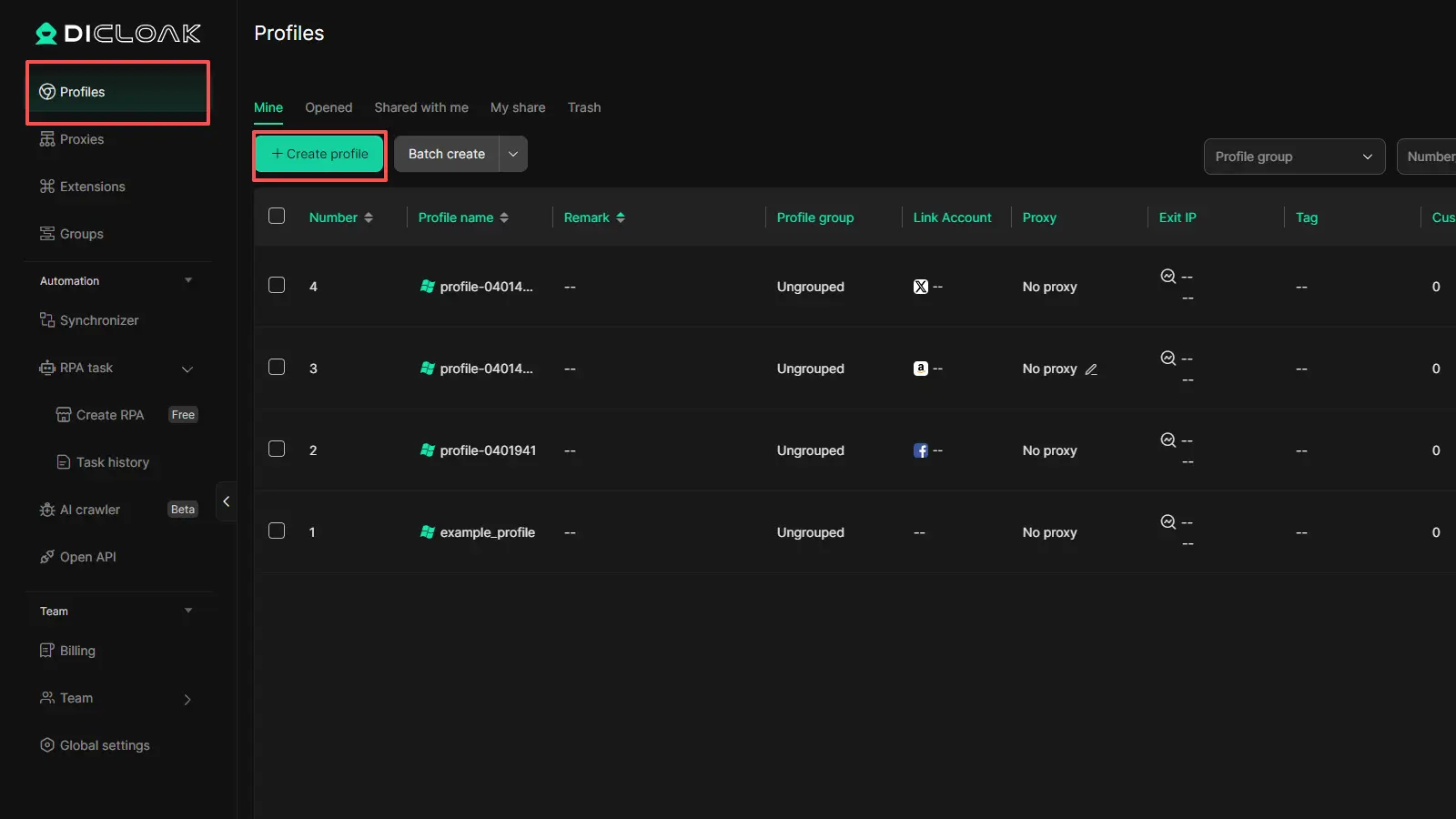
DICloak is not a Pinterest ad blocker. It does not remove ads from the feed like a browser extension does. It is built for isolated browser profiles, custom fingerprints, proxy setup, and account management. So it fits better when the real issue is account separation, not just ads.
How isolated browser profiles can help keep Pinterest sessions separate
If you use different Pinterest accounts for different tasks, keeping them in one browser can get messy fast. Cookies, logins, and saved sessions can overlap. DICloak gives each profile its own isolated browser profile, which makes it easier to keep Pinterest sessions separate and more organized.
When DICloak makes sense for multi-account or team workflows
DICloak makes more sense when Pinterest is part of a larger workflow. It supports profile sharing, permission settings, data isolation, and bulk profile management, which can be useful for teams or users handling multiple accounts. In that case, it is not replacing an ad blocker for Pinterest. It is helping create a cleaner and easier setup around the work itself.
FAQs about Pinterest Ad Blocker
Q1: What is a Pinterest ad blocker?
A Pinterest ad blocker is a browser tool or extension that helps hide promoted Pins and other ad content while you browse Pinterest. It does not change Pinterest itself. It works inside your browser and tries to filter ads before they fully load on the page.
Q2: Can a Pinterest ad blocker remove all Pinterest ads completely?
No, a Pinterest ad blocker can reduce many ads, but it may not remove every promoted Pin all the time. Pinterest updates its layout often, so some ads may still appear. That is why many users can block most ads on Pinterest, but not always every single one.
Q3: Why is my Pinterest ad blocker not working?
A Pinterest ad blocker may stop working if the extension is turned off, the filter lists are outdated, or Pinterest changes how ads are shown. In some cases, refreshing the page, updating the extension, or switching to a better-supported browser can help fix the issue.
Q4: Does a Pinterest ad blocker work on mobile devices?
Sometimes, but results are usually better on desktop. A Pinterest ad blocker often works best in desktop browsers with extension support. On mobile, blocking ads inside the Pinterest app is harder, so many users get better results by opening Pinterest in a mobile browser instead.
Q5: What is the best way to use a Pinterest ad blocker safely?
The safest way to use a Pinterest ad blocker is to install it from an official browser store, review the permissions before turning it on, and test whether it blocks ads without breaking Pinterest’s layout. A good blocker should help block ads on Pinterest while still letting the site work normally.
Conclusion
A Pinterest ad blocker can make Pinterest much easier to use in 2026, especially on desktop browsers. But it is important to stay realistic. No tool can promise a perfect ad-free experience all the time, because Pinterest can change how ads appear. For most users, the best approach is simple: use a trusted blocker, keep it updated, adjust Pinterest’s own settings, and choose a cleaner browser setup when needed. That way, you can reduce distractions, keep the feed more useful, and spend more time on the content you actually want to see.
 Web Proxy Tools
 Free Tools
 Cookie Plugin
 UA Generator
 MAC Address Generator
 IP Generator
 IP Address List
 2FA Code Generator
 World Clock
 Anonymous Check
 WebRTC Leak Test
 UUID Generator
 Free Web Proxy Site
 Proxy Checker
 FB Ad Checker
 AI Web Scraping
 Free SMM Tools
 Twitter Shadowban Checker
 Instagram Name Checker
 UTM Generator
 Username Generator
 AI Hashtag Generator
 LinkedIn Headline Generator
 Social Media Image Resizer